
Product Overview
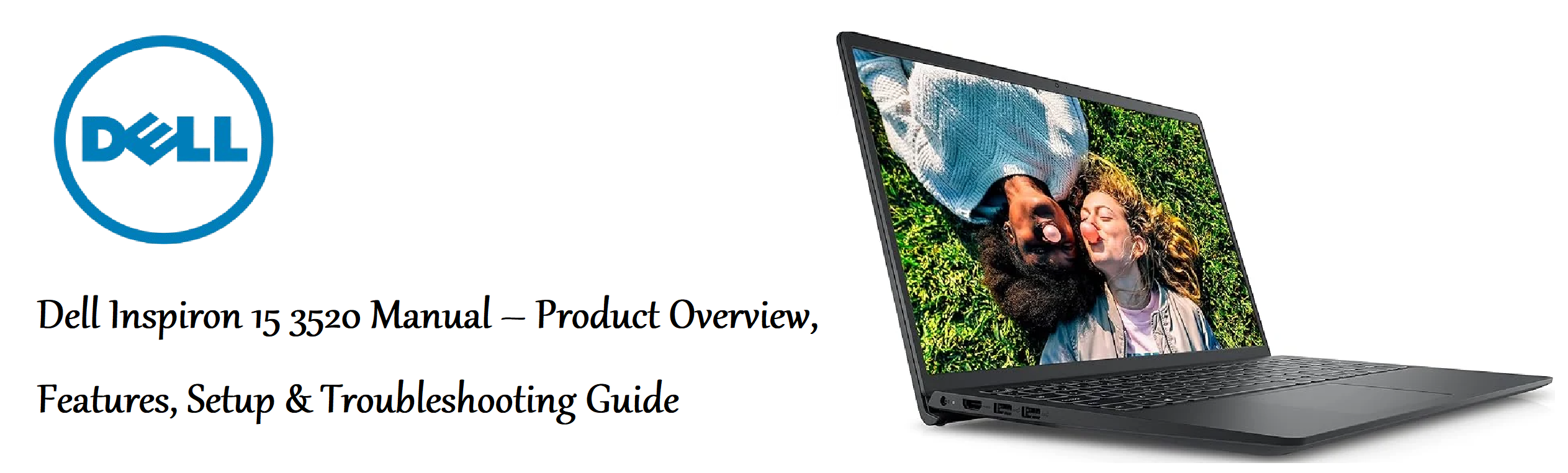
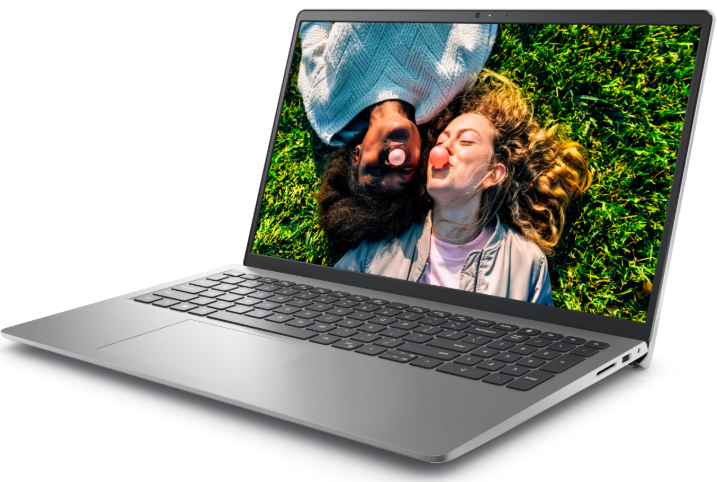
The Dell Inspiron 15 3520 is a 15.6‑inch laptop designed for everyday tasks: web browsing, office work, streaming, and light photo editing. It’s powered by 12th‑generation Intel Core i3 or i5 processors, with integrated Intel UHD or Iris Xe graphics. The plastic chassis keeps the weight reasonable (about 1.7 kg), and it includes a full‑size keyboard with a numeric keypad. It’s available in configurations with 8 GB or 16 GB of RAM and a 256 GB or 512 GB NVMe SSD. The laptop runs Windows 11 Home out of the box.
Key Features
- 15.6‑inch Full HD Display: The 1920 x 1080 anti‑glare screen provides clear visuals for documents, videos, and everyday browsing. Some configurations include a touchscreen.
- 12th‑Gen Intel Core Processors: Choose between Core i3‑1215U (6‑core) or Core i5‑1235U (10‑core). Both provide smooth multitasking for typical home and office workloads.
- DDR4 RAM & NVMe SSD: The laptop uses upgradeable DDR4‑3200 RAM and a PCIe NVMe M.2 SSD. Both can be replaced or expanded.
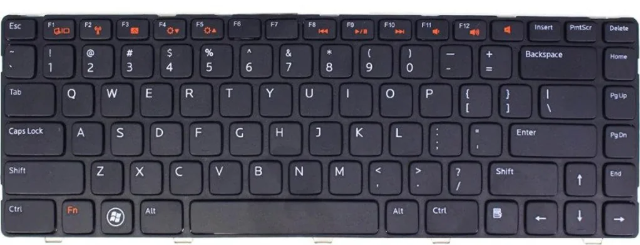
- Full‑Size Keyboard with Numeric Keypad: Includes a dedicated number pad, large keycaps, and a precision touchpad with Windows 11 gesture support.
- USB‑C & HDMI Ports: One USB‑C 3.2 port (data only), two USB‑A 3.2 ports, one HDMI 1.4 port, an SD card reader, and a headphone jack. The USB‑C port does not support charging or video output.
- 720p HD Webcam with Privacy Shutter: The webcam is adequate for video calls. A physical privacy shutter slides over the lens when you don’t want to be seen.
- Dell ComfortView: Software‑based low blue light solution that reduces eye strain during long working sessions. It can be toggled on or off in Dell CinemaColor.
-
Waves MaxxAudio Pro: Tuned speakers and microphone with preset audio profiles for music, movies, and voice calls.
How to Use
First‑Time Setup
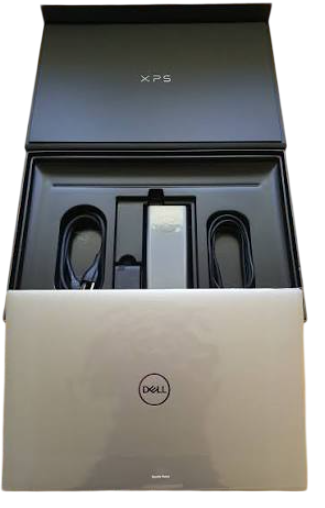
- Unbox the laptop: Remove all packaging and the protective film from the screen. Connect the power adapter and plug it into a wall outlet.
- Power on: Press the power button (located above the keyboard, on the right side). The Dell logo appears, and Windows 11 will start its Out‑Of‑Box Experience (OOBE).
- Follow the on‑screen prompts: Select your region, keyboard layout, and connect to Wi‑Fi. Sign in with your Microsoft account or create a local account.
- Windows updates: Once you reach the desktop, open Settings > Windows Update and install all pending updates. This ensures you have the latest drivers and security patches.
- Dell SupportAssist: The pre‑installed Dell SupportAssist app checks for Dell‑specific driver and firmware updates. Open it, run Get Drivers & Downloads, and install any recommended updates.
Keyboard Shortcuts
| Shortcut | Action |
|---|---|
| Fn + Esc | Toggle Fn lock (make F1‑F12 act as standard function keys) |
| Fn + F1 | Mute / unmute audio |
| Fn + F2 | Volume down |
| Fn + F3 | Volume up |
| Fn + F4 | Mute / unmute microphone |
| Fn + F5 | Toggle keyboard backlight brightness (on models with backlit keyboard) |
| Fn + F6 | Screen brightness down |
| Fn + F7 | Screen brightness up |
| Fn + F8 | Switch display mode (laptop screen, external monitor, or both) |
| Fn + F10 | Print Screen |
| Fn + F11 | Home |
| Fn + F12 | End |
Connecting an External Monitor
The laptop’s HDMI 1.4 port supports one external display at up to 1920 x 1080 resolution at 60 Hz. Connect an HDMI cable, then press Win + P to choose Duplicate, Extend, or Second screen only. The USB‑C port does not support video output.
Using the SD Card Reader
The full‑size SD card slot is on the right edge. Insert the card until it clicks. Windows will recognize it as a removable drive. To remove the card, push it in gently until it clicks and pops out.
Upgrading RAM and Storage
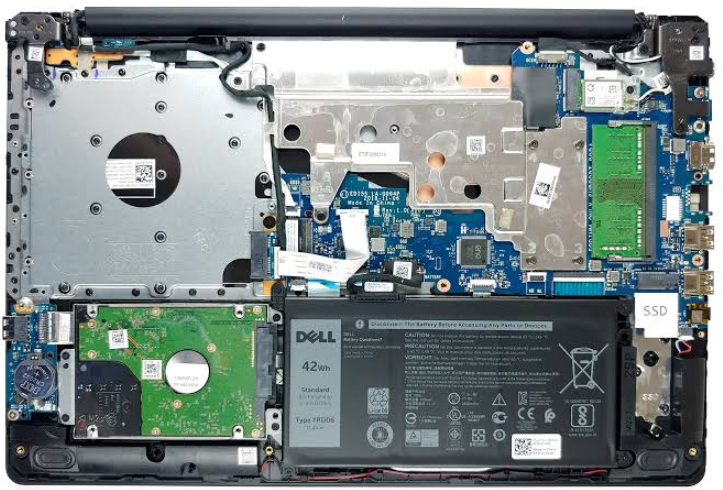
The Inspiron 3520 allows user‑upgradeable RAM and storage. You’ll need a small Phillips screwdriver and a plastic pry tool.
- Shut down the laptop and disconnect the power adapter.
- Remove all screws from the bottom panel. Starting from a corner near the hinge, use a plastic pry tool to gently unclip the panel. It snaps off.
- Disconnect the battery by gently pulling the battery cable out of its connector on the motherboard. This is an important safety step.
- RAM upgrade: The laptop has two DDR4 SODIMM slots. To add RAM, align the new stick at an angle, slide it into the slot, and press down until the clips snap.
- SSD upgrade: The M.2 2280 NVMe SSD is held by a single screw. Remove the screw, slide the old drive out, and insert the new one at an angle before securing with the screw.
- Reconnect the battery, snap the bottom panel back on, and replace the screws.
Troubleshooting & Common Problems
| Problem | Likely Cause | What to Try |
|---|---|---|
| Laptop won’t turn on | Battery drained, or power adapter issue | Connect the power adapter and wait 5 minutes. Try a different wall outlet. Press and hold the power button for 15 seconds, then try again. |
| Screen flickering or black | Driver issue or loose display cable | Press Win + Ctrl + Shift + B to reset the graphics driver. Update the Intel Graphics driver via Dell SupportAssist. |
| Wi‑Fi keeps disconnecting | Driver issue or power management | Open Device Manager > Network adapters, right‑click the Intel Wi‑Fi adapter, choose Properties > Power Management, and uncheck “Allow the computer to turn off this device.” Also update the Wi‑Fi driver. |
| Keyboard or touchpad not working | Driver issue, or accidental disable | Check that the touchpad isn’t disabled (Fn + T key on some models, or look for a touchpad toggle in the function row). Restart the laptop. Update drivers via Dell SupportAssist. |
| Battery draining quickly | Background apps, or battery aging | Check Settings > System > Power & battery > Battery usage. Reduce screen brightness. If the battery is over 2 years old, its health may have degraded. Run a battery test in Dell SupportAssist. |
| SD card not recognised | Card not inserted fully, or driver issue | Push the card in until it clicks. In Device Manager, expand Memory technology devices and check for errors. Restart the laptop with the card inserted. |
| Webcam not working | Privacy shutter closed, or driver issue | Slide the privacy shutter open. In Settings > Privacy & security > Camera, ensure camera access is turned on. Update the webcam driver. |
Common Problems Quick List
- Laptop feels slow: Run Disk Clean‑up, disable startup programs in Task Manager, and check for malware with Windows Security. Consider upgrading the RAM if you only have 4 GB.
- USB ports not working: Restart the laptop. Check for debris in the ports. Update the chipset driver via Dell SupportAssist.
- No sound: Click the speaker icon in the taskbar and ensure the correct playback device is selected. Run the Windows audio troubleshooter.
- Laptop overheating: Use the laptop on a hard, flat surface. Clean the air vents with compressed air. Avoid using it on a bed or pillow.
Frequently Asked Questions
- Does the Inspiron 15 3520 support a second SSD?
Some configurations include a 2.5‑inch SATA drive bay. You can install a 2.5‑inch SSD or HDD in that bay. The M.2 slot for the NVMe drive is separate. - Can I charge the laptop via USB‑C?
No, the USB‑C port on this model does not support power delivery. You must use the included barrel‑type Dell power adapter. - Does the laptop have a backlit keyboard?
It depends on the configuration. Models with a backlit keyboard have the keyboard backlight icon on the F5 key. If your F5 key doesn’t have that icon, your laptop does not have a backlight. - How do I enter the BIOS?
Restart the laptop and press F2 repeatedly at the Dell logo. To access the one‑time boot menu, press F12. - Can I run Linux on this laptop?
Yes. Ubuntu, Linux Mint, and Fedora generally work well. Wi‑Fi and Bluetooth may require proprietary drivers; keep a USB Ethernet adapter handy during installation if Wi‑Fi isn’t detected out of the box. - How do I factory reset the laptop?
Go to Settings > System > Recovery > Reset this PC. Choose Keep my files or Remove everything. You can also use Dell SupportAssist OS Recovery by pressing F12 at startup and selecting SupportAssist OS Recovery.
Tips
- Use Dell Power Manager: Pre‑installed on most units, this app lets you set battery charging thresholds (e.g., stop at 80%) to extend battery lifespan. If it’s not installed, download it from the Microsoft Store.
- Keep drivers updated: Dell SupportAssist scans for Dell‑specific updates. Run it once a month. For graphics drivers, you can also use Intel Driver & Support Assistant.
- Clean the vents: Every 3 months, use compressed air to blow dust out of the bottom and side air vents. Overheating is a common cause of performance throttling.
- Create a recovery drive: Use a 16 GB USB drive and search for “Create a recovery drive” in Windows. This lets you reinstall Windows if the OS becomes corrupted.
- Enable Night Light: To reduce eye strain, go to Settings > System > Display > Night light and schedule it from sunset to sunrise.
Safety Information
- Power adapter: Use only the Dell charger that came with the laptop, or a genuine Dell replacement with the correct wattage (typically 65W). Using an under‑powered charger can cause slow charging or damage.
- Battery: Do not puncture, drop, or expose the battery to high heat. If the battery swells, stop using the laptop immediately and contact Dell support.
- Ventilation: Keep the air vents on the bottom and sides clear. Do not use the laptop on soft surfaces (blankets, pillows) for extended periods.
- Screen: Close the lid gently. Do not place heavy objects on top of the laptop. Clean the screen with a dry microfiber cloth; do not use glass cleaner or abrasive wipes.
- Repairs: If you’re not comfortable opening the laptop, take it to a professional. Always disconnect the battery before touching internal components.
Related Manuals
If this guide was helpful, here are a few more popular manuals from productsmanuals.com that you might find useful:
- iPhone 13 Manual – Settings, Camera & Hidden Features Guide
Master Dynamic Island, Action button, and battery‑health tricks. - Samsung Galaxy Tab S9 FE Companion Setup Tips and Hidden Tricks
Get the most from the 200 MP sensor, Circle to Search, and DeX mode.
- Logitech K380 Manual – Multi‑Device Bluetooth Keyboard Setup & Key Fixes
Pair three devices, fix stuck keys, and master function shortcuts. - Canon PIXMA MG3620 Manual – Wireless Printer Setup & Common Fixes
Print, scan, and solve paper jams with clear step‑by‑step instructions. - Amazon Echo Dot 5th Gen Manual – Alexa Setup, Wi‑Fi Tips & Common Fixes
Get the most from your smart speaker with routines, privacy controls, and more.
Browse all guides at productsmanuals.com .
Copyright Warning ⚠
Copyright 2026 productsmanuals.com All rights reserved. This Dell Inspiron 15 3520 manual is original content and may not be copied, republished, or redistributed without written permission. Dell, Inspiron, and the Dell logo are trademarks of Dell Inc. This guide is unofficial and not affiliated with Dell.

[…] Dell Inspiron 15 3520 Manual – Laptop Setup, Upgrades & Troubleshooting Upgrade RAM and SSD, and fix common performance issues. […]
[…] Dell Inspiron 15 3520 Manual – Laptop Setup, Upgrades & Troubleshooting Upgrade RAM and SSD, and fix common performance issues. […]
[…] Dell Inspiron 15 3520 Manual – Laptop Setup, Upgrades & Troubleshooting Upgrade RAM and SSD, and fix common performance issues. […]
[…] Dell Inspiron 15 3520 Manual – Laptop Setup, Upgrades & Troubleshooting Upgrade RAM and SSD, and fix common performance issues. […]
[…] Dell Inspiron 15 3520 Manual – Laptop Setup, Upgrades & Troubleshooting Upgrade RAM and SSD, and fix common performance issues. […]
[…] Dell Inspiron 15 3520– Laptop Setup, Upgrades & Troubleshooting Upgrade RAM and SSD, and fix common performance issues. […]
[…] Dell Inspiron 15 3520 Manual – Laptop Setup, Upgrades & Troubleshooting Upgrade RAM and SSD, and fix common performance issues. […]
[…] Dell Inspiron 15 3520 Manual – Laptop Setup, Upgrades & Troubleshooting Upgrade RAM and SSD, and fix common performance issues. […]
[…] Dell Inspiron 15 3520 Manual – Laptop Setup, Upgrades & Troubleshooting Upgrade RAM and SSD, and fix common performance issues. […]