
Product Overview
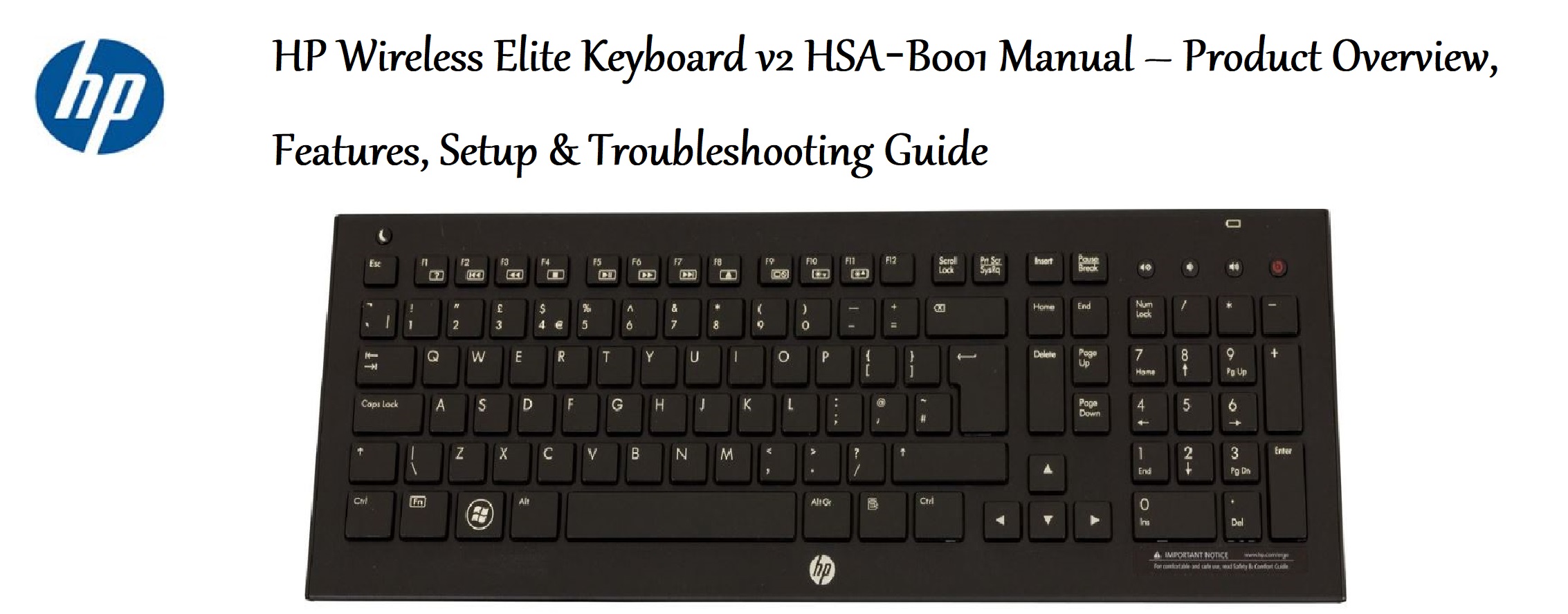
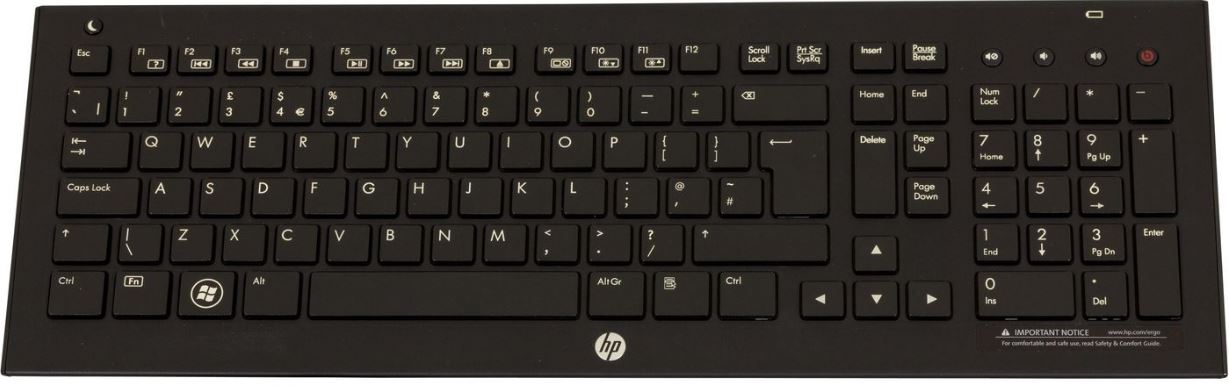
The HP Wireless Elite Keyboard v2 is a full‑sized desktop keyboard that connects wirelessly via a 2.4 GHz USB nano receiver. It has low‑profile, quiet chiclet keys, a built‑in number pad, and dedicated media controls. The keyboard is powered by two AAA batteries and is compatible with Windows, macOS, Chrome OS, and most devices with a USB‑A port. It’s designed for everyday home or office use and features a slim, modern profile that saves desk space.
Key Features
- 2.4 GHz Wireless Connection: A tiny USB‑A nano receiver plugs into your computer. The keyboard connects automatically — no Bluetooth pairing or software required. Range is up to 10 metres (33 feet).
- Full‑Size Layout with Number Pad: The keyboard includes all standard keys plus a dedicated numeric keypad, making data entry and spreadsheets easier.
- Quiet Chiclet Keys: The low‑profile, island‑style keys produce very little noise when typing. They’re comfortable for long typing sessions and similar to laptop keyboards.
- Dedicated Media Controls: The top row (F1–F12) doubles as media keys. Use the Fn key to control volume, play/pause, and other functions. A separate mute button is also included.
- Long Battery Life: Two AAA alkaline batteries (included with the keyboard) provide up to 12 months of typical use. The keyboard automatically enters a power‑saving sleep mode when idle and wakes with any keypress.
- Nano Receiver Storage: The small USB receiver stores inside the battery compartment on the underside of the keyboard, so you don’t lose it when travelling.
- Spill‑Resistant Design: The keyboard can survive minor spills. The keys are raised slightly to help liquid drain through small holes in the bottom.
How to Use
What’s in the Box
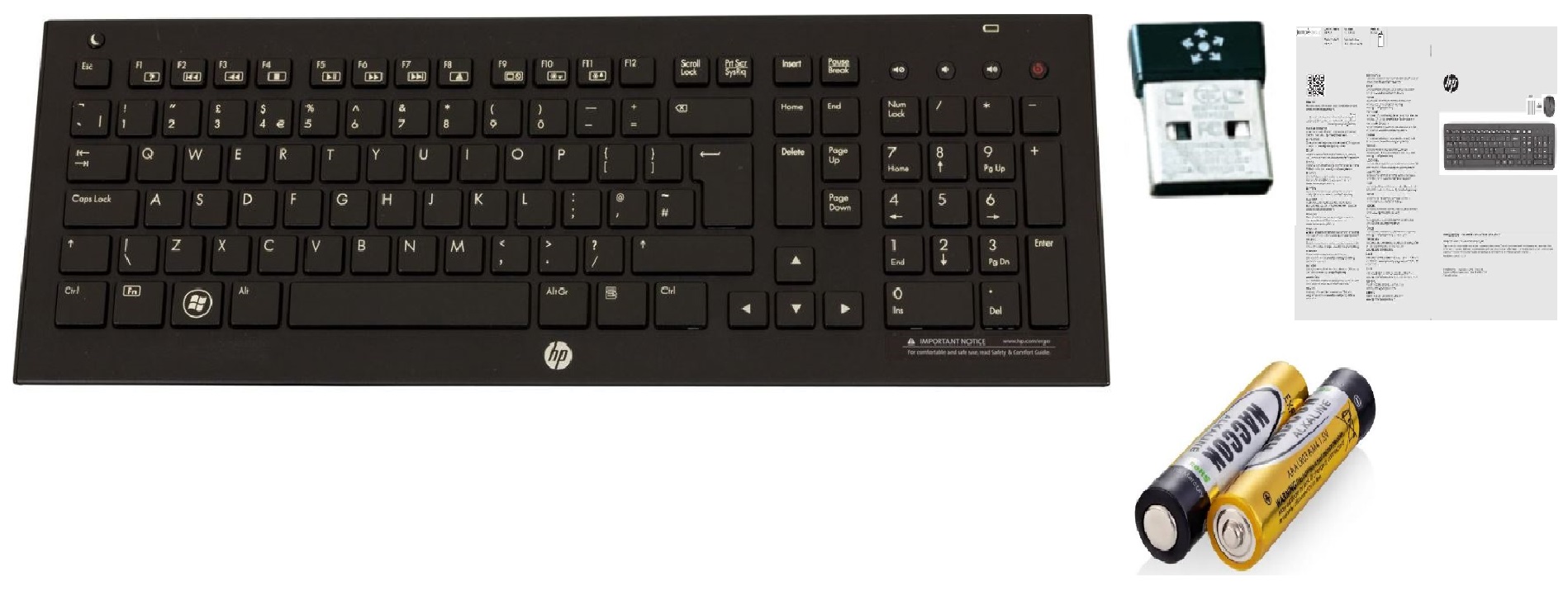
- HP Wireless Elite Keyboard v2
- USB‑A nano receiver (pre‑installed in the battery compartment or in a small plastic bag)
- Two AAA alkaline batteries (may be pre‑installed)
- Quick‑Start Guide and warranty card
First‑Time Setup
- Install batteries: Turn the keyboard over. Slide open the battery compartment cover. Insert the two AAA batteries, matching the + and – symbols. The cover clicks back into place.
- Retrieve the receiver: If the nano receiver isn’t already in the battery compartment, look for it in the packaging. It’s a very small USB‑A dongle. Slide it out of its storage slot.
- Connect the receiver to your computer: Plug the USB receiver into any available USB‑A port on your computer or laptop. The computer will automatically detect the receiver and install any necessary drivers.
- Turn on the keyboard: There’s no separate power button. The keyboard is ready as soon as batteries are inserted. Press any key, and the keyboard will automatically connect to the receiver. You can start typing immediately.
Note: If the keyboard doesn’t connect, press and release the Connect button (a small round button on the underside of the keyboard, near the battery compartment). The LED indicator near the button will blink while searching, then turn solid for a few seconds when connected.
Keyboard Layout & Function Keys
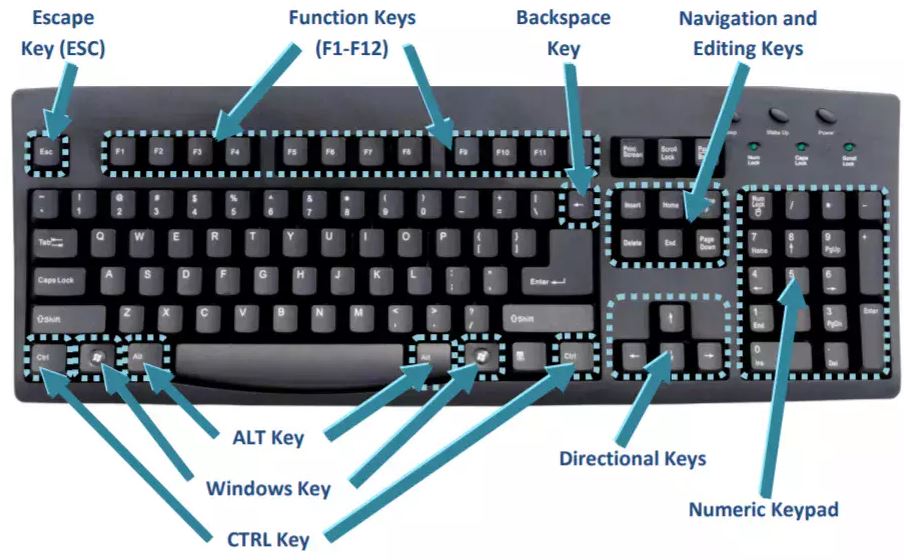
The keyboard’s top row (F1–F12) functions as both standard function keys and media/action keys. To use a media function (e.g., volume down), press and hold the Fn key (located next to the spacebar) and then press the appropriate F‑key. Alternatively, you can lock the Fn key to always use media functions by pressing Fn + Shift (the lock icon on the Shift key indicates this). Press again to revert.
Here are the default media shortcuts (when holding Fn):
| Key | Action |
|---|---|
| F1 | Open help / search |
| F2 | Decrease screen brightness |
| F3 | Increase screen brightness |
| F4 | Project / switch display |
| F5 | Decrease volume |
| F6 | Increase volume |
| F7 | Mute |
| F8 | Previous track |
| F9 | Play / Pause |
| F10 | Next track |
| F11 | Decrease keyboard backlight (if equipped) |
| F12 | Increase keyboard backlight (if equipped) |
The keyboard does not have a backlight. F11 and F12 keys perform no backlight function on this model. The mute button (above the number pad) works independently without the Fn key.
Cleaning & Storage
- Cleaning: Unplug the receiver and remove the batteries. Wipe the keyboard with a soft, slightly damp cloth. Do not use alcohol or solvents. For crumbs or debris between keys, use a can of compressed air.
- Storage: If you won’t use the keyboard for a month or more, remove the batteries to prevent corrosion. Store the keyboard and receiver together in a cool, dry place.
Troubleshooting & Common Problems
| Problem | Likely Cause | What to Try |
|---|---|---|
| Keyboard won’t type | Receiver not plugged in, or batteries dead | Re‑plug the USB receiver into a different USB port. Replace the two AAA batteries. Press the Connect button on the underside. |
| Certain keys not working | Debris under the key, or function lock active | Blow compressed air around the stuck key. Check if the Fn lock is toggled (press Fn + Shift). |
| Keys typing wrong characters | Incorrect keyboard layout set in OS | On Windows: Settings > Time & Language > Language > Keyboard, ensure “US” or your correct layout is selected. On Mac: System Settings > Keyboard > Input Sources. |
| Wireless connection drops | Distance too far, or interference | Move the keyboard closer to the receiver (within 3 metres). Avoid placing the receiver in a USB hub behind a metal desk. Try a different USB port, or use a USB extension cable to bring the receiver closer. |
| Media keys don’t work | Fn lock or operating system issue | Hold the Fn key and press the media key. On macOS, some media keys may not function natively without third‑party software. |
| Keyboard wakes slowly from sleep | Power‑saving mode | Press any key firmly. The first keypress wakes the keyboard; the second keypress registers. Replace batteries if low. |
Frequently Asked Questions
- Does this keyboard work with a Mac?
Yes, it works with macOS via the USB receiver. The Windows‑specific keys (like the Windows logo key) act as the Command key on Mac. You can remap modifier keys in System Settings > Keyboard > Modifier Keys. Some media keys (brightness, eject) may not work because macOS uses different key codes. - Can I connect this keyboard to a tablet or phone?
If your tablet or phone has a USB‑A port (or you use a USB‑A to USB‑C adapter), the keyboard will work with Android and iPadOS. The media keys may behave differently on non‑Windows systems. - Is the keyboard Bluetooth?
No, it uses a 2.4 GHz wireless connection via the included USB receiver. It does not connect via Bluetooth. - How do I know when the batteries are low?
The battery indicator LED on the top edge (near the Caps Lock light) will blink amber when the batteries are low. Replace both AAA batteries. There’s no percentage readout in the operating system. - Can I use the keyboard while it’s charging?
The keyboard uses disposable AAA batteries; it is not rechargeable. No charging cable is needed. - What should I do if I lose the USB receiver?
Contact HP support for a replacement receiver. The keyboard cannot be used without it (it is not Bluetooth‑capable). Replacement receivers need to be paired by HP or using a specific pairing utility.
Tips
- Store the receiver inside the keyboard: When you travel, pop open the battery compartment and slide the nano receiver into its storage slot. This prevents losing it.
- Use the number pad for spreadsheets: The full number pad is faster than the top‑row numbers for data entry. Ensure Num Lock is on (the Num Lock LED will glow).
- Lock the Fn key for constant media control: If you use media controls more than standard F‑keys, press Fn + Shift to lock the media function. Press again to revert.
- Keep a spare set of batteries nearby: The keyboard lasts about 12 months on a set of batteries, but heavy daily use may shorten this. Alkaline batteries are recommended; avoid rechargeable NiMH cells as their lower voltage may cause connection issues.
Safety Information
- Batteries: Insert AAA batteries correctly with the correct polarity. Do not mix old and new batteries. Remove batteries if the keyboard will be stored for an extended period.
- Spills: The keyboard is spill‑resistant, not waterproof. If liquid enters the keyboard, immediately turn it upside down, remove the batteries, and let it dry for 24–48 hours before using again.
- Cleaning: Unplug the USB receiver before cleaning. Do not spray liquid directly onto the keyboard.
- Disposal: Dispose of used batteries according to local regulations. The keyboard contains electronic components and should be recycled appropriately.
Related Manuals
If this guide was helpful, here are a few more popular manuals from productsmanuals.com that you might find useful:
- Samsung Galaxy Watch 7 Manual – Health Sensors, Galaxy AI & Battery Tips
Master ECG, body composition, sleep apnea detection, and more. - Logitech K380 Manual – Multi‑Device Bluetooth Keyboard Setup & Key Fixes
Pair three devices, fix stuck keys, and master function shortcuts. - Dell Inspiron 15 3520 Manual – Laptop Setup, Upgrades & Troubleshooting
Upgrade RAM and SSD, and fix common performance issues. - HP DeskJet 3755 Manual – Wireless Printer Setup & Common Fixes
Print, scan, and solve paper jams with clear step‑by‑step instructions. - iPhone XS Max Manual – Settings, Camera & Hidden Features Guide
Explore Dynamic Island, Action button, and battery‑health tricks.
Browse all guides at productsmanuals.com .
Copyright 2026 productsmanuals.com All rights reserved. This HP Wireless Elite Keyboard v2 HSA‑B001 manual is original content and may not be copied, republished, or redistributed without written permission. HP, Elite, and the HP logo are trademarks of HP Inc. This guide is unofficial and not affiliated with HP.
