
Logitech K380 Y-R0059 Manual – Setup & Troubleshooting
Introduction
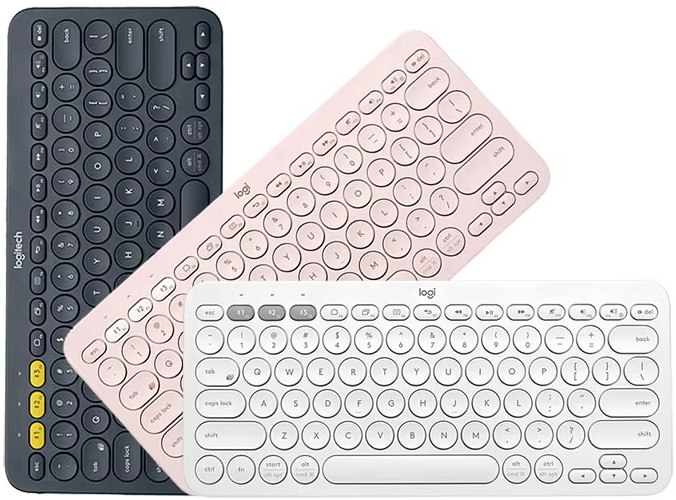
The Logitech K380 is a compact, lightweight Bluetooth keyboard that can switch between three devices — your phone, tablet, and laptop — at the press of a button. Logitech ships it with two AAA batteries and a small Quick‑Start leaflet. Many users search for a “Logitech K380 manual” because they need help pairing it with multiple devices, understanding the function keys, or fixing a key that suddenly stops responding. This guide covers every specification, feature, and common issue in plain, practical language.
Full Specifications
| Specification | Detail |
|---|---|
| Model | Y-R0059 (Logitech K380) |
| Type | Compact wireless Bluetooth keyboard |
| Layout | Tenkeyless (no numeric keypad), 79 keys |
| Connectivity | Bluetooth 3.0 (up to 10 metres / 33 feet range) |
| Multi‑Device | 3 dedicated Easy‑Switch buttons (F1, F2, F3) — pair and switch between three devices |
| Battery | 2 x AAA alkaline batteries (included, pre‑installed); battery life up to 24 months |
| Power Switch | On/Off switch on the left side |
| Operating System Support | Windows 10/11, macOS 11+, iOS 14+, iPadOS 14+, Android 8.0+, Chrome OS |
| Dimensions | 279 x 124 x 16 mm (11.0 x 4.9 x 0.6 inches) |
| Weight | 423 g (0.93 lbs) including batteries |
| Colours | Graphite, White, Rose, Blue, Lavender, Sand |
| In‑the‑Box | Keyboard, 2 AAA batteries (pre‑installed), Quick‑Start Guide, warranty card |
Key Features at a Glance
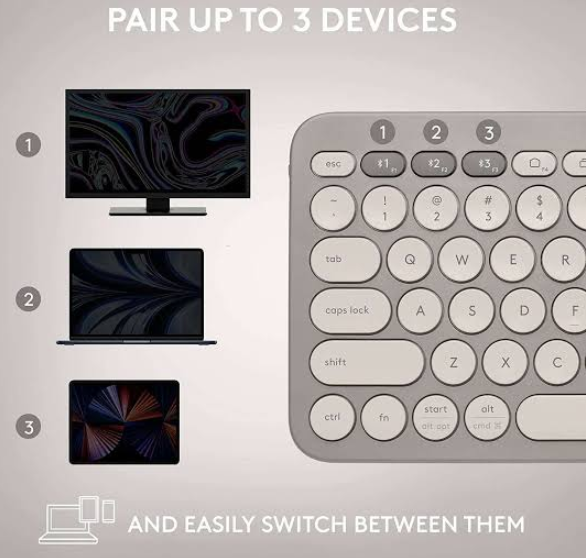
- Easy‑Switch Buttons: Pair up to three devices (phone, tablet, computer) via Bluetooth. Press the F1, F2, or F3 key to switch between them instantly — a white LED above the key confirms the connection.
- Compact & Quiet: The keys are round, low‑profile, and virtually silent. The keyboard is small enough to slip into a bag alongside a tablet, and it’s stable on a desk thanks to four rubber feet.
- OS‑Adaptive Layout: The key labels show both Windows/Alt and Mac/Option/Command symbols. The keyboard automatically detects which device you’re connected to and maps the modifier keys correctly (e.g., Cmd on macOS, Alt on Windows).
- Long Battery Life: Two AAA batteries power the keyboard for up to 2 years under normal office use. There’s no need to turn it off manually — an auto‑sleep feature conserves power, and pressing any key wakes it up instantly.
- Function Row Shortcuts: The top row of keys (F1–F12) doubles as media and system controls. Hold the Fn key to access standard F‑key functions if needed.
What’s Inside the Box
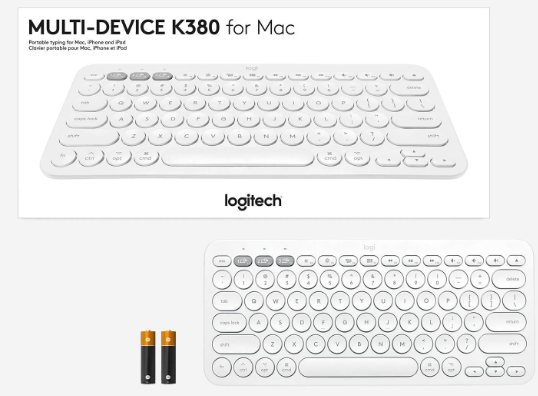
- Logitech K380 Bluetooth keyboard (your chosen colour)
- Two AAA alkaline batteries (pre‑installed in the battery compartment)
- Quick‑Start Guide and warranty information
No USB cable or charger is required; the keyboard is wireless‑only.
First‑Time Setup and Pairing
- Turn the keyboard on: slide the power switch on the left side to On. A small green light will blink briefly near the switch.
- Select an Easy‑Switch button to assign to your first device. Press and hold the F1 key (or F2, or F3) for 3 seconds. The LED above the key will blink rapidly, indicating pairing mode.
- On your device (phone, tablet, or computer), open Bluetooth settings and select “Logitech K380” from the list of available devices.
- A passcode (numbers) will appear on your device’s screen. Type that passcode on the K380 and press Enter. The LED above the Easy‑Switch key will turn solid white for a moment, then turn off — paired.
- To pair a second device, press and hold F2 for 3 seconds, repeat the pairing steps on the second device, and enter its passcode. Do the same for a third device using F3.
Switching between devices: Once paired, simply tap the F1, F2, or F3 key once to switch to that device. The LED blinks briefly while connecting, then turns off.
Understanding the Function Keys
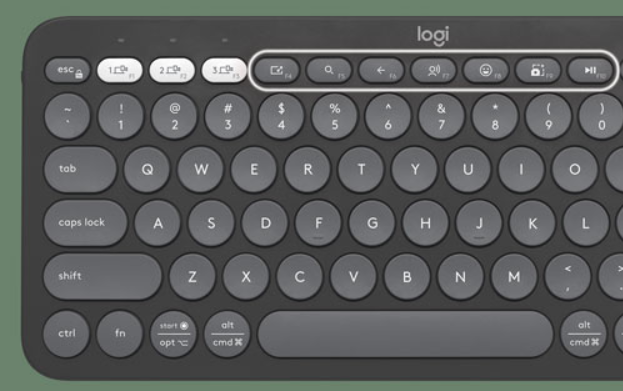
The top row works as media/function keys by default. Here’s what each key does without holding the Fn key:
| Key | Action (Default) |
|---|---|
| F1, F2, F3 | Easy‑Switch device buttons (hold 3 sec to pair; tap to switch) |
| F4 | Home (returns to the home screen on most devices) |
| F5 | Previous track |
| F6 | Play / Pause |
| F7 | Next track |
| F8 | Mute / Unmute |
| F9 | Volume down |
| F10 | Volume up |
| F11 | Search / App switch |
| F12 | Lock screen (Windows) or Screen brightness down (macOS) |
To use a standard function key (e.g., F5 to refresh a web page), hold the Fn key (bottom left, between Ctrl and Alt) and press the F‑key.
Switching the default behaviour: If you prefer F1‑F12 to act as standard function keys without holding Fn, install the Logitech Options+ software (available on Windows and macOS) and toggle the setting.
Troubleshooting Keys Not Working or Unresponsive
If some keys aren’t responding, try these steps in order. Most issues are caused by low battery, Bluetooth interference, or software settings.
| Symptom | Possible Cause | Solution |
|---|---|---|
| A specific key is not responding | Debris under the keycap, or the key is stuck in a macro/custom mapping | Blow compressed air around the affected key. Remove the keycap carefully with a plastic pry tool (if you’re comfortable) and clean underneath. Check Logitech Options+ for any custom key mapping that might be overriding the key. |
| Multiple keys don’t work | Low battery, or Bluetooth interference | Replace the two AAA batteries with fresh ones. Move the keyboard closer to the device (within 3 metres). Remove other Bluetooth devices that might be causing interference. |
| Keyboard not typing at all | Not connected, or connected to the wrong device | Tap one of the Easy‑Switch buttons (F1/F2/F3) to ensure the keyboard is on the correct device. Check that the device’s Bluetooth is on and the keyboard is listed as “Connected.” Re‑pair if necessary. |
| Keys type wrong characters | Incorrect keyboard layout selected in OS settings | On Windows: Settings > Time & Language > Language > Keyboard > ensure “US” or your correct layout is selected. On Mac: System Settings > Keyboard > Input Sources. On iOS/Android: check the keyboard settings in the Bluetooth device list. |
| The keyboard types numbers instead of letters | Fn lock or Num lock inadvertently activated (rare on K380) | The K380 does not have a numeric keypad, so this is unlikely. Check your device’s on‑screen keyboard settings. |
| Keys are slow to respond or lag | Bluetooth interference, or device too far away | Reduce the distance between the keyboard and the device. Turn off Wi‑Fi on the device temporarily to test if interference is the cause. Restart the device and the keyboard (slide the power switch off and on). |
Performing a hard reset on the keyboard:
- Turn the keyboard off using the side switch.
- Press and hold the F1, F2, and F3 keys simultaneously.
- While holding those three keys, slide the power switch to On. Continue holding the keys for about 5 seconds.
- Release the keys. The keyboard will have cleared its Bluetooth pairings and reset to factory settings. Re‑pair your devices.
How to Replace the Batteries
The K380 uses two AAA batteries. When the battery is low, the LED above the Easy‑Switch keys will blink red occasionally. To replace them:
- Slide the power switch to Off.
- Turn the keyboard over. The battery compartment cover is at the top. Slide it open (it unlatches easily).
- Remove the old batteries. Insert two new AAA alkaline batteries, matching the polarity markings inside the compartment.
- Close the cover and slide the power switch to On. The keyboard will reconnect automatically to the last used device.
Quick Reference Card
| Task | How |
|---|---|
| Pair a new device | Hold F1/F2/F3 for 3 seconds, find “Logitech K380” in Bluetooth settings, type passcode |
| Switch between paired devices | Tap F1, F2, or F3 once |
| Use standard F‑keys | Hold Fn and press the desired F‑key |
| Check battery | The LED above the Easy‑Switch button blinks red when battery is low |
| Factory reset | Hold F1 + F2 + F3 while turning on, hold 5 seconds |
Official Logitech Support and Manuals
For warranty, spare keycaps, and the official PDF manual, visit: https://support.logi.com
Frequently Asked Questions
- Can I use the K380 with an iPad and a laptop at the same time?
Yes, pair the keyboard with both devices using different Easy‑Switch buttons. You can switch between them instantly without re‑pairing. - Does the keyboard work with Android TV or smart TVs?
Yes, if your TV supports Bluetooth keyboards, put the K380 in pairing mode (hold F1/F2/F3) and select it from the TV’s Bluetooth menu. Some TV apps may not fully support external keyboards, but navigation usually works. - How do I clean the keyboard?
Turn it off, then use a slightly damp, lint‑free cloth. For deeper cleaning, remove keycaps carefully with a plastic tool. Do not pour liquid onto the keyboard. - What should I do if the Easy‑Switch LED stays solid white?
A solid white LED for a few seconds after connecting is normal. If it stays solid indefinitely, try restarting the keyboard (off/on). If it still stays on, replace the batteries. - Can I use the K380 with a Chromebook?
Yes, it works perfectly with Chrome OS. The top row of media keys may function slightly differently, but typing and switching work normally. - How do I take a screenshot on the K380?
On Windows, press Fn + PrtSc (the Print Screen key does not exist on this keyboard). The easiest way is to use your device’s built‑in screenshot shortcut. On a Mac, press Cmd + Shift + 4 (or whatever the Mac shortcut is) — you can do that directly without the keyboard having a dedicated key. - What if the keyboard types slowly or misses keystrokes?
Move the keyboard closer to the device and replace the batteries. Also, ensure no other Bluetooth devices are connected that could be using up bandwidth (like a Bluetooth speaker streaming music). - Is the keyboard spill‑proof?
No, the K380 is not waterproof. If you spill liquid on it, turn it off immediately, remove the batteries, and let it dry for 48 hours before testing. - How do I know which device I’m currently connected to?
After you press an Easy‑Switch button, the LED above it blinks briefly, then turns off. There’s no persistent indicator. If you’re unsure, press the button again; if it’s already on that device, the LED will blink once.
Other Manuals You May Like
If this guide was helpful, here are a few more popular manuals from productsmanuals.com that you might find useful:
- iPhone 13 – Settings, Camera & Hidden Features Manual
Master Dynamic Island, Action button, and battery‑health tricks. - Samsung Galaxy S24 Ultra – S Pen, Galaxy AI & Pro Camera Guide
Get the most from the 200 MP sensor, Circle to Search, and DeX mode. - Apple MacBook Air M4 – Trackpad Gestures, Stage Manager & Battery Care
Master every swipe, shortcut, and charging tip for your MacBook. - Ronin R-520 – True Wireless Earbuds Setup, Touch Controls & Reset
Fix one‑sided audio, pair easily, and get the best fit.
Browse all guides at productsmanuals.com .
Copyright Warning ⚠
Copyright 2026 productsmanuals.com All rights reserved. This Logitech K380 Y-R0059 manual is original content and may not be copied, republished, or redistributed without written permission. Logitech, K380, and the Logitech logo are trademarks of Logitech International S.A. This guide is unofficial and not affiliated with Logitech.

[…] Logitech K380 Manual – Multi‑Device Bluetooth Keyboard Setup & Key Fixes Pair three devices, fix stuck keys, and master function shortcuts. […]