
Product Overview
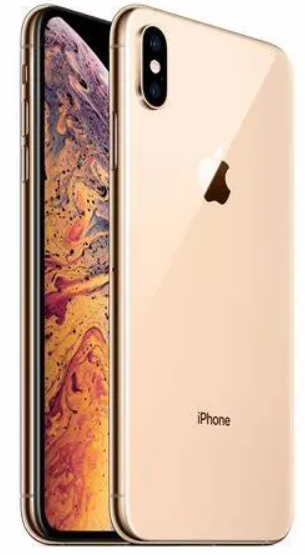
The iPhone XS Max features a large 6.5‑inch Super Retina OLED display, the A12 Bionic chip, and a dual 12 MP camera system with Smart HDR. It was Apple’s first “Max” phone, offering a bigger screen in a stainless‑steel body. The phone supports Face ID, wireless charging, and Dual SIM (nano‑SIM + eSIM). It runs iOS 17 (upgradeable to iOS 18) and is available in Silver, Space Grey, and Gold.
ALL VERSIONS
Versions:
- A2101 (Global market)
- A1921 (USA, Canada, Puerto Rico, U.S. Virgin Islands)
- A2104 (China, Hong Kong); A2102 (Japan)
Key Features
- Released Date: Released 2018, September 21
- 208g, 7.7mm thickness
- Updates: iOS 12, up to iOS 18.7
- Memory: 64GB/256GB/512GB storage, no card slot
- 4GB RAM
-
Apple A12 Bionic
-
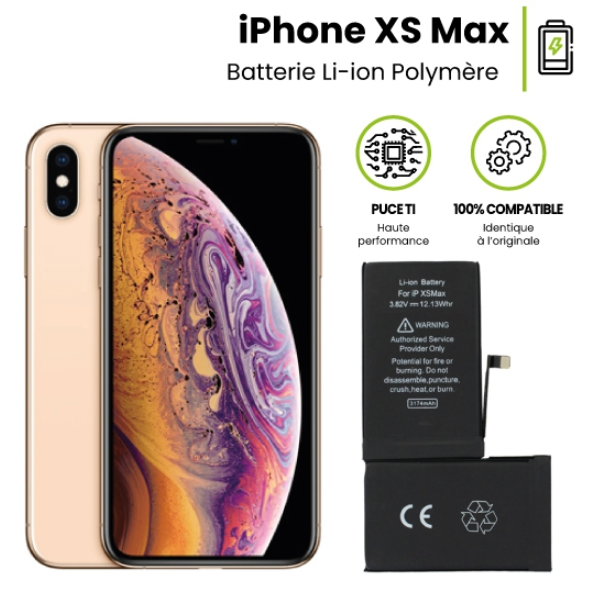
- Battery: 3174mAh
-
15W / 5W
-
- 6.5‑inch Super Retina OLED: The edge‑to‑edge display supports Dolby Vision and HDR10. It’s bright, colour‑accurate, and has a 2,688 x 1,242 resolution.
- A12 Bionic Chip: The 7‑nanometre processor handles multitasking, gaming, and AR apps smoothly. It also powers the Neural Engine for Face ID and advanced photo processing.
- Dual 12 MP Camera: Wide (f/1.8) and telephoto (f/2.4, 2x optical zoom) lenses with OIS. Smart HDR captures more highlight and shadow detail. Portrait mode with adjustable depth control lets you change the background blur after taking the shot.
- Face ID: The TrueDepth camera system on the front securely unlocks the phone, authenticates purchases, and animates Memoji. It works in the dark and adapts to changes in your appearance (glasses, beard, makeup).
- Dual SIM: Supports one nano‑SIM and one eSIM. You can have two phone numbers active at the same time (work and personal, for example).
- IP68 Water & Dust Resistance: Rated for submersion in up to 2 metres of fresh water for 30 minutes — better than the IP67 rating on the iPhone X.
How to Use
What’s in the Box
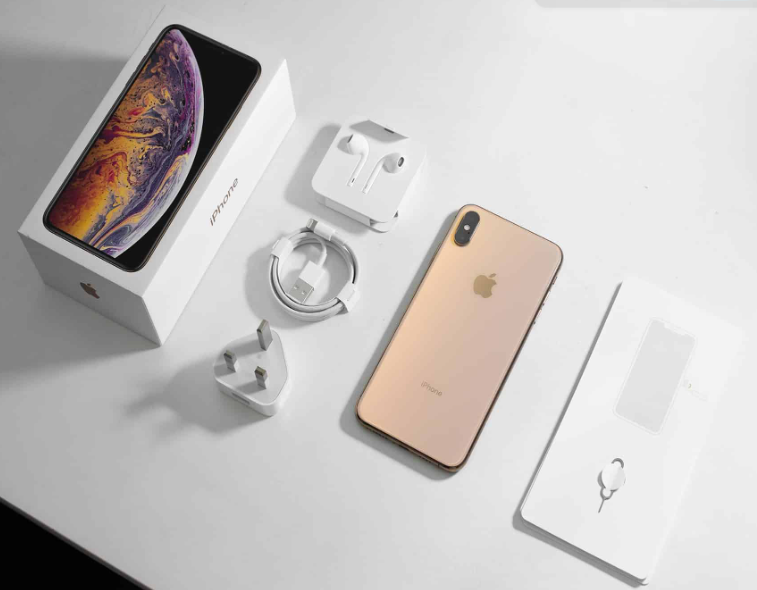
- iPhone XS Max (with a protective film on the screen)
- Lightning EarPods (wired, with 3.5 mm connector — a Lightning‑to‑3.5 mm adapter was not included in this model)
- USB‑A to Lightning cable
- 5 W USB‑A power adapter (slower than modern fast chargers)
- Quick‑Start Guide and warranty card
Note: The XS Max originally shipped with a 5 W charger. For faster charging, use an 18 W or higher USB‑C power adapter with a USB‑C to Lightning cable (both sold separately).
Physical Buttons & Ports
| Component | Location | Function |
|---|---|---|
| Side button | Right edge | Press to wake/sleep. Press and hold for Siri. Double‑press for Apple Pay. Press and hold with a volume button for power off / Emergency SOS. |
| Ring/Silent switch | Left edge (above volume buttons) | Flip towards the screen for Ring mode. Flip away for Silent mode (orange indicator visible). |
| Volume buttons | Left edge (below silent switch) | Adjust media and ringer volume. Press Volume Up to take a photo. |
| Lightning port | Bottom edge | Charging, data transfer, wired headphones (requires adapter if using EarPods with Lightning connector). |
| SIM tray | Right edge (on some models, or left edge depending on region) | Holds one nano‑SIM. eSIM is also supported for a second line. |
First‑Time Setup
- Press and hold the Side button until the Apple logo appears.
- Follow the on‑screen steps to choose your language, region, and connect to Wi‑Fi.
- Transfer data from an old iPhone wirelessly or restore from an iCloud backup. Android users can use the “Move to iOS” app.
- Sign in with your Apple ID. This activates iCloud, Find My, and the App Store.
- Once on the Home screen, go to Settings > General > Software Update and install any pending updates.
- In Settings > Display & Brightness, enable True Tone and Night Shift for comfortable viewing. The OLED display also supports Dark Mode for a battery‑saving black‑on‑white look.
Camera Tips
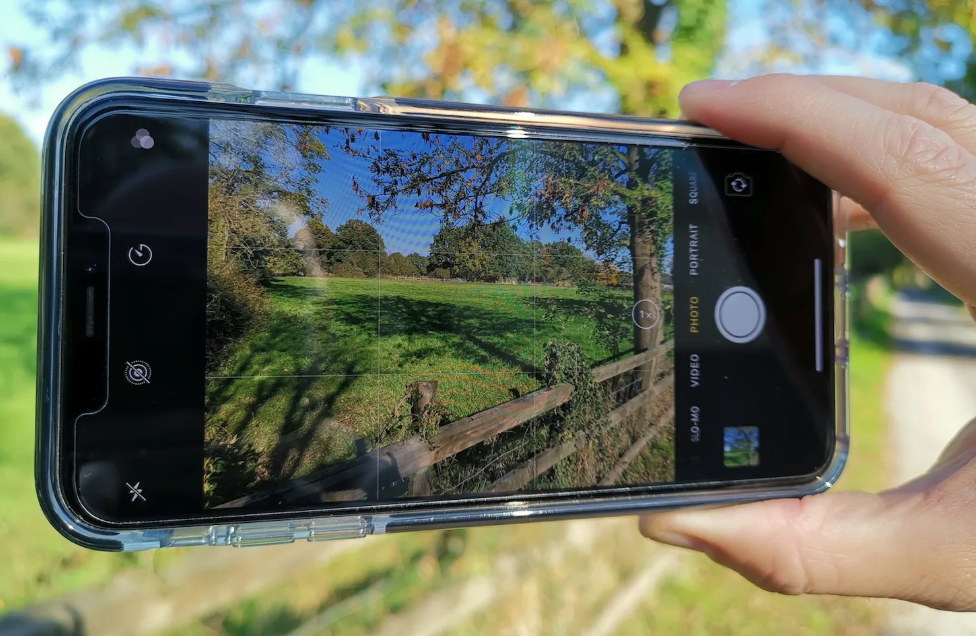
- Portrait mode with Depth Control: Select Portrait mode. After taking a photo, tap Edit and use the depth slider (f/1.4 to f/16) to adjust background blur. This works on both the rear and front cameras.
- 2x optical zoom: Tap the 2x button to use the telephoto lens without losing quality. Use this for portraits, distant subjects, or to compress perspective.
- Smart HDR: It’s on by default and automatically captures more detail in highlights and shadows. You can turn it off in Settings > Camera > Smart HDR if you prefer a more natural look.
- QuickTake video (on iOS 13+): In Photo mode, press and hold the shutter button to instantly record a video. Release to stop. Slide to the right to lock recording.
- Burst mode: Slide the shutter button to the left (or press and hold the Volume Up button) to take a rapid burst of photos. Useful for action shots.
- Front camera Portrait mode: The TrueDepth front camera also supports Portrait mode with adjustable depth control and studio lighting effects (Natural, Studio, Contour, Stage Light, Stage Light Mono).
Battery & Charging
- Fast wired charging: The XS Max supports USB‑C PD fast charging up to 18 W. Use an 18 W or higher USB‑C adapter with a USB‑C to Lightning cable (sold separately). A 30‑minute charge can give about 50% battery.
- Wireless charging: The glass back supports Qi wireless charging up to 7.5 W. Place the phone on a Qi‑certified charging pad.
- Battery health: Go to Settings > Battery > Battery Health to check the maximum capacity. If it drops below 80%, the battery may need replacement. You can also enable Optimized Battery Charging to slow battery ageing.
Troubleshooting & Common Problems
| Problem | Likely Cause | What to Try |
|---|---|---|
| Battery drains quickly | Aging battery, or background apps | Check Settings > Battery > Battery Health. If capacity is below 80%, consider a battery replacement. Turn on Low Power Mode. Check app usage. |
| Face ID not working | Dirty TrueDepth camera, or obstruction | Wipe the front notch with a soft, dry cloth. Remove anything covering the camera. Re‑scan your face in Settings > Face ID & Passcode. |
| Apps crash or freeze | Software bug, or low storage | Update the app. Restart the phone. Check Settings > General > iPhone Storage and free at least 2 GB. |
| Wi‑Fi or Bluetooth not connecting | Router or interference | Restart the router and phone. Forget the network and reconnect. For Bluetooth, toggle it off/on and re‑pair. |
| Screen not responding to touch | Software freeze, or damaged digitizer | Force restart: press and release Volume Up, press and release Volume Down, then hold the Side button until the Apple logo appears. |
| No sound from the speaker | Debris in the speaker grille, or Silent mode | Check that the Ring/Silent switch is not set to silent. Clean the speaker grille with a soft, dry brush. |
Frequently Asked Questions
- Does the iPhone XS Max support 5G?
No, it supports 4G LTE only. 5G was introduced with the iPhone 12 series. - Is the iPhone XS Max waterproof?
It has an IP68 rating, meaning it can withstand submersion in fresh water up to 2 metres for 30 minutes. Avoid salt water and chlorinated pools. - Does it come with a fast charger?
No, the original box included a 5 W charger. For fast charging, you need a separate USB‑C power adapter (18 W or higher) and a USB‑C to Lightning cable. - How do I take a screenshot?
Press the Side button and Volume Up button at the same time. - Can I use two SIM cards?
Yes, the XS Max supports one physical nano‑SIM and one eSIM. You can use both for voice and data. - How do I reset the phone?
Go to Settings > General > Transfer or Reset iPhone > Reset. For a full factory reset, choose Erase All Content and Settings.
Tips
- Use Dual SIM: Set one line as your primary for calls and the other for data in Settings > Cellular. You can label them “Work” and “Personal.”
- Enable Dark Mode: The OLED display saves battery with dark pixels. Schedule it in Settings > Display & Brightness.
- Force restart when frozen: Press and release Volume Up, press and release Volume Down, then hold the Side button until you see the Apple logo. This doesn’t erase data.
- Clean the Lightning port: Lint often packs inside the port. Use a wooden toothpick to gently remove debris. Don’t use metal objects.
- Optimize battery charging: Keep Optimized Battery Charging enabled in Settings > Battery > Battery Health. It learns your routine and delays charging past 80% overnight.
Safety Information
- Charging: Use Apple‑certified or reputable third‑party Lightning cables and adapters. Avoid cheap, unregulated chargers.
- Battery: The battery is not user‑replaceable. If it degrades below 80% capacity, contact Apple for a replacement. Do not puncture or expose the battery to high heat.
- Water exposure: The IP68 rating applies to fresh water only. Dry the Lightning port before charging if the phone gets wet.
- Screen: The OLED display is glass. A screen protector adds extra protection. The phone is relatively heavy; use a case with a good grip.
- Repairs: The stainless‑steel frame and glass back are difficult to repair. Repairs should be performed by Apple or an authorised service provider.
Related Manuals
If this guide was helpful, here are a few more popular manuals from productsmanuals.com that you might find useful:
- Samsung Galaxy Watch 7 Manual – Health Sensors, Galaxy AI & Battery Tips
Master ECG, body composition, sleep apnea detection, and more. - iPhone Air A3312 Manual – Apple Intelligence, Camera Control & Setup
Discover the thinnest iPhone with Apple Intelligence and Camera Control. - iPhone 16 Manual – Settings, Camera & Hidden Features Guide
Explore Dynamic Island, Action button, and battery‑health tricks. - Samsung Galaxy S23 Ultra Manual – S Pen, 200 MP Camera & Galaxy AI
Get the most from the 200 MP sensor, Space Zoom, and built‑in S Pen. - Dell Inspiron 15 3520 Manual – Laptop Setup, Upgrades & Troubleshooting
Upgrade RAM and SSD, and fix common performance issues.
Browse all guides at productsmanuals.com .
Copyright 2026 productsmanuals.com put written permission. Apple, iPhone, Face ID, and the Apple logo are trademarks of Apple Inc. This guide is unofficial and not affiliated with Apple.

[…] iPhone XS Max Manual – Settings, Camera & Hidden Features Guide Explore Dynamic Island, Action button, and battery‑health tricks. […]
[…] iPhone XS Max Manual – Settings, Camera & Hidden Features Guide Explore Dynamic Island, Action button, and battery‑health tricks. […]