
Product Overview
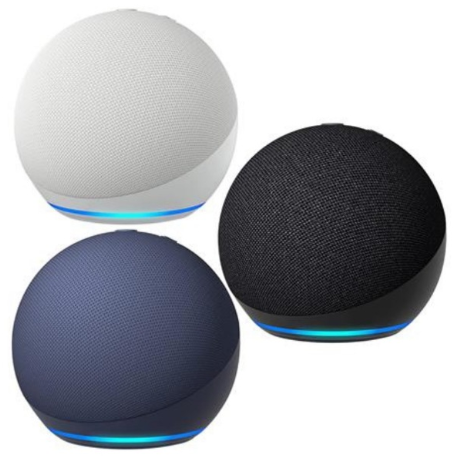
The Amazon Echo Dot (5th Gen) is a compact smart speaker that brings Alexa into any room. It features a fabric‑covered spherical design, a larger 1.73‑inch front‑facing speaker for clearer sound, and a built‑in temperature sensor. You can ask Alexa to play music, answer questions, control smart home devices, set timers, and more. The Dot also doubles as an Eero mesh Wi‑Fi extender (with a compatible Eero router), giving you better Wi‑Fi coverage in your home. It’s available in charcoal, white, and blue.
Key Features
- Alexa Voice Assistant: Use your voice to play music, get news, set alarms, check the weather, and control compatible smart lights, plugs, and thermostats.
- Improved Speaker: The 1.73‑inch front‑firing speaker delivers clearer vocals and deeper bass than previous generations. You can pair two Dots for stereo sound, or connect to an external speaker via Bluetooth or a 3.5 mm audio cable (cable not included).
- Built‑in Temperature Sensor: The Dot measures the room temperature and can trigger Alexa Routines based on it – for example, turning on a fan when the room gets too warm.
- Eero Mesh Wi‑Fi Extender: If you have an Eero Wi‑Fi system, the Dot can act as a mesh extender, adding up to 1,000 sq. ft. of coverage. No additional hardware needed; just enable it in the Alexa app.
- Tap Gestures: Tap the top of the Dot to pause/resume music, snooze an alarm, or end a call. No need to speak a command.
- Privacy Controls: A physical microphone off button disconnects the microphone electrically. The device also has a built‑in privacy hub that allows you to delete voice recordings with a simple Alexa command.
How to Use
First‑Time Setup
- Plug it in: Connect the included power adapter to the back of the Echo Dot and plug it into a wall outlet. The light ring on top glows blue, then orange, and Alexa says, “Hello. Your Echo Dot is ready for setup.”
- Download the Alexa app: On your smartphone, get the Amazon Alexa app (iOS or Android). Sign in with your Amazon account.
- Add the device: In the app, tap Devices > + > Add Device > Amazon Echo > Echo Dot > 5th Generation. The app will search for your Dot. When the orange light ring appears, follow the on‑screen steps to connect to your Wi‑Fi network (2.4 GHz or 5 GHz).
- Start using Alexa: Once connected, say the wake word – “Alexa” – followed by your request. The light ring glows blue when Alexa is listening.
Physical Buttons
| Button | Location | Action |
|---|---|---|
| Volume + / – | Top | Press to adjust speaker volume. |
| Action button (dot icon) | Top | Press to wake Alexa without using the wake word. Press and hold for 8 seconds to put the Dot into setup mode (orange ring). |
| Microphone Off | Top | Press to turn the microphone off. The button glows red, and Alexa won’t hear you until you press it again. |
Common Voice Commands
- “Alexa, what’s the weather?”
- “Alexa, set a timer for 10 minutes.”
- “Alexa, play relaxing music.”
- “Alexa, turn off the living room lights.” (requires compatible smart lights)
- “Alexa, drop in on the kitchen Echo.” (to use other Echo devices as an intercom)
Using as an Eero Wi‑Fi Extender
If you have an Eero router, open the Alexa app, go to Devices > Echo Dot > Settings > Eero Built‑in and follow the instructions to link your Eero account. Once enabled, the Dot automatically extends your mesh network.
Troubleshooting & Common Problems
| Problem | Likely Cause | What to Try |
|---|---|---|
| Dot doesn’t respond to “Alexa” | Microphone muted, or too far away | Check the red ring – if it’s on, press the microphone button to unmute. Move closer and speak clearly. |
| Light ring solid red | Microphone is muted | Press the microphone mute button to unmute. |
| Orange ring and won’t leave setup mode | Wi‑Fi connection lost | Restart your router and the Dot (unplug for 10 seconds). In the Alexa app, go to Device Settings > Wi‑Fi > Change to re‑enter credentials. |
| Wi‑Fi keeps disconnecting | Weak signal, router band steering | The Dot supports 2.4 GHz and 5 GHz. If your router combines both under one name, try temporarily disabling 5 GHz during setup, or create a separate 2.4 GHz guest network. |
| Music stops playing randomly | Network drop, or a timer/alarm went off | Check your Wi‑Fi stability. Also, ask “Alexa, what timers are set?” – a timer ending might have interrupted playback. |
| Flashing yellow light | Unread notifications or reminders | Ask, “Alexa, what are my notifications?” After listening, the yellow light should turn off. |
| No sound from external speaker | Bluetooth or 3.5 mm connection issue | Ensure the external speaker is paired via Bluetooth (in the Alexa app under Device Settings > Bluetooth) or the 3.5 mm cable is fully inserted. |
Common Problems Quick List
- Dot loses Wi‑Fi after reboot: If the router password was changed, forget the network in the Alexa app and reconnect.
- Can’t add smart home devices: Ensure the device is compatible with Alexa and is in pairing mode. Say “Alexa, discover my devices” to start scanning.
- Echo Dot not extending Eero Wi‑Fi: Verify that both the Dot and the Eero network are on the latest firmware. Disable and re‑enable Eero Built‑in in the Alexa app.
- Alarm too quiet: Ask “Alexa, set alarm volume to 7.”
Frequently Asked Questions
- Can I use the Echo Dot without a smartphone?
No, You need a smartphone or tablet for the initial Wi‑Fi setup. After that, the Dot works independently for most functions. - Does the Echo Dot work with Apple Music or Spotify?
Yes. Link your Spotify, Apple Music, Amazon Music, or other supported service in the Alexa app under Settings > Music & Podcasts. - Can I pair two Echo Dots for stereo sound?
Yes. In the Alexa app, go to Devices > + > Combine Speakers > Stereo pair, and select two Echo Dot (5th Gen) units. - Does the Dot have a built‑in battery?
No, it must be plugged into a wall outlet at all times. There is no battery version. - What is the difference between the Echo Dot 5th Gen and the Echo Dot with Clock?
The Echo Dot with Clock has a simple LED display on the front that shows the time, temperature, or timers. Otherwise, they are identical. - Can I use the Dot as an alarm clock?
Yes. Just say “Alexa, set an alarm for 7 AM.” The light ring flashes to wake you gently. - How do I delete voice recordings?
Say “Alexa, delete what I just said,” or “Alexa, delete everything I said today.” You can also manage recordings in the Alexa app under Settings > Alexa Privacy.
Tips
- Create a morning routine: In the Alexa app, set up a Routine that turns on lights, reads the weather, and plays your favourite news briefing when you say “Alexa, good morning.”
- Use Tap Gestures: Tap the top of the Dot once to pause music, twice to skip a track, or to snooze an alarm – especially handy at night.
- Change the wake word: If your name or another device triggers Alexa accidentally, go to Device Settings > Wake Word and switch to “Echo,” “Computer,” or “Ziggy.”
- Place the Dot centrally: For the best voice recognition, put the Dot on a flat surface at least 20 cm (8 inches) from walls and away from loud appliances.
Safety Information
- Power adapter: Use only the included 15 W power adapter. Using a different adapter may damage the device.
- Ventilation: The Dot has no fan; it dissipates heat passively. Keep it on a hard surface with open air around it. Do not cover the fabric.
- Cleaning: Unplug the Dot before cleaning. Wipe with a dry, soft cloth. Do not use liquids or sprays.
- Water resistance: The Echo Dot is not waterproof. Keep it away from sinks, bathtubs, and outdoor elements.
- Children’s privacy: Alexa includes parental controls and child‑specific features. Set up a child profile in the Alexa app for age‑appropriate content and privacy settings.
- Microphone off: When the microphone off button is pressed, the device physically disconnects the microphone, and no audio is sent to the cloud.
Related Manuals
If this guide was helpful, here are a few more popular manuals from productsmanuals.com that you might find useful:
- JBL Go 3 Manual – Waterproof Bluetooth Speaker Setup & Troubleshooting
Pair, charge, and protect your ultra‑portable speaker. - Canon PIXMA MG3620 Manual – Wireless Printer Setup & Common Fixes
Print, scan, and solve paper jams with clear step‑by‑step instructions. - iPhone 14 Manual – Settings, Camera & Hidden Features Guide
Master Dynamic Island, Action button, and battery‑health tricks. - Apple Magic Keyboard A2520 Manual Pairing Function Keys Guide
Pair devices, fix stuck keys, and master function shortcuts.
- Samsung Galaxy Tab S9 FE Companion Setup Tips and Hidden Tricks
Get the most from the 200 MP sensor, Circle to Search, and DeX mode.
Browse all guides at productsmanuals.com .
Copyright 2026 productsmanuals.com All rights reserved. This Amazon Echo Dot 5th Gen manual is original content and may not be copied, republished, or redistributed without written permission. Amazon, Echo, Alexa, and the Amazon logo are trademarks of Amazon.com, Inc. This guide is unofficial and not affiliated with Amazon.

[…] stinger teases Spider-Man’s next chapter with a surprising location reveal, setting up his role in the MCU’s upcoming Phase Six […]
[…] Amazon Echo Dot 5th Gen Manual – Alexa Setup, Wi‑Fi Tips & Common Fixes Get the most from your smart speaker with routines, privacy controls, and more. […]