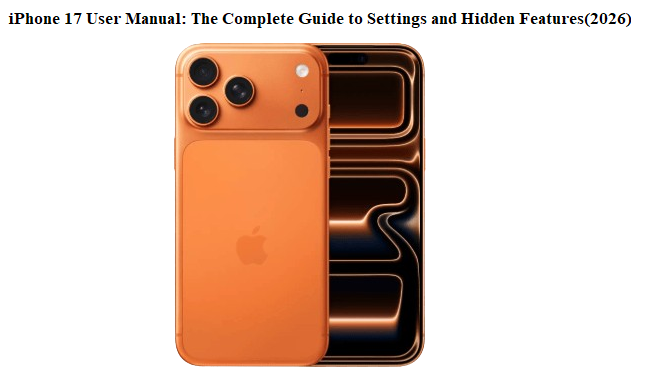

iPhone 17 User Manual Complete Guide to Settings and Hidden Features 2026
Introduction
Apple still won’t put a real manual in the box. You get a Quick Start slip, a Tips app with surface-level hints, and an 800-page PDF that reads like a legal document. Meanwhile, you’re left Googling “how to extend iPhone 17 battery,” “iPhone 17 camera settings explained,” and “what does this button even do.” This iPhone 17 user manual replaces all of that.
From the moment you finish setup to mastering the Action button, the 48MP Fusion camera, iOS 20’s best hidden gestures, and the battery management tricks that actually work, this guide walks you through your phone feature by feature. It’s the book that should have been in the box. Bookmark it now—you’ll need it next time your storage is full, your screen dims at the worst moment, or a setting vanishes.
What’s in the iPhone 17 Box?
Apple’s packaging has been minimalist for years. Here’s the complete, honest list of what you’ll find when you unbox your iPhone 17.
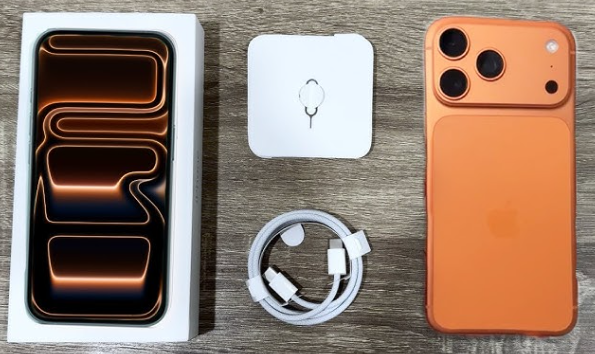
- iPhone 17 (or iPhone 17 Pro) — The phone itself, with a pre-applied screen protector film.
- USB-C Charge Cable (1 meter) — Braided USB-C to USB-C cable. This is the only included accessory.
- SIM Eject Tool — A small metal pin for opening the SIM tray (where applicable; US models may be eSIM only).
- Apple Stickers — Still included, though the 2026 design may be smaller or themed.
- Quick Start Guide & Safety Warranty — A tiny paper booklet with regulatory info and a URL to the official PDF manual (which is why you need this guide).
What’s NOT in the Box (Buy Separately)
- Power Adapter (Charging Brick): Apple stopped including it with the iPhone 12. You’ll need a USB-C power adapter (20W or higher recommended for fast charging).
- Ear Pods or any headphones: No wired earbuds in the box. Bluetooth headphones or USB-C Ear Pods sold separately.
- Mag Safe Charger: Not included. Mag Safe wireless charging pad is an optional purchase.
- Case and Screen Protector: The phone ships naked. Invest in protection right away.
Pro tip: If you’re switching from an older iPhone that used a Lightning cable, those old chargers won’t fit the iPhone 17’s USB-C port. Budget for a new adapter or use a USB-C laptop charger you already own.
Meet Your iPhone 17
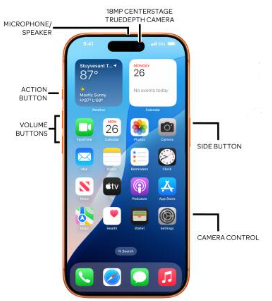
Meet Your iPhone 17: Button Map and Physical Controls
| Button | Function |
|---|---|
| Side button (right) | Wake/sleep, Siri (long press), Emergency SOS (5 rapid presses), Apple Pay (double-press) |
| Volume Up / Down (left) | Volume, camera shutter (press either), burst photos (slide Volume Up) |
| Action button (above volume) | Silent mode by default; customizable to Camera, Flashlight, Focus, Shortcut, or any app |
| USB-C port (bottom) | Charging, data transfer, external display output, wired headphones |
Hidden tricks with the buttons:
- Hard reset: Press Volume Up, then Volume Down, then hold the Side button until the Apple logo appears.
- Silence an incoming call: Press the Side button once.
- Disable Face ID temporarily: Hold Side button + either Volume button for 2 seconds. This forces passcode on next unlock.
First-Time Setup
First-Time Setup: Get It Right from the Start
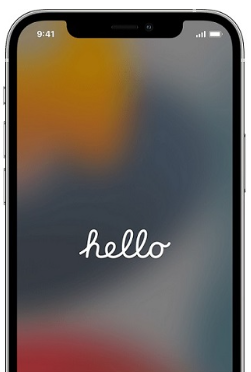
- Quick Start: Hold your old iPhone nearby, and it transfers everything wirelessly. If you’re moving from Android, Apple’s “Move to iOS” app handles contacts, photos, and calendars.
- Apple ID: This free account unlocks iCloud, App Store, iMessage, and Find My. Use the same ID across all Apple devices.
- Face ID: Train it twice—once in normal light, once in dim light—for better accuracy.
- Emergency SOS & Crash Detection: Keep enabled. The iPhone 17 Pro includes next-gen crash detection and satellite connectivity for off-grid emergencies.
Home Screen, Dynamic Island, and Gestures You’re Probably Missing
iOS 20 refines the Home Screen and Dynamic Island further.
Essential Gestures
- Go Home: Swipe up from the bottom edge.
- App Switcher: Swipe up and pause in the middle. Swipe left/right to browse apps.
- Reachability: Swipe down on the bottom edge to bring the top of the screen closer to your thumb.
- Spotlight Search: Swipe down on the Home Screen. It searches apps, emails, web, and even photo text.
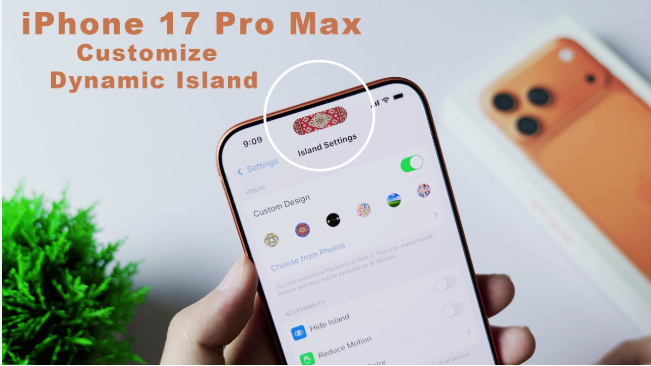
Dynamic Island Pro (iPhone 17 Pro)
The pill-shaped cutout now hides Face ID and the front camera but acts as a second mini-screen.
- Tap to open the running app (Music, Timer, Maps).
- Long press to expand into a control widget without leaving your current app.
- Swipe left or right on the Island to dismiss or switch between live activities.
Camera and Photos
Camera and Photos: Shoot Like a Pro (No Manual Required)
The iPhone 17 Pro camera system includes a 48MP Fusion main, 48MP Ultra Wide, and 12MP 5x Telephoto. But the real magic is in the settings you never touch.
Camera Quick-Start
- Open Camera: Swipe left on Lock Screen or long-press the Camera icon.
- Zoom: Pinch or tap the 0.5x, 1x, 2x, 5x buttons.
- Portrait mode: Tap the “f” icon in the Camera app to adjust background blur before or after taking the shot.
- Macro mode: Move the phone extremely close to an object; it switches to the Ultra Wide lens automatically.
Three Hidden Camera Features
- Press and hold the shutter button in Photo mode to instantly record a video (Quick Take). Release to stop.
- Volume Up burst: Slide Volume Up to the left to capture a rapid burst of photos, perfect for action.
- Grid and level: Go to Settings > Camera > Grid to overlay a rule-of-thirds grid. When shooting straight down or up, a crosshair level appears automatically.

Battery and Charging
Battery and Charging: The Settings That Actually Save Power
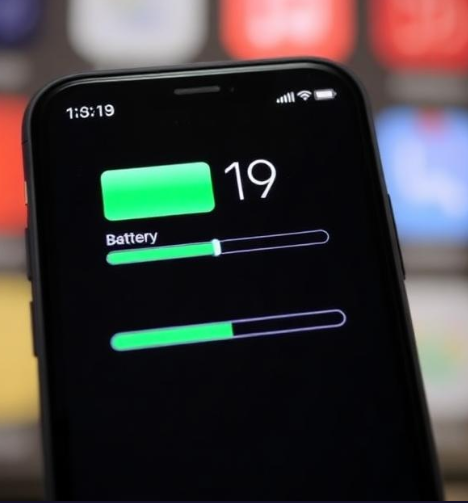
Charging Speed and Options
- USB-C fast charge: 50% in ~30 minutes with a 20W or higher USB-C power adapter.
- MagSafe: Wireless magnetic charging up to 15W; the new Qi2 standard works across brands.
- Reverse wired charging (new): iPhone 17 Pro can charge AirPods or an Apple Watch directly via USB-C at 4.5W. Go to Settings > Battery > Reverse Charging.
Battery Health and Longevity
- Settings > Battery > Battery Health & Charging: Enable “Optimized Battery Charging” to learn your routine and delay charging past 80% overnight.
- 80% Limit: You can now hard-limit charging to 80% for maximum battery lifespan. The phone occasionally charges to 100% to calibrate.
- Clean Energy Charging: Enabled by default; it charges when lower-carbon electricity is available in your area.
Battery That Drains Too Fast? Do This:
- Check Settings > Battery for the worst-offending apps.
- Turn off Background App Refresh for apps that don’t need it (Settings > General > Background App Refresh).
- Use Dark Mode: it saves power on OLED displays (the Pro models always have OLED; the base 17 now also uses an advanced OLED).
Privacy and Security
Privacy and Security: Lock Down Your Phone in 5 Minutes
The iPhone 17’s privacy tools are powerful, but many remain buried.
- App Tracking Transparency: Settings > Privacy & Security > Tracking. Turn off “Allow Apps to Request to Track” if you want blanket protection.
- Safety Check: In Privacy & Security, this lets you instantly revoke location and data access from all apps and people—critical if you’re leaving a shared situation.
- Lockdown Mode: For those at extreme risk (journalists, activists). It disables most message attachments, web technologies, and wired connections when locked.
- Passcode and Face ID: Use a six-digit alphanumeric passcode. Face ID works with masks and glasses; you can add an “Alternate Appearance” for a second face.
- Find My iPhone: Make sure it’s on. Even when the phone is off or dead, it can be located for up to several hours via the new offline finding network.
Tips & Tricks
Hidden Tricks and Pro Tips You’ll Wish You Knew Sooner
Keyboard and Text
- Swipe to type: Use Quick Path by sliding your finger across letters without lifting.
- Trackpad mode: On the keyboard, long-press the space bar until the keys turn into a trackpad, then drag to precisely place the cursor.
- Undo: Swipe left with three fingers or shake the phone to undo typing.
- One-handed keyboard: Long-press the globe/emoji key, then select the left- or right-hand keyboard.
Screenshots and Screen Recording
- Screenshot: Press Side button + Volume Up. Tap the thumbnail to instantly mark up and share.
- Full-page screenshot: In Safari or Mail, after taking a screenshot, tap the thumbnail and choose “Full Page” to save as a PDF.
- Screen recording: Add the control in Settings > Control Center. Long-press the record button to include microphone audio.
Messages and FaceTime
- Edit and unsend: Long-press any sent message within 15 minutes to edit or undo send.
- Voice message transcription: Received a voice note but can’t listen? iOS 20 now transcribes them automatically right in the conversation.
- FaceTime hand gestures: Thumbs up, heart hands, and peace signs trigger on-screen effects (confetti, hearts, fireworks).
Safari and Web
- Reader mode: Tap the “AA” icon in the address bar to strip out ads and formatting.
- Close all tabs: Long-press the tab switcher icon and choose “Close All Tabs.”
- Privacy Report: Tap “AA” > Privacy Report to see exactly how many trackers Safari blocked on that page.
Control Center Customization
- Swipe down from the top-right corner.
- Long-press any tile for deeper controls (e.g., Flashlight brightness, Wi-Fi network selection).
- Add custom shortcuts to Shazam, Low Power Mode, and Screen Recording via Settings > Control Center.
Restart, Reset, and Recovery Methods
Restart, Reset, and Recovery: What to Do When Things Go Wrong
Force Restart (No Data Loss)
- Press and quickly release Volume Up.
- Press and quickly release Volume Down.
- Press and hold the Side button until the Apple logo appears (~10 seconds). Release.
Use this when the screen freezes, apps won’t close, or the phone is completely unresponsive.
Reset All Settings (Keeps Data)
- Settings > General > Transfer or Reset iPhone > Reset > Reset All Settings.
- This resets Wi-Fi passwords, wallpapers, and accessibility tweaks, but not photos, messages, or apps.
Factory Reset (Erase Everything)
- Settings > General > Transfer or Reset iPhone > Erase All Content and Settings.
- The phone will restart like new. Make sure you have an iCloud or computer backup first.
Recovery Mode and DFU
- Connect iPhone to a Mac or PC.
- Press Volume Up, Volume Down, then hold the Side button until the Recovery Mode screen (cable pointing to laptop) appears.
- Use Finder or iTunes to restore. DFU mode is deeper and rarely needed.
Accessibility Features
Accessibility Features Everyone Should Use
These aren’t just for disability—they’re quality-of-life upgrades for everyone.
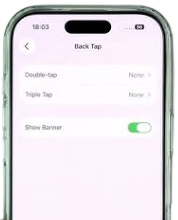
- Back Tap: Settings > Accessibility > Touch > Back Tap. Double- or triple-tap the back of your phone to trigger screenshots, flashlight, Shazam, or any shortcut.
- Sound Recognition: The phone listens for alarms, doorbells, crying babies, and alerts you with a notification.
- Live Captions: Generates real-time captions for any audio—FaceTime, videos, even a conversation in the room.
- Spoken Content: Make the phone read selected text or the entire screen aloud with a two-finger swipe down from the top.
- Voice Control: Navigate the entire phone hands-free using spoken commands.
Quick Reference Card Guide
Quick Reference Card: iPhone 17 Essential Cheat Sheet
| Action | How to Do It |
|---|---|
| Force restart | Volume Up, Volume Down, hold Side button |
| Hard reset (Erase) | Settings > General > Transfer or Reset > Erase All |
| Take screenshot | Side button + Volume Up |
| Screen recording | Control Center icon (add in Settings) |
| QuickTake video | Hold shutter button in Photo mode |
| Reachability | Swipe down on bottom edge |
| Apple Pay | Double-press Side button |
| Emergency SOS | Press Side button 5 times rapidly |
| Mute temporarily | Volume down + Side button long press until silent |
| One-handed keyboard | Hold globe key, choose left/right layout |
FAQ’s
Q: How do I force restart an iPhone 17?
- A: Press and release Volume Up, then Volume Down, then press and hold the Side button until the Apple logo appears (~10 seconds).
Q: How do I take a screenshot on iPhone 17?
- A: Press the Side button and Volume Up button at the same time. Tap the thumbnail to edit or share immediately.
Q: How do I extend battery life on my iPhone 17?
- A: Enable Optimized Battery Charging, use 80% Limit if desired, reduce Background App Refresh, and switch to Dark Mode. Check Settings > Battery for app-specific drain.
Q: Does iPhone 17 have a manual?
- A: Apple provides a digital guide in the Tips app and a PDF online, but this unofficial iPhone 17 user manual covers settings, gestures, and hidden features in a far more readable way.
Q: How do I use the Dynamic Island on iPhone 17?
- A: Tap it to open the active app, long-press to expand into controls, and swipe left/right to manage live activities.
More Information
If you want to download PDF to get help even if you are offline, click the below given link to download.
Download iPhone 17 PDF here.
Final Word:
Bookmark This. You’ll Need It Again.
This iPhone 17 user manual is a living guide. As iOS updates roll in, I’ll update the sections that matter most. If a setting disappears, a gesture changes, or Apple sneaks in a new feature, you’ll find the answer here. Next time your battery drains fast, your photos look off, or the Dynamic Island confuses you, just open this page.
©Copyright Warning
© 2026 [productsmanuals.com]. All Rights Reserved. This iPhone 17 user manual is original content and may not be reproduced without permission. Apple, iPhone, iOS, Dynamic Island, Face ID, and MagSafe are trademarks of Apple Inc. This guide is unofficial and not affiliated with or endorsed by Apple.
Happy exploring!
May your iPhone 17 run smooth, your battery last all day, and your photos always come out sharp. If this guide saved you a headache or a Google search, it’s already done its job. Now go enjoy that gorgeous screen.
Until next time
I hope this iPhone 17 user manual made your phone feel a little more like yours. New tech should be exciting, not confusing. Take care of your device, keep your backups current, and may your Dynamic Island always show something good. Cheers to a phone that works for you, not the other way around.
Thanks for trusting this guide. Your iPhone 17 is now officially set up better than Tim Cook’s. Well, maybe not—but close. Now go take some stunning photos and try that Back Tap feature at least once.
If this guide help you, please share it with your friends!

[…] iPhone 17 – Settings, Camera & Hidden Features Manual Master Dynamic Island, the Action button, and battery‑health tricks. […]
[…] iPhone 17 – Settings, Camera & Hidden Features Manual Master Dynamic Island, Action button, and battery‑health tricks. […]
[…] iPhone 17 – Settings, Camera & Hidden Features Manual Master Dynamic Island, Action button, and battery‑health tricks. […]
[…] iPhone 17 – Settings, Camera & Hidden Features Manual Master Dynamic Island, Action button, and battery‑health tricks. […]
[…] iPhone 17 – Settings, Camera & Hidden Features Manual Master Dynamic Island, Action button, and battery‑health tricks. […]
[…] iPhone 17 – The Complete Settings & Hidden Features Manual Master Dynamic Island, camera shortcuts, and the latest iOS tricks. […]
[…] iPhone 17 – Settings, Camera & Hidden Features Manual Master Dynamic Island, Action button, and battery‑health tricks. […]
[…] iPhone 17 Manual – Settings, Camera & Hidden Features Guide Explore Dynamic Island, Action iPhone with Apple Intelligence and Camera Control. […]
[…] iPhone 17 Manual – Settings, Camera & Hidden Features Guide Explore Dynamic Island, Action button, and battery‑health tricks. […]
[…] iPhone 17 Manual – Settings, Camera & Hidden Features Guide Explore Dynamic Island, Action button, and battery‑health tricks. […]
[…] iPhone 17 Manual – Settings, Camera & Hidden Features Guide Explore Dynamic Island, Action button, and battery‑health tricks. […]
[…] iPhone 17 Manual – Settings, Camera & Hidden Features Guide Explore Dynamic Island, Action button, and battery‑health tricks. […]
[…] iPhone 17 Manual – Settings, Camera & Hidden Features Guide Explore Dynamic Island, Action button, and battery-health tricks. […]
[…] iPhone 17 Manual – Settings, Camera & Hidden Features Guide Explore Dynamic Island, Action button, and battery-health tricks. […]
[…] iPhone 17 Manual – Settings, Camera & Hidden Features Guide Explore Dynamic Island, Action button, and battery‑health tricks. […]
[…] iPhone 17 Manual – Settings, Camera & Hidden Features Guide Explore Dynamic Island, Action button, and battery‑health tricks. […]
[…] iPhone 17 Manual – Settings, Camera & Hidden Features Guide Explore Dynamic Island, Action button, and battery‑health tricks. […]
[…] iPhone 17 Manual – Settings, Camera & Hidden Features Guide Explore Dynamic Island, Action button, and battery‑health tricks. […]
[…] iPhone 17 Manual – Settings, Camera & Hidden Features Guide Explore Dynamic Island, Action button, and battery‑health tricks. […]