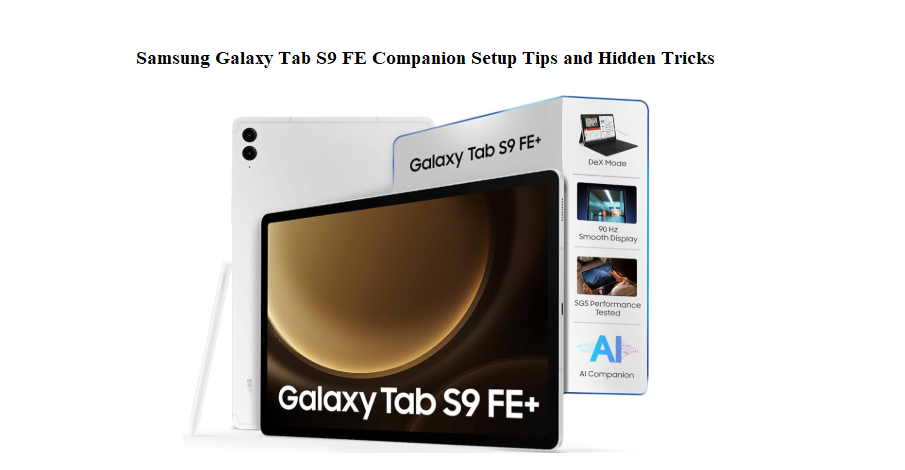

Why This Companion Is Here
Samsung packs the Galaxy Tab S9 FEwith a USB‑C cable, a SIM tool, and a thin Quick Start Guide that mostly points you to a web link. There’s no thick printed manual, so every day owners search for a “Samsung Galaxy Tab S9 FE manual” hoping for clear, human‑friendly help. They want to know how to set up the S Pen, how to split the screen for work, how to make the battery last through a long flight, and where Samsung hid the most useful settings.
This companion is the guide Samsung should have put in the box. I’ve set up the tablet from scratch, drawn with the S Pen, run the battery down, and explored every corner of One UI. Whether you just unboxed your Tab S9 FE or you’ve been using it for weeks, you’ll find practical tips that make a real difference. Keep this page close—the next time an app freezes, the S Pen feels off, or a setting seems to disappear, you’ll find the fix right here.
What’s Inside the Box
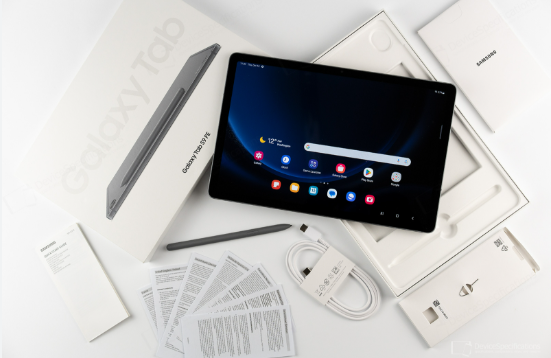
Your Galaxy Tab S9 FE box contains:
- The tablet itself (with a factory screen protector already applied)
- An S Pen (included, magnetically attaches to the back)
- A USB‑C to USB‑C cable
- A SIM ejector tool (for the cellular model)
- A Quick Start Guide and warranty booklet
No charger brick is included. Use any USB‑C PD charger (25W or higher) for fast charging. The S Pen does not need charging for basic writing; its Bluetooth features are not present on this model.
Getting to Know the Buttons and Ports
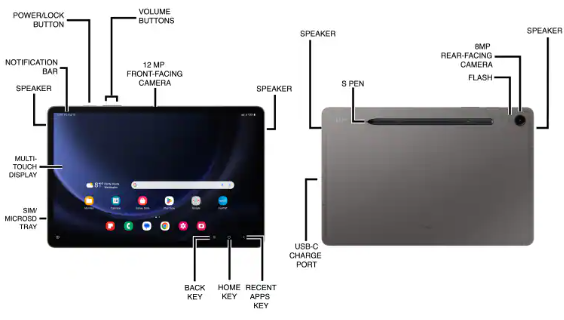
The Tab S9 FE keeps physical controls simple.
Power button (side‑mounted fingerprint sensor)
Rest your finger lightly on it to unlock the tablet. You can register up to four fingerprints. The sensor works best if you register the same finger twice at slightly different angles. If the scanner becomes sluggish, remove the fingerprints and re‑enrol them in Settings > Security and privacy > Biometrics > Fingerprints.
Volume rocker
Press the top or bottom half to adjust volume. Holding the power button and volume down button together for two seconds takes a screenshot. Holding them for about ten seconds forces a restart if the tablet freezes.
USB‑C port
Used for charging, data transfer, and connecting accessories like keyboards, mice, or external drives. The Tab S9 FE supports Samsung DeX, so you can connect a monitor and get a desktop‑like experience.
MicroSD slot
The tray supports a microSD card up to 1TB. Use this to store movies, photos, and games. Format the card in Settings > Device care > Storage > Advanced > SD card.
Quad speakers
Tuned by AKG, the speakers support Dolby Atmos. You’ll find the sound surprisingly rich, especially when holding the tablet in landscape orientation.
First‑Time Setup and Settings You Should Change Right Away
After powering on, the setup wizard will guide you through Wi‑Fi, Google account, and Samsung account. Once the Home Screen appears, dive into these settings.
Update the software
Go to Settings > Software update > Download and install. Samsung often pushes out stability improvements and new One UI features. Always update before installing your apps.
Samsung account and Find My Mobile
Sign into your Samsung account and enable Find My Mobile (Settings > Security and privacy > Find My Mobile). This lets you locate, lock, or wipe the tablet if it’s ever lost, even offline.
Display and refresh rate
The Tab S9 FE has a TFT LCD display with a 90Hz refresh rate. Out of the box, it may be set to 60Hz. Go to Settings > Display > Motion smoothness and select “Adaptive” for smoother scrolling. The tablet will automatically adjust between 60Hz and 90Hz based on what you’re doing.
Navigation gestures
By default, you’ll have three on‑screen buttons. If you prefer swipe gestures, go to Settings > Display > Navigation bar > Swipe gestures. This frees up screen space and feels more modern.
Edge panels
Swipe from the right edge to reveal a handy panel of apps, contacts, and tools. You can customize what appears there. If you don’t use it, turn it off in Settings > Display > Edge panels.
Mastering the S Pen (No Charging Needed)
The Tab S9 FE includes an S Pen that attaches magnetically to the back of the tablet. Unlike the S Pen on flagship models, this one has no Bluetooth or air actions, but it’s still incredibly capable.
Writing and drawing
Pull out the S Pen and the Air Command menu pops up instantly. Choose “Create note” to start writing. The pen has 4,096 pressure levels and a soft tip that glides like paper. In Samsung Notes, you can use the highlighter, pen, pencil, and fountain pen tools.
Screen‑off memo
When the tablet’s screen is off, simply take out the S Pen and start writing. The screen lights up in a dim note‑taking mode. Jot down a quick reminder, then push the S Pen back to save it automatically.
Smart Select
In Air Command, tap “Smart Select.” Draw a box around anything on screen—text, images, or a region of a video—and capture it. You can extract text from an image, create a GIF, or pin the selection as a floating window.
Translate
Hover the S Pen over a word to translate it. This works across apps and web pages. Enable it in Settings > Advanced features > S Pen > Translate.
S Pen customization
In Settings > Advanced features > S Pen, you can change the Air Command menu shortcuts, adjust the pen pointer style, and enable the “Sound” option that plays a gentle pen‑on‑paper noise when writing.
Multitasking and DeX Mode Made Simple
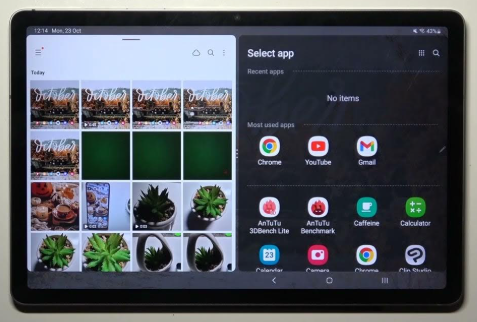
The Tab S9 FE handles two or three apps at once, and DeX mode turns it into a mini PC.
Split screen
Open an app, swipe up to reveal the taskbar, then drag another app icon to the left or right edge. The two apps will snap side by side. Drag the divider bar to resize them. You can even open a third app in a pop‑up window by dragging it to the centre.
Pop‑up view
Swipe diagonally from either top corner of the screen to shrink any app into a resizable floating window. Move it around, minimize it to a floating icon, or close it with a tap.
App pairs
From the recent apps screen, tap the app icon at the top of a window and select “Open in split screen view.” Choose a second app. Then, in the recent apps list, the two apps appear as an App Pair—tap to open both side by side instantly.
Samsung DeX
Swipe down the Quick Settings panel and tap “DeX.” This switches the tablet into a desktop‑like interface with resizable windows, a taskbar, and keyboard shortcuts. You can use DeX on the tablet’s screen or connect an external monitor via USB‑C. For a full experience, pair a Bluetooth keyboard and mouse.
Battery, Charging, and Long‑Term Care
The Tab S9 FE has a 8,000 mAh battery that typically lasts 10–12 hours of video playback. You can stretch it further.
Charging
Use a 25W USB‑C PD charger (sold separately) for the fastest top‑up. A full charge takes about 90 minutes. The tablet also supports slower charging via any USB‑C cable, but a basic phone charger will take much longer.
Protect battery
Settings > Battery > Charging settings > Protect battery. Turn this on to cap the charge at 85%. It significantly extends the battery’s lifespan, especially if you leave the tablet plugged in overnight.
Power saving mode
From Quick Settings, tap the power saving icon, or go to Settings > Battery > Power saving. It limits background activity, reduces brightness slightly, and turns off the Always On Display (which this model doesn’t have anyway). Use it when you’re far from an outlet.
Adaptive power saving
Settings > Battery > Adaptive power saving. The tablet learns your usage patterns and automatically applies power saving when it predicts you won’t need maximum performance.
Battery health check
Dial *#0228# in the Phone app (if it’s an LTE model) or use the Samsung Members app to run a battery diagnostic. A healthy battery shows “Normal.” If the capacity drops below 80% over time, consider a replacement.
Connecting Accessories and External Storage
Bluetooth keyboard and mouse
Settings > Connections > Bluetooth. Put your accessory in pairing mode and select it. Once connected, a cursor appears. Adjust pointer speed in Settings > General management > External keyboard and mouse.
USB‑C hub
Plug a USB‑C hub into the tablet to connect USB flash drives, SD cards, or even wired Ethernet. The My Files app shows all external storage. The Tab S9 FE reads FAT32, ex FAT, and NTFS drives.
External displays and DeX
Connect a USB‑C to HDMI cable or a compatible USB‑C hub. When DeX is on, the external display acts as a separate desktop; the tablet screen can still be used as a touchpad or a second display.
Privacy and Security Settings You Should Enable
Face unlock and fingerprint
Settings > Security and privacy > Biometrics. Register your face and fingerprints. The face unlock is software‑based and less secure than a fingerprint, but it’s convenient for quick unlocks. For sensitive apps, use the fingerprint sensor.
Secure Folder
Settings > Security and privacy > Secure Folder. Set it up with a separate PIN or fingerprint. Inside, you can install private copies of apps, store photos, and keep files encrypted and invisible to the rest of the system.
App permissions and privacy dashboard
Settings > Security and privacy > Privacy dashboard. You’ll see a timeline of which apps accessed your camera, microphone, and location in the past 24 hours. Revoke permissions immediately if something looks suspicious.
Microphone and camera indicators
A green dot appears in the top‑right corner whenever an app uses the camera or microphone. Swipe down to see exactly which app is active. This is built into Android and cannot be bypassed.
Google Play Protect
Open the Play Store, tap your profile picture, and select Play Protect. Ensure it’s on and scanning apps regularly for malware.
How to Restart, Reset, and Enter Recovery Mode
Soft restart
Hold the power button and volume down together until the power menu appears, then tap “Restart.”
Force restart (frozen tablet)
Press and hold the power button and volume down button together for about 10–12 seconds until the screen goes black and the Samsung logo appears. Release. No data is lost.
Factory reset from Settings
Settings > General management > Reset > Factory data reset. Scroll down, tap “Reset,” and enter your PIN or password. This wipes everything.
Factory reset using hardware keys
- Turn off the tablet.
- Connect it to a PC via USB‑C.
- Press and hold Volume Up + Power button until the Samsung logo appears, then release.
- In the Recovery menu, use the volume buttons to navigate to “Wipe data/factory reset,” and press Power to confirm.
Safe Mode (diagnose problem apps)
Turn off the tablet. Press and hold the power button until the Samsung logo appears, then immediately press and hold Volume Down until the Home Screen loads. A “Safe mode” watermark will appear. If your issue disappears, a third‑party app is the cause. Uninstall the most recently added apps.
Troubleshooting the Most Common Annoyances
| Problem | Likely Cause | What to Try |
|---|---|---|
| Tablet feels slow | Too many background apps or storage nearly full | Restart the tablet. Free up at least 10% of internal storage. Check Device care > Memory and clean background apps. |
| S Pen won’t write or is offset | Magnet interference or calibration issue | Remove any magnetic case. Reattach the S Pen to the back and detach again. In Settings, check S Pen > Reset S Pen. |
| Wi‑Fi keeps disconnecting | Router or software glitch | Forget the network, restart the tablet, and reconnect. If using a mesh Wi‑Fi system, ensure the tablet isn’t hopping between nodes. |
| Apps crash on startup | Buggy app or conflicting update | Clear the app cache: Settings > Apps > [app name] > Storage > Clear cache. If that fails, tap “Clear data” (you’ll lose app settings). |
| Bluetooth audio stuttering | Interference or codec mismatch | Keep the tablet and Bluetooth device within a few metres. Reset network settings: General management > Reset > Reset Wi‑Fi and Bluetooth settings. |
| Tablet won’t charge | Dirty port or weak charger | Clean the USB‑C port gently with a wooden toothpick. Use a 25W or higher PD charger and a quality cable. |
Hidden Features Most Owners Miss
Second Screen
Make your Tab S9 FE a wireless second monitor for your Windows PC. On the tablet, pull down Quick Settings and tap “Second Screen.” On your PC, press Windows + K and select your tablet. It works over Wi‑Fi, not just Bluetooth.
Quick Share
Swipe down Quick Settings and tap “Quick Share.” Send files instantly to nearby Galaxy devices or Android phones, similar to AirDrop. For documents with sensitive info, use “Private Share,” which sets an expiration timer and blocks screenshots.
Modes and Routines
Settings > Modes and Routines. Automate tasks: for example, “If I open Netflix after 9 PM, turn on Do Not Disturb and lower brightness.” Or “If I connect my Bluetooth headphones, open Spotify.”
Kids Mode (Samsung Kids)
Pull down Quick Settings and tap “Samsung Kids.” Set a PIN and create a child profile with limited apps, a camera with fun stickers, and parental controls. The tablet becomes a safe playground for young users.
Camera as scanner
Open the Camera app, point it at a document, and tap the scan icon that appears. The tablet straightens the page, crops it, and saves it as a PDF or image. No third‑party app needed.
Quick Reference Card
| Action | How |
|---|---|
| Screenshot | Power button + Volume Down (hold for 2 seconds) |
| Extended screenshot | After capture, tap the scrolling arrows icon |
| Force restart | Hold Power + Volume Down for ~12 seconds |
| Open Air Command menu | Pull out S Pen or tap the floating pen icon |
| Screen‑off memo | Remove S Pen while screen is off and start writing |
| Split screen | Drag app from taskbar to left or right edge |
| Pop‑up view | Swipe diagonally from top corner with one finger |
| Open DeX | Quick Settings > DeX |
| Factory reset (hardware) | Power off, hold Volume Up + Power while connected to PC |
Download the Galaxy Tab S9 FE Cheat Sheet
A one‑page PDF with button shortcuts, S Pen tricks, battery care, and reset steps. Save it to your tablet for the moment you need a quick reminder.
“Samsung Galaxy Tab S9 FE Quick Guide (PDF)”
Official Samsung Support Page
For warranty, service, and the official digital manual, visit:
https://www.samsung.com/us/support/tablets/galaxy-tab-s9-fe/
A Short Note Before You Go
This companion was written to help you enjoy your tablet, not just operate it. May your S Pen always glide smoothly, your battery survive the longest study session or movie marathon, and your multitasking feel effortless. If a friend or family member ever opens a Galaxy Tab S9 FE and looks puzzled, send them this guide—it’ll save them a lot of head‑scratching.
Copyright 2026 productsmanuals.com. All rights reserved. This Samsung Galaxy Tab S9 FE manual is original content and may not be copied, republished, or redistributed without written permission. Samsung, Galaxy Tab, and S Pen are trademarks of Samsung Electronics. This guide is unofficial and not affiliated with Samsung.
Thanks for visiting productsmanuals.com

[…] Samsung Galaxy Tab S9 FE Companion Setup Tips and Hidden Tricks Get the most from the 200 MP sensor, Circle to Search, and DeX mode. […]