
Garmin DriveSmart 66 Setup & User Guide
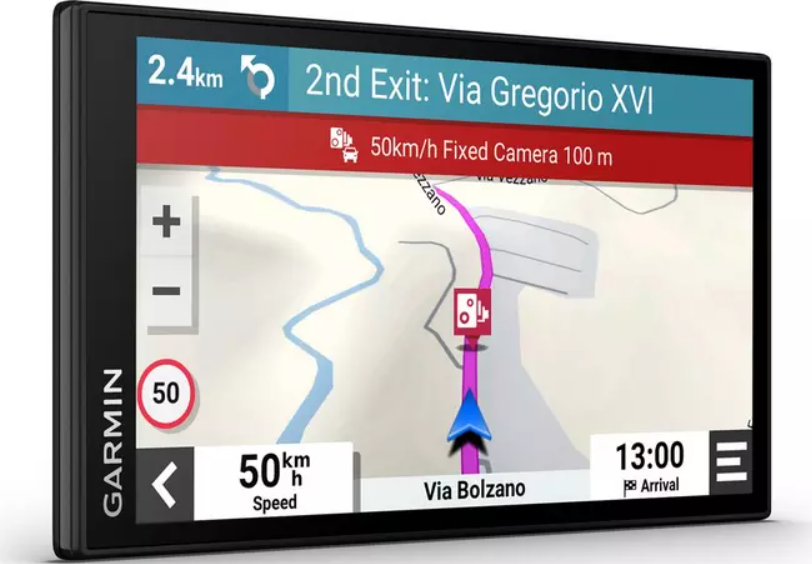
Product Overview
The DriveSmart 66 features a 6‑inch capacitive touchscreen, a rechargeable lithium‑ion battery, and a magnetic mount that attaches to your windshield or dashboard. It comes with preloaded maps for your region (e.g., North America or Europe), lifetime map updates, and access to live traffic via a paired smartphone running the Garmin Drive app. The device also includes driver alerts for sharp curves, speed cameras, school zones, and fatigue warnings. It can store custom routes, play audio through your car stereo or a built‑in speaker, and supports hands‑free calling and smart notifications when paired with your phone.
Full Specifications
| Specification | Detail |
|---|---|
| Model | DriveSmart 66 |
| Display | 6.0‑inch TFT colour touchscreen, 800 x 480 pixels, dual‑orientation (landscape/portrait) |
| Battery | Rechargeable lithium‑ion; up to 1 hour on battery power |
| Weight | 218 g (7.7 oz) |
| Dimensions | 15.3 x 8.7 x 1.9 cm (6.0 x 3.4 x 0.75 in) |
| Preloaded Maps | Region‑specific (North America, Europe, etc.) with lifetime updates |
| Traffic | Live traffic via Garmin Drive app on smartphone (Bluetooth); optional Garmin traffic receiver cable sold separately |
| Navigation Features | Turn‑by‑turn voice prompts, junction view, speed limit display, lane assist, route avoidance (tolls, highways, ferries) |
| Driver Alerts | Sharp curves, speed changes, school zones, fatigue warning, red light & speed cameras (where available) |
| Connectivity | Bluetooth 4.2, Wi‑Fi (for map and software updates), USB‑C for power/data |
| Audio | Built‑in speaker, 3.5 mm headphone/aux out, Bluetooth audio to car stereo or headset |
| Storage | 16 GB internal (user‑available less), microSD card slot (up to 256 GB) |
| Included Accessories | DriveSmart 66, magnetic mount with suction cup, vehicle power cable (12V), USB‑C cable, quick start guide |
Key Features
- 6‑Inch Dual‑Orientation Display: The bright, glove‑friendly touchscreen can be mounted in landscape or portrait. The interface rotates automatically.
- Voice‑Activated Navigation: Wake the device with “OK Garmin” to search addresses, find points of interest, or change routes without touching the screen.
- Live Traffic via Garmin Drive App: Pair the navigator with your smartphone over Bluetooth. The app sends real‑time traffic data and smart notifications (calls, texts, calendar) to the device.
- Lifetime Map Updates: Download new maps and software directly over Wi‑Fi, no computer needed. The device checks for updates periodically.
- Driver Awareness Alerts: Receive warnings for upcoming sharp curves, speed changes, school zones, and fatigue. Some alerts require optional downloads.
- Garmin Real Directions™: Guidance uses landmarks and traffic lights (“Turn left after the bank”) instead of just street names, making it easier to follow.
- Route Shaping: Prefer or avoid specific roads, add waypoints, or round‑trip routes for scenic drives.
- Backup Camera Compatibility: With an optional Garmin BC™ wireless backup camera (sold separately), you can see a live rear view when reversing.
How to Use
What’s in the Box
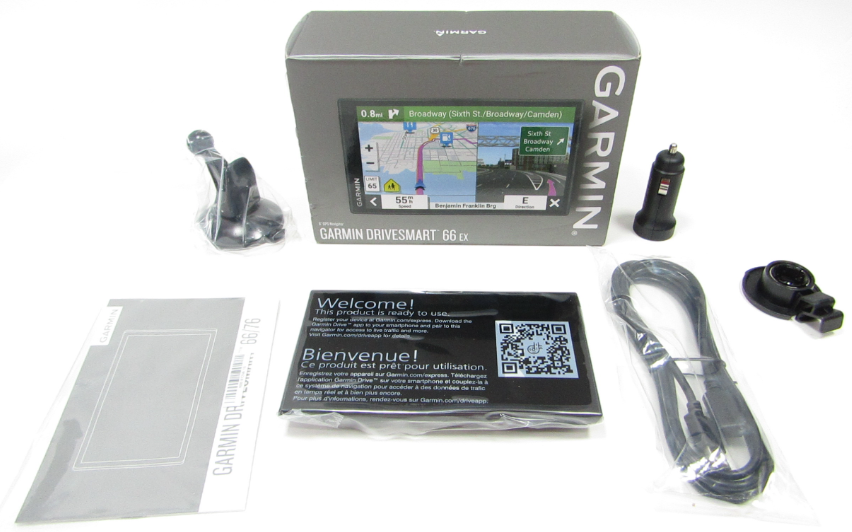
- Garmin DriveSmart 66 GPS navigator
- Magnetic mount with suction cup (windshield/dashboard)
- Vehicle power cable (12V cigarette lighter to USB‑C)
- USB‑C cable for charging/data
- Quick‑Start Guide and warranty card
Physical Setup & Mounting
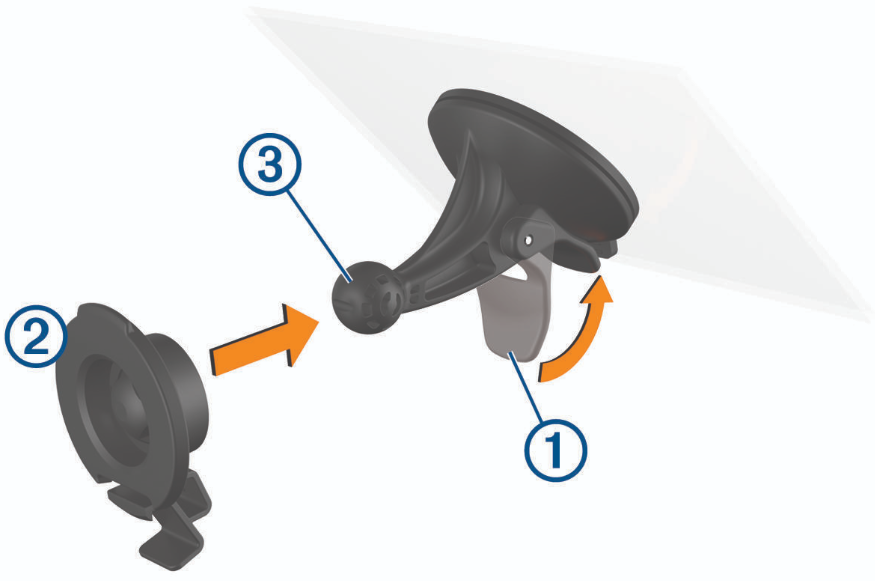
- Clean the windshield or dashboard area with an alcohol wipe (not included) and let dry.
- Press the suction cup firmly onto the surface and flip the locking lever to secure it.
- Attach the magnetic mount to the suction cup arm. The navigator snaps onto the magnetic mount—it will hold strongly but can be adjusted with one hand.
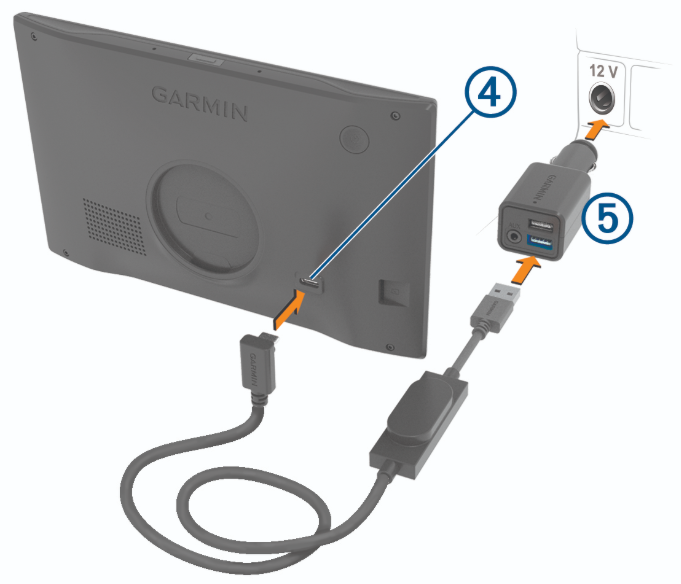
- Plug the vehicle power cable into the navigator’s USB‑C port and the other end into your car’s 12V outlet.
- Press and hold the power button (located on the top edge) until the Garmin logo appears. Follow the on‑screen setup: language, region, and time format.
Initial Software Setup
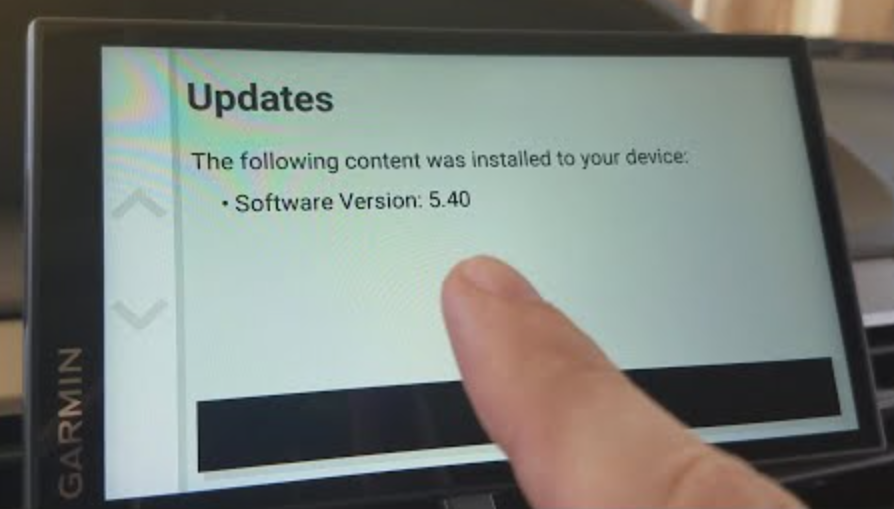
- Wi‑Fi Connection: Go to Settings > Wi‑Fi. Select your home network, enter the password. The device will check for updates. If a large map update is available, allow it to download and install (may take time).
- Garmin Drive App Pairing (for traffic & smart notifications):
-
On your smartphone, download the Garmin Drive app. Sign in or create a Garmin account.
-
Ensure Bluetooth is on. In the app, tap Add Device and select DriveSmart 66.
-
Enter the PIN shown on the navigator. Once paired, live traffic and notifications will appear on the device.
-
-
Map Updates: The navigator will periodically download map updates over Wi‑Fi. You can manually check under Settings > Updates.
Basic Navigation
- From the main screen, tap “Where To?”. Search by address, category (gas, food, parking), or saved places.
- Select a destination. The device calculates the route. Press “Start” to begin guidance.
- During navigation, the map shows your position, speed limit, upcoming turns, and arrival time. Tap the screen to access the trip computer or end route.
- To change route preferences (avoid tolls, highways, ferries), go to Settings > Navigation > Route Preferences before starting.
Voice Commands
- Activate voice by saying “OK Garmin” (or press the voice button on screen).
- Examples: “Find the nearest gas station,” “Go home,” “Turn off voice guidance,” “Show traffic.”
- Voice works without an internet connection for basic commands; voice search for points of interest requires the Garmin Drive app connection.
Driver Alerts
- Alerts are pre‑installed for some regions. To adjust: Settings > Driver Assistance > Driver Alerts.
- Enable or disable specific alerts: speed changes, school zones, fatigue warning, red light cameras.
- The fatigue warning suggests breaks after prolonged driving. Set your preferred interval.
Using Live Traffic
- Traffic appears as coloured lines on the map (green, yellow, red). The device may suggest a faster route automatically if you have enabled Traffic > Auto Avoid.
- If you don’t have the Garmin Drive app, you can purchase a Garmin traffic receiver cable (sold separately) that plugs into the USB‑C port and receives traffic via RDS.
Troubleshooting & Common Problems
| Problem | Likely Cause | What to Try |
|---|---|---|
| Device won’t turn on | Battery drained, or power cable not connected | Charge for 30 minutes via USB‑C. Ensure the vehicle power cable is plugged into a working 12V outlet. |
| No GPS signal | Obstruction, or indoor use | Move outdoors with a clear view of the sky. Wait 2‑5 minutes for first satellite lock. |
| Screen freezes or becomes unresponsive | Software glitch | Press and hold the power button for 10 seconds to force restart. |
| Live traffic not showing | Garmin Drive app not connected, or traffic subscription expired (if using receiver) | Ensure Bluetooth is on and the app is running. Check that the device shows the phone icon. Restart both devices. |
| Map update fails | Weak Wi‑Fi, or insufficient storage | Move closer to the router. Free up space by deleting unused maps or user data. Use a microSD card for extra storage. |
| Voice guidance is silent | Volume muted, or audio output set incorrectly | Press the volume button on the side. Check Settings > Audio > Audio Output and select the correct output (internal speaker, Bluetooth, or aux). |
| “OK Garmin” not working | Voice feature disabled, or background noise | Go to Settings > Voice Control and ensure it’s enabled. Retrain your voice if prompted. |
Frequently Asked Questions
- Does the DriveSmart 66 require a cellular data plan?
No. Maps are stored on the device. Live traffic requires a smartphone paired via the Garmin Drive app or an optional traffic receiver cable. - Can I use the navigator on a motorcycle?
Yes, with a compatible motorcycle mount (sold separately). The device is not waterproof, so protect it from rain. - How do I update maps?
Connect to Wi‑Fi, go to Settings > Updates, and the device will check for map and software updates. Large map updates may take up to an hour. You can also update via a computer using Garmin Express software. - What is the battery life?
Up to 1 hour on battery power. For continuous navigation, keep it plugged into the vehicle power cable. - Can I pair a backup camera?
Yes, the DriveSmart 66 is compatible with the Garmin BC 40 wireless backup camera. Pair it via Settings > Camera > Add Camera. - Is there a microSD card slot?
Yes, it supports microSD cards up to 256 GB for additional map storage or custom points of interest.
Tips
- Download maps at home over Wi‑Fi: Before a long trip, ensure maps are up to date to avoid using cellular data.
- Use voice commands while driving: It’s safer to say “OK Garmin, find nearest coffee” than to touch the screen.
- Adjust brightness for night driving: Go to Settings > Display > Brightness and enable automatic night colours.
- Save your home and work addresses: The device can route to “Home” or “Work” with a single tap or voice command.
- Plan round trips: Use the round‑trip feature to create scenic routes that avoid retracing the same road.
Safety Information
- Mount securely: Ensure the suction cup is firmly attached and the device does not obstruct your view of the road. Mount on the dashboard if windshield mounting is restricted in your area.
- Do not operate while driving: Use voice commands or pull over to adjust settings.
- Power cable: Route the cable so it doesn’t interfere with steering or gear shift. Keep it away from airbag deployment zones.
- Heat: Do not leave the device in direct sunlight for extended periods; the screen can overheat. Store in a cool place when not in use.
- Battery: The internal battery is not user‑replaceable. Do not puncture or expose to high heat. Contact Garmin for service if battery issues arise.
Related Manuals
If this guide was helpful, here are a few more popular manuals from productsmanuals.com that you might find useful:
- VLEKTRA Velocity 300 Manual – Electric Motorcycle Specs, Charging & Riding Modes
Master your e‑motorcycle with range tips and troubleshooting. - Xiaomi Electric Scooter 4 Pro Manual – Folding, Battery & App Setup
Get the most range and smoothest ride from your commuter scooter. - Segway Ninebot MAX G30P Manual – Scooter Setup, App & Riding Tips
Learn to pair, maintain, and safely ride your electric scooter. - DJI Mini 4 Pro Manual – Drone Setup, Flight Modes & Camera Tips
Capture cinematic aerial footage with this lightweight drone. - Olight Baton 3 Manual – EDC Flashlight Setup, Charging & Modes
Master your pocket flashlight with lockout and magnetic tailcap.
Browse all guides at productsmanuals.com .
Copyright 2026 productsmanuals.com. All rights reserved. This Garmin DriveSmart 66 manual is original content and may not be copied, republished, or redistributed without written permission. Garmin, DriveSmart, and the Garmin logo are trademarks of Garmin Ltd. This guide is unofficial and not affiliated with Garmin.
