
Product Overview
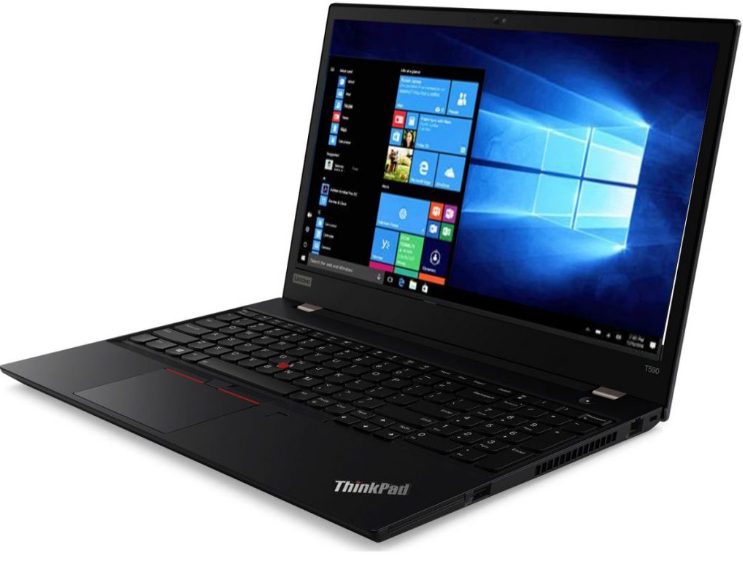
The Lenovo ThinkPad T440p is a 14‑inch business laptop known for its sturdy construction, outstanding keyboard, and exceptional upgradability. Unlike many modern ultrabooks, the T440p lets you replace or upgrade the processor, RAM, storage drive, optical drive, and even the display panel. It was built with a socketed Intel 4th‑generation Core processor (up to i7‑4910MQ), dual drive bays, and a hot‑swappable battery. The laptop runs Windows 10 or Windows 11 (with workarounds) and remains popular among students, programmers, and anyone who values repairability. It is clad in the classic black magnesium‑alloy roll‑cage chassis that ThinkPads are famous for.
Key Features
- Socketed CPU & Upgradability: The processor is not soldered. You can replace it with any compatible 4th‑gen Core i5 or i7 chip. Two RAM slots support up to 16 GB DDR3L. The main drive bay accepts a 2.5‑inch SATA SSD/HDD, and the optical bay can host a second drive via a caddy.
- Classic ThinkPad Keyboard: Full‑size, spill‑resistant keyboard with tactile keys and optional backlight. The layout includes dedicated Home, End, Insert, Delete, and Page Up/Down keys.
- TrackPoint & Touchpad: The red pointing stick (TrackPoint) in the centre of the keyboard works with three physical buttons above the touchpad. The touchpad itself supports multi‑touch gestures.
- Hot‑Swappable Battery: The primary battery (57 Wh or 100 Wh) can be removed and swapped while the laptop is running if the secondary internal battery (3‑cell) is present or if the laptop is plugged in. This allows unlimited runtime with spare batteries.
- 14‑inch Display: Available in HD (1366×768) or Full HD (1920×1080) variants. The panel is matte (anti‑glare) and can be easily upgraded to an IPS Full HD screen.
- Robust Connectivity: VGA, mini DisplayPort, 4x USB‑A (2x USB 3.0, 2x USB 2.0), Ethernet, SD card reader, ExpressCard/54 slot, optical drive, and a 3.5 mm headphone/mic jack.
- ThinkLight & Backlit Keyboard: Some models include a backlit keyboard; all models have the classic ThinkLight (a small LED above the screen) that illuminates the keyboard in the dark.
How to Use
What’s in the Box
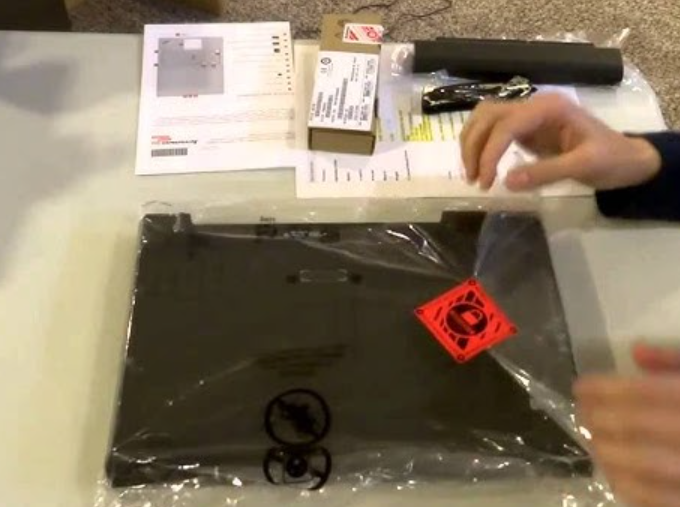
If purchased new or refurbished, the box typically contains:
- Lenovo ThinkPad T440p laptop (battery installed)
- AC power adapter (65 W or 90 W, depending on configuration)
- Power cord (region‑specific)
- Quick‑Start Guide and warranty card
If purchased used, you might receive only the laptop and charger.
What You Need to Buy (Not Included)
- Operating System: The laptop may come without an OS. You need a Windows 7/10 license or a Linux distribution (Ubuntu, Fedora, etc.) on a USB drive.
- Screwdrivers: A Phillips‑head screwdriver and a plastic pry tool are needed for upgrades.
- External Monitor Cable: VGA or mini DisplayPort cable if you plan to use an external display.
- Replacement Parts: If upgrading, you supply the CPU, RAM sticks (DDR3L SODIMM), SSD/HDD, optical bay caddy, etc.
Physical Buttons & Ports
| Component | Location | Function |
|---|---|---|
| Power button | Above the keyboard (right side) | Press to turn on. The LED ring glows green when on, blinks during sleep. |
| Volume buttons | Above the keyboard (left side) | Three buttons: volume up, volume down, and microphone mute. |
| ThinkLight | Top edge of the screen bezel | Small LED that lights the keyboard when toggled (Fn + Space). |
| TrackPoint (red pointing stick) | Centre of the keyboard | Use your index finger to move the cursor. The three buttons below the spacebar act as left, middle, and right click. |
| Fingerprint reader | Right of the touchpad (on some models) | Swipe your finger to log in. |
| VGA & mini DisplayPort | Left edge | Connect external monitors. |
| USB‑A ports | 2x USB 3.0 on the left, 2x USB 2.0 on the right | Connect keyboards, mice, drives, and other peripherals. |
| Optical drive | Right edge | DVD‑RW drive. Can be swapped with a hard‑drive caddy. |
First‑Time Setup & BIOS Settings
- Connect the charger and plug it into a wall outlet. Press the power button.
- If the laptop doesn’t have an OS, press F12 at the Lenovo logo to access the boot menu and select your USB installation media.
- If Windows is already installed, follow the on‑screen setup. Sign in with your Microsoft account.
- Install Lenovo Vantage (from the Microsoft Store) or Lenovo System Update (from Lenovo’s website) to fetch drivers and BIOS updates.
- To enter the BIOS, press F1 at startup. Here you can change boot order, enable/disable the fingerprint reader, and adjust security settings.
Upgrading RAM, SSD, and CPU
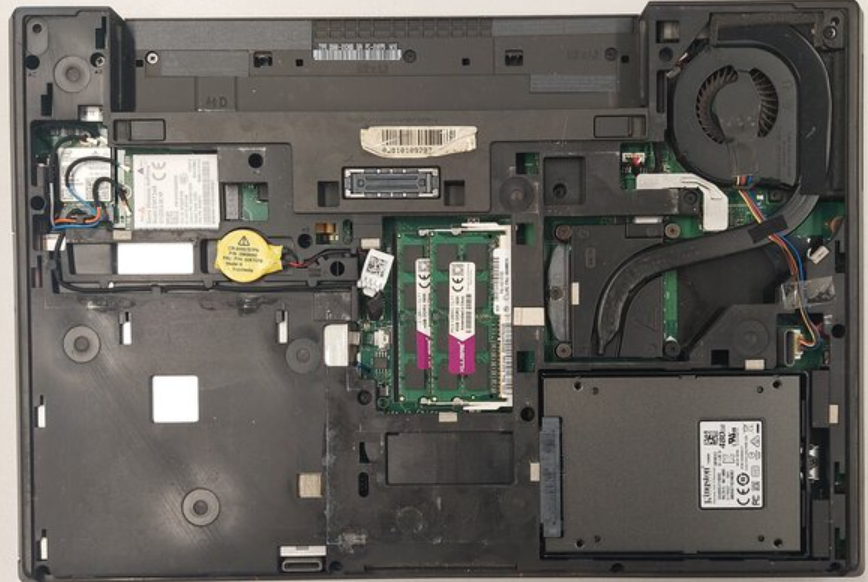
- Shut down the laptop and remove the battery.
- Unscrew the two screws on the bottom edge and slide the bottom cover off.
- RAM: The two DDR3L SODIMM slots are easily accessible. Align the notch, slide the stick in at an angle, and press down until it clicks. Max 16 GB (2×8 GB).
- Main drive: The 2.5‑inch bay is on the left. Unplug the old drive, slide it out, and insert a new SATA SSD/HDD. A 2.5‑inch SSD is recommended for speed.
- Optical bay caddy: Remove the single screw holding the optical drive, slide it out, and install a 2.5‑inch drive caddy. This gives you a second internal storage drive.
- CPU upgrade: This is advanced. Remove the heatsink (several screws, unplug the fan), lift the lever on the CPU socket, swap the processor, apply thermal paste, and reassemble. Ensure the CPU is a 4th‑gen mobile chip (MQ series) with the correct TDP.
Battery Hot‑Swap & Power
- Remove the battery: Slide the two release latches on the bottom and pull the battery outward.
- Swap while running: If the laptop is plugged into AC power (or has a charged internal battery, if equipped), you can remove the main battery and replace it with a fresh one without shutting down.
- Battery life: A healthy 57 Wh battery gives 2‑3 hours; a 100 Wh extended battery gives 5‑6 hours.
Troubleshooting & Common Problems
| Problem | Likely Cause | What to Try |
|---|---|---|
| Laptop won’t turn on | Dead battery, or charger issue | Remove the battery, plug in the AC adapter, and try again. If the power LED blinks, the charger may be faulty. Try a different 90 W adapter. |
| Keyboard keys not working | Loose ribbon cable, or liquid damage | Reseat the keyboard ribbon cable (under the keyboard bezel). If liquid was spilled, turn off immediately, dry, and replace the keyboard. |
| TrackPoint drifts or moves on its own | Calibration needed, or dust on the sensor | Clean the TrackPoint cap with a dry cloth. In Windows, open the mouse properties and recalibrate the TrackPoint. |
| Overheating or loud fan | Dust in the heatsink, or dried thermal paste | Remove the bottom cover, clean the fan and heatsink with compressed air. Replace the thermal paste on the CPU if temperatures remain high. |
| Wi‑Fi disconnects often | Driver issue, or loose Wi‑Fi card | Update the Intel Wi‑Fi driver. Remove the bottom cover and reseat the Wi‑Fi card (under a small cover). |
| Display has lines or is dim | Loose display cable, or failing backlight | Try connecting an external monitor. If the external image is fine, reseat the display cable on the motherboard. If the backlight flickers, the inverter or panel may need replacement. |
Frequently Asked Questions
- Can I install Windows 11 on the T440p?
Officially, no — the 4th‑gen Intel CPU is not on Microsoft’s supported list. However, you can bypass the TPM and CPU checks using Rufus or registry edits. Windows 11 runs well, but future updates are not guaranteed. - What is the maximum RAM supported?
16 GB (2 x 8 GB) DDR3L‑1600 SODIMMs. - Can I upgrade the display to Full HD IPS?
Yes. The standard 1366×768 TN panel can be swapped for a 1920×1080 IPS panel (compatible models include LP140WF3‑SPD1). You need an eDP cable. The upgrade is straightforward. - Does the T440p have Bluetooth?
Yes, Bluetooth 4.0 is integrated into the Wi‑Fi card. - Can I use an NVMe SSD?
No, the T440p uses SATA only. However, a 2.5‑inch SATA SSD provides a huge speed boost over a spinning hard drive. - How do I disable the touchpad and use only the TrackPoint?
In Windows, go to Mouse settings and disable the touchpad. You can also use the Fn + F8 key combination to toggle the touchpad.
Tips
- Use a 90 W adapter: If you have a quad‑core i7 and a dedicated GPU, a 65 W charger may not provide enough power under heavy load. A 90 W adapter prevents throttling.
- Replace the thermal paste: The original paste may be dry. A fresh application (e.g., Arctic MX‑6) can drop temperatures by 10 °C.
- Install a caddy for dual drives: An optical‑bay caddy costs little and lets you run a fast SSD for the OS and a large HDD for storage.
- Clean the fan annually: Dust buildup is the most common cause of overheating and noisy operation.
- Use Lenovo Vantage: It provides battery health information, driver updates, and system diagnostics.
Safety Information
- Battery: Only use genuine Lenovo batteries. Swollen or damaged batteries must be disposed of properly and not punctured.
- AC adapter: Use the correct wattage adapter. A 65 W adapter on a high‑power configuration may overheat.
- Upgrades: Always remove the battery and AC power before opening the laptop. Ground yourself to avoid static discharge.
- Screen: The lid is sturdy, but avoid placing heavy objects on top. Clean the screen with a dry microfiber cloth.
- Keyboard spills: The keyboard is spill‑resistant, but liquids can still damage components underneath. If you spill, turn the laptop off, disconnect power, and let it dry for 24‑48 hours.
Related Manuals
If this guide was helpful, here are a few more popular manuals from productsmanuals.com that you might find useful:
- Samsung Galaxy Watch 7 Manual – Health Sensors, Galaxy AI & Battery Tips
Master ECG, body composition, sleep apnea detection, and more. - Dell Inspiron 15 3520 Manual – Laptop Setup, Upgrades & Troubleshooting
Upgrade RAM and SSD, and fix common performance issues. - iPhone 12 mini Manual – Settings, Camera & Hidden Features Guide
Explore Dynamic Island, Action button, and battery‑health tricks. - HP Officejet Pro 9015e Manual – Wireless Printer Setup & Common Fixes
Print, scan, and solve paper jams with clear step‑by‑step instructions. - VLEKTRA Velocity 300 Manual – Electric Motorcycle Specs, Charging & Riding Modes
Master your e‑motorcycle with range tips and troubleshooting.
Browse all guides at productsmanuals.com .
Copyright 2026 productsmanuals.com All rights reserved. This Lenovo ThinkPad T440p 20AN manual is original content and may not be copied, republished, or redistributed without written permission. Lenovo, ThinkPad, and TrackPoint are trademarks of Lenovo. This guide is unofficial and not affiliated with Lenovo.

[…] Lenovo ThinkPad T440p Manual – Upgrade Guide, TrackPoint & Hot‑Swap Battery Upgrade RAM, SSD, and CPU on the classic upgradable ThinkPad. […]