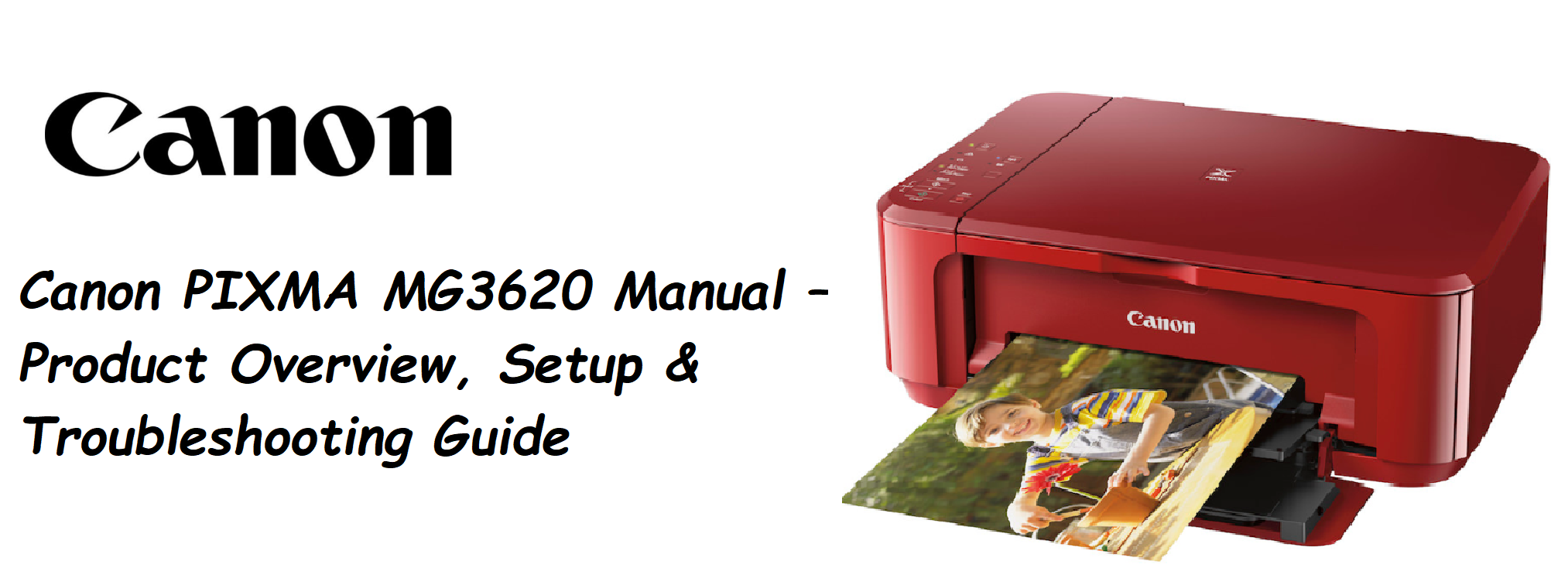

Canon PIXMA MG3620 Manual – Product Overview, Setup & Troubleshooting Guide
Product Overview
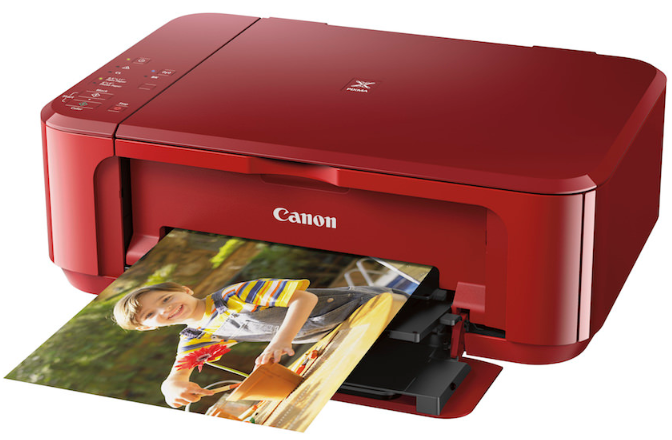
The Canon PIXMA MG3620 is a compact wireless all‑in‑one inkjet printer designed for home and light office use. It prints, scans, and copies, and connects to your devices via Wi‑Fi, USB, or Canon’s mobile printing app. It uses a two‑cartridge ink system (black and tricolour) and supports standard letter, legal, and photo paper sizes. The printer is quiet, space‑saving, and ideal for everyday documents, school projects, and photos.
Key Features
- Wireless Connectivity: Built‑in Wi‑Fi (2.4 GHz) lets you print from anywhere in your home without cables. The printer also supports Wi‑Fi Direct, so you can connect a device directly to the printer even without a router.
- Mobile Printing: Use the Canon PRINT Inkjet/SELPHY app (iOS/Android), Apple AirPrint, or Mopria Print Service (Android) to print from your phone or tablet. You can also scan directly to your mobile device.
- Two‑Cartridge FINE Ink System: The MG3620 uses a PG‑245 (black) and CL‑246 (tricolour) ink cartridge. Both are easy to replace and available in standard and high‑yield (XL) versions.
- Print, Scan, Copy: The flatbed scanner handles documents up to A4/letter size. Copying can be done with a single button press on the printer.
- Quiet Mode: Activate Quiet Mode via the printer’s operation panel or the Canon PRINT app. It reduces printing noise, making it ideal for late‑night printing.
- Auto Power On/Off: The printer can turn itself on automatically when a print job is sent, and off after a period of inactivity to save energy.
How to Use
Unboxing & Initial Setup
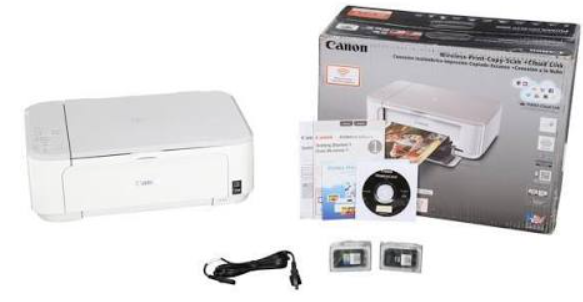
- Remove all packing tape and orange protective materials from the printer. Open the paper output tray and the scanner lid to remove all inserts.
- Connect the power cord to the back of the printer and a wall outlet. Press the Power button.
- Open the front cover. The ink cartridge holder will move to the center. Remove the two ink cartridges from their packaging, being careful not to touch the gold contacts or the ink nozzles. Insert the black cartridge into the left slot (PG‑245) and the colour cartridge into the right slot (CL‑246). Push them until they click into place. Close the cover.
- Wait about 2–3 minutes for the printer to initialise and charge the ink. The power light will stop blinking.
Connecting to Wi‑Fi
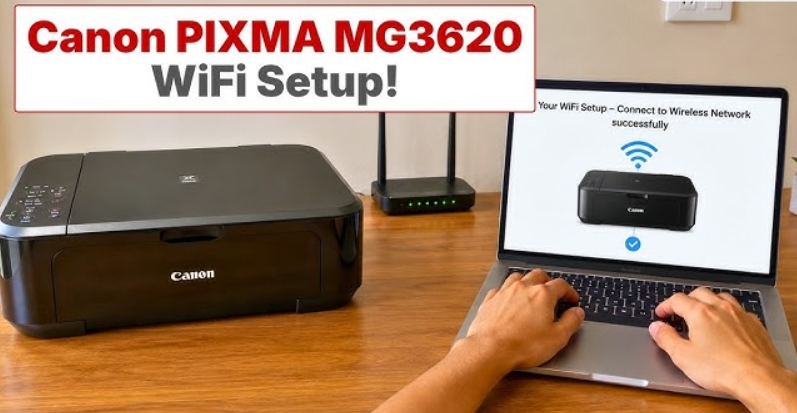
Method 1: Using the Canon PRINT App (Recommended)
- Download the Canon PRINT Inkjet/SELPHY app on your smartphone.
- Open the app and follow the on‑screen instructions to add a new printer. The app will temporarily connect to the printer via Wi‑Fi Direct.
- Select your home Wi‑Fi network and enter the password. The printer will connect to your network. Once connected, the Wi‑Fi light on the printer stays solid blue.
Method 2: Using the WPS Button (If Your Router Supports It)
-
Press and hold the Wi‑Fi button on the printer until the Wi‑Fi light flashes.
-
Within 2 minutes, press the WPS button on your router. The printer will connect automatically.
Method 3: Wireless Setup via USB (Windows/Mac)
-
Connect the printer to your computer using a USB cable (not included) and run the setup software from Canon’s website (ij.start.canon). The software will guide you through wireless configuration.
Printing, Scanning & Copying
- Print from computer: Install the printer driver from Canon’s support page. Select “Canon MG3600 series” in your application’s print dialog, choose your paper size and quality, and print.
- Print from phone: Open a document or photo, tap the Share icon, and select Print (AirPrint for iOS, or the Canon PRINT app for Android).
- Scan: Place your document face‑down on the scanner glass. Open the Canon PRINT app, tap Scan, and follow the prompts. You can also use the included IJ Scan Utility on your computer.
- Copy: Place the original on the glass. Press the Black or Colour copy button on the printer. The default copies are standard quality. For multiple copies, press the button repeatedly; each press adds one copy (up to 20).
Replacing Ink Cartridges
When the ink level is low, the printer’s Alarm light blinks orange. Open the front cover; the cartridge holder moves to the replacement position. Push the tab on the empty cartridge to release it, and insert a new one until it clicks. Close the cover. The printer will clean the printhead automatically.
Troubleshooting & Common Problems
| Problem | Likely Cause | What to Try |
|---|---|---|
| Printer not printing (offline) | Weak Wi‑Fi signal or printer not connected | Check that the Wi‑Fi light is solid blue. Restart the printer and router. Re‑run the wireless setup. |
| Print quality is poor (streaks, faded) | Clogged printhead or low ink | Run a Printhead Cleaning from the printer’s maintenance menu (hold the Resume/Cancel button until the power light blinks twice, then release). Check ink levels and replace cartridges if needed. |
| Paper jam | Paper not loaded correctly, or debris inside | Turn off the printer. Open the rear cover and gently pull the jammed paper out in the direction of the paper path. Reload paper evenly in the rear tray. |
| Alarm light blinking orange | Various: no paper, paper jam, ink cartridge issue, etc. | Count the number of blinks. 2 blinks = no paper, 4 blinks = ink cartridge not recognised, etc. Refer to the full manual for blink codes. |
| Printer won’t connect to Wi‑Fi | Incorrect password, or router band steering | The printer only supports 2.4 GHz networks. If your router uses a single SSID for both 2.4 GHz and 5 GHz, temporarily disable the 5 GHz band during setup. Re‑enter the Wi‑Fi password. |
| Scanned image has lines or smudges | Dirty scanner glass | Lift the scanner lid. Wipe the glass and the white backing with a soft, dry cloth. |
Common Problems Quick List
- Print jobs stuck in queue: Open the print queue on your computer, cancel all documents, and restart the printer.
- Ink cartridge not recognized: Remove the cartridge, check for protective tape, clean the gold contacts with a lint‑free cloth, and re‑insert firmly.
- Slow printing: The printer may be in Quiet Mode (which reduces print speed). Turn off Quiet Mode from the printer’s operation panel or app.
- Wireless disconnects after a few days: The printer may be entering deep sleep. Adjust the Auto Power Off setting in the Canon PRINT app to keep the Wi‑Fi connection active.
Frequently Asked Questions
- Can I use the PIXMA MG3620 with a Chromebook?
Yes, the printer is compatible with Chrome OS. Add it via Settings > Advanced > Printing > Add Printer. It uses the built‑in PPD driver. - Does the printer support borderless printing?
Yes, it supports borderless printing on photo paper sizes up to 4×6 inches. - What is the maximum paper size?
The rear tray accepts up to A4/Letter size paper (216 × 297 mm). - How do I check ink levels?
On your computer, open the Canon IJ Status Monitor. On your phone, open the Canon PRINT app; the ink levels are displayed on the home screen. - Can I print from an iPhone without the Canon app?
Yes, use AirPrint. The printer will appear in the AirPrint menu automatically when both are on the same Wi‑Fi network. - What is the replacement cartridge number?
Black: PG‑245 (standard) or PG‑245XL (high yield). Colour: CL‑246 (standard) or CL‑246XL. - How do I reset the printer to factory settings?
Turn off the printer. Press and hold the Stop/Reset button, then press and hold the Power button. While holding both, release the Stop/Reset button, press it twice, then release both buttons. The printer will reset.
Tips
- Use the right paper: For photos, use Canon photo paper for best results. Load paper with the printable side facing up.
- Clean the printhead monthly: If you don’t print often, run a nozzle check and printhead cleaning cycle to prevent dried ink from clogging the jets.
- Update the firmware: Occasionally check Canon’s support page for firmware updates. They can improve wireless stability and print quality.
- Save ink: Use Draft mode (accessible from the print driver under Quality settings) for everyday documents. It uses less ink and prints faster.
- Place near the router: For a stable Wi‑Fi connection, position the printer within reasonable range of your router and away from large metal objects.
Safety Information
- Power supply: Use only the supplied power cord. Ensure the power outlet is easily accessible to disconnect the printer in an emergency.
- Ink cartridges: Keep out of reach of children. If ink comes into contact with skin, wash with soap and water. If it gets into eyes, rinse immediately with water for at least 15 minutes and seek medical advice.
- Ventilation: Place the printer in a well‑ventilated area. Avoid blocking the air vents on the back.
- Weight: The printer is light, but be careful when moving it. Lift from the bottom, not by the paper tray or scanner lid.
- Cleaning: Unplug the printer before cleaning the interior. Use a soft, dry cloth for the exterior. Do not use alcohol, thinners, or other solvents.
Related Manuals
If this guide was helpful, here are a few more popular manuals from productsmanuals.com that you might find useful:
- JBL Go 3 Manual – Waterproof Bluetooth Speaker Setup & Troubleshooting
Pair, charge, and protect your ultra‑portable speaker. - iPhone 17 Manual – Settings, Camera & Hidden Features Guide
Master Dynamic Island, Action button, and battery‑health tricks. - iClever BK05 Foldable Keyboard Manual Pairing Folding and Troubleshooting
- Pair three devices, fix stuck keys, and master function shortcuts.
- Samsung Galaxy S25 Ultra Manual – S Pen, Galaxy AI & Pro Camera Guide
Get the most from the 200 MP sensor, Circle to Search, and DeX mode.
Browse all guides at productsmanuals.com .
Copyright 2026 productsmanuals.com All rights reserved. This Canon PIXMA MG3620 manual is original content and may not be copied, republished, or redistributed without written permission. Canon, PIXMA, and the Canon logo are trademarks of Canon Inc. This guide is unofficial and not affiliated with Canon.

[…] Canon PIXMA MG3620 Manual – Wireless Printer Setup & Common Fixes Print, scan, and solve paper jams with clear step‑by‑step instructions. […]