
Introduction
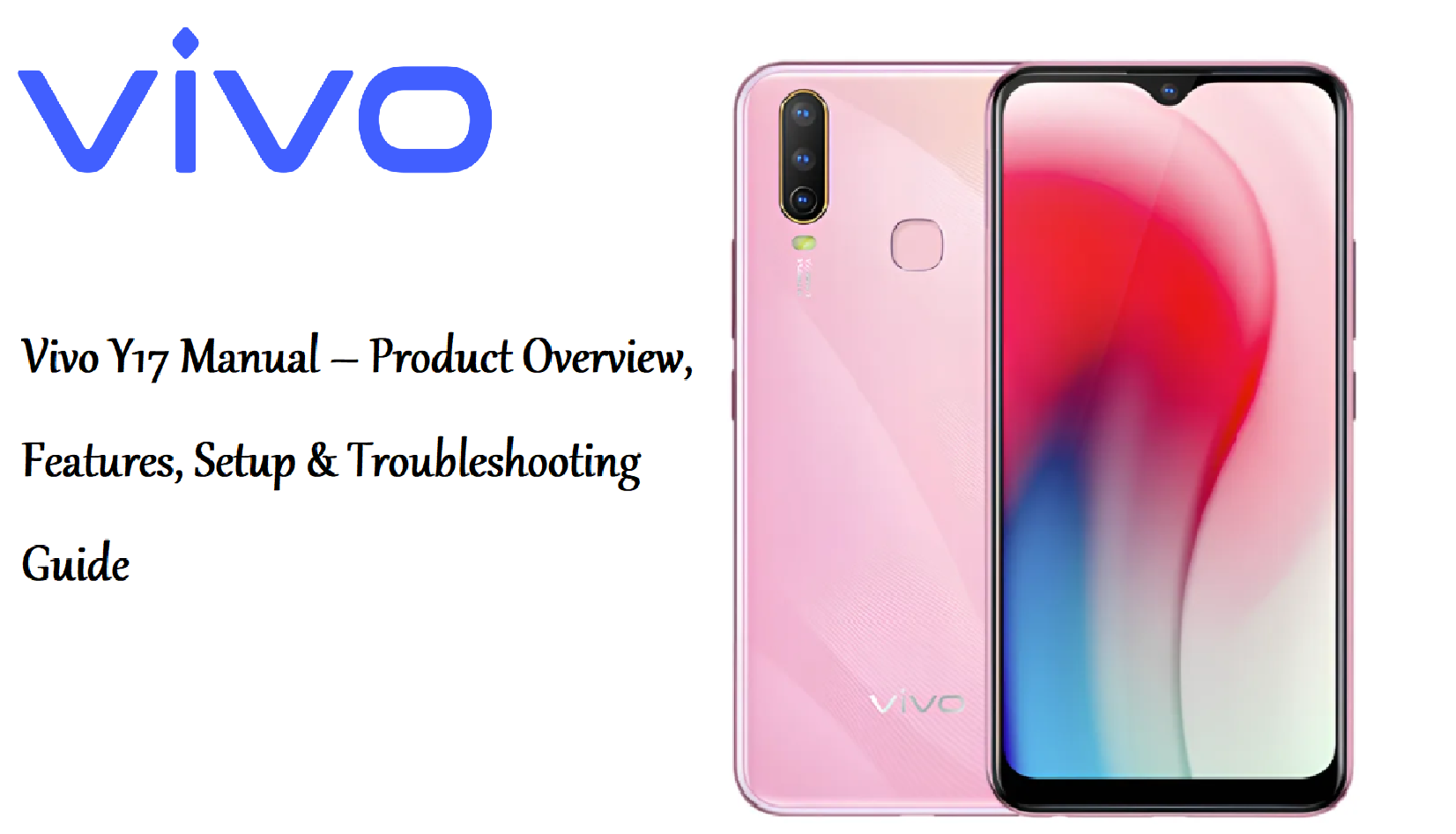
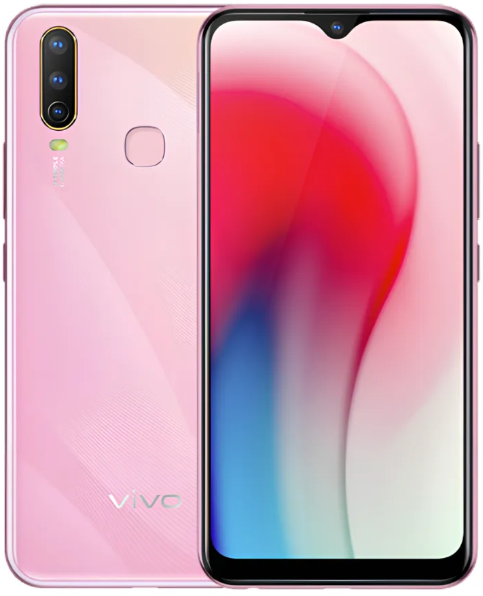
The Vivo Y17 is a feature‑packed mid‑range smartphone built around a large 5,000 mAh battery, an AI triple rear camera, and a 6.35‑inch Halo FullView display. It runs Funtouch OS 9 on Android 9 and supports dual SIM, expandable storage, and 18W fast charging. This guide covers setup, camera features, gaming mode, battery management, and common fixes.
Product Overview
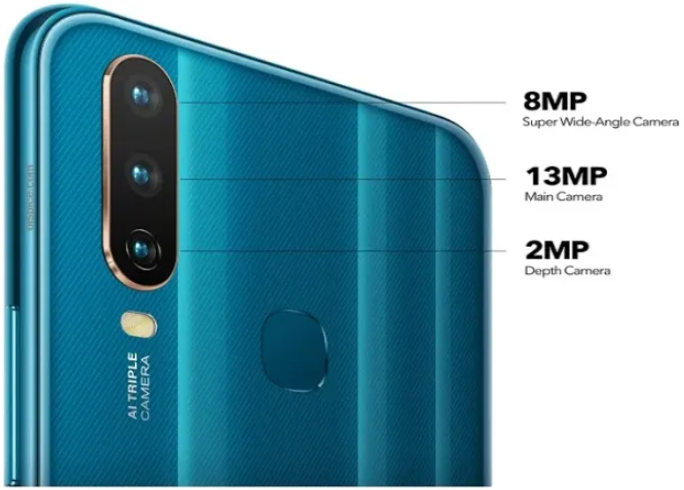
The Vivo Y17 features a 6.35‑inch HD+ display with a waterdrop notch, a MediaTek Helio P35 processor, and 4 GB of RAM with 128 GB of internal storage. The rear camera setup includes a 13 MP main lens, an 8 MP super wide‑angle lens, and a 2 MP depth sensor. The front camera is 20 MP for sharp selfies. The phone has a 5,000 mAh battery that easily lasts two days on moderate use. It has a rear fingerprint sensor, face unlock, and dual SIM support with a dedicated microSD slot. The Y17 is available in Mineral Blue and Mystic Purple.
Full Specifications
| Specification | Detail |
|---|---|
| Model | Vivo Y17 (V1901/V1902) |
| Display | 6.35‑inch Halo FullView, IPS LCD, 1544 x 720 pixels, 19.3:9 aspect ratio |
| Processor | MediaTek Helio P35 (MT6765), octa‑core |
| RAM | 4 GB |
| Storage | 128 GB internal (expandable via dedicated microSD up to 256 GB) |
| Rear Camera | 13 MP main (f/2.2) + 8 MP ultra‑wide (f/2.2, 120°) + 2 MP depth sensor |
| Front Camera | 20 MP (f/2.0) |
| Battery | 5,000 mAh (non‑removable), 18W dual‑engine fast charging |
| Operating System | Funtouch OS 9 (based on Android 9 Pie) |
| Fingerprint Sensor | Rear‑mounted |
| Face Unlock | Yes |
| Connectivity | Dual SIM (nano), 4G LTE, Wi‑Fi 2.4 GHz, Bluetooth 5.0, GPS, microUSB |
| Audio Jack | 3.5 mm headphone jack |
| Dimensions | 159.43 x 76.77 x 8.92 mm |
| Weight | 190.5 g |
| Colours | Mineral Blue, Mystic Purple |
| Included Accessories | Phone, 18W charger, microUSB cable, clear case, SIM ejector tool, quick start guide |
Key Features
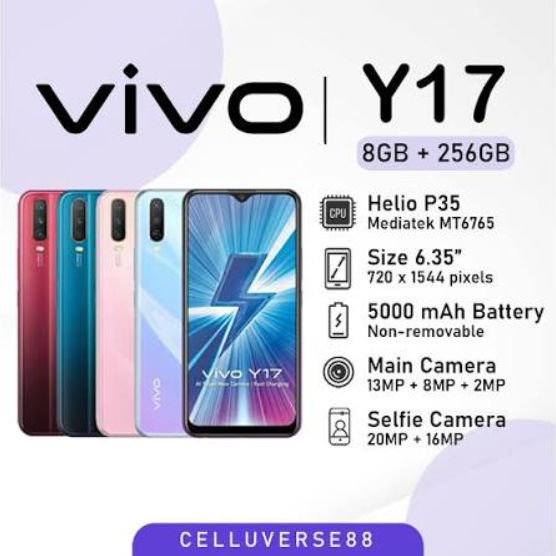
- 5,000 mAh Battery with 18W Fast Charging: The large battery provides up to two days of typical use. The included 18W charger refills the battery from 0 to about 40% in 30 minutes.
- AI Triple Rear Camera: 13 MP main sensor, 8 MP super wide‑angle lens for group shots and landscapes, and a 2 MP depth sensor for portrait bokeh.
- 20 MP Front Camera with AI Beauty: Sharp selfies with AI face beauty, bokeh, and HDR.
- Ultra Game Mode: Prioritises CPU and GPU resources for smoother gaming. It includes a game assistant that blocks notifications and allows call blocking during gameplay.
- Dedicated microSD Slot: Use two SIM cards and a microSD card at the same time—no hybrid trade‑off.
- Rear Fingerprint Sensor & Face Unlock: Fast biometric unlock options. Face unlock works even in low light.
- Funtouch OS 9 Features: Smart gestures, Motorbike Mode, Smart Split, and customisable themes.
How to Use
What’s in the Box
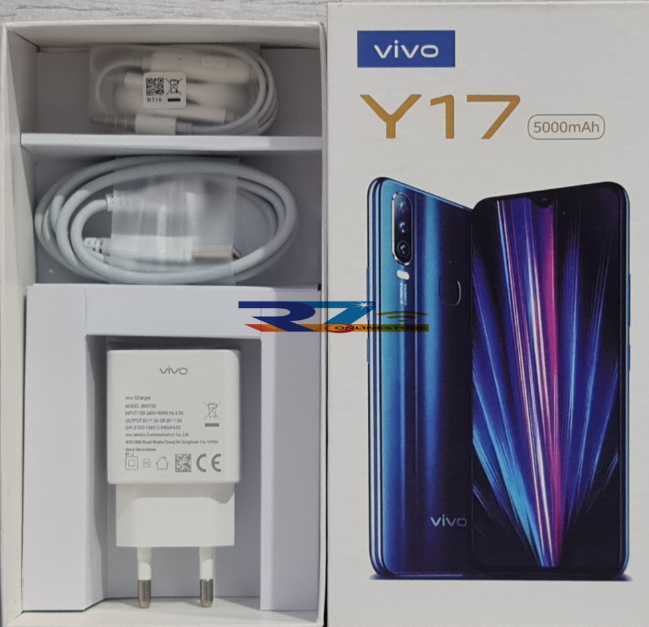
- Vivo Y17 smartphone (with a pre‑applied screen protector)
- 18W fast charger (dual‑engine)
- MicroUSB cable
- Clear protective case
- SIM card ejector tool
- Quick Start Guide and warranty card
No earphones are included. The phone has a 3.5 mm headphone jack, so standard wired earphones work.
First‑Time Setup
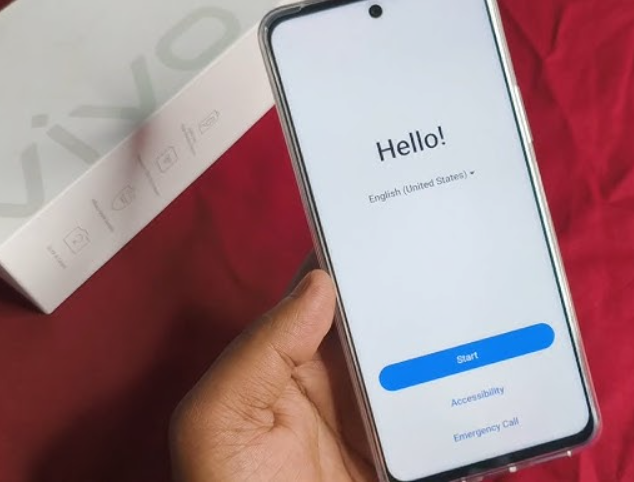
- Insert your SIM card(s) using the included ejector tool. The tray holds two nano‑SIMs and a microSD card.
- Press and hold the Power button (right edge) until the Vivo logo appears.
- Select your language, region, and connect to Wi‑Fi. Sign in with your Google account. You can also sign in to your Vivo account for cloud services and themes.
- Follow the on‑screen prompts to set up fingerprint and face unlock.
- Once on the home screen, go to Settings > System update and install any pending updates.
Buttons & Ports
| Component | Location | Function |
|---|---|---|
| Power button | Right edge | Press to wake/sleep. Press and hold for power menu. |
| Volume rocker | Right edge (above power) | Adjust media and ringer volume. |
| Fingerprint sensor | Rear, centre | Rest your finger to unlock. Register up to 5 fingerprints. |
| SIM/microSD tray | Left edge | Two nano‑SIMs + one microSD. |
| MicroUSB port | Bottom | Charging and data transfer. |
| 3.5 mm headphone jack | Bottom | Wired headphones. |
Camera Tips
- AI Scene Detection: The camera automatically recognises scenes (food, plants, sunset, etc.) and optimises colour, contrast, and exposure. The AI icon appears at the top of the viewfinder. Tap it to toggle.
- Wide‑Angle Lens: Tap the Wide icon to switch to the 8 MP super wide‑angle lens. It captures a 120° field of view—great for landscapes, architecture, and group photos.
- Portrait Mode: Select Portrait from the mode bar. The depth sensor blurs the background, and you can adjust the bokeh level before or after taking the shot.
- AI Beauty: The front camera has multiple beauty levels. Slide the beauty meter to smooth skin, slim the face, and brighten eyes. Works in both photo and video modes.
- Night Mode: The camera automatically enables night mode in low light. Keep the phone steady for the 2‑3 second capture.
- Pro Mode: Swipe to More > Pro for manual control over ISO, shutter speed, white balance, and focus.
Ultra Game Mode
- Open Game Center (pre‑installed) or go to Settings > Game Cube.
- Add your games to the list. When a game is launched, Ultra Game Mode automatically activates.
- During gameplay, swipe from the left edge to open the Game Assistant. From here you can:
-
-
Block notifications and calls (except from allowed contacts).
-
Lock the screen brightness.
-
Enable Esports Mode to close background apps and free up RAM.
-
Toggle Auto‑Reject Calls.
-
Open messaging apps in floating windows.
-
-
Game Mode also boosts CPU and GPU frequency for smoother frame rates in supported games.
Battery Management & Charging
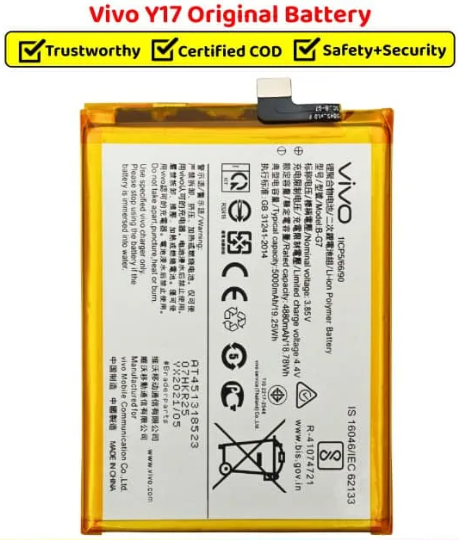
- Battery saver: Swipe down to open Quick Settings and tap Battery saver. You can also set it to activate automatically at 15% or 30%.
- Smart charging: The phone learns your charging habits and reduces charging speed overnight to protect battery health. This is enabled by default in some regions.
- Fast charging: Use the included 18W charger and a quality microUSB cable for the fastest charging. Avoid using the phone heavily while charging to reduce heat.
- Battery health: The 5,000 mAh battery should retain good capacity for 2‑3 years. If you notice rapid drain, check Settings > Battery for app usage.
Troubleshooting & Common Problems
| Problem | Likely Cause | What to Try |
|---|---|---|
| Phone won’t turn on | Battery fully drained, or power button stuck | Charge for at least 30 minutes with the original charger. Press and hold the power button for 15 seconds. |
| Slow performance or lag | Too many background apps, or storage full | Clear recent apps. Go to Settings > Storage and free up space. Use Game Cube > Clean up to clear background apps. |
| Camera app crashes | Software glitch, or low storage | Restart the phone. Clear camera cache: Settings > Apps > Camera > Storage > Clear cache. |
| Fingerprint sensor not responding | Dirty sensor, or dry finger | Wipe the sensor with a dry cloth. Delete and re‑register fingerprints. |
| Battery drains quickly | High screen brightness, or rogue apps | Reduce brightness. Check battery usage in Settings. Turn off Wi‑Fi/Bluetooth when not needed. |
| Wi‑Fi keeps disconnecting | Router issue, or power saving | Forget the network and reconnect. In Settings > Wi‑Fi > Advanced, disable Wi‑Fi power saving. |
| Face unlock not working | Low light, or dirty front camera | Clean the front camera lens. Re‑scan your face in Settings > Security > Face. Use fingerprint as backup. |
Frequently Asked Questions
- Does the Vivo Y17 support fast charging?
Yes, it supports 18W dual‑engine fast charging. Use the included 18W charger and the original microUSB cable for best results. - Can I use two SIM cards and a memory card at the same time?
Yes, the Y17 has a dedicated microSD slot. You can use two nano‑SIMs and a microSD card simultaneously. - Is the battery removable?
No, the 5,000 mAh battery is non‑removable. If the battery degrades, take it to a Vivo service centre for replacement. - What Android version does it run?
It runs Funtouch OS 9, based on Android 9 Pie. The Y17 did not receive an official upgrade to Android 10 in most regions. - Does it have NFC?
No, the Vivo Y17 does not have NFC. - How do I take a screenshot?
Press the Power button and Volume Down button at the same time. For a long screenshot, tap the scrolling icon after capturing. - How do I reset the phone?
Go to Settings > More settings > Backup & Reset > Erase all data. You’ll need your lock screen password.
Tips
- Use Smart Gestures: In Settings > Smart motion, enable gestures like “Double‑tap to wake,” “Flip to mute,” and “Smart click” to answer calls by bringing the phone to your ear.
- Customise the navigation bar: In Settings > Navigation, choose between gesture navigation and the three‑button layout.
- Use Motorbike Mode: If you ride a bike, enable Motorbike Mode to auto‑reply to calls with a custom message and silence notifications.
- Extend battery life: Use the dark‑coloured pre‑installed wallpapers (LCD doesn’t save much, but it helps), keep brightness at 50%, and turn off auto‑sync for less‑used accounts.
- Keep the camera lens clean: The rear camera protrudes slightly; wipe it with a soft cloth to avoid blurry photos.
Safety Information
- Charging: Use only the original Vivo charger and cable, or a certified replacement. Do not charge overnight in a hot room. Avoid using the phone while it’s fast‑charging.
- Battery: Do not puncture, drop, or expose the phone to high heat. If the battery swells, stop using the phone immediately and contact Vivo.
- Screen: The phone has a pre‑installed plastic protector. Use a tempered glass protector for extra protection. Avoid sharp objects.
- Water: The Y17 is not waterproof. Keep it away from rain, splashes, and moisture.
- Children: The phone contains small parts (SIM tray, ejector tool). Keep out of reach of small children.
Related Manuals
If this guide was helpful, here are a few more popular manuals from productsmanuals.com that you might find useful:
- Samsung Galaxy Watch 7 Manual – Health Sensors, Galaxy AI & Battery Tips
Master ECG, body composition, sleep apnea detection, and more. - iPhone 17 Manual – Settings, Camera & Hidden Features Guide
Explore Dynamic Island, Action button, and battery‑health tricks. - Samsung Galaxy A16 5G Manual – Budget 5G Setup, Camera Tips & Battery Care
Get the most from your budget Samsung phone with One UI tricks. - Dell Inspiron 15 3520 Manual – Laptop Setup, Upgrades & Troubleshooting
Upgrade RAM and SSD, and fix common performance issues. - HP DeskJet 3755 Manual – Wireless Printer Setup & Common Fixes
Print, scan, and solve paper jams with clear step‑by‑step instructions.
Browse all guides at productsmanuals.com .
Copyright 2026 productsmanuals.com. All rights reserved. This Vivo Y17 manual is original content and may not be copied, republished, or redistributed without written permission. Vivo, Y17, and the Vivo logo are trademarks of Vivo Mobile Communication Co., Ltd. This guide is unofficial and not affiliated with Vivo.
