
Product Overview
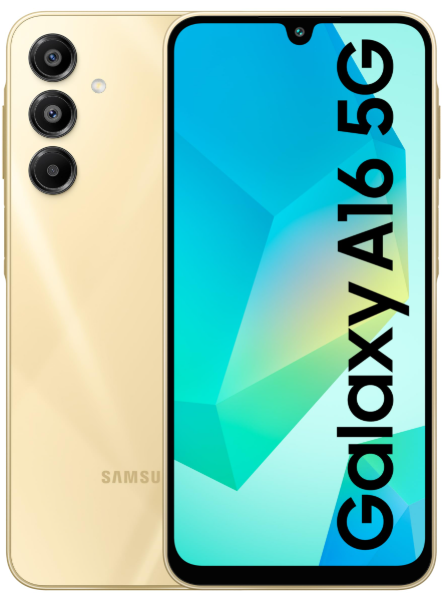
The Samsung Galaxy A16 5G is a budget‑friendly smartphone that brings 5G connectivity, a smooth 90Hz Super AMOLED display, and a versatile 50 MP triple camera to everyday users. It’s powered by a MediaTek Dimensity 6300 processor, runs One UI 6 on Android 14, and packs a large 5,000 mAh battery that easily lasts a full day. The phone has a plastic back and frame with a flat‑edge design, a side‑mounted fingerprint sensor, and a 3.5 mm headphone jack. It’s available in Blue Black, Light Green, and Grey.
Key Features
- 6.7‑inch Super AMOLED Display: 90Hz refresh rate and 800 nits peak brightness make the screen smooth and bright enough for outdoor use. The FHD+ (1080 x 2340) resolution keeps text and images sharp.
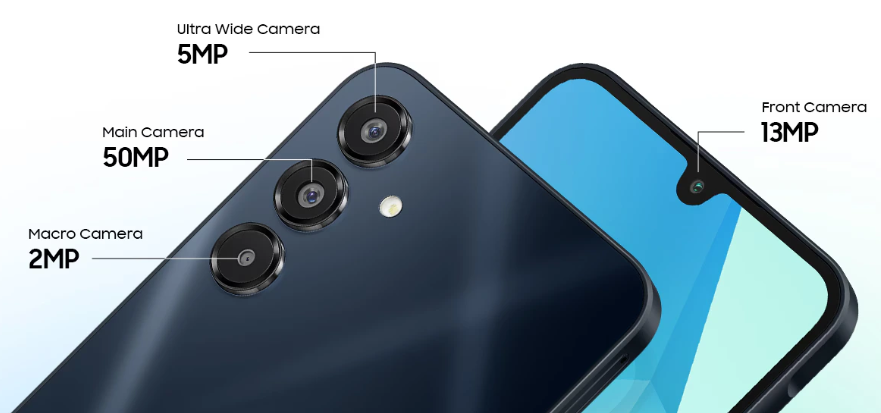
- 50 MP Triple Camera: The main 50 MP camera uses pixel binning to produce detailed 12.5 MP photos. An 8 MP ultra‑wide lens and a 2 MP macro sensor handle wide shots and close‑ups. The 13 MP front camera does a solid job for selfies and video calls.
- MediaTek Dimensity 6300: A capable 6 nm chip that handles daily apps, social media, and light gaming without lag. It’s paired with 4 GB or 8 GB of RAM and 128 GB or 256 GB of internal storage.
- 5,000 mAh Battery: Easily lasts a full day of mixed use. Supports 25W fast charging (charger sold separately). There’s no wireless charging.
- One UI 6 (Android 14): Samsung’s software includes useful features like Modes & Routines, Secure Folder, Dual Messenger, and Samsung Wallet. The interface is clean and easy to navigate.
- microSD Expansion: The SIM tray holds two nano‑SIMs and a dedicated microSD card (up to 1.5 TB) simultaneously — no hybrid trade‑off.
- Side‑Mounted Fingerprint Sensor: Built into the power button, it’s fast and accurate. You can also use face unlock as a convenience option.
- 3.5 mm Headphone Jack: Located on the bottom edge, next to the USB‑C port. Standard wired headphones work without an adapter.
How to Use
What’s in the Box
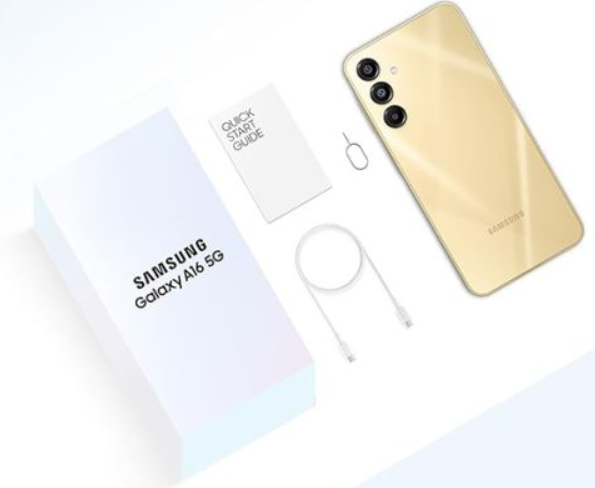
- Samsung Galaxy A16 5G (with a pre‑installed screen protector)
- USB‑C to USB‑C cable
- SIM card ejector tool
- Quick‑Start Guide and warranty card
No charger, case, or earphones are included. Use any USB‑C PD charger (25W recommended for fast charging).
First‑Time Setup
- Press and hold the Power button (right edge) until the Samsung logo appears.
- Select your language and connect to Wi‑Fi (2.4 GHz or 5 GHz). Sign in with your Google account and, optionally, your Samsung account.
- Use Smart Switch to transfer data from an old Android phone or iPhone. You can connect both phones with a USB‑C cable or do a wireless transfer.
- Once on the Home screen, go to Settings > Software update and install any pending updates.
- In Settings > Display, set the Motion smoothness to Adaptive (90Hz) for smoother scrolling and better responsiveness.
Buttons, Ports & Fingerprint Sensor
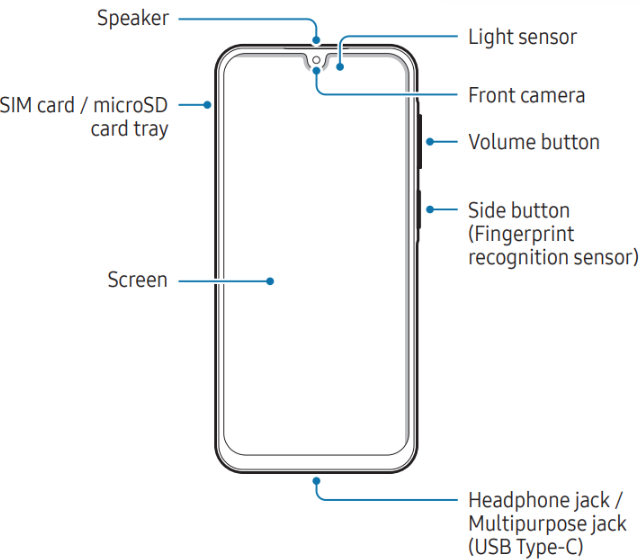
| Component | Location | Function |
|---|---|---|
| Power button / Fingerprint sensor | Right edge | Press to wake/sleep. Rest your thumb to unlock. Press and hold for Bixby or power menu (customizable). |
| Volume rocker | Right edge (above power button) | Adjust media and ringer volume. |
| USB‑C port | Bottom | Charging, data transfer, wired headphones (via USB‑C adapter). |
| 3.5 mm headphone jack | Bottom | Standard wired headphones or auxiliary cable. |
| SIM tray | Left edge | Holds two nano‑SIMs and one microSD card simultaneously. |
Camera Tips
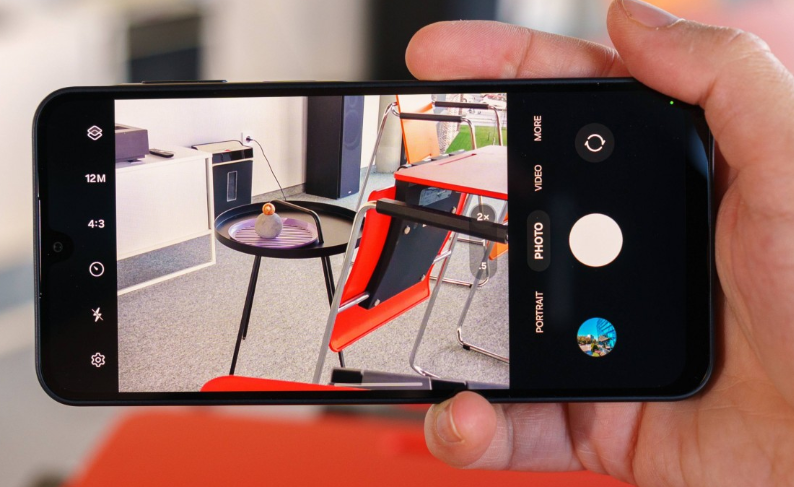
- 50 MP mode: Tap the resolution icon (top of the viewfinder) and select 3:4 50 MP. Use in good light for detailed photos. For everyday shots, the default 12.5 MP mode is faster and uses less storage.
- Night mode: The camera automatically suggests Night mode in low light. Keep the phone steady for the 2‑3 seconds it needs to capture.
- Portrait mode: Adjust background blur before or after taking the shot. Works best with people and distinct subjects.
- Pro mode: Swipe to More > Pro for manual control over ISO, shutter speed, white balance, and focus.
- Quick launch: Double‑press the Power button to open the camera, even when the phone is locked.
Battery & Charging
- Charging speed: Supports up to 25W fast charging. Use a 25W USB‑C PD charger (sold separately) for the fastest top‑up. A full charge takes about 90 minutes.
- Battery protection: Go to Settings > Battery > Battery protection and enable Adaptive or Maximum (caps at 80%) to extend battery lifespan.
- Power saving: Toggle it on in the Quick Settings panel, or set it to activate automatically at a specific battery level.
Troubleshooting & Common Problems
| Problem | Likely Cause | What to Try |
|---|---|---|
| Phone feels slow or laggy | Too many background apps, or storage full | Restart the phone. Clear recent apps. Go to Settings > Battery and device care > Storage and free up space. |
| Fingerprint sensor not recognizing | Dirty sensor or dry finger | Wipe the power button with a dry cloth. Delete and re‑register your fingerprints. Register the same finger twice. |
| Camera app crashes | Software glitch, or low storage | Restart the phone. Clear the camera app cache: Settings > Apps > Camera > Storage > Clear cache. |
| Wi‑Fi keeps disconnecting | Router or signal issue | Restart the router and the phone. Forget the network and reconnect. In Settings > Connections > Wi‑Fi > Advanced, turn off Wi‑Fi power saving mode. |
| Apps not showing notifications | Do Not Disturb or app sleep settings | Check that Do Not Disturb is off. Go to Settings > Battery > Background usage limits and ensure the app is set to Never sleeping. |
| Phone won’t charge | Dirty USB‑C port, or wrong charger | Gently clean the port with a wooden toothpick. Use a 25W USB‑C PD charger and a quality cable. |
Common Problems Quick List
- Phone restarts randomly: This may be caused by a corrupted app or storage issue. Boot into Safe Mode (press and hold Volume Down while restarting) to see if the problem continues. If it stops, a downloaded app is the culprit.
- SD card not detected: Ensure the card is formatted as FAT32 or exFAT. Insert it firmly. If it still isn’t recognised, try the card in another device to rule out card failure.
- Battery percentage jumps: This can happen after a software update. Use the phone until it fully discharges, then charge to 100% uninterrupted. This recalibrates the battery gauge.
Frequently Asked Questions
- Does the Galaxy A16 5G support wireless charging?
No, it only supports wired charging. - Can I use two SIM cards and a microSD card at the same time?
Yes, the SIM tray has dedicated slots for two nano‑SIMs and one microSD card. No compromise. - Is the phone waterproof?
No, it does not have an official IP rating. Keep it away from water, rain, and splashes. - How do I take a screenshot?
Press the Power button and Volume Down button at the same time. - Does the phone have NFC?
Yes, it supports NFC for contactless payments and device pairing. Availability may vary by region. - How do I reset the phone to factory settings?
Go to Settings > General management > Reset > Factory data reset. You’ll need your lock screen PIN or password.
Tips
- Use Modes & Routines: Go to Settings > Modes and Routines to automate tasks. For example, set the phone to vibrate when you arrive at work, or turn on Do Not Disturb at bedtime.
- Enable Edge Panels: Go to Settings > Display > Edge panels for quick access to apps, tools, and contacts from a swipe able tab.
- Extend battery life: Use the Adaptive battery setting and turn on Dark mode (Settings > Display > Dark mode). The AMOLED screen saves power with dark pixels.
- Keep software updated: Check Settings > Software update regularly. Samsung provides security patches and One UI updates that improve performance.
Safety Information
- Charging: Use Samsung‑certified or reputable third‑party USB‑C chargers. Avoid using the phone while it’s fast‑charging in direct sunlight or very hot environments.
- Battery: Do not puncture, drop, or expose the battery to high heat. If the battery swells, stop using the phone immediately and contact Samsung support.
- Screen: The phone has a pre‑installed plastic screen protector. For extra protection, use a tempered glass screen protector designed for the A16 5G.
- Repairs: The back cover is glued on and not easily removable. Repairs should be performed by Samsung or an authorized service centre.
Related Manuals
If this guide was helpful, here are a few more popular manuals from productsmanuals.com that you might find useful:
- iPhone Air A3312 Manual – Apple Intelligence, Camera Control & Setup
Master the thinnest iPhone with Apple Intelligence and Camera Control. - Samsung Galaxy S24 Ultra Manual – S Pen, Galaxy AI & Pro Camera Guide
Get the most from the 200 MP sensor, Circle to Search, and DeX mode. - iPhone Air A3312 Manual – Settings, Camera & Hidden Features Guide
Explore Dynamic Island, Action button, and battery‑health tricks. - Dell Inspiron 15 3520 Manual – Laptop Setup, Upgrades & Troubleshooting
Upgrade RAM and SSD, and fix common performance issues. - HP DeskJet 3755 Manual – Wireless Printer Setup & Common Fixes
Print, scan, and solve paper jams with clear step‑by‑step instructions.
Browse all guides at productsmanuals.com .
Copyright Warning
Copyright 2026 productsmanuals.com All rights reserved. This Samsung Galaxy A16 5G manual is original content and may not be copied, republished, or redistributed without written permission. Samsung, Galaxy, and the Samsung logo are trademarks of Samsung Electronics. This guide is unofficial and not affiliated with Samsung.

[…] Samsung Galaxy A16 5G Manual – Product Overview, Camera Tips & Battery Care Master your budget 5G phone with One UI tricks and troubleshooting. […]
[…] Samsung Galaxy A16 5G Manual – Budget 5G Setup, Camera Tips & Battery Care Get the most from your budget Samsung phone with One UI tricks. […]