How to Create a YouTube Account and Start Your Channel

Why You Need a Google Account First
YouTube and Google are intrinsically linked. You cannot create a standalone YouTube account; you must use a Google Account to sign in. If you already have a Gmail address, you already have a Google Account and can use it to sign in to YouTube immediately. If you want to keep your personal Gmail separate from your new channel, you can create a fresh Google Account specifically for your YouTube presence.
This guide walks you through both paths: creating a new Google Account and then creating a YouTube channel, whether you are on a computer or a phone.
What You Will Need
Before you start, make sure you have the following ready:
- A valid email address (or you can create a new Gmail during the process).
- A mobile phone number for account verification. Some regions require it.
- A password that is at least 8 characters long, ideally a mix of letters and numbers.
- A profile picture and a channel name in mind. You can change these later, so don’t let perfectionism delay you.
You must also meet the minimum age requirement in your country, which is generally 13 years old, though some regions have a higher age limit.
Creating a Google Account
If you are starting completely fresh, create a Google Account first.
- Go to accounts.google.com in any web browser.
- Click “Create account” and choose “For my personal use”.
- Fill in your first name, last name, and choose a username for your new Gmail address. You can also use an existing email address instead of creating a Gmail.
- Create a strong password and confirm it.
- Enter your mobile phone number to receive a verification code via SMS.
- Review the privacy and terms, then click “I agree”. Your Google Account is now created.
Once your Google Account exists, you can use it to sign in to YouTube.
Creating a YouTube Channel on a Desktop Computer

- Go to youtube.com and click the “Sign in” button in the top‑right corner. Sign in with your Google Account credentials.
- Once signed in, click your profile picture in the top‑right corner.
- In the dropdown menu, select “Create a channel”. If you do not see this option, click “Settings” first, then go to “Add or manage your channel(s)” and select “Create a channel”.
- A window will appear asking you to confir
m your identity. Enter your name. - You will then be prompted to upload a profile picture, enter a channel name, and choose a unique @handle. Your channel name is your public display name; your handle becomes part of your channel URL (e.g., @YourName).
- Click “Create channel”. Your channel is now live. You can change the name, picture, and handle later in YouTube Studio.
Creating a YouTube Channel on a Mobile Phone

The YouTube mobile app and the mobile website both allow you to create a channel.
Using the YouTube App (iOS or Android):
- Open the YouTube app and ensure you are signed in with your Google Account.
- Tap your profile picture in the bottom‑right corner (or top‑right on some versions).
- Tap “Create a channel”.
- Select a profile picture by tapping the camera icon, and update your channel name and handle by tapping the pencil icons.
- Tap “CREATE CHANNEL” at the bottom of the screen.
Using the Mobile Website (e.g., Safari on iPhone):
- Open your browser and go to youtube.com. Sign in with your Google Account.
- Tap your profile picture in the top‑right corner.
- Tap “Create a channel” and follow the same steps as the desktop version.
Verifying Your Account for Full Features
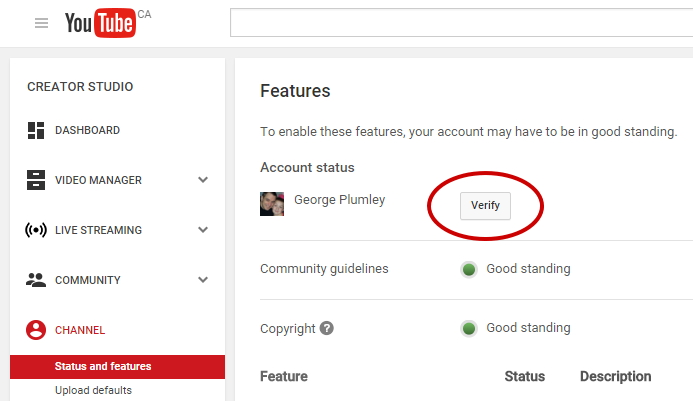
Verifying your phone number unlocks important features such as uploading videos longer than 15 minutes, live streaming, and custom thumbnails.
To verify your account:
- Go to youtube.com/verify while signed in.
- Enter your phone number and choose to receive a code via SMS or voice call.
- Enter the 6‑digit code you receive. Your account is now verified.
If you see an error saying your phone number has reached the maximum number of accounts, you must use a different number.
Setting Up Your Channel Branding and Keywords
Your channel is now live, but it needs a few finishing touches to look professional and help the algorithm understand your content.
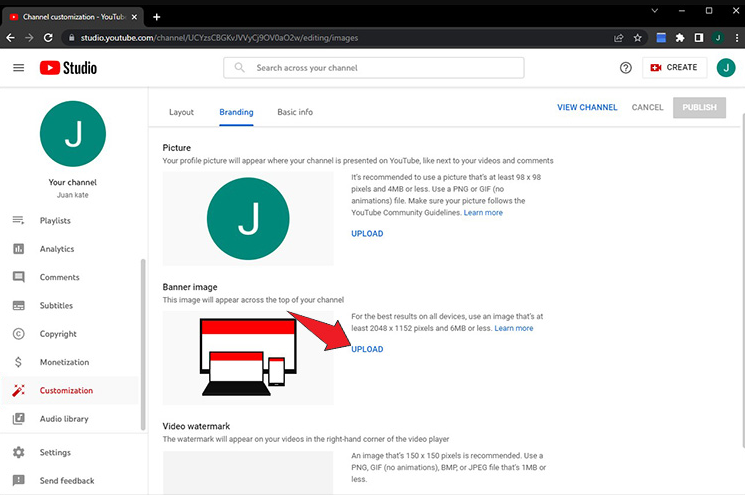
- Profile Picture and Banner: Go to YouTube Studio (studio.youtube.com) and click “Customization”. Upload a clear profile picture (your face or a high‑contrast logo) and a banner that states what your channel is about.
- Channel Description: In the same section, write a concise description that answers three questions: What will you make? Who is it for? What can viewers expect?.
- Channel Keywords: In YouTube Studio, go to Settings > Channel > Basic info and add 5–10 keywords that describe your content. These are not visible to viewers but help YouTube recommend your videos to the right audience.
Troubleshooting Common Account Creation Issues
| Problem | Likely Cause | What to Try |
|---|---|---|
| “We cannot create a YouTube account due to previous problems” | YouTube has flagged your device or IP address from a past account violation | Try creating the account on a different device and a different network (e.g., mobile data instead of home Wi‑Fi). You can also fill out the YouTube account appeal form. |
| “This phone number has reached the maximum number of accounts” | Google limits the number of accounts that can be linked to a single phone number | Use a different phone number for verification. If you do not have another, try verifying with an email address if the option is offered. |
| Verification code never arrives | Carrier filtering or weak signal | Wait a few minutes, then request a code again. Choose the voice call option instead of SMS. Ensure your phone has signal and can receive messages from unknown numbers. |
| “Create a channel” option is missing | You may be signed into a Google Workspace (business) account that restricts channel creation | Switch to a personal Google Account. In the YouTube app or website, tap your profile picture, select “Switch account”, and choose a personal account, or add a new one. |
| Channel name or handle already taken | Another user has claimed the same name | YouTube will suggest variations. You can add a relevant word (e.g., “Cooks” or “Plays”) or a location. Avoid adding random numbers, as it makes your channel harder to remember. |
Quick Reference Card
| Task | How |
|---|---|
| Create a Google Account | Go to accounts.google.com > Create account |
| Create a channel on desktop | youtube.com > Sign in > Profile picture > Create a channel |
| Create a channel on mobile | YouTube app > Profile picture > Create a channel |
| Verify your account | youtube.com/verify > enter phone number > enter code |
| Access YouTube Studio | studio.youtube.com (on desktop) |
| Add channel keywords | Studio > Settings > Channel > Basic info |
Official YouTube and Google Support
For account recovery, policy questions, and the official help centre, visit:
https://support.google.com/youtube
For Google Account support:
https://support.google.com/accounts
Frequently Asked Questions
- Can I create a YouTube account without a Google account?
No. YouTube does not offer a standalone account system. A Google Account is mandatory to sign in and create a channel. There are third‑party front‑ends for watching videos anonymously, but they do not allow you to create a channel or upload content. - Do I need a Gmail address to create a Google Account?
No. When signing up, you can choose the option to use an existing email address instead of creating a new Gmail. You will still need a valid email address to receive verification messages. - How long does it take to create a channel?
Creating the Google Account and the YouTube channel itself takes only a few minutes. Verifying your phone number and uploading branding assets can be done later at your own pace. - Can I change my channel name or handle after creating it?
Yes. You can change your channel name and handle in YouTube Studio under Customization > Basic info. Your handle can be changed twice every 14 days. Your channel URL will update to reflect the new handle. - What is the difference between a personal channel and a Brand Account?
A personal channel is tied directly to your Google Account and is managed by you alone. A Brand Account allows multiple people to manage the same channel without sharing your personal Google password. It is useful for businesses or collaborative channels. You can convert a personal channel to a Brand Account later if needed.
A Final Note Before You Upload
Your channel is now created. The most important next step is to upload your first video. Do not wait for the perfect equipment or the perfect name. Treat your first ten videos as a learning cycle: test different topics, thumbnails, and openings, and use the results to decide what to make next. The channel is just the container; the content is what matters.
Copyright 2026 productsmanuals.com. All rights reserved. This YouTube account creation manual is original content and may not be copied, republished, or redistributed without written permission. YouTube and Google are trademarks of Google LLC. This guide is unofficial and not affiliated with Google.
