
Product Overview
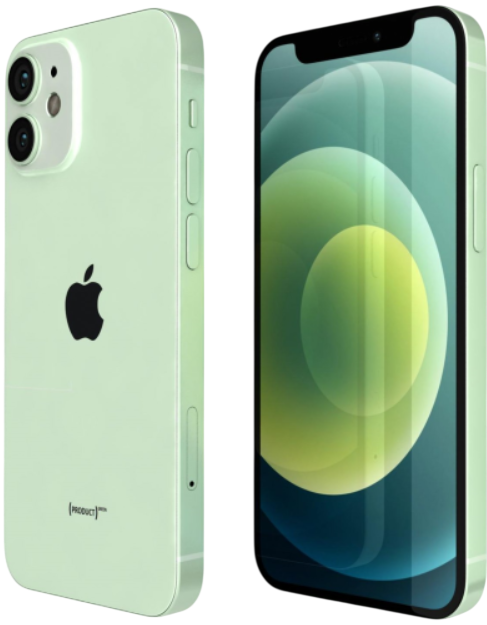
The iPhone 12 mini packs the same A14 Bionic chip, 5G connectivity, and dual‑camera system as the larger iPhone 12, but in a compact 5.4‑inch design that easily fits in one hand. It features a Super Retina XDR OLED display, a Ceramic Shield front cover, and MagSafe for magnetic accessories and fast wireless charging. The phone supports Face ID, Dolby Vision HDR recording, and Night mode on all cameras. It runs iOS 17 (upgradeable to iOS 18) and is available in Black, White, Red, Green, Blue, and Purple.
Key Features
- 5.4‑inch Super Retina XDR OLED: Edge‑to‑edge display with HDR10 and Dolby Vision support. It’s small, sharp, and bright enough for outdoor use.
- A14 Bionic Chip: The same processor used in the iPad Air 4. It easily handles daily tasks, gaming, and AR apps. It’s also future‑proofed for several more years of iOS updates.
- Dual 12 MP Camera: A wide (f/1.6) and an ultra‑wide (f/2.4, 120°) lens. Both support Night mode, Deep Fusion, and Smart HDR 3. The front 12 MP TrueDepth camera also supports Night mode and 4K video.
- MagSafe: Built‑in magnets on the back align with MagSafe chargers, wallets, and cases. Wireless charging at up to 15 W with a MagSafe charger, or 7.5 W with standard Qi pads.
- 5G Connectivity: Supports sub‑6 GHz and mmWave 5G (in US models) for faster downloads and lower latency in supported areas.
- Ceramic Shield: The front glass is infused with nano‑ceramic crystals, making it tougher than any previous iPhone glass and more resistant to drops.
- IP68 Water & Dust Resistance: Rated for submersion in up to 6 metres of fresh water for 30 minutes.
How to Use
What’s in the Box
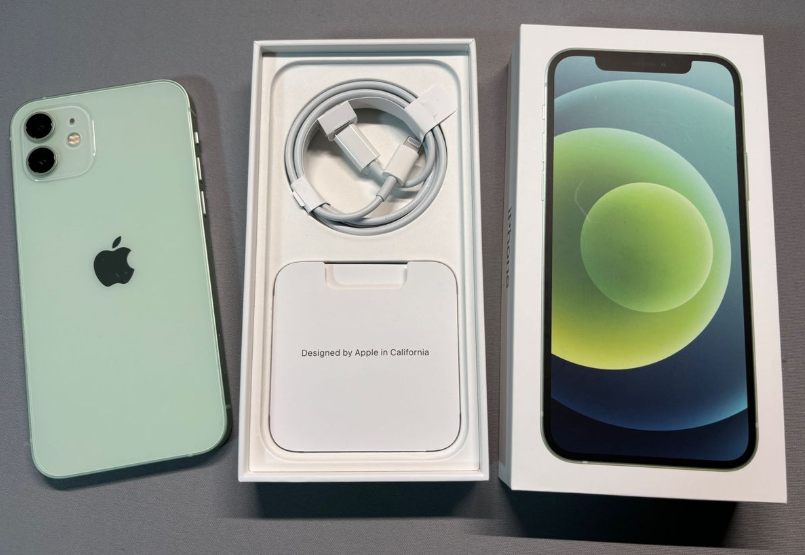
- iPhone 12 mini (with a pre‑applied screen protector film)
- USB‑C to Lightning cable (braided)
- SIM card ejector tool
- Quick‑Start Guide and warranty card
No power adapter or EarPods are included. Use any USB‑C power adapter (20 W or higher recommended for fast charging).
Physical Buttons & Ports
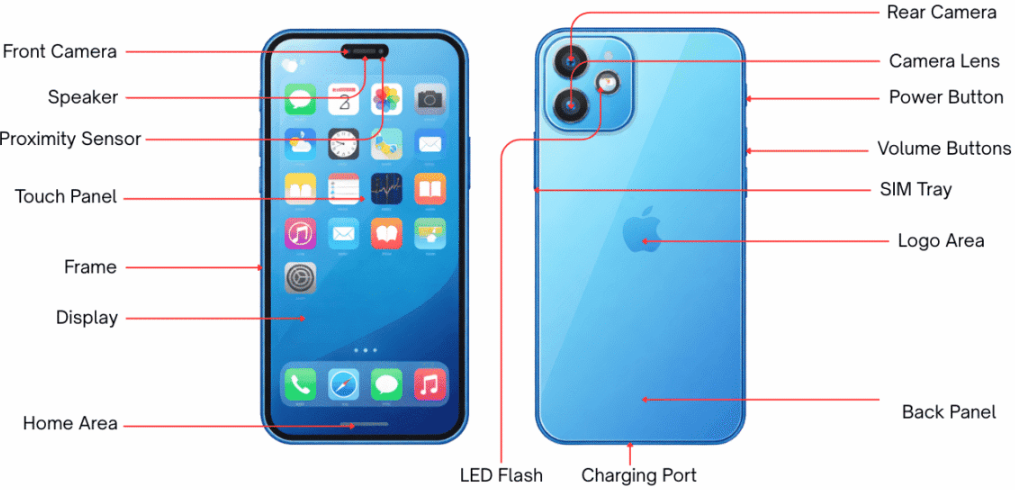
| Component | Location | Function |
|---|---|---|
| Side button | Right edge | Press to wake/sleep. Press and hold for Siri. Double‑press for Apple Pay. Press and hold with a volume button for power off / Emergency SOS. |
| Ring/Silent switch | Left edge (above volume buttons) | Flip towards the screen for Ring mode. Flip away for Silent mode (orange indicator visible). |
| Volume buttons | Left edge (below silent switch) | Adjust media and ringer volume. Press Volume Up to take a photo. |
| Lightning port | Bottom edge | Charging, data transfer, wired headphones (requires adapter). |
| SIM tray | Left edge (on some models, or right edge) | Holds one nano‑SIM. eSIM is also supported. |
First‑Time Setup
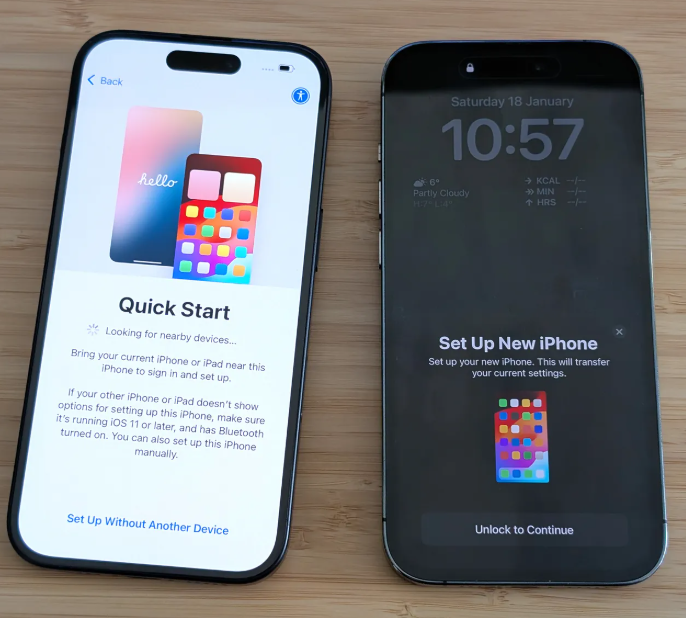
- Press and hold the Side button until the Apple logo appears.
- Follow the on‑screen steps to choose your language, region, and connect to Wi‑Fi.
- Transfer data from an old iPhone wirelessly or restore from an iCloud backup. Android users can use the “Move to iOS” app.
- Sign in with your Apple ID. This activates iCloud, Find My, and the App Store.
- Once on the Home screen, go to Settings > General > Software Update and install any pending updates.
- In Settings > Display & Brightness, enable True Tone and Night Shift for comfortable viewing. The OLED display also supports Dark Mode for a black‑on‑white look that saves battery.
Camera Tips
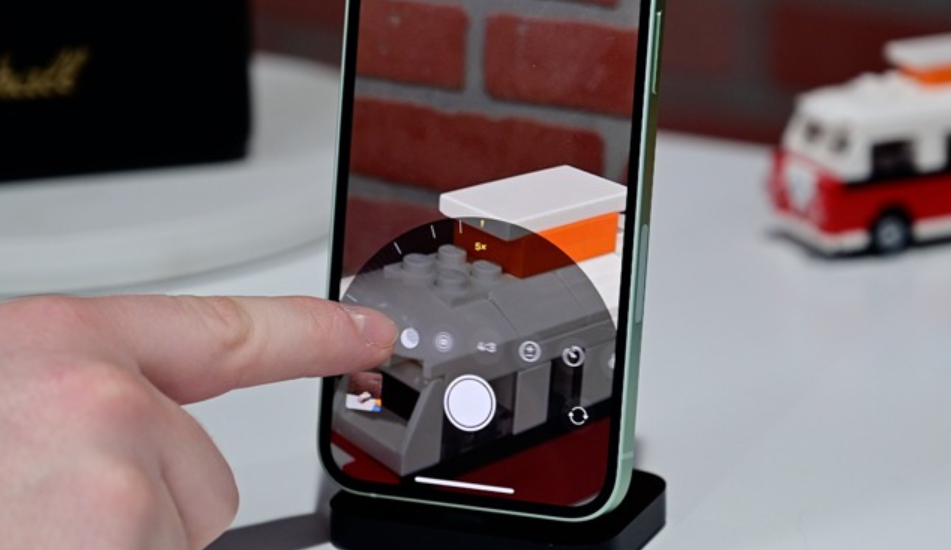
- Night mode: The camera automatically enables Night mode in low light. The shutter button shows a moon icon with the number of seconds. Keep the phone steady while capturing.
- Ultra‑wide lens: Tap the 0.5x button to capture a much wider scene. Great for landscapes, architecture, or tight indoor shots.
- Portrait mode: Select Portrait from the mode bar. The 12 mini uses the wide camera and software to create depth. Adjust the background blur (f‑stop) before or after taking the shot.
- QuickTake video: In Photo mode, press and hold the shutter button to instantly record a video. Release to stop. Slide to the right to lock recording.
- Selfie Night mode: The front camera also supports Night mode. Turn it on manually by tapping the Night mode icon when the screen is dark.
- Quick launch: Swipe left on the Lock screen, or press the Camera icon in Control Center.
MagSafe & Charging
- MagSafe charger: Place the phone on a MagSafe charger (sold separately). The magnets align automatically and the phone snaps into place. Charging speed is up to 15 W.
- MagSafe accessories: The magnetic ring on the back also holds MagSafe wallets, battery packs, and cases. You can stack accessories — for example, attach a wallet to the back of a MagSafe case.
- Wired charging: Connect the USB‑C to Lightning cable to a 20 W or higher USB‑C adapter. A 30‑minute charge gives about 50% battery.
- Battery health: Go to Settings > Battery > Battery Health & Charging to enable Optimised Battery Charging, which learns your routine and delays charging past 80% overnight.
Troubleshooting & Common Problems
| Problem | Likely Cause | What to Try |
|---|---|---|
| Battery drains quickly | Background apps, or aging battery | Check Settings > Battery for app usage. Turn on Low Power Mode. If the battery health (Settings > Battery > Battery Health) is below 80%, consider a battery replacement. |
| Face ID not working | Dirty TrueDepth camera, or mask/sunglasses | Wipe the front notch area with a soft, dry cloth. Remove accessories that block the face. Re‑scan your face in Settings > Face ID & Passcode. |
| Apps crash or freeze | Software bug, or low storage | Update the app. Restart the phone. Check Settings > General > iPhone Storage and free at least 2 GB. |
| Wi‑Fi or Bluetooth not connecting | Router or interference | Restart the router and phone. Forget the network and reconnect. For Bluetooth, toggle it off/on and re‑pair. |
| No sound from the speaker | Debris in the speaker grille, or Silent mode | Check that the Ring/Silent switch is not set to silent (orange showing). Clean the bottom speaker grille with a soft, dry brush. |
| iPhone won’t charge | Dirty Lightning port, or faulty cable | Clean the port gently with a wooden toothpick. Try a different USB‑C to Lightning cable and adapter. |
Common Problems Quick List
- Screen not responding to touch: Force restart: press and release Volume Up, press and release Volume Down, then hold the Side button until the Apple logo appears.
- Storage full: Go to Settings > General > iPhone Storage and offload unused apps, delete large attachments, or enable iCloud Photos.
- SIM card not detected: Remove and re‑insert the SIM tray. Restart the phone. If the problem persists, the SIM card may need replacement.
Frequently Asked Questions
- Does the iPhone 12 mini support 5G?
Yes, all iPhone 12 models support 5G. Speed and availability depend on your carrier and region. You can toggle 5G on/off in Settings > Cellular > Cellular Data Options > Voice & Data. - Is the iPhone 12 mini waterproof?
It has an IP68 rating, meaning it can withstand submersion in fresh water up to 6 metres for 30 minutes. Avoid salt water, chlorinated pools, and intentional submersion. - Does the phone come with a charger or headphones?
No. The box includes only a USB‑C to Lightning cable. You need your own USB‑C power adapter. - How do I take a screenshot?
Press the Side button and Volume Up button at the same time. - Can I use MagSafe with a case?
Yes, MagSafe works through MagSafe‑compatible cases. A standard non‑magnetic case may weaken the connection. - How do I reset the phone?
Go to Settings > General > Transfer or Reset iPhone > Reset. For a full factory reset, choose Erase All Content and Settings.
Tips
- Use Back Tap: Go to Settings > Accessibility > Touch > Back Tap and set a double‑ or triple‑tap on the back of the phone to take a screenshot, lock the screen, or run a Shortcut.
- Enable Dark Mode: The OLED display saves power with dark pixels. Schedule Dark Mode from sunset to sunrise in Settings > Display & Brightness.
- Optimize battery charging: Keep Optimised Battery Charging enabled in Settings > Battery > Battery Health & Charging. Also consider the 80% Limit option if you charge overnight every night.
- Clean the Lightning port carefully: Lint from pockets often compacts inside the port. A wooden toothpick is the safest tool — avoid metal objects that can short the contacts.
- Use MagSafe accessories wisely: MagSafe chargers and wallets contain magnets. Keep them away from credit cards, hotel keys, and medical devices (e.g., pacemakers).
Safety Information
- Charging: Use Apple‑certified or reputable third‑party Lightning cables and USB‑C adapters. Avoid cheap, unregulated chargers.
- Battery: The battery is not user‑replaceable. If it degrades below 80% capacity, contact Apple for a replacement. Do not puncture or expose the battery to high heat.
- Water exposure: The IP68 rating applies to fresh water only. Dry the Lightning port before charging if the phone gets wet.
- MagSafe magnets: The magnets in the phone and MagSafe accessories may interfere with medical devices. Keep MagSafe accessories at least 6 inches (15 cm) away from pacemakers and similar devices.
- Screen: The Ceramic Shield is tough, but a screen protector adds extra protection. The display is still glass and can shatter under extreme impact.
Related Manuals
If this guide was helpful, here are a few more popular manuals from productsmanuals.com that you might find useful:
-
How to Setup MIRO W1 SE Kids Smartwatch (Complete Guide + Fixes)
Master ECG, body composition, sleep apnea detection, and more.
View the Samsung Galaxy Watch 7 Manual - iPhone Air A3312 Manual – Apple Intelligence, Camera Control & Setup
Discover the thinnest iPhone with Apple Intelligence and Camera Control. - iPhone 17 Manual – Settings, Camera & Hidden Features Guide
Explore Dynamic Island, Action iPhone with Apple Intelligence and Camera Control. - Samsung Galaxy S23 Ultra Manual – S Pen, 200 MP Camera & Galaxy AI
Get the most from the 200 MP sensor, battery‑health tricks, Space Zoom, and built‑in S Pen. - Lenovo Legion Tower 5i Gen 8 Manual Setup, Vantage & Upgrade Guide
Upgrade RAM and SSD, and fix common performance issues.
Browse all guides at productsmanuals.com .
Copyright 2026 [productsmanuals.com All rights reserved. This iPhone 12 mini A2400 manual is original content and may not be copied, republished, or redistributed without written permission. Apple, mini A2400 manual is original content and may not be copied, republished, or redistributed without written permission. Apple, iPhone, MagSafe, and the Apple logo are trademarks of Apple Inc. This guide is unofficial and not iPhone, MagSafe, and the Apple logo are trademarks of Apple Inc. This guide is unofficial and not affiliated with Apple.

[…] iPhone 12 mini Manual – Settings, Camera & Hidden Features Guide Explore Dynamic Island, Action button, and battery‑health tricks. […]
[…] iPhone 12 mini Manual – Settings, Camera & Hidden Features Guide Explore Dynamic Island, Action button, and battery-health tricks. […]
[…] iPhone 12 mini Manual – Settings, Camera & Hidden Features Guide Explore Dynamic Island, Action button, and battery‑health tricks. […]