Introduction
Why This Guide Exists
Apple ships the iPhone 16 with a USB‑C charging cable, a SIM ejector tool, and a small safety pamphlet. There’s no printed manual that explains the new Camera Control button, the Action button, the Dynamic Island, or how to get the most from the 48MP camera. Millions of people own an iPhone 16, and every day, thousands search for an “iPhone 16 manual” because the official online guide is a technical document that doesn’t answer real‑world questions. This companion is written in plain language, based on everyday use, so you can unlock everything your phone can do without frustration.
What’s in the Box
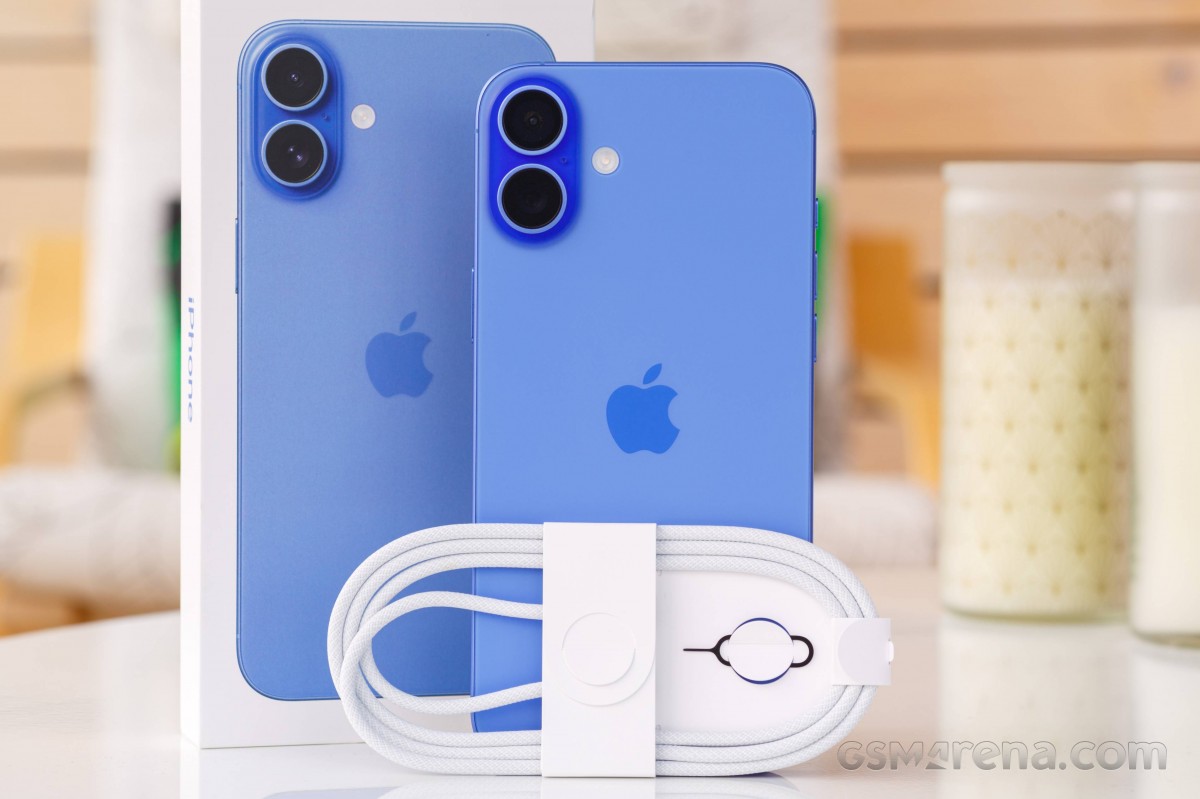
Inside the package, you’ll find:
- The iPhone 16 (with a pre‑installed screen protector film on the display)
- A USB‑C to USB‑C braided charging cable (1 metre)
- A SIM ejector pin (tucked into the paper sleeve)
- A Quick Start Guide and warranty information
No power adapter, no Ear Pods, and no MagSafe puck are included. You’ll need a USB‑C power adapter (20W or higher) for fast wired charging. All iPhone 16 models now use USB‑C, so your old Lightning cables won’t fit.
Physical Tour: Buttons, Ports, and Face ID

The iPhone 16 introduces a few new physical controls that are worth learning by feel.
- Side button (right): Press to wake or sleep. Press and hold to activate Siri. Double‑press for Apple Pay. Press and hold with a volume button to power off or make an emergency SOS call.
- Action button (above volume buttons): This small button replaces the old mute switch. By default, it still toggles silent mode, but you can customize it in Settings > Action Button to open Camera, Flashlight, Voice Memos, Focus, or any Shortcut. A long press activates your chosen action.
- Camera Control button (below side button): A new capacitive button on the right edge. Press it once to quickly launch the Camera app. While in the Camera app, light press to lock focus and exposure, hard press to take a photo, and press-and-hold to record a video. This button works even when the phone is locked.
- Volume buttons (left): Adjust media and ringer volume. Press and hold the volume up button to take a burst of photos in the Camera app.
- USB‑C port (bottom): Used for charging, data transfer, and connecting external displays, drives, and wired headphones. The Pro models support USB 3 speeds (up to 10 Gbps) when connected to a compatible device.
First‑Time Setup and Settings to Change Right Away
- Press and hold the Side button until the Apple logo appears. Follow the on‑screen instructions to choose your language, region, and connect to Wi‑Fi.
- Transfer data from your old iPhone wirelessly or restore from an iCloud backup. Android switchers can use the “Move to iOS” app.
- Sign in with your Apple ID. This unlocks iCloud, the App Store, FaceTime, and Find My.
Crucial settings to adjust after setup:
- Software Update: Settings > General > Software Update. Install any pending updates immediately.
- Face ID & Passcode: Set a six‑digit passcode. Turn on “Require Attention for Face ID” for the strongest security.
- Battery Health: Settings > Battery > Battery Health & Charging. Enable “Optimized Battery Charging” and set the “80% Limit” if you often charge overnight.
- Always‑On Display (Pro models only): Settings > Display & Brightness > Always On Display. Toggle it off to save battery, or keep it on to glance at time and widgets.
Mastering the Camera Control Button and Photography Features
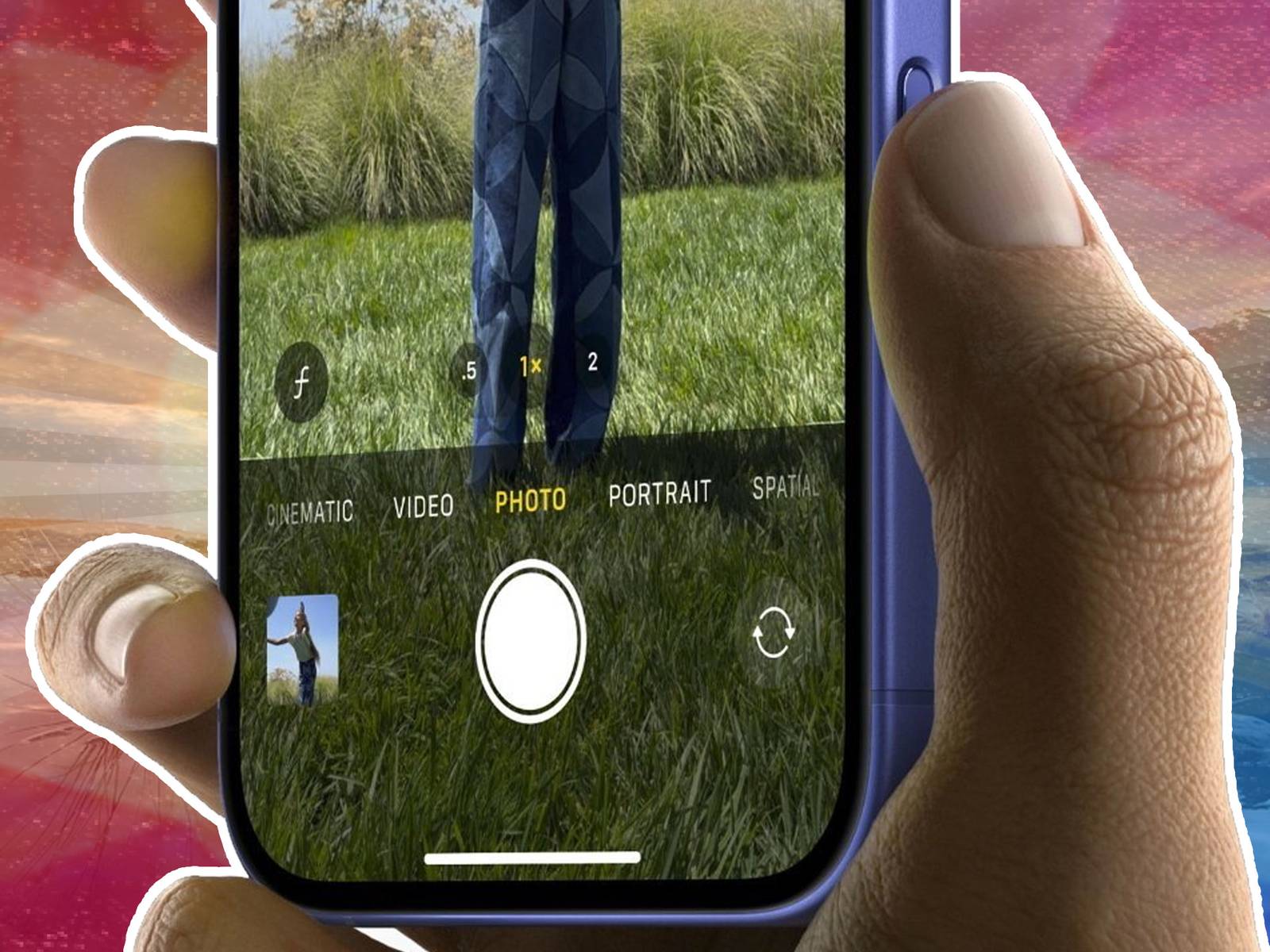
The Camera Control button gives you physical, DSLR‑like control over the camera without touching the screen.
- Launch the Camera: Press the Camera Control button once, even when the phone is locked.
- Focus and exposure: Lightly press and hold the button to lock focus and exposure. Slide your finger along the button to adjust exposure compensation.
- Take a photo: Press the button firmly until you feel a haptic click.
- Record a video: Press and hold the button. Release to stop recording.
- Zoom: In the Camera app, slide your finger along the Camera Control button to zoom in and out smoothly.
Other notable camera features:
- 48MP Main camera: The iPhone 16 and 16 Pro use a 48MP sensor. You can capture full‑resolution images by selecting “48MP” mode in the Camera app (in good light). For everyday shots, the sensor uses pixel‑binning to create 24MP photos with excellent dynamic range.
- Spatial Video and Photos: The Pro models can capture spatial video and photos for viewing on Apple Vision Pro. Toggle the “Spatial” icon in the Camera app.
- Photographic Styles: Tap the icon with three stacked rectangles to choose a style that applies a custom tone and warmth to your photos without affecting skin tones. You can set one as default in Settings > Camera > Photographic Styles.
- Action Mode: Available on all models. When recording video, tap the running person icon to enable heavy‑duty stabilization — great for filming while moving.
Dynamic Island and How to Use It
The Dynamic Island is the pill‑shaped cutout at the top of the screen. It’s not a static notch; it expands and contracts to show live information.
- Tap it: Opens the active app (Music, Maps, Timer, etc.).
- Long press it: Expands the island into a small control panel without leaving your current app. For example, you can change the song or pause a timer.
- Swipe left or right on it: Dismiss or switch between live activities.
- Live activities: Apps like Uber, sports scores, and timers can display real‑time updates in the Dynamic Island. You can manage these in Settings > Live Activities.
How to Restart, Force Restart, and Factory Reset
Soft restart: Go to Settings > General > Shut Down, slide to power off, wait 30 seconds, then hold the Side button to turn on.
Force restart (frozen screen): Press and release Volume Up, press and release Volume Down, then press and hold the Side button until the Apple logo appears (about 10 seconds). No data is lost.
Factory reset from Settings: Settings > General > Transfer or Reset iPhone > Erase All Content and Settings. You’ll need your Apple ID password.
Recovery Mode (hardware restore): Connect the iPhone to a Mac or PC. Press Volume Up, Volume Down, then hold the Side button until the recovery screen (a cable pointing at a laptop) appears. Use Finder or iTunes to restore.
Quick Reference Card
Download the iPhone 16 Cheat Sheet
A one‑page PDF with button shortcuts, camera tips, battery settings, and reset steps. Keep it on your device for when you need a quick reminder.
“iPhone 16 Quick Guide (PDF)”
Official Apple Support
For warranty, service, and the official user guide, visit:
https://support.apple.com/guide/iphone/welcome/ios
FAQs
Q. Does the iPhone 16 come with a charger or headphones?
A. No. The box includes only a USB‑C cable and a SIM tool. You’ll need to use an existing USB‑C power adapter or purchase one separately. Wired headphones must be USB‑C or wireless.
Q. How do I set up the Action button?
A. Go to Settings > Action Button, then choose from a list of pre‑set actions (Silent mode, Focus, Camera, Flashlight, Voice Memo, Shortcut, etc.). You can also assign a Shortcut that presents a menu of multiple options when you hold the button.
Q. What is the Camera Control button and how do I use it?
A. It’s a new button below the Side button. Press it once to open the Camera app. Light press to focus, slide to zoom, and hard press to take a photo. It also works in third‑party camera apps.
Q. Can I use my old Lightning accessories with the iPhone 16?
A. No, the iPhone 16 uses USB‑C. You’ll need USB‑C accessories or a Lightning‑to‑USB‑C adapter (sold separately).
Q. How do I take a screenshot without the Home button?
A. Press the Side button and the Volume Up button at the same time. The screenshot thumbnail appears in the lower‑left corner; tap it to edit or swipe it away.
Q. Does the iPhone 16 support satellite connectivity?
A. Yes. All iPhone 16 models support Emergency SOS via satellite, Roadside Assistance via satellite, and Messages via satellite (in regions where available). These features require a clear view of the sky and are free for the first two years.
Q. How do I extend battery lifespan?
A. Go to Settings > Battery > Battery Health & Charging and enable Optimized Battery Charging. You can also set an 80% charge limit. Avoid leaving the phone in direct sunlight or hot environments while charging.
A Quick Word Before You Go
This manual was built to help your iPhone 16 become the dependable tool it was meant to be. May the Camera Control button always get you the shot, the battery last from sunrise to bedtime, and the Action button feel like second nature. If a family member ever upgrades to the same phone and feels overwhelmed, share this guide — it’ll save them a lot of tapping through menus and a frustrated afternoon.
Copyright warning!
Copyright 2026 productsmanuals.com All rights reserved. This iPhone 16 manual is original content and may not be copied, republished, or redistributed without written permission. Apple, iPhone, Face ID, Dynamic Island, and the Apple logo are trademarks of Apple Inc. This guide is unofficial and not affiliated with Apple.



[…] iPhone 16 – Settings, Camera & Hidden Features Manual Master Dynamic Island, Action button, and battery‑health tricks. […]
[…] iPhone 17 Manual – Settings, Camera & Hidden Features Guide Master Dynamic Island, Action button, and battery‑health tricks. […]
[…] iPhone 16 – Settings, Camera & Hidden Features Manual Master Dynamic Island, Action button, and battery‑health tricks. […]
[…] iPhone 16 Manual – Settings, Camera & Hidden Features Guide Master Dynamic Island, Action button, and battery‑health tricks. […]
[…] iPhone 16 Manual – Settings, Camera & Hidden Features Guide Explore Dynamic Island, Action button, and battery‑health tricks. […]
[…] iPhone 16 Manual – Settings, Camera & Hidden Features Guide Explore Dynamic Island, Action button, and battery‑health tricks. […]
[…] iPhone 16 Manual – Settings, Camera & Hidden Features Guide Explore Dynamic Island, Action button, and battery‑health tricks. […]
[…] iPhone 16 Manual – Settings, Camera & Hidden Features Guide Explore Dynamic Island, Action button, and battery‑health tricks. […]
[…] iPhone 16 Manual – Settings, Camera & Hidden Features Guide Explore Dynamic Island, Action button, and battery-health tricks. […]