Introduction
Why This Companion Exists
Samsung ships the Galaxy S24 Ultra with a USB‑C cable, a SIM ejection tool, and a thin Quick‑Start Guide. There’s no printed manual that explains how to master the S Pen, use Galaxy AI features, configure the 200 MP camera, or interpret the water‑resistance warnings. Every day, thousands of people search for a “Samsung Galaxy S24 Ultra manual” because they want clear, human‑friendly guidance. This companion provides exactly that — built from real‑world use, no jargon, just answers.
What Comes in the Box

Inside the package, you’ll find:
- The Samsung Galaxy S24 Ultra (with an S Pen housed in the silo)
- A USB‑C to USB‑C cable (supports 45W fast charging)
- A SIM card ejection pin
- A Quick‑Start Guide and warranty card
No charger, no case, and no screen protector are included. The phone uses a 6.8‑inch Dynamic AMOLED 2X display, a built‑in S Pen, and a titanium frame. It’s IP68 water‑ and dust‑resistant, meaning it can survive brief submersion in fresh water.
Physical Tour: Buttons, Ports, and the S Pen
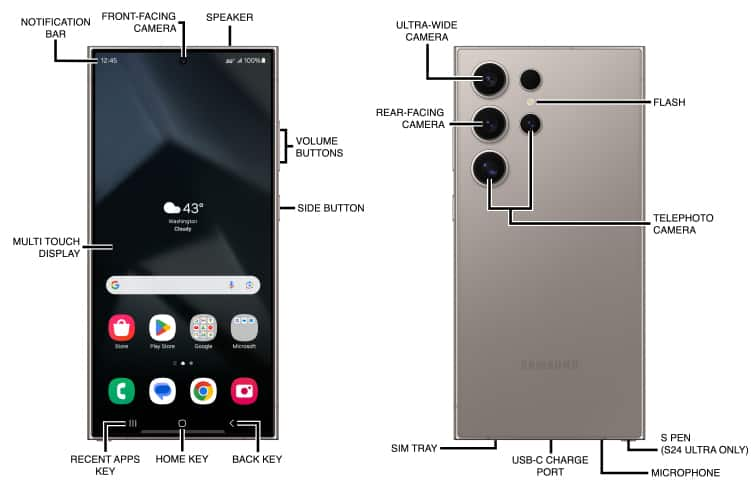
- Volume rocker (right edge): Adjusts ringer and media volume.
- Side button (below volume): Press once to wake/sleep. Press and hold to launch Bixby or Google Assistant (customizable in Settings > Advanced features > Side button). Double‑press to quickly open the camera.
- USB‑C port (bottom edge): For charging, data transfer, and video output to external displays. No headphone jack.
- SIM tray (bottom edge): Holds one or two nano‑SIM cards, depending on region. Some models support eSIM.
- S Pen (bottom left silo): Click the end to eject. The S Pen charges wirelessly when stored. It supports 4,096 pressure levels and air actions for remote control of the camera, presentations, and more.
First‑Time Setup and Smart Switch
- Press and hold the Side button until the Samsung logo appears. Select your language and region, and connect to Wi‑Fi.
- When prompted, sign into your Google account and your Samsung account. The latter is required for Find My Mobile, Samsung Cloud, and Galaxy AI features.
- You’ll be asked to transfer data from an old phone. Use Samsung Smart Switch (pre‑installed) to wirelessly copy contacts, photos, apps, and settings from an Android or iPhone. A USB‑C to Lightning cable can speed up iPhone transfers.
- Once on the Home screen, go to Settings > Software update and install any waiting updates.
- In Settings > Display, set the screen resolution to QHD+ (if not already selected) and Motion smoothness to Adaptive (120Hz).
The S Pen: More Than a Stylus

The S Pen on the S24 Ultra is your secret weapon for productivity and creativity.
- Screen‑off memo: Pull out the S Pen while the screen is off. You can write a quick note directly on the black screen. Tap “Save” to store it in Samsung Notes.
- Air Command: When you remove the S Pen or hover it and press the side button, a floating menu appears. From there, you can create notes, take smart select screenshots, translate text, or use AR Doodle.
- Air actions: Press and hold the S Pen button while making gestures in the air to control the camera (single press to take a photo, double press to switch cameras), browse presentations, or control media playback. Enable and customise these in Settings > Advanced features > S Pen > Air actions.
- S Pen to text: In any text field, hover the S Pen and tap the writing icon. Write naturally, and the phone converts your handwriting to typed text with impressive accuracy.
Galaxy AI: Features That Save Time
The S24 Ultra introduced Galaxy AI, a suite of intelligent tools integrated into One UI.
- Circle to Search: Press and hold the Home button (or the navigation bar) and draw a circle around anything on your screen — a landmark in a photo, a product in a video, a word in a document — and Google will instantly search for it. No need to switch apps.
- Live Translate: During a phone call or in text messages, the phone can translate spoken and written language in real time. Activate it in Settings > Advanced features > Live Translate. Works even in airplane mode.
- Note Assist: In Samsung Notes, Galaxy AI can auto‑format, summarise, or translate your notes. Tap the Galaxy AI icon after writing.
- Photo Assist: In the Gallery, you can move or remove objects, expand backgrounds, and remaster images with AI. Tap the Galaxy AI icon while editing a photo.
Camera: Making the Most of 200 MP

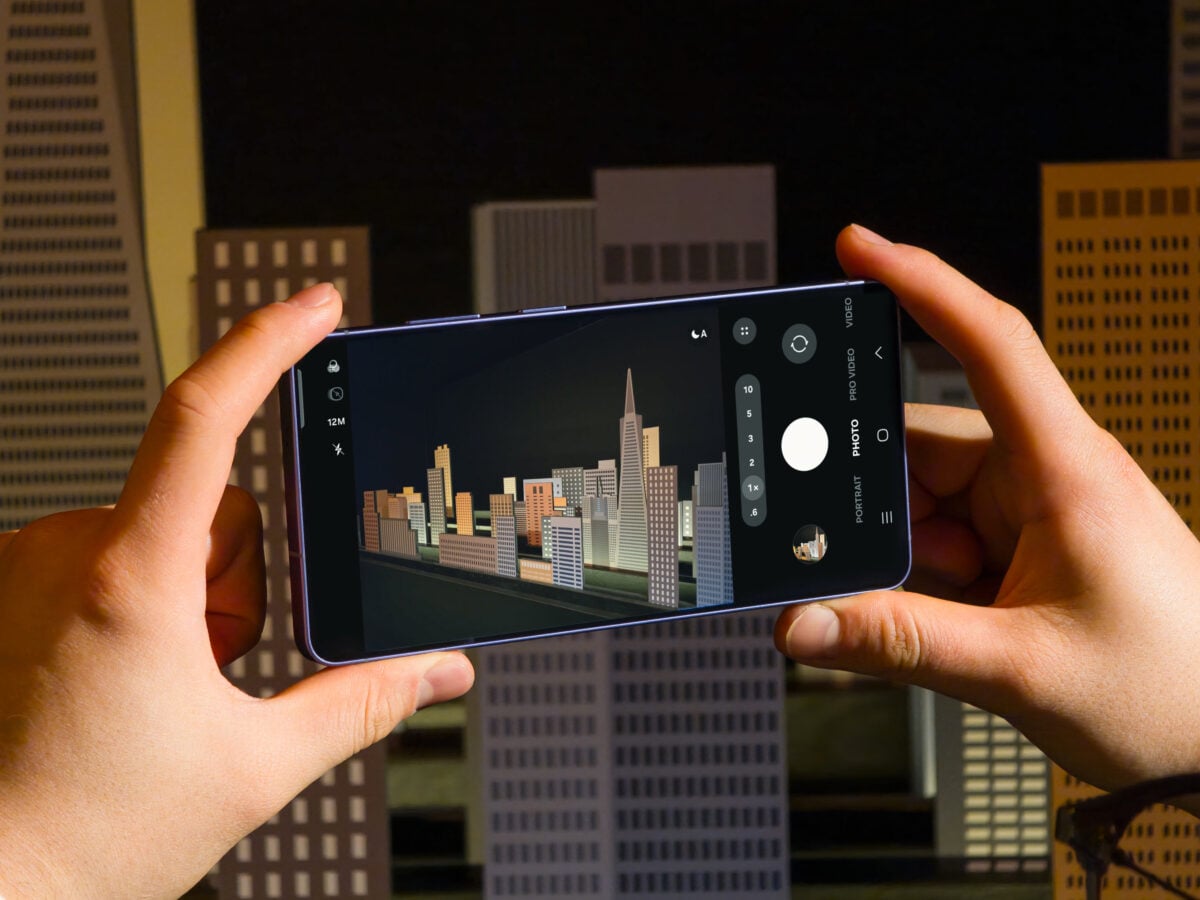
The quad‑camera setup includes a 200 MP main sensor, a 12 MP ultra‑wide, a 10 MP 3x telephoto, and a 50 MP 5x telephoto.
- 200 MP mode: In the camera app, tap the resolution icon and select 200 MP. Use in good lighting for enormous detail. Files are large, so switch back to 12 MP for everyday shots.
- Pro Mode: Swipe to More > Pro. Control ISO, shutter speed, white balance, and focus manually. The histogram helps with exposure.
- Expert RAW: Download the Expert RAW app from the Galaxy Store for 16‑bit RAW photos, astrophotography mode, and multi‑exposure blending.
- Nightography: In low light, the camera automatically activates enhanced night processing. Keep the phone steady for a few seconds.
- Portrait mode: Adjust background blur before or after taking the shot. Use 2x or 5x zoom for more flattering compression.
- Video: The S24 Ultra shoots up to 8K at 30fps. For slow motion, use Super Slow‑mo (960 fps) or Slow Motion (240 fps).
Battery, Charging, and Power Management
- Battery life: The 5,000 mAh battery lasts a full day with heavy use.
- Charging: Supports 45W wired fast charging (0–65% in about 30 minutes) and 15W wireless charging (Qi). Reverse wireless charging lets you power your Galaxy Buds or a friend’s phone.
- Power saving: Go to Settings > Battery and enable Power saving to restrict background activity. Adaptive power saving learns your usage and optimises battery.
- Battery health: In Settings > Battery > Battery protection, you can cap charging at 85% for maximum battery longevity. Enable Protect battery if you often leave the phone plugged in overnight.
Troubleshooting Common Issues
How to Restart, Force Restart, and Factory Reset
Soft restart: Press and hold the Side button and Volume Down, then tap “Restart.”
Force restart (frozen screen): Press and hold the Side button + Volume Down for about 10 seconds until the Samsung logo appears. No data is lost.
Factory reset from Settings: Settings > General management > Reset > Factory data reset. You’ll need your lock screen password and Samsung account password.
Factory reset via Recovery Mode (if the phone won’t boot):
- Connect the phone to a PC via USB‑C.
- Turn off the phone, then press and hold Volume Up + Side button until the Samsung logo appears.
- In the Recovery menu, use the volume keys to navigate to Wipe data/factory reset and press the Side button to confirm.
- After the reset, select Reboot system now.
Quick Reference Card
Download the Galaxy S24 Ultra Cheat Sheet
A one‑page PDF with S Pen shortcuts, Galaxy AI tips, button combinations, battery care, and reset steps. Print it or keep it on your phone for when you need a quick reference.
“Samsung Galaxy S24 Ultra Quick Guide (PDF)”
Official Samsung Support and Manuals
For warranty, service, and the official PDF manual, visit:
https://www.samsung.com/us/support/mobile/phones/galaxy-s/galaxy-s24-ultra/
Frequently Asked Questions (FAQs)
Does the Galaxy S24 Ultra come with a charger?
No. The box includes a USB‑C cable and SIM tool. You’ll need a USB‑C PD charger (45W recommended) for fast charging.
Can the S Pen be used as a remote camera shutter?
Yes. With the S Pen out, open the Camera app, press the S Pen button once to take a photo, or twice to switch cameras. This works up to about 10 metres away via Bluetooth Low Energy.
What is Galaxy AI, and does it require an internet connection?
Galaxy AI is Samsung’s suite of on‑device and cloud‑based intelligent features. Many features (like Note Assist and Photo Assist) work on‑device without Wi‑Fi. Others, like Live Translate during calls, also work offline. Circle to Search requires an internet connection.
Is the S24 Ultra waterproof?
It has an IP68 rating, meaning it can withstand dust and submersion in fresh water up to 1.5 metres for 30 minutes. It’s not designed for salt water, hot tubs, or intentional underwater use. If it gets wet, dry it thoroughly with a soft cloth.
How do I transfer data from my old iPhone?
Use the included USB‑C cable with a Lightning adapter or a USB‑C to Lightning cable. Connect both phones, and Smart Switch will guide you through copying contacts, photos, messages, and apps. You can also use a wireless transfer.
What should I do if my S Pen stops writing?
First, ensure the S Pen is charged (it charges automatically when stored). Go to Settings > Advanced features > S Pen > S Pen remote > Reset S Pen. If the tip is worn out, use the metal tool in the box to pull out the nib and replace it with a spare.
A Final Thought Before You Power Off
This guide was written to help your Galaxy S24 Ultra become the powerhouse it was designed to be, without the confusion. May the S Pen always glide smoothly, the camera always nail the shot, and the battery always last through the longest day. If a friend ever upgrades to the same phone and can’t figure out Circle to Search, share this page — it’ll save them a frustrating afternoon.
Copyright Warning!
Copyright 2026 productsmanuals.com. All rights reserved. This Samsung Galaxy S24 Ultra manual is original content and may not be copied, republished, or redistributed without written permission. Samsung, Galaxy, S Pen, and the Samsung logo are trademarks of Samsung Electronics. This guide is unofficial and not affiliated with Samsung.


[…] Samsung Galaxy S24 Ultra – S Pen, Galaxy AI & Pro Camera Guide Get the most from the 200 MP sensor, Circle to Search, and DeX mode. […]
[…] Samsung Galaxy S24 Ultra – S Pen, Galaxy AI & Pro Camera Guide Get the most from the 200 MP sensor, Circle to Search, and DeX mode. […]
[…] Samsung Galaxy S24 Ultra – S Pen, Galaxy AI & Pro Camera Guide Get the most from the 200 MP sensor, Circle to Search, and DeX mode. […]
[…] Samsung Galaxy S24 Ultra – S Pen, Galaxy AI & Pro Camera Guide Get the most from the 200 MP sensor, Circle to Search, and DeX mode. […]
[…] Samsung Galaxy S24 Ultra – S Pen, Galaxy AI & Pro Camera Guide Get the most out of the 200 MP sensor, Circle to Search, and Air Actions. […]
[…] Samsung Galaxy S24 Ultra – S Pen, Galaxy AI & Pro Camera Guide Get the most from the 200 MP sensor, Circle to Search, and DeX mode. […]
[…] Samsung Galaxy S24 Ultra – S Pen, Galaxy AI & Pro Camera Guide Get the most from the 200 MP sensor, Circle to Search, and DeX mode. […]