

Product Overview
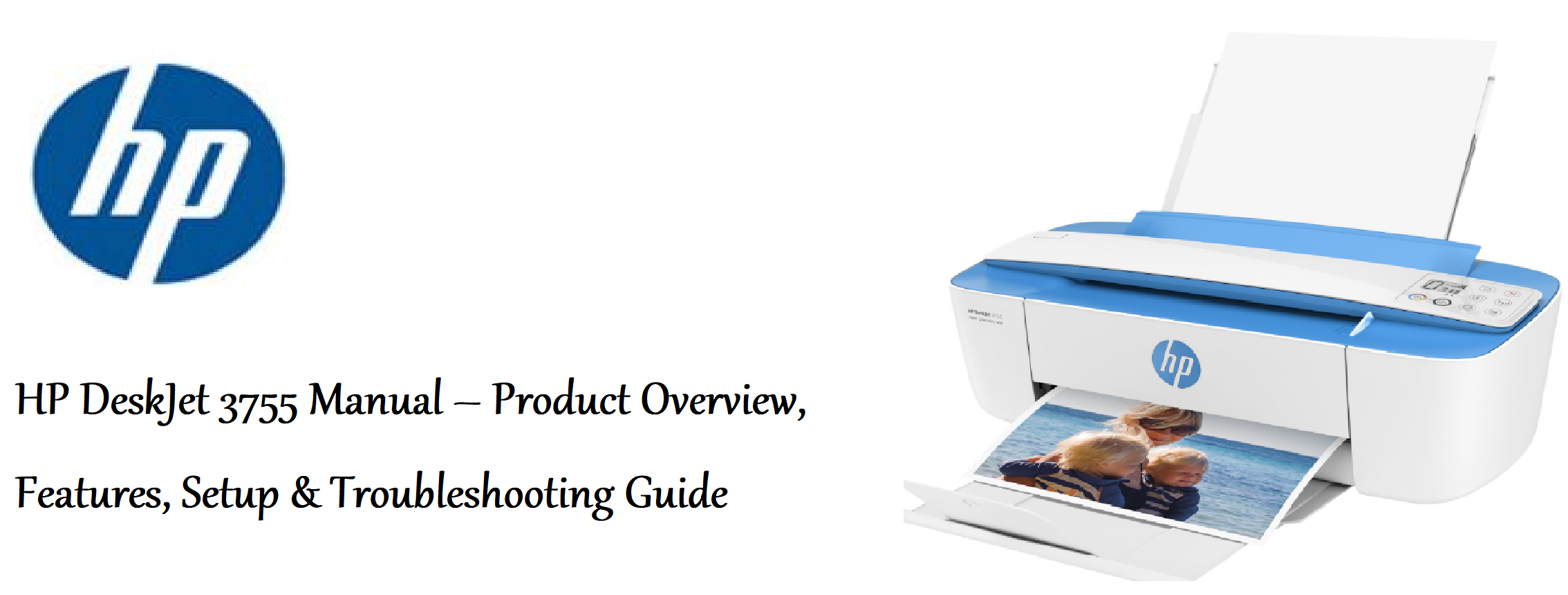
The HP DeskJet 3755 is a compact, colourful all‑in‑one inkjet printer designed for small spaces. It prints, scans, and copies, and connects wirelessly to your phone, tablet, or computer. The printer is lightweight and one of the smallest all‑in‑one printers available, making it ideal for a dorm room, home office, or kitchen desk. It uses a two‑cartridge ink system (black and tricolour) and supports standard paper sizes up to A4/letter.
Key Features
- Ultra‑Compact Design: The smallest all‑in‑one printer in its class. It fits easily on a shelf or small desk and is available in several bright colours.
- Wireless Connectivity: Built‑in Wi‑Fi (2.4 GHz) lets you print from anywhere in your home. Also supports Wi‑Fi Direct for printing without a router.
- Mobile Printing: Use the HP Smart app (iOS/Android), Apple AirPrint, or Mopria Print Service (Android) to print and scan from your phone or tablet.
- Print, Scan, Copy: The flatbed scanner handles documents up to A4/letter size. Copying is done through the HP Smart app — there are no physical copy buttons on the printer itself.
- Two‑Cartridge Ink System: Uses HP 65 (standard) or HP 65XL (high‑yield) cartridges. Both black and tricolour cartridges are easy to replace.
- Quiet Mode: Reduces printing noise. Activate it through the HP Smart app.
- HP Scroll Scan: A scanning feature in the HP Smart app that automatically straightens, crops, and enhances scanned documents.
How to Use
What’s in the Box
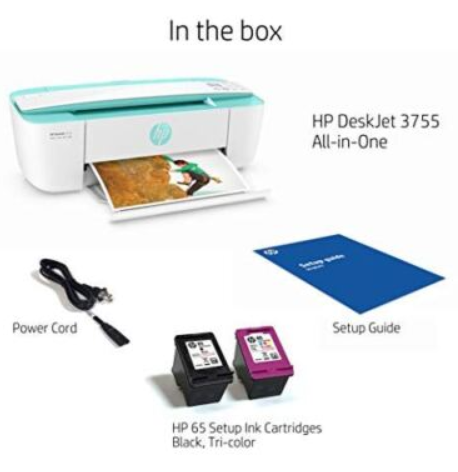
- HP DeskJet 3755 All‑in‑One printer
- Power cord (region‑specific)
- HP 65 Setup black ink cartridge and HP 65 Setup tricolour ink cartridge (pre‑installed or in the box)
- Quick‑Start Guide and warranty card
No USB cable is included. HP expects you to set up the printer wirelessly.
Initial Setup & Ink Installation
- Remove all packaging tape and protective materials from the outside and inside of the printer. Open the scanner lid and remove any inserts.
- Connect the power cord to the back of the printer and a wall outlet. Press the Power button (the circle icon). The printer will initialize.
- Open the ink cartridge access door on the front of the printer. The cartridge carriage moves to the centre. Wait until it stops.
- Remove the new ink cartridges from their packaging. Be careful not to touch the gold contacts or the ink nozzles.
- Slide the black cartridge into the left slot and the tricolour cartridge into the right slot. Push each cartridge until it clicks into place.
- Close the ink cartridge access door. The printer will print an alignment page. Follow the alignment instructions on the page or in the HP Smart app.
Connecting to Wi‑Fi & HP Smart App Setup
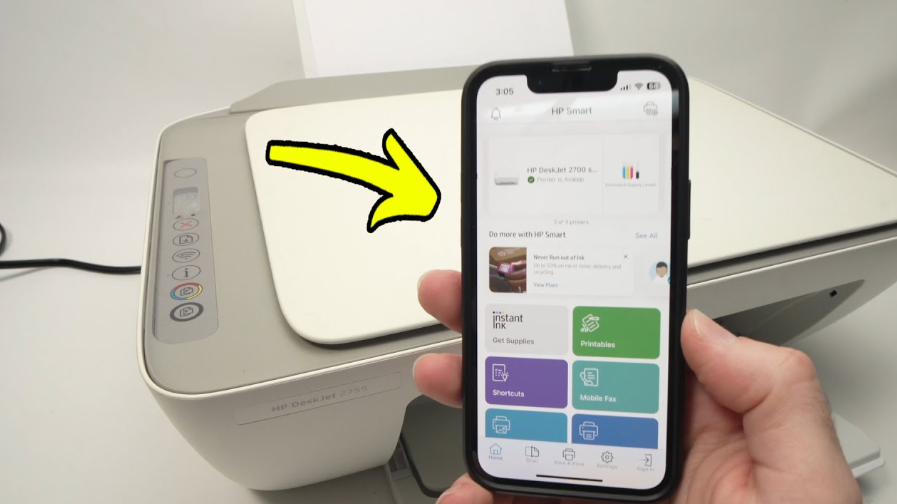
- Download the HP Smart app on your phone or computer (iOS, Android, Windows, macOS).
- Make sure the printer is turned on. In the HP Smart app, tap “Add your printer” (or the “+” icon). The app will search for nearby printers.
- When the DeskJet 3755 appears, select it. The app guides you through connecting the printer to your 2.4 GHz Wi‑Fi network. Enter your Wi‑Fi password when prompted.
- After setup, the blue Wi‑Fi light on the printer will stay solid. The app confirms the connection. You can now print wirelessly.
Printing, Scanning & Copying
- Print from computer: Once connected, select “HP DeskJet 3700 series” in your application’s print dialog.
- Print from phone: Open a document or photo, tap the Share icon, and select Print (AirPrint for iOS, or the HP Smart app for Android).
- Scan: Place your document face‑down on the scanner glass. Open the HP Smart app, tap Scan, and follow the prompts. The scanned file saves to your device or cloud service.
- Copy: Place the original on the scanner glass. Open the HP Smart app, tap Copy, adjust settings (number of copies, colour/black, paper size), and tap Start. Because there are no physical copy buttons, you need the app for copying.
Replacing Ink Cartridges
When the ink level is low, the printer’s Ink Alert light blinks. Open the ink cartridge access door. The carriage moves to the centre. Push down on the empty cartridge to release it, and pull it out. Insert a new HP 65 or HP 65XL cartridge into the slot until it clicks. Close the door. The printer will align automatically.
Troubleshooting & Common Problems
| Problem | Likely Cause | What to Try |
|---|---|---|
| Printer not printing (offline) | Wi‑Fi connection lost | Check the blue Wi‑Fi light is solid. Restart the printer and router. In the HP Smart app, go to Printer Settings > Advanced Settings and run the Network Troubleshooter. |
| Print quality is poor (streaks, faded) | Clogged printhead or low ink | In the HP Smart app, go to Printer Settings > Printer Quality Tools > Clean Printhead. Run the cleaning cycle. If quality still fails, replace the ink cartridge. |
| Paper jam | Paper not loaded correctly, or debris inside | Gently pull the jammed paper out through the input tray or the output slot. Reload paper evenly in the input tray (about 10‑15 sheets at a time). |
| Wi‑Fi light blinking | Printer disconnected from network, or WPS mode active | Restart the printer. If blinking persists, press and hold the Wireless and Cancel buttons together for 3 seconds to restore wireless defaults, then re‑run the HP Smart app setup. |
| Ink cartridge not recognised | Cartridge not fully seated, or protective tape not removed | Remove and re‑insert the cartridge. Ensure all orange tape has been removed. Clean the gold contacts with a lint‑free cloth. |
| Scanner not working (app can’t detect scanner) | Scanner driver issue, or app permission | Restart the printer and the app. On your phone, ensure the HP Smart app has permission to access the camera and storage (for document capture). |
Common Problems Quick List
- Printer prints blank pages: The ink cartridge may be empty or dried out. Run a printhead cleaning cycle. If the problem persists, replace the cartridge.
- HP Smart app can’t find the printer: Check that your phone and the printer are on the same Wi‑Fi network. If your router has both 2.4 GHz and 5 GHz bands with the same network name, the printer only connects to 2.4 GHz. During setup, temporarily disable the 5 GHz band if you encounter issues.
- Printer makes a grinding noise: A piece of paper or debris may be stuck inside. Turn off the printer, open the ink cartridge door, and inspect for obstructions.
Frequently Asked Questions
- Can I use the printer without the HP Smart app?
You can print from a computer using the print driver, but copying requires the HP Smart app. Scanning also works through the app or through the computer’s scanning software (HP Easy Scan on macOS, Windows Scan on Windows). - What ink cartridges does the DeskJet 3755 use?
HP 65 (standard) or HP 65XL (high‑yield). Both black and tricolour cartridges are compatible. The setup cartridges included in the box contain less ink than standard cartridges. - Does the printer support borderless printing?
Yes, it supports borderless printing on photo paper up to 4×6 inches. - Can I print from an iPhone without the HP Smart app?
Yes, use Apple AirPrint. The printer will appear in the AirPrint menu automatically when both are on the same Wi‑Fi network. - How do I scan multiple pages into one PDF?
In the HP Smart app, scan the first page. The app will show a “+” icon to add additional pages. Continue scanning until all pages are captured, then save as a single PDF. - Is there a USB port for a flash drive?
No, the DeskJet 3755 does not have a USB port for flash drives. All printing and scanning is done wirelessly. - How do I reset the printer to factory settings?
Turn on the printer. Press and hold the Cancel button and the Wireless button simultaneously for about 5 seconds. The lights will blink, and the printer will restart with factory defaults.
Tips
- Use the HP Smart app for most tasks: The app is your main interface for copying, scanning, checking ink levels, and troubleshooting. Keep it updated.
- Place the printer near the router: For a stable Wi‑Fi connection, position the printer within a reasonable range of your router and away from large metal objects.
- Clean the scanner glass: If scanned images show lines or smudges, lift the scanner lid and wipe the glass with a soft, dry cloth.
- Avoid cheap third‑party ink: Low‑quality ink cartridges can clog the printhead and cause errors. Stick with HP cartridges or reputable remanufactured ones.
- Turn on Quiet Mode for late‑night printing: In the HP Smart app, go to Printer Settings > Advanced Settings > Quiet Mode and toggle it on.
Safety Information
- Power supply: Use only the power cord supplied with the printer. Plug it into an easily accessible outlet.
- Ink cartridges: Keep out of reach of children. If ink contacts skin, wash with soap and water. If it gets into eyes, rinse immediately and seek medical advice.
- Ventilation: Place the printer in a well‑ventilated area. Avoid blocking the paper path or the air vents on the back.
- Cleaning: Unplug the printer before cleaning the interior. Use a soft, dry cloth for the exterior. Do not use alcohol or solvents.
- Lifting: The printer is light, but lift it from the bottom, not by the scanner lid or input tray.
Related Manuals
If this guide was helpful, here are a few more popular manuals from productsmanuals.com that you might find useful:
- Canon PIXMA MG3620 Manual – Wireless Printer Setup & Common Fixes
Print, scan, and solve paper jams with clear step‑by‑step instructions. - JBL Go 3 Manual – Waterproof Bluetooth Speaker Setup & Troubleshooting
Pair, charge, and protect your ultra‑portable speaker. - Amazon Echo Dot 5th Gen Manual – Alexa Setup, Wi‑Fi Tips & Common Fixes
Get the most from your smart speaker with routines, privacy controls, and more. - iPhone 17 Manual – Settings, Camera & Hidden Features Guide
Master Dynamic Island, Action button, and battery‑health tricks. - Dell Inspiron 15 3520 Manual – Laptop Setup, Upgrades & Troubleshooting
Upgrade your RAM and SSD, and fix common performance issues.
Browse all guides at productsmanuals.com .
Copyright Warning
Copyright 2026 productsmanuals.com All rights reserved. This HP DeskJet 3755 manual is original content and may not be copied, republished, or redistributed without written permission. HP, DeskJet, and the HP logo are trademarks of HP Inc. This guide is unofficial and not affiliated with HP.

[…] HP DeskJet 3755 Manual – Wireless Printer Setup & Common Fixes Print, scan, and solve paper jams with clear step‑by‑step instructions. […]
[…] HP DeskJet 3755 Manual – Wireless Printer Setup & Common Fixes Print, scan, and solve paper jams with clear step-by-step instructions. […]