
Samsung Galaxy Z Flip 6 SM‑F741B Manual – Product Overview, Features, Setup & Troubleshooting Guide
Product Overview
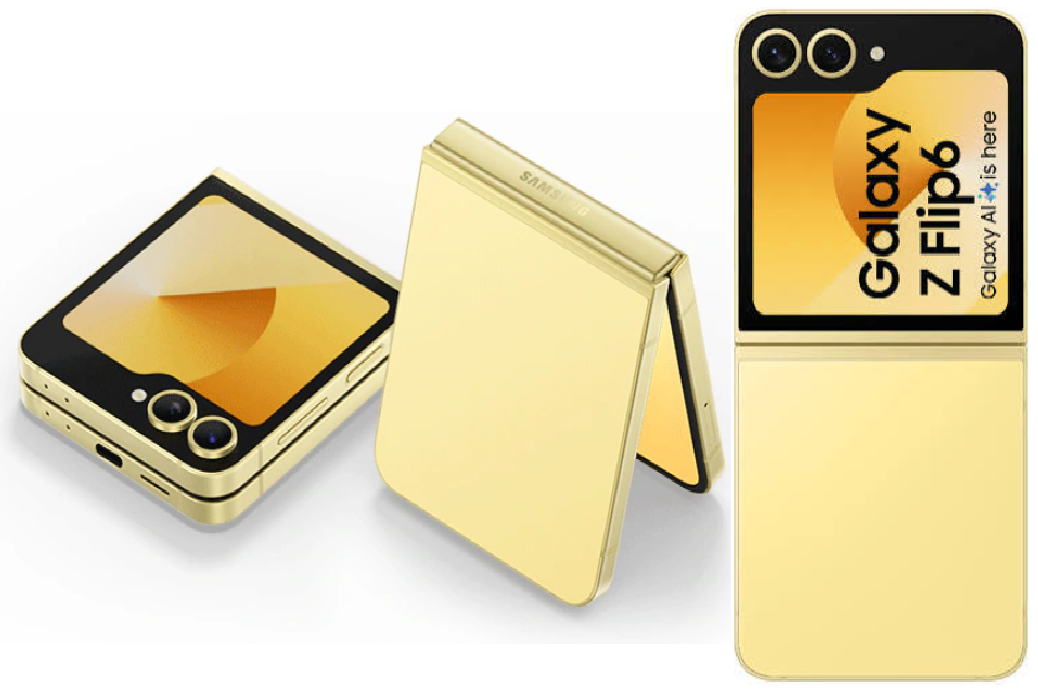
The Samsung Galaxy Z Flip 6 is a compact foldable smartphone that flips shut like a classic clamshell phone. When open, it reveals a 6.7‑inch 120 Hz Dynamic AMOLED main display. When closed, the 3.4‑inch FlexWindow cover screen lets you check notifications, take selfies with the main cameras, and use widgets without opening the phone. The redesigned hinge is more durable and less visible, and the device carries an IP48 water‑resistance rating (the first of its kind for a Flip). It packs the Snapdragon 8 Gen 3 processor, a 50 MP main camera, and a 4,000 mAh battery.
Key Features
- FlexWindow (3.4‑inch Cover Screen): The outer display is larger and more useful than previous generations. Swipe to view notifications, weather, calendar, and music controls. You can run full apps (with Labs enabled) or use Samsung‑provided widgets. The always‑on display keeps the clock and notifications visible.
- Flex Mode: When the phone is partially folded (like a laptop), many apps split their interface. The top half shows content, and the bottom half shows controls. Works with YouTube, Camera, Google Meet, and more.
- FlexCam: Take hands‑free photos and videos using the main cameras while framing yourself on the cover screen. Great for group shots, vlogging, and night photography with the 50 MP sensor.
- 50 MP Main Camera: Upgraded from 12 MP on the Flip 5, the main sensor captures sharper photos and better low‑light shots. The 12 MP ultra‑wide completes the rear setup.
- Snapdragon 8 Gen 3: Flagship performance with improved AI capabilities. Galaxy AI features include Circle to Search, Live Translate, and Generative Edit.
- IP48 Water Resistance: Rated for submersion in up to 1.5 metres of fresh water for 30 minutes. This is the first Flip with water resistance (previous models only had basic splash protection). Note: the “8” in IP48 means it’s protected against solid objects larger than 1 mm — fine dust may still enter over time.
- Zero‑Gap Hinge: The redesigned hinge folds completely flat with no gap when closed. It feels sturdy and smooth in daily use.
How to Use
What’s in the Box
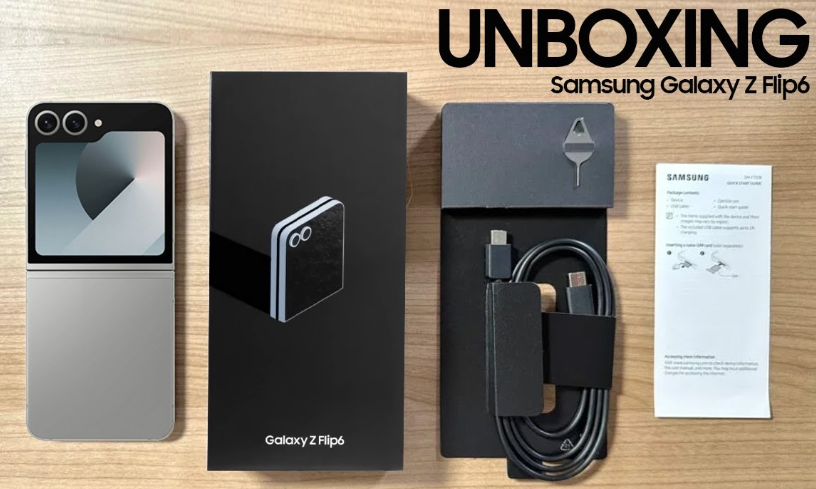
- Samsung Galaxy Z Flip 6 (with pre‑applied screen protector on both the main and cover screens)
- USB‑C to USB‑C cable
- SIM card ejector tool
- Quick‑Start Guide and warranty card
No charger, case, or earphones are included. Use any USB‑C PD charger (25W recommended for fast charging).
First‑Time Setup
- Unfold the phone. Press and hold the Side button (right edge) until the Samsung logo appears.
- Select your language, connect to Wi‑Fi, and sign in with your Google account and Samsung account.
- Use Smart Switch to transfer data from an old phone.
- Once on the Home screen, go to Settings > Software update and install any pending updates.
- In Settings > Display, set Motion smoothness to Adaptive (120 Hz) for the main screen.
Buttons, Ports & Fingerprint Sensor
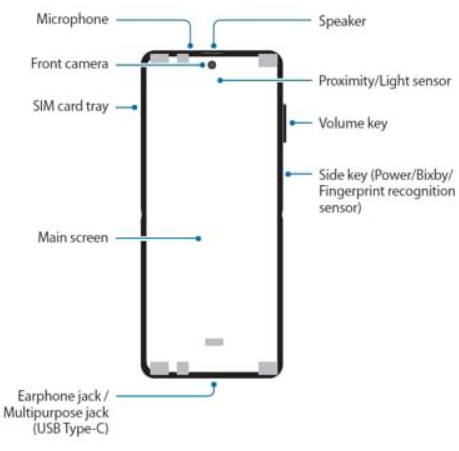
| Component | Location | Function |
|---|---|---|
| Side button / Fingerprint sensor | Right edge (top half) | Press to wake/sleep. Rest your thumb to unlock. Double‑press for camera. |
| Volume rocker | Right edge (above Side button) | Adjust media and ringer volume. |
| USB‑C port | Bottom edge | Charging, data transfer. No headphone jack. |
| SIM tray | Left edge | Holds one nano‑SIM. eSIM is also supported. No microSD slot. |
A Look Inside the Galaxy Z Flip 6 (Internal Structure)
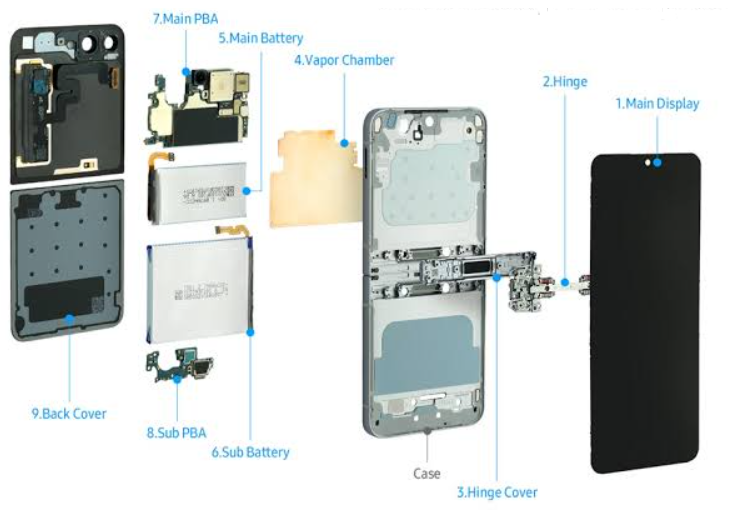
The Galaxy Z Flip 6 packs a full smartphone into a clamshell body. Here’s how the key internal parts are arranged when you open the phone:
- Main Folding Display: The 6.7‑inch Dynamic AMOLED panel is bonded to an ultra‑thin flexible glass (UTG) layer. Beneath that, a metal support plate with a perforated pattern allows the screen to fold smoothly. The display connector is located at the bottom of the phone, near the USB‑C port.
- Hinge Module: The redesigned zero‑gap hinge uses a dual‑rail structure and interlocking gears. It contains a small sweeper brush to keep dust and debris out of the mechanism. The hinge is rated for over 200,000 folds. The flex cable that connects the two halves of the phone runs through a protective channel inside the hinge.
- Dual Battery System: Instead of one large battery, the Z Flip 6 uses two separate lithium‑polymer cells. One sits in the top half (behind the cover screen), and the other sits in the bottom half (behind the main display). This design balances weight and maximizes internal space. The combined capacity is 4,000 mAh.
- Main Logic Board (Motherboard): Located in the bottom half, the main PCB houses the Snapdragon 8 Gen 3 processor, RAM, and storage chips. It’s a multi‑layer board with shielding to manage heat. The USB‑C port and SIM reader are soldered directly to it.
- Sub‑Board and Cover Screen: A smaller secondary PCB sits in the top half. It connects the 3.4‑inch FlexWindow cover screen, the earpiece speaker, and the main cameras. The cover screen’s touch panel is integrated into the front glass.
- Camera Modules: The 50 MP main camera and 12 MP ultra‑wide camera are stacked vertically in the top half, behind the cover screen. The 10 MP front camera sits under the main folding display (a hole‑punch cutout). Both rear cameras have optical image stabilization (OIS) on the main sensor.
- Cooling System: A graphite thermal pad and a thin vapour chamber (on some regional models) spread heat from the processor across the phone’s mid‑frame. The phone dissipates heat through the metal frame edges and the display panel.
- Speakers and Haptics: The bottom speaker (loudspeaker) is located in the lower half, while the earpiece speaker sits in the top half. A linear vibration motor is attached to the bottom sub‑frame for haptic feedback.
Important: The Z Flip 6 is not designed to be user‑repairable. The inner display, hinge, and batteries are deeply integrated and require specialized tools to replace. Do not attempt to disassemble the phone yourself. Any internal damage or repair should be handled by a Samsung‑authorized service centre.
Using the Cover Screen (FlexWindow)
- Wake the screen: Press the Side button, or tap the cover screen twice.
- Swipe right: View notifications.
- Swipe left: Scroll through widgets (weather, calendar, music, alarms, Samsung Health).
- Swipe down: Quick settings (Wi‑Fi, Bluetooth, torch, etc.).
- Pinch out: See all widgets at once.
- Reply to messages: Tap a notification and use the on‑screen keyboard or voice input.
- Take a selfie with the main cameras: Double‑press the Side button to launch the camera, or swipe left on the camera widget. Tap the screen or press the Volume button to capture.
Flex Mode & FlexCam
- Flex Mode: Partially fold the phone (about 75–90 degrees). Compatible apps like YouTube, Camera, and Google Meet will automatically adjust their layout. The top half shows content; the bottom half shows playback controls or the camera viewfinder.
- FlexCam: Open the Camera app and partially fold the phone. Place it on a table. The top screen shows your preview; the bottom screen shows the camera controls. Use a hand gesture (palm toward the camera) to trigger a timer.
Battery & Charging
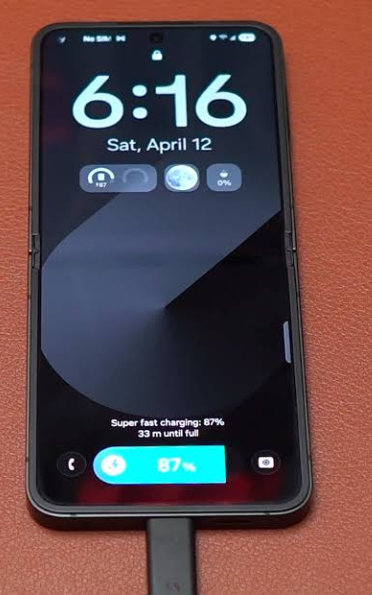
- Battery life: The 4,000 mAh battery lasts a full day with moderate use.
- Charging: Supports 25W wired fast charging and 15W wireless charging. Reverse wireless charging (4.5W) can top up your Galaxy Buds.
- Battery protection: Go to Settings > Battery > Battery protection to enable Maximum mode (caps at 80%) for long‑term battery health.
Troubleshooting & Common Problems
| Problem | Likely Cause | What to Try |
|---|---|---|
| Crease on main screen is very visible | Normal for folding OLED displays | This is expected. The crease is part of the folding mechanism and becomes less noticeable during use. |
| Cover screen not responding to touches | Screen protector interference, or software glitch | Remove any third‑party screen protector. Restart the phone. If the problem persists, check for updates. |
| Phone won’t fold fully flat | Debris in the hinge, or hinge damage | Gently blow compressed air around the hinge gap. Do not insert objects into the hinge. If it still won’t close, contact Samsung. |
| Fingerprint sensor slow or unresponsive | Dirty sensor, or dry finger | Wipe the Side button with a dry cloth. Delete and re‑register your fingerprints. Register the same finger twice. |
| Apps don’t use Flex Mode | App not optimised, or Labs not enabled | In Settings > Advanced features > Labs, enable Flex Mode panel for apps that don’t natively support it. This forces a control panel at the bottom when the phone is partially folded. |
| Battery drains faster than expected | 120 Hz display, or background apps | Switch to Standard (60 Hz) motion smoothness. Check Settings > Battery for app usage. Use Dark mode. |
Common Problems Quick List
- Screen protector bubbling: Both the main and cover screens have factory‑installed protectors. Do not remove the main screen protector yourself; it can damage the screen. Visit a Samsung service centre for replacement.
- Hinge feels loose: A small amount of play is normal. If the phone doesn’t hold its position in Flex Mode, contact Samsung.
- No sound in calls: Check that your finger isn’t covering the bottom speaker. The earpiece speaker is inside the top bezel, not visible from the outside.
Frequently Asked Questions
- Is the Z Flip 6 waterproof?
It has an IP48 rating. This means it’s protected against submersion in fresh water up to 1.5 metres for 30 minutes. The “4” means it’s protected against solid objects larger than 1 mm (not completely dust‑proof). Avoid beaches and very dusty environments. - Can I use the phone while it’s folded?
Yes, the cover screen lets you take calls, reply to texts, control music, and take selfies without opening the phone. - Does the crease get worse over time?
The crease is a physical characteristic of the folding glass. It doesn’t typically deepen significantly, but it may become slightly more visible after months of use. - Can I remove the factory screen protector?
Do not remove the factory‑installed protector on the main folding screen. Removing it can damage the screen. If it bubbles or lifts, take the phone to a Samsung service centre. - Is there a headphone jack?
No. Use Bluetooth headphones or a USB‑C to 3.5 mm adapter. - How do I take a screenshot?
Press the Side button and Volume Down button simultaneously.
Tips
- Use the cover screen as a viewfinder: When taking photos of others, double‑press the Side button to show the camera on the cover screen. The subject can see themselves and adjust their pose.
- Customise the cover screen: Long‑press the cover screen or go to Settings > Cover screen to change the clock style, wallpaper, and widget layout.
- Protect the hinge: Avoid pressing hard on the hinge area. When the phone is closed, the hinge is exposed — consider a case that covers it.
- Keep the inner screen clean: Wipe the main screen gently with a dry microfiber cloth. Do not use liquid cleaners or press hard on the screen.
- Enable Galaxy AI features: Try Circle to Search (long‑press the Home button or navigation bar), Live Translate (during calls), and Photo Assist (in Gallery) for powerful AI tools.
Safety Information
- Folding screen: Do not fold the phone with objects (coins, keys, cards) between the screens. This can puncture the display.
- Screen protectors: Do not apply a third‑party screen protector to the main folding screen. The factory‑installed protector is designed specifically for the folding panel.
- Water exposure: The IP48 rating applies to fresh water only. Dry the USB‑C port before charging if the phone gets wet.
- Magnet warning: The phone contains magnets for the hinge mechanism. Keep it away from medical devices (pacemakers, insulin pumps) and magnetic stripe cards.
- Repairs: The folding screen and hinge are complex. Repairs should only be performed by Samsung or an authorized service centre.
Related Manuals
If this guide was helpful, here are a few more popular manuals from productsmanuals.com that you might find useful:
- Samsung Galaxy A16 5G Manual – Product Overview, Camera Tips & Battery Care
Master your budget 5G phone with One UI tricks and troubleshooting. - Samsung Galaxy S24 Ultra Manual – S Pen, Galaxy AI & Pro Camera Guide
Get the most from the 200 MP sensor, Circle to Search, and DeX mode. - iPhone Air A3312 Manual – Apple Intelligence, Camera Control & Setup
Discover the thinnest iPhone with Apple Intelligence and Camera Control. - iPhone 17 Manual – Settings, Camera & Hidden Features Guide
Explore Dynamic Island, Action button, and battery‑health tricks. - Dell Inspiron 15 3520 Manual – Laptop Setup, Upgrades & Troubleshooting
Upgrade RAM and SSD, and fix common performance issues.
Browse all guides at productsmanuals.com .
Copyright 2026 productsmanuals.com All rights reserved. This Samsung Galaxy Z Flip 6 SM‑F741B manual is original content and may not be copied, republished, or redistributed without written permission. Samsung, Galaxy Z Flip, FlexWindow, and the Samsung logo are trademarks of Samsung Electronics. This guide is unofficial and not affiliated with Samsung.

[…] Samsung Galaxy Z Flip 6 Manual – FlexWindow, FlexCam & Hinge Care Guide Get the most from your folding phone’s cover screen and camera. […]
[…] Samsung Galaxy Z Flip 6 Manual – FlexWindow, FlexCam & Hinge Care Guide Get the most from your folding phone’s cover screen and camera. […]
[…] Samsung Galaxy Z Flip 6 Manual – FlexWindow, FlexCam & Hinge Care Guide Get the most from your folding phone’s cover screen and camera. […]