
Introduction
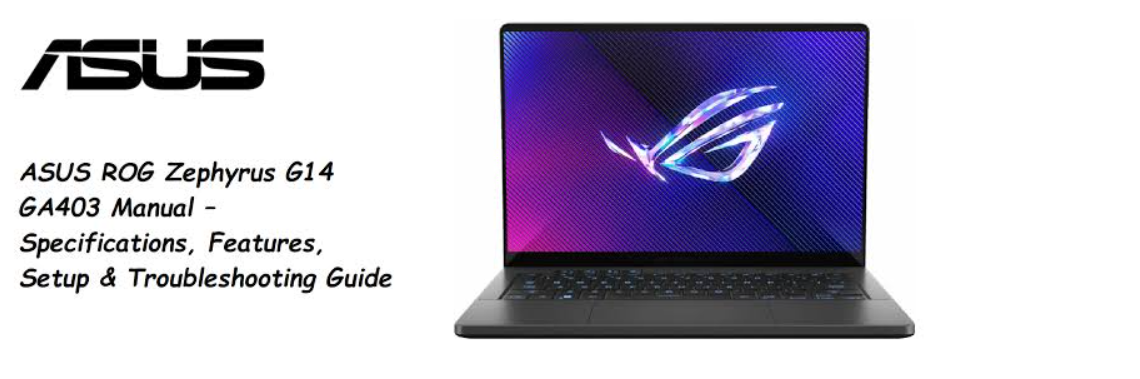
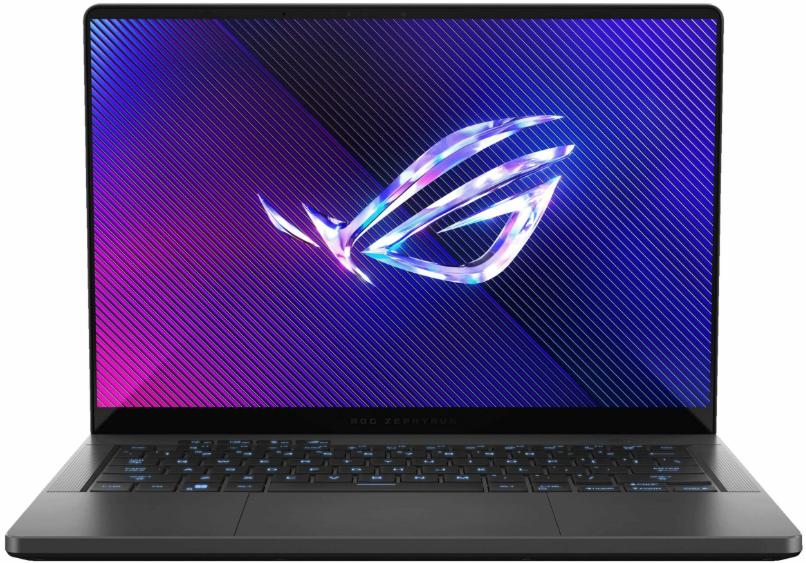
The 2024 ROG Zephyrus G14 packs an AMD Ryzen 9 processor, an NVIDIA RTX 4070 GPU, and a 120 Hz Nebula HDR OLED display into a 1.5 kg magnesium‑alloy chassis. ASUS ships it with a 240 W power adapter, a Quick‑Start leaflet, and a warranty card. The printed material doesn’t explain how to configure Armoury Crate, how to enable the MUX switch for maximum performance, or what to do when the keyboard backlight flickers. This guide fills that gap. Every major specification, feature, and fix is laid out in plain, practical language — no marketing, just answers.
Full Specifications
| Specification | Detail |
|---|---|
| Model | GA403 (2024 Zephyrus G14) |
| Processor | AMD Ryzen 9 8945HS (8‑core, up to 5.2 GHz) |
| GPU | NVIDIA GeForce RTX 4070 Laptop GPU (8 GB GDDR6, 90 W TGP with Dynamic Boost) |
| Display | 14‑inch OLED, 2880 x 1800 (2.8K), 120 Hz, 0.2 ms response, 100% DCI‑P3, Dolby Vision, Pantone® validated |
| Memory | 32 GB LPDDR5X (onboard, not upgradeable) |
| Storage | 1 TB PCIe 4.0 NVMe M.2 SSD (user‑upgradeable, second M.2 slot available on some SKUs) |
| Operating System | Windows 11 Home |
| Wireless | Wi‑Fi 6E (802.11ax), Bluetooth 5.3 |
| Ports | 1x USB4 Type‑C with Power Delivery 3.0 & DisplayPort 1.4, 1x USB 3.2 Gen 2 Type‑C with DisplayPort, 2x USB 3.2 Gen 2 Type‑A, 1x HDMI 2.1, 1x microSD card reader, 1x 3.5 mm combo audio jack |
| Keyboard | Per‑key RGB backlit chiclet keyboard, 1.7 mm travel, Aura Sync |
| Audio | 4‑speaker system with Dolby Atmos, Hi‑Res Audio certified, AI noise‑cancelling microphone |
| Battery | 76 Wh lithium‑polymer, 240 W power adapter (USB‑C charging up to 100 W supported) |
| Dimensions | 31.1 x 22.0 x 1.59 ~ 1.63 cm (12.24 x 8.66 x 0.63 ~ 0.64 inches) |
| Weight | Approx. 1.5 kg (3.3 lbs) |
| Build | Magnesium‑aluminum lid, aluminum base |
| Cooling | 2nd‑gen Arc Flow Fans, liquid metal on CPU, Tri‑Fan system |
| Included in Box | Laptop, 240 W power adapter, regional power cord, Quick‑Start Guide, warranty card |
Key Features at a Glance
- Nebula HDR OLED Display: The 2.8K panel covers 100% of the cinematic DCI‑P3 colour space, supports Dolby Vision, and is Pantone validated for colour accuracy. The 120 Hz refresh rate makes it suitable for both content creation and fast gaming.
- MUX Switch (NVIDIA Advanced Optimus): The laptop can route the display directly through the dedicated GPU for higher frame rates, or switch to the integrated AMD GPU for better battery life — without a reboot. Managed in Armoury Crate or NVIDIA Control Panel.
- ROG Intelligent Cooling: Uses liquid metal thermal compound on the CPU, Arc Flow fans with variable pitch blades, and a Tri‑Fan system that includes a third fan in the rear. The laptop remains relatively quiet even under load.
- Per‑Key RGB & Aura Sync: Each key can be individually backlit and synchronized with other Aura‑compatible devices. The lighting effects are configured in Armoury Crate.
- USB4 with Power Delivery: The left USB4 port supports up to 100 W USB‑C charging for topping up the battery during light use, though the full 240 W adapter is required for peak gaming performance.
- AniMe Matrix (select models): The lid can feature a customizable LED array that displays animations, notifications, and custom designs.
What’s Inside the Box
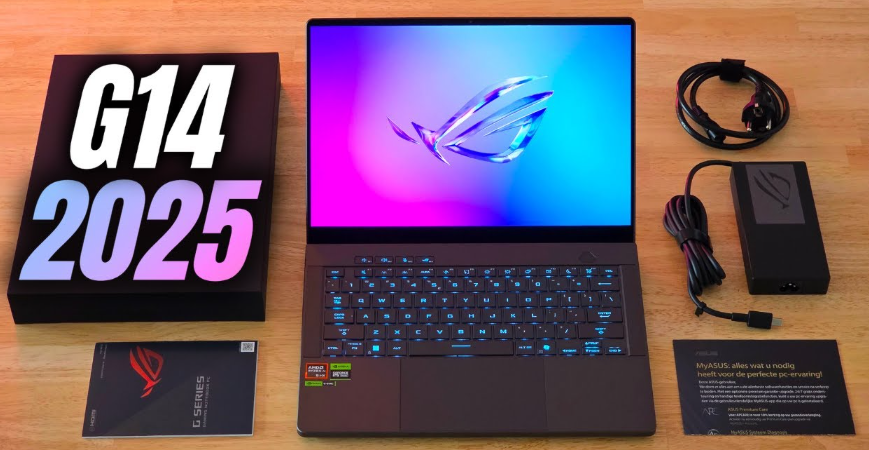
- ASUS ROG Zephyrus G14 laptop (in Eclipse Grey or Moonlight White)
- 240‑watt AC power adapter (with a barrel connector)
- Regional power cord
- Quick‑Start Guide and warranty information
No USB‑C charger is included. For USB‑C charging, you’ll need a separate 100 W GaN charger.
First‑Time Setup and ASUS Armoury Crate
- Plug in the 240 W adapter and power on the laptop. The RGB keyboard will light up. Follow the Windows 11 OOBE to set up your account.
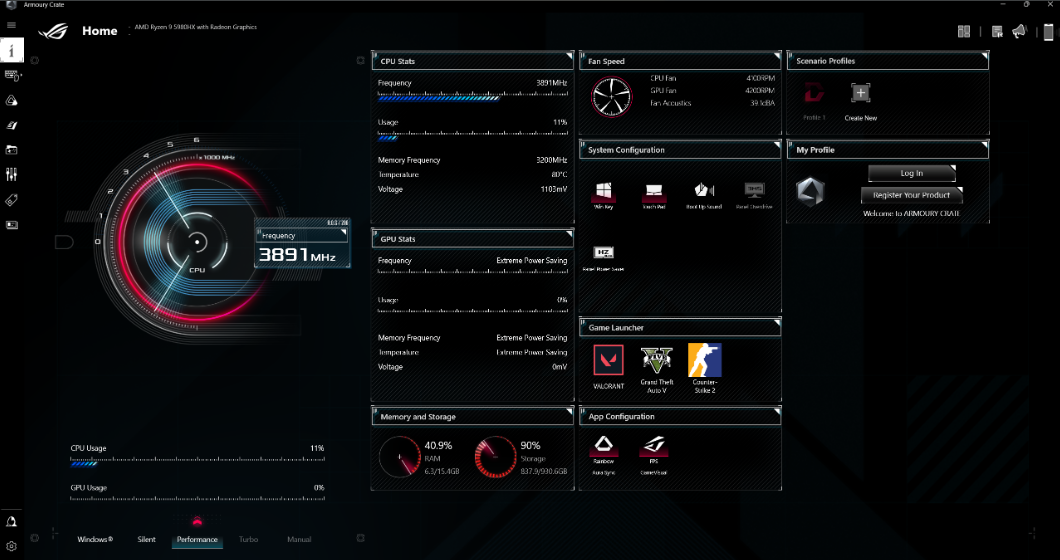
- Once on the desktop, open Armoury Crate (pre‑installed). If it’s missing, download it from the ASUS support site.
- In Armoury Crate, check for updates: go to Settings > Update Center and install all available firmware, driver, and software updates.
- Under Device > System, you’ll see the performance profiles:
-
-
Windows: Let Windows manage power.
-
Silent: Low fan speeds, reduced CPU/GPU power for quiet office work.
-
Performance: Balanced for gaming, with moderate fan speeds.
-
Turbo: Maximum performance, highest fan speeds. Use for gaming or heavy rendering.
-
Manual: Fine‑tune fan curves and power limits (advanced users).
-
Select Turbo when playing demanding games, and switch to Silent for everyday browsing. The profile can be set to change automatically when launching a game.
MUX Switch and GPU Modes
- In Armoury Crate, go to Device > GPU Mode.
- Choose Ultimate (Dedicated GPU only) for maximum performance — this requires a restart.
- Choose Standard (MSHybrid) for automatic switching between integrated and dedicated GPU, balancing performance and battery life.
- The laptop also supports Advanced Optimus, which allows the display to switch to the dedicated GPU without restarting for certain applications. This setting is in NVIDIA Control Panel under Manage Display Mode.
For most gaming, Ultimate mode is ideal. When on battery and just browsing, switch to Standard or Optimus.
Upgrading Storage (SSD)
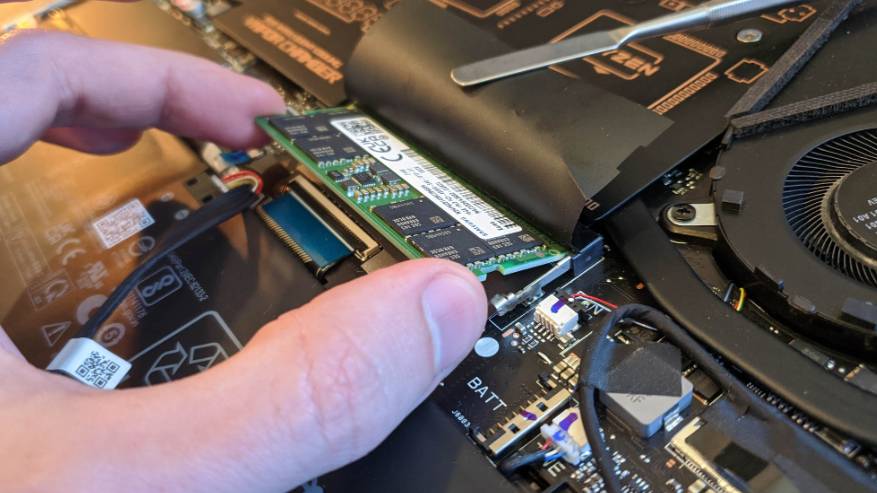
The GA403 has one or two M.2 2280 PCIe 4.0 slots (depending on configuration). To add or replace an SSD:
- Shut down the laptop and disconnect the power adapter. Remove the screws from the bottom panel (note that some screws may be hidden under rubber feet).
- Gently pry off the bottom cover, starting from the hinge area.
- The main SSD is covered by a thermal shield. Remove the shield’s screw and lift it off. The SSD is held by a single screw. Swap it with a new drive, or add a second drive to the empty slot.
- Re‑attach the shield, snap the bottom panel back, and tighten the screws.
- After booting, open Disk Management (right‑click Start > Disk Management) to initialize and format the new drive.
Note: Upgrading the SSD does not void the warranty, but damage caused during the process is not covered. Keep the original drive aside if you ever need warranty service.
Keyboard, Lighting, and Aura Sync
- Per‑key RGB: In Armoury Crate, go to Device > Aura Sync > Keyboard. Choose from static, breathing, strobing, rainbow, or create a custom per‑key layout.
- Aura Sync: Syncs lighting with other ASUS peripherals (mice, headsets). Enable in the Aura Sync tab.
- Function keys: Use Fn + F1‑F12 for media, brightness, fan profile toggle, and touchpad disable. Fn + Space switches through quick lighting presets.
- AniMe Matrix (if equipped): In Armoury Crate > AniMe Matrix, you can upload GIFs or choose animations for the lid LEDs. This model may not have it; check your specific variant.
Battery Care and Charging
- Battery Health Charging: In the pre‑installed My ASUS app, go to Customization > Battery Health Charging. Set a charge limit (60% or 80%) to extend battery lifespan if you often use the laptop plugged in.
- USB‑C Charging: The left USB4 port supports up to 100 W Power Delivery. Use a 100 W GaN charger for light use (web, office). Not sufficient for gaming — the laptop will discharge slowly if you game on USB‑C power.
- Battery Calibration: If the battery percentage seems inaccurate, fully charge the laptop, then let it discharge to 5% and recharge. Do this once every 2‑3 months.
Troubleshooting Common Issues
| Problem | Likely Cause | What to Try |
|---|---|---|
| Laptop won’t turn on | Battery drained or power adapter issue | Plug in the 240 W adapter and wait 5 minutes. Press and hold the power button for 30 seconds. Try a different outlet. |
| Screen flickering or artifacts | GPU driver issue or MUX switch mode | Update NVIDIA drivers via GeForce Experience. In Armoury Crate, switch GPU mode to Ultimate (after restart). If it persists, disable hardware acceleration in apps. |
| Keyboard backlight not working | Aura Sync service crashed | Restart the “Lighting Service” in Windows Services. Re‑install Armoury Crate and the Aura Sync plugin. |
| Fans always loud even when idle | Performance profile set to Turbo | Switch to Silent or Windows profile in Armoury Crate. Check Task Manager for background apps using CPU. |
| Wi‑Fi drops or slow | Driver or interference | Update Wi‑Fi driver via My ASUS or Intel’s site. If using a 6 GHz network, ensure the router supports WPA3. Try disabling Bluetooth temporarily. |
| External monitor not detected | Incorrect cable or USB‑C port | Use the USB4 port (left) for DisplayPort alt mode, not the right USB‑C. Ensure the cable is rated for DP 1.4. Press Win + P to extend display. |
| Laptop runs hot during gaming | Normal under load | Ensure the laptop is on a hard, flat surface. Use Turbo mode for better fan curves. Clean the vents with compressed air every 3 months. |
| Battery drains quickly in sleep | Modern Standby | Change the power button to hibernate in Windows Power Settings. Update BIOS and chipset drivers via My ASUS. |
How to Factory Reset and Restart
Restart: Right‑click Start > Shut down or sign out > Restart.
Factory reset (Windows): Go to Settings > System > Recovery > Reset this PC. Choose “Keep my files” or “Remove everything.” The laptop will reinstall Windows.
Clean install via USB: Create a Windows 11 installation USB, boot from it (press F2 for BIOS, then set boot priority), delete all partitions on the main SSD, and install. After installation, download My ASUS and Armoury Crate from the Microsoft Store to get all drivers and updates.
BIOS reset: If the laptop won’t POST, press and hold the power button for 30 seconds with the adapter disconnected. Plug it back in and try again.
Quick Reference Card
| Task | How |
|---|---|
| Switch GPU mode | Armoury Crate > Device > GPU Mode |
| Toggle performance profile | Fn + F5 (or Armoury Crate) |
| Enter BIOS | Press F2 repeatedly during startup |
| Boot menu | Press Esc repeatedly during startup |
| Charge via USB‑C | Use left USB4 port with 100 W PD charger |
| Factory reset | Settings > System > Recovery > Reset this PC |
| Clean the fans | Compressed air through the rear and side vents (after shutting down) |
Official ASUS Support and Manuals
For warranty, drivers, and the official PDF manual, visit: https://www.asus.com/support
Frequently Asked Questions
- Can I charge the laptop with USB‑C while gaming?
You can, but the 100 W limit will not sustain the full power draw of the CPU and GPU during heavy gaming. The battery will slowly drain. Use the 240 W adapter for gaming. - Does the G14 support an external GPU?
Yes, via the USB4 port. You can connect a Thunderbolt eGPU enclosure, but performance may be slightly lower than a direct PCIe connection due to bandwidth limitations. - Can I upgrade the RAM?
No, the 32 GB LPDDR5X is soldered to the motherboard and cannot be upgraded. Choose the correct configuration at purchase. - How do I enable the 120 Hz refresh rate?
Go to Settings > System > Display > Advanced display settings and select 120 Hz. The laptop should already be set to 120 Hz by default. - Why does my keyboard get warm?
The keyboard area gets warm during heavy use because the heat pipes run underneath. This is normal. Use an external keyboard for extended gaming. - Can I disable the boot sound?
Yes, in Armoury Crate under Device > System > Boot Up Sound, toggle it off. - How do I use the microphone AI noise cancellation?
In Armoury Crate, go to Device > Audio. Enable AI Noise Cancellation for the microphone. It works system‑wide for all apps. - Can I connect two external monitors?
Yes, via the HDMI 2.1 port and the USB4 port (DisplayPort alt mode). You can also use a USB‑C hub for additional displays. - What is the maximum microSD card size?
The microSD reader supports up to 2 TB cards (SDXC, UHS‑II). Note that it is a microSD slot, not a full‑size SD. - Is the laptop compatible with Linux?
Many users run Linux on the G14, but some features (like the MUX switch, AniMe Matrix, and Armoury Crate) may not be fully supported. ASUS provides limited Linux support. - How do I update the BIOS?
My ASUS will notify you of BIOS updates. You can also download the latest BIOS from the ASUS support page and run the installer from Windows. Do not power off the laptop during the update. - What should I do if I spill liquid on the keyboard?
Immediately turn off the laptop, unplug it, and hold the power button for 15 seconds. Place the laptop upside down on a towel to drain. Do not use a hairdryer. Wait at least 48 hours before turning it on again. Liquid damage is not covered under standard warranty.
Maintenance Reminders
- Clean the fans and vents every 3 months with compressed air.
- Update Armoury Crate and NVIDIA drivers monthly for optimal performance and bug fixes.
- Check battery health in My ASUS and enable charge limiting if you keep the laptop plugged in most of the time.
Copyright warning ⚠
Copyright 2026 productsmanuals.com All rights reserved. This ASUS ROG Zephyrus G14 GA403 manual is original content and may not be copied, republished, or redistributed without written permission. ASUS, ROG, Zephyrus, and the ASUS logo are trademarks of ASUSTeK Computer Inc. This guide is unofficial and not affiliated with ASUS.

[…] Master the ultimate Using and gaming box, from sideloading to AI upscaling. […]