
Introduction
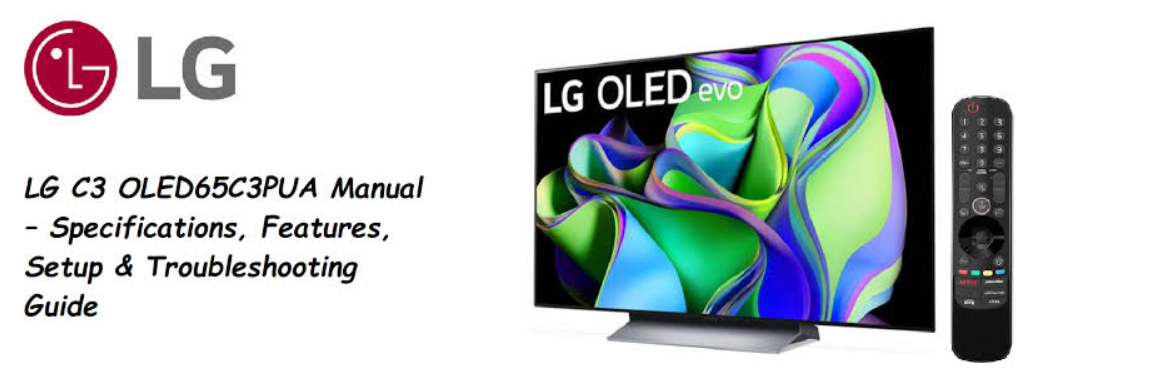
LG ships the C3 OLED with a Magic Remote, a pair of table‑top stands, and a Quick‑Start leaflet. The printed paperwork covers basic assembly, but it doesn’t explain how to dial in the best picture settings for your room, what to do when the screen randomly goes black, or how to clear the app cache when WebOS slows down. Thousands of people search for an “LG C3 OLED manual” every month because they want clear answers. This guide covers every major specification, feature, and common issue — without the marketing copy.
Full Specifications
| Specification | Detail |
|---|---|
| Model | OLED65C3PUA (65‑inch C3 OLED) |
| Display Type | 4K OLED with self‑lit pixels (WRGB sub‑pixel structure) |
| Resolution | 3,840 x 2,160 pixels (Ultra HD 4K) |
| Refresh Rate | 120 Hz native, variable refresh rate (VRR) |
| HDR Support | Dolby Vision IQ, HDR10, HLG, HGiG |
| Processor | α9 Gen6 AI Processor 4K |
| Smart TV Platform | webOS 23 (with LG ThinQ AI) |
| Voice Assistants | Built‑in Amazon Alexa, Google Assistant, LG ThinQ Voice Control |
| Audio | 2.2‑channel, 40 W total output, Dolby Atmos, AI Sound Pro, WiSA Ready (up to 2.1 channels) |
| HDMI Ports | 4x HDMI 2.1 (supports 4K 120 Hz, eARC on HDMI 2) |
| USB Ports | 3x USB‑A 2.0 |
| Wireless | Wi‑Fi 6 (802.11ax), Bluetooth 5.0 |
| Dimensions (W x H x D) with Stand | 144.8 x 89.1 x 26.7 cm (57.0 x 35.1 x 10.5 inches) |
| Weight with Stand | 24.5 kg (54.0 lbs) |
| VESA Mount | 300 x 200 mm |
| Power Consumption | 120 W typical, 0.5 W standby |
| Included Accessories | Magic Remote (batteries included), two table‑top stands, screws, Quick‑Start Guide, cable management clips |
Key Features at a Glance
- Self‑Lit OLED Pixels: Each pixel turns on and off independently, producing perfect black levels and infinite contrast. The C3’s screen coating also reduces reflections significantly compared to older OLEDs.
- α9 Gen6 AI Processor: Uses deep learning to upscale lower‑resolution content to near‑4K quality. It also analyses the room’s lighting and adjusts tone mapping for the best HDR experience (via AI Picture Pro).
- Dolby Vision IQ: Combines Dolby Vision dynamic metadata with the TV’s ambient light sensor to adjust the picture so that shadow and highlight detail remain visible even in bright rooms.
- 4x HDMI 2.1 Ports: All four HDMI ports support 4K at 120 Hz, VRR, ALLM (Auto Low Latency Mode), and eARC (HDMI 2). This is ideal for the PlayStation 5, Xbox Series X, and PCs with RTX graphics cards.
- Game Optimizer Dashboard: A dedicated menu that pops up during gaming, showing real‑time frame rate, VRR status, and letting you switch between picture presets (FPS, RTS, RPG, etc.) instantly.
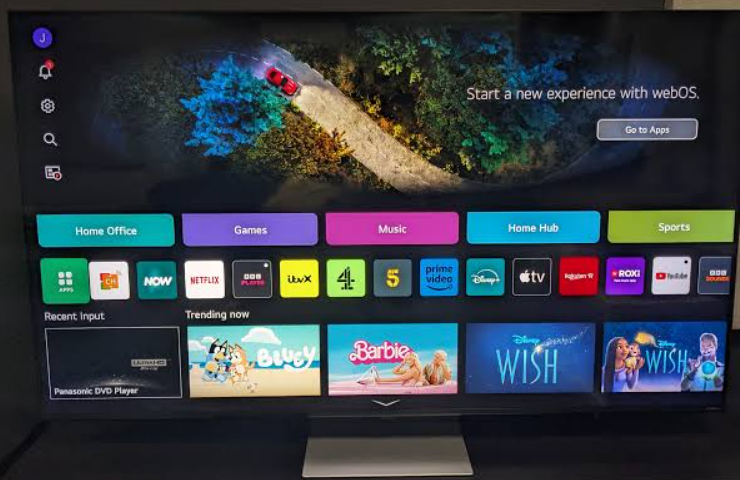
- webOS 23: The home screen organizes apps in two rows with large tiles. It supports user profiles (each with personalized picture settings and app layouts) and the AI Concierge, which recommends content based on your viewing habits.
- AI Sound Pro: Automatically up‑mixes stereo content to virtual 9.1.2‑channel surround and adjusts the equalizer based on the type of audio being played.
What’s Inside the Box
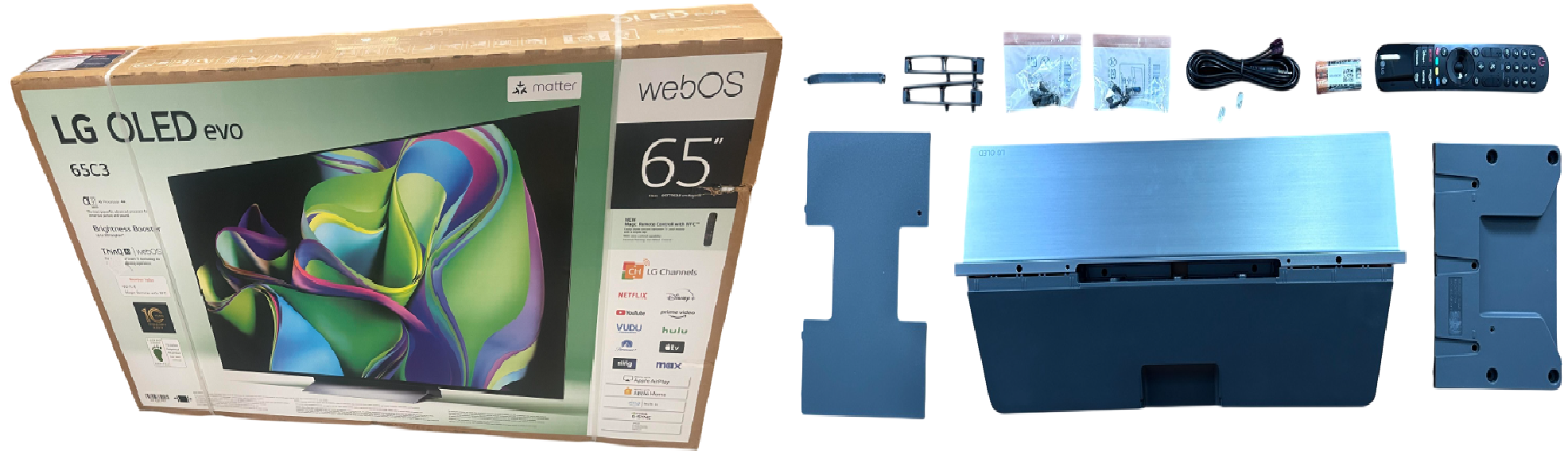
Your box includes:
- 65‑inch OLED panel (wrapped in protective film)
- Two silver metal table‑top stands and eight screws
- LG Magic Remote (model MR23GA) with two AA batteries
- Quick‑Start Guide and warranty booklet
- Cable management clips and a cable tie
No HDMI cable is included. For 4K 120 Hz gaming, use a certified Ultra High Speed HDMI cable.
First‑Time Setup and WebOS Initialization
- Attach the stands by sliding them into the bottom slots and tightening the screws. Alternatively, mount the TV with a VESA 300×200 bracket.
- Remove the protective film from the screen. Plug the TV into power. Point the Magic Remote at the TV and press the wheel to pair. The on‑screen cursor will appear.
- Select your language, region, and connect to Wi‑Fi (the C3 supports 2.4 GHz and 5 GHz, including Wi‑Fi 6). Sign in with your LG account (or create one).
- The TV will scan for over‑the‑air channels. You can skip this if you don’t use an antenna.
- When the home screen loads, open the Settings (gear icon), go to Support > Software Update, and install any pending updates. webOS receives regular feature updates through this menu.
Picture Settings and Calibration
- Press the Settings button on the remote (or the gear icon in the menu). Navigate to Picture.
- Select Mode: For the most accurate image in a dark room, choose Filmmaker Mode. For bright rooms, Cinema Home or Standard. Vivid is overly bright and best avoided.
- OLED Pixel Brightness: In SDR content, setting this between 60–80 is comfortable for most rooms. For HDR and Dolby Vision, the TV automatically sets this to maximum.
- Adjust Sharpness: Under Picture > Advanced Settings > Clarity, set Sharpness to 0 for native detail. The AI Picture Pro option can be toggled on for upscaling; it’s effective but may introduce slight smoothing.
- Energy Saving Step: In Support > Energy Saving, set to Off to prevent the screen from dimming automatically in response to ambient light (unless you prefer the auto‑dimming feature). For Dolby Vision IQ to work, Energy Saving should be off, and the AI Brightness setting should be on.
- Game Optimizer: When a game console is detected, the Game Optimizer dashboard appears. Leave the Prevent input delay set to Standard for most games, and Boost for competitive shooters (reduces lag to about 5 ms). The dashboard also shows VRR status and allows you to adjust the black stabilizer.
Sound Settings and Connection Options
- AI Sound Pro: In Sound > Sound Mode, select AI Sound Pro for virtual surround that adapts to content. Standard is the unprocessed option.
- Dolby Atmos: The TV can decode Dolby Atmos and output it to a compatible soundbar or receiver via eARC (HDMI 2). Connect a soundbar to HDMI 2, go to Sound > Advanced Settings > HDMI Input Audio Format, and set the soundbar’s port to Bitstream. Then, under Sound > Digital Sound Output, choose Pass Through.
- WiSA Ready: You can connect a WiSA‑compatible wireless speaker system via a separate WiSA USB dongle. The TV supports up to 2.1‑channel WiSA audio.
- Bluetooth headphones: Go to Sound > Sound Out > Bluetooth, and pair your headphones. The TV can output sound to both the internal speakers and a Bluetooth device simultaneously. This is useful for late‑night listening or for someone with hearing impairment.
Understanding the Magic Remote and Button Layout
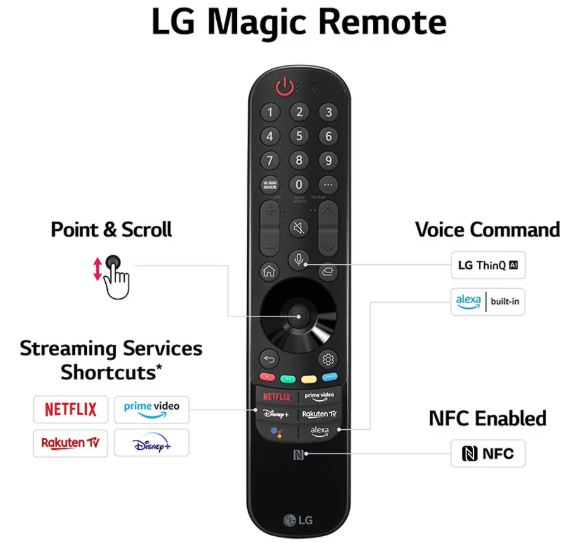
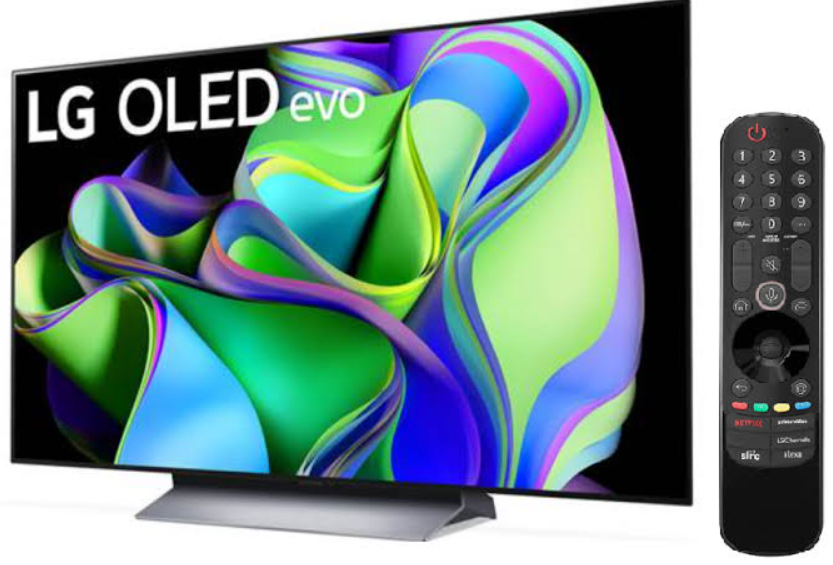
The LG C3 comes with the MR23GA Magic Remote, which uses a combination of physical buttons, a clickable scroll wheel, and a motion‑sensitive pointer. Here’s what every key does.
Top section (pointer area):
- Power button (red circle): Press once to turn the TV on or off. The TV’s standby light is at the bottom centre of the screen.
- Microphone button (small circle with a mic icon): Press and hold to speak a voice command — for example, “Open Netflix” or “Switch to HDMI 1.” Release when you finish speaking. The microphone is located in the front of the remote, just below the LG logo.
Centre section (navigation and scroll wheel):
- Clickable scroll wheel (the large silver wheel): Rotate up or down to scroll through menus, web pages, and the app list. Press the wheel inward to select or confirm, just like a mouse.
- Back button (curved arrow, left of the wheel): Press to return to the previous screen or exit a menu.
- Home button (house icon, right of the wheel): Press once to return to the webOS home screen. Press and hold to see your most recently used apps.
- Quick Settings button (gear icon, above the wheel): Opens a slim settings bar on the left side of the screen where you can quickly change picture mode, sound mode, and other frequent adjustments without leaving what you’re watching.
Lower section (dedicated buttons):
- Number buttons (0‑9): Direct channel selection for live TV. Press and hold the 0 button to open the full Quick Settings menu.
- Colour buttons (red, green, yellow, blue): Used for shortcuts in specific apps (e.g., red for recording on some set‑top boxes, green for search in YouTube).
- Volume and Channel rockers (top edge): Press up/down to adjust volume or change channels. The buttons are physical and located on the top of the remote.
- Mute button (speaker icon with an X): Press to instantly mute all sound. Press again to unmute.
- App shortcut buttons: Direct‑launch keys for Netflix, Prime Video, Disney+, LG Channels, and Google Assistant (varies slightly by region). These cannot be reassigned.
Side and back buttons:
- Source/Input button (on the top edge, near the USB‑C charging port): Press to open the input selection menu and switch between HDMI ports, live TV, or the home screen.
- USB‑C charging port (on the bottom edge): The remote has a rechargeable battery. Use the included USB‑C cable (or any standard one) to charge it. A full charge lasts several months of normal use. The battery level is shown in the TV’s Settings > General > Devices > Bluetooth Devices.
Pairing and re‑pairing: If the pointer or voice function stops working, press and hold the Home and Back buttons together for 5 seconds until the power button light blinks three times. The remote will re‑pair with the TV automatically.
Using the Magic Remote and webOS Shortcuts
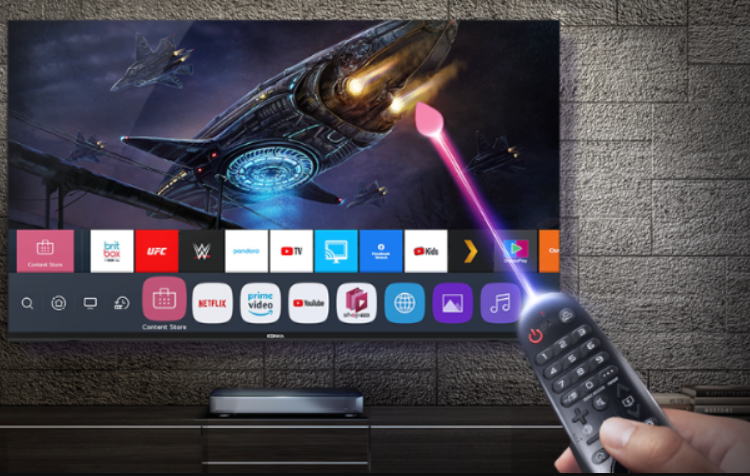
- Point and click: The remote acts as a pointer. Shake it to wake the cursor, point at icons, and scroll the wheel to navigate.
- Voice commands: Press and hold the microphone button and speak: “Open Netflix,” “Search for comedies,” “Turn off the TV in 30 minutes.”
- Shortcuts:
-
-
Long‑press the 0 button to open the quick settings panel.
-
Long‑press the Home button to see recently used apps.
-
Press the … button to bring up the edit‑mode for app tiles.
-
-
User profiles: Up to 4 user profiles can be set up. Each profile stores its own picture settings, app layouts, and personalized content recommendations. Switch profiles from the webOS home screen.
Troubleshooting Common Issues
| Problem | Likely Cause | What to Try |
|---|---|---|
| Screen goes black but sound continues | HDMI handshake or power saving | Press the Home button to return to webOS. If that doesn’t work, unplug the TV for 60 seconds and restart. Disable Energy Saving Step. |
| Picture looks too dark or too bright | Incorrect picture mode or Energy Saving | Set Picture Mode to Filmmaker Mode or Standard. Turn off Energy Saving. Check AI Brightness settings. |
| Apps freeze or crash | webOS cache or software glitch | In Settings > Support > Quick Help > Clean Running Apps, clear the cache. If the issue persists, uninstall and reinstall the app from the LG Content Store. |
| No sound through soundbar (eARC) | Incorrect HDMI port or settings | Connect the soundbar to HDMI 2 (the eARC port). In Sound > Advanced Settings, set the soundbar’s HDMI input to Bitstream, and Digital Sound Output to Pass Through. |
| Screen burn‑in or image retention | OLED panel after long periods of static images | The C3 has pixel‑shifting and a screen saver built in. If temporary retention occurs, run the Pixel Refresher overnight: Settings > OLED Care > OLED Panel Care > Pixel Cleaning > Start Now. |
| Wi‑Fi connection drops | Router or interference | Restart the router and the TV (unplug for 30 seconds). In Network > Wi‑Fi Connection > Other Network Settings, try a manual IP setting. Using a wired Ethernet connection is more stable for streaming. |
| Remote pointer not working | Batteries or connection | Replace batteries. Re‑pair the remote by pressing and holding the Home and Back buttons together for 5 seconds until the power light blinks. |
| TV turns on by itself | HDMI‑CEC or timer | Check Settings > General > Devices > HDMI Settings and turn off SIMPLINK (HDMI‑CEC). Also check Settings > General > Time & Timer > Timers for any power‑on timers. |
How to Factory Reset and Restart
Soft restart: Unplug the TV from the wall, wait 30 seconds, and plug it back in. This clears temporary glitches.
Factory reset (return all settings to default):
- Press the Settings button, go to General > System > Reset to Initial Settings.
- Enter the TV’s PIN (default is 0000 if you haven’t changed it).
- The TV will restart with factory settings. All personalized picture modes, Wi‑Fi passwords, and app logins will be erased.
Force a firmware update via USB: Download the latest firmware from LG’s support website, copy it to a USB drive, insert it into the TV, and go to Support > Software Update > Check for Updates. The TV will detect the file and prompt for installation.
Quick Reference Card
| Task | How |
|---|---|
| Open Game Optimizer | Press the Settings button during gaming, or hold the … button (if mapped) |
| Enable Pixel Refresher | Settings > OLED Care > OLED Panel Care > Pixel Cleaning |
| Pair Bluetooth headphones | Sound > Sound Out > Bluetooth > Add Device |
| Restart TV | Unplug for 30 seconds |
| Factory reset | General > System > Reset to Initial Settings |
| Switch user profile | Home screen, top‑left profile icon |
Official LG Support and Manuals
For warranty, driver downloads, and the full PDF manual, visit: https://www.lg.com/support
Frequently Asked Questions
- Can I use the C3 as a PC monitor for work and gaming?
Yes. All four HDMI 2.1 ports support 4K at 120 Hz with G‑Sync and FreeSync Premium. Enable Game Optimizer for low input lag. Use the OLED Care settings to reduce the risk of static‑image retention from taskbars. - What is the difference between the C3 and the G3?
The G3 uses LG’s “Brightness Booster Max” technology, making it significantly brighter for HDR highlights. The C3 still offers excellent brightness and picture quality but lacks the dedicated heatsink that the G3 employs. The C3 includes a table‑top stand; the G3 is designed for wall‑mounting. - How do I stop the TV from showing ads in the home menu?
In Settings > General > System > Additional Settings > Home Settings, you can disable Home Auto Launch and Home Promotion. This reduces the promotional content. You cannot completely remove all recommendations, but you can minimize them. - Does the C3 support 144 Hz for PC gaming?
The panel is 120 Hz native. Some PC resolutions at lower colour depth may accept a 144 Hz signal, but the display will down‑sample to 120 Hz. For the best experience, set your GPU to output 4K 120 Hz. - Can I use the Magic Remote to control my set‑top box?
Yes. The universal remote setup is in Settings > General > Devices > External Devices > Universal Control Settings. Select your provider, and the remote will control the cable box or satellite receiver. - What is the life expectancy of the OLED panel?
LG rates the panel for approximately 100,000 hours before brightness drops to 50% (that’s about 30 years of 8‑hour daily use). The C3 also includes several OLED Care features to prevent burn‑in. - How do I clean the screen?
Use a dry, clean microfiber cloth. Do not spray water or any cleaner directly onto the screen. If a smudge persists, lightly dampen the cloth with distilled water and immediately dry with a second dry cloth. - Can I wall‑mount the TV without special brackets?
Yes, any standard VESA 300×200 wall mount will work. LG sells an optional “Gallery Design” wall mount (sold separately) that allows the TV to sit nearly flush with the wall. - What audio format does the TV pass through via eARC?
It passes through Dolby TrueHD, Dolby Digital Plus (Atmos), DTS‑HD Master Audio, and LPCM up to 7.1 channels. Set Digital Sound Output to Pass Through. - Why does the TV occasionally make a clicking or popping sound?
The OLED panel can make faint sounds as it expands and contracts with temperature changes, and the power supply relay may click when the TV turns on/off. These are normal. A loud, continuous clicking or popping is not normal and may indicate a hardware fault. - How do I enable the screen saver?
It’s enabled by default. After about 2 minutes of a static image (except during game mode), the TV will dim and eventually display a moving fireworks screen saver. You can adjust the timing in Settings > OLED Care > OLED Panel Care > Screen Saver. - Can I add more storage for apps?
The C3 has limited internal storage for apps. You cannot add external storage for apps directly, but you can plug a USB drive into one of the USB ports to play media files. The TV’s memory is sufficient for most app libraries unless you install dozens of large apps.
Other Manuals You May Like
If this guide helped you, here are a few more popular manuals from productsmanuals.com that you might find useful:
-
Samsung Micro RGB R95H 4K Vision AI Smart TV Complete User Guide & Specification Manual
Optimize your Samsung TV for sports, movies, and console gaming.
-
Apple iPad 10th Gen User Companion From Unboxing to Pro Tips
- Sonos Beam Gen 2 S19 – HDMI‑ARC, Voice Assistant & Trueplay Tuning
Get the most out of your soundbar with Dolby Atmos and room calibration. -
ASUS ROG Zephyrus G14 GA403 Manual – Specs, Features, Setup & Troubleshooting Guide
Master the ultimate Using and gaming box, from sideloading to AI upscaling.
-
Roku Express 4K Plus Setup And Troubleshooting Guide
All the secret Roku tricks and Troubleshooting in one practical guide.
Browse all guides at productsmanuals.com .
Copyright Warning ⚠
Copyright 2026 productsmanuals.com All rights reserved. This LG C3 OLED65C3PUA manual is original content and may not be copied, republished, or redistributed without written permission. LG, OLED, webOS, ThinQ, and the LG logo are trademarks of LG Electronics. This guide is unofficial and not affiliated with LG.

[…] LG C3 OLED TV Manual – Picture Settings, Game Optimizer & WebOS Guide Calibrate your TV for movies and gaming with step‑by‑step instructions. […]