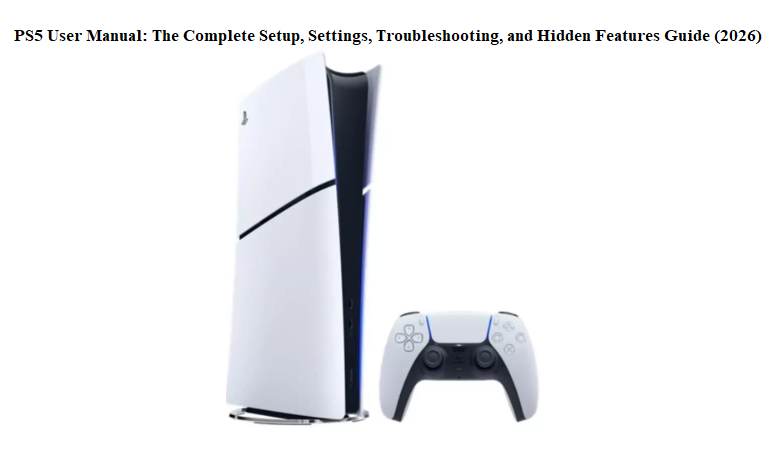

PS5 User Manual and Complete Setup, Troubleshooting, and Hidden Features Guide (2026)
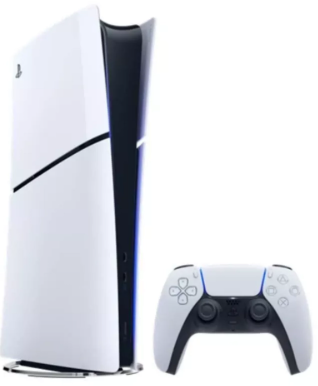
Introduction
Sony packs a lot of power into the PlayStation 5, but the box is surprisingly light on instructions. You get a Quick Start Guide, a safety booklet, and a URL to an online PDF that reads like a corporate memo—not a real manual for the human being who just spent a chunk of their savings on a console. That’s why millions of people search “PS5 manual” every month: they want to know how to set it up properly, attach that bizarre stand, install an SSD without breaking anything, fix rest mode crashes, and unlock the settings that make games truly shine.
This guide is your unofficial PS5 manual—written from hundreds of hours of hands-on use, late-night troubleshooting, and the questions real users ask on forums. Whether you’ve got the original PS5 Disc Edition, the PS5 Slim, or the powerful new PS5 Pro, this walkthrough will get you from box to flawless gameplay, with secret tips most owners never discover. Bookmark it; the next time your controller disconnects or your storage is full, the answer is here.
What’s in the Box (All PS5 Models)
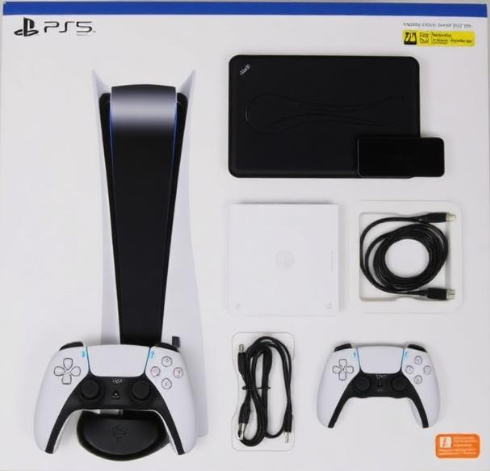
Your PS5 box includes:
-
PlayStation 5 console (Disc, Digital, Slim, or Pro)
-
Dual Sense wireless controller
-
Horizontal stand (two plastic feet, included on all current models; the vertical stand is sold separately for Slim and Pro)
-
HDMI 2.1 cable (ultra-high-speed)
-
USB-C to USB-A cable (for charging and pairing the controller)
-
Power cable
-
Quick Start Guide and Safety Guide — which is why you’re reading this.
Missing from the box: No vertical stand for Slim/Pro (buy the official one), no Ethernet cable, no 3D audio headset.
Physical Setup: Attaching the Stand Correctly (You’ll Thank Me Later)
This is the #1 post-unboxing search: “How do I put the PS5 stand on?” Each model is slightly different.
Original PS5 (2020–2023)
-
The base rotates for vertical or horizontal orientation.
-
For horizontal: snap the clip onto the back edge, align the hooks, and slide the stand until it locks into the groove.
-
For vertical: screw the stand onto the bottom of the console (the screw is hidden inside the stand).
PS5 Slim & Pro (2024–present)
-
The box includes two small plastic feet for horizontal placement. They slide into the bottom groove.
-
The vertical stand is a separate metal disc, sold separately. Do not attempt to stand the Slim/Pro vertically without it; it blocks the airflow vents.
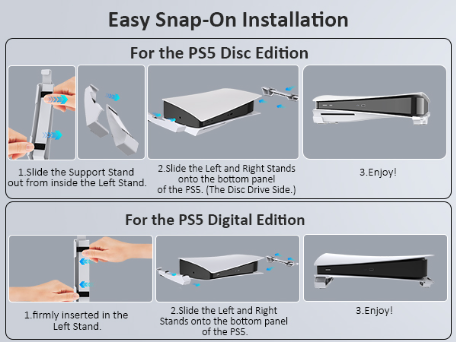
Airflow rule: In either orientation, keep at least 10 cm (4 inches) of free space behind the console and 15 cm above it. The PS5 exhausts hot air from the back; blocking it can cause overheating and random shutdowns.
First-Time Boot: Settings You Should Change Immediately
After connecting HDMI to your TV and powering on, you’ll go through the initial setup. Most people rush past these settings—don’t.
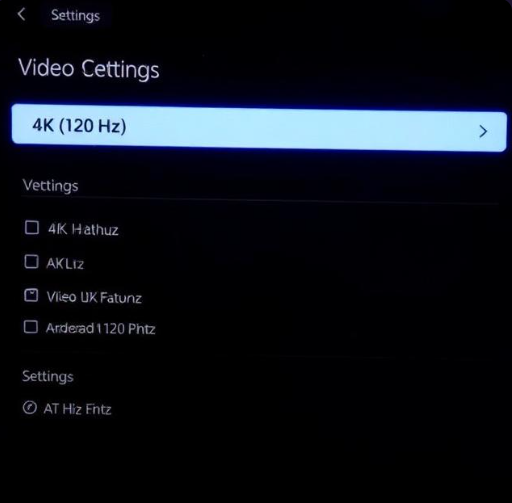
a) Video Output & 4K Setup
-
Go to Settings > Screen and Video > Video Output.
-
Set Resolution to “Automatic” or your TV’s native 4K.
-
Enable 120 Hz Output if your TV supports it (often hidden under “Enable 120 Hz Output” in the same menu).
-
Turn on HDR (set to “On When Supported”).
-
For the PS5 Pro, ensure “Game Boost” and “Pro Rendering” are enabled under Screen and Video > Pro Features.
b) Audio
-
Settings > Sound > Audio Output.
-
Output Device: Choose “HDMI Device (TV)” or headphones.
-
Enable 3D Audio for TV Speakers (PS5 models can simulate surround through your TV speakers).
-
Microphone Status When Logged In: Most people leave this on by default—meaning your controller microphone is hot during every multiplayer match. Change to “Mute” unless you want the lobby hearing your background noise.
c) Data Transfer from PS4
- Connect both consoles to the same network or use an Ethernet cable between them.
- Go to Settings > System > System Software > Data Transfer and follow the prompts. This copies games, saves, and profiles.
d) Power Saving & Rest Mode
- Settings > System > Power Saving.
- Set “Set Time Until PS5 Enters Rest Mode” to your preference. The default is never—your console will stay on forever unless you manually rest it.
- Under “Features Available in Rest Mode”: enable “Stay Connected to the Internet” and “Enable Turning On PS5 from Network” if you use Remote Play.
Controller Mastery: Pairing, Charging, and Hidden Tricks
Pairing a New DualSense
-
Connect the controller to the PS5 via the included USB cable.
-
Press the PS button. It will register automatically.
-
After that, you can unplug and it works wirelessly.
To pair a second controller or reconnect a lost one: Use the same USB method, or go to Settings > Accessories > General > Bluetooth Accessories.
Controller Shortcuts That Save Time
- PS button single press: Opens Control Center (overlay, doesn’t close your game).
- Long press PS button: Opens Home Screen.
- Double-press PS button: Switches between the last two apps (like game and media).
- Mute mic: Tap the small mute button below the PS button; it glows orange when muted.
- Gameplay recording: Tap the Create button (left of the touchpad) once to open the capture menu. Long-press to take a screenshot. Double-press to start/stop a video clip.
- Controller battery check: Press the PS button; the battery icon appears in the bottom accessory bar.
Reset a Frozen Controller
If the DualSense is unresponsive or won’t connect:
- Turn off the controller by holding the PS button for 10 seconds.
- Find the tiny hole on the back, near the Sony logo.
- Use a SIM tool or paperclip to press the reset button inside for 5 seconds.
- Connect to the PS5 via USB and press the PS button to re-pair.
Installing an M.2 SSD: Expand Your Storage Like a Pro
The PS5’s internal SSD is fast but fills up quickly. You can add a second SSD without voiding the warranty.
What you need:
- An M.2 NVMe PCIe 4.0 SSD (with heatsink, or add your own) – recommended speeds 5,500 MB/s or higher.
- A small Phillips-head screwdriver.
Steps:
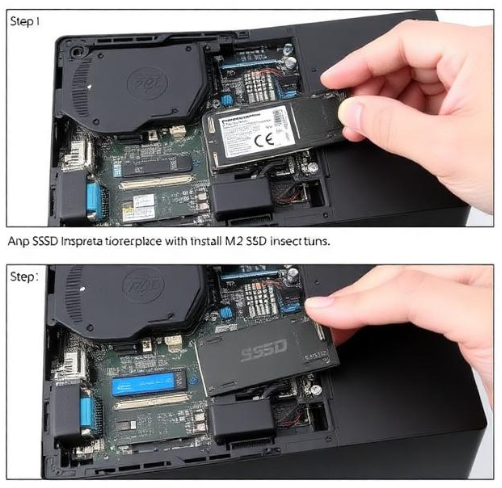
- Turn off the PS5 and unplug everything.
- For the original model, remove the right faceplate (when horizontal, the side with the PS logo). For Slim/Pro, the SSD slot is behind a small cover on the right bottom.
- Unscrew the metal SSD bay cover.
- Insert the M.2 SSD at a 45° angle, then press it flat. Screw it down with the provided spacer and screw (inside the bay).
- Replace the metal cover and faceplate.
- Plug in and turn on. The PS5 will detect the new drive and format it.
After formatting, go to Settings > Storage > Installation Location to direct new games to the M.2 drive.
Rest Mode, Crashes, and the Database Rebuild Everyone Searches For
Safe Rest Mode Habits
Rest Mode is fantastic for suspending games and charging controllers, but it can cause crashes if not managed.
- Always close demanding games before entering Rest Mode if you’re not actively suspending them.
- If your PS5 turns off unexpectedly during Rest Mode, disable USB charging during Rest Mode (Settings > System > Power Saving > Features Available in Rest Mode > Supply Power to USB Ports > set to “Off” or “3 Hours”).
When Your PS5 Won’t Turn On (Green Light of Death / Flashing Blue)
- Unplug the power cable from the back for 2 minutes.
- Plug it back in and press the power button.
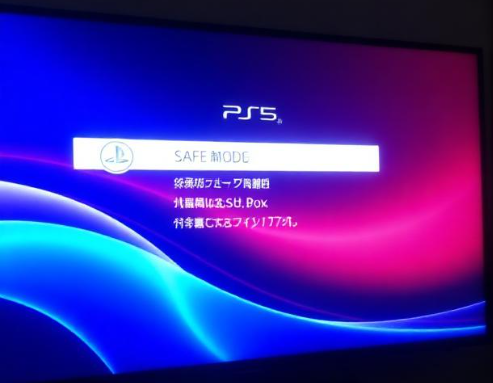
- If still stuck, boot into Safe Mode:
- Turn off the console completely.
- Press and hold the power button for about 7 seconds—until you hear a second beep.
- Connect a controller via USB and press the PS button.
Safe Mode Options Explained
- Restart PS5 – exactly what it says.
- Change Video Output – sets resolution to 480p, useful if your screen goes black after enabling 120 Hz.
- Clear Cache and Rebuild Database – scans the SSD and creates a fresh file index. Does not delete games or saves. This fixes most weird UI glitches, blank icons, and game crashes.
- Reset PS5 – full factory reset, erases everything. Last resort.
Hidden Features and Quality-of-Life Settings
Remote Play Anywhere
- Settings > System > Remote Play > Enable Remote Play.
- Download the PS Remote Play app on your phone, tablet, or PC.
- You can stream and play your PS5 games over Wi-Fi or cellular, even with the DualSense connected via Bluetooth.
Share Play (Play a Friend’s Game or Let Them Help You)
- In a party chat, select the friend, then “Share Play.” You can let them watch your screen, hand them the controller virtually, or play a local co-op game together online.
Game Presets (Skip the Intro Screens)
- Settings > Saved Data and Game/App Settings > Game Presets.
- Set your preferred difficulty, performance mode (Performance vs. Fidelity), subtitle language, and camera orientation for every new game. No more adjusting settings each time.
Voice Command (Hey PlayStation!)
-
Enable in Settings > Voice Command. You can say “Hey PlayStation, open [game]”, “Hey PlayStation, take a screenshot”, or “Hey PlayStation, turn off” entirely hands-free.
Filter the PS5 Dashboard
- In the Game Library, press R1 to filter by platform, genre, or A-Z.
- You can create folders (Game Lists) by selecting “Your Collection” > “Create Game List.” Perfect for separating “Currently Playing” from backlog.
Common PS5 Problems and Instant Fixes
| Problem | Fix |
|---|---|
| Controller won’t connect wirelessly | Use USB cable, go to Settings > Accessories > General > Bluetooth Accessories, then re-pair |
| PS5 overheating warning | Move console to open area, clean dust from air intakes (vacuum gently), ensure stand is attached correctly |
| Disc stuck in drive | Turn off PS5, remove the drive cover (original model), use the manual eject screw |
| No sound / audio cutting out | Settings > Sound > Audio Output, toggle output device to TV then back, or disable 3D audio temporarily |
| Game crashes on startup | Rebuild database in Safe Mode, or delete and reinstall the game |
| Slow download speeds | Close running games/apps, use Ethernet, or change DNS to Google (8.8.8.8 / 8.8.4.4) in network settings |
Quick Reference
Quick Reference: PS5 Button Combos and Shortcuts
| Action | How |
|---|---|
| Open Control Center | Tap PS button once |
| Go Home | Long-press PS button |
| Switch last 2 apps | Double-press PS button |
| Screenshot | Long-press Create button (left of touchpad) |
| Start/stop video clip | Double-press Create button |
| Force restart console | Hold power button for 7 secs (two beeps) |
| Enter Safe Mode | Power off, then hold power button until second beep |
| Reset controller | Hold tiny back button with pin for 5 secs |
| Mute all audio + mic | Tap the mute button on controller until orange |
FAQ
Q: How do I put the PS5 stand on correctly?
A: For horizontal use, snap the plastic feet (or original rotating stand) into the back groove. For vertical, screw the original stand into the bottom screw hole. The Slim and Pro models require a separate vertical stand.
Q: How do I get into PS5 Safe Mode?
A: Turn off the PS5 fully. Press and hold the power button until you hear a second beep (about 7 seconds). Connect a controller via USB and press the PS button.
Q: How do I fix PS5 rest mode crashes?
A: Disable USB charging during rest mode, close demanding games before resting, and rebuild the database via Safe Mode if the issue persists.
Q: Can I install an SSD in my PS5?
A: Yes, an M.2 NVMe PCIe 4.0 SSD with a heatsink can be installed in the expansion slot behind the faceplate. Format it when prompted and set it as the default install location.
Q: How do I reset my PS5 controller?
A: Locate the tiny hole on the back of the DualSense, press the reset button inside with a pin for 5 seconds, then reconnect to the PS5 with a USB cable.
Final Word: This Manual Grows with Your Console
Sony will keep updating the PS5’s software, adding features and occasionally changing where settings live. When that happens, I’ll update this guide. If your PS5 ever refuses to wake up, your controller loses sync, or you just can’t find a setting, open this page first—not a 10-minute YouTube video. It’s the manual the box forgot.
Wishing you low input lag, plenty of storage, and zero unexpected shutdowns.
© 2026 productsmanuals.com. All Rights Reserved. This PS5 user manual is original content and may not be copied or republished without permission. PlayStation, PS5, DualSense, and related logos are trademarks of Sony Interactive Entertainment. This guide is unofficial and not endorsed by Sony.

[…] PlayStation 5 (PS5) – Full Setup, Safe Mode & SSD Install Manual Fix rest mode crashes, manage storage, and pair controllers like a pro. […]