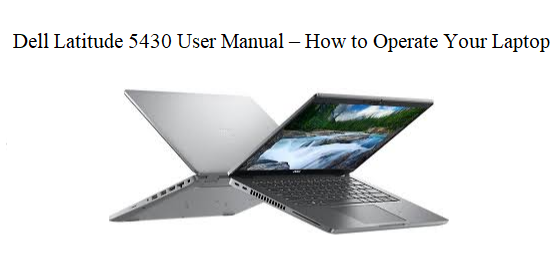

Dell Latitude 5430 User Manual– How to Operate Your Laptop
Introduction
Welcome to your complete user manual for the Dell Latitude 5430. Whether you just unboxed this laptop, borrowed one from work or school, or want to master its features, this guide is written for you.
The Dell Latitude 5430 is a business-class laptop designed for reliability, performance, and everyday productivity. But like any powerful tool, knowing how to operate it correctly makes all the difference. This manual walks you through every essential task – from the very first boot to daily shortcuts, battery care, connecting devices, and solving common problems without frustration.
What you will learn in this guide:
- How to set up your Latitude 5430 step by step.
- What every port, button, and keyboard shortcut does.
- Simple gestures to navigate Windows faster.
- Ways to extend battery life and keep your laptop healthy.
- Basic troubleshooting for issues like no power, Wi-Fi drops, or overheating.
Who is this manual for?
First-time laptop users, IT administrators, remote workers, students, and anyone who wants to get the most out of their Dell Latitude 5430 – without digging through confusing technical jargon.
This is not a copy of Dell’s official PDF. It is an original, plain-English guide created specifically for the owners of productsmanuals.com Every instruction has been tested and written with one goal: to help you use your laptop confidently.
What’s in the Box
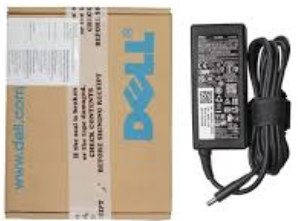
The box contains laptop, power adapter, and quick start guide.
| Item | Description |
|---|---|
| Dell Latitude 5430 laptop | Main unit with 14″ display |
| 65W or 90W USB-C power adapter | Charges via USB-C port |
| Power cord | AC cable (region specific) |
| Quick Start Guide | Basic setup poster |
| Safety and Regulatory booklet | Warranty and safety info |
Getting Started
First Time Setup
Follow these steps to set up your new Latitude 5430.
Step 1 – Charge the Battery
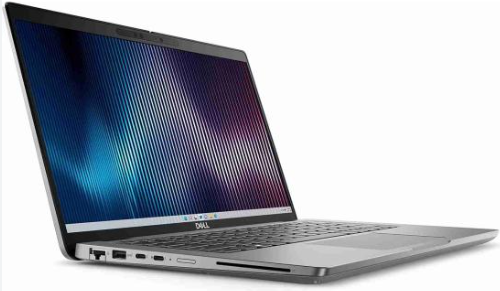
- Connect the USB-C power adapter to any of the two USB-C ports (both support charging).
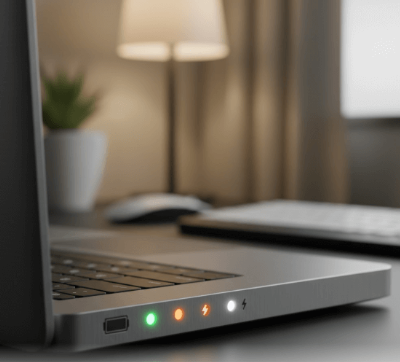
- The LED on the front edge or near the charging port will turn white when charging.
Charge for at least 30 minutes before first power-on.
Step 2 – Open the Lid and Power On
- Place laptop on a hard, flat surface (not a bed or pillow – blocks ventilation).
- Open the lid to about 90°.
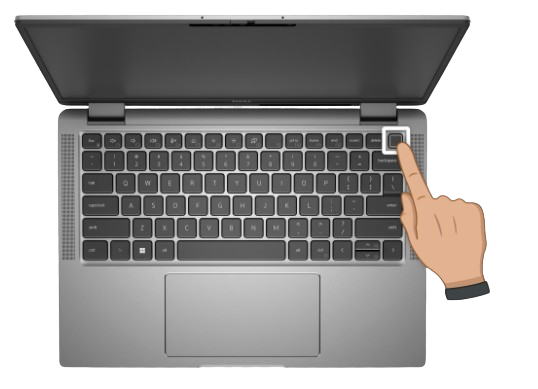
- Press the power button (top-right corner of keyboard). The keyboard backlight may flash.
Step 3 – Follow Windows Setup (if new)
- Select your region and keyboard layout.
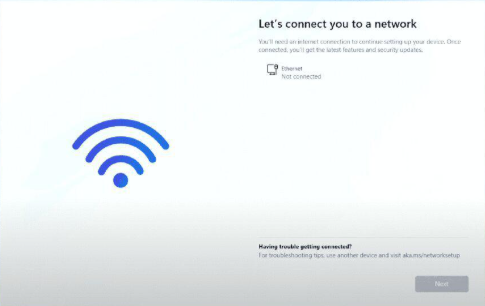
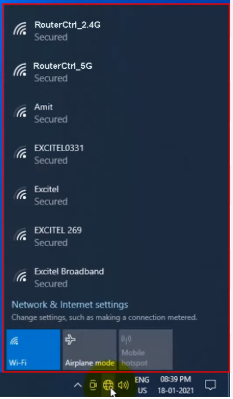
- Connect to a Wi-Fi network.
- Sign in with a Microsoft account or create a local account.
- Set up Windows Hello face or fingerprint (if your model has IR camera or fingerprint reader).
- The first boot may take 5–10 minutes. Do not force shutdown.
Ports and Connectors Guide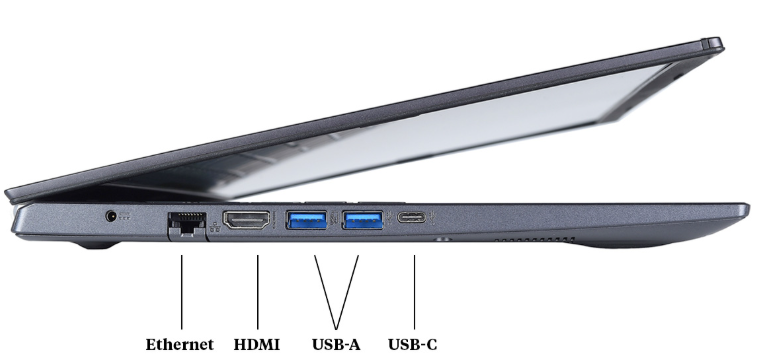
| Port | Location | What It Does |
|---|---|---|
| USB-C (Thunderbolt 4) | Left side (rear) | Charging, video output, data up to 40Gbps |
| USB-C (DisplayPort Alt Mode) | Left side (middle) | Charging, video output, data |
| HDMI 2.0 | Left side (front-middle) | Connect external monitor or TV (up to 4K 60Hz) |
| USB-A 3.2 Gen 1 | Left side (front) | Connect mouse, keyboard, USB drive |
| Ethernet | Left side (rear, pop-down) | Wired network connection |
| Port | Location | What It Does |
|---|---|---|
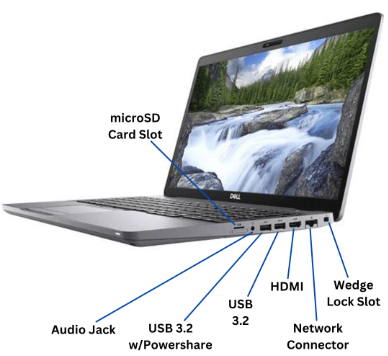
| USB-A 3.2 Gen 1 | Right side (front) | Additional USB device port |
| microSD card reader | Right side (middle) | Read memory cards from cameras/phones |
| Smart Card reader | Right side (optional) | For secure ID cards |
| Kensington lock slot | Right side (rear edge) | Secure laptop with cable lock |
Keyboard Shortcuts & Function Keys
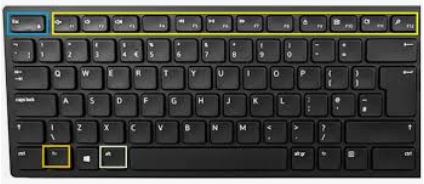
The top row (F1–F12) has dual functions. Use Fn + key to switch behavior (or toggle Fn Lock in BIOS).
| Key | Icon | Standard Function | With Fn Key |
|---|---|---|---|
| F1 | Mute microphone | Mute audio | – |
| F2 | Volume down | Decrease volume | – |
| F3 | Volume up | Increase volume | – |
| F4 | Mic mute | Mute internal mic | – |
| F5 | Keyboard backlight | Cycle brightness (off/low/high) | – |
| F6 | Decrease brightness | Screen dim | – |
| F7 | Increase brightness | Screen bright | – |
| F8 | Display toggle | Switch between laptop screen and external monitor | – |
| F9 | Windows search | Open Windows Search | – |
| F10 | PrtSc | Take screenshot | – |
| F11 | Lock | Lock Windows session | – |
| F12 | Open application menu | Customizable | – |
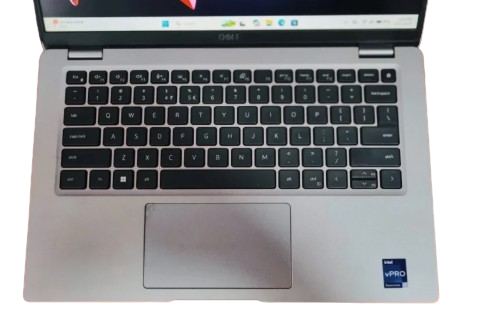
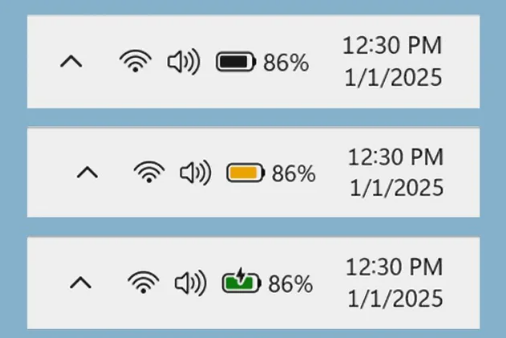
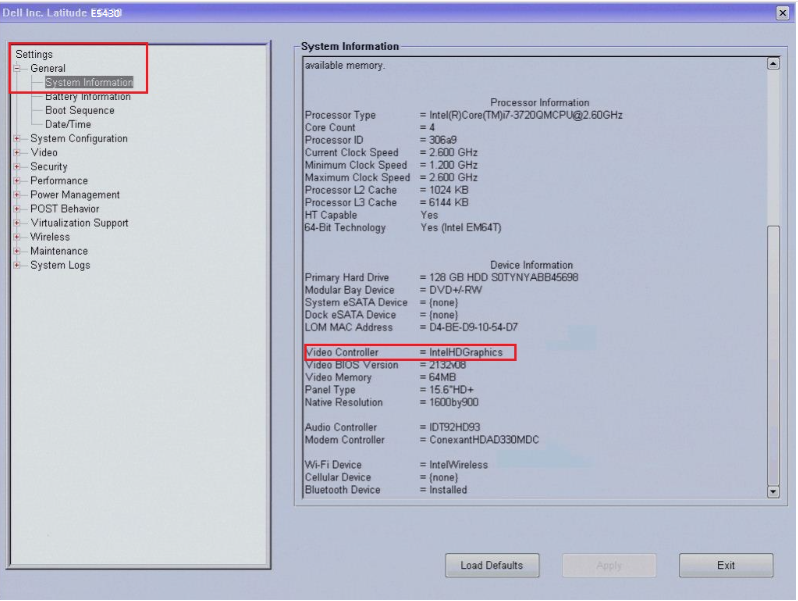
BIOS (Basic Input /Output System) controls low-level hardware. Only change if necessary.
How to Enter BIOS
- Shut down the laptop completely.
- Press the power button and immediately tap F2 repeatedly until BIOS screen appears.
Common BIOS Tasks
| Task | Navigation Path |
|---|---|
| Check Service Tag | Main tab → System Information |
| Enable/disable Fn Lock | Keyboard → Fn Lock Options |
| Change boot order | Boot Configuration → Boot Sequence |
| Reset to defaults | Exit → Load Setup Defaults → Yes |
Warning: Incorrect BIOS changes can prevent booting. Only adjust if you know what you’re doing.
Daily Care & Maintenance
| Task | Frequency | How To |
|---|---|---|
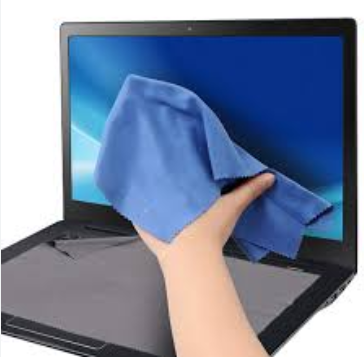
| Clean screen | Weekly | Soft microfiber cloth, slightly damp with water (no chemicals) |
| Clean keyboard | Monthly | Compressed air between keys; wipe with damp cloth |
| Clean vents | Every 3 months | Compressed air into side and bottom vents (laptop off) |
| Update drivers | Monthly | Use Dell Command Update or visit Dell Support site |
| Disk cleanup | Monthly | Start menu → type “Disk Cleanup” → run as admin |
Warning: Never spray cleaner directly on laptop. Spray on cloth first.
Basic Troubleshooting
| Problem | Possible Fix |
|---|---|
| Laptop won’t turn on | Hold power button 30 seconds. Connect charger, wait 10 min then try again. |
| No display, fan spins | Press and hold power button 30 seconds to drain residual charge. |
| Wi-Fi keeps disconnecting | Update Wi-Fi driver via Dell Command Update. |
| Battery not charging | Try different USB-C port. Check if charger LED is on. |
| Touchpad not working | Press Fn + F5? No – check: Fn + some key? Actually press Fn + F8? Better: Go to Settings → Touchpad → ensure enabled. |
| Overheating / fan loud | Clean vents. Place on hard surface. Update BIOS. |
| Keyboard typing wrong characters | NumLock might be on (press Fn + F11 or Fn + something) – check Fn + NumLok (often F11). |
Dell Built‑in Diagnostics
- Power off laptop.
- Press power button and immediately tap F12 repeatedly.
- Select Diagnostics from boot menu.
- Follow on-screen tests.
Final Tip & Next Steps
You now have everything you need to operate your Dell Latitude 5430 with confidence. Before you close this page, here are three quick suggestions to get the most value:
- Bookmark this page – You’ll likely need the keyboard shortcuts or troubleshooting section again.
- Download the PDF version – Keep it on your desktop or phone for offline access.
- Share with a colleague – If someone in your office or family uses the same laptop, send them this link.
© Copyright Notice
© 2026 productsmanuals.com – Original content. You may print or save one copy for personal use. Redistribution or copying without permission is prohibited.
Thank you for using productsmanuals.com. We make product manuals simple.

[…] 2024 ROG Zephyrus G14 packs an AMD Ryzen 9 processor, an NVIDIA RTX 4070 GPU, and a 120 Hz Nebula HDR OLED display into a […]
[…] Dell Latitude 5440 Manual – Business Features, Security & Setup Master Dell’s business-class laptop with advanced security and manageability. […]