
Ronin R-520 Manual – Specs, Features, Setup & Troubleshooting Guide
Introduction
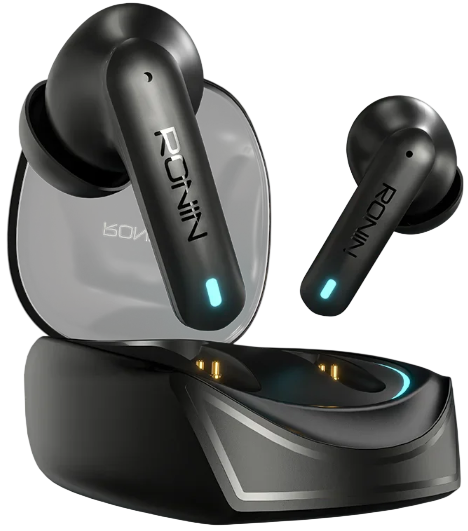
The Ronin R-520 are affordable true wireless earbuds that deliver clear sound and a comfortable fit. Ronin ships them with a charging case, three sizes of ear tips, and a USB‑C cable. The small user leaflet covers only the very basics, and many owners search for a “Ronin R-520 manual” because they want to know how to pair, reset, use the touch controls, or fix one earbud that stops working. This guide provides the full specifications, every feature, and clear troubleshooting steps — written in plain, easy‑to‑follow language.
Full Specifications
| Specification | Detail |
|---|---|
| Model | R-520 |
| Type | True wireless in‑ear earbuds |
| Bluetooth Version | 5.3 |
| Audio Codecs | SBC, AAC |
| Driver Size | 13 mm dynamic drivers |
| Frequency Response | 20 Hz – 20 kHz |
| Microphone | Dual‑mic per earbud with ENC (Environmental Noise Cancellation) for calls |
| Active Noise Cancellation | No (passive noise isolation only) |
| Touch Controls | Yes (tap gestures on each earbud) |
| Water Resistance | IPX5 (sweat and splash resistant; earbuds only, not the case) |
| Battery Life (Earbuds) | Up to 6 hours of music playback (volume at 60%) |
| Total Battery Life (with Case) | Up to 30 hours (additional 24 hours from the charging case) |
| Charging Port | USB‑C (cable included) |
| Wireless Charging | No |
| Fast Charging | 10‑minute charge gives 1 hour of playback |
| Earbud Weight | 4.5 g per earbud |
| Case Weight | 35 g |
| Compatibility | iOS, Android, Windows, macOS (any Bluetooth‑enabled device) |
| Colour Options | Black, White, Blue |
| In‑the‑Box | R-520 earbuds, charging case, USB‑C cable, 3 pairs of ear tips (S/M/L), user leaflet |
Key Features at a Glance
- Bluetooth 5.3: Provides a stable, low‑latency connection up to 10 metres (33 feet). Pairing is fast, and audio‑video sync is good for streaming.
- 13 mm Drivers: Deliver clear, balanced sound with decent bass for the price. The in‑ear seal helps block out ambient noise passively.
- Touch Controls: Play/pause, skip tracks, answer calls, and activate voice assistant by tapping the outer surface of either earbud. No physical buttons to press into your ear.
- Dual‑Mic ENC Calls: Each earbud uses two microphones and environmental noise cancellation to make your voice clearer during phone calls.
- IPX5 Water Resistance: The earbuds can handle sweat, light rain, and splashes. The charging case is not water‑resistant.
- USB‑C Fast Charging: A quick 10‑minute charge gives you about an hour of playback. A full charge of the case takes about 1.5 hours.
What’s Inside the Box
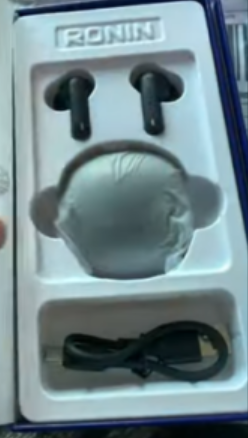
- Left and right R-520 earbuds (medium ear tips pre‑installed)
- Charging case with a flip‑top lid
- USB‑A to USB‑C charging cable (about 20 cm)
- Three pairs of silicone ear tips: small (S), medium (M), large (L)
- User leaflet and warranty card
No wall charger is included. Use any standard USB‑A phone charger or your computer’s USB port to charge the case.
First‑Time Setup and Pairing
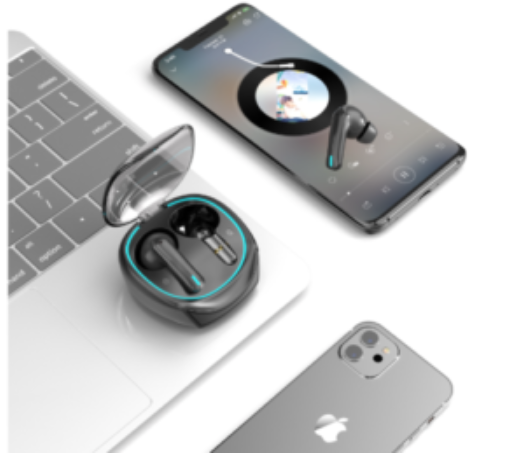
- Charge the case fully before first use (about 1.5 hours via USB‑C). The case LED glows red while charging and turns off or green when full.
- Remove the earbuds from the case. They will automatically turn on and enter pairing mode – the LED on each earbud will blink white or red/blue alternately. If they don’t, place them back in the case, close the lid, and remove them again.
- On your phone, open Bluetooth settings and select “Ronin R-520” from the list. Once paired, the LEDs stop blinking and you’ll hear a short confirmation tone.
- If only one earbud pairs, place both earbuds back in the case, close the lid for 10 seconds, then remove them together. They will reconnect with each other and then pair with your phone.
Pairing a second device: The R-520 remembers the last connected device. To pair to a new phone, disconnect the earbuds from the previous phone’s Bluetooth settings, then put the earbuds in the case, open the lid, and remove them. They will be in pairing mode. Select “Ronin R-520” on the new device.
Understanding Touch Controls
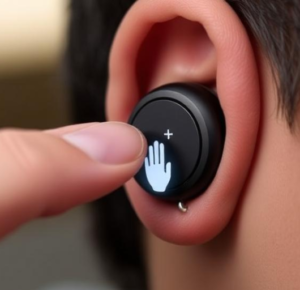
The default touch gestures on either earbud are as follows. Tap firmly but not too hard; the sensors respond to skin contact.
| Gesture | Action |
|---|---|
| Single tap | Play / Pause |
| Double tap (right) | Next track |
| Double tap (left) | Previous track |
| Triple tap | Activate voice assistant (Siri / Google Assistant) |
| Long press (1.5 seconds) | Answer / End a call |
| Long press (3 seconds) | Reject an incoming call |
There is no volume control on the earbuds themselves; adjust volume using your phone.
Charging the Earbuds and Case
- Charging the case: Connect the USB‑C cable to the port on the back of the case and to a USB‑A power source. The small LED on the front of the case glows red while charging and turns off or solid green when fully charged. A full case charge takes about 1.5 hours.
- Charging the earbuds: Simply place the earbuds into the case. The magnetic pins will align, and the earbuds will start charging automatically. The earbud LEDs glow red while charging and turn off when fully charged.
- Checking battery level: The Ronin R-520 does not show a battery percentage in the phone’s status bar. The only indication is the case LED – it will blink red when the case battery is low. Some phones may show a generic battery icon next to the Bluetooth device name.
Replacing the Ear Tips and Finding the Right Fit
The R-520 comes with three sizes of silicone ear tips. The medium size is pre‑installed. Choose the size that creates a good seal in your ear canal. A proper seal improves bass and passive noise isolation.
- To remove an ear tip, gently pull it off the nozzle. Do not pull by the wing.
- To install, push the new tip onto the nozzle until it covers the ridge completely. Ensure it’s secure before wearing.
Troubleshooting Common Issues
| Problem | Likely Cause | What to Try |
|---|---|---|
| One earbud not working (no sound) | Sync lost or dirty charging contacts | Place both earbuds in the case, close the lid for 30 seconds, then remove together. Clean the metal contacts on the earbuds and inside the case with a dry cotton swab. |
| Earbuds won’t pair with phone | Not in pairing mode, or already connected to another device | Turn off Bluetooth on previously connected devices. Put the earbuds in the case, close the lid, wait 10 seconds, and remove them together. The LEDs should flash alternately. Select “Ronin R-520” in your phone’s Bluetooth list. |
| Touch controls not responding | Wet fingers or dirty touch surface | Wipe the touch area with a dry cloth. Make sure your fingers are dry. Remove and reinsert the earbud to restart the sensor. |
| Audio cuts out or stutters | Bluetooth interference | Move your phone within 5 metres with no walls in between. Avoid other wireless devices. Turn off Wi‑Fi temporarily on the phone to test if interference is the cause. |
| Battery drains quickly | High volume, or case not fully charged | Lower the volume. Charge the case fully. If the earbuds are several months old, the battery may be aging. |
| Earbuds don’t turn on when removed from case | Battery completely dead or case battery empty | Charge the case for at least 30 minutes before trying again. If the earbuds still won’t turn on, clean the charging contacts and try again. |
| Microphone sounds muffled | Dirt in the mic hole, or poor seal | Clean the small microphone openings with a dry soft brush. Ensure the earbud is seated properly in your ear; the mic works best when the earbud is snug. |
How to Factory Reset and Restart
Soft restart: Place both earbuds in the case, close the lid, wait 10 seconds, and remove them. This resets the Bluetooth connection between the earbuds and the phone without losing pairing data.
Factory reset (clear all pairings):
- Remove the earbuds from the case. They should be on (if they are off, place them in the case briefly to wake them).
- Press and hold the touch area on both earbuds simultaneously for about 10 seconds. The LEDs will blink red and white, then turn off. Release when the LEDs turn off.
- Place the earbuds back in the case. Close the lid for a few seconds.
- Open the lid and remove the earbuds. They are now in factory pairing mode. On your phone, go to Bluetooth settings, forget the old “Ronin R-520” entry, and pair as new.
Quick Reference Card
| Task | How |
|---|---|
| Enter pairing mode | Remove earbuds from case together |
| Reset connection (soft) | Place in case, close lid 10 seconds, remove |
| Factory reset | Hold both touchpads for 10 seconds until LEDs turn off |
| Check case battery | Case LED blinks red when low |
| Clean contacts | Dry cotton swab on metal pins |
| Use single earbud | Remove only one; it works independently |
Official Ronin Support and Manuals
For warranty inquiries and the official PDF manual (if available), visit the brand’s support page or the retailer where you purchased the earbuds. Ronin may not have a dedicated website; check the packaging for contact information.
Frequently Asked Questions
- How do I know when the earbuds are fully charged?
The LED on the earbuds glows red while charging and turns off when fully charged. The case LED turns off or solid green when the case itself is full. - Can I use the earbuds independently (one at a time)?
Yes, either earbud works independently for music and calls. Remove one from the case, and it will pair on its own. The other stays off. - Does the R-520 support wireless charging?
No, the case charges only via the USB‑C cable. - Are the earbuds good for running?
Yes, the IPX5 rating means they can handle sweat and light rain. Ensure the ear tips fit well so they don’t fall out. The charging case is not water‑resistant. - Why does the sound sometimes cut out for a split second?
This can happen due to Bluetooth interference from Wi‑Fi routers, other Bluetooth devices, or body blocking. Keep your phone on the same side of your body as the earbuds, and avoid busy wireless environments. - Can I use the earbuds with a smart TV?
Yes, if your TV supports Bluetooth audio devices, put the earbuds in pairing mode and select them from the TV’s Bluetooth list. Audio‑video sync may vary. - How do I answer a call?
When a call comes in, long‑press (1.5 seconds) on either earbud to answer. Long‑press again to end the call. Double‑tap to reject. - Why is the volume low even at maximum on my phone?
Check that the ear tips are creating a good seal. Also, some phones have a separate “Bluetooth absolute volume” setting; look for it in Developer Options or Sound settings and try toggling it. - Can I charge the case with a fast charger?
Yes, the case accepts standard 5V USB‑A charging. Fast chargers (9V, 12V) will automatically step down to 5V, so they are safe to use. The case will charge at its normal speed (about 1.5 hours). - What does the blinking red LED on the case mean?
It means the case battery is low. Charge the case soon. The earbuds will still charge a little, but a full case charge is needed to recharge them completely. - My phone says “Connection Unsuccessful.” What should I do?
Forget the “Ronin R-520” entry in your phone’s Bluetooth settings. Reset the earbuds using the factory reset method above, then try pairing again. - How do I clean the earbuds?
Wipe the exterior with a soft, slightly damp cloth. Do not submerge the earbuds in water. Remove ear tips and rinse them with water separately, then dry completely before reattaching. Use a dry cotton swab to clean the charging contacts.
Other Manuals You May Like
If this guide was helpful, here are a few more popular manuals from productsmanuals.com that you might find useful:
- iPhone 17 – Settings, Camera & Hidden Features Manual
Master Dynamic Island, Action button, and battery‑health tricks. - Samsung Galaxy S24 Ultra – S Pen, Galaxy AI & Pro Camera Guide
Get the most from the 200 MP sensor, Circle to Search, and DeX mode. - Apple AirPods Pro 2 – ANC, Spatial Audio & Reset Manual
Fix one‑sided audio, use Conversation Boost, and clean the mesh safely. - Haier Super T3 AC – Remote, Self‑Clean & Error Codes Guide
Cool efficiently and fix blinking lights with simple steps.
Browse all guides at productsmanuals.com .
Copyright Warning ⚠
Copyright 2026 productsmanuals.com All rights reserved. This Ronin R-520 manual is original content and may not be copied, republished, or redistributed without written permission. Ronin and the Ronin logo are trademarks of their respective owners. This guide is unofficial and not affiliated with Ronin.

[…] Ronin R-520 – True Wireless Earbuds Setup, Touch Controls & Reset Fix one‑sided audio, pair easily, and get the best fit. […]