
Why This Guide Is Helpful
HP ships the OMEN 45L with a power cord, a quick‑start leaflet, and a warranty card. The full service manual is a digital PDF that covers multiple configurations. There’s no printed guide that explains how to use the Cryo Chamber liquid cooling, configure the OMEN Gaming Hub, add extra storage, or troubleshoot the RGB lighting. Thousands of gamers and creators search for an “HP OMEN 45L manual” every month because they want straightforward answers. This companion fills that gap.
What Comes in the Box

Your package includes:
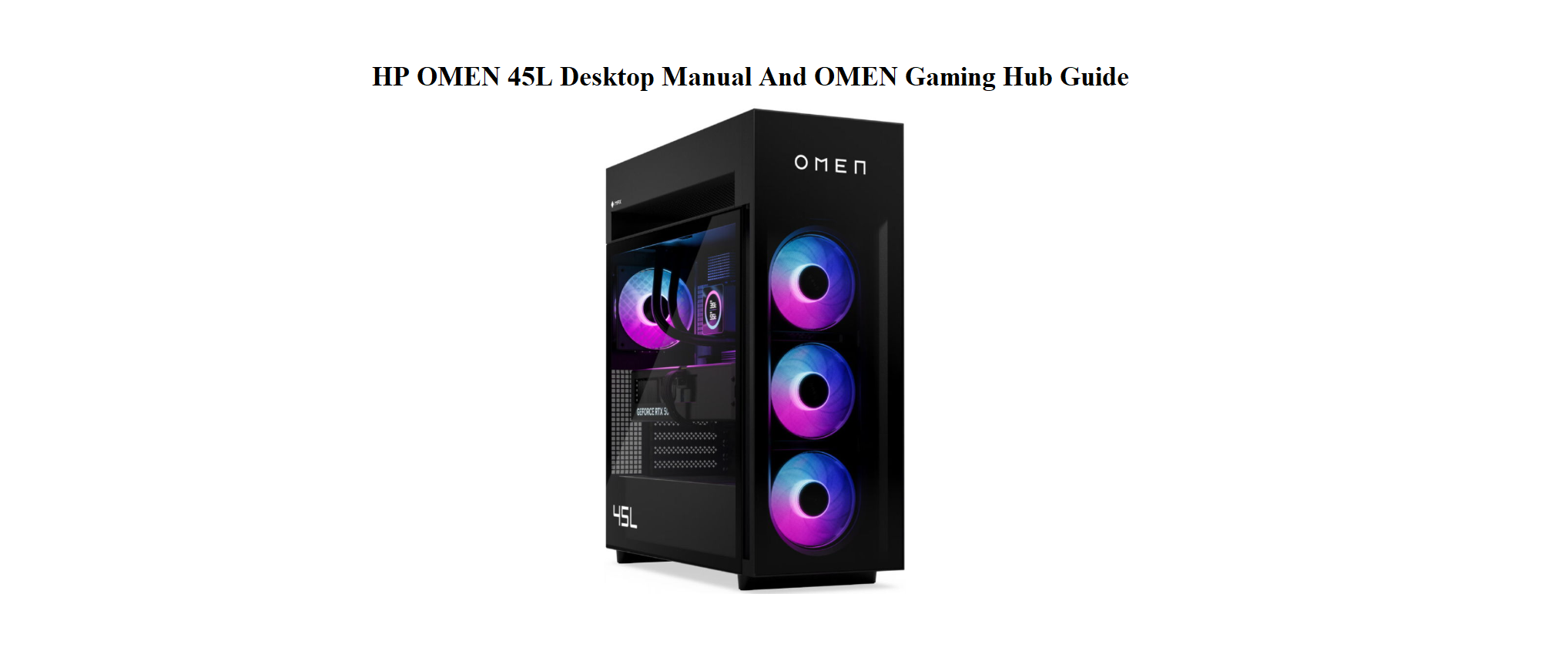
- The OMEN 45L desktop tower (a large, black chassis with tempered glass side panel)
- A region‑specific power cord
- A Quick‑Start Guide and safety booklet
- Depending on your configuration, a wired OMEN keyboard and mouse
No monitor, display cable, or additional accessories are included. The system typically features an Intel Core i7 or i9 (13th/14th Gen) or AMD Ryzen 7/9 processor, an NVIDIA GeForce RTX 40‑series GPU, and HP’s patented Cryo Chamber liquid cooling for the CPU.
Physical Layout and Port Tour
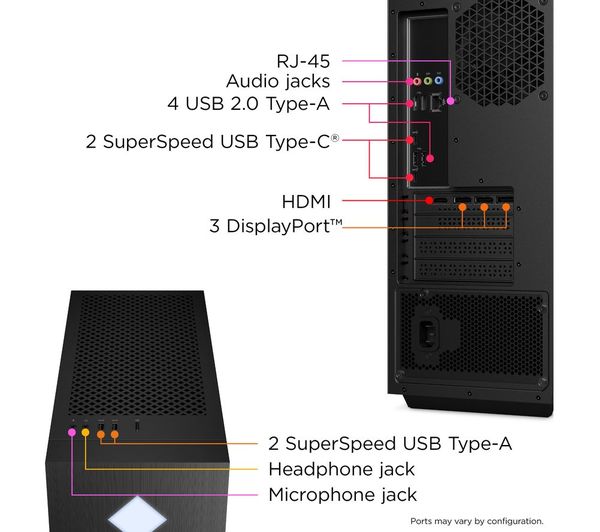
The OMEN 45L has a striking design with a separate top compartment (the Cryo Chamber) that houses the radiator for the CPU liquid cooler.
Front panel (top):
- Power button: A diamond‑shaped LED. Press once to turn on. The light colour can be customised in OMEN Gaming Hub.
- Two USB 3.2 Gen 1 Type‑A ports
- One USB 3.2 Gen 2 Type‑C port (10 Gbps)
- Headphone/microphone combo jack
- Microphone jack
Rear panel:
- USB ports: A mix of USB‑A and USB‑C ports (typically 6–8 total, depending on motherboard).
- RJ‑45 Ethernet port (up to 2.5 Gigabit).
- Graphics card ports: Your NVIDIA RTX card occupies the horizontal expansion slots, offering multiple DisplayPort and HDMI outputs. Always connect your monitor here, not to the motherboard’s I/O.
- Audio jacks: For surround‑sound speaker systems.
- Power supply connector at the bottom. The PSU is a standard ATX unit in many configurations, making future upgrades possible.
Cryo Chamber (top section):
The separate top chamber holds a 240mm or 360mm AIO liquid cooler radiator. It pulls in cool air from outside the chassis, keeping CPU temperatures lower. You don’t need to interact with it, but it’s the reason the case is taller than typical desktops.
First‑Time Startup and Windows Setup
- Connect your monitor to the graphics card (HDMI or DisplayPort). Plug in the keyboard and mouse to any USB‑A port.
- Connect the power cord to the back and the wall. There’s no physical switch on the PSU of most models; the system is live once plugged in.
- Press the front power button. The diamond LED lights up and the system POSTs.
- Windows 11 will start its Out‑Of‑Box Experience (OOBE). Select your region, keyboard layout, and connect to Wi‑Fi or Ethernet. Sign in with your Microsoft account or create a local account.
- Once on the desktop, immediately check for Windows updates (Start > Settings > Windows Update) and install everything pending.
- Open the Microsoft Store and update the OMEN Gaming Hub app, or download the latest version from HP’s support site.
OMEN Gaming Hub Explained
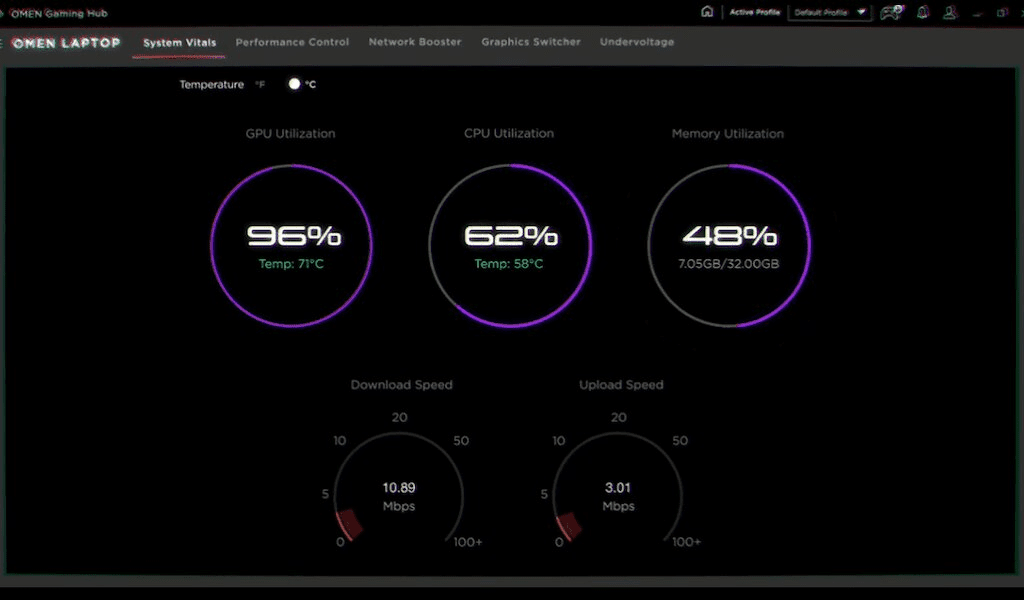
OMEN Gaming Hub is the control centre for your desktop. It’s pre‑installed, but if missing, download it from HP.
Key sections:
- System Vitals: Shows CPU/GPU temperatures, clock speeds, RAM usage, and fan speeds in real time. You can drag this panel to a second monitor during gaming.
- Performance Control: Choose between Balanced (default), Performance (higher fan speeds, slight overclock), and Cool (lower temps, reduced noise). A custom fan curve is also available.
- Lighting (OMEN Light Studio): Control the diamond logo, internal light bar, and any OMEN peripherals. You can set static colours, breathing effects, or sync with games that support OMEN Light Studio.
- Overclocking: For unlocked CPUs, OMEN Gaming Hub offers simple sliders to overclock. Use cautiously and monitor temperatures.
- Network Booster: Prioritises gaming traffic and can automatically limit bandwidth to other apps when a game is launched.
- My Games: Add your game library; the hub will apply your chosen performance profile when each game starts.
If OMEN Gaming Hub won’t open, uninstall it via Windows Settings > Apps, restart the PC, and reinstall from the Microsoft Store or HP’s support page.
Upgrading Components
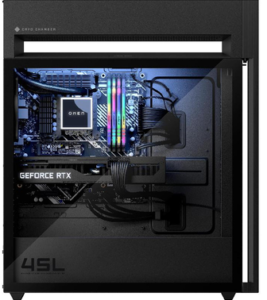
The tempered glass side panel comes off by loosening the two thumbscrews on the back edge. The panel then slides out.
Adding a second M.2 NVMe SSD:
The motherboard has two or three M.2 slots. One is occupied by the boot drive. Locate an empty slot (they may be under a heatsink). Remove the securing screw, insert the new M.2 2280 NVMe SSD at a 30‑degree angle, press it flat, and replace the screw. Format the new drive in Windows Disk Management.
Adding a 3.5‑inch or 2.5‑inch SATA drive:
The front drive cage is tool‑less. Slide a 3.5‑inch drive into the tray, or use the included adapter for 2.5‑inch. Connect a SATA data cable to the motherboard (ports are along the right edge) and a SATA power cable from the PSU. Cables are pre‑routed.
Upgrading RAM:
The OMEN 45L uses DDR5 DIMMs. Press the retaining clips outward on the empty slots. Align the notch in the DIMM with the key in the slot, and press firmly until both clips snap into place. The system supports up to 64GB or 128GB depending on the motherboard.
Upgrading the graphics card:
The RTX card is held by a bracket and PCIe slot. Unplug the PCIe power cables, remove the bracket screws, press the release tab on the PCIe slot, and carefully pull the card out. Insert the new card, secure it with screws, and reconnect the power cables. The OMEN 45L’s 800W or 1000W PSU can handle most high‑end GPUs.
Cryo Chamber and Cooling Maintenance
The Cryo Chamber requires no routine maintenance from the user. However, overall system cooling should be checked periodically.
- Dust cleaning: Every 3–6 months, power down and open the side panel. Use compressed air to blow dust out of the front intake fans, the Cryo Chamber radiator (accessible from the top after removing the top cover), and the GPU fans. Hold the fans still while blowing air.
- AIO pump: The liquid cooler pump is integrated into the radiator. In OMEN Gaming Hub, you can see the pump RPM (typically 2000–3000). If it reads zero and CPU temperatures spike, the cooler may need service.
- Front and top panels: The front panel and top Cryo Chamber cover can be lifted off carefully to access the dust filters. Rinse the filters with water, dry completely, and reattach.
Troubleshooting Common Problems
| Problem | Likely Cause | What to Try |
|---|---|---|
| No display after powering on | Monitor connected to motherboard | Ensure the monitor cable is plugged into the graphics card ports (lower section of the rear I/O). Try a different cable or monitor. |
| Loud fan noise constantly | Dust or performance profile | Clean the dust filters and interior. In OMEN Gaming Hub, switch the Performance Control to “Balanced” or “Cool.” |
| OMEN Light Studio not responding | Software conflict | Restart the “OMEN Gaming Hub” service in Windows Services. Update OMEN Gaming Hub. |
| PC randomly shuts down | Overheating or PSU issue | Check CPU/GPU temps in OMEN Gaming Hub. If CPU exceeds 95°C, clean the radiator. Ensure the PSU fan is spinning and the power cord is secure. |
| USB ports not working | Driver or hardware issue | In Device Manager, look for yellow exclamation marks under “Universal Serial Bus controllers.” Right‑click and update driver. Restart the PC. |
| Bluetooth or Wi‑Fi not working | Adapter disabled or driver missing | In Device Manager, ensure the Wi‑Fi/Bluetooth adapter is enabled. Download the latest driver from HP’s support site using another PC if needed. |
BIOS Access and System Reset
Enter the BIOS: Restart the PC and press F10 repeatedly during startup. The HP BIOS is a grey‑and‑blue utility. Press F5 to load factory defaults, then F10 to save and exit.
Boot from a USB drive: Insert the USB, restart, and press F9 for the boot menu. Select the USB drive.
Factory reset Windows:
Go to Start > Settings > System > Recovery > Reset this PC. Choose “Keep my files” to reinstall Windows while preserving personal data, or “Remove everything” for a complete wipe.
Clean install Windows from USB:
If the system won’t boot, create a Windows 11 installation USB on another PC. Boot from it via F9, select “Custom: Install Windows only,” delete all partitions on the primary NVMe drive, and proceed. After installation, download HP Support Assistant from HP’s website to automatically install all drivers and firmware.
Quick Reference Card
| Task | How |
|---|---|
| Enter BIOS | Press F10 at startup |
| Boot Menu | Press F9 at startup |
| Open OMEN Gaming Hub | Search in Windows or click the diamond icon in the taskbar |
| Reset Windows (keep files) | Settings > System > Recovery > Reset this PC > Keep my files |
| Clean install Windows | Boot from USB (F9), delete partitions, install, run HP Support Assistant |
| Update drivers | Visit support.hp.com, enter model name or Service Tag |

[…] HP OMEN 45L Manual – Cryo Chamber, Gaming Hub & Upgrades Keep your gaming rig cool with HP’s unique liquid cooling system. […]