
AirPods Pro 2 Manual The Complete Guide to Setup Controls and Hidden Features
Introduction
Apple’s best‑selling earbuds come with a quick‑start strip and a URL. There is no printed manual in the box. So every day, thousands of people search “AirPods Pro 2 manual” wanting real answers: how to use the stem controls, what the noise‑cancellation modes actually do, how to fix one dead earbud, and where the hidden settings live.
This AirPods Pro 2 manual fills every gap Apple left. I’ve tested every squeeze, swipe, and setting, and I’ve gathered the tips most owners never discover. Whether you just unboxed your AirPods Pro 2 or you’ve been using them for a year, you’ll walk away with a complete understanding of your earbuds. Bookmark this page — the next time the ANC sounds weak, the battery drains unevenly, or the case refuses to charge, the answer is right here.
What’s in the Box
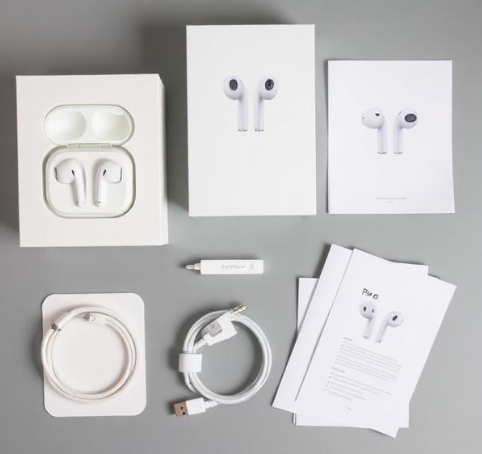
Your AirPods Pro 2 box includes:
- AirPods Pro 2 earbuds (left and right)
- MagSafe Charging Case (USB‑C, with built‑in speaker and lanyard loop)
- USB‑C Charge Cable (braided)
- Four sizes of silicone ear tips (XS, S, M, L — M comes pre‑installed)
- Quick Start Guide and Safety Warranty — the tiny booklet you’ve already lost
Not included: power adapter, wireless charger, or cleaning cloth.
Physical Tour of the Earbuds and Case
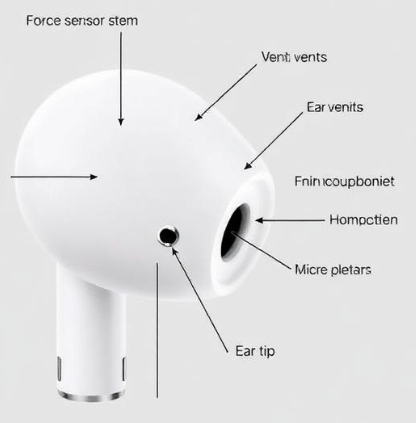
Each AirPod Pro 2 has a short, slightly angled stem. The flat indentation on the stem is the force sensor — you squeeze it, you don’t tap it. The case has a small LED on the front for charging status and a speaker on the bottom that chimes for pairing and low battery.
The case now supports Precision Finding in the Find My app, just like an Air Tag. The speaker beeps loudly when you trigger it, so you can find the case even under a cushion.
First‑Time Pairing and Setup
Pairing AirPods Pro 2 with an iPhone is nearly automatic, but sometimes it fails, and that’s when you need these steps.
Automatic pairing (iPhone or iPad)
- Unlock your iPhone and open the case next to it.
- A setup animation appears on screen. Tap “Connect.”
- Follow the prompts to enable Spatial Audio, Personalized Volume, and Conversation Awareness.
- Your AirPods automatically sync with all your iCloud devices.
Manual pairing (Android, Windows, or any Bluetooth device)
- Put the AirPods in the case and open the lid.
- Press and hold the small setup button on the back of the case until the LED flashes white.
- Open your device’s Bluetooth settings and select “AirPods Pro.”
Pairing with Apple TV or Mac
- On Apple TV, go to Settings > Remotes and Devices > Bluetooth, then select your AirPods.
- On Mac, click the Control Center icon in the menu bar, click Bluetooth, and select your AirPods.
Touch Controls and Gestures Explained
The stem uses a force sensor — a quick squeeze registers as a click. No taps, no swipes. Here is exactly what each interaction does.
Default stem gestures
- Single squeeze: Play / Pause
- Double squeeze: Skip forward
- Triple squeeze: Skip backward
- Long squeeze: Switch between Active Noise Cancellation and Transparency mode (a chime confirms the change)
Volume control
-
Slide your finger up or down the stem. You’ll hear a soft click‑like sound as the volume changes. This works on both earbuds.
Call controls
- Single squeeze: Answer an incoming call
- Double squeeze: End or decline a call
Using Siri
-
Just say “Siri” or “Hey Siri” — no need to touch the earbuds. You can ask to change the song, adjust the volume, or get directions.
You can customize all of these in Settings > Bluetooth > (i) next to your AirPods Pro > Press and Hold AirPods.
Active Noise Cancellation and Transparency Modes
The AirPods Pro 2 offer three listening modes, powered by the H2 chip.
Active Noise Cancellation (ANC)
-
Blocks external sound. Ideal for commuting, offices, and concentrating.
-
Adaptive ANC adjusts strength in real time based on your environment. It’s on by default.
Transparency Mode
-
Lets outside sound in so you can hear traffic, announcements, or conversations. Voice Isolation makes human speech clearer while reducing background hum.
Adaptive Audio
-
A blended mode that dynamically merges ANC and Transparency based on your surroundings. If you leave a quiet room and step onto a noisy street, the AirPods react instantly.
Conversation Awareness
-
When you start speaking, the volume automatically lowers, background noise reduces, and the person’s voice is amplified. You don’t need to remove an earbud. It ends a few seconds after you stop talking.
How to switch modes
-
Long squeeze on either stem.
-
Or open Control Center on your iPhone, long‑press the volume slider, and tap the Noise Control icon.
Battery Life and Charging
Battery numbers
- Up to 6 hours of listening time with ANC on (earbuds alone)
- Up to 30 hours total with the charging case
- A 5‑minute charge gives about 1 hour of playback
Charging options
- USB‑C: Connect the included cable to any USB‑C port. Fast charging is supported.
- MagSafe: The case snaps onto MagSafe chargers and Qi2 pads.
- Apple Watch charger: The case can also charge on an Apple Watch puck.
Battery widget
-
Add the Batteries widget to your iPhone Home Screen. It shows the charge level of each earbud and the case simultaneously.
Low battery alerts
-
When the case battery drops below 20%, the case speaker emits a soft tone. You can also check the status LED: green means charged, amber means less than one full charge remaining.
How to Reset AirPods Pro 2
A factory reset solves most connection issues, audio glitches, and handoff problems. It also removes the AirPods from your Apple ID, which is essential before selling or giving them away.
Reset steps
- Place both AirPods in the charging case and close the lid. Wait 30 seconds.
- Open the lid.
- Go to your iPhone Settings > Bluetooth, tap the (i) next to AirPods Pro, then tap “Forget This Device” and confirm.
- With the case lid still open, press and hold the setup button on the back of the case for 15 seconds.
- The status LED will flash amber, then white. When it flashes white, release the button.
- Reconnect by moving the case near your iPhone and following the on‑screen animation.
Your AirPods are now reset, and Find My is unlinked.
Ear Tip Fit Test and Seal
A proper seal is crucial for bass response and noise cancellation. The Ear Tip Fit Test uses the internal microphones to check acoustics.
How to run the test
- Insert both AirPods and go to Settings > Bluetooth > (i) next to your AirPods Pro.
- Tap “Ear Tip Fit Test” > Continue > Play.
- If the result is “Good Seal,” your current tips fit. If not, try a different size or twist the earbud slightly forward.
Tip for a better seal
Pull the top of your ear upwards and outwards while inserting the AirPod. It straightens the ear canal and lets the tip sit deeper.
Find My and Lost Case Recovery
The AirPods Pro 2 case has a U1 chip for Precision Finding.
If you lose one AirPod
-
Open the Find My app, tap your AirPods, then tap “Play Sound.” The lost earbud emits a loud chirp that gets progressively louder.
If you lose the case
-
In Find My, tap your AirPods, then tap “Find.” A directional arrow guides you to the case. The case speaker also plays a chime when you get close.
Lost Mode
-
Activate Lost Mode in Find My. If someone finds your AirPods, they’ll see a message on their phone with your contact details when they try to pair them.
Cleaning Your AirPods Pro 2
Dirty mesh grills reduce volume and ANC performance. Clean them monthly.
What you need
- A soft, lint‑free cloth
- A dry cotton swab
- Blue‑tack or cleaning putty (for the speaker grills)
Do not use liquids, alcohol wipes, or compressed air. They can push debris deeper and damage the microphones.
Steps
- Wipe the exterior with the cloth.
- Gently press the putty onto the main speaker grill and the tiny microphone grills, then lift away dust.
- Remove the ear tips and rinse them with water only. Let them dry completely before reattaching.
- For the case, use a soft, dry cloth on the charging contacts inside.
Common Problems and Quick Fixes
| Problem | Fix |
|---|---|
| One AirPod not working | Put both in the case, close lid for 30 seconds, then reinsert. If still dead, clean the charging contacts. |
| ANC sounds weak | Run the Ear Tip Fit Test; a poor seal ruins noise cancellation. Clean the microphone grills. |
| Case not charging | Try a different USB‑C cable and adapter. Check the Lightning‑style contacts inside for lint. |
| Bluetooth stuttering | Keep your phone within 10 meters with no walls. Reset Bluetooth on your phone, then forget and re‑pair the AirPods. |
| Siri not responding | Go to Settings > Siri & Search, and ensure “Listen for Hey Siri” and “Allow Siri When Locked” are on. |
| Random disconnections | Reset the AirPods (see the reset section). Disable “Automatic Ear Detection” temporarily to rule out a sensor fault. |
Hidden Features Most Users Miss
Background Sounds
-
Go to Settings > Control Center and add “Hearing.” Now you can play white noise, rain, or ocean sounds directly through your AirPods. Tap the ear icon in Control Center and choose a sound.
Live Listen
-
Turn your iPhone into a remote microphone. Add Hearing to Control Center, then tap the ear icon and select “Live Listen.” Place your phone near a conversation and you’ll hear it clearly in your AirPods — excellent for lectures or meetings.
Personalized Spatial Audio
-
Uses your iPhone’s camera to scan your ear shape, creating a custom 3D audio profile. Set it up in Settings > Bluetooth > (i) next to AirPods > Personalized Spatial Audio. It makes a noticeable difference in movies and Dolby Atmos music.
Announce Notifications
-
Siri can read out messages, emails, and app alerts when your phone is locked. Enable it in Settings > Notifications > Announce Notifications.
Double‑tap the case status LED
-
With the case open, double‑tap the front LED to quickly check battery status without looking at your phone.
Quick Reference Card
| Action | How |
|---|---|
| Play / Pause | Squeeze stem once |
| Next track | Squeeze stem twice |
| Previous track | Squeeze stem three times |
| Switch ANC / Transparency | Long squeeze stem |
| Volume up | Slide finger up on stem |
| Volume down | Slide finger down on stem |
| Answer call | Squeeze once |
| End call | Squeeze twice |
| Activate Siri | Say “Siri” or “Hey Siri” |
| Factory reset | Forget device in Bluetooth, then hold case button 15 seconds |
Download the AirPods Pro 2 Cheat Sheet
A one‑page PDF with all gestures, reset steps, and cleaning instructions. Save it to your phone for the moment one earbud stops working right before a call.
“AirPods Pro 2 Quick Guide (PDF)”
Official Apple Support Page
For warranty, service, and Apple’s official digital manual, visit:
https://support.apple.com/airpods-pro
Final Word
Apple’s official documentation barely scratches the surface of what the AirPods Pro 2 can do. This manual fills the gaps — how to get the perfect fit, master every stem gesture, keep the battery healthy, and troubleshoot the common issues that forums are full of. Bookmark it now; you’ll be glad you did when one earbud goes quiet and you need the answer in ten seconds.
Wishing you clear calls, rich bass, and a charging case that never gets lost.
Copyright Warning!
© 2026 productsmanuals.com All Rights Reserved.
Apple, AirPods, AirPods Pro, MagSafe, Siri, and Find My are trademarks of Apple Inc. This guide is unofficial and not affiliated with or endorsed by Apple.

[…] Apple AirPods Pro 2 – Pairing, ANC & Reset Guide Fix one‑sided audio, clean the mesh, and use Conversation Boost. […]
[…] Apple AirPods Pro 2 – ANC, Spatial Audio & Reset Manual Fix one‑sided audio, use Conversation Boost, and clean the mesh safely. […]
[…] Apple AirPods Pro 2 Manual – ANC, Spatial Audio & Reset Steps Fix one‑sided audio, clean the mesh, and use Conversation Boost. […]