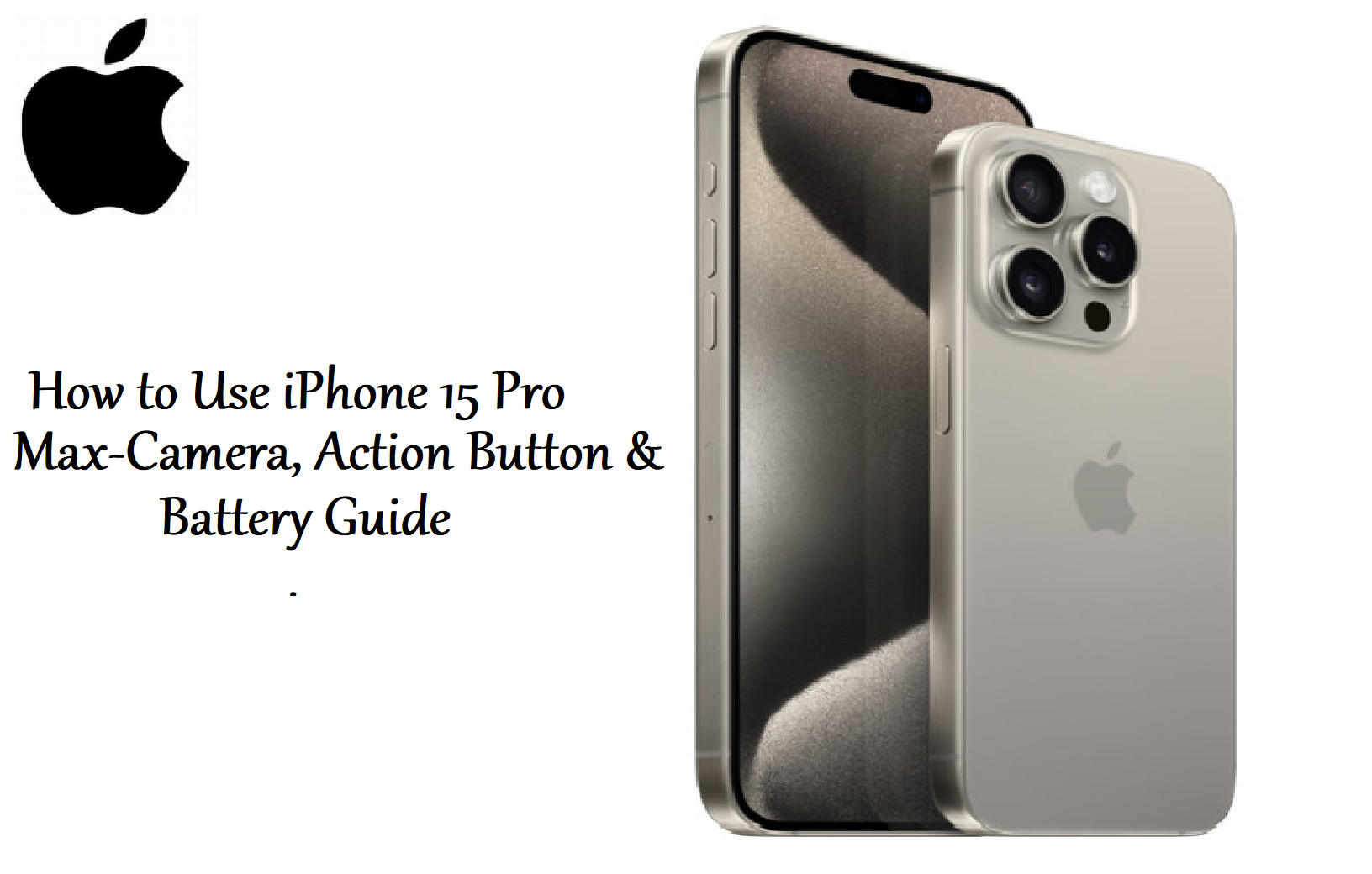

iPhone 15 Pro Max – Complete Beginners Guide (Tips & Tricks)
Introduction
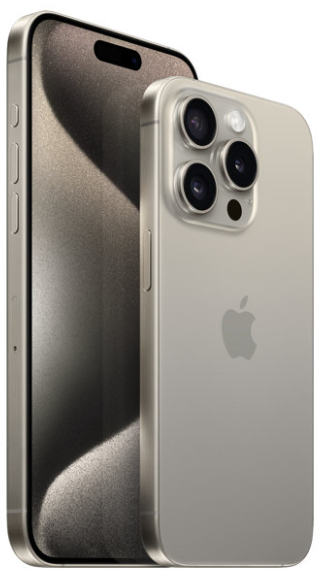
The iPhone 15 Pro Max is Apple’s most advanced smartphone, featuring a lightweight titanium frame, the A17 Pro chip, a 5x telephoto camera, and a customisable Action button. It replaces the Lightning port with USB-C, supports Wi-Fi 6E, and introduces the new Camera Control button (on later models; this guide focuses on the 15 Pro Max with Action button). This manual covers setup, camera features, battery management, and common fixes.
Product Overview
The iPhone 15 Pro Max measures 159.9 x 76.7 x 8.25 mm and weighs 221 grams. It has a 6.7-inch Super Retina XDR OLED display with ProMotion (1-120Hz) and Always-On display. The phone is built with Grade 5 titanium and a textured matte glass back. It runs iOS 17 (upgradeable). The camera system includes a 48 MP main with OIS, a 12 MP ultra-wide, and a 12 MP 5x telephoto with 3D sensor-shift OIS. The front camera is 12 MP with autofocus. It supports USB 3 speeds via the USB-C port and has an IP68 rating.
Full Specifications
| Specification | Detail |
|---|---|
| Model | A2849 (iPhone 15 Pro Max) |
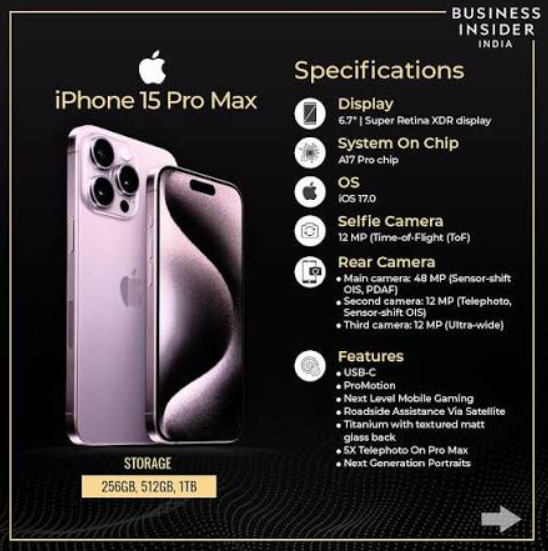
| Display | 6.7-inch Super Retina XDR OLED, 2796 x 1290 pixels, 120Hz ProMotion, Always-On |
| Processor | Apple A17 Pro (3 nm, 6-core CPU, 6-core GPU) |
| RAM | 8 GB |
| Storage | 256 GB / 512 GB / 1 TB (non-expandable) |
| Rear Camera | 48 MP main (f/1.78, sensor-shift OIS) + 12 MP ultra-wide (f/2.2, 120°) + 12 MP 5x telephoto (f/2.8, 3D sensor-shift OIS) |
| Front Camera | 12 MP (f/1.9, autofocus) |
| Battery | 4,422 mAh (approx.), up to 29 hours video playback |
| Charging | USB-C (USB 3 speeds), 20W wired (fast charge to 50% in 30 min), 15W MagSafe wireless, 7.5W Qi |
| Operating System | iOS 17 (upgradeable to iOS 18) |
| Water Resistance | IP68 (up to 6 metres for 30 minutes) |
| Connectivity | 5G, Wi-Fi 6E, Bluetooth 5.3, NFC, Ultra Wideband, USB-C 3.0 |
| Buttons | Action button (customisable), volume buttons, side button |
| Audio | Stereo speakers, spatial audio, no headphone jack |
| Dimensions | 159.9 x 76.7 x 8.25 mm |
| Weight | 221 g |
| Colours | Natural Titanium, Blue Titanium, White Titanium, Black Titanium |
| Included Accessories | Phone, USB-C to USB-C cable, SIM tool, documentation (no charger, no EarPods) |
Key Features
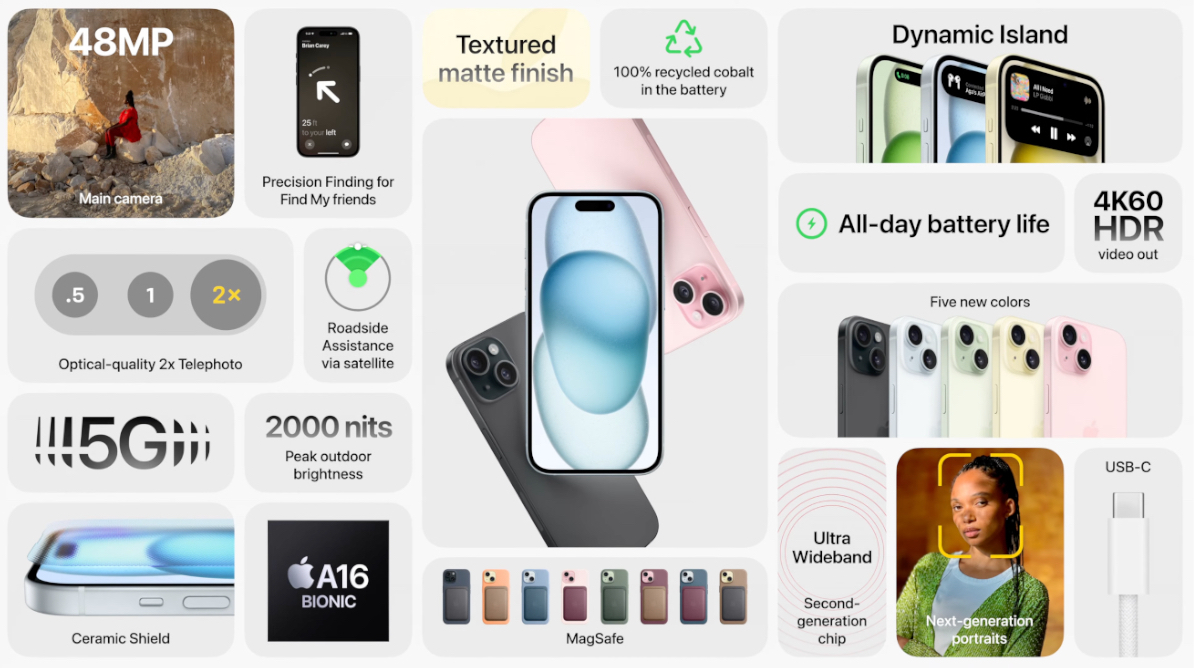
- A17 Pro Chip: The industry’s first 3-nanometer chip. It delivers console-level gaming, advanced AI, and improved power efficiency. The 6-core GPU supports hardware-accelerated ray tracing.
- 5x Telephoto Camera with 3D Sensor-Shift OIS: The new tetraprism design provides 5x optical zoom and 25x digital zoom. The 3D sensor-shift stabilisation reduces blur in low light.
- Customisable Action Button: Replaces the mute switch. Assign it to silent mode, flashlight, camera, voice memo, shortcut, or any app. Press and hold to activate.
- USB-C with USB 3 Speeds: Transfer photos and videos at up to 10Gbps. Connect external SSDs, displays, and accessories. Charge AirPods or Apple Watch from the phone.
- Titanium Design: Grade 5 titanium frame is lighter and stronger than stainless steel. The matte glass back reduces fingerprints. The display uses Ceramic Shield.
- ProMotion 120Hz Always-On Display: Super smooth scrolling and an always-on screen that shows time, widgets, and notifications without waking the phone.
- IP68 Water Resistance: Survives submersion in fresh water up to 6 metres for 30 minutes.
- MagSafe: Built-in magnets align with MagSafe chargers, wallets, and cases for fast 15W wireless charging.
How to Use
What’s in the Box
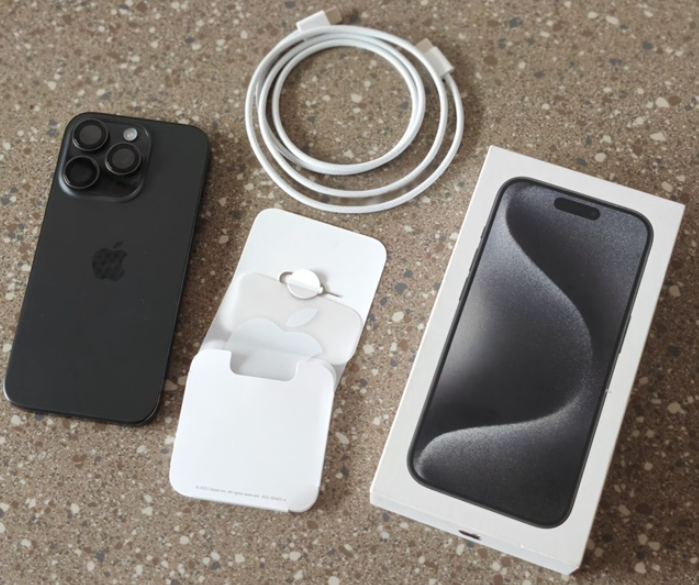
- iPhone 15 Pro Max (with pre-applied screen protector film)
- USB-C to USB-C braided cable (1 metre)
- SIM card ejector tool
- Quick Start Guide and warranty card
No power adapter or EarPods are included. Use any USB-C power adapter (20W or higher recommended).
First-Time Setup
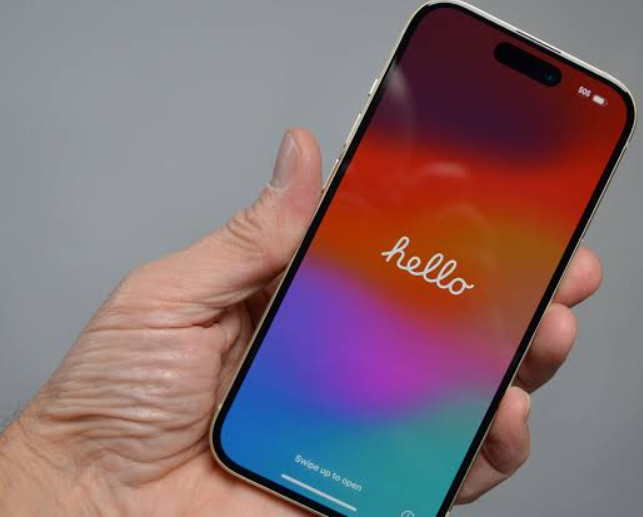
- Press and hold the Side button (right edge) until the Apple logo appears.
- Follow the on-screen steps to choose language, region, and connect to Wi-Fi.
- Transfer data from an old iPhone wirelessly or restore from iCloud. Android users can use “Move to iOS.”
- Sign in with your Apple ID. This activates iCloud, Find My, and the App Store.
- Once on the home screen, go to Settings > General > Software Update and install any pending updates.
- Set up the Action button by going to Settings > Action Button. Choose your preferred function (default is Silent mode).
Buttons & Ports
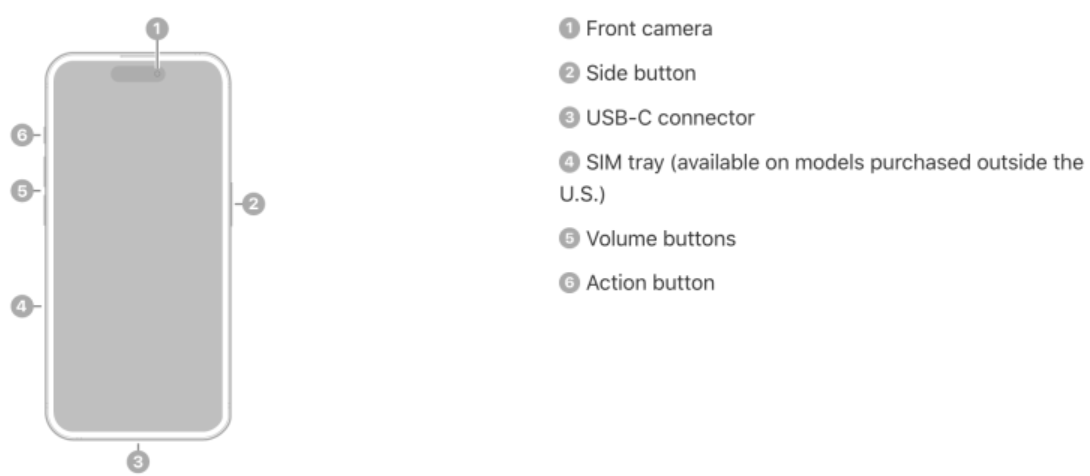
| Component | Location | Function |
|---|---|---|
| Side button | Right edge | Press to wake/sleep. Press and hold for Siri. Double-press for Apple Pay. Press and hold with volume button for power off/Emergency SOS. |
| Action button | Left edge (above volume) | Customizable. Default toggles Silent/Ring mode. Press and hold to activate. |
| Volume buttons | Left edge (below Action button) | Adjust media and ringer volume. Press Volume Up to take a photo. |
| USB-C port | Bottom edge | Charging, data transfer (USB 3 up to 10Gbps), video output, connecting accessories. No headphone jack. |
| SIM tray | Left edge (or right, depending on region) | Holds one nano-SIM. eSIM supported. No physical SIM in US models. |
Camera Tips
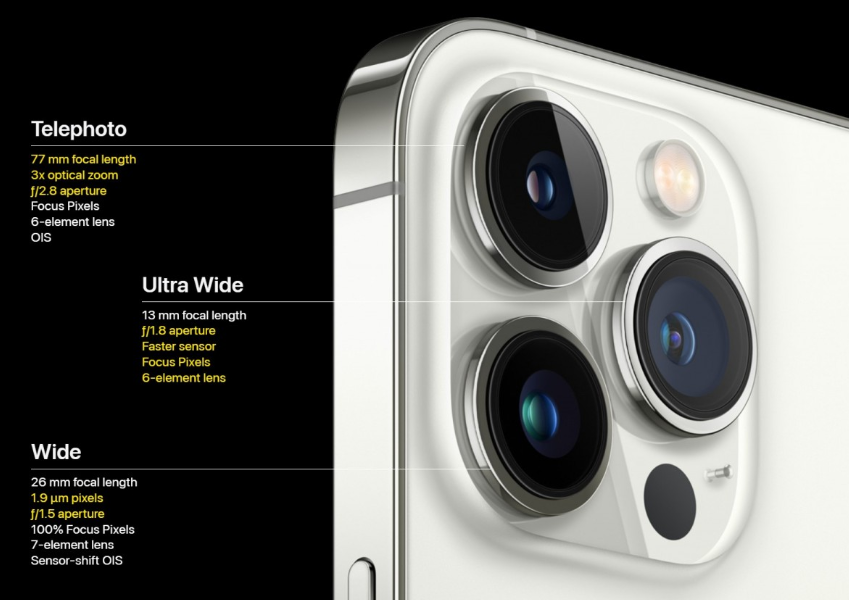
- 5x Telephoto: Tap the 5x preset for optical zoom. The 3D sensor-shift OIS keeps shots steady. Use for portraits, wildlife, and distant subjects. Digital zoom up to 25x.
- 48 MP Main Camera: In Settings > Camera > Formats, enable Resolution Control to capture full 48 MP ProRAW or HEIF images. For everyday, the default 24 MP mode balances detail and file size.
- Night Mode: Automatic in low light. Keep the phone steady for 2-3 seconds. For astrophotography, use a tripod and the 30-second Night mode exposure.
- Portrait Mode: Select Portrait from the mode bar. Adjust depth control after taking the shot. The 5x telephoto creates a flattering compression for portraits.
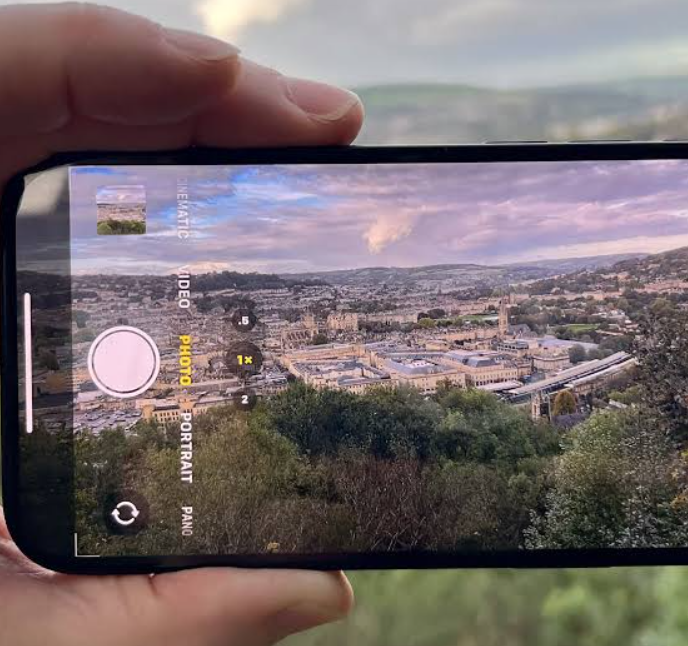
- Action Mode: For smooth video while moving, tap the Action mode icon (running figure). It uses the ultra-wide camera and crops slightly.
- ProRAW & ProRes: ProRAW for maximum editing flexibility. ProRes video (up to 4K 60fps) for professional workflows. Requires high-capacity storage.
- Spatial Video: Record spatial video for Apple Vision Pro (requires enabling in Settings > Camera > Formats). Works with the main and ultra-wide cameras.
Action Button Customisation
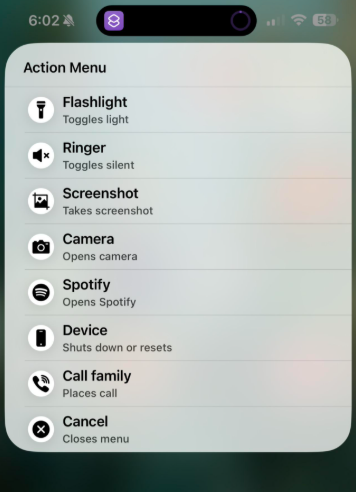
- Go to Settings > Action Button.
- Swipe through the available actions: Silent mode, Focus, Camera, Flashlight, Voice Memo, Magnifier, Translate, Accessibility, Shortcuts, or No Action.
- You can assign a Shortcut that opens a menu of options (e.g., choose between Flashlight, Camera, and Voice Memo). Create the Shortcut first, then assign it.
- Press and hold the Action button to trigger the action. A quick haptic feedback confirms activation.
USB-C Connectivity
- Charging: Use any USB-C cable and adapter. For fast charging, use a 20W or higher USB-C PD charger (0 to 50% in 30 minutes).
- Data Transfer: Connect to a Mac or PC with USB-C. The phone supports USB 3 speeds (10Gbps). Use a USB-C to USB-C cable for best performance.
- External Displays: Connect to a USB-C monitor or TV (up to 4K HDR). The phone mirrors or extends the display.
- Accessories: Connect USB-C flash drives, SSDs, keyboards, mice, and Ethernet adapters. The phone can charge small devices like AirPods via USB-C (up to 4.5W).
Battery & Charging
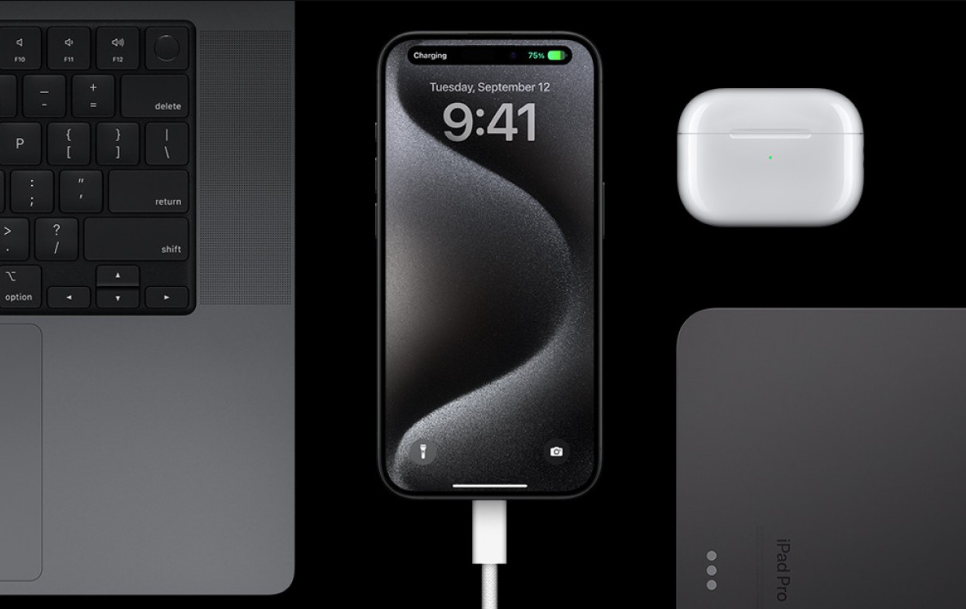
- Battery life: Up to 29 hours of video playback. Heavy use (gaming, 5G) will reduce runtime.
- Fast charging: 20W USB-C PD charger gives about 50% in 30 minutes.
- MagSafe wireless charging: Up to 15W with a MagSafe charger. Standard Qi chargers provide 7.5W.
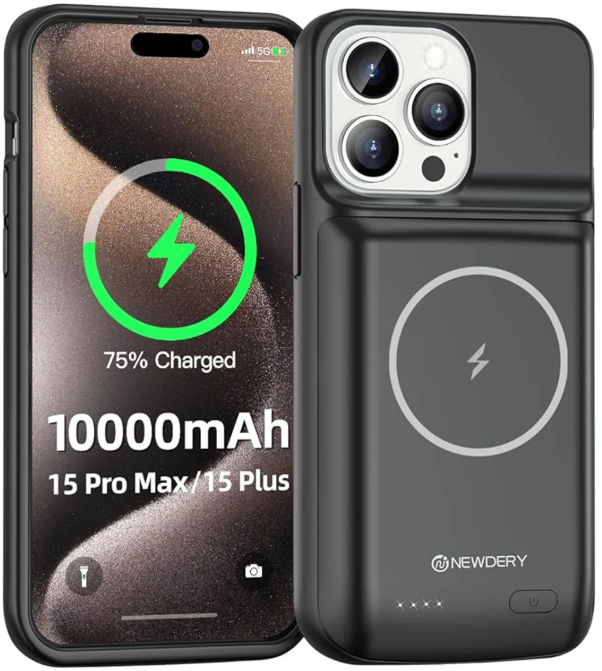
- Battery health: Go to Settings > Battery > Battery Health & Charging to check maximum capacity and enable Optimised Battery Charging. For long-term health, consider the 80% Limit option if you charge overnight.
- Reverse wired charging: The iPhone 15 Pro Max can charge AirPods or Apple Watch via USB-C at 4.5W. Enable in Settings > Battery > Reverse Charging (or it works automatically when connected).
Troubleshooting & Common Problems
| Problem | Likely Cause | What to Try |
|---|---|---|
| Action button not working | Not configured, or the assigned shortcut failed | Go to Settings > Action Button and reassign. Test a different action. If using a Shortcut, ensure the Shortcut works manually. |
| Camera app crashes | Software glitch, or low storage | Restart the phone. Clear camera cache (iOS doesn’t have direct cache clear; restart or offload the app). Check Settings > General > iPhone Storage and free space. |
| 5G battery drain | Weak 5G signal, or background apps | Switch to 4G/LTE in Settings > Cellular > Cellular Data Options > Voice & Data. Turn off Background App Refresh for unused apps. |
| Wi-Fi or Bluetooth not connecting | Router or interference | Restart router and phone. Forget network and reconnect. For Bluetooth, toggle off/on and re-pair. Reset network settings if persistent. |
| Overheating during gaming or camera | Intensive load | Remove case, avoid direct sunlight, close background apps. The phone will throttle performance to cool down. |
| Face ID not working | Dirty TrueDepth camera, or mask | Wipe the front camera area. Re-scan your face. If wearing a mask, enter passcode or use Apple Watch unlock. |
| USB-C port not charging | Debris or wrong cable | Clean the port with a wooden toothpick. Use a USB-C PD charger and quality cable. |
| No sound from speakers | Debris, or Bluetooth connected | Clean speaker grilles with a soft brush. Disconnect Bluetooth devices. Check volume and Silent mode. |
Frequently Asked Questions
- Does the iPhone 15 Pro Max have a headphone jack?
No, it uses USB-C audio or Bluetooth. - Can I expand storage?
No, the storage is fixed at 256 GB, 512 GB, or 1 TB. - Is it waterproof?
Yes, IP68 rated. It can survive submersion in fresh water up to 6 metres for 30 minutes. Avoid salt water and chlorinated pools. - How do I take a screenshot?
Press the Side button and Volume Up together. For a scrolling screenshot, tap the “Full Page” option after capturing. - Does it support reverse wireless charging?
No, but it supports reverse wired charging via USB-C (4.5W) for small devices. - How do I reset the phone?
Go to Settings > General > Transfer or Reset iPhone > Erase All Content and Settings. You’ll need your Apple ID password. - What is the difference between the Action button and the mute switch?
The Action button is customizable and replaces the physical mute switch. You can set it to silent mode or any other action.
Tips
- Use the Action button for quick camera: Assign it to Camera for instant access, or use a Shortcut to create a menu of options.
- Enable ProRAW for maximum detail: In Settings > Camera > Formats, turn on Apple ProRAW and choose 48 MP resolution.
- Use the 5x telephoto for portraits: It creates a more flattering perspective than the 1x or 2x.
- Keep the battery healthy: Enable Optimized Battery Charging and avoid exposing the phone to extreme heat.
- Use USB-C accessories: Connect an external SSD to record ProRes video directly to the drive.
Safety Information
- Charging: Use Apple-certified or reputable third-party USB-C adapters. Avoid cheap, unregulated chargers.
- Battery: Do not puncture or expose to fire. If the battery swells, stop using and contact Apple.
- Water resistance: IP68 applies to fresh water only. Dry the USB-C port before charging if wet.
- Screen: Ceramic Shield is durable, but a tempered glass protector adds extra protection.
- Titanium frame: Lightweight but still strong. Avoid bending or dropping.
- Children: Keep the SIM tool and small parts away from children.
Related Manuals
If this guide was helpful, here are a few more popular manuals from productsmanuals.com that you might find useful:
- Samsung Galaxy Watch 7 Manual – Health Sensors, Galaxy AI & Battery Tips
Master ECG, body composition, sleep apnea detection, and more. - iPhone 16 Manual – Settings, Camera & Hidden Features Guide
Explore Dynamic Island, Action button, and battery-health tricks. - Samsung Galaxy S25 Ultra Manual – S Pen, 200 MP Camera & Galaxy AI
- Get the most from the latest Ultra flagship with hidden S Pen features.
- DJI Mini 4 Pro Manual – Drone Setup, Flight Modes & Camera Tips
Capture cinematic aerial footage with this lightweight drone. - Dell latitude 5430 Manual – Laptop Setup, Upgrades & Troubleshooting
Upgrade RAM and SSD, and fix common performance issues.
Browse all guides at productsmanuals.com .
Copyright 2026 [productsmanuals.com All rights reserved. This iPhone 15 Pro Max manual is original content and may not be copied, republished, or redistributed without written permission. Apple, iPhone, and the Apple logo are trademarks of Apple Inc. This guide is unofficial and not affiliated with Apple.
