
Introduction
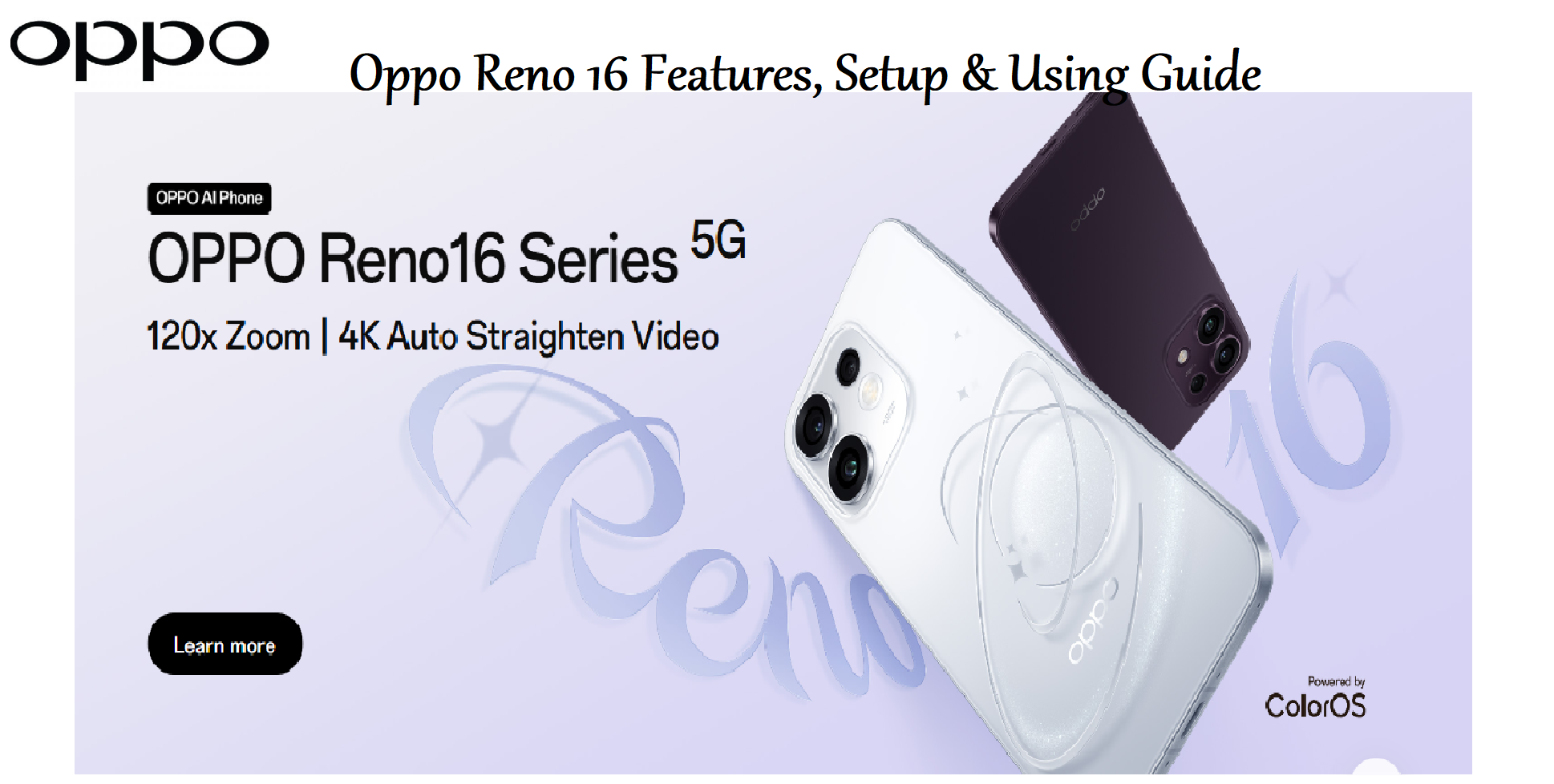
The Oppo Reno 16 is a stylish mid-range smartphone that focuses on camera performance, fast charging, and a vibrant AMOLED display. It runs ColorOS 15 based on Android 15, powered by the MediaTek Dimensity 8300 processor. This guide covers setup, AI camera features, battery management, and common fixes.
Product Overview
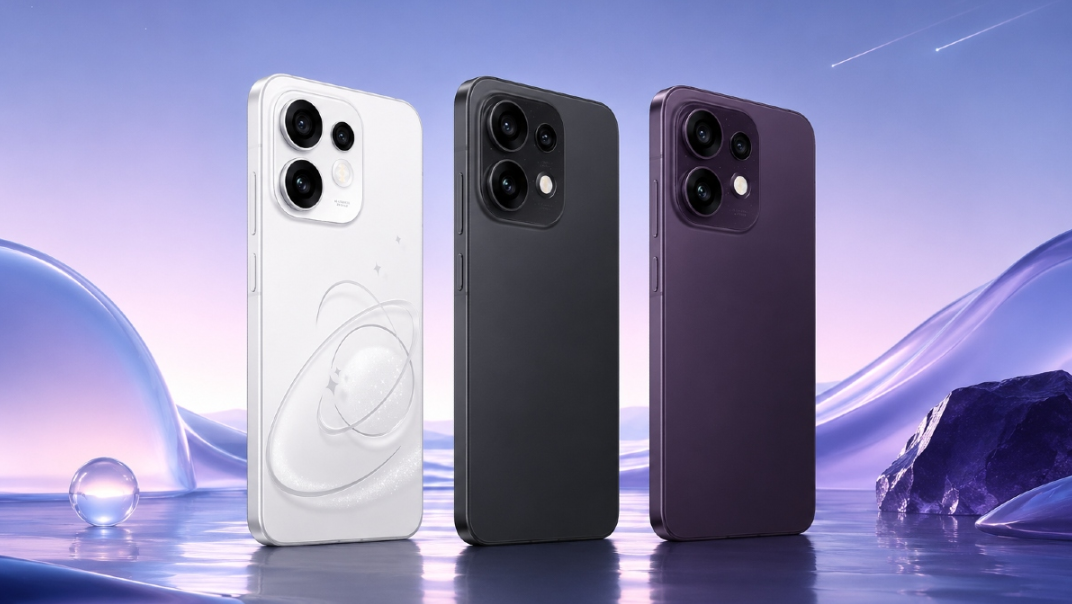
The Oppo Reno 16 features a 6.7-inch AMOLED curved display with 120 Hz refresh rate, a 50 MP main camera with OIS, and an 80W SUPERVOOC fast charger. It has a large 5,000 mAh battery, under-display fingerprint, and IP65 water resistance. The phone is available in Midnight Black, Glacier Silver, and Coral Pink.
Full Specifications
| Specification | Detail |
|---|---|
| Model | CPH2631 (Oppo Reno 16) |
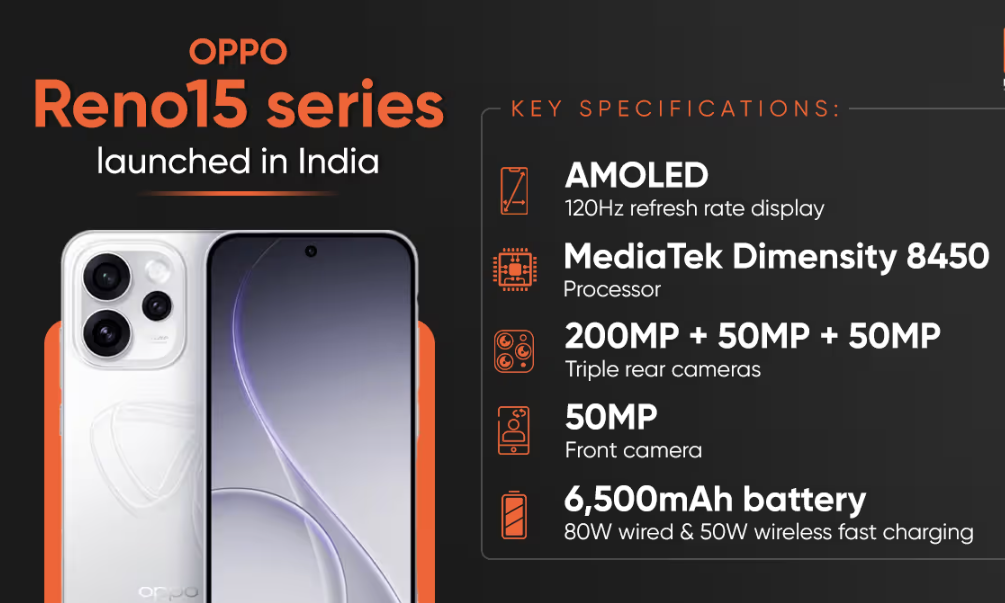
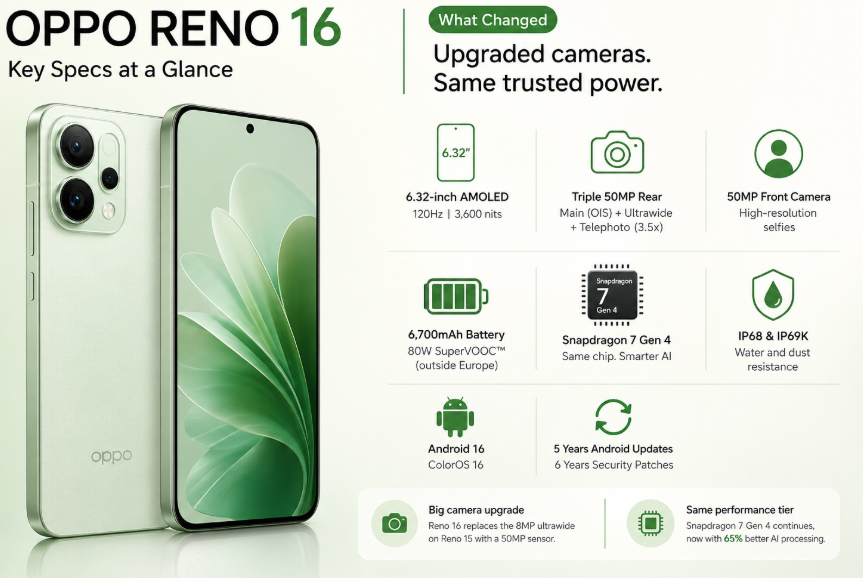
| Display | 6.7-inch AMOLED curved, 2412 x 1080 pixels, 120 Hz refresh, 1,500 nits peak |
| Processor | MediaTek Dimensity 8300 (4 nm) |
| RAM | 8 GB / 12 GB LPDDR5X |
| Storage | 128 GB / 256 GB UFS 3.1 (non-expandable) |
| Rear Camera | 50 MP main (f/1.8, OIS) + 8 MP ultra-wide (f/2.2, 112°) + 2 MP macro (f/2.4) |
| Front Camera | 32 MP (f/2.4) |
| Battery | 5,000 mAh, 80 W SUPERVOOC wired charging |
| Operating System | ColorOS 15 (Android 15) |
| Water Resistance | IP65 (dust-tight, splash-resistant) |
| Fingerprint Sensor | Under-display (optical) |
| Face Unlock | Yes |
| Connectivity | 5G, Wi-Fi 6, Bluetooth 5.4, NFC, IR blaster, USB-C 2.0 |
| Audio | Stereo speakers, no 3.5 mm headphone jack |
| Dimensions | 161.9 x 74.1 x 8.3 mm |
| Weight | 188 g |
| Colours | Midnight Black, Glacier Silver, Coral Pink |
| Included Accessories | Phone, 80W charger, USB-C cable, clear case, SIM tool, quick start guide |
Key Features
- 80W SUPERVOOC Charging: The included 80W charger refills the 5,000 mAh battery from 0 to 50% in about 12 minutes, and 100% in about 35 minutes. The battery is designed for 1,600 charge cycles.
- 50 MP AI Camera with OIS: The main sensor captures sharp photos in all lighting. AI scene detection optimises colour, exposure, and HDR automatically. The ultra-wide lens handles landscapes, and the macro lens is for close-ups.
- 6.7-inch AMOLED Curved Display: Bright, colourful, and smooth with a 120 Hz refresh rate. It supports HDR10+ and has a peak brightness of 1,500 nits for outdoor visibility.
- MediaTek Dimensity 8300: A powerful 4 nm processor that handles gaming, multitasking, and AI tasks with ease. 8 GB or 12 GB of RAM ensures smooth performance.
- ColorOS 15: Feature-rich software with AI tools like AI Eraser, AI Photo Enhancer, and Smart Sidebar. It also includes Game Focus Mode and performance optimization.
- IP65 Water Resistance: Dust-tight and splash-resistant. It can handle rain and accidental spills but is not designed for full submersion.
- Under-Display Fingerprint & Face Unlock: Fast biometric options for convenient unlocking.
How to Use
What’s in the Box
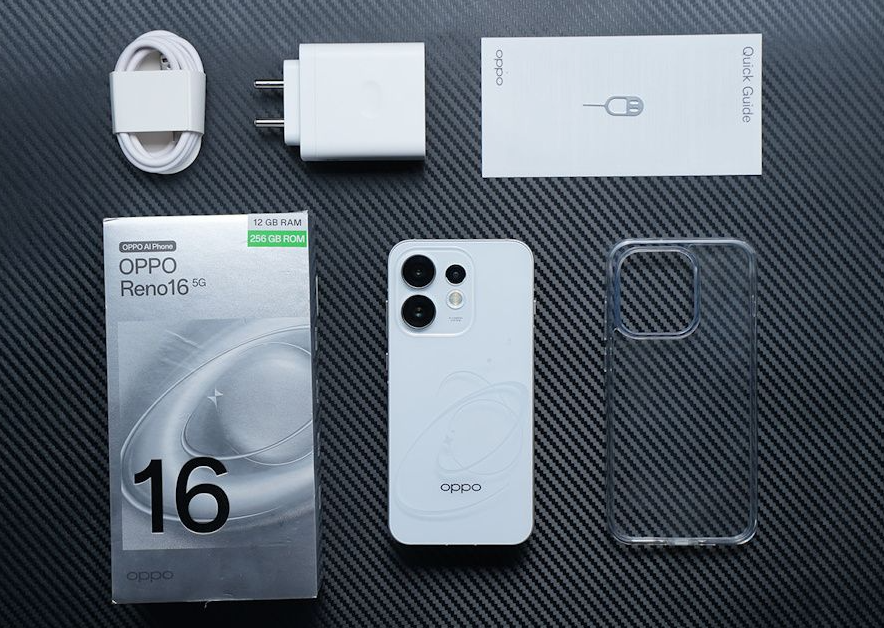
- Oppo Reno 16 smartphone (with pre-applied screen protector)
- 80W SUPERVOOC power adapter
- USB-C charging cable
- Clear protective case
- SIM card ejector tool
- Quick Start Guide and warranty card
No earphones are included. Use USB-C earbuds or Bluetooth headphones.
First-Time Setup
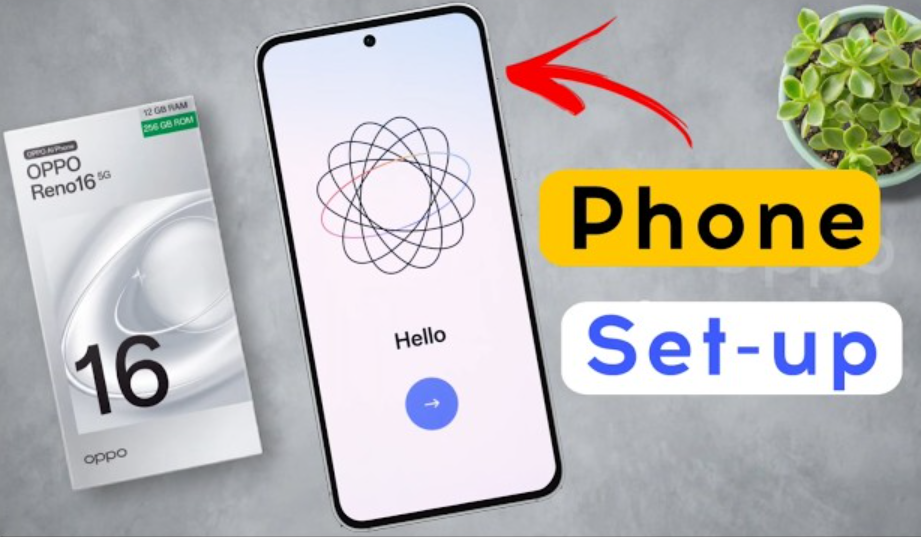
- Insert your nano-SIM(s) using the ejector tool. The tray holds two SIMs, no microSD.
- Press and hold the Power button (right edge) until the Oppo logo appears.
- Select language, region, and connect to Wi-Fi. Sign in with your Google account. Optionally sign into your Oppo account for cloud services.
- Set up the under-display fingerprint sensor: go to Settings > Password & Security > Fingerprint. Press firmly on the screen.
- Once on the home screen, go to Settings > About phone > System update and install any pending updates.
- In Settings > Display, set Screen refresh rate to High for 120 Hz.
Buttons & Ports
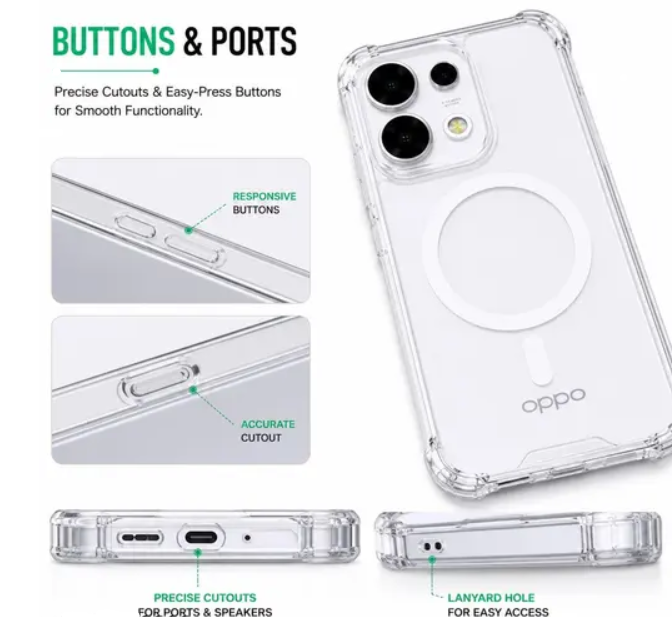
| Component | Location | Function |
|---|---|---|
| Power button | Right edge | Press to wake/sleep. Press and hold for Google Assistant. Double-press for camera. |
| Volume rocker | Right edge (above power) | Adjust media and ringer volume. |
| USB-C port | Bottom edge | Charging, data transfer, USB-C headphones. No headphone jack. |
| SIM tray | Bottom edge (left) | Two nano-SIMs. No microSD. |
| Fingerprint sensor | Under display (optical) | Register up to 5 fingerprints. |
| IR blaster | Top edge | Control appliances via remote app. |
Camera Tips
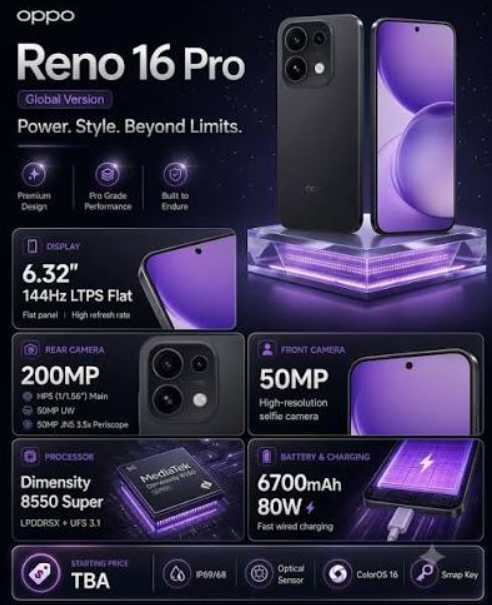
- AI Scene Detection: The camera automatically recognizes scenes (food, plants, sunset, etc.) and optimizes settings. The AI icon appears at the top. Tap to toggle.
- 50MP Mode: Tap the resolution icon and select 50MP. Use in bright light for detailed photos. For everyday shots, the default 12.5MP pixel-binned mode is faster and balances dynamic range.
- Night Mode: The camera automatically enables Night mode in low light. Keep the phone steady for 2-3 seconds.
- Portrait Mode: Select Portrait from the mode bar. The depth sensor and AI create a natural bokeh. Adjust the blur after taking the shot.
- AI Eraser: In Gallery, tap edit and use AI Eraser to remove unwanted objects from photos.
- Pro Mode: Swipe to More > Pro for manual control over ISO, shutter, white balance, and focus.
Battery & Charging
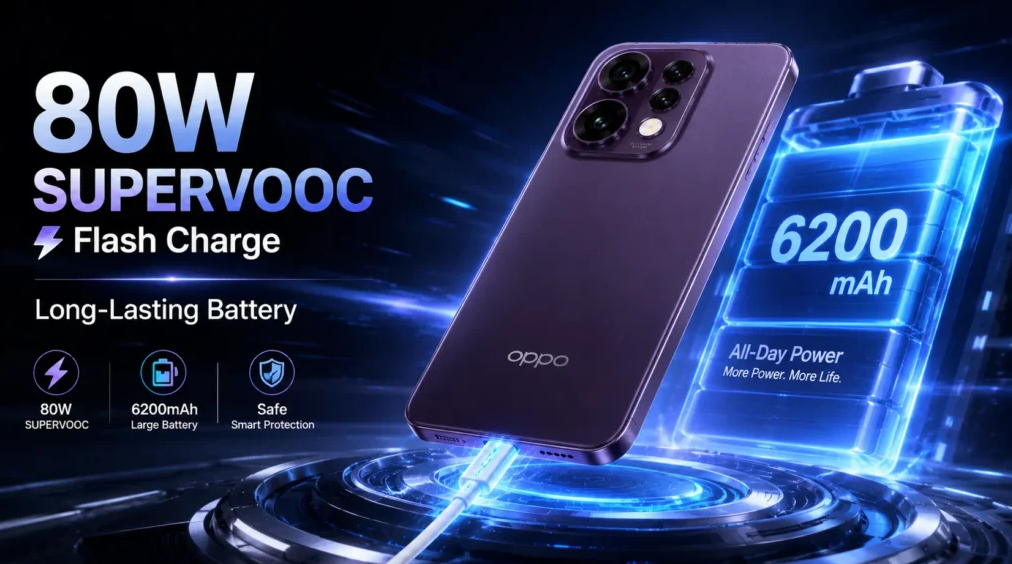
- 80W SUPERVOOC: Use the included 80W charger and USB-C cable. The phone charges from 0 to 100% in about 35 minutes.
- Battery saver: Swipe down Quick Settings and tap Battery Saver. Set to activate at 20% or 30%.
- Battery health: The phone has built-in battery protection. Avoid draining to 0% frequently. Charge when below 20-30%.
- No wireless charging: The Oppo Reno 16 does not support wireless charging. Use the wired charger for fastest results.
Troubleshooting & Common Problems
| Problem | Likely Cause | What to Try |
|---|---|---|
| Fingerprint sensor slow | Dirty screen, or dry finger | Clean the screen. Re-register fingerprints. Register the same finger twice. |
| 80W charging not working | Wrong charger or cable | Use the original 80W charger and Oppo USB-C cable. Check for debris in the port. |
| Camera app crashes | Software glitch, or low storage | Restart. Clear camera cache: Settings > Apps > Camera > Storage > Clear cache. |
| Battery drains quickly | 120Hz + high brightness, or rogue apps | Switch to 60Hz. Reduce brightness. Check battery usage. Turn on Ultra Battery Saver. |
| Wi-Fi or Bluetooth not connecting | Router or interference | Restart router and phone. Forget network and reconnect. For Bluetooth, toggle off/on and re-pair. |
| Phone overheats during gaming | Intensive load | Remove case, lower graphics, avoid direct sunlight. The phone will throttle to protect itself. |
| Face unlock not working | Low light, or front camera dirty | Clean front camera. Re-scan face. Use fingerprint as backup. |
| No sound from speakers | Debris, or Bluetooth connected | Clean speaker grilles. Disconnect Bluetooth devices. Check volume. |
More Information
ColorOS 15 Special Features & Hidden Tips
The Oppo Reno 16 runs ColorOS 15, which includes several features that are easy to miss but can significantly improve daily use.
- AI Photo Enhancer
After taking a photo, open it in the Gallery and tap the AI icon. The phone automatically improves brightness, contrast, and sharpness. It can also remove shadows and reflections with a single tap. This works on photos taken with any camera, not just the Reno 16. - AI Eraser
In the Gallery, tap Edit > AI Eraser. Draw a circle around any object (a photobomber, a trash can, a power line), and the AI will remove it and fill the background naturally. Works best on simple backgrounds but can handle complex scenes. - Smart Sidebar
Swipe inward from the right edge of the screen (if enabled in Settings > Special Features > Smart Sidebar) to open a floating panel with quick access to apps, tools, and functions. You can add shortcuts for screenshot, screen recording, translator, and calculator. It works over any app, making multitasking faster. - Game Focus Mode
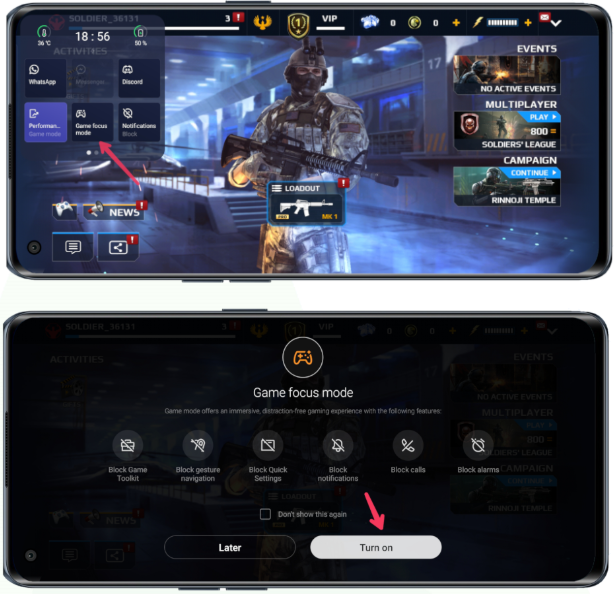
When you launch a game, a small Game Assistant icon appears. Swipe from the left edge during gameplay to open it. You can block calls and notifications, lock the screen brightness, enable Esports Mode (closes background apps for maximum performance), and open messaging apps in floating windows. It also supports Voice Changer for fun in-game voice effects. - Always-On Display Customization
Go to Settings > Home screen & Lock screen > Always-On Display to choose from different clock styles, battery status, and notification icons. The AOD can be set to show all day, scheduled, or only when the phone is lifted. It consumes very little battery on the AMOLED screen. - Privacy Features
ColorOS 15 includes Private Safe, a hidden encrypted folder for photos, videos, and files. Access it via Settings > Privacy > Private Safe. You can also use App Lock to protect specific apps with fingerprint or face unlock. The Privacy Dashboard shows which apps accessed your camera, microphone, or location in the last 24 hours. - Dual Apps
Some apps, like WhatsApp and Facebook, can be cloned for use with two accounts. Go to Settings > Apps > Dual Apps and enable the app you want to duplicate. The cloned app appears on the home screen with a small orange dot. - Gesture Controls
ColorOS supports several screen-off and screen-on gestures:
- Double-tap to wake/sleep
- Draw O on screen off to open camera
- Draw V to turn on flashlight
- Three-finger screenshot (swipe down with three fingers)
- Three-finger long screenshot (swipe down with three fingers and hold)
Enable these in Settings > System Settings > Gestures & Motions.
- Charging Optimization
The Reno 16 has a built-in Smart Charging feature that learns your charging habits and delays charging past 80% overnight. Go to Settings > Battery > Charging and enable Smart Charging to extend battery lifespan. The 6200 mAh battery is rated for 1,600 full charge cycles with 80% capacity retention. - IR Blaster
The top edge includes an IR blaster. Open the pre-installed Remote app to control TVs, air conditioners, set-top boxes, and projectors. Add a device by selecting the category and brand, then point the phone at the appliance. It works with hundreds of brands.
Frequently Asked Questions
- Does the Oppo Reno 16 have a headphone jack?
No, it uses USB-C audio or Bluetooth. - Can I expand storage?
No, there is no microSD slot. Choose 128GB or 256GB at purchase. - Is it waterproof?
It has an IP65 rating, meaning it is dust-tight and splash-resistant. It is not designed for full submersion. - How do I take a screenshot?
Press the Power button and Volume Down together. For a scrolling screenshot, tap the “Capture more” button after capturing. - Does it support wireless charging?
No, the Oppo Reno 16 does not support wireless charging. - How do I reset the phone?
Go to Settings > System > Reset > Erase all data (factory reset). You’ll need your lock screen PIN.
Tips
- Use AI Eraser to remove photobombers: Open a photo, tap Edit > AI Eraser, circle the unwanted object, and it will disappear.
- Enable Smart Sidebar: Go to Settings > Special Features > Smart Sidebar for quick access to apps and tools from any screen.
- Use Game Focus Mode: During games, swipe from the edge to open Game Assistant. You can block notifications and boost performance.
- Customize the Always-On Display: Go to Settings > Home screen & Lock screen > Always-On Display to choose styles.
- Keep the phone updated: Oppo releases regular updates. Check Settings > About phone > System update monthly.
Safety Information
- Charging: Use the original Oppo 80W charger and cable. Avoid using the phone while fast charging in hot environments.
- Battery: Do not puncture or expose to fire. If the battery swells, stop using and contact Oppo.
- Water resistance: IP65 applies to splashes only. Do not submerge the phone. Dry the USB-C port before charging if wet.
- Screen: The AMOLED curved display is durable, but use a case to protect edges. A tempered glass protector is recommended.
- Children: Keep the SIM tool and small parts away from children.
Related Manuals
If this guide was helpful, here are a few more popular manuals from productsmanuals.com that you might find useful:
- Samsung Galaxy Watch 7 Manual – Health Sensors, Galaxy AI & Battery Tips
Master ECG, body composition, sleep apnea detection, and more. - Redmi Note 13 Pro+ 5G Manual – 200MP Camera, 120W HyperCharge & MIUI
Explore Xiaomi’s feature-packed mid-ranger with flagship camera capabilities. - Google Pixel 8a Manual – Tensor G3, AI Camera & 7 Years of Updates
Discover Google’s best AI features and clean Android experience. - iPhone 17 Manual – Settings, Camera & Hidden Features Guide
Explore Dynamic Island, Action button, and battery-health tricks. - Dell Inspiron 15 3520 Manual – Laptop Setup, Upgrades & Troubleshooting
Upgrade RAM and SSD, and fix common performance issues.
Browse all guides at productsmanuals.com .
Copyright 2026 productsmanuals.com All rights reserved. This Oppo Reno 16 manual is original content and may not be copied, republished, or redistributed without written permission. Oppo, Reno, ColorOS, and the Oppo logo are trademarks of Oppo Mobile Telecommunications Corp., Ltd. This guide is unofficial and not affiliated with Oppo.
