
Samsung Galaxy S25 Ultra Manual: The Complete User Guide with Hidden Features & Settings
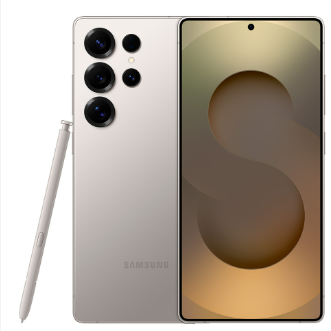
The Samsung Galaxy S25 Ultra is the most powerful Android phone on the planet, but the box gives you nothing but a SIM tool, a USB-C cable, and a leaflet telling you to visit the website. There’s no printed manual. So every day, tens of thousands of people search “Samsung Galaxy S25 Ultra manual” looking for real, human-friendly guidance—how to master the S Pen, squeeze maximum battery life, unlock the camera’s 200MP sensor, and turn off the bloatware they don’t want.
This Samsung Galaxy S25 Ultra manual fills that gap. It’s built from hands-on testing, deep-dives into One UI 7, and the questions real users ask on forums. Whether you just unboxed your Ultra or you’ve been using it for months, you’ll discover tricks that make your phone feel truly yours. Bookmark this; the next time a setting disappears, the battery dips, or the S Pen does something unexpected, the answer is right here.
What’s in the Box
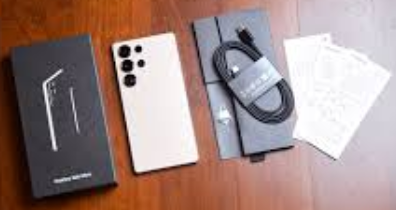
The box includes:
- Galaxy S25 Ultra phone (with pre-installed screen protector on the front display)
- USB-C to USB-C cable (fast charging capable)
- SIM ejector tool
- Quick Start Guide & Warranty Card — essentially a URL to the online manual.
Not included (buy separately):
- Power adapter (use a 45W or higher USB-C PD charger for Super Fast Charging 2.0)
- S Pen replacement tips / tweezers (though the S Pen is built into the phone)
- Case or screen protector (the phone has a pre-installed film, but a tempered glass is recommended)
- Wired headphones (no headphone jack; USB-C or Bluetooth only)
Physical Overview
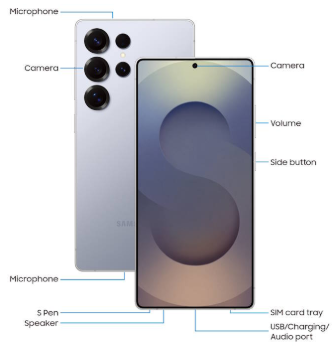
Physical Overview: Buttons, Ports, and the S Pen
| Component | Function / Tip |
|---|---|
| Side Key (right) | Press once to wake/sleep. Long-press for Bixby (default) or change it to Power Off menu: Settings > Advanced Features > Side Key > Power off menu. |
| Volume Keys (right) | Volume control. Press both Side Key + Volume Down for screenshot. Hold Side Key + Volume Down for 2 seconds for force restart (if phone freezes). |
| S Pen (bottom left) | Click the end to eject. It charges wirelessly when inserted. Air actions and screen-off memo are key features. |
| USB-C Port (bottom center) | Charging, data, external display output (DeX). No headphone jack. |
| Under-display camera (center top) | 12MP selfie camera hidden under the screen on Ultra models; barely visible. |
| Ultrasonic fingerprint sensor (lower screen) | Faster and more secure than optical. Works with slightly wet fingers. |
First-Time Setup
First-Time Setup: Settings to Change Immediately
After powering on and connecting to Wi-Fi, you’ll go through Samsung’s setup wizard. Pay attention to these:
a) Google Services & Privacy
- During setup, Samsung and Google will ask for permissions. You can deselect “Send diagnostic data” and “Personalized ads” without losing any functionality.
- Sign into a Samsung Account if you want full access to Samsung Cloud, Find My Mobile, and Galaxy Store. Otherwise, a Google account is enough.
b) Navigation Bar vs. Swipe Gestures
- By default, Samsung uses swipe gestures (swipe up from bottom). If you prefer old-school buttons, go to Settings > Display > Navigation Bar and choose “Buttons.”
c) Display & Resolution
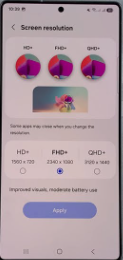
- The S25 Ultra’s QHD+ (3120×1440) AMOLED display defaults to FHD+ (2340×1080) to save battery. To get the sharpest text and video, go to Settings > Display > Screen resolution > QHD+.
- Set Motion smoothness to “Adaptive” (120Hz) for silky scrolling. “Standard” is 60Hz but saves a bit of battery.
- d) Edge Panels
-
Swipe from the right edge of the screen to reveal a customizable drawer of apps, contacts, tools, and smart select. If you don’t use it, disable it in Settings > Display > Edge Panels to clean up the gesture area.
- e) Battery & Charging
- Enable fast charging: Settings > Battery > Charging settings > Fast charging, Super fast charging, and Fast wireless charging toggles (all on by default, but verify).
- Enable “Protect battery” to cap charging at 85% for maximum battery lifespan.
S Pen Mastery
S Pen Mastery: Hidden Powers of the Stylus
- The S Pen is what separates the Ultra from every other phone. Most users barely scratch the surface.
- S Pen Air Actions (Gesture Remote)
- Remove the S Pen and hold down the S Pen button while making gestures in the air:
- Swipe left/right: Navigate gallery or music tracks.
- Swipe up/down: Scroll or browse.
- Draw a circle: Zoom in or out in the camera app.
- Draw a checkmark or back arrow: Customizable actions in Settings > Advanced Features > S Pen > Air Actions.
- Screen-Off Memo (Write Without Unlocking)
- When the phone is locked, pull out the S Pen. The screen lights up in black-and-white note mode. Write directly on the screen, then click “Save in Notes” or push the S Pen back in to auto-save. Perfect for quick capture.
- Smart Select (Extract Text, GIFs, and More)
- Open the Edge Panel (swipe from the right edge) with the S Pen or tap the floating Air Command icon. Choose “Smart Select.” Draw a rectangle around anything on screen to:
- Extract unselect able text (even in images) and copy/paste it.
- Create a high-quality GIF of a video playing.
- Pin a snippet as an always-on-top floating window.
- S Pen Remote Camera Shutter
- Open Camera app, remove S Pen. Press the S Pen button once to take a photo, twice to switch cameras. Great for group shots and tripod use.
Camera & Photography
Camera & Photography: Getting the Most from the 200MP Sensor
- The S25 Ultra’s camera system is arguably the most powerful on any phone. But the default settings don’t always use its full potential.
- Quick Camera Access
- Double-press the Side Key to instantly open camera (even when locked).
- Volume keys can act as shutter, zoom, or record (Settings > Camera > Shooting methods).
- Choosing the Right Resolution
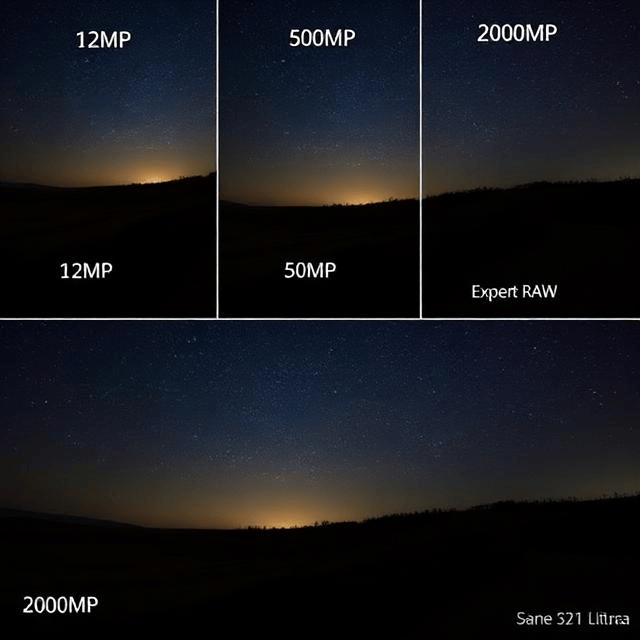
- 200MP mode: Only available in good light. Produces enormous detail but large file sizes and slower processing. Use for landscapes and daylight architecture.
- 50MP mode: A sweet spot for everyday shots—much more detail than 12MP, with faster capture and manageable file size.
- 12MP mode: Default. Uses pixel-binning for the best low-light performance and HDR. Use for quick snaps, indoor, and night.
- Switch modes quickly via the camera toolbar at the top of the viewfinder.
- Expert RAW (Pro Photography)
- Download the Expert RAW app from Galaxy Store (free). It unlocks 16-bit RAW images, advanced astrophotography mode (10+ minute exposures of stars), and multi-exposure merging. A must for serious photographers.
- Video Pro Tips
- 8K video: Use 30fps for smooth motion; the phone can extract 33MP stills from 8K video.
- Director’s View: Shows a live preview from all rear cameras simultaneously. You can switch feeds while recording like a multi-cam studio.
- Portrait Video: Adds adjustable background blur to video at 4K 30fps.
Battery Optimization
Battery Optimization: How to Actually Extend Screen-On Time
- The S25 Ultra has a 5500 mAh battery, but power users can still drain it by mid-afternoon. These settings make a real difference.
- Effective Battery-Saving Tweaks
- Dark Mode: OLED displays save energy when showing black. Enable in Settings > Display > Dark mode. Schedule it from sunset to sunrise.
- Display timeout: Set to 1 minute or less (Settings > Display > Screen timeout).
- Always On Display (AOD): Tap to show (instead of always on) saves significant idle drain.
- Background usage limits: Settings > Battery > Background usage limits > put unused apps into deep sleep. They won’t wake up and drain power until you open them again.
- Performance profile: Settings > Battery > Performance profile > select “Light” (limits peak CPU slightly but improves battery without noticeable slowdown in everyday apps).
- Adaptive Battery: Keep enabled. It learns your app usage and restricts unused apps.
- Charging Habits for Long Battery Health
- Use “Protect battery” (85% limit) if you charge overnight every night.
- Use 45W Super Fast Charging 2.0 for quick top-ups; heat is managed well.
- Wireless charging is convenient but generates more heat. Use it for overnight slow charging with a fan-cooled pad if possible.
One UI 7 Hidden Features
- Samsung’s One UI 7 (based on Android) is packed with niche but brilliant features.
- Quick Share & Private Share
- Quick Share works like AirDrop, sending files to nearby Galaxy devices, other Androids via link, or even Windows PCs.
- Private Share allows time-limited, read-only shares of sensitive files (encrypted, expiring after 48 hours by default).
- Modes and Routines (Automation Genius)
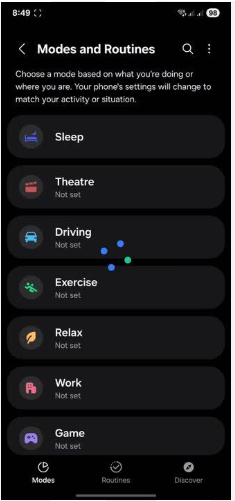
- Settings > Modes and Routines. Automate almost anything:
- “If Wi-Fi connects to Office WIFI, then set sound to vibrate, disable AOD, and open Slack.”
- “If battery drops below 30% and it’s after 10 PM, turn on Power saving.”
- “If connected to car Bluetooth, open Spotify and max media volume.”
- Dual Messenger
- Settings > Advanced Features > Dual Messenger. Install a second copy of WhatsApp, Telegram, or Facebook, letting you run two accounts on the same phone simultaneously.
- Secure Folder
- A separate, encrypted container for apps, photos, and files. Set up in Settings > Security and Privacy > Secure Folder. It’s like having a second private phone inside your phone. No one can access it without a separate PIN/fingerprint.
- Pop-Up View and Split Screen
- Swipe from the top corners inward to turn any app into a pop-up window.
- Or, open recent apps, tap the app icon, and choose “Open in split screen view” to run two apps simultaneously.
How to Restart, Reset, and Enter Recovery Mode
- Force Restart (Phone Frozen or Unresponsive)
- Press and hold the Side Key + Volume Down together.
- Keep holding for about 10–12 seconds until the screen goes black and the Samsung logo appears.
- Release. This does not erase any data.
- Factory Reset (Erase Everything)
- Settings > General Management > Reset > Factory Data Reset.
- You’ll need your PIN/password and Samsung Account credentials if Factory Reset Protection is on.
- Alternative: Power off phone. Connect to PC, hold Volume Up + Side Key to enter Recovery Mode, then select “Wipe data/factory reset.”
- Safe Mode (Diagnose Problem Apps)
- If your phone is crashing, freezing, or battery is draining suspiciously fast, boot into Safe Mode to disable all third-party apps temporarily.
- Turn off the phone. Press and hold the Power button until you see the Samsung logo, then immediately press and hold the Volume Down button. Keep holding until the home screen appears. “Safe mode” watermark will appear in the corner.
- If the problem stops in Safe Mode, a downloaded app is the culprit. Delete recently installed apps one by one.
9. Troubleshooting Common Galaxy S25 Ultra Problems
| Problem | Fix |
|---|---|
| S Pen not connecting / Air Actions not working | Reinsert S Pen fully and wait 5 seconds. Or go to Settings > Advanced Features > S Pen > 3-dot menu > Reset S Pen. |
| Camera lag or shutter delay | Turn off “Scene optimizer” and “Auto HDR” in Camera settings. Clear camera app cache. |
| Overheating when gaming | Lower game resolution in Game Booster settings (pull down from top during game). Use a cooling case if needed. |
| Fingerprint scanner slow | Delete and re-register fingerprints. Register the same thumb twice for accuracy. Enable “Touch sensitivity” if using a screen protector. |
| 5G battery drain | Switch to 4G when not needing high speed: Settings > Connections > Mobile networks > Network mode > LTE/4G. |
| Bluetooth stuttering | Reset network settings: Settings > General Management > Reset > Reset Wi-Fi and Bluetooth settings (re-pair devices afterward). |
Quick Reference
Quick Reference: Essential Gestures and Shortcuts
| Action | How |
|---|---|
| Screenshot | Side Key + Volume Down |
| Extended screenshot | After capture, tap the scrolling arrow icon |
| Open camera | Double-press Side Key |
| Open Bixby/Google Assistant | Long-press Side Key (or swipe from bottom corners) |
| Force restart | Hold Side Key + Volume Down ~12 secs |
| One-handed mode | Swipe down on the gesture bar at bottom (or double-tap Home button if using buttons) |
| Quick app switch | Swipe left/right on gesture bar at bottom |
| Pop-up view | Swipe from top corner inward |
| Screen-off memo | Pull out S Pen on locked screen and write |
| Multi-window | Recent apps > tap app icon > Split screen |
FAQs
Q: Where can I find the official Samsung Galaxy S25 Ultra manual?
A: Samsung provides a digital manual on their website and within the Settings app (Settings > Tips and user manual). This guide complements it with hidden features and practical tips.
Q: How do I reset my Galaxy S25 Ultra?
A: For a soft reset (force restart), hold Side Key + Volume Down for about 12 seconds until the phone restarts. For a factory reset, go to Settings > General Management > Reset > Factory Data Reset.
Q: How do I use the S Pen as a camera remote?
A: Open the Camera app, take out the S Pen, and press the S Pen button once to capture a photo or twice to switch cameras.
Q: How do I extend battery life on the S25 Ultra?
A: Lower screen resolution to FHD+, enable Dark Mode, set AOD to tap-to-show, put unused apps into deep sleep, and turn on Protect battery to limit charge to 85%.
Q: Does the Galaxy S25 Ultra support wireless charging?
A: Yes, it supports Fast Wireless Charging 2.0 (up to 15W) and Wireless Power Share, allowing you to charge other devices (like earbuds) on the back of the phone.
Final Word
Samsung’s official documentation is scattered across webpages, buried in settings, and often too technical. This Samsung Galaxy S25 Ultra manual is your one-stop resource for the real-world use of your phone—from the S Pen’s most brilliant hidden gestures to the battery tweaks that actually work. Bookmark it, share it, and reference it whenever you need a quick fix or a new trick.
Wishing you stunning photos, an S Pen that never gets lost, and battery life that lasts until you’re ready to sleep.
Explore Our Other Manuals
- iPhone 17 User Manual: Complete Guide with Hidden Features
- PS5 User Manual: Setup, Safe Mode, and SSD Install
- JBL Flip 6 Manual: Reset, PartyBoost & Button… AND MORE.
Copyright Warning
© 2026 produysmanuals.com All Rights Reserved. This Samsung Galaxy S25 Ultra manual is original content and may not be reproduced without permission. Samsung, Galaxy, S Pen, One UI, and DeX are trademarks of Samsung Electronics. This guide is unofficial and not affiliated with or endorsed by Samsung.

[…] Samsung Galaxy S25 Ultra Manual – S Pen, 200 MP Camera & Galaxy AI Explore the latest Ultra flagship with hidden S Pen features. […]
[…] Samsung Galaxy S25 Ultra Manual – S Pen, 200 MP Camera & Galaxy AI Get the most from the latest Ultra flagship with hidden S Pen features. […]
[…] Samsung Galaxy S25 Ultra Manual – S Pen, 200 MP Camera & Galaxy AI […]
[…] Samsung Galaxy S25 Ultra Manual – S Pen, 200 MP Camera & Galaxy AI Get the most from the previous Ultra with hidden features and pro tips. […]