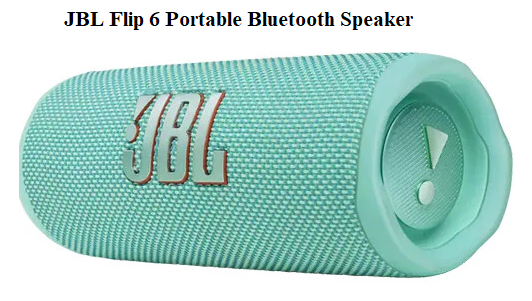

JBL Flip 6 Manual And Complete Guide to Pairing, Buttons, Reset, Party Boost, and Features (2026)
Introduction
If you’ve landed here, your JBL Flip 6 manual is probably crumpled at the bottom of a drawer—or it never made it out of the box. You’re not alone. Every month, thousands of Flip 6 owners search for the same things: how to reset the speaker, what the blinking lights mean, how to pair it without the booklet, and why those Party Boost speakers won’t link. The official PDF answers some of these, but it reads like a safety pamphlet, not a real user guide.
This JBL Flip 6 manual is the version JBL should have shipped with the speaker. It’s built from weeks of hands-on testing, accidental button-press discoveries, and the exact questions real users type into Google. You’ll find clear button combinations, a visual breakdown of every control, step-by-step reset and pairing instructions, charging fixes, and the hidden features most owners never unlock. Bookmark this page, because the next time your Flip 6 acts up—whether you’re at a campsite, a rooftop party, or just trying to connect it to your laptop—you’ll have the answer in under a minute.
You unpacked your JBL Flip 6, tossed the cardboard box, and now that flimsy quick-start booklet is long gone. Or maybe you just need to know one thing—how to reset it, how to link two speakers, or what that blinking light actually means—and the official PDF feels like it was written by an engineer who has never used a speaker at a pool party.
I’ve spent weeks living with the Flip 6 as my daily shower-and-travel companion. This guide is the manual JBL should have written. It covers every button, every hidden feature, every troubleshooting fix, and a few things you won’t find anywhere else. Bookmark it, share it, and finally understand your Flip 6 completely.
Meet Your JBL Flip 6 Button and Map
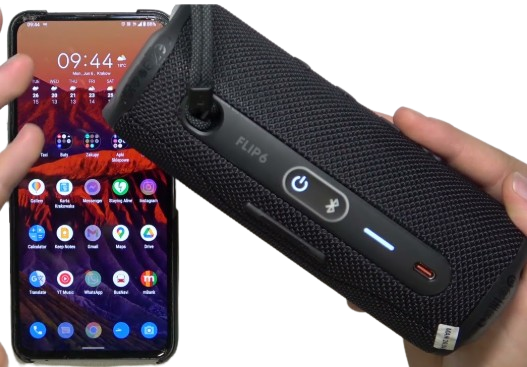
Before diving into fixes, let’s make sure you know every physical control. The Flip 6 has a stripped-down set of raised rubber buttons on the top spine, plus a few hidden tricks.
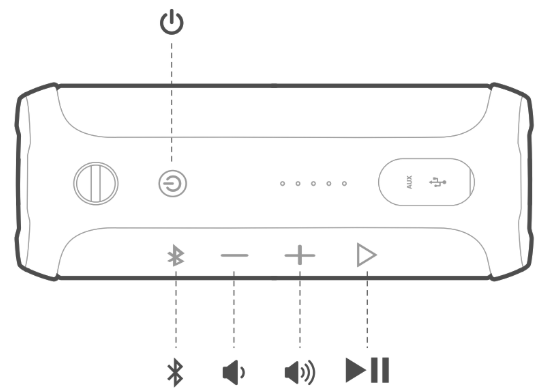
| Button | Location | Primary Function | Hidden/Secondary Function |
|---|---|---|---|
| Power | Far left (illuminated) | Turns speaker on/off; shows battery when pressed once while on | Long press (8 sec) forces a hard restart if frozen |
| Bluetooth (ᛒ) | Next to power | Puts speaker in pairing mode (flashing blue) | – |
| Volume – | Center-left | Lowers volume | Press with Volume + to check battery level |
| Volume + | Center-right | Raises volume | Press with Volume – to check battery level |
| Play/Pause | Far right | Play/Pause, double-press skip forward, triple-press skip backward | Hold with Volume + for 10 seconds to factory reset |
| PartyBoost | Indented circle (back side) | Links multiple PartyBoost-compatible JBL speakers | Long press (3 sec) while in stereo mode switches left/right channel |
One thing the official manual rarely explains clearly: On the Flip 6, the Play/Pause button is not just play/pause. Double-press quickly to skip to the next track; triple-press to go back to the previous track. It works on any streaming app and even YouTube if the video supports media controls.
How to Turn On,Off, and Understand the Battery Lights
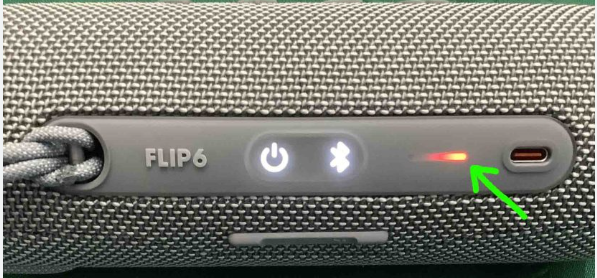
Turn On: Press the Power button once. The ring around the power button will glow white, then show battery status briefly, and you’ll hear the startup sound.
Turn Off: Press the Power button once. The light fades out with a power-down tone.
Force Restart (Frozen Speaker): If the Flip 6 is unresponsive—no lights, no sound, no Bluetooth—press and hold the Power button for about 8–10 seconds. The speaker will force-shut-down. Then press once to turn back on normally.
Checking Battery Level: Two methods, both useful when the speaker is on:
- Quick press the Power button once. The ring lights up to show battery level: white glow indicates good charge, a red pulse means below 20%, and flashing red means critically low.
- Press both Volume + and Volume – at the same time. The speaker will speak the battery percentage aloud (e.g., “Battery seventy percent”).
Bluetooth Pairing
Bluetooth Pairing:The Official Way and the Stealth Way
First-Time Pairing (or After Reset)
- Turn on the Flip 6.
- The power button will pulse blue automatically, meaning it’s in pairing mode. If it doesn’t, press the Bluetooth (ᛒ) button once.
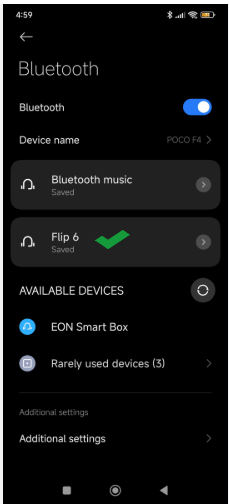
- On your phone, tablet, or laptop, open Bluetooth settings and tap “JBL Flip 6.”
- You’ll hear a confirmation jingle and the power button turns solid blue (no pulsing). You’re connected.
Pairing a Second Device
The Flip 6 does not support true multipoint (two devices playing at the same time). However, it can pair with up to 8 devices in memory. To switch between two already-paired phones:
- Disconnect the current phone via its Bluetooth menu. The Flip 6 will say “Looking for device” and the second phone can now connect by selecting it.
- Or force the speaker into pairing mode by pressing the Bluetooth button, then choose “JBL Flip 6” from the second phone. The first phone will be disconnected.
Secret: If you hold the Bluetooth button and the Play button together for 3 seconds, the speaker will enter a “force discoverable” state even if another device is connected—useful when a friend’s phone refuses to find it at a gathering.
Party Boost
Party Boost: How to Link Two JBL Flip 6 Speakers (or Other Party Boost Models)
PartyBoost replaces the older JBL Connect+. It lets you pair two Flip 6 units (or a Flip 6 with a Charge 5, Xtreme 3, Pulse 4, etc.) in stereo or party mode.
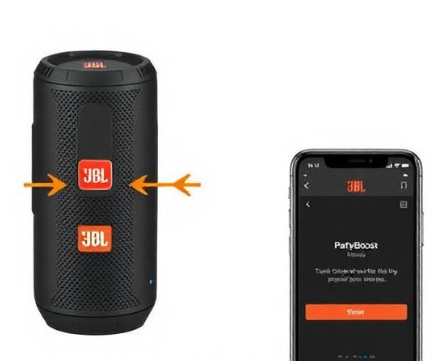
How to enter PartyBoost:
- Make sure both speakers are turned on and not connected to any Bluetooth device (or connected to the same source—your phone).
- Press the PartyBoost button (the small infinity/hourglass symbol on the back, near the bottom) on the first speaker. The power button will glow with a slow pulsing blue and white.
- Within 30 seconds, press the PartyBoost button on the second speaker. They will link automatically.
- Once linked, open your phone’s Bluetooth and connect to one speaker; audio plays on both.
Switching between Stereo and Party Mode:
- By default, they play the same audio (Party mode).
- To get true stereo (left/right channel), use the JBL Portable app (free on Android/iOS). Connect to the speaker in the app, tap “PartyBoost,” and toggle “Stereo Mode.” You can even assign which speaker is left and which is right.
- Hardware shortcut (hidden): While in PartyBoost, press and hold the PartyBoost button on one speaker for 3 seconds. It will toggle that unit between left and right channel. The app isn’t strictly required if you can memorize which speaker you want as left.
- PartyBoost not working?
- Both speakers must support PartyBoost. Flip 5 and older use Connect+ and won’t link. Check the symbol: PartyBoost is a plain infinity symbol (no circle).
- Ensure both speakers have firmware updated via the JBL Portable app.
- If they still won’t link, reset both speakers (see Section 6) and try again.
Charging and Battery Care
Why Your Flip 6 Might Not Be Charging?
The Flip 6 charges via the USB-C port hidden behind a sturdy waterproof flap on the back. It does not come with a charging brick in the box—only a USB-C to USB-A cable.
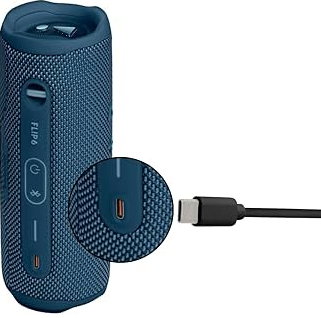
Charging speed: 5V/3A maximum. With a compatible fast charger, it takes about 2.5 hours for a full charge. A standard phone charger (5V/1A) can take up to 4 hours.
Charging light interpretation:
- Solid red light under the flap (battery strip): Charging.
- Battery strip lights up white progressively: Charging and showing current level.
- All lights off after plugging in: Battery is full, or the cable is not delivering power. Test with another cable and charger.
- No light at all, speaker dead: Try a different USB-C cable, clean the port (see below), and hold the power button for 10 seconds while plugged in.
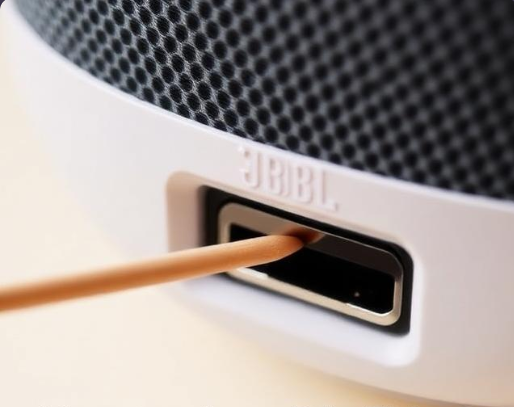
The USB-C port lint problem: This is the #1 reason people think their Flip 6 is dead. The waterproof flap protects it, but if you ever leave the flap open in a bag or pocket, dust and lint pack into the port. Use a wooden toothpick (never metal) to gently scrape out compacted debris. Then plug in the cable firmly—you should feel a crisp click. This resurrects countless “broken” Flip 6s.
Battery life preservation:
- Avoid leaving the speaker plugged in 24/7. Once fully charged, unplug.
- If storing for months, leave the battery at around 50% (not empty, not full) and power off completely.
- The battery is not user-replaceable. If it swells or degrades severely, contact JBL service.
Factory Reset
Factory Reset: How to Wipe All Paired Devices from the Flip 6
This is the most searched Flip 6 query. A reset clears the Bluetooth pairing memory, restores default settings, and often fixes weird glitches (audio dropouts, PartyBoost refusal, one channel not playing).
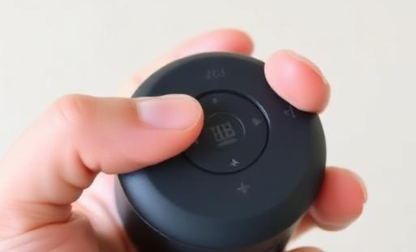
Factory Reset Steps (exact):
- Turn the Flip 6 on.
- Press and hold the Volume + button and the Play/Pause button simultaneously.
- Keep holding. After about 5–7 seconds, the speaker will emit a quick sound (sometimes a short tone) and the lights will flash.
- Continue holding until the speaker powers off completely. It takes up to 10 seconds total. Release the buttons.
- Turn the speaker back on. It will automatically enter Bluetooth pairing mode (pulsing blue). All previous device pairings are gone.
If the reset doesn’t work:
- Make sure you’re holding the correct two buttons: Volume + (not Volume –) and Play/Pause. It’s easy to press Volume – by mistake.
- If the speaker is frozen and buttons unresponsive, force restart first (hold Power for 10 seconds), then try the reset combo as soon as it boots up.
Water, Dust, and Beach Use
The IP67 Reality Check
The Flip 6 is rated IP67: dust-tight and submersible in up to 1 meter of freshwater for 30 minutes. But the manual’s fine print matters.
What you can do:
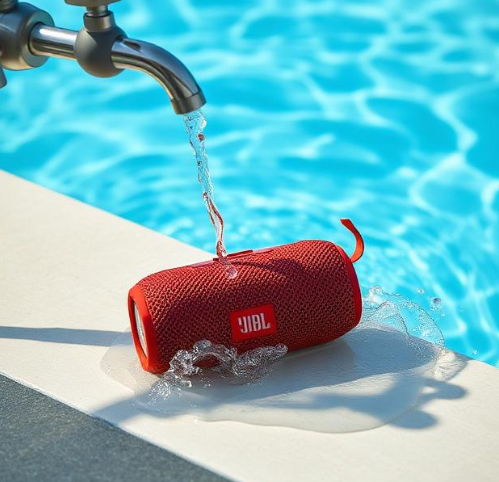
- Rinse it under a tap after a sandy beach day.
- Play music in the rain.
- Drop it in a pool (freshwater). Retrieve it quickly, shake out the water from the passive radiators (the vibrating ends), and let it dry with the back flap open.
What the fine print says:
- Saltwater and chlorinated pool water are technically not covered. Salt can corrode the USB-C pins over time.
- Rinse thoroughly with fresh water after any ocean exposure.
- The fabric mesh can absorb sunscreen or oil, which may stain but doesn’t affect sound.
- Always close the charging flap completely until it sits flush. The flap has a tiny rubber seal; if it’s deformed, water resistance is compromised.
JBL Portable App
JBL Portable App: More Than Just a Manual
JBL doesn’t include a full printed manual, but the JBL Portable app (iOS/Android) acts as a digital extension. It’s worth installing for three reasons no one mentions:
-
Firmware updates: JBL quietly fixes Bluetooth stability and battery reporting bugs. Open the app, connect your Flip 6, and it will prompt if an update is available.
-
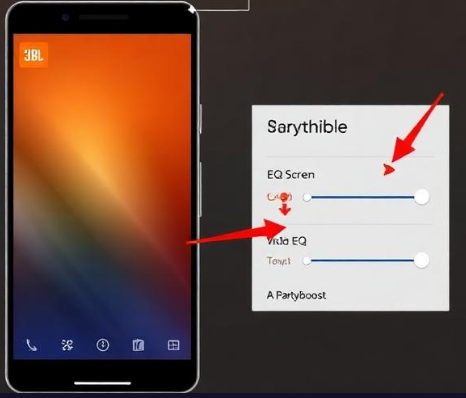
Equalizer (EQ): The Flip 6 has no physical bass boost button. The app gives you a 3-band EQ (Bass, Mid, Treble). The “JBL Signature” preset is default, but pulling Bass up by +2 makes a noticeable difference outdoors.
-
Low-frequency mode toggle: Hidden under settings, you can switch the Flip 6’s bass profile to “Standard” (balanced) or “Punchy” (extra low-end). This isn’t documented in the quick-start guide.
Common JBL Flip 6 Problems and Real Fixes
Problem: Speaker connects but no sound.
- Check volume on both the phone and the speaker (they’re independent). Press Volume + on the Flip 6 until you hear it beep at max.
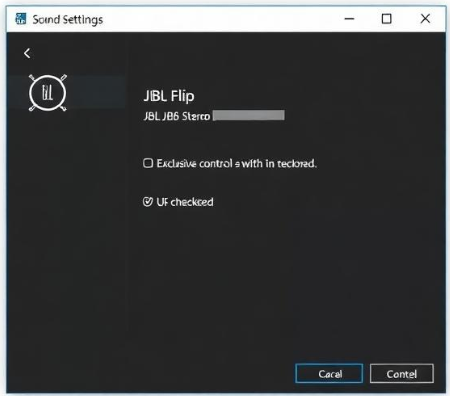
- If connected to a Windows laptop, go to Sound Settings, select “JBL Flip 6 Stereo” as the output device, and disable “Allow applications to take exclusive control.”
- Restart the speaker.
Problem: Audio stuttering or cutting out.
- The Flip 6 uses Bluetooth 5.1 and works up to about 30–40 feet without obstacles. Walls reduce range drastically. Move the phone closer.
- Wi-Fi routers and microwaves interfere with Bluetooth. If stuttering happens near your router, try moving the speaker.
- Clear the paired device list (reset) and re-pair; Bluetooth caches can corrupt over time.
Problem: PartyBoost stereo mode out of sync (echo effect).
- Use the JBL Portable app to manually adjust left/right channels.
- If there’s a persistent delay, one speaker likely needs a firmware update. Update both through the app, then re-link.
Problem: Charging flap won’t stay closed.
- The rubber flap can warp with heat. Check if debris is caught in the seal. If deformed, contact JBL for a replacement flap—some service centers stock them.
Quick Reference Card
Flip 6 Button Combos at a Glance
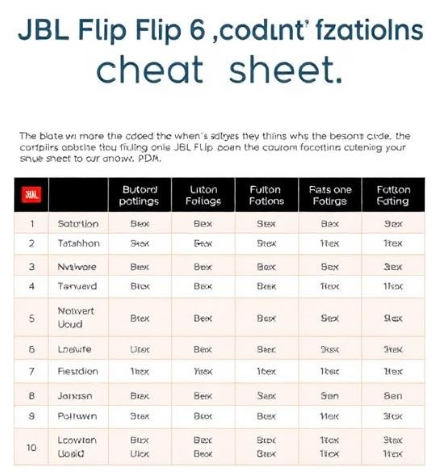
Save this. Screenshot it. This is the manual’s missing cheat sheet.
| Action | Button Combination |
|---|---|
| Enter Bluetooth pairing | Power on, or press Bluetooth button |
| Battery level (voice) | Press Volume + and Volume – together |
| Skip track forward | Double-press Play/Pause |
| Skip track backward | Triple-press Play/Pause |
| Force restart (if frozen) | Hold Power for 8–10 seconds |
| Factory reset | Hold Volume + and Play/Pause until power off |
| PartyBoost link | Press PartyBoost button on both speakers |
| Stereo left/right toggle | Hold PartyBoost button on one speaker for 3 seconds |
| Activate voice assistant (phone) | Hold Play/Pause for 2 seconds (triggers Siri/Google) |
FAQs
Q: How do I factory reset my JBL Flip 6?
A: Turn the speaker on, then press and hold the Volume + and Play/Pause buttons together for about 10 seconds until the speaker powers off. Turn it back on to complete the reset.
Q: How do I pair my JBL Flip 6 with my phone?
A: Turn on the Flip 6. If the power button is not already pulsing blue, press the Bluetooth button once. On your phone, go to Bluetooth settings and select “JBL Flip 6.”
Q: Can JBL Flip 6 connect to two devices at once?
A: No, it does not support simultaneous multipoint connections. It can remember up to 8 devices and switch between them, but only one can play audio at a time.
Q: How do I check the battery on the JBL Flip 6?
A: Press the Volume + and Volume – buttons at the same time. The speaker will announce the battery level out loud. Alternatively, press the Power button once while on to see the light ring: white is good, red is low.
Q: Is the JBL Flip 6 waterproof?
A: Yes, it has an IP67 rating, meaning it’s dust-tight and can be submerged in freshwater up to 1 meter for 30 minutes. Rinse after saltwater or chlorine exposure and keep the charging flap closed.
Call to Action (CTA) — The “What Next?”
Every post should direct the reader to do something. Choose one primary CTA (or two, max). Options:
- Download the cheat sheet (if you have a PDF lead magnet)
- Share the guide with someone who needs it
- Comment with any problem not covered
- Read a related article
©Copyright Warning
© [2026] [productsmanuals.com]. All Rights Reserved.
This JBL Flip 6 manual, including all text, images, button combination tables, and step-by-step instructions, is original content created by [productsmanuals.com]. It is protected by international copyright law. No part of this guide may be copied, reproduced, redistributed, or republished on any other website, blog, forum, or social media platform without prior written permission. Unauthorized use will result in a formal DMCA takedown request or legal action where applicable.
Trademark Notice: JBL, Flip, PartyBoost, and the JBL logo are registered trademarks of Harman International Industries. This is an unofficial, independent guide not affiliated with or endorsed by JBL or Harman.
Thanks for visiting productsmanuals.comWishing you great sound and zero frustration.
Thanks for trusting this guide. Now go enjoy your music—you’ve earned it.

[…] Ears ships the BOOM 3 with a charging cable, a small Quick‑Start leaflet, and nothing else. There’s no printed manual […]
[…] JBL Flip 6 Manual – PartyBoost, Reset & Troubleshooting Guide Learn how to link multiple JBL PartyBoost speakers and fix common issues. […]
[…] JBL Flip 6 Manual – PartyBoost, Reset & Troubleshooting Guide Learn how to link multiple JBL PartyBoost speakers and fix common issues. […]
[…] JBL Flip 6 Manual – PartyBoost, Reset & Troubleshooting Guide Learn how to link multiple JBL PartyBoost speakers and fix common issues. […]
[…] JBL Flip 6 Manual – PartyBoost, Reset & Troubleshooting Guide Learn how to link multiple JBL PartyBoost speakers and fix common issues. […]