
EcoFlow RIVER 2 Pro EFR620 Manual – Specs, Features,& Troubleshooting Guide
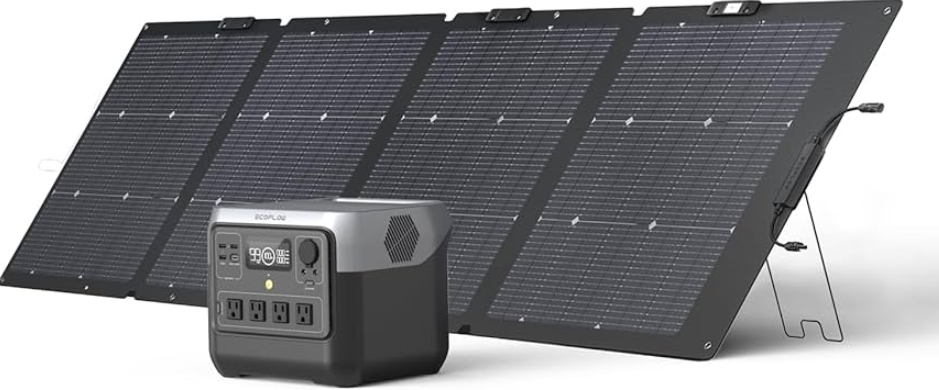
Introduction
The EcoFlow RIVER 2 Pro packs a 768 Wh LiFePO₄ battery, an 800 W AC inverter, and a fast recharge time into a portable unit you can take camping or use at home during a blackout. EcoFlow ships it with an AC charging cable, a DC car charging cable, a solar‑to‑XT60 adapter, and a Quick‑Start leaflet. The printed guide covers only basic button functions. Many owners search for an “EcoFlow RIVER 2 Pro manual” because they need help understanding the display icons, connecting solar panels, or clearing the “overload” warning. This guide explains every specification, feature, and common problem in plain, practical language.
Full Specifications
| Specification | Detail |
|---|---|
| Model | EFR620 (RIVER 2 Pro) |
| Battery Chemistry | LiFePO₄ (Lithium Iron Phosphate), 3,000+ cycles to 80% capacity |
| Capacity | 768 Wh (40 Ah at 19.2 V) |
| AC Output | 800 W continuous (1,600 W surge / X‑Boost up to 1,000 W for heating appliances) |
| AC Outlets | 3 × pure sine wave AC outlets (110 V/60 Hz or 220 V/50 Hz depending on region) |
| USB‑A Output | 2 × USB‑A (5 V/2.4 A, 12 W max each) |
| USB‑C Output | 1 × USB‑C (100 W PD, bi‑directional) |
| DC Output | 1 × car cigarette‑style port (12.6 V/10 A, 126 W max), 2 × DC5521 barrel ports (12.6 V/3 A each) |
| AC Charge Input | 940 W max (0‑100% in about 60 minutes) |
| Solar Charge Input | 11‑50 V/13 A, 220 W max (XT60 connector) |
| Car Charge Input | 12 V/24 V, 100 W max |
| UPS Mode | Switchover time ≤30 ms (pass‑through / EPS) |
| App Control | EcoFlow app (Wi‑Fi 2.4 GHz + Bluetooth) |
| Display | LCD showing input/output watts, battery %, time remaining, icons |
| Weight | 7.8 kg (17.2 lbs) |
| Dimensions | 27.0 × 25.6 × 22.0 cm (10.6 × 10.1 × 8.7 in) |
| Operating Temperature | 0–45°C (32–113°F) charging, -10–45°C (14–113°F) discharging |
| Noise Level | ≤30 dB (fan‑cooled, but quiet) |
| In‑the‑Box | RIVER 2 Pro unit, AC charging cable, DC car charging cable, solar‑to‑XT60 adapter cable, user manual, Quick‑Start Guide |
Key Features at a Glance
- LiFePO₄ Battery: Lasts over 3,000 full charge cycles before dropping to 80% capacity. That’s roughly 10 years of daily use. It’s also safer and more heat‑tolerant than standard lithium‑ion batteries.
- X‑Boost Mode: Powers devices up to 1,000 W (e.g., a small kettle, hair dryer, or coffee maker) by reducing voltage slightly. Enable it in the EcoFlow app under Settings > X‑Boost. It’s on by default.
- Fast AC Charging: Recharges from 0 to 100% in about 60 minutes when plugged into a wall outlet. The fan runs during this time to keep the unit cool.
- UPS / EPS Mode: Plug the unit into a wall outlet and plug a device (e.g., CPAP or router) into the unit. If the grid power fails, the RIVER 2 Pro switches to battery power within 30 ms — fast enough that most devices won’t even reboot.
- Solar Ready: Connect up to 220 W of solar panels via the XT60 port. Use EcoFlow’s own panels or any compatible 11‑50 V solar panel with an MC4‑to‑XT60 adapter. The built‑in MPPT controller optimises charging.
- App Control (EcoFlow): Monitor battery level, input/output watts, and turn the AC, DC, and USB ports on/off remotely. You can also update firmware and set charging limits (e.g., stop at 80% for battery longevity).
What’s Inside the Box
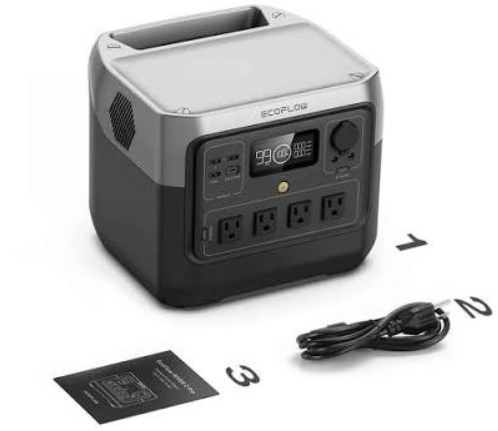
- EcoFlow RIVER 2 Pro portable power station (with an internal handle and a colour LCD screen)
- AC charging cable (heavy‑duty, with a special 3‑prong connector)
- DC car charging cable (cigarette lighter plug to XT60)
- Solar‑to‑XT60 adapter cable (MC4 to XT60)
- User manual and Quick‑Start Guide
No solar panels are included. No wall charger brick is needed; the AC charging circuit is built into the unit.
Understanding the LCD Display and Ports
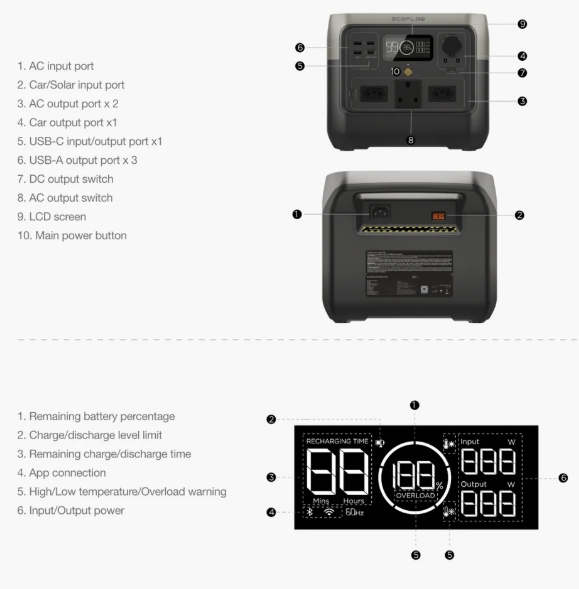
The front panel has an LCD display, three physical buttons, and all output ports.
- Display: Shows battery percentage (large number), total input watts (IN), total output watts (OUT), estimated time remaining (to empty or to full), and icons for active AC, USB, DC, fan, and Wi‑Fi/Bluetooth.
- Main Power Button (round, illuminated): Press once to wake the display. Press and hold for about 3 seconds to turn the unit on or off. The button light glows white when on, and blinks during an error.
- AC Button: Press to turn the AC inverter on/off. The icon lights up when active. Turn AC off when not in use to save battery.
- DC Button: Press to turn the 12 V cigarette port and barrel ports on/off. The USB‑A and USB‑C ports are always powered when the main unit is on (they don’t have a separate button).
- Ports: Three AC outlets on the right side; car port, two DC barrel ports, USB‑A, and USB‑C on the left side. The USB‑C port is also the input for charging the unit from a USB‑C PD charger (100 W max, not the fastest method).
Charging the RIVER 2 Pro
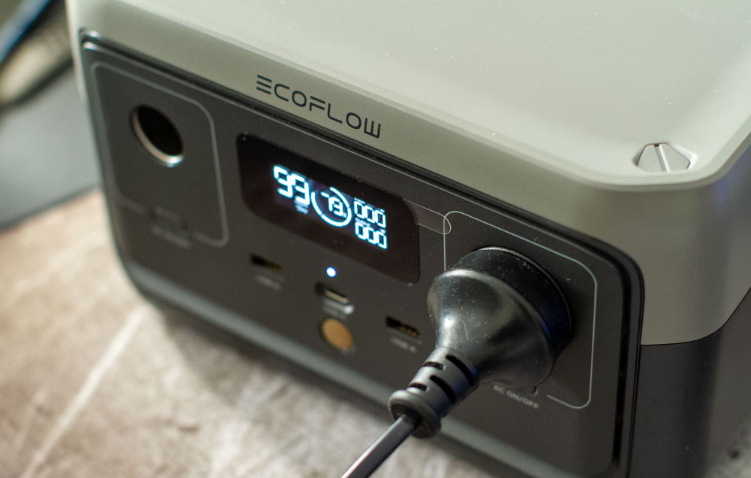
AC Wall Charging (fastest):
-
Connect the AC charging cable to the dedicated AC input socket on the back of the unit (next to the fan). Plug the other end into a wall outlet.
-
The display will show input watts climbing to around 900 W. The fan will start. A full charge takes about 60 minutes.
-
You can set a charge limit in the EcoFlow app (e.g., 80%) to extend battery life if you don’t need a full charge every time.
Solar Charging:
- Connect a solar panel’s MC4 connectors to the solar‑to‑XT60 adapter cable. Plug the XT60 end into the back of the unit (next to the AC input).
- The display shows solar input watts. Maximum solar input is 220 W, 11‑50 V. The MPPT controller automatically optimises the power.
- You can use the unit while it’s charging (pass‑through), but the battery will charge more slowly if you’re also drawing power.
Car Charging:
- Plug the car charging cable into your vehicle’s 12 V cigarette lighter socket, and the other end into the XT60 port on the back of the unit.
- The unit charges at about 100 W. Start the car engine to avoid draining the vehicle battery.
Using the AC, DC, and USB Ports
- AC Output: Press the AC button to turn on the inverter. The three outlets are pure sine wave, safe for laptops, CPAP machines, mini‑fridges, TVs, and power tools. The continuous rating is 800 W. If you plug in a device that needs more, the unit may trip and show an overload error (E101). If the device is between 800‑1,000 W, you can try X‑Boost (turn it on in the app).
- DC Output: Press the DC button to turn on the car port and barrel ports. The car port is useful for 12 V coolers, air pumps, and other accessories.
- USB Ports: Always powered when the main unit is on. The USB‑C port can output up to 100 W (enough for a laptop), and also acts as a 100 W charging input from a USB‑C PD charger. The USB‑A ports are standard 5 V.
Connecting to the EcoFlow App
- Download the EcoFlow app (iOS or Android). Create an account or sign in.
- Press and hold the main power button on the unit to turn it on. The unit broadcasts Bluetooth initially.
- In the app, tap “Add Device.” It will find the RIVER 2 Pro via Bluetooth. Select it and the app will then connect to the unit’s Wi‑Fi. If Wi‑Fi is unavailable, you can still use Bluetooth while in range.
- The app lets you: monitor battery percentage and charging/discharging watts, turn AC/DC on or off, update firmware, adjust X‑Boost and charge limits, and view error codes with descriptions.
Troubleshooting Common Issues
| Problem | Likely Cause | What to Try |
|---|---|---|
| Unit won’t turn on | Battery fully drained or BMS protection | Plug into AC power for 10 minutes to wake the battery. Then press and hold the main power button. |
| AC outlets not working | Overload or inverter off | Press the AC button. If the display shows an error, unplug all devices, turn AC off and on. Check X‑Boost settings for higher‑wattage devices. |
| Display shows “E101” | Overload (over 800 W) | Unplug the device. Reduce the load. Try X‑Boost if the device is between 800‑1,000 W. Restart the unit. |
| Display shows “E201” | Overtemperature | Move the unit to a cooler location. Unplug all loads. Let it rest for 30 minutes, then restart. |
| Not charging from solar panel | Low light, or panel voltage too low | Ensure the panel is in full sun. The input voltage must be between 11‑50 V. Check the cable connections. |
| App cannot connect to unit | Wi‑Fi or Bluetooth issue | Turn on Bluetooth and ensure the phone is near the unit. If Wi‑Fi is set up but not connecting, restart both the unit and the router. |
| Fan runs loudly | Normal during fast charging or heavy loads | The fan is temperature‑controlled. It will slow down once the unit cools. Ensure the air vents are not blocked. |
| Unit turns off unexpectedly | Low battery protection, or idle timeout | Charge the battery. In the app, check the Auto‑off settings (you can set the unit to turn off after a period of no load). |
How to Reset and Restart
Restart: Press and hold the main power button for about 3 seconds to turn the unit off. Wait 5 seconds, then press and hold again to turn it back on.
Factory reset (clear Wi‑Fi and app pairing): Press and hold the DC button and the USB button (the small button below the USB‑C port) simultaneously for about 10 seconds until the display flashes. Release. The unit will restart and all network settings will be cleared. You’ll need to re‑pair it in the app.
BMS reset (if battery seems frozen): Plug the unit into AC power for 10 minutes. This sometimes wakes up a deeply discharged battery management system.
Quick Reference Card
| Task | How |
|---|---|
| Turn AC on | Press the AC button |
| Check battery level | Look at the display, or open the EcoFlow app |
| Reset Wi‑Fi | Hold DC + USB button for 10 seconds |
| Activate X‑Boost | EcoFlow app > Settings > X‑Boost |
| Charge via USB‑C | Plug a 100 W PD charger into the USB‑C port |
| Use as UPS | Plug unit into wall, plug device into unit |
Official EcoFlow Support and Manuals
For warranty, spare parts, and the official PDF manual, visit: https://www.ecoflow.com/support
Frequently Asked Questions
- Can I use the RIVER 2 Pro while it’s charging?
Yes, pass‑through charging is supported. You can plug devices into the unit while it’s being charged from AC or solar. The unit will prioritise the load, and remaining power goes to the battery. However, UPS mode works best when the unit is plugged into AC and your device is plugged into the unit. - What is the lifespan of the battery?
The LiFePO₄ battery is rated for 3,000 cycles to 80% capacity. If you use one full cycle per day, it will last over 8 years. Even after that, the battery remains usable, just with reduced capacity. - Can I charge the unit with a third‑party solar panel?
Yes, as long as the panel’s open‑circuit voltage is between 11‑50 V and you use an MC4‑to‑XT60 adapter. The maximum solar input is 220 W. Connecting a panel with a higher voltage could damage the unit. - How do I store the RIVER 2 Pro if I’m not using it for a few months?
Charge or discharge the unit to about 60‑80%. Store it in a cool, dry place (0‑30°C). Every 3 months, recharge it to 60‑80% to keep the battery management system active. Do not store it fully drained. - What devices can I run and for how long?
A rough estimate: laptop (60 W) for about 10 hours, mini‑fridge (50 W) for 12 hours, CPAP (40 W) for 15 hours, 32″ TV (50 W) for 12 hours. Multiply device wattage by hours needed, then compare to 768 Wh × 0.85 (efficiency). The display shows estimated run time. - Is the unit noisy?
The fan runs during fast AC charging and heavy AC loads. It’s about as loud as a laptop fan (≤30 dB). In UPS mode or under light loads, the fan is often off or very quiet. - Can I daisy‑chain two RIVER 2 Pro units?
No, you cannot connect them in series or parallel. You can use them independently, or use an EcoFlow Smart Generator or extra battery with specific models (the RIVER 2 Pro does not support expansion batteries). - What is X‑Boost and when should I use it?
X‑Boost reduces the voltage slightly to allow higher‑wattage heating devices (like a kettle, hair dryer, or coffee maker) to run even if they’re rated above 800 W (up to 1,000 W). Enable it in the app. It’s on by default. It may not work with sensitive electronics. - How do I update the firmware?
The EcoFlow app will notify you of firmware updates. With the unit connected to Wi‑Fi, tap the update notification and follow the prompts. Do not turn off the unit during the update. - Can I use the USB‑C port to charge the unit?
Yes, the USB‑C port supports 100 W Power Delivery input. This is a slow charge compared to AC (full charge takes about 8 hours via USB‑C), but it’s useful if you only have a USB‑C laptop charger. - What happens if I overload the AC output?
The unit will display an error code (E101) and shut off the AC inverter. Unplug the device, press the AC button twice to reset, and plug in a lower‑wattage device. The overload protection prevents damage. - Is the unit safe to use indoors?
Yes, it doesn’t produce fumes. Keep it in a well‑ventilated area and ensure the air vents are not blocked. It’s safe for apartments, RVs, and camping tents.
Other Manuals You May Like
If this guide was helpful, here are a few more popular manuals from productsmanuals.com that you might find useful:
- iPhone 16 – Settings, Camera & Hidden Features Manual
Master Dynamic Island, Action button, and battery‑health tricks. - Samsung Galaxy S24 Ultra – S Pen, Galaxy AI & Pro Camera Guide
Get the most from the 200 MP sensor, Circle to Search, and DeX mode. -
Automatically switch between vacuuming and mopping with smart retraction.
- Haier Super T3 AC – Remote, Self‑Clean & Error Codes Guide
Cool efficiently and fix blinking lights with simple steps.
Browse all guides at productsmanuals.com .
Copyright Warning ⚠
Copyright 2026 productsmanuals.com All rights reserved. This EcoFlow RIVER 2 Pro EFR620 manual is original content and may not be copied, republished, or redistributed without written permission. EcoFlow, RIVER, and the EcoFlow logo are trademarks of EcoFlow Inc. This guide is unofficial and not affiliated with EcoFlow.
