
Why This Manual Matters
Apple ships the iPhone 14 with a USB‑C to Lightning cable, a SIM tool, and a tiny safety leaflet. There’s no printed manual that explains Face ID, the Action mode in the camera, how to extend battery health, or what to do when an app freezes. Millions of people still use the iPhone 14 every day, and many search for an “iPhone 14 manual” because the official guide is a technical PDF that doesn’t answer real‑world questions. This companion fills that gap. It’s written in plain language, based on daily use, so you can master your phone without frustration.
What You’ll Find Inside the Box
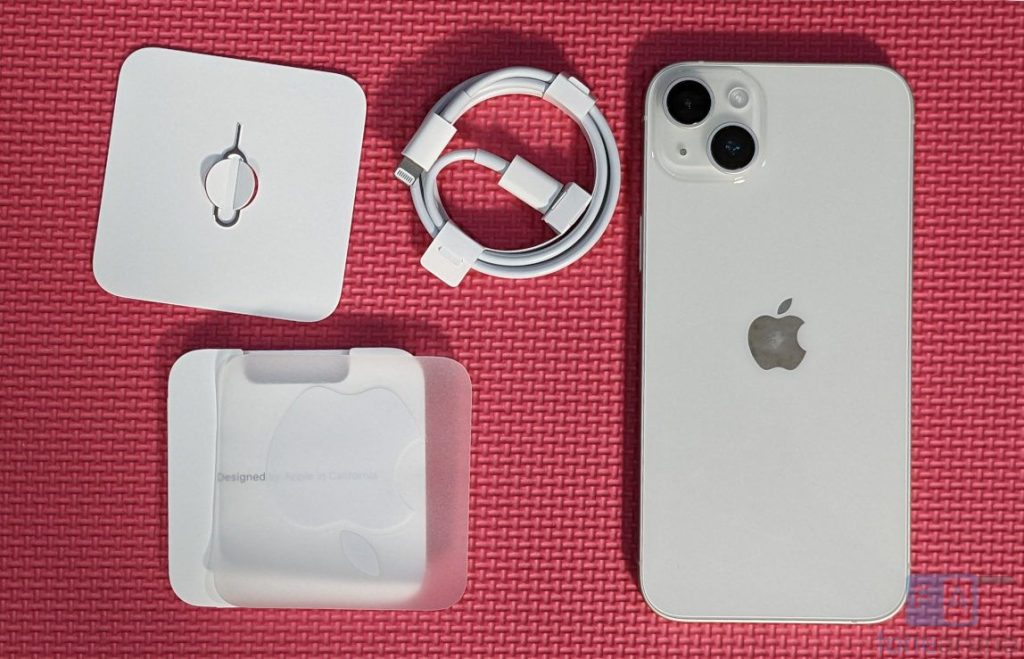
Your package includes:
- The iPhone 14 (with a pre‑applied screen protector film)
- A USB‑C to Lightning charging cable (braided)
- A SIM ejector pin (tucked into the paper sleeve)
- A Quick Start Guide and warranty information
There’s no power adapter and Ear Pods in the box. You’ll need a USB‑C power adapter (20W or higher) for fast charging. The iPhone 14 also supports MagSafe wireless charging (magnetic puck sold separately).
Getting to Know the Buttons and Face ID
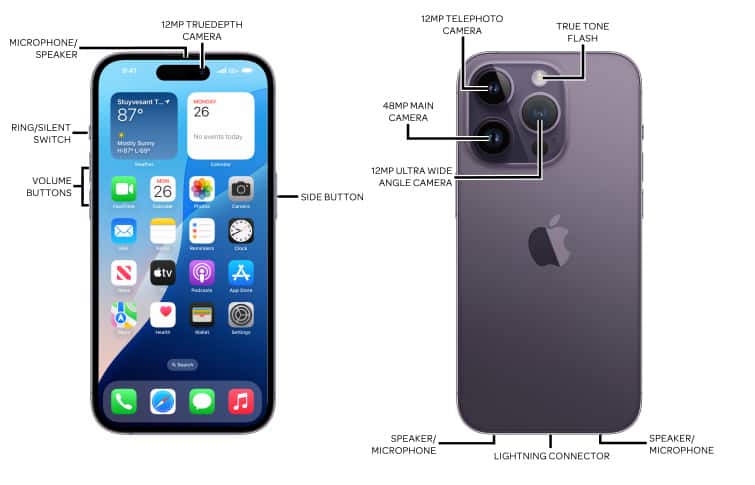
- Side button (right): Press once to wake or sleep. Press and hold to activate Siri. Double‑press for Apple Pay. Press and hold with a volume button to power off or make an emergency call.
- Volume up / down (left): Press to adjust volume. Press the volume up button to take a photo in the Camera app. Press and quickly release volume up, then volume down, then hold the side button to force a restart.
- Mute switch (above volume): Push it toward the screen to silence ringtones and alerts. Push it away from the screen to unmute.
- Face ID: The camera notch at the top of the screen scans your face. Look directly at the screen to unlock, authenticate purchases, and autofill passwords. Face ID works in the dark, with many sunglasses, and even if you grow a beard (you can add an alternate appearance).
First‑Time Setup and Settings to Change Immediately
- Press and hold the side button until the Apple logo appears. Follow the on‑screen steps to choose your language, country, and connect to Wi‑Fi.
- During setup, you can transfer data from an old iPhone wirelessly or restore from an iCloud backup. If you’re coming from Android, Apple’s “Move to iOS” app handles contacts, photos, and calendars.
- Sign in with your Apple ID (or create one). This unlocks iCloud, the App Store, FaceTime, and Find My iPhone.
Important settings to adjust after setup:
- Software Update: Go to Settings > General > Software Update. Install any pending updates.
- Face ID & Passcode: Set a six‑digit passcode. Turn on “Require Attention for Face ID” for extra security.
- Battery Health: Settings > Battery > Battery Health & Charging. Enable “Optimized Battery Charging” to reduce battery ageing.
- Display Zoom: Settings > Display & Brightness > Display Zoom — choose “Larger Text” if icons feel too small.
Camera Features That Make a Real Difference

The iPhone 14 has a dual‑camera system (12 MP Main and 12 MP Ultra Wide) with sensor‑shift optical image stabilization. Several modes are worth learning.
- Action Mode: Toggle the running person icon at the top of the screen when recording video. It smooths out heavy shakes — perfect for filming while walking or from a moving vehicle. It requires good light.
- Photographic Styles: Tap the three stacked rectangles icon, then swipe through Rich Contrast, Vibrant, Warm, or Cool. These apply a custom tone and warmth to your photos without affecting skin tones. You can set one as default in Settings > Camera > Photographic Styles.
- Cinematic Mode: Films video with a shallow depth of field and automatically shifts focus between subjects. Tap the viewfinder to manually change focus. You can adjust the blur effect after recording in the Photos app.
- Night Mode: The camera automatically activates Night mode in low light. The shutter button shows a moon icon and a number of seconds. Hold still until the capture completes.
- Quick Take video: Press and hold the shutter button in Photo mode to instantly record a video. Release to stop. No need to switch to video mode.
Battery Life and Power Management
- All‑day battery: The iPhone 14 lasts up to 20 hours of video playback. Real‑world use typically gives a full day.
- Charging: Supports 20W wired fast charging (about 50% in 30 minutes with a 20W USB‑C adapter) and up to 15W MagSafe wireless charging.
- Low Power Mode: Settings > Battery > Low Power Mode (or add it to Control Center). This temporarily reduces background activity, mail fetch, and visual effects. The battery icon turns yellow. Turn it off when you’re near a charger.
- Battery Health: Check Settings > Battery > Battery Health & Charging. “Maximum Capacity” shows the battery’s remaining health. If it drops below 80%, Apple recommends a battery replacement.
- Optimized Battery Charging: When enabled, the iPhone learns your daily routine and delays charging past 80% until you need it. This reduces battery wear if you charge overnight every night.
Hidden and Productivity‑Boosting Features
- Back Tap: Settings > Accessibility > Touch > Back Tap. Set a double‑tap or triple‑tap on the back of the phone to perform actions like screenshot, flashlight, or opening any app. It works even with a case.
- Swipe‑to‑type (QuickPath): On the standard keyboard, slide your finger from letter to letter without lifting. It’s much faster than tapping.
- Scan text (Live Text): When the camera sees text (on a sign, in a book), a small Live Text icon appears. Tap it to copy, translate, or look up the text. Works in Safari, Photos, and Camera.
- Trackpad mode on keyboard: Long‑press the space bar while typing. The keyboard turns into a trackpad, letting you precisely place the cursor.
- Focus Modes: Settings > Focus. Create custom modes (Work, Sleep, Driving) that filter notifications and home screen pages automatically. You can tie them to a schedule, location, or app.
- Emergency SOS via satellite: If you’re in a remote area with no cellular or Wi‑Fi, the iPhone 14 can connect to satellites for emergency texts. Go to Settings > Emergency SOS. The demo mode lets you practice without actually calling.
Troubleshooting Common Problems
| Problem | Likely Cause | What to Try |
|---|---|---|
| Face ID suddenly fails | Dirty or covered TrueDepth camera | Wipe the notch area with a soft, dry cloth. Remove anything covering the camera. Restart the phone. |
| iPhone won’t charge | Lint in Lightning port or faulty cable | Gently clean the port with a wooden toothpick. Try a different cable and adapter. |
| Apps keep crashing | Buggy app or low storage | Update the app in the App Store. Restart the phone. Check Settings > General > iPhone Storage and free up at least 2 GB. |
| Screen won’t rotate | Rotation lock on | Swipe down Control Center and check the rotation lock icon (circle with a lock). Turn it off. |
| Bluetooth keeps disconnecting | Interference or range | Turn Bluetooth off and on in Settings > Bluetooth. Forget the device and re‑pair. |
| Call volume is too low | Ear speaker may be dirty | Clean the receiver grill with a soft, dry brush. During a call, press the volume up button to increase. |

[…] ships the iPhone 16 with a USB‑C charging cable, a SIM ejector tool, and a small safety pamphlet. There’s no […]
[…] iPhone 14 – Settings, Camera & Hidden Features Manual Master Dynamic Island, Action button, and battery‑health tricks. […]
[…] iPhone 17 – Settings, Camera & Hidden Features Manual Master Dynamic Island, Action button, and battery‑health tricks. […]
[…] iPhone 14 – Settings, Camera & Hidden Features Manual Master Dynamic Island, the Action button, and battery‑health tricks. […]
[…] iPhone 14 Pro Max Manual – A20 Pro Performance & Battery Guide Explore the smaller Pro model with the same camera system and chip. […]