
Table of Contents
ToggleLenovo Legion Tower 5i Gen 8 Manual Setup, Vantage & Upgrade
Lenovo ships the Legion Tower 5i Gen 8 with a power cable, a quick‑start leaflet, and sometimes a keyboard and mouse. The official manual is a PDF covering multiple configurations, and it doesn’t always answer real‑world questions like “how do I change the RGB lights,” “how many SSD slots are free,” “why are my fans so loud,” or “how do I update the BIOS.” Thousands of people search for a “Lenovo Legion Tower 5i manual” every month. This companion gives you all of that in plain, practical language.
Meet the computer you can talk to
- Built for great gaming—today & tomorrow
- Battle-ready Intel® Core™ processors
- i5 Gen 8 (26L, Intel)
- NVIDIA® GeForce RTX™ 40 Series graphics
- New-look chassis with mesh-vented front bezel
- Windows is fast, powerful and more secure than ever
- Air cooling up to 180W for intense game action
- Eye-catching RGB lighting & optional glass panel
What’s Inside the Box
Your package includes:
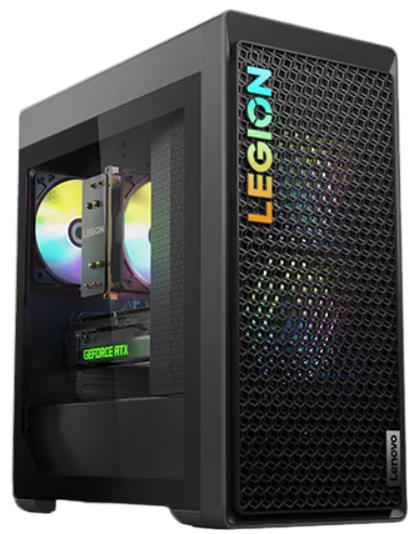
- The Lenovo Legion Tower 5i Gen 8 (model 90UT001EUS, 26‑litre chassis, dark grey/black with mesh front)
- A region‑specific power cable (standard IEC C13)
- A Quick‑Start Guide and warranty card
- Depending on your order, a wired Lenovo Legion keyboard and mouse
No monitor, HDMI/DisplayPort cable, or Wi‑Fi antennas are included. The system typically features a 13th or 14th Gen Intel Core i5/i7/i9 processor, an NVIDIA GeForce RTX 4060/4070/4080, and Windows 11 Home.
Features
Game Without Compromise. Go Beyond Performance With Intel® Core™ Processors.
Intel® Core™ processors feature newly optimized hybrid architecture and industry-leading technology that enables you to go beyond gaming and creation. With Intel, you can do it all. From progressing in-game to advancing in real life, Intel empowers you to be your best self.
Beyond fast
NVIDIA® GeForce RTX™ 40 Series GPUs are beyond fast for gamers and creators. They’re powered by the ultra-efficient NVIDIA Ada Lovelace architecture which delivers a quantum leap in both performance and AI-powered graphics. Experience lifelike virtual worlds with ray tracing and ultra-high FPS gaming with the lowest latency. Discover revolutionary new ways to create and unprecedented workflow acceleration.
Try Xbox Game Pass With Your Lenovo Legion Device
- Play Starfield, Palworld and 200+ more games on Lenovo Legion devices with Xbox Game Pass. *
A gaming PC that stays cool—like you
You can’t enter a Battle Royale with a gaming rig that’s prone to overheating. That’s why Lenovo designed the Legion Tower 5i Gen 8 with whisper-quiet air cooling rated up to 180W—plenty to keep your PC humming, even in intense sessions. The front bezel on the updated chassis is mesh vented, too, to maximize airflow while still limiting ambient noise.
Battlestation look & feel
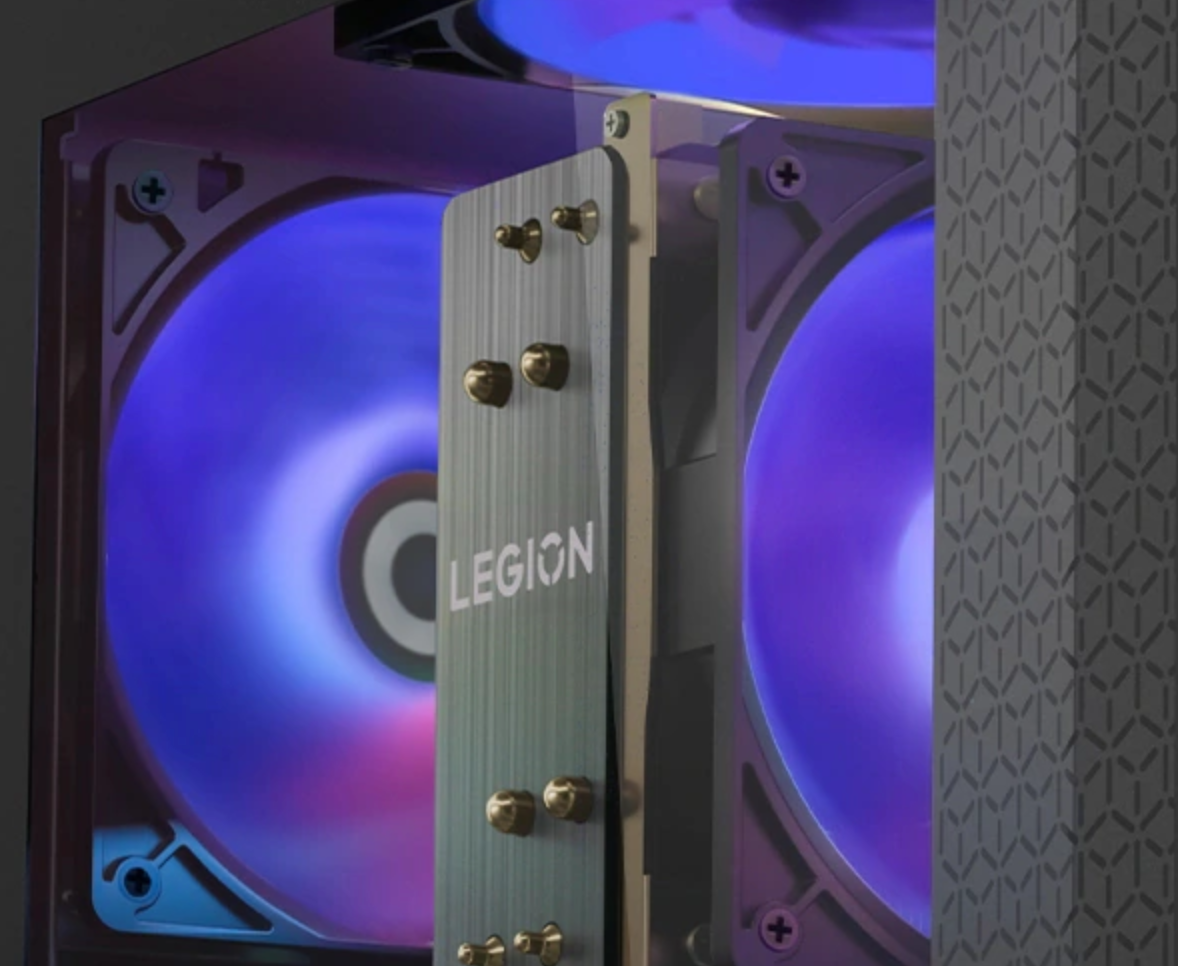
With its redesigned chassis and new internal features, the Legion Tower 5i Gen 8 is one part gaming battlestation, one part cooling station. An optional glass panel on the toolless side casing exposes the impressive internal components, including the 16.7 million-color ARBG fans. There’s a snazzy new Legion logo, too, and customizable lighting effects.
Unleashed gaming & multitasking
With ultra-fast DDR5 memory, the Legion Tower 5i Gen 8 won’t lag when game action gets intense. It’s great for multitasking, too. You can stream, record, or play music while gaming. Whether you order your rig with the maximum 32GB of RAM or use the four slots to upgrade later, this system is ready for the long haul.
Storage that can grow with you
Want snappy game loading times, quick data transfers, and faster boot-ups? Available PCIe Gen 4 SSD storage makes the Legion Tower 5i Gen 8 a virtual speed machine, so your system starts quickly and new games load with ease. Plus, if you store a lot of games, the HDD and SSD storage options are expandable up to 2TB and 1TB, respectively.
Connect at the speed of ‘now’
Without reliable, near-instant data connections, you’ll be out of the game before it starts. So Lenovo builds the Legion Tower 5i Gen 8 with multiple top- and back-facing USB ports, including an ultra-fast USB-C for reliable connectivity to peripherals that require it. Available WiFi 6E* is strong and dependable, and the advanced 2.5G ethernet port is ready for today and tomorrow.
* 6GHz WiFi 6E operation is dependent on the support of the operating system, routers/APs/gateways that support WiFi 6E, along with the regional regulatory certifications and spectrum allocation.
Immersive 3D Audio from Nahimic by SteelSeries
There’s more to gaming than See-Shoot-Score. For a truly immersive experience, Nahimic® by SteelSeries delivers 3D audio that perfectly complements the intense on-screen action of today’s top games. The Nahimic software lets you mix and share audio like a pro, and enjoy crystal-clear communication, whether for gaming or work.
Accessories with savage, stylish performance
Surround your savagely powerful Lenovo gaming rig with stylish, high-performance Legion gaming accessories. Bright, crisply-focused Legion monitors can enable more precise firing and navigation. Or add a highly-tactile keyboard, precision gaming mouse, or deeply immersive headset. We’ve even got armored bags for ultimate protection of your game gear.
Embrace the Legion Vantage
Our exclusive Legion Vantage software helps you adjust and optimize your PC settings to elevate your gaming experience and push you to victory. Capabilities range from a real-time performance dashboard to overclocking controls to AI-enhanced performance tuning, including intelligent fan controls.
Product Overview
Ports And Slots
The tower has a clean, angular design with a tempered glass side panel (on most models) and a mesh front for airflow.
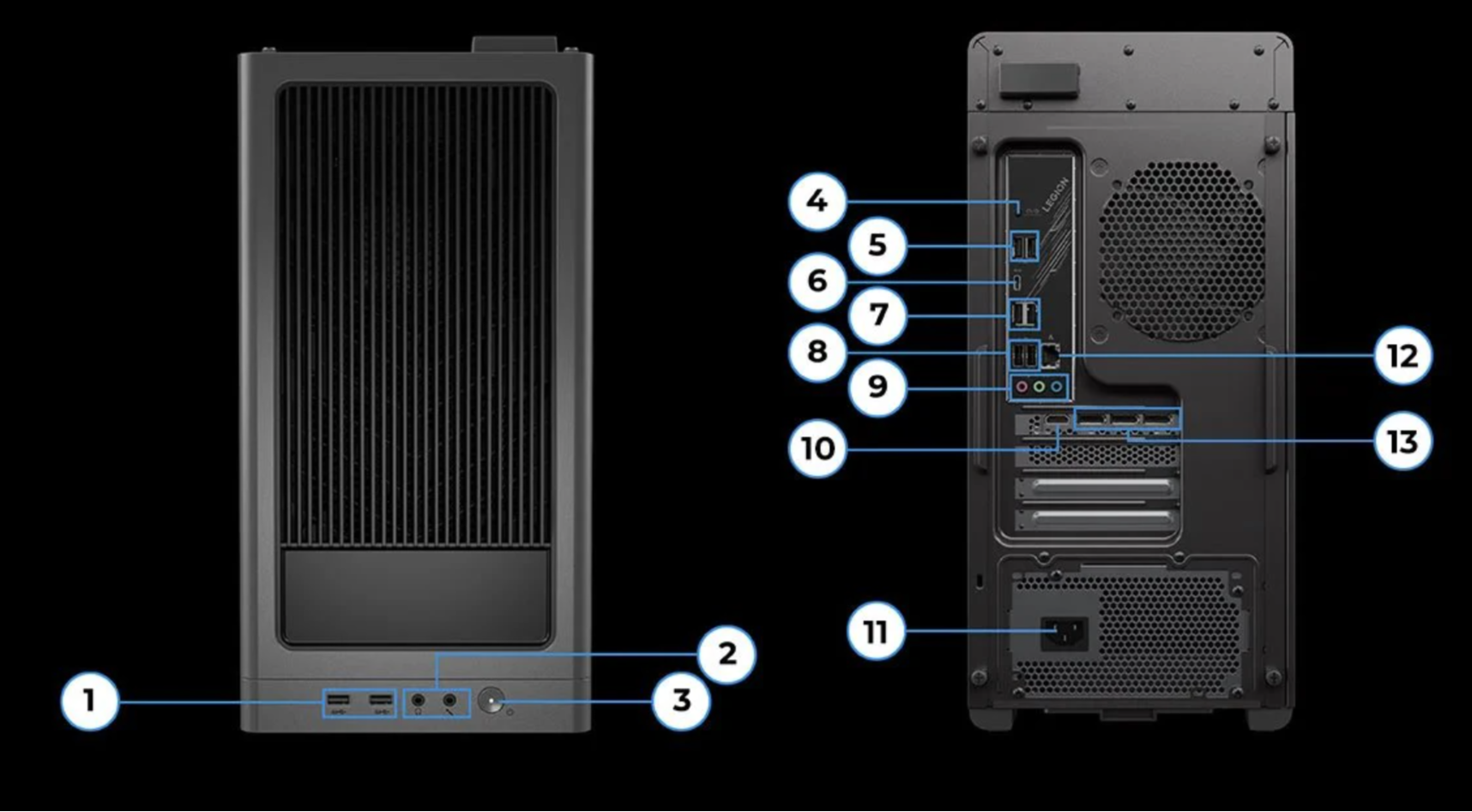
- 2 X USB-A 3.2 Gen1
- Headphone / mic combo
- Power button
- LED switch
- 2 x USB-A 3.2 Gen 2
- USB-C 3.2 Gen 2
- 2 x USB-A 3.2 Gen 1
- 2 x USB-A 2.0
- 3 x audio jacks
- HDMI 2.1
- Power supply
- RJ45
- 3 x DisplayPort™ 1.4a
Tech Specifications
Processor
- Up to Intel® Core™ i9-14900
Operating System
- Up to Windows 11 Pro
Graphics
- Up to NVIDIA® GeForce RTX™ 4070 Ti; 12GB
Memory
- Up to 32GB (2 x 16GB) 5600MHz DDR5
Storage
- Up to 2TB 3.5″ SATA HDD 7200RPM
- Up to 1TB PCIe NVMe TLC M.2 2280 SSD (Gen 4)
Power Supply
- 850W, ES Gold (RTX™ 4070 Ti SKU)
- 500W, ES Bronze
- 350W, ES Bronze
Volume
- 26L
Audio
- Nahimic® Audio for Gamers 5.1 channel surround sound
Connectivity
- Ports/Slots
- Top: 2 x USB-A 3.2 Gen 1
- Headphone / mic combo
- Rear: 1 x USB-C 3.2 Gen 2
- 2 x USB-A 3.2 Gen 1
- 4 x USB-A 2.0
- HDMI 2.1
- 3 x DisplayPort™ 1.4a
- Ethernet (RJ45)
- LED switch for ARGB lighting
- 3 x audio ports
- Top: 2 x USB-A 3.2 Gen 1
Connectivity
- Up to WiFi 6E*
- Bluetooth® 5.2
* 6GHz WiFi 6E operation is dependent on the support of the operating system, routers/APs/gateways that support WiFi 6E, along with the regional regulatory certifications and spectrum allocation.
Design
Dimensions (H x W x D)
- 425.9mm x 205mm x 396.9mm / 16.77″ x 8.07″ x 15.63″
Weight
- Starting at 16kg
Colour
- Storm Grey
Other information
- Preloaded Software
- Legion Vantage
- McAfee® LiveSafe™ (trial)
- Microsoft 365 (trial)
- Xbox Game Pass *
*Game catalogue varies. Terms and conditions apply. See xbox.com/subscriptionterms for full details
First‑Time Setup
First‑Time Startup and Windows OOBE
- Connect your monitor to the graphics card (HDMI or DisplayPort). Plug in the keyboard and mouse to any USB‑A port.
- Connect the power cable and press the front power button. The Legion logo lights up.
- The system will boot into Windows 11. Follow the on‑screen Out‑Of‑Box Experience (OOBE): select region, keyboard layout, and connect to Wi‑Fi or Ethernet. Sign in with your Microsoft account.
- Once on the desktop, immediately check for Windows updates (Settings > Windows Update) and install all pending updates. This ensures you have the latest drivers and security patches.
Lenovo Vantage Software
Lenovo Vantage comes pre‑installed. If not, download it from the Microsoft Store. It’s your central hub for system health, updates, and customization.
- System Update: In Vantage, go to System Update to automatically download and install the latest Lenovo drivers, BIOS, and firmware. Run this after first setup.
- Thermal Mode: Under Power & Performance, you can switch between Quiet (lower fan speed, reduced performance), Balanced (default, adaptive), and Performance (maximum cooling, higher clocks). The chassis fans will spin up accordingly.
- Legion RGB Control (Lighting): The front fan(s) and the Legion logo on the CPU cooler (if equipped) have RGB lighting. In Vantage, go to Lighting to pick a colour, effect (static, breathing, cycle), or turn lights off completely.
- Network Boost: Vantage can prioritize gaming traffic over other downloads. Enable it in Network > Network Boost.
Upgrading RAM, Storage, and GPU
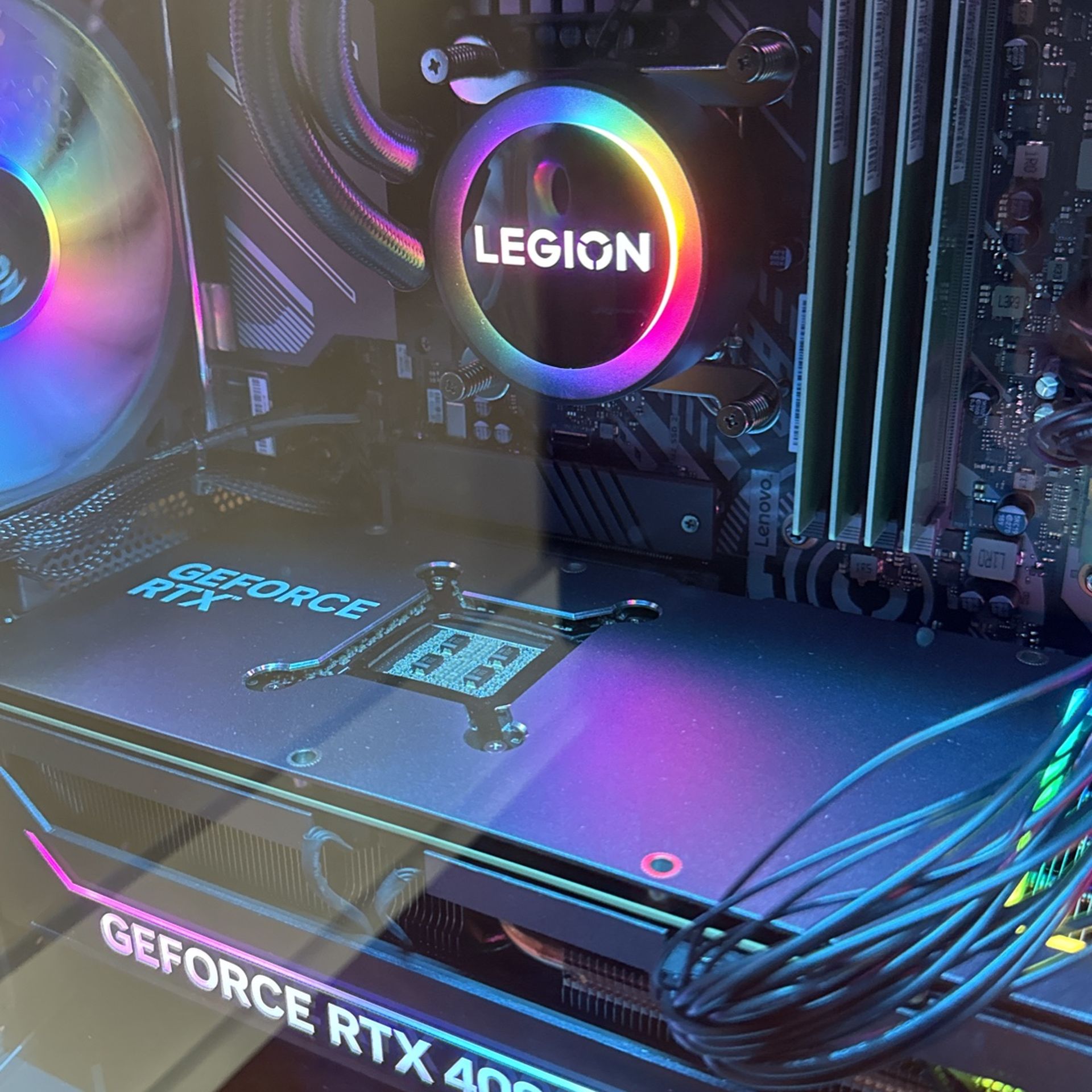
The Legion Tower 5i Gen 8 is built for easy upgrades. The tempered glass side panel comes off with two thumbscrews on the back edge.
RAM upgrade:
-
The motherboard has four DDR5 DIMM slots (two typically occupied). To add more, push the retaining clips outward on the empty slots, align the notch in the DIMM, and press firmly until clips snap in. The system supports up to 128 GB.
M.2 NVMe SSD:
-
There are two or three M.2 slots (one or two may be occupied). To add a second SSD, locate an empty slot (may be under a heatsink or labelled “SSD2”). Remove the screw, insert the new M.2 2280 NVMe drive at a 30‑degree angle, press it flat, and secure with the screw. Format the drive in Windows Disk Management.
2.5‑inch or 3.5‑inch SATA drive:
-
The chassis has a tool‑less drive cage behind the front panel. Slide a 3.5‑inch or 2.5‑inch drive into the tray, connect the SATA data cable (to the motherboard) and the SATA power cable (from the power supply). Cables are pre‑routed.
Graphics card upgrade:
- The RTX card is held by a bracket and one or two screws on the rear expansion slot, plus a PCIe latch on the motherboard. Unplug the PCIe power cables, remove the screws, press the latch, and pull the card out gently. The power supply (500W–850W depending on config) can support most modern GPUs; ensure adequate wattage and space.
Cleaning and Fan Maintenance
The mesh front panel pulls off easily to reveal a dust filter. Clean it monthly with a vacuum brush or rinse with water (dry completely before reattaching). Inside, use compressed air to blow dust off the CPU cooler and GPU fans. Hold the fans still while blowing air to prevent them from spinning.
Troubleshooting Common Issues
| Problem | Likely Cause | What to Try |
|---|---|---|
| No display | Monitor plugged into motherboard | Plug the monitor into the graphics card ports. If still no signal, reseat the GPU and check PCIe power cables. |
| Loud fans at idle | Thermal mode set to Performance or dust | Switch to Balanced mode in Vantage. Clean the dust filter and fans. |
| RGB lights not working | Lighting profile off or Vantage issue | Open Vantage > Lighting and ensure lights are enabled. Restart the Lenovo Vantage service (services.msc). |
| Wi‑Fi not showing | Wi‑Fi antenna not connected | The rear I/O has two small gold connectors (SMA) for the included Wi‑Fi antenna. Screw the antenna on; without it, Wi‑Fi and Bluetooth are extremely weak. |
| PC shuts down during gaming | Overheating or power supply overload | Monitor CPU/GPU temps in Vantage or Task Manager. Clean dust, switch to Performance mode for better cooling. If PSU is undersized, upgrade to a higher‑wattage unit. |
| Audio crackling or not working | Driver conflict or wrong output | Right‑click the speaker icon, choose Sound settings, and set the correct output (Realtek Audio). Update the Realtek driver via Vantage or Lenovo’s support page. |
How to Reset and Restart
Restart: Right‑click the Start button, select Shut down or sign out > Restart.
Factory reset (Windows): Go to Settings > System > Recovery > Reset this PC. Choose “Keep my files” or “Remove everything”. This reinstalls Windows.
Clean install Windows from USB:
- Create a Windows 11 installation USB on another PC.
- Boot from USB: restart, press F12 repeatedly during startup, select the USB drive.
- In the installer, delete all partitions on the primary NVMe drive, then install. After installation, download Lenovo Vantage from the Microsoft Store to automatically install all drivers and firmware.
BIOS access: Press F1 or F2 during startup. In BIOS, press F9 to load optimized defaults, then F10 to save and exit.
Quick Reference Card
| Task | How |
|---|---|
| Enter BIOS | Press F1 or F2 during startup |
| Boot menu | Press F12 during startup |
| Open Lenovo Vantage | Search for Vantage in Windows Start menu |
| Change RGB lights | Vantage > Lighting |
| System update | Vantage > System Update |
| Factory reset | Settings > System > Recovery > Reset this PC |
| Clean dust filter | Pull front mesh panel off, rinse or vacuum, dry |
Download the Legion Tower 5i Gen 8 Cheat Sheet
A one‑page PDF with upgrade slots, Vantage tips, and troubleshooting. Print it and keep it near your desk.
“Lenovo Legion Tower 5i Gen 8 Quick Guide (PDF)”
Official Lenovo Support and Manuals
For warranty, drivers, and the official PDF manual, visit: https://support.lenovo.com
Frequently Asked Questions
- Can I use the USB‑C port on the front for a monitor?
- No, the front USB‑C port is for data only. Connect monitors to the graphics card’s HDMI or DisplayPort outputs.
- How do I turn off the RGB lights completely?
- Open Lenovo Vantage > Lighting, and select “Off” or set brightness to zero.
- Can I add a liquid cooler later?
- Yes, the chassis supports a 240mm AIO liquid cooler on the top panel. You can replace the standard air cooler, but ensure the AIO fits in the top bracket.
- What is the maximum RAM supported?
- Up to 128 GB DDR5, across four slots. For gaming, 32 GB is plenty.
- How many monitors can I connect?
- The dedicated GPU typically supports up to four monitors (3x DisplayPort, 1x HDMI). Check your specific GPU model for exact counts.
- Is the Wi‑Fi card built in?
- Yes, it includes Wi‑Fi 6E and Bluetooth 5.3. The external antenna must be attached to the rear connectors.
- Can I use my old hard drive from a previous PC?
Yes, connect it via SATA internally, or use a USB adapter. Ensure the drive is formatted or compatible. - Why does the fan speed ramp up even when not gaming?
- Windows background tasks or default Performance mode can cause this. Switch to Balanced mode in Vantage, and check for malware or heavy background processes.
- How do I update the BIOS?
- Use Lenovo Vantage (System Update) or download the BIOS update file from Lenovo’s support page and run it from Windows.
- Can I overclock the CPU?
- If you have an unlocked “K” series Intel CPU, you can overclock using Intel Extreme Tuning Utility (XTU) or the BIOS. Legion Vantage may offer basic performance toggles but not manual overclocking.
- What power supply wattage is inside?
- It varies by configuration: typically 500W, 650W, or 850W. You can check the label on the side of the PSU inside the case.
- Does it come with a keyboard and mouse?
- Some bundles include a basic wired Legion keyboard and mouse. Check your order details.
A Note Before You Power Down
Your Legion Tower 5i Gen 8 is a well‑ventilated, upgrade‑friendly machine. Keep the dust filter clean, run Vantage updates regularly, and don’t hesitate to add more storage when those game libraries fill up. With a little care, it will stay fast and quiet for years.
Copyright warning!
Copyright 2026 productsmanuals.com All rights reserved. This Lenovo Legion Tower 5i Gen 8 90UT001EUS manual is original content and may not be copied, republished, or redistributed without written permission. Lenovo, Legion, and the Lenovo logo are trademarks of Lenovo Group Limited. This guide is unofficial and not affiliated with Lenovo.
