
Introduction
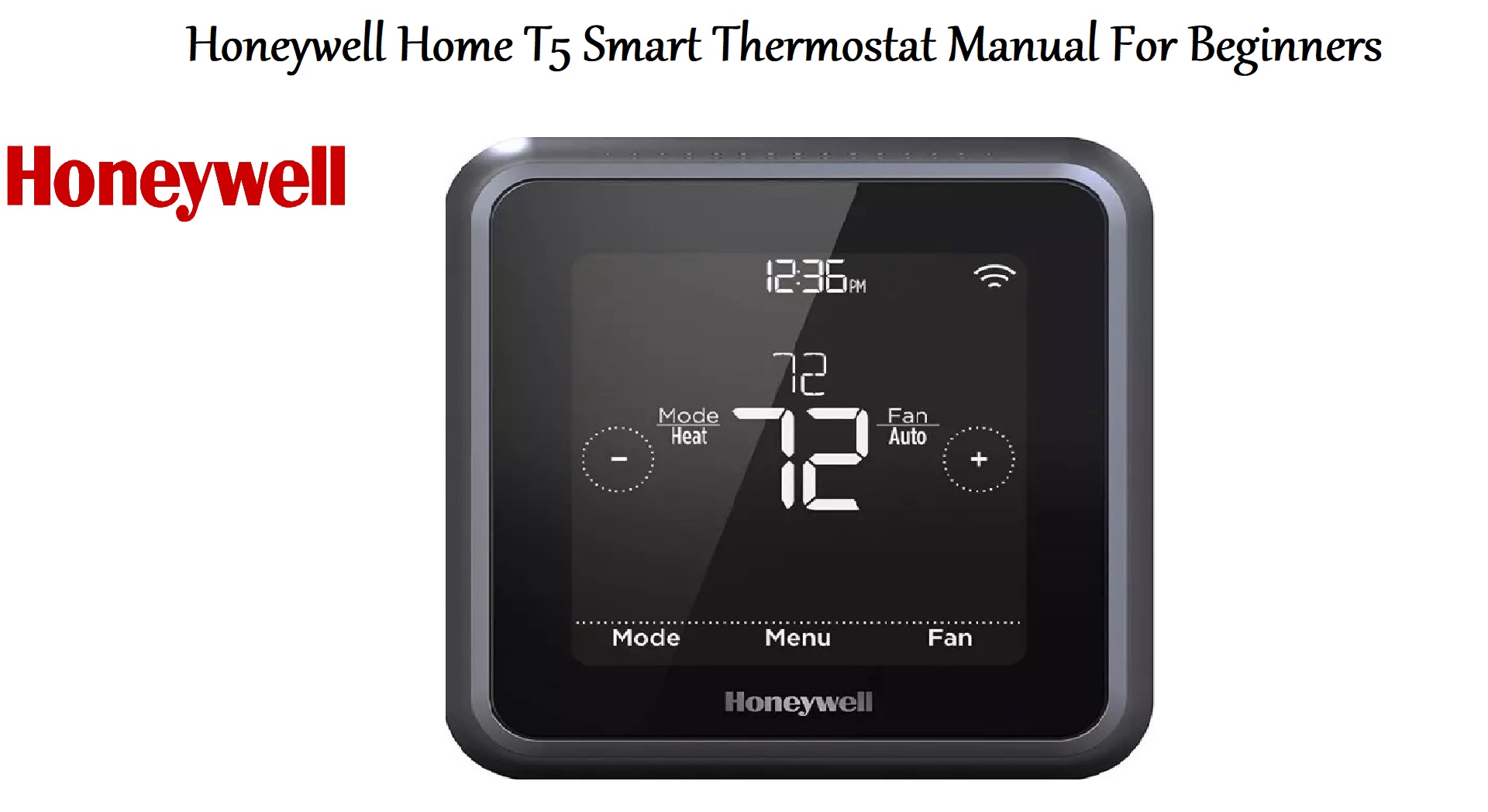
The Honeywell Home T5 Smart Thermostat (model RTH8800WF2022) is a 7‑day programmable Wi‑Fi thermostat designed to balance comfort with energy savings. It features a backlit touchscreen display, geofencing technology that tracks your smartphone to adjust the temperature when you leave and arrive, and full remote management through the Resideo app. It works with Amazon Alexa, Google Assistant, and Apple HomeKit for voice control and integrates with most low‑voltage heating, cooling, and heat pump systems. This guide covers installation, app setup, programming, and troubleshooting so you can get the most from your T5.
Product Overview
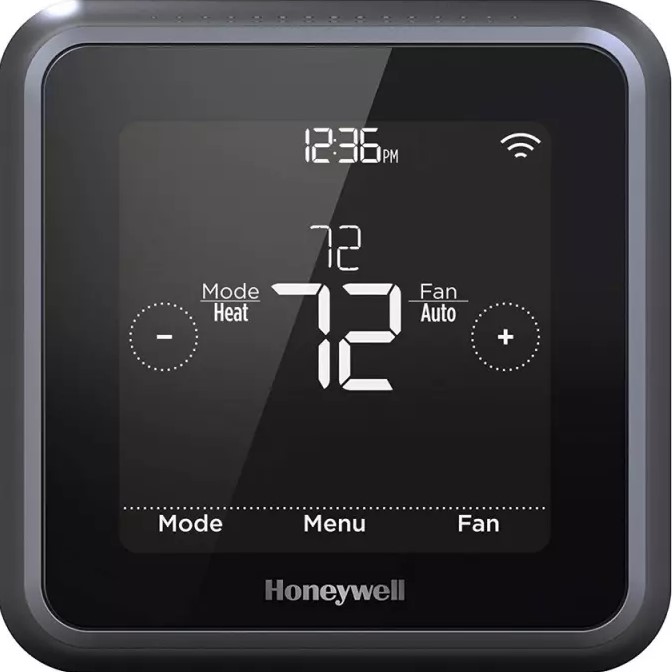
The T5 Smart Thermostat is a square, white thermostat with a 2.4‑inch colour touchscreen. It requires a C‑wire (common wire) for 24 VAC power; if your home lacks a C‑wire, a compatible power adapter (THP9045A1098) can be used. It supports up to 2 Heat / 2 Cool conventional systems and up to 3 Heat / 2 Cool heat pump systems. The thermostat connects to your home Wi‑Fi (2.4 GHz only) and is controlled via the Resideo app. It is ENERGY STAR certified and compatible with many utility rebate programs. The T5 does not support electric baseboard heat (120‑240 V) or millivolt systems.
Full Specifications
| Specification | Detail |
|---|---|
| Model | RTH8800WF2022 (Honeywell Home T5 Smart Thermostat) |
| Display | 2.4‑inch colour touchscreen, backlit |
| Programmability | 7‑day, 5‑2 day, or one‑week scheduling; 4 periods per day |
| Wi‑Fi | 2.4 GHz (802.11 b/g/n) — does not support 5 GHz |
| App | Resideo app (iOS and Android) |
| Power | 24 VAC via C‑wire (required); C‑wire power adapter available for homes without a C‑wire |
| System Compatibility | Conventional up to 2H/2C; Heat Pump up to 3H/2C |
| Not Compatible With | Electric baseboard heat (120‑240 V), millivolt systems |
| Voice Assistants | Amazon Alexa, Google Assistant, Apple HomeKit |
| Geofencing | Yes, via Resideo app |
| Smart Alerts | Filter change reminders, extreme temperature warnings |
| ENERGY STAR | Certified |
| Dimensions | 4.09″ x 4.09″ x 1.06″ (approx.) |
| In‑the‑Box | Thermostat, wall plate, screws, wire labels, C‑wire adapter (in select kits), quick start guide |
Key Features
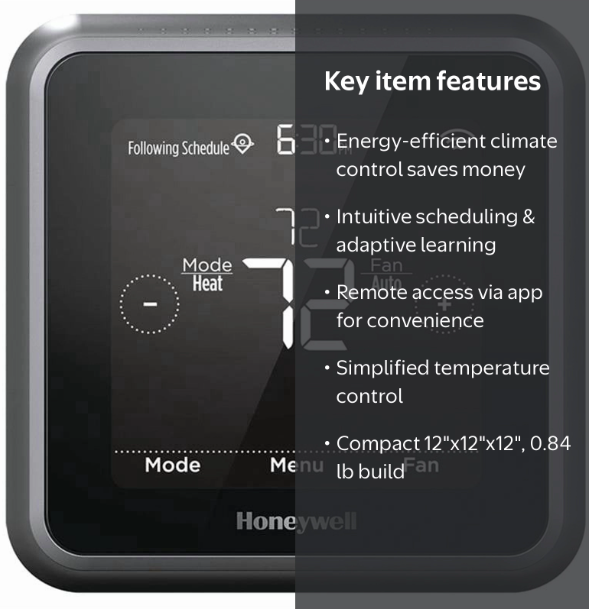
- Geofencing Technology: Uses your smartphone’s location to know when you’re away and adjusts the temperature automatically. It senses your return and starts conditioning your home before you arrive.
- Multiple Programming Options: Choose from location‑based scheduling (geofencing), smart scheduling (a mix of geofencing and time‑based), traditional time‑based scheduling (7‑day, 5‑2 day, or one‑week), or no schedule at all (manual control).
- Smart Response: Learns your heating and cooling system to deliver the desired temperature at the exact time you want it, rather than simply turning on at a set time.
- Auto Change From Heat to Cool: Automatically determines whether your home needs heating or cooling based on your set points, providing maximum comfort without manual switching.
- Smart Alerts: Sends push notifications to remind you to change your air filter and warns you if your home experiences extreme temperature spikes.
- Circulate Mode: Available under the fan settings, this feature turns on the fan for 30% of the time every hour to circulate air in your home without running the heating or cooling.
- Voice Control: Works with Amazon Alexa, Google Assistant, and Apple HomeKit. Use simple voice commands to adjust temperature or set modes.
How to Use
What’s in the Box
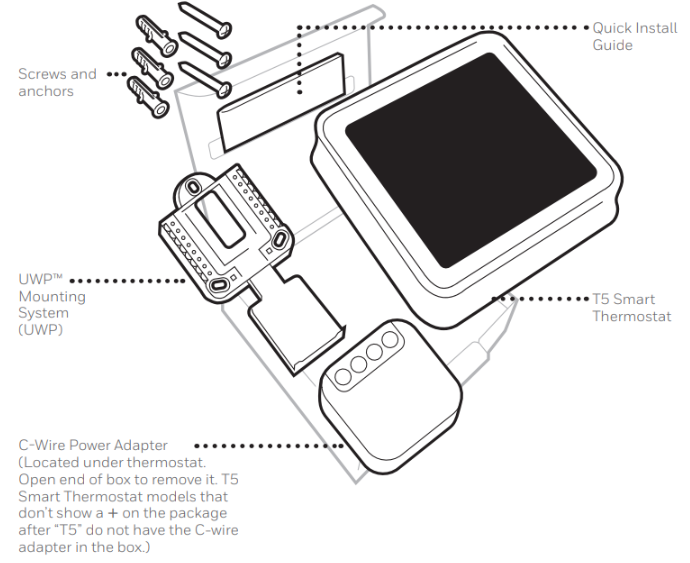
- Honeywell Home T5 Smart Thermostat
- Wall plate
- Mounting screws and anchors
- Wire labeling stickers
- C‑wire power adapter (included in select retail kits)
- Quick Start Guide and warranty card
Installation Summary
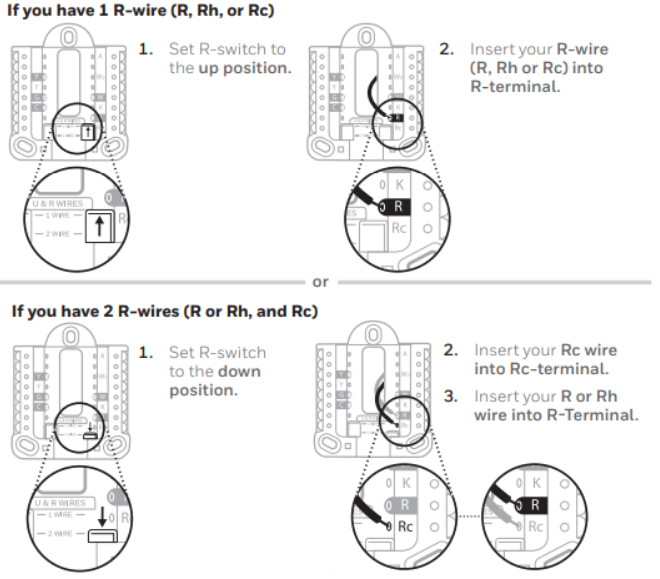
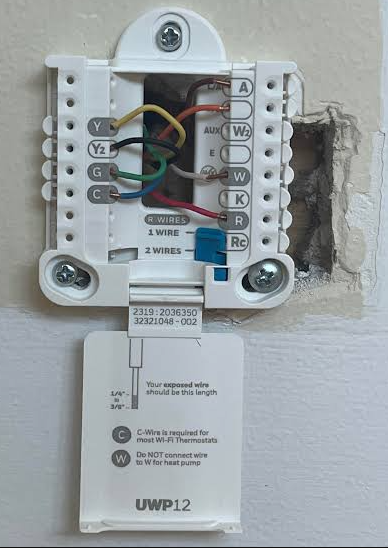
Important: Turn off power to your HVAC system at the breaker before starting. The T5 requires a C‑wire for power. If you do not have a C‑wire, use the included C‑wire power adapter or purchase one separately.
- Turn off power at the breaker box. Verify the system is off by changing the temperature on your old thermostat; if it doesn’t turn on, power is off.
- Remove the old thermostat from the wall plate. Do not remove wires yet. Take a picture of the wiring for reference.
- Label the wires using the provided stickers. Note the terminal letters and wire colours.
- Mount the new wall plate and connect the wires to the corresponding terminals on the T5.
- Attach the thermostat to the wall plate and restore power.
First‑Time Setup & Resideo App
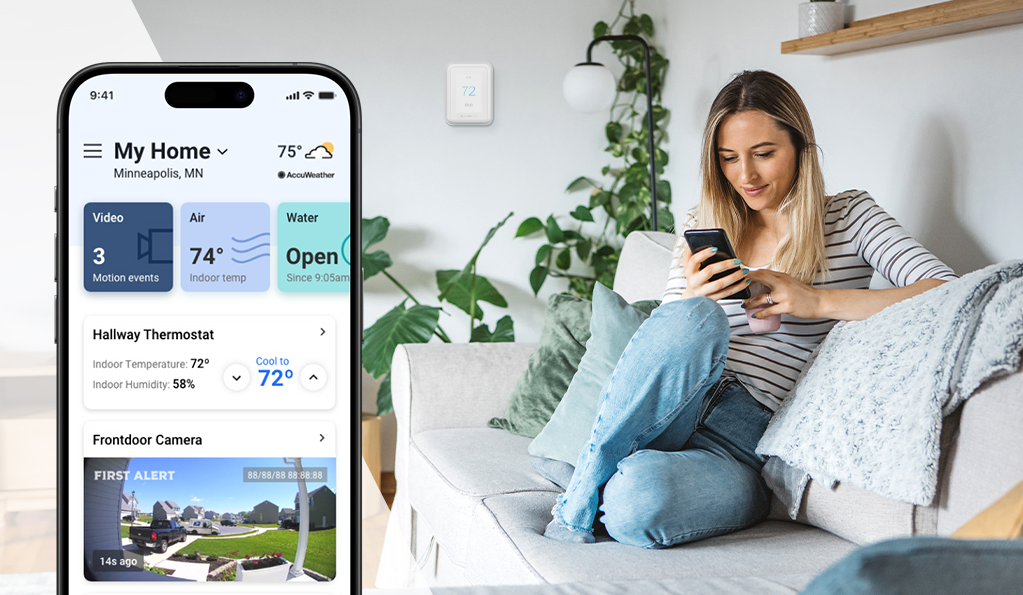
- Download the Resideo app on your smartphone (iOS or Android). Create an account or sign in.
- Connect the thermostat to Wi‑Fi. The T5 only supports 2.4 GHz networks. During setup, the thermostat will broadcast a temporary network; the app will guide you through connecting it to your home Wi‑Fi.
- Follow the in‑app prompts to name your thermostat, set your location, and configure your system type (conventional or heat pump).
- Set up geofencing in the app if you want the thermostat to adjust temperature based on your phone’s location.
- Test the system by adjusting the temperature on the thermostat or in the app to ensure heating and cooling activate correctly.
Programming Options
- Location‑Based (Geofencing): The thermostat uses your phone’s location to switch between Home and Away modes automatically. Set your preferred Home and Away temperatures in the app.
- Smart Scheduling: Combines geofencing with time‑based schedules for a flexible routine.
- Time‑Based Scheduling: Program a 7‑day, 5‑2 day, or one‑week schedule with up to four adjustable periods per day.
- Manual Control: Turn off scheduling and adjust temperature set points manually as needed.
Using the Touchscreen
- Adjust temperature: Tap the up or down arrows on the main screen.
- Change mode: Tap the mode icon to switch between Heat, Cool, Auto, Off, or Emergency Heat.
- Fan settings: Tap the fan icon to choose Auto, On, or Circulate.
- Hold: The Hold feature temporarily overrides your schedule. It activates automatically when you manually adjust the temperature while a schedule is running.
- Screen Lock: The thermostat has three settings for screen lock to prevent tampering.
Troubleshooting & Common Problems
| Problem | Likely Cause | What to Try |
|---|---|---|
| Thermostat won’t turn on | C‑wire not connected, or no power | Check that the C‑wire is securely connected. Reset the thermostat by pulling it off the wall for 1 minute, then reattaching, or turn off the furnace/AC service switch for 30 seconds. |
| Wi‑Fi connection failed | 5 GHz network, hidden SSID, or wrong password | The T5 requires a 2.4 GHz network. Ensure DHCP is enabled and SSIDs are not hidden. Reset the router and retry. |
| Sensor connection error | Sensor out of range, low battery, or pairing issue | Hold the Connect button on the sensor for 15 seconds, bring it within 2 feet of the thermostat, and try adding it again. Replace sensor batteries if needed. |
| Display is blank | Power issue or tripped breaker | Check the circuit breaker and reset if necessary. Ensure the furnace door is closed and the power switch is on. Check for fresh AA alkaline batteries if battery‑powered. |
| Geofencing not working | Location services disabled, or app permissions | Ensure the Resideo app has “Always” location permission on your phone. Check that the app is running in the background. |
| Heating or cooling not activating | System type misconfigured, or wiring issue | Verify the system type (conventional vs heat pump) in the app. Check that all wires are securely connected to the correct terminals. |
| Compressor protection delay | Normal operation after rapid cycling | The thermostat has a built‑in compressor protection delay (typically 5 minutes) to prevent equipment damage. Wait for the delay to expire. |
(FAQs)
- Does the T5 require a C‑wire?
Yes, a hardwired C‑wire (common wire) providing 24 VAC is required for the backlit display and Wi‑Fi radio. If your home lacks a C‑wire, use the compatible C‑wire power adapter. - Can I use the T5 with electric baseboard heating?
No. The T5 is designed for low‑voltage central HVAC systems only. It is incompatible with high‑voltage 120‑240 V electric baseboard heaters or millivolt systems. - Does the T5 support 5 GHz Wi‑Fi?
No. The T5 strictly requires a 2.4 GHz Wi‑Fi network (802.11 b/g/n). - How does geofencing work?
Geofencing uses your smartphone’s location via the Resideo app. When you leave a virtual boundary, the thermostat switches to Away mode to save energy. When you return, it adjusts to Home mode before you arrive. - Can I control the T5 with voice commands?
Yes. It integrates with Amazon Alexa, Google Assistant, and Apple HomeKit for simple voice control. - What is Smart Response?
Smart Response learns your heating and cooling system’s performance to deliver the desired temperature at the exact time you want it, rather than simply starting at a set time. - How do I reset the thermostat?
Pull the thermostat off the wall near its base, wait one minute, then place it back on the wall. Alternatively, turn off the service switch on your furnace or AC system for 30 seconds. - Can I use the T5 without the app?
You can control the thermostat manually using the touchscreen, but you need the Resideo app for initial Wi‑Fi setup, geofencing, and smart features.
Tips
- Use geofencing for automatic savings: Enable geofencing in the app so the thermostat automatically reduces heating or cooling when you’re away and restores comfort before you return.
- Set up Smart Alerts: Enable filter change reminders and extreme temperature warnings in the app to stay on top of maintenance and safety.
- Use Circulate mode for even temperatures: The Circulate feature runs the fan for 30% of each hour without heating or cooling, helping to distribute air evenly throughout your home.
- Keep the thermostat in a central location: Avoid placing it near drafts, direct sunlight, or heat sources for accurate temperature readings.
- Update the app and firmware: Check the Resideo app regularly for firmware updates that improve performance and add features.
Safety Information
- Electrical hazard: Turn off power at the breaker before installing or servicing the thermostat. Failure to do so can cause electrical shock or equipment damage.
- Compressor protection: The thermostat includes a compressor protection delay. Do not cycle the compressor rapidly during testing to prevent equipment damage.
- Mercury notice: If you are replacing a thermostat that contains mercury, do not dispose of it in the trash. Contact your local waste management authority for proper recycling instructions.
- C‑wire requirement: Do not attempt to power the thermostat without a proper 24 VAC C‑wire or compatible power adapter.
- Children: The thermostat is not a toy. Keep the touchscreen locked if young children are present.
Related Manuals
If this guide was helpful, here are a few more popular manuals from productsmanuals.com that you might find useful:
- Ecobee Smart Thermostat Premium Manual – Air Quality Monitoring & Smart Sensors
Explore another top smart thermostat with built‑in Alexa and room sensors. - Nest Protect S3000BWES Manual – Smart Smoke & CO Alarm Setup
Install, test, and silence false alarms with this smart detector. - Samsung Galaxy Watch 7 Manual – Health Sensors, Galaxy AI & Battery Tips
Master ECG, body composition, sleep apnea detection, and more. - LG Dual Inverter AC Manual – Remote, Self‑Clean & Error Codes
Cool efficiently and fix blinking lights with simple steps. - Dell Inspiron 15 3520 Manual – Laptop Setup, Upgrades & Troubleshooting
Upgrade RAM and SSD, and fix common performance issues.
Browse all guides at productsmanuals.com .
Official Honeywell Home Support and Manuals
For warranty, support, and the official PDF manual, visit: https://www.honeywellhome.com/support
Copyright 2026 productsmanuals.com All rights reserved. This Honeywell Home T5 Smart Thermostat RTH8800WF2022 manual is original content and may not be copied, republished, or redistributed without written permission. Honeywell, Honeywell Home, and the Honeywell logo are trademarks of Honeywell International Inc. This guide is unofficial and not affiliated with Honeywell.

[…] Honeywell T5 Smart Thermostat– Geofencing, App Setup & Scheduling Automate your home’s heating and cooling for comfort and savings. […]