
Introduction
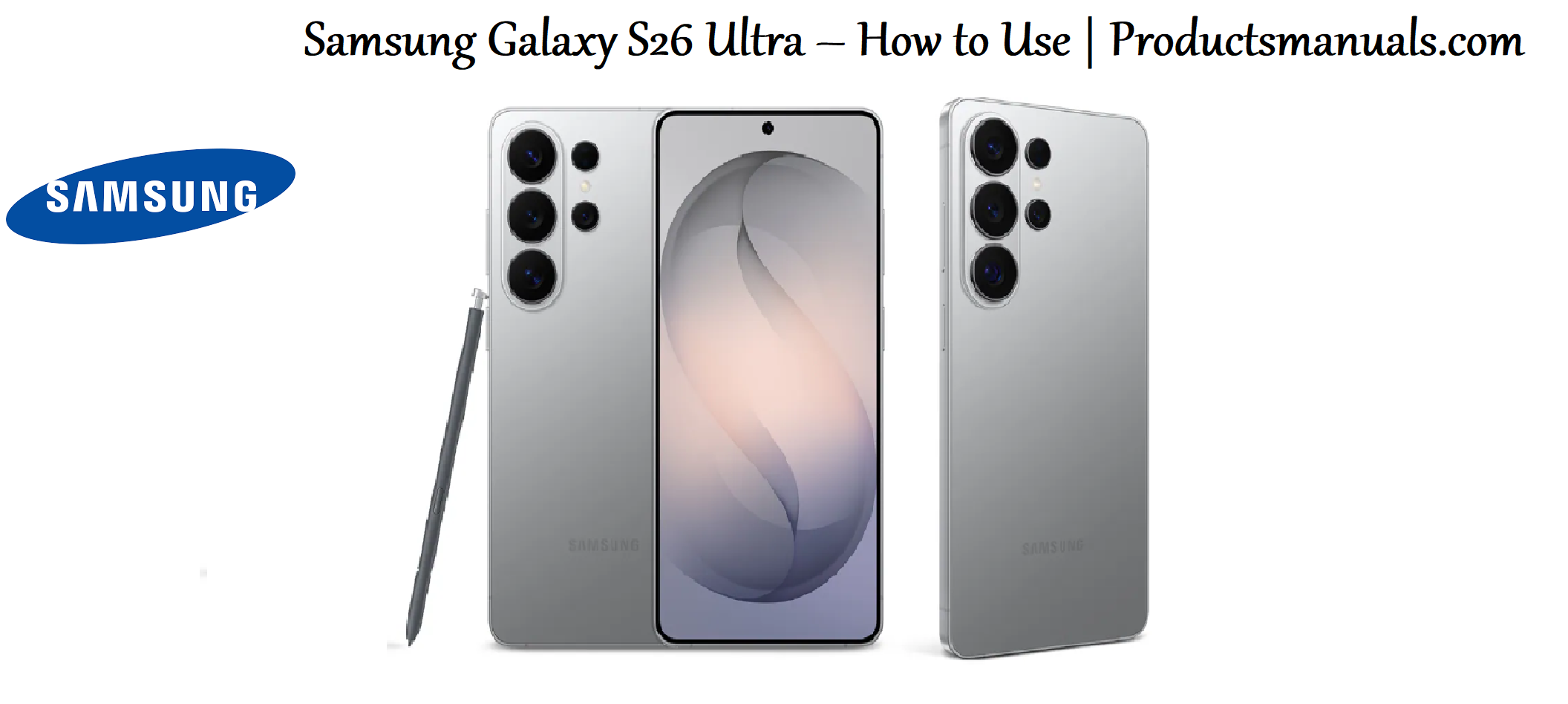
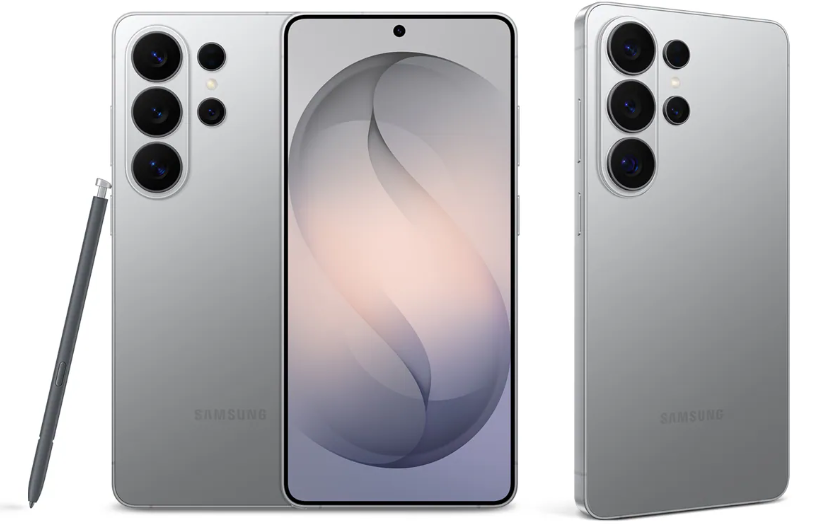
The Samsung Galaxy S26 Ultra is the most advanced Galaxy phone yet, introducing the world’s first built‑in Privacy Display, a refined 200MP camera system, and a customized processor engineered for Galaxy AI. It features a slimmer, lighter design compared to its predecessor, measuring just 7.9 mm thick and weighing 214 g. This manual covers everything from initial setup and Privacy Display configuration to S Pen features, camera tips, battery management, and troubleshooting so you can get the most from your device.
Product Overview
The Galaxy S26 Ultra is built around a 6.9‑inch Dynamic AMOLED 2X display with QHD+ resolution and a 120 Hz adaptive refresh rate. It is powered by a customized octa‑core processor with a 39% faster NPU and 24% improved GPU performance compared to the Galaxy S25 Ultra. The phone features a 200MP main camera with an f/1.4 aperture, a 50MP ultra‑wide, a 50MP 5x periscope telephoto, and a 10MP 3x telephoto lens. It has a 5,000 mAh battery with support for fast charging, and it runs One UI on Android 16. The S Pen is included and stored inside the phone, though it no longer supports Bluetooth features. The device is available in colours including Cobalt Violet, Silver Shadow, Sky Blue, White, Pink Gold, and Black.
Full Specifications
| Specification | Detail |
|---|---|
| Model | SM‑S948B (Galaxy S26 Ultra) |
| Display | 6.9‑inch Dynamic AMOLED 2X, 3120 x 1440 (QHD+), 120 Hz adaptive refresh, 16M colours |
| Processor | Octa‑core, up to 4.74 GHz, customized for Galaxy |
| RAM | 12 GB / 16 GB LPDDR5X |
| Storage | 256 GB / 512 GB / 1 TB (non‑expandable) |
| Rear Camera | 200 MP wide (f/1.4) + 50 MP ultra‑wide (f/1.9) + 50 MP 5x telephoto (f/2.9) + 10 MP 3x telephoto (f/2.4) |
| Front Camera | 12 MP (f/2.2, autofocus) |
| Zoom | Optical 3x and 5x; optical quality 2x and 10x; digital up to 100x |
| Video | UHD 8K (7680 x 4320) @ 30 fps; 4K @ 60 fps |
| Battery | 5,000 mAh (typical); rated capacity 4,855 mAh minimum |
| Charging | Fast wired charging; up to 75% in ~30 minutes with compatible charger |
| Operating System | Android 16 with One UI |
| Water Resistance | IP68 |
| S Pen | Included, 4,096 pressure levels, IP68, no Bluetooth, no charging required |
| Connectivity | 5G, Wi‑Fi 7, Bluetooth 5.4, NFC, USB‑C 3.2, UWB |
| SIM | Dual SIM (Nano‑SIM + eSIM, or dual eSIM) |
| Dimensions | 7.9 mm thickness, 214 g weight |
| Colours | Cobalt Violet, Silver Shadow, Sky Blue, White, Pink Gold, Black |
| In‑Box Accessories | Phone, USB‑C cable, SIM tool, documentation |
Key Features
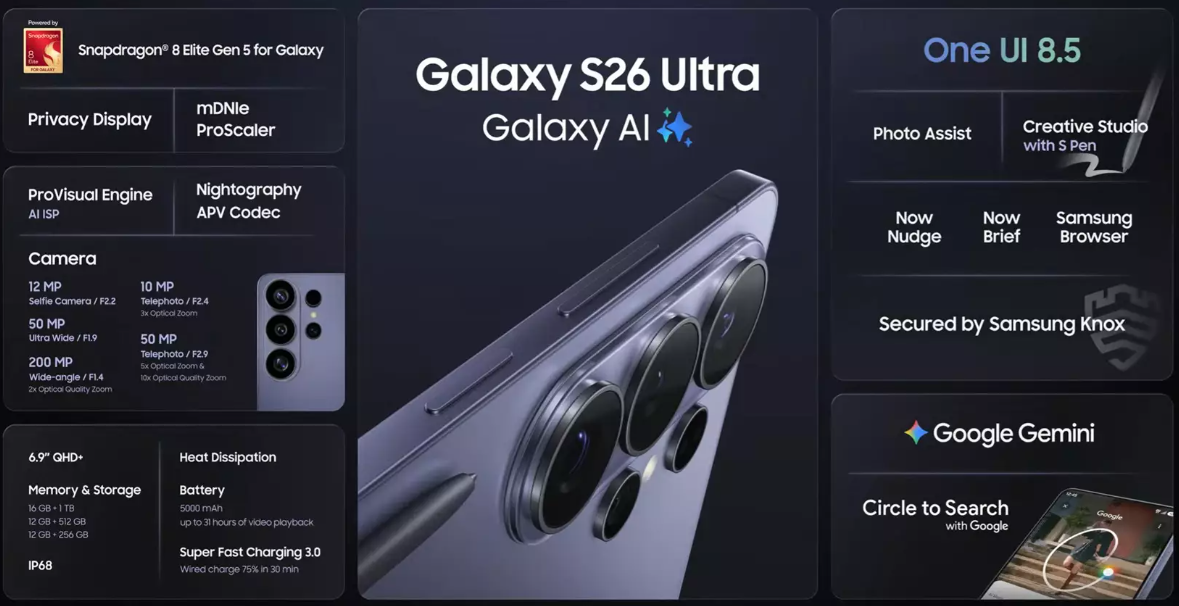
- Privacy Display: The world’s first built‑in privacy screen on a mobile device. When enabled, it restricts the viewing angle of the screen so people beside you cannot read your content. You can set it to activate automatically for specific apps, PIN entry, pattern and password screens, or notification pop‑ups.
- 200MP Camera System: The brightest camera system yet, powered by the ProVisual Engine. The 200MP wide sensor has an f/1.4 aperture for excellent low‑light performance, and the 50MP 5x periscope telephoto provides lossless optical zoom up to 5x, with optical quality at 2x and 10x.
- Customized Processor for Galaxy AI: The octa‑core chip delivers a 39% faster NPU for AI tasks, 24% improved graphics performance, and 19% faster CPU processing than the previous generation.
- Built‑in S Pen: The S Pen is stored inside the phone and requires no charging or Bluetooth pairing. It supports 4,096 pressure levels for precise writing, drawing, and editing. Air Command provides quick access to features like AI Select, Screen Write, Translate, and Creative Studio.
- Advanced Nightography: The combination of the 200MP sensor, large aperture, and AI processing delivers excellent low‑light photos and videos.
- Galaxy AI Features: Includes Photo Assist for AI‑powered editing, Circle to Search, Live Translate, and Generative Edit.
- Long‑Lasting Battery: The 5,000 mAh battery provides all‑day performance, with some users reporting over 24 hours of heavy use.
- Seven Years of Updates: Samsung promises security updates until February 2033.
How to Use
What’s in the Box
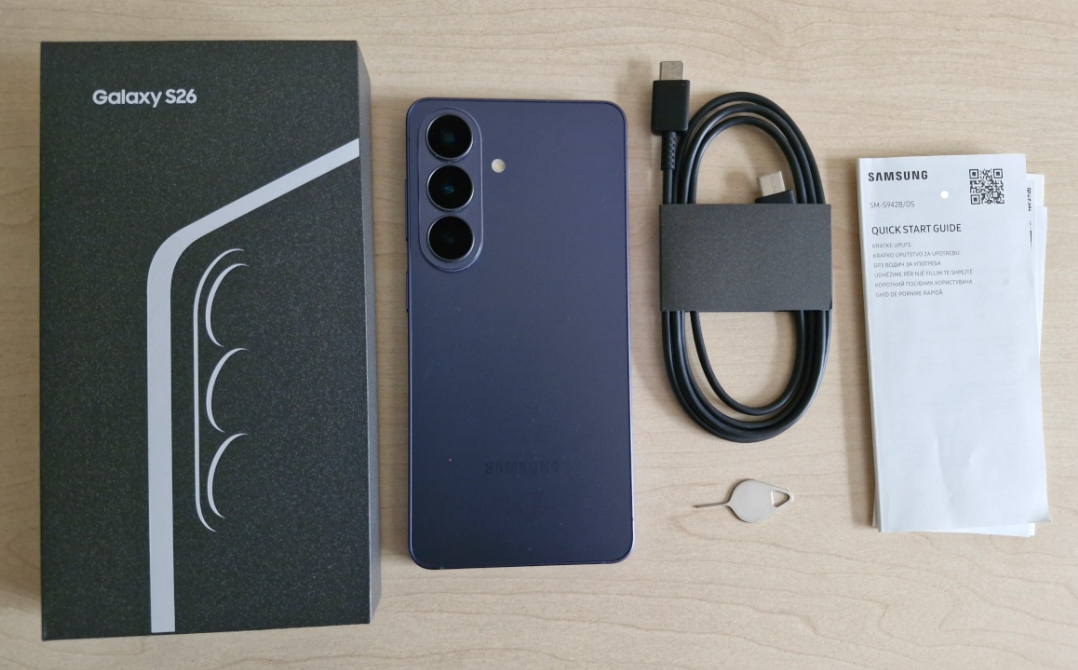
- Samsung Galaxy S26 Ultra (with S Pen pre‑inserted)
- USB‑C to USB‑C cable
- SIM card ejector tool
- Quick Start Guide and warranty card
No charger or earphones are included. Use a USB‑C PD charger for fast charging.
First‑Time Setup
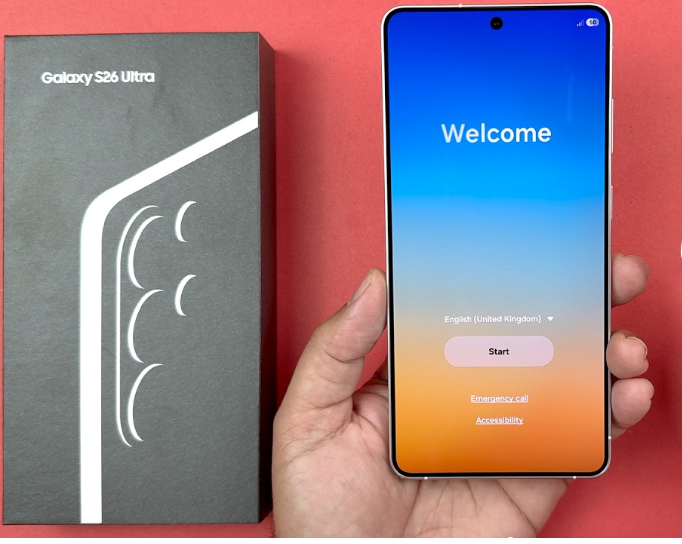
- Press and hold the Side button until the Samsung logo appears.
- Select language, region, and connect to Wi‑Fi. Sign in with your Google and Samsung accounts.
- Use Smart Switch to transfer data from an old Android phone or iPhone.
- Set up the under‑display fingerprint sensor: go to Settings > Security and privacy > Biometrics > Fingerprints.
- Go to Settings > Software update and install any pending updates.
- In Settings > Display, set Motion smoothness to Adaptive and Screen resolution to QHD+.
Buttons & Ports
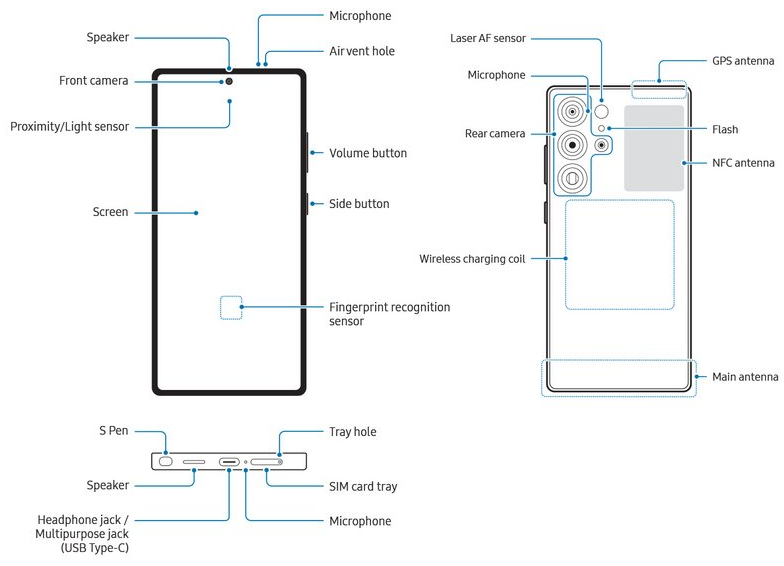
| Component | Location | Function |
|---|---|---|
| Side button | Right edge | Press to wake/sleep. Double‑press for camera. Press and hold for power menu or Bixby. |
| Volume rocker | Right edge (above Side button) | Adjust media and ringer volume. |
| USB‑C port | Bottom edge | Charging, data transfer, video output. No headphone jack. |
| SIM tray | Bottom edge (left) | Holds one nano‑SIM; eSIM supported. |
| S Pen silo | Bottom left | Push to eject the S Pen. |
| Fingerprint sensor | Under display (ultrasonic) | Register up to four fingerprints. |
Privacy Display Configuration
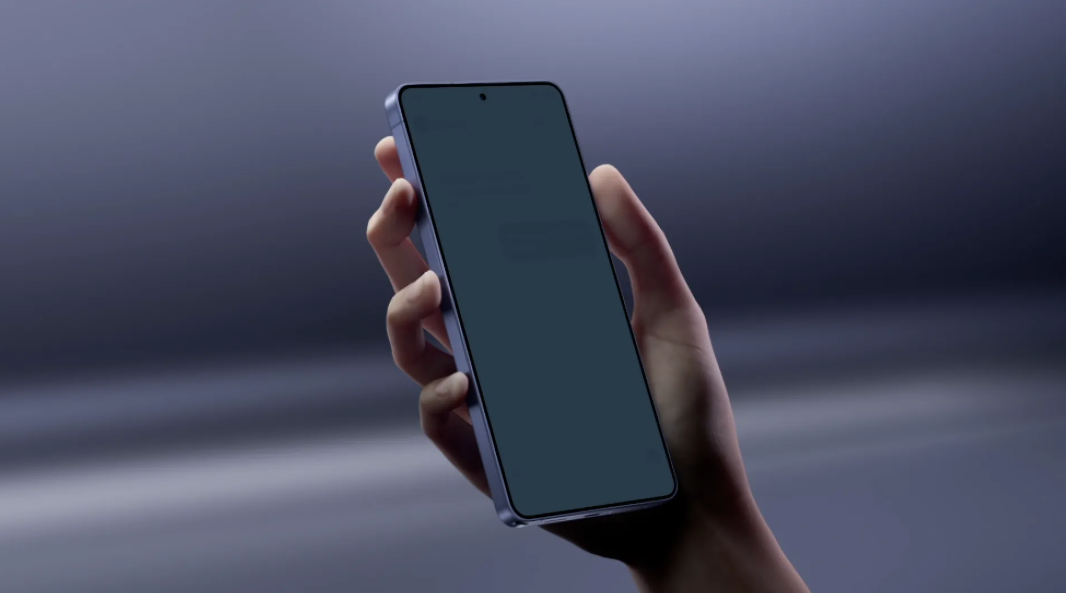
- Quick toggle: Swipe down from the top right of the screen to open Quick Panel. Tap the Privacy display icon to turn it on or off.
- Settings path: Go to Settings > Display > Privacy display.
- Automatic activation: Tap Privacy display in Quick Panel or Settings to configure Conditions for turning on. You can:
- Apply to selected apps: Choose which apps trigger Privacy Display (e.g., banking apps).
- PIN, pattern, and password: Automatically enable Privacy Display whenever you enter a PIN, pattern, or password in Settings, lock screen, or Secure Folder.
- Notification pop‑ups: Apply Privacy Display to notification pop‑ups from all apps.
S Pen Features
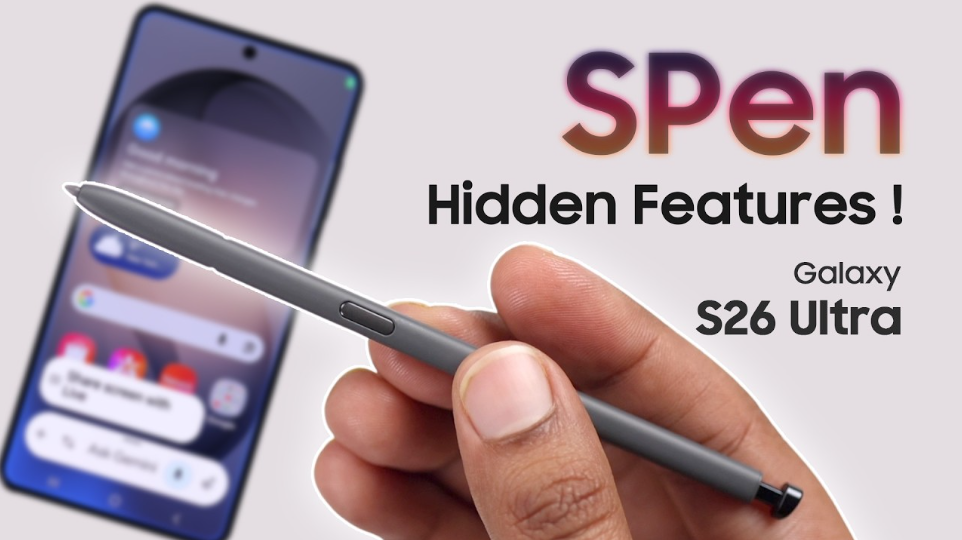
-
Air Command: Remove the S Pen and tap the Air Command icon, or hover the pen over the screen and press the button. Options include:
- Creative Studio: Turn sketches into artwork or transform photos into cartoons.
- AI Select: Select an item on screen, draw on it, generate images, or create GIFs.
- Screen Write: Write or draw directly on the screen.
- Translate: Translate text on screen.
- Magnify: Hover to zoom in on screen content.
- S Pen to Text: Write directly in search fields or text input areas; handwriting converts to text.
- Screen Off Memo: Remove the S Pen while the screen is off and start writing immediately.
- Air View: Hover the S Pen over content to preview it. Enable in Settings > Advanced features > S Pen > Air view.
Camera Tips
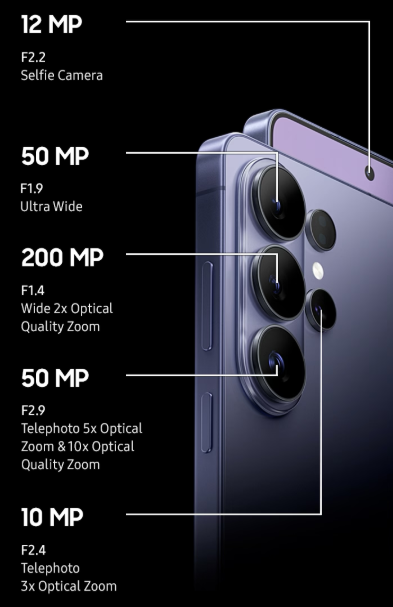
- 5x Telephoto: Use the 5x zoom preset for lossless optical zoom. The minimum shooting distance for the 5x telephoto is 80 cm on the S26 Ultra; objects closer than that will appear blurry.
- 200MP Mode: Tap the resolution icon and select 200MP for extreme detail in bright light. For everyday shots, the default pixel‑binned mode is faster.
- Nightography: The camera automatically enables Night mode in low light. Keep the phone steady for 2–3 seconds.
- Pro Mode: Swipe to More > Pro for manual control over ISO, shutter speed, white balance, and focus.
- Focus Enhancer: At close range, the camera automatically switches to the ultra‑wide camera to reduce blur. Enable it by tapping the flower icon in the preview.
Battery & Charging
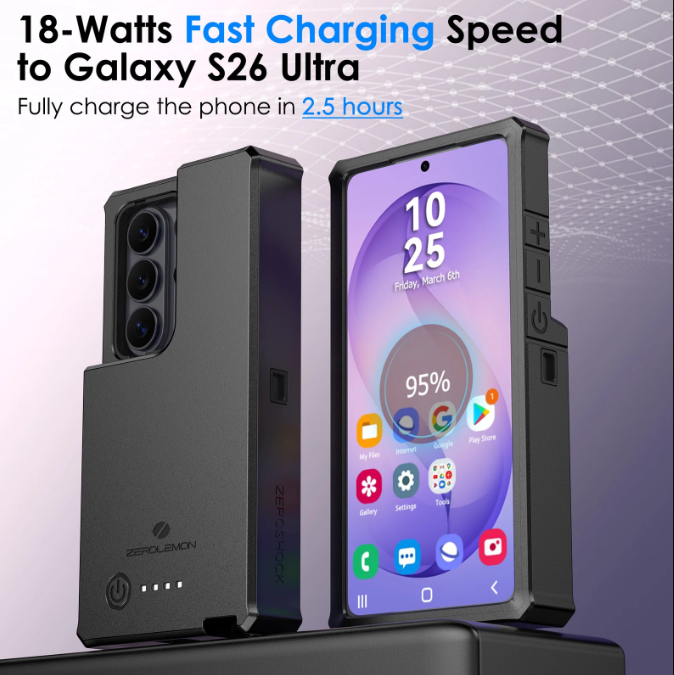
- Fast charging: The S26 Ultra supports fast wired charging. With a compatible charger, you can recover up to 75% battery in approximately 30 minutes.
- Battery life: Users report all‑day performance, with some achieving 24+ hours of heavy use.
- Battery protection: Go to Settings > Battery > Battery protection and choose Adaptive or Maximum (caps at 80%) to extend battery lifespan.
- Power saving: Swipe down Quick Settings and toggle Power saving.
Troubleshooting & Common Problems
| Problem | Likely Cause | What to Try |
|---|---|---|
| Red tint in centre of screen | Software calibration issue (not hardware) | Samsung has confirmed this is a software issue. Visit a Samsung service centre for free calibration, or wait for the software update that fixes it remotely. |
| Blurry photos at 3x zoom | Positional parallax and lens movement | Ensure your device software is up to date. Samsung has released fixes for this issue. |
| Blurry photos at close range with 5x zoom | Minimum focus distance not met | The 5x telephoto has a minimum shooting distance of 80 cm. Move farther away or switch to a different lens. |
| Poor sound with Bluetooth headphones | LE Audio compatibility issue | Go to Settings > Connections > Bluetooth, tap the gear icon next to your headphones, and turn off LE Audio. Restart the phone and check for software updates. |
| Fingerprint sensor slow | Dirty screen, or dry finger | Clean the screen and finger. Delete and re‑register fingerprints. Register the same finger twice. |
| Battery drains quickly | 120 Hz + QHD+, or rogue apps | Switch to 60 Hz or FHD+ resolution. Check battery usage in Settings. Turn on Dark mode. |
| Wi‑Fi or Bluetooth not connecting | Router or interference | Restart router and phone. Forget network and reconnect. For Bluetooth, toggle off/on and re‑pair. |
| Phone overheats during gaming | Intensive load | Remove case, lower graphics settings, avoid direct sunlight. The phone will throttle to protect itself. |
FAQs
- What is the Privacy Display and how does it work?
Privacy Display is a built‑in screen technology that restricts the viewing angle so people beside you cannot read your screen. It can be turned on manually from Quick Panel or set to activate automatically for specific apps, PIN entry, or notification pop‑ups. - Does the S Pen have Bluetooth?
No. The Galaxy S26 Ultra S Pen does not support Bluetooth or air actions. It requires no charging or pairing and works purely as a stylus with 4,096 pressure levels. - Can I expand storage?
No, the Galaxy S26 Ultra does not have a microSD card slot. Choose 256 GB, 512 GB, or 1 TB at purchase. - Is the phone waterproof?
Yes, it has an IP68 rating, meaning it can survive submersion in fresh water up to 1.5 metres for 30 minutes. - How do I take a screenshot?
Press the Side button and Volume Down button at the same time. For a scrolling screenshot, tap the arrow icon after capturing. - How do I reset the phone?
Go to Settings > General management > Reset > Factory data reset. You’ll need your lock screen PIN or password. - What is the red screen issue and how is it fixed?
Some users reported a red tint in the centre of the display. Samsung confirmed this is a software issue, not hardware. It can be fixed by visiting a Samsung service centre for free calibration or through a future software update. - What colours is the Galaxy S26 Ultra available in?
Cobalt Violet, Silver Shadow, Sky Blue, White, Pink Gold, and Black. - How long does the battery last?
The 5,000 mAh battery provides all‑day performance. Some users report 24+ hours of heavy use, and up to 31 hours of video playback.
Tips
- Use Privacy Display selectively: Set it to activate only for banking apps and PIN entry to balance privacy with display brightness.
- Enable Focus Enhancer: At close range, tap the flower icon in the Camera app to reduce blur around the subject.
- Keep firmware updated: Samsung is actively releasing fixes for known issues. Check Settings > Software update regularly.
- Use the S Pen for productivity: Air Command gives you instant access to AI Select, Screen Write, Translate, and Creative Studio.
- Adjust resolution for battery life: Switch between QHD+ for detail and FHD+ for extended battery life in Settings > Display > Screen resolution.
- Turn off LE Audio if using third‑party headphones: If you experience mono audio or poor sound quality with Bluetooth headphones, disable LE Audio in Bluetooth settings.
Safety Information
- Charging: Use Samsung‑certified or reputable third‑party USB‑C PD chargers. Avoid using the phone while fast charging in hot environments.
- Battery: Do not puncture or expose to fire. If the battery swells, stop using and contact Samsung.
- S Pen: The tip is replaceable. Do not insert backwards. Keep away from children.
- Water resistance: IP68 applies to fresh water only. Dry the USB‑C port before charging if wet.
- Privacy Display: The technology is built into the display. Do not apply thick screen protectors that may interfere with its function.
- Screen: Use a tempered glass protector for added scratch protection, but ensure it is compatible with the ultrasonic fingerprint sensor.
Related Manuals
If this guide was helpful, here are a few more popular manuals from productsmanuals.com that you might find useful:
- Apple Watch Series 9 Manual Pairing and Setup Guide
Master ECG, body composition, sleep apnea detection, and more. - Samsung Galaxy S25 Ultra Manual – S Pen, 200 MP Camera & Galaxy AI
Get the most from the previous Ultra with hidden features and pro tips. - iPhone 17 Manual – Settings, Camera & Hidden Features Guide
Explore Dynamic Island, Action button, and battery‑health tricks. - Honeywell T5 Smart Thermostat Manual – Geofencing, App Setup & Scheduling
Automate your home’s heating and cooling for comfort and savings. - DJI Mini 4 Pro Manual – Drone Setup, Flight Modes & Camera Tips
Capture cinematic aerial footage with this lightweight drone.
Browse all guides at productsmanuals.com .
Copyright 2026 productsmanuals.com All rights reserved. This Samsung Galaxy S26 Ultra SM‑S948B manual is original content and may not be copied, republished, or redistributed without written permission. Samsung, Galaxy, S Pen, and the Samsung logo are trademarks of Samsung Electronics. This guide is unofficial and not affiliated with Samsung.

[…] Samsung Galaxy S26 Ultra – Privacy Display, 200MP Camera & S Pen Explore the latest Ultra flagship with hidden features and pro tips. […]
[…] Samsung Galaxy S26 Ultra Manual – Privacy Display, 200MP Camera & S Pen Compare the latest Ultra flagship with its own privacy screen technology. […]