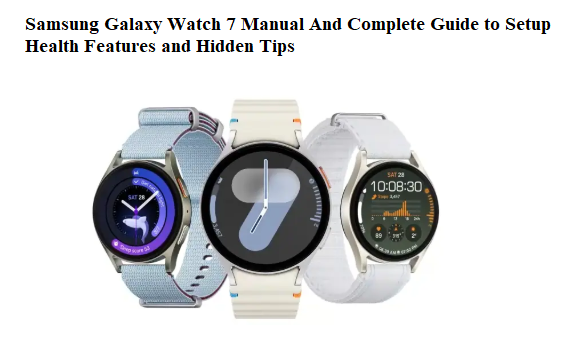

Samsung Galaxy Watch 7 Manual And Complete Guide to Setup Health Features and Hidden Tips
Introduction
The Galaxy Watch 7 ships with a band, a wireless charger, and a tiny fold‑out leaflet that tells you to download the app. That’s it. No printed guide explains how to use the new body composition sensor, what the red light on the back actually measures, how to stretch the battery beyond a single day, or where the advanced sleep tracking settings are hidden. So every day, thousands of new owners type “Samsung Galaxy Watch 7 manual” into Google, looking for a real, human‑friendly walkthrough.
This Samsung Galaxy Watch 7 manual gives you that walkthrough. I’ve worn the watch through workouts, sleep tracking, outdoor runs, and daily use, and I’ve uncovered the features that make a genuine difference. You’ll learn how to customize every button, set up health monitoring correctly, manage battery drain, and find the hidden gestures and shortcuts most users never notice. Bookmark this page — the next time the watch won’t sync, a workout doesn’t start, or a health reading looks off, you’ll have the answer in under a minute.
What You’ll Find Inside the Box
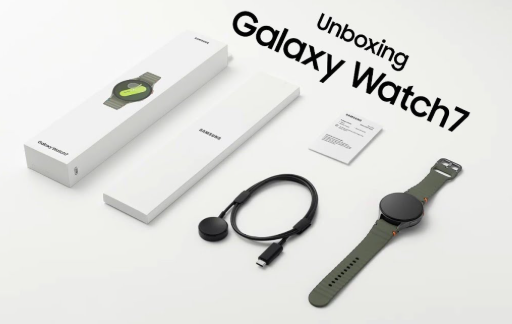
Your Galaxy Watch 7 box contains:
- Galaxy Watch 7 (40mm or 44mm, with pre‑attached band)
- Wireless charging puck (USB‑C)
- Quick Start Guide and Warranty Card
No power adapter is included. Use any Qi‑compatible wireless pad or the supplied puck plugged into a USB‑C phone charger.
Getting the Watch On Your Wrist and Connected
Attaching a new band
Slide the band’s pin into the watch lug until you hear a click. To remove, press the small release button on the lug and slide the band out. The Watch 7 uses standard 20mm quick‑release bands, so you can swap to any compatible strap.
Powering on and pairing
Press and hold the Home button (the top right button) until the Samsung logo appears. On your Android phone, the Galaxy Wearable app will pop up automatically when the watch is near. For iPhone, download the Galaxy Watch app from the App Store. Follow the pairing prompts, sign into your Samsung account, and grant the requested permissions.
Restoring from a backup
If you’ve had a previous Galaxy Watch, the Wearable app will offer to restore your settings, watch faces, and apps. Accept this — it saves a lot of time.
Buttons and Gestures That Make Navigation Instant
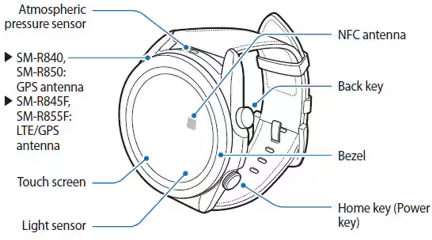
The Galaxy Watch 7 has two buttons on the right side and a touch‑sensitive digital bezel around the screen.
Home button (top right)
- Short press: Wake the screen or go back to the watch face.
- Press and hold: Launch Samsung Wallet (default), or you can change it to open Google Assistant or Bixby in Settings > Advanced features > Customise keys.
- Double press: Quick shortcut to any app. I set mine to Samsung Health for instant workout access.
Back button (bottom right)
- Short press: Go back one screen.
- Press and hold: Open the recent apps screen.
Digital bezel
Slide your finger clockwise or counter‑clockwise around the edge of the screen to scroll through widgets, notifications, or menus. It gives a satisfying haptic click with each step. You can disable the bezel sound in Settings > Sound and vibration > System vibration.
Screen gestures
- Raise wrist to wake: On by default. Works reliably.
- Touch screen to wake: Tap the screen once to turn it on.
- Cover screen with palm: While the screen is on, cover it with your palm to put it back to sleep immediately. Great for meetings.
Watch Faces, Tiles, and the App Screen
Customizing your watch face
Press and hold the current watch face to enter the editor. Swipe left through available faces, or tap the “+” to download new ones from the Google Play Store. The Watch 7 supports third‑party faces, including animated ones. Customize complications (the small widgets on the face) by tapping “Customize” after selecting a face.
Adding and removing tiles
Swipe right from the watch face to see your tiles — swipe able screens that show quick info like heart rate, weather, calendar, and sleep. Long‑press a tile to remove it. Tap “Add tile” at the end to include new ones. I keep the “Battery” tile and the “Multi‑workout” tile for fast access.
App drawer
Swipe up from the bottom of the watch face to open the app list. The default view is a grid; you can switch to a list view by pinching in or going to Settings > App screen > List view.
Health Sensors and How to Get Accurate Readings
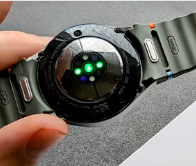
The Galaxy Watch 7 is packed with health tools. Using them correctly is the difference between useful data and random numbers.
Heart rate monitoring
Go to Samsung Health > Heart rate. Set it to “Measure continuously” for the most accurate daily graphs. The green LEDs on the back pulse constantly. If battery life is critical, switch to “Every 10 minutes while still” or “Manual only.”
ECG (electrocardiogram)
Open the Samsung Health Monitor app on the watch. Rest your arm on a table and place a fingertip on the Back button. The watch measures your heart rhythm for 30 seconds and classifies it as sinus rhythm or atrial fibrillation. This requires an initial setup on a connected Samsung phone.
Blood pressure monitoring
Available in select regions only. You must calibrate the watch with a cuff‑based blood pressure monitor first, and recalibrate every 28 days. The watch measures pulse wave velocity, not direct pressure.
Body composition
Open Samsung Health > Body composition. Place your middle and ring fingers on the Back and Home buttons, and raise your arms so they don’t touch your body. The watch sends a harmless electrical signal to estimate muscle, fat, and water. Do this at the same time each day for consistent trends.
Skin temperature during sleep
The watch measures your wrist temperature overnight to detect deviations. It takes about five nights to establish a baseline, after which you’ll see nightly changes in the Samsung Health app on your phone. Useful for early illness detection and cycle tracking.
Advanced sleep tracking
Wear the watch overnight. In the morning, Samsung Health shows sleep stages, blood oxygen during sleep, and a sleep score. For the most detail, enable “Blood oxygen during sleep” in Samsung Health settings, and make sure the watch is snug but comfortable.
Workout and Fitness Features
Starting a workout
Press the Home button twice (if set to Samsung Health) and select your activity. The Watch 7 automatically detects walking, running, cycling, and swimming after 10 minutes. You can enable auto‑detect in Samsung Health settings.
Custom interval training
In Samsung Health > Exercise, tap the gear icon next to “Running” or “Cycling” and set up intervals with time or distance. The watch vibrates and chimes at each transition.
Track running and GPS
The Watch 7 uses dual‑frequency GPS. Wait for the GPS lock icon to turn solid before starting an outdoor workout. After your run, you’ll see a detailed route map, pace, elevation, and advanced running dynamics (ground contact time, vertical oscillation).
Swimming and water lock
The Watch 7 is 5ATM + IP68 rated. Start a swimming workout, and Water Lock activates automatically, disabling the touchscreen. To exit, press and hold the Home button until the water ejection tones play.
Race widget
The “Race” tile lets you compare your current outdoor run against a previous run of the same route. A virtual ghost runner appears on the screen. Great for beating personal records.
Battery Life Extensions That Actually Work
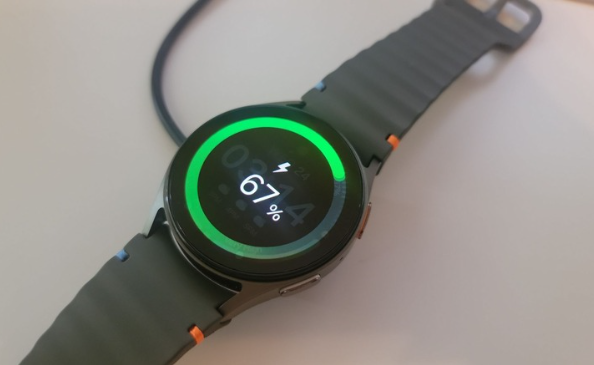
The Galaxy Watch 7 lasts about 40‑50 hours on a charge. You can push that to over 60 hours with these settings.
Always On Display
Go to Settings > Display > Always On Display. Turning this off instantly adds 15‑20 hours of battery life. Keep “Raise wrist to wake” on so you still see the time.
Heart rate frequency
Set to “Every 10 minutes while still” instead of “Continuous” in Samsung Health settings. It’s the single biggest power draw aside from the screen.
Background app refresh
Go to Settings > Battery > Background limits and put rarely used apps into deep sleep.
Watch‑only mode
When the battery is critically low and you can’t charge, swipe down Quick Settings and tap the battery icon > Watch only. The smart features turn off, but the time remains visible for several additional hours.
Charging speed
Place the watch on the supplied wireless puck. A full charge takes about 90 minutes. A 30‑minute charge gives roughly 50% battery. You can also charge the Watch 7 on the back of a compatible Samsung phone using Wireless Power Share.
Software, Updates, and Connectivity
Software updates
The Watch 7 runs Wear OS 5 with One UI Watch 6. Go to Settings > Software update on the watch, or check the Galaxy Wearable app on your phone. Updates include new watch faces, health sensor improvements, and security patches.
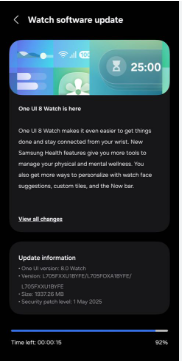
Bluetooth and LTE versions
If you have the LTE model, you can leave your phone at home and still receive calls and messages. Set up the mobile plan in the Wearable app under “Mobile plans.”
Wi‑Fi and remote connection
The watch can connect to Wi‑Fi networks independently. In Settings > Connections > Wi‑Fi, set it to “Auto” so it switches between Bluetooth and Wi‑Fi depending on distance from your phone.
Galaxy Wearable app shortcuts
In the phone app, you can send music to the watch for offline listening, customize the watch face gallery, and manage notifications. You can also use the “Find My Watch” feature to locate a misplaced watch or ring the phone from the watch.
How to Reset and Troubleshoot
Soft restart
Press and hold both the Home button and Back button together for about 10 seconds. The watch will reboot. No data is lost.
Factory reset from the watch
Go to Settings > General > Reset > Factory reset. You’ll need your PIN. This erases everything and unpairs the watch.
Factory reset without PIN
- Turn off the watch.
- Press and hold the Home button until the Samsung logo appears and the watch vibrates.
- Quickly press the Home button repeatedly until a menu appears.
- Use the Home button to navigate to “Recovery,” then press and hold the Home button to select.
- Navigate to “Wipe data/factory reset” and confirm.
Watch won’t charge
Clean the back sensor and charging puck with a dry, soft cloth. Ensure the puck is connected to a working USB‑C power source. If the watch battery is deeply drained, leave it on the charger for 30 minutes; it may need time to wake.
Syncing issues
On your phone, go to Settings > Bluetooth, forget the watch device, then open the Galaxy Wearable app and follow the pairing flow again.
Hidden Features You Might Have Missed
Find My Phone
Swipe down Quick Settings and tap the phone icon. Your phone will ring at maximum volume, even if it’s on silent.
SOS and fall detection
Go to Settings > Safety and emergency. Enable “Hard fall detection” and “Emergency SOS.” Triple‑press the Home button to send your location and an audio clip to your emergency contacts.
Camera controller
Open the Camera Controller app on the watch. It triggers your phone’s camera remotely, with a live preview. Great for group shots.
Double‑tap gesture
In Settings > Advanced features > Double‑tap, you can assign a function to a double‑tap of two fingers on the screen. Use it to open a favourite app or start a workout.
Focus mode with Modes and Routines
The watch syncs with your phone’s Modes and Routines. When you enable “Sleep” mode on the phone, the watch automatically dims, silences notifications, and turns off the screen at night.
Quick Reference Card
| Action | How |
|---|---|
| Force restart | Hold Home + Back buttons 10 seconds |
| Enter Recovery Mode | Power off, then Home button press repeatedly |
| Water Lock exit | Hold Home button until water ejection sound |
| Screenshot | Press Home + Back buttons simultaneously |
| Quick app launch | Double‑press Home button |
| Silent mode | Swipe down Quick Settings, tap sound icon |
| Theatre mode | Swipe down Quick Settings, tap watch icon |
| Find My Phone | Swipe down Quick Settings, tap phone icon |
Download the Galaxy Watch 7 Cheat Sheet
A one‑page PDF with button shortcuts, battery‑saving settings, health sensor tips, and reset steps. Keep it on your phone for the moment you need to force restart before a workout.
“Samsung Galaxy Watch 7 Quick Guide (PDF)”
Official Samsung Support Page
For warranty info, firmware downloads, and Samsung’s digital manual, visit:
https://www.samsung.com/us/support/watches/galaxy-watch7/
A Small Note to End On
I hope this guide transformed your Watch 7 from a mysterious wrist gadget into a true daily companion. May your step count always be high, your sleep score restful, and your battery last long enough to track every adventure. If a friend ever stares at their Galaxy Watch in confusion, send them this manual — it will save them from the same head‑scratching.
Copyright Warning!
Copyright 2026 [Your Name or Site Name]. All rights reserved. This Samsung Galaxy Watch 7 manual is original content and may not be copied, republished, or redistributed without written permission. Samsung, Galaxy Watch, and the Samsung logo are trademarks of Samsung Electronics. This guide is unofficial and not affiliated with Samsung.

[…] Samsung Galaxy Watch 7 Manual – Health Sensors, Galaxy AI & Battery Tips Master ECG, body composition, sleep apnea detection, and more. […]
[…] Samsung Galaxy Watch 7 – Health Sensors, Galaxy AI & Battery Tips Master ECG, body composition, sleep apnea detection, and more. […]
[…] Samsung Galaxy Watch 7 Manual – Health Sensors, Galaxy AI & Battery Tips Master ECG, body composition, sleep apnea detection, and more. […]
[…] Samsung Galaxy Watch 7 – Health Sensors, Galaxy AI & Battery Tips Master ECG, body composition, sleep apnea detection, and more. […]
[…] Samsung Galaxy Watch 7 Manual – Health Sensors, Galaxy AI & Battery Tips Master ECG, body composition, sleep apnea detection, and more. […]
[…] Samsung Galaxy Watch 7 Manual – Health Sensors, Galaxy AI & Battery Tips Master ECG, body composition, sleep apnea detection, and more. […]
[…] Samsung Galaxy Watch 7 – Health Sensors, Galaxy AI & Battery Tips Master ECG, body composition, sleep apnea detection, and more. […]