
Introduction
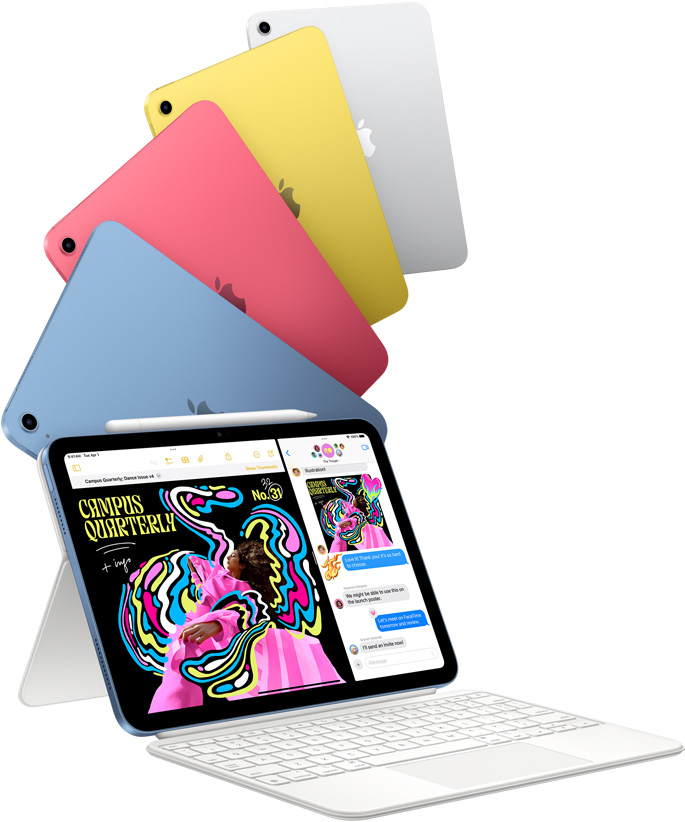
Apple ships the iPad 11 (A16) with a USB-C cable, a 20W power adapter, and a small safety leaflet. There is no printed manual that explains how to pair the Apple Pencil (1st generation or USB-C), how to use Stage Manager with an external display, what the landscape front camera means for video calls, or how to extend battery life. Thousands of people search for an “iPad 11 A16 manual” because they want clear, practical help. This companion gives you exactly that.
What’s in the Box

Your package includes:
- The iPad 11 (A16 chip, 11-inch Liquid Retina display)
- A USB-C to USB-C charging cable (1 metre)
- A 20W USB-C power adapter
- A Quick Start Guide and safety information
No Apple Pencil, no keyboard, and no case are included. The iPad supports the Apple Pencil (1st generation) via a USB-C to Apple Pencil Adapter (sold separately) and the Apple Pencil (USB-C) , which pairs magnetically and charges via USB-C.
Physical Tour
Physical Tour: Buttons, Ports, and Touch ID
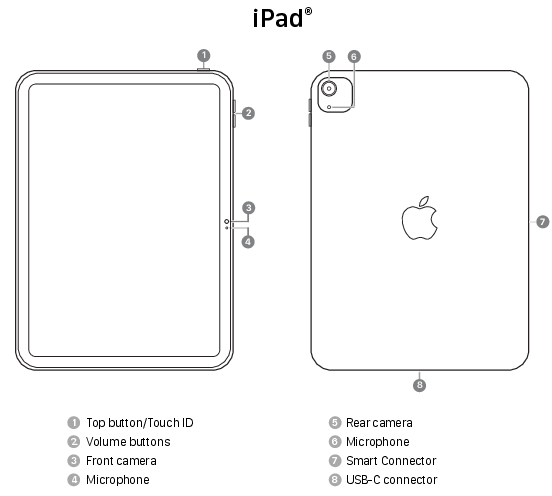
- Top button (Touch ID): Press to wake or sleep. Rest your finger on it to unlock the iPad, authorise purchases, and sign into apps. You can register up to five fingerprints in Settings > Touch ID & Passcode.
- Volume buttons (right edge): Press to adjust media and ringer volume. Press the top button and either volume button together to take a screenshot. Press and hold both for 2 seconds to force a restart if the iPad freezes.
- USB-C port (bottom): For charging, data transfer, and connecting accessories like external drives, cameras, and displays.
- Front camera (landscape orientation): The 12MP Ultra Wide front camera is positioned on the long edge, so video calls keep you centred when the iPad is in landscape mode.
- Apple Pencil magnetic connector (side): The Apple Pencil (USB-C) attaches magnetically to the side for pairing and charging.
First-Time Setup and Data Transfer
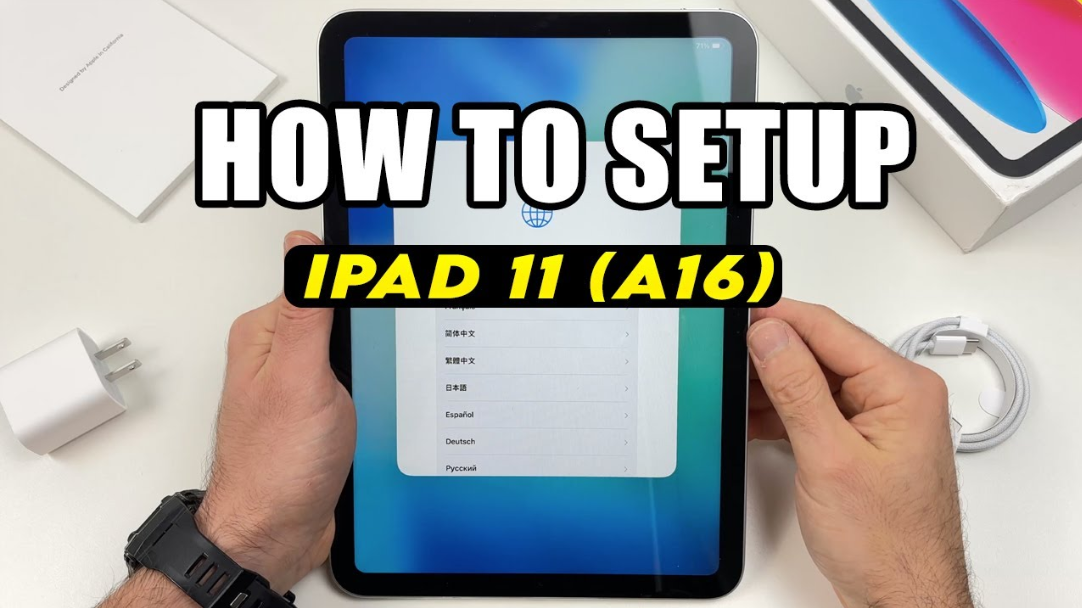
- Press and hold the top button until the Apple logo appears. Follow the on-screen setup assistant: choose your language, region, and connect to Wi-Fi.
- When prompted, you can transfer data from an old iPad or iPhone using Quick Start (hold the old device near the new iPad) or restore from an iCloud backup. For a wired transfer, use a USB-C cable.
- Sign in with your Apple ID. This unlocks iCloud, the App Store, Find My, and iMessage.
- After setup, go to Settings > General > Software Update and install any waiting iPadOS updates.
- In Settings > Display & Brightness, enable True Tone for more natural colour, and adjust Text Size to your comfort level.
Apple Pencil Pairing and Use

The iPad 11 A16 supports two Apple Pencil models.
Apple Pencil (USB-C) — magnetic pairing
- Attach the Apple Pencil magnetically to the side of the iPad (the flat edge). A pairing prompt appears on screen.
- Tap Pair. The Pencil charges inductively while attached.
- To check battery level, swipe down from the top-right corner to open Control Center. The Apple Pencil battery widget appears if the Pencil is connected.
Apple Pencil (1st generation) — USB-C adapter pairing
- Remove the cap from the Apple Pencil and plug it into the USB-C to Apple Pencil Adapter (sold separately).
- Plug the adapter into the iPad’s USB-C port. A pairing prompt appears.
- Tap Pair. The Pencil does not charge magnetically on this iPad; you must charge it via the adapter and a cable.
Using the Pencil in apps
- Notes: Tap the Pencil tool to write or draw. Handwriting is searchable in the Notes app.
- Scribble: Write in any text field (search bars, Messages, Safari address bar). The iPad converts your handwriting to typed text automatically. Enable Scribble in Settings > Apple Pencil > Scribble.
- Quick Note: Swipe the Pencil from the bottom-right corner of the screen to open a floating note from any app.
Stage Manager and External Display

Stage Manager lets you run multiple apps in resizable windows on the iPad screen and on an external display.
Enabling Stage Manager
- Open Control Center (swipe down from the top-right corner).
- Tap the Stage Manager icon (a rectangle with a smaller rectangle beside it).
- Tap the icon again to switch between Stage Manager and the standard full-screen app view.
Connecting an external display
- Connect a USB-C to HDMI cable or a USB-C hub with HDMI to the iPad.
- Plug the other end into your TV or monitor.
- Stage Manager automatically activates on the external display. You can drag windows between the iPad screen and the external display.
- For a desktop-like experience, connect a Bluetooth keyboard and mouse. The cursor appears on the external display, and you can resize windows freely.
Stage Manager tips
- Drag apps from the Dock onto the external display.
- Up to four apps can be visible on the iPad screen at once (more on the external display).
- To move a window between screens, drag it by the title bar.
Battery, Charging, and Power Management
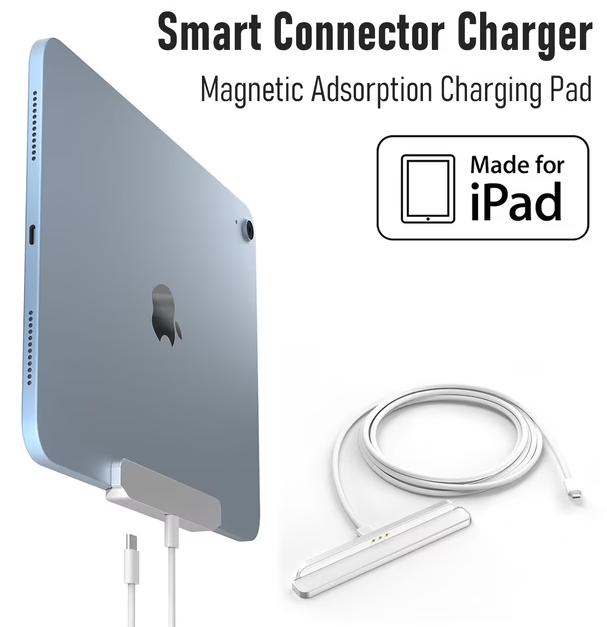
- Battery life: Up to 10 hours of web browsing or video playback.
- Charging: The included 20W adapter charges the iPad to about 50% in 30 minutes. A full charge takes roughly 2.5 hours.
- Low Power Mode: Go to Settings > Battery and toggle Low Power Mode. This reduces background activity, mail fetch, and visual effects. The battery icon turns yellow.
- Optimised Battery Charging: In Settings > Battery > Battery Health & Charging, enable Optimised Battery Charging. The iPad learns your routine and delays charging past 80% until you need it, reducing battery ageing.
- Checking battery health: In the same menu, Maximum Capacity shows the battery’s remaining health. If it drops below 80%, Apple recommends a battery replacement.
Troubleshooting Common Issues
| Problem | Likely Cause | What to Try |
|---|---|---|
| iPad won’t charge | Dirty USB-C port or weak adapter | Clean the USB-C port gently with a wooden toothpick. Use the included 20W adapter. Try a different cable. |
| Apple Pencil not pairing | Low Pencil battery or Bluetooth glitch | Charge the Pencil. Toggle Bluetooth off and on in Settings > Bluetooth. Forget the Pencil in Settings > Bluetooth, then reattach it magnetically or via the adapter. |
| Screen won’t rotate | Rotation lock enabled | Swipe down Control Center and check the rotation lock icon (a lock with a circular arrow). Tap to unlock. |
| Wi-Fi keeps disconnecting | Router band steering or weak signal | Forget the network in Settings > Wi-Fi, restart the iPad and router, then reconnect. Try a 5 GHz network if available. |
| Stage Manager not appearing | External display not detected | Check the USB-C cable and hub are compatible. Disconnect and reconnect the display. Ensure Settings > Display & Brightness > Stage Manager is enabled. |
| Camera not working in video calls | App permission or camera in use | Go to Settings > Privacy & Security > Camera and ensure the app is allowed. Close other apps that might be using the camera. |
How to Restart, Reset, and Enter Recovery Mode
- Soft restart: Press and hold the top button and either volume button until the “slide to power off” slider appears. Slide to turn off. Wait 30 seconds, then press and hold the top button to turn on.
- Force restart (frozen screen): Press and quickly release Volume Up, press and quickly release Volume Down, then press and hold the Top button until the Apple logo appears (about 10 seconds). No data is lost.
- Factory reset from Settings: Go to Settings > General > Transfer or Reset iPad > Erase All Content and Settings. You’ll need your Apple ID password. This wipes everything and restores the iPad to out-of-the-box state.
Recovery Mode (if the iPad won’t turn on):
- Connect the iPad to a Mac or PC with a USB-C cable.
- Press Volume Up, then Volume Down, then hold the Top button until the recovery mode screen appears (a cable pointing at a laptop).
- Use Finder (Mac) or iTunes (PC) to update or restore the iPad.
Quick Reference Card
| Task | How |
|---|---|
| Screenshot | Top button + Volume Up |
| Force restart | Volume Up, Volume Down, hold Top button |
| Pair Apple Pencil (USB-C) | Attach magnetically to the side, tap Pair |
| Enable Stage Manager | Control Center > Stage Manager icon |
| Check battery health | Settings > Battery > Battery Health & Charging |
| Enable Scribble | Settings > Apple Pencil > Scribble |
| Open Quick Note | Swipe Apple Pencil from bottom-right corner |
Official Apple Support and Manuals
For warranty, service, and the official iPad User Guide, visit:https://support.apple.com/guide/ipad/welcome/ipados
The specific model support page with manuals and downloads is:
https://support.apple.com/ipad-a16
Frequently Asked Questions
- Which Apple Pencil works with the iPad 11 A16?
The iPad 11 A16 supports the Apple Pencil (1st generation) via the USB-C to Apple Pencil Adapter (sold separately) and the Apple Pencil (USB-C) , which attaches magnetically for pairing and charging. - Does the iPad 11 A16 have a headphone jack?
No. The iPad 11 A16 has a USB-C port only. You can use USB-C headphones, Bluetooth headphones, or a USB-C to 3.5mm adapter (sold separately). - Can I connect an external monitor to the iPad 11 A16?
Yes. Use a USB-C to HDMI cable or a compatible USB-C hub. Stage Manager lets you run apps in resizable windows on the external display. - How do I take a screenshot without a Home button?
Press the Top button and the Volume Up button at the same time. The screenshot thumbnail appears in the lower-left corner; tap it to edit or share. - What should I do if my iPad won’t turn on?
Charge it for at least 30 minutes using the included 20W adapter. If it still doesn’t respond, try a force restart: press Volume Up, Volume Down, then hold the Top button until the Apple logo appears. - Can I use a Magic Keyboard with the iPad 11 A16?
The iPad 11 A16 supports the Magic Keyboard Folio (sold separately), which attaches via the Smart Connector on the side. It does not support older Magic Keyboard models designed for the iPad Pro.
A Final Note Before You Go
Keep the iPad’s software updated, clean the screen with a soft, dry microfiber cloth, and store the Apple Pencil attached to the side so it stays charged. If you use the iPad for drawing or note-taking, enable Scribble and Quick Note — they turn the Apple Pencil into a genuinely useful daily tool. With a little care, the iPad 11 A16 will serve you reliably for years.
Copyright 2026 productsmanuals.com All rights reserved. This iPad 11 A16 manual is original content and may not be copied, republished, or redistributed without written permission. Apple, iPad, Apple Pencil, Stage Manager, and the Apple logo are trademarks of Apple Inc. This guide is unofficial and not affiliated with Apple.
