
Introduction
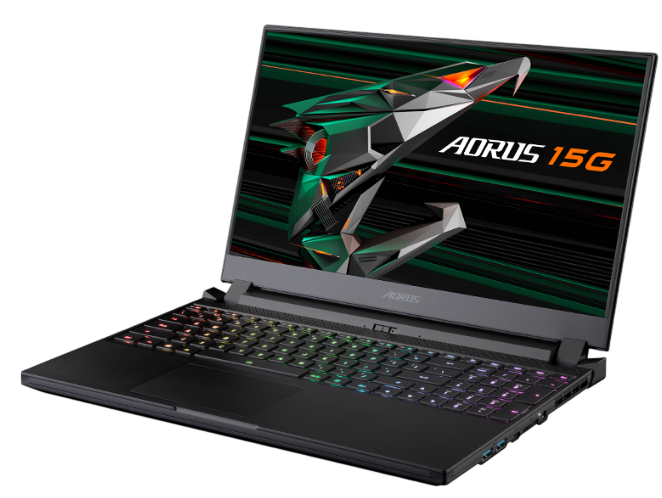
The Gigabyte AORUS 15G is a powerful gaming laptop built for players and creators who need desktop‑class performance in a portable package. It combines a high‑refresh‑rate display, the latest NVIDIA GeForce RTX graphics, a mechanical keyboard with per‑key RGB, and an advanced cooling system. This manual walks you through the features, setup, software, and common fixes so you can get the most out of your AORUS 15G right from the start.
Product Overview
The AORUS 15G is a 15.6‑inch gaming laptop that balances raw performance with a relatively thin chassis. It features an Intel 14th‑gen Core i7 or i9 processor, an NVIDIA RTX 4060 or 4070 GPU, and a fast 165 Hz QHD display. The laptop includes a per‑key RGB mechanical keyboard (co‑developed with OMRON), a large touchpad, and a comprehensive port selection. It’s designed for gaming, streaming, and creative workloads. The chassis is built from aluminium and composite materials, with a mechanical hinge that feels sturdy. The AORUS Control Center software gives you control over performance profiles, fan speeds, keyboard lighting, and system monitoring.
Key Features
- 14th‑Gen Intel Core i7‑14700HX / i9‑14900HX: Up to 24 cores and 5.8 GHz boost. Handles AAA games and demanding apps with ease.
- NVIDIA GeForce RTX 4060 / 4070 Laptop GPU: 8 GB GDDR6, ray tracing, DLSS 3.5. Supports up to 140 W TGP with Dynamic Boost.
- 15.6‑inch QHD (2560×1440) 165 Hz IPS Display: 100 % DCI‑P3 colour gamut, NVIDIA G‑SYNC, and factory‑calibrated for colour accuracy.
- OMRON Mechanical Keyboard: Full‑size keyboard with per‑key RGB backlight, 2.5 mm key travel, and tactile clicky switches. Built‑in anti‑ghosting and N‑key rollover.
- WINDFORCE Infinity Cooling: Two 12 V fans, multiple heat pipes, and large exhaust vents keep the laptop cool. Quiet, Balanced, and Performance fan profiles available.
- AORUS Control Center: A unified app for monitoring CPU/GPU temps, adjusting power limits, customizing keyboard lighting, and updating drivers/BIOS.
- Ports & Connectivity: Thunderbolt 4 (USB‑C), USB‑A 3.2 Gen 2, HDMI 2.1, mini DisplayPort 1.4, 2.5 Gbps Ethernet, Wi‑Fi 6E, Bluetooth 5.3, and a UHS‑II SD card reader.
How to Use
What’s in the Box
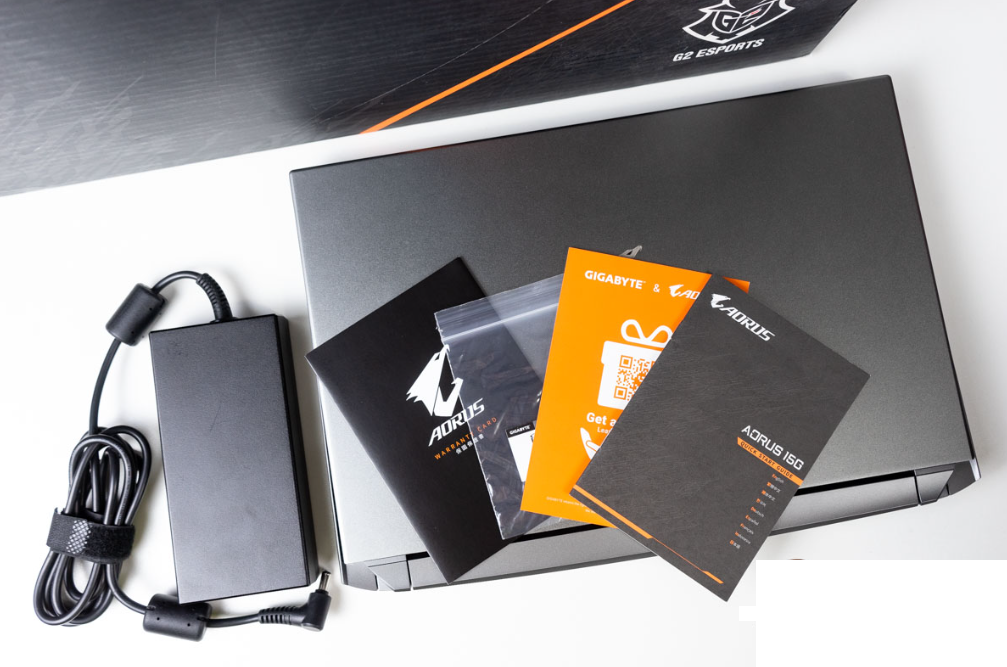
- Gigabyte AORUS 15G laptop (model AORUS 15G‑XC)
- 240 W AC power adapter with power cord
- Quick‑Start Guide and warranty card
No mouse or headset is included. The laptop comes partially charged; connect the charger before first use.
Physical Tour – External Layout
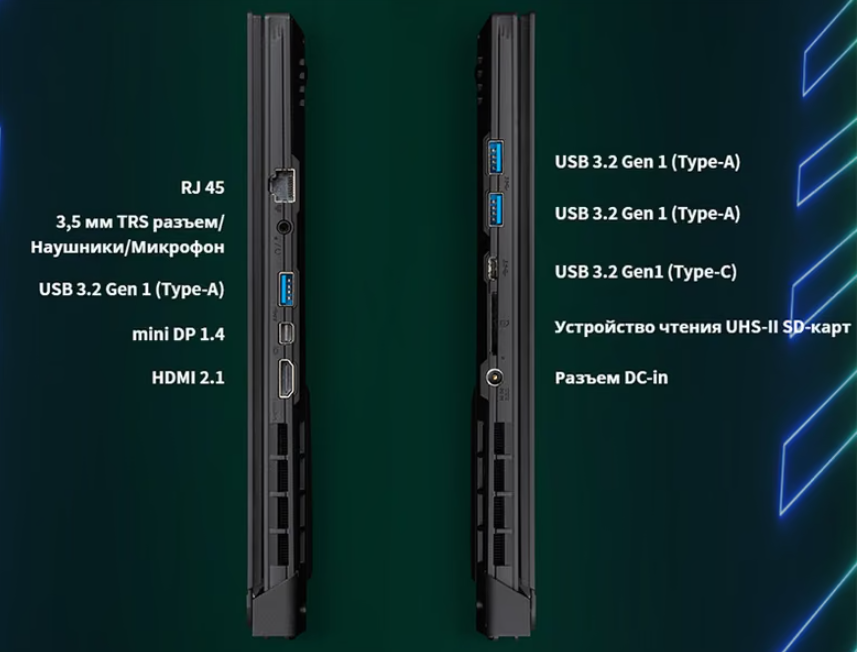
- Left side: Kensington lock slot, 1 x USB‑A 3.2 Gen 2, 1 x Thunderbolt 4 / USB‑C (DisplayPort 1.4 & Power Delivery), 3.5 mm headphone/mic combo jack.
- Right side: 1 x USB‑A 3.2 Gen 2, 1 x USB‑C 3.2 Gen 2 (DisplayPort 1.4 & Power Delivery), full‑size SD card reader (UHS‑II).
- Rear: 1 x HDMI 2.1, 1 x mini DisplayPort 1.4, 1 x 2.5 Gbps Ethernet (RJ‑45), DC‑in power jack.
- Front: Power/status LEDs (on the front edge, visible when lid is closed).
- Keyboard deck: Mechanical keyboard with per‑key RGB, touchpad (Windows Precision drivers). Power button is integrated into the keyboard (top‑right, with fingerprint reader on some models).
- Display lid: Aluminium, thin bezels, 720p webcam with privacy shutter and dual‑array microphones.
First‑Time Setup
- Connect the charger and press the power button. The AORUS logo appears, and Windows 11 setup starts.
- Follow the on‑screen steps to choose language, region, and connect to Wi‑Fi (Wi‑Fi 6E). Sign in with your Microsoft account.
- Once on the desktop, open Windows Update and install all pending updates. Then run the pre‑installed AORUS Control Center – it will automatically check for driver and firmware updates. Install all recommended updates.
- For the keyboard lighting, open the AORUS Control Center → RGB Fusion. Choose a lighting effect or customise per‑key colours.
Keyboard & Function Keys
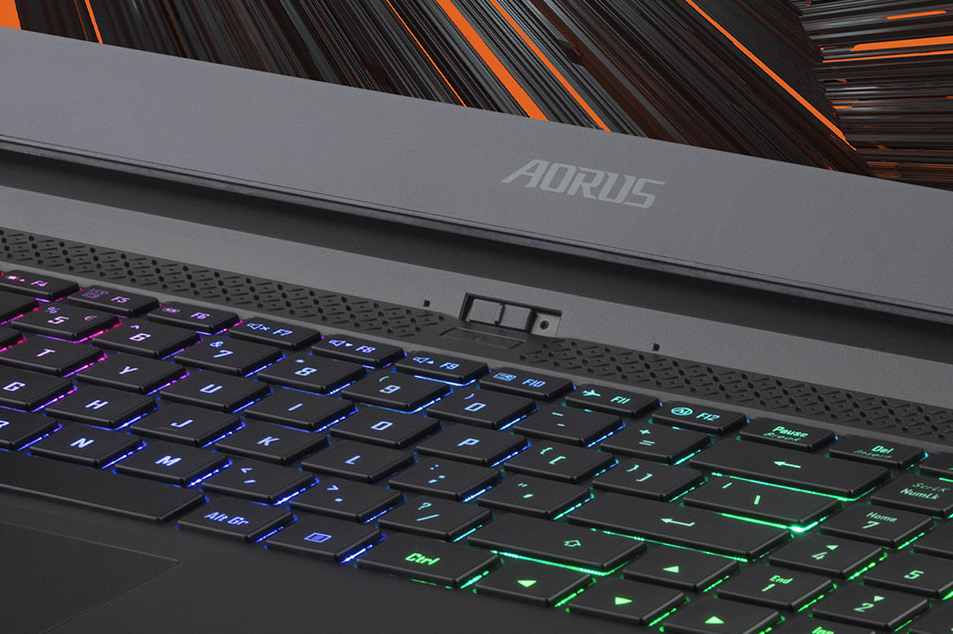
The keyboard uses clicky OMRON switches. The top row doubles as function keys and media/control keys. Use the Fn key plus the F‑key to activate the secondary function.
| Shortcut | Action |
|---|---|
| Fn + F1 | Sleep / Hibernate |
| Fn + F2 | Airplane mode |
| Fn + F3 / F4 | Screen brightness down / up |
| Fn + F5 / F6 | Keyboard backlight brightness down / up |
| Fn + F7 | Switch display mode (internal, external, both) |
| Fn + F8 | Toggle touchpad on/off |
| Fn + F9 | Mute microphone |
| Fn + F10 | Mute speakers |
| Fn + F11 / F12 | Volume down / up |
| Fn + Space | Cycle keyboard backlight effects (hold for quick change) |
The per‑key RGB can be fully customized in AORUS Control Center. The keyboard also has a dedicated AORUS key (between the right Ctrl and Windows key) that launches the Control Center.
Performance Profiles & Control Center
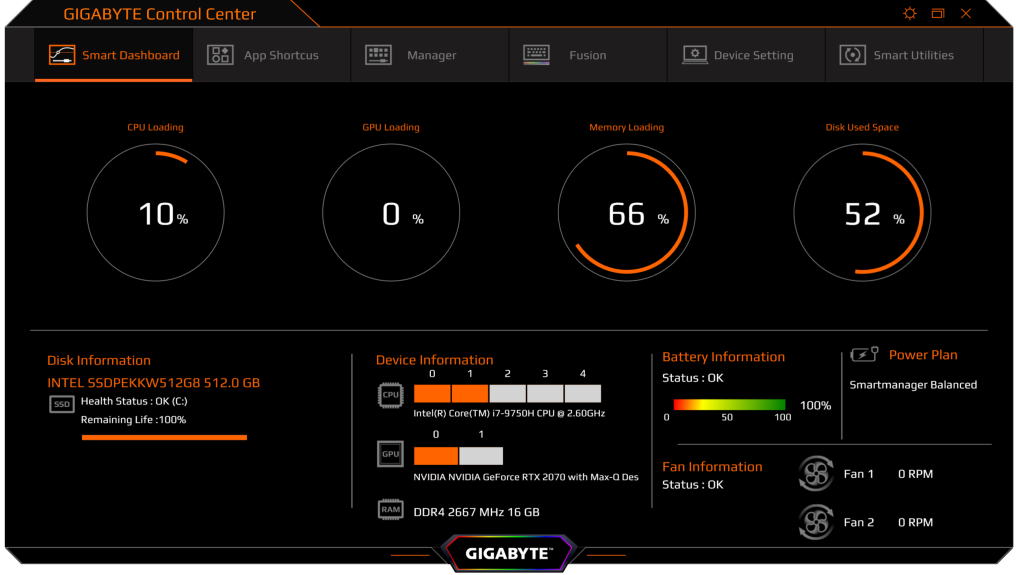
Open the pre‑installed AORUS Control Center. The home screen shows real‑time system vitals. Key sections:
- AI Performance: Let the system automatically balance CPU/GPU power and fan speed based on the current load.
- Performance Profiles: Choose Quiet (reduced fan noise, slightly lower performance), Normal (balanced), or Performance (maximum cooling and power). In Performance mode, fans can be loud.
- Fan Control: Set custom fan curves for CPU and GPU fans. The built‑in WINDFORCE Infinity system can spin up to 6,500 RPM under load – this is normal.
- RGB Fusion: Control keyboard backlight per‑key or by zone. Sync with other AORUS peripherals.
- Update Center: Download the latest drivers, BIOS, and firmware directly from here.
Upgrading RAM & Storage
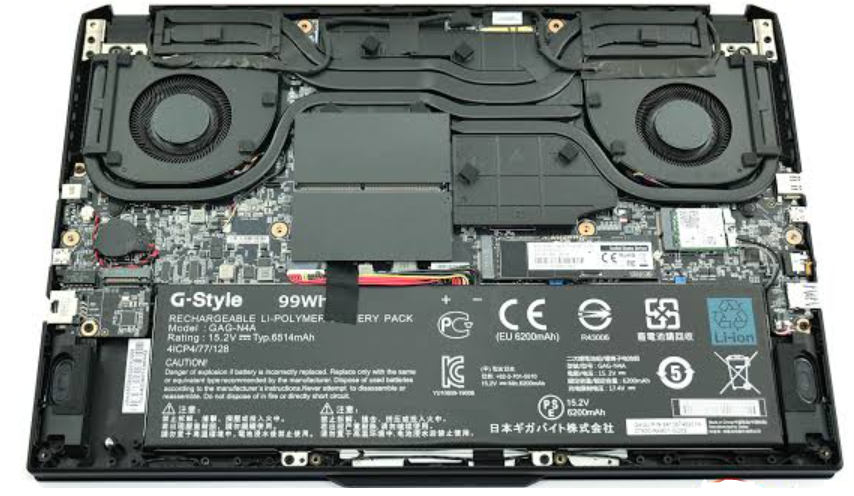
The AORUS 15G allows easy upgrades. You’ll need a small Phillips screwdriver and a plastic pry tool.
- Shut down, unplug the charger, and remove all screws from the bottom panel. The front edge clips may be tight; use a pry tool gently.
- RAM: Two DDR5 SODIMM slots. The laptop typically ships with two sticks. To upgrade, spread the metal clips outward, align the new module’s notch, and press down until the clips lock. Max 64 GB (2×32 GB) DDR5‑5600.
- SSD: Two M.2 2280 PCIe 4.0 slots (one may be occupied by the boot drive). To add a second SSD, remove the screw, insert the new drive at an angle, press flat, and replace the screw. Format it in Windows Disk Management.
- Reassemble the bottom panel carefully, aligning all clips before tightening the screws.
Battery & Charging
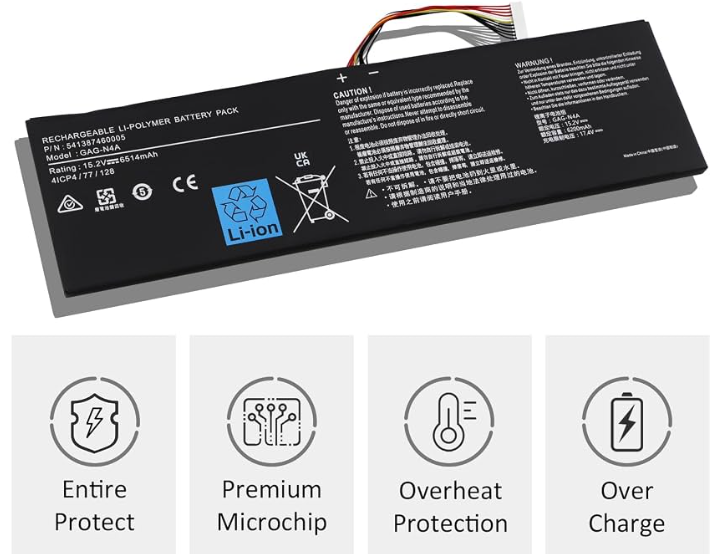
- The AORUS 15G has a 99 Wh battery (the maximum allowed on flights). On battery, expect 4‑5 hours of light work (web browsing, office) or about 1‑2 hours of gaming.
- The 240 W charger fully recharges the battery in about 2 hours. The laptop also supports USB‑C charging (up to 100 W PD) via the Thunderbolt 4 port for light use, but not for gaming – the dGPU draws more power than USB‑C can supply.
- For battery longevity, use AORUS Control Center → Battery Health to set a charge limit (e.g., 80 %) if you keep the laptop plugged in most of the time.
Troubleshooting & Common Problems
| Problem | Likely Cause | What to Try |
|---|---|---|
| Laptop won’t turn on | Battery drained, or charger issue | Plug in the 240 W charger and wait 5 minutes. Try a different outlet. Press and hold the power button for 15 seconds, then try again. |
| Keyboard backlight not working | RGB Fusion settings, or driver issue | Open AORUS Control Center → RGB Fusion, ensure lighting is enabled. If the keyboard lights were turned off by Fn+F5, press Fn+F6 to brighten. Restart the “RGB Fusion” service. |
| Games stutter or low FPS | Not plugged in, or running on battery | The laptop must be plugged in for full GPU performance. Check that the power profile is set to Performance in AORUS Control Center. Update NVIDIA drivers via GeForce Experience. |
| Overheating or loud fans | Dust in vents, or Performance mode active | Clean the air intake and exhaust vents with compressed air. In Control Center, switch to Balanced or Quiet mode. Ensure the laptop is on a hard, flat surface. |
| Touchpad not working | Accidental disable, or driver issue | Press Fn+F8 to toggle touchpad. If that doesn’t work, check Device Manager for the touchpad driver; update or reinstall. |
| External monitor not detected | Wrong cable, or GPU routing | Connect via the rear HDMI/mini DP or the Thunderbolt 4 port. Press Win+P to select Extend. Ensure the dedicated GPU is active (some monitors need the dGPU). |
Frequently Asked Questions
- Does the AORUS 15G support G‑SYNC?
Yes, the built‑in display supports NVIDIA G‑SYNC. Use it with the dGPU for tear‑free gaming. - Can I turn off the RGB lighting completely?
Yes, in AORUS Control Center → RGB Fusion, select “Off” or set brightness to 0. - Is the keyboard spill‑resistant?
No, the mechanical keyboard is not spill‑proof. Keep liquids away. If a spill occurs, turn off the laptop immediately, dry it, and have it inspected. - What is the maximum RAM supported?
64 GB (2 x 32 GB) DDR5‑5600. Mixing different capacities is possible but not recommended. - Can I use the laptop with the lid closed and an external monitor?
Yes, but the cooling system works best with the lid open. If you must close it, ensure the laptop is in a well‑ventilated area and set “When I close the lid” to “Do nothing” in Windows Power Options. - How do I perform a clean OS install?
Back up your data, create a Windows 11 USB installer, boot from it (press F12 at startup), delete all partitions on the main SSD, and install. After installation, download AORUS Control Center from Gigabyte’s support page to get all drivers and utilities.
Tips
- Use the SD card reader for backups: The UHS‑II slot is fast; you can offload photos and videos quickly.
- Clean the fans every 3 months: Dust accumulation is the main cause of overheating. Use compressed air through the bottom and side vents.
- Update the BIOS via Control Center: Gigabyte regularly releases BIOS updates that improve stability. Check every few months.
- Keep the laptop plugged in for gaming: The RTX 4060/4070 needs full power to deliver high frame rates.
Safety Information
- Charger: Use only the supplied 240 W adapter or an official Gigabyte replacement. Third‑party chargers may not provide enough power.
- Battery: Do not puncture or expose the battery to high heat. If the battery swells, stop using the laptop and contact Gigabyte support.
- Ventilation: Always use the laptop on a hard, flat surface. Blocking the air vents can cause overheating and permanent damage.
- Keyboard: The mechanical switches are rated for millions of keypresses, but heavy force can break keycaps. Use a light touch.
Related Manuals
If this guide was helpful, here are a few more popular manuals from productsmanuals.com that you might find useful:
- How to Setup MIRO W1 SE Kids Smartwatch (Complete Guide + Fixes)
Master ECG, body composition, sleep apnea detection, and more.
View the Samsung Galaxy Watch 7 Manual - Alienware Aurora R16 Manual – Setup, AWCC & Liquid Cooling
Dive into Dell’s flagship gaming desktop with Alienware Command Center. - HP OMEN 45L Manual – Cryo Chamber, Gaming Hub & Upgrades
Keep your gaming rig cool with HP’s unique liquid cooling system. - iPhone 16 Manual – Settings, Camera & Hidden Features Guide
Explore Dynamic Island, Action button, and battery‑health tricks. - Gigabyte AORUS Model X (GB‑AMX12G5) Manual – Product Overview, Features, Setup & Guide
Upgrade RAM and SSD, and fix common performance issues.
Browse all guides at productsmanuals.com .
Copyright 2026 productsmanuals.com. All rights reserved. This Gigabyte AORUS 15G XC manual is original content and may not be copied, republished, or redistributed without written permission. Gigabyte, AORUS, and the Gigabyte logo are trademarks of Gigabyte Technology Co., Ltd. This guide is unofficial and not affiliated with Gigabyte.

[…] Gigabyte AORUS 15G Manual – Laptop Setup, Upgrades & Troubleshooting Upgrade RAM and SSD, and fix common performance issues. […]