
Product Overview
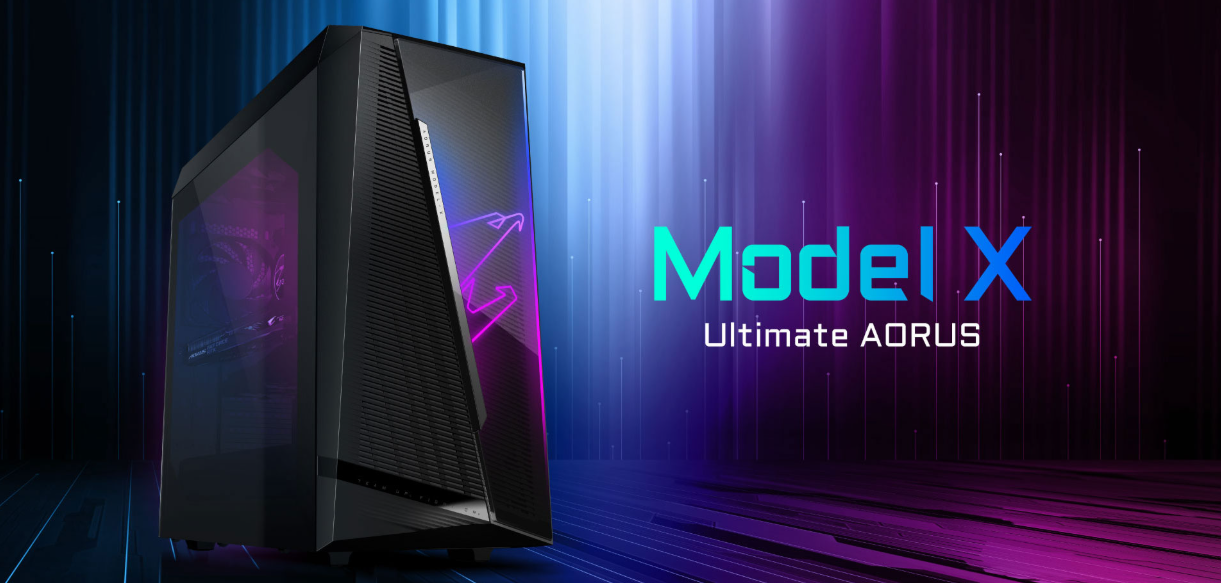
The Gigabyte AORUS Model X is a pre‑built gaming desktop that combines top‑tier Intel processors, NVIDIA GeForce RTX graphics, and a 360 mm AIO liquid cooler in a spacious mid‑tower chassis. The case features tempered glass side panels, tool‑less drive bays, and integrated RGB lighting controllable via Gigabyte RGB Fusion 2.0. It arrives fully assembled with Windows 11 installed, ready for 4K gaming, streaming, and content creation. The power supply is hidden behind the motherboard tray, and cable management is done at the factory. The Model X supports overclocking, multiple storage drives, and easy component swaps.
Key Features
- 12th‑Gen Intel Core i9‑12900K Processor: 16‑core (8 Performance + 8 Efficient) CPU with a max turbo of 5.2 GHz. Unlocked for overclocking.
- NVIDIA GeForce RTX 3080 12 GB: Capable of 4K gaming, ray tracing, and DLSS. Triple‑fan cooling with a vapor chamber.
- 360 mm AIO Liquid Cooler: Keeps the CPU cool under sustained loads. The radiator is mounted on the top panel, exhausting heat out of the case.
- Tool‑Less Chassis: Both side panels swing open with a single latch. Drive bays and expansion slots use thumbscrews for quick access.
- RGB Fusion 2.0: Controls the lighting on the case fans, CPU cooler pump head, and motherboard accents. Sync with compatible peripherals.
- 2.5 Gigabit Ethernet & Wi‑Fi 6E: Fast wired and wireless networking with an Intel Wi‑Fi 6E adapter and Bluetooth 5.3.
- Premium Audio: ESS SABRE DAC for high‑fidelity headphone output, plus DTS:X Ultra surround sound.
How to Use
What’s in the Box
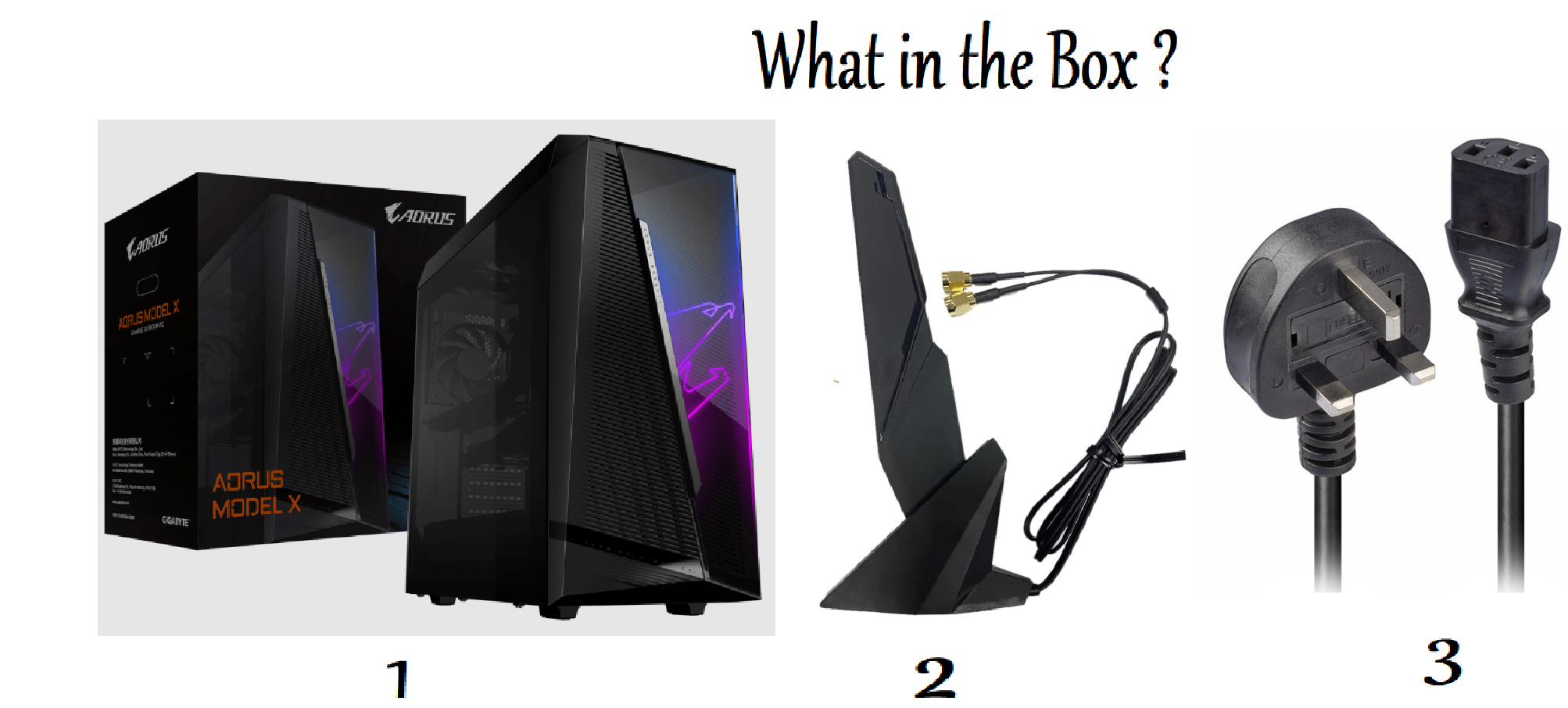
- Gigabyte AORUS Model X desktop (fully assembled, cable‑managed)
- Regional power cable (heavy‑duty IEC C13)
- Wi‑Fi antenna (external, dual‑band)
- Quick‑Start Guide and warranty card
No monitor, keyboard, or mouse is included. The system boots into Windows 11 on first power‑on.
First‑Time Setup
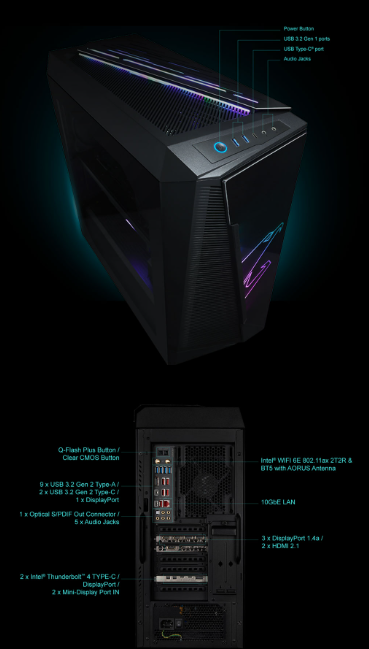
- Connect the Wi‑Fi antenna to the gold SMA connectors on the rear I/O. Place the antenna in an open spot for best signal.
- Plug in the power cable, connect your monitor (via the graphics card’s HDMI or DisplayPort), and press the power button on the top of the case. The RGB lights will turn on.
- Windows 11 starts. Follow the on‑screen OOBE: select region, keyboard, and connect to a network. Sign in with your Microsoft account.
- Once on the desktop, open Windows Update and install all pending updates. Next, open the pre‑installed Gigabyte Control Center and check for driver and BIOS updates.
- For RGB control, open RGB Fusion 2.0 (installed as part of Control Center). You can choose from static colours, breathing, wave, or off.
Internal Layout & Upgrades
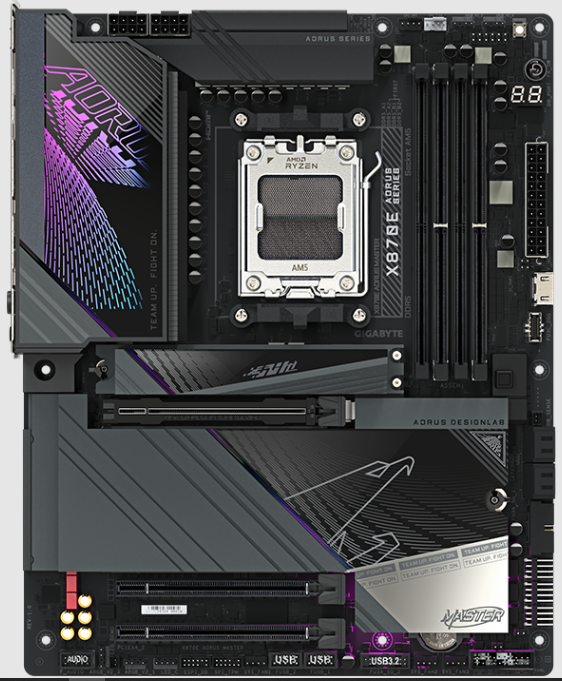
The case uses a dual‑chamber design. The motherboard, CPU cooler, and GPU are in the main chamber; the power supply and drive cages are behind the motherboard tray.
- RAM Upgrade: The motherboard has four DDR5 DIMM slots, typically with two sticks pre‑installed. To add more, press the retaining clips outward, align the notch, and press until the clips snap. Max capacity is 128 GB (4 x 32 GB).
- Storage Expansion: There are three M.2 slots on the motherboard (one may be under a heatsink). To add an NVMe SSD, remove the heatsink screw, insert the drive at an angle, press flat, and re‑secure. Two 2.5‑inch or 3.5‑inch drive bays behind the motherboard tray can be accessed by removing the rear side panel. The bays use thumbscrews.
- Graphics Card: The RTX 3080 is held by one or two screws on the rear bracket and a PCIe latch on the motherboard. To remove, unplug the PCIe power cables, remove the screws, press the latch, and pull the card out gently. The power supply is 850 W (80 Plus Gold), enough for most current GPUs.
RGB & Fan Control
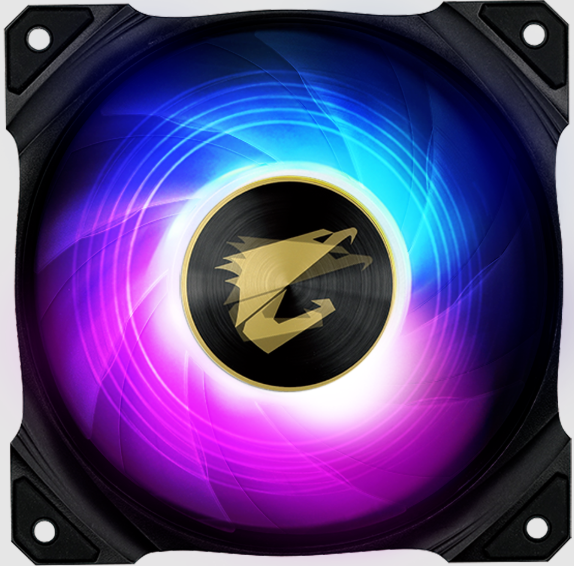
- RGB Fusion 2.0: Open the app to change lighting. Select the component (motherboard, fans, RAM if supported) and choose an effect. You can also sync with Gigabyte and AORUS peripherals.
- Fan curves: In Gigabyte Control Center, under System Tuning, you can set fan profiles (Silent, Normal, Performance) or customize the CPU cooler and case fan speeds.
Clearing CMOS & BIOS
- Enter BIOS: Press Delete repeatedly during startup. The AORUS BIOS is an easy‑to‑use UEFI interface. Press F2 for Advanced mode.
- Clear CMOS: If the system fails to boot after overclocking, shut down, unplug the power, and press the Clear CMOS button on the rear I/O (or short the CLR_CMOS jumper on the motherboard).
Troubleshooting & Common Problems
| Problem | Likely Cause | What to Try |
|---|---|---|
| PC turns on but no display | Monitor plugged into motherboard, not GPU | Plug the monitor into the graphics card’s ports, not the motherboard’s HDMI/DP. Try a different cable. |
| Loud fans at idle | Fan curve set to Performance, or dust | In Control Center, switch to Silent or Normal profile. Clean the dust filters (front and bottom) with a soft brush. |
| RGB lights not responding | RGB Fusion service not running | Open Control Center and ensure the RGB Fusion module is installed. Restart the “Gigabyte RGB Fusion” service in Windows Services. |
| Wi‑Fi not detected | Antenna not connected, or driver issue | Attach the external Wi‑Fi antenna to the rear connectors. In Device Manager, check the Intel Wi‑Fi adapter; update its driver. |
| USB ports not working | Chipset driver not installed | In Gigabyte Control Center, install the latest chipset and USB drivers. Restart. |
| Games crash or freeze | GPU overheating, or driver conflict | Monitor GPU temps in Control Center. Update the NVIDIA driver via GeForce Experience. Check for Windows updates. |
Frequently Asked Questions
- Can I overclock the CPU?
Yes, the i9‑12900K is unlocked. You can overclock via the BIOS or the Gigabyte EasyTune utility. The 360 mm AIO provides enough cooling for moderate overclocking. - Is the RAM upgradeable?
Yes, all four DDR5 slots are user‑accessible. The system typically ships with two sticks; you can add two more. Max 128 GB. - Does the case have dust filters?
Yes, the front and bottom panels have magnetic dust filters. Remove them and rinse with water monthly. - How do I connect a second monitor?
Use the graphics card’s multiple DisplayPort and HDMI outputs. The motherboard’s video ports are disabled when a dedicated GPU is installed. - What is the power supply wattage?
850 W (80 Plus Gold). It’s enough for the RTX 3080 and moderate upgrades. - Can I use this PC for streaming?
Yes, the RTX 3080 includes NVENC hardware encoding, making it excellent for streaming with minimal performance hit.
Tips
- Keep the dust filters clean: Check the front and bottom filters every two weeks. A clean system runs cooler and quieter.
- Use the front USB‑C port for fast transfers: It supports up to 20 Gbps for external SSDs.
- Monitor temperatures: Use Gigabyte Control Center or HWMonitor to watch CPU and GPU temperatures. The CPU should stay below 85 °C under load; the GPU below 80 °C.
- Update the BIOS: Gigabyte frequently releases BIOS updates that improve stability and performance. Check with Control Center.
- Use a UPS: A high‑wattage gaming PC benefits from an uninterruptible power supply to protect against power surges and outages.
Safety Information
- Weight: The desktop weighs approximately 15 kg (33 lbs). Lift with care and place on a sturdy desk.
- Ventilation: Keep at least 10 cm of clearance on the top and rear for proper airflow. Do not place objects on top of the case.
- Power: Use a surge protector. The power supply automatically switches between 110 V and 220 V.
- Internal components: Always turn off the PC and unplug it before opening the side panel. Ground yourself to prevent static discharge.
- Glass panels: The tempered glass side panels are durable but can shatter if struck hard. Handle gently.
Related Manuals
If this guide was helpful, here are a few more popular manuals from productsmanuals.com that you might find useful:
- Samsung Galaxy Watch 7 Manual – Health Sensors, Galaxy AI & Battery Tips
Master ECG, body composition, sleep apnea detection, and more. - Alienware Aurora R16 Manual – Setup, AWCC & Liquid Cooling
Dive into Dell’s flagship gaming desktop with Alienware Command Center. - HP OMEN 45L Manual – Cryo Chamber, Gaming Hub & Upgrades
Keep your gaming rig cool with HP’s unique liquid cooling system. - iPhone 17 Manual – Settings, Camera & Hidden Features Guide
Explore Dynamic Island, Action button, and battery‑health tricks. - Fujitsu Lifebook U9310X Manual – Laptop Setup, Upgrades & Troubleshooting
Upgrade RAM and SSD, and fix common performance issues.
Browse all guides at productsmanuals.com .
Copyright 2026 productsmanuals.com All rights reserved. This Gigabyte AORUS Model X manual is original content and may not be copied, republished, or redistributed without written permission. Gigabyte, AORUS, and the Gigabyte logo are trademarks of Gigabyte Technology Co., Ltd. This guide is unofficial and not affiliated with Gigabyte.
