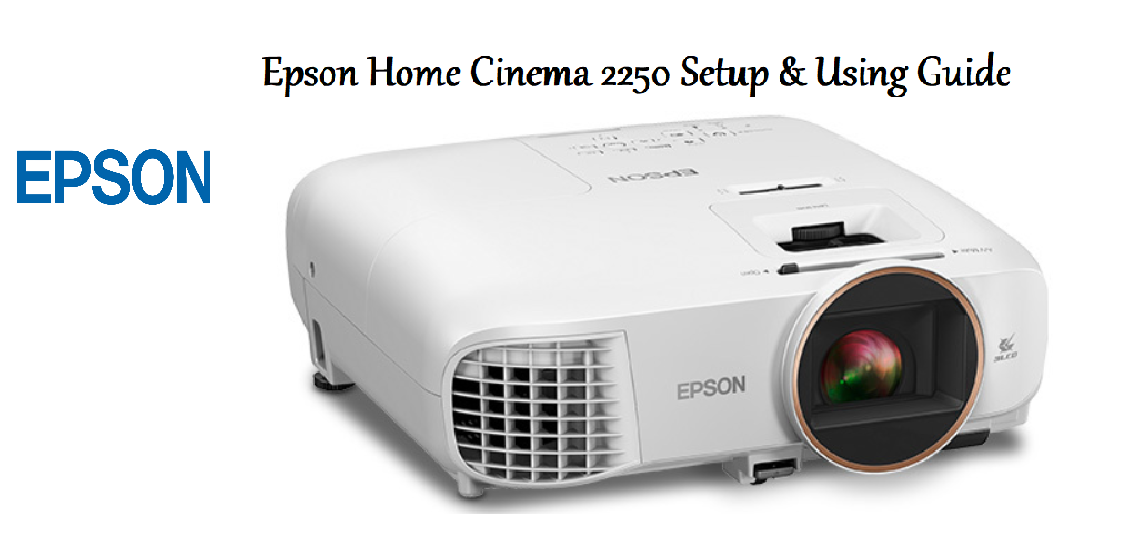

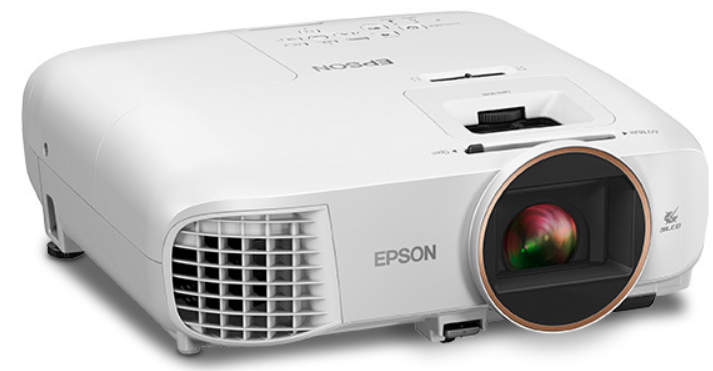
The Epson Home Cinema 2250 is a 1080p 3LCD projector designed for bright, colourful home theater experiences. It combines 2,700 lumens of colour and white brightness with Android TV built in, so you can stream Netflix, YouTube, and other apps directly from the projector. This guide covers the hardware, initial setup, picture adjustments, streaming, and common fixes so you can enjoy crisp, large‑screen entertainment without frustration.
Product Overview
The Home Cinema 2250 uses Epson’s 3LCD technology to deliver 100% of the rated colour brightness, eliminating the “rainbow effect” found in some DLP projectors. It has a native 1080p resolution and supports up to 300‑inch screen sizes. The projector includes a built‑in speaker, HDMI, USB, and Wi‑Fi connectivity. It runs Android TV 9.0, giving you access to the Google Play Store, Chromecast built‑in, and voice control via Google Assistant. The lamp life is up to 7,500 hours in Eco mode, and the projector is designed for ceiling or tabletop placement.
Full Specifications
| Specification | Detail |
|---|---|
| Model | Home Cinema 2250 |
| Projection Technology | 3LCD, 3‑chip |
| Native Resolution | 1920 x 1080 (Full HD) |
| Brightness | 2,700 lumens (colour and white) |
| Contrast Ratio | Up to 70,000:1 (dynamic) |
| Screen Size | 30 – 300 inches (diagonal) |
| Throw Ratio | 1.19 – 1.61 (distance : width) |
| Lamp Life | 4,500 hours (Normal), 7,500 hours (Eco) |
| Lamp Type | 210 W UHE |
| Built‑in Speaker | 10 W mono |
| Operating System | Android TV 9.0 (with Google Play) |
| Chromecast Built‑in | Yes |
| Wi‑Fi | 802.11 a/b/g/n/ac (2.4 GHz / 5 GHz) |
| Bluetooth | Yes (for audio output and remote) |
| Ports | 2 x HDMI (1 with ARC), 1 x USB‑A (power/media), 1 x USB‑B (service), 1 x 3.5 mm audio out, 1 x Ethernet (optional USB‑C? No, Ethernet via optional adapter) |
| Dimensions | 31.4 x 23.6 x 12.2 cm (12.4 x 9.3 x 4.8 in) |
| Weight | 4.0 kg (8.8 lbs) |
| Included Accessories | Projector, remote control (with batteries), power cable, quick start guide |
Key Features
- 3LCD Technology with 2,700 Lumens: Bright enough for lights‑on viewing or a dedicated dark home theater. The colours are rich and accurate.
- Android TV Built‑in: Stream from Netflix, Prime Video, Disney+, YouTube, and more without any external device. Download apps from the Google Play Store.
- Chromecast Built‑in: Cast photos, videos, and music from your smartphone or tablet directly to the projector.
- Google Assistant Voice Control: Use the microphone button on the remote to search, control playback, and manage smart home devices.
- Auto Vertical Keystone & Focus: The projector adjusts the image shape automatically when placed at an angle, reducing setup time.
- HDMI ARC: Connect a soundbar or AV receiver using the HDMI1 (ARC) port for high‑quality audio return.
- Bluetooth Audio Out: Pair Bluetooth headphones or speakers to listen privately, or use the built‑in speaker.
Compatibility and Connectivity
Video Inputs
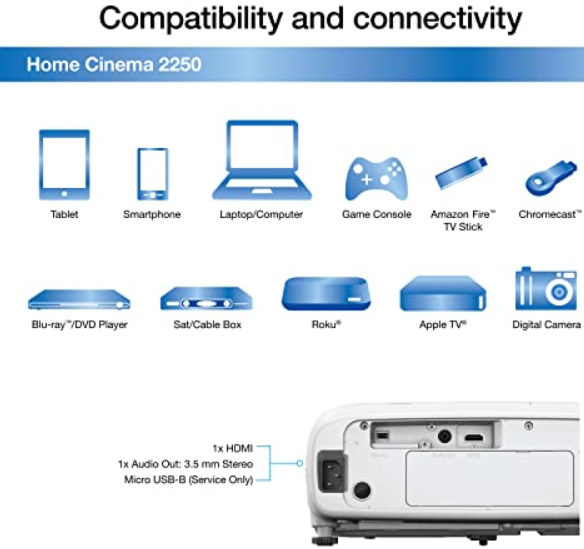
- HDMI 1 (ARC): Connect a streaming stick, Blu‑ray player, gaming console, or cable box. This port supports Audio Return Channel (ARC), allowing a connected soundbar or AV receiver to send audio back to the projector over the same HDMI cable.
- HDMI 2: Standard HDMI input for additional sources. No ARC support.
- Both HDMI ports support HDCP 2.2, so you can play protected 4K content (downscaled to 1080p).
Audio Outputs
- 3.5 mm Stereo Audio Out: Connect external speakers or headphones. The built‑in speaker is disabled when this port is in use.
- HDMI ARC: Send high‑quality audio to a soundbar or AV receiver via HDMI 1.
- Bluetooth Audio Out: Pair Bluetooth headphones, earbuds, or a Bluetooth speaker. The internal speaker automatically mutes when Bluetooth audio is active.
- Built‑in Speaker: 10 W mono speaker, sufficient for small rooms or temporary use.
Wireless Connectivity
- Wi‑Fi: 802.11 a/b/g/n/ac, dual‑band (2.4 GHz / 5 GHz). Used for Android TV streaming, Chromecast built‑in, and software updates.
- Bluetooth 4.2: Supports audio output to Bluetooth headphones/speakers and remote control pairing (the included remote uses Bluetooth, but also works via IR).
- Chromecast Built‑in: Cast content from compatible apps on your phone, tablet, or computer. The projector and source device must be on the same Wi‑Fi network.
USB Ports
- USB‑A (front): Connect a USB flash drive or external hard drive (FAT32/NTFS/exFAT) to play photos, videos, and music through the built‑in media player. Also provides 5V/0.5A power for streaming sticks.
- USB‑B (service): For service and firmware updates via a computer. Not for everyday use.
Supported Media Formats (USB)
- Video: MP4, MOV, AVI, MKV, MPEG‑2, H.264, H.265 (varies by firmware; refer to Epson’s latest spec sheet).
- Audio: MP3, WAV, AAC.
- Image: JPEG, PNG, BMP.
Streaming & Smart Features
- Android TV 9.0: Access the Google Play Store to install Netflix, Prime Video, Disney+, YouTube, Hulu, and many other apps.
- Google Assistant: Use the microphone button on the remote to search, control playback, and control smart home devices.
- Screen Mirroring: Miracast is not officially supported on this model. Use Chromecast built‑in or an HDMI streaming device for wireless display from Android/Windows.
- Apple AirPlay: Not natively supported. Use an Apple TV or other AirPlay‑compatible device connected via HDMI.
Gaming & External Devices
- Game Consoles: PlayStation, Xbox, and Nintendo Switch connect via HDMI. Use Game picture mode for reduced input lag.
- Blu‑ray/DVD Players: Connect via HDMI. The projector does not have component or composite inputs, so older devices may need an HDMI converter.
- Computers/Laptops: Connect via HDMI. The projector will display up to 1920×1080 resolution. For best results, set your computer’s output resolution to 1080p.
Network Requirements
- For streaming and Chromecast, a stable Wi‑Fi connection with at least 10 Mbps is recommended for HD content. For 4K streaming services that downscale, higher speeds may be required by the app.
- The projector does not have an Ethernet port. If your Wi‑Fi is weak, use a Wi‑Fi extender or a streaming stick with Ethernet.
Compatibility Notes
- Not compatible with 4K native output: The projector accepts 4K signals and downscales them to 1080p, so you can use 4K sources without issue.
- HDMI ARC limitations: Some soundbars require CEC to be enabled. Go to Settings > Device Preferences > HDMI CEC and turn on CEC Control.
- Bluetooth latency: For gaming or live video, Bluetooth audio may have a slight delay. For the lowest latency, use wired audio or the built-in speaker.
How to Use
What’s in the Box
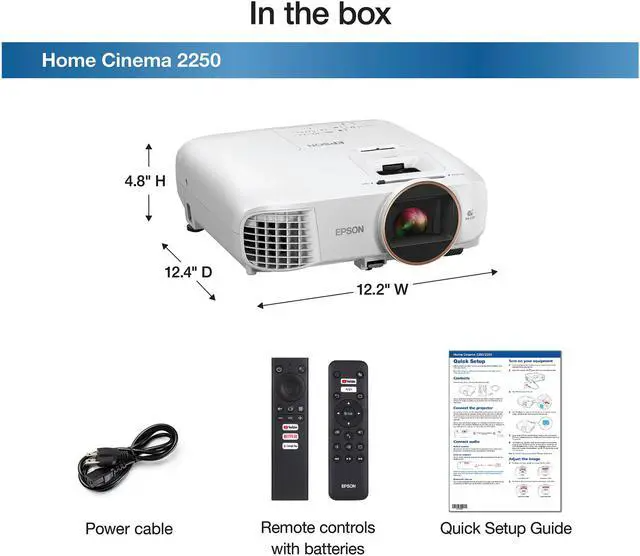
- Epson Home Cinema 2250 projector
- Remote control (with two AAA batteries pre‑installed)
- Power cable (region‑specific)
- Quick Start Guide and warranty card
Initial Setup & Placement
- Place the projector on a table, stand, or mount it on the ceiling (mount sold separately). Ensure there is at least 30 cm (12 in) of clearance around the air intake and exhaust vents.
- Connect the power cable and press the power button on the projector or remote. The Android TV home screen appears.
- The projector’s throw ratio means for a 100‑inch screen, the lens should be about 2.7 to 3.6 metres (8.9 to 11.8 feet) from the screen. Adjust the distance until the image fills your screen.
- Use the focus lever (on top or behind a small door) to sharpen the image. If the projector is tilted, the auto vertical keystone will correct trapezoid distortion automatically. You can also adjust keystone manually in the menu.
Connecting to Wi‑Fi & Setting Up Android TV
- On the remote, press the Home button. Navigate to Settings > Network & Internet > Wi‑Fi. Select your network and enter the password.
- Sign in with your Google account to access the Play Store and personalized content.
- Follow the on‑screen prompts to set up Google Assistant, voice match, and location permissions.
- The projector will check for software updates. Install any pending updates.
Remote Control Guide
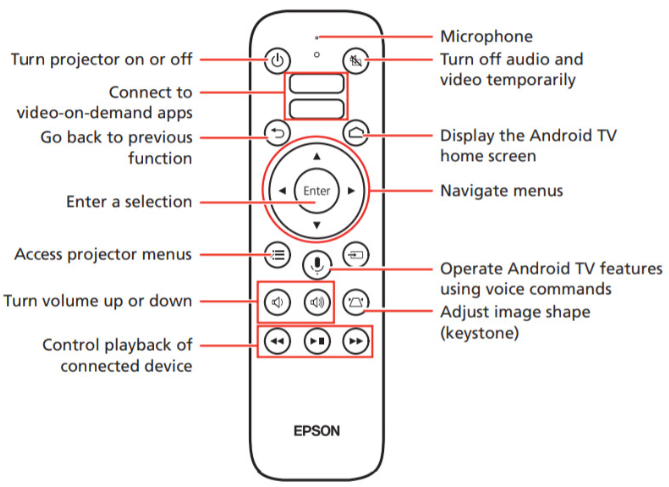
The included remote control works with the projector via Bluetooth (primary) and infrared (IR) as backup. It controls both the projector and Android TV functions. The remote has a built‑in microphone for Google Assistant voice commands.
Button Layout & Functions
| Button | Function |
|---|---|
| Power | Turns the projector on or off. Press once to power on; press again to put into standby. |
| Home | Opens the Android TV home screen. |
| Back | Returns to the previous screen or menu. |
| Navigation Ring (Up/Down/Left/Right) | Moves through menus and apps. |
| Select (centre) | Confirms selections. |
| Volume Up / Volume Down | Adjusts the projector’s speaker volume (or Bluetooth audio volume). |
| Mute | Mutes/unmutes the sound. |
| Source | Cycles through input sources: HDMI1, HDMI2, USB, and internal Android TV. |
| Menu | Opens the projector’s on‑screen settings menu (picture, sound, projector settings). |
| Aspect | Changes the aspect ratio (Auto, 16:9, 4:3, Zoom, etc.). |
| Google Assistant (microphone button) | Press and hold to speak a voice command: “Open Netflix,” “Play music,” “What’s the weather?” The built‑in microphone is on the remote. |
| Playback Controls (Play/Pause, Rewind, Fast Forward) | Control media playback in compatible apps. |
| Stop | Stops playback in media apps. |
| Netflix / Prime Video shortcut buttons (on some regional remotes) | Launch those apps directly. Not present on all units; check your remote. |
| User 1 / User 2 (optional on some remotes) | Programmable buttons; can be assigned in the projector’s settings. |
Pairing the Remote
Bluetooth Pairing (default after initial setup)
- The remote should pair automatically during initial Android TV setup. If it doesn’t work, follow these steps.
- Go to Settings > Remotes & Accessories > Add accessory.
- On the remote, press and hold the Home and Back buttons together for 3 seconds until the LED on the remote blinks rapidly.
- Select “Epson Remote” from the list on the screen. The remote will pair.
Infrared (IR) Mode
The remote also works via IR for basic functions (power, volume) even if Bluetooth is not paired. Point the remote directly at the projector’s front or rear IR sensor. IR mode does not support voice or mouse‑like navigation.
Voice Control
- Press and hold the Google Assistant button (microphone icon). Speak clearly into the remote’s microphone (located at the top of the remote). Release to send the command.
- Voice commands work only when the projector is connected to the internet and Google Assistant is set up.
- You can use voice to search for content, control playback, adjust volume, and launch apps.
Replacing Batteries
- Slide open the battery cover on the back of the remote.
- Insert two AAA batteries, matching the + and – symbols.
- Close the cover. The remote will automatically reconnect to the projector via Bluetooth when you press any button.
Remote Troubleshooting
| Problem | Likely Cause | What to Try |
|---|---|---|
| Remote not responding at all | Dead batteries, or Bluetooth disconnected | Replace both AAA batteries. If using Bluetooth, press any button to wake it, then check Settings > Remotes & Accessories to ensure it’s connected. If not, re‑pair. |
| Voice commands not working | Google Assistant not set up, or internet down | Ensure the projector is connected to Wi‑Fi and Google Assistant is enabled. Check that the microphone button is pressed firmly. |
| Range seems short | Bluetooth interference, or low battery | Move closer to the projector. Replace batteries. Avoid using other Bluetooth devices in close proximity. |
| Volume controls don’t work | Audio output set to Bluetooth or ARC, or projector volume locked | Check Settings > Sound. If using an external soundbar via HDMI ARC, the projector volume may not control it. Use the soundbar’s own remote. |
| Backlight on remote not working | Not applicable; remote has no backlight | Use the projector’s on‑screen buttons or the Android TV remote app on your phone. |
Shortcuts & Hidden Functions
- Double‑press Home: Opens the app switcher (recent apps). Navigate with the ring and select to close or switch apps.
- Press and hold Back: Return to the Android TV home screen instantly from within any app.
- Press and hold Select: Opens context menu in some apps.
- Press Menu while viewing content: Opens picture settings without stopping playback.
- Press Aspect repeatedly: Cycle through aspect ratios to find the one that fills your screen correctly.
Streaming & Casting
- Built‑in Apps: Open the Google Play Store, search for streaming apps (Netflix, YouTube, etc.), and install them. Launch from the home screen.
- Chromecast: Ensure your phone and projector are on the same Wi‑Fi. Open a compatible app, tap the Cast icon, and select the projector.
- HDMI Sources: Connect a gaming console, Blu‑ray player, or cable box to HDMI1 or HDMI2. Press the Source button on the remote to switch inputs.
- USB Playback: Insert a USB flash drive with photos or videos. Use the built‑in media player to view them.
Picture Adjustments
- Picture Mode: Press the Menu button on the remote, go to Picture > Picture Mode. Choose from Dynamic, Bright Cinema, Natural, Cinema, or Game. For dark rooms, use Cinema; for bright rooms, use Bright Cinema.
- Brightness & Contrast: Adjust under Picture > Brightness/Contrast if the image is too dark or washed out.
- Colour Mode: In Picture > Colour Mode, you can fine‑tune colour temperature and skin tones.
- Aspect Ratio: Press the Aspect button on the remote to cycle through Auto, 16:9, 4:3, etc. For most content, Auto works best.
- Eco Mode: To extend lamp life, go to Settings > Projector > ECO > Lamp Mode and select ECO. The fan noise decreases, and the lamp lasts longer.
Bluetooth Audio Output
- Go to Settings > Remotes & Accessories > Bluetooth. Turn on Bluetooth if not already.
- Put your Bluetooth speaker or headphones into pairing mode.
- Select the device from the list. The projector’s internal speaker will mute automatically.
Troubleshooting & Common Problems
| Problem | Likely Cause | What to Try |
|---|---|---|
| No image or “No Signal” | Wrong source selected, or HDMI cable loose | Press the Source button and select the correct input. Re‑seat the HDMI cable at both ends. |
| Image is blurry | Focus not adjusted, or projector moved | Turn the focus lever until sharp. If the projector was moved, re‑focus. |
| Image is trapezoid (keystone) | Projector not perpendicular to screen | Use auto vertical keystone. If manual, go to Settings > Projector > Keystone and adjust. |
| No sound from projector | Volume muted, or Bluetooth audio connected | Press the volume up button. Check that Bluetooth is not routing audio to an external device. |
| Android TV apps freeze | Software glitch, or low memory | Restart the projector (press and hold power for 5 seconds). Clear app cache: Settings > Apps > [app] > Clear cache. |
| Wi‑Fi keeps disconnecting | Weak signal, or router band steering | Move the router closer. Try connecting to 5 GHz if 2.4 GHz is congested, or vice versa. Restart the router and projector. |
| Lamp light blinking | Lamp overheating, or lamp near end of life | Check the air vents for dust. Let the projector cool for 30 minutes. If the lamp has over 4,000 hours in Normal mode, consider replacing it. |
| Remote not working | Batteries low, or Bluetooth pairing lost | Replace the AAA batteries. If using Bluetooth remote, go to Settings > Remotes & Accessories > Add accessory and re‑pair. |
Frequently Asked Questions
- Can I watch Netflix directly on the projector?
Yes, Netflix is available from the Google Play Store and comes pre‑installed on some units. Sign in and stream. - Does the Home Cinema 2250 support 4K?
No, it has a native 1080p resolution. It will accept a 4K signal and downscale it to 1080p. - What is the lamp life?
4,500 hours in Normal mode, 7,500 hours in Eco mode. Replacement lamps are available from Epson. - Can I connect a soundbar?
Yes, use the HDMI1 (ARC) port to connect an ARC‑compatible soundbar. You can also use the 3.5 mm audio out or Bluetooth. - Is the projector good for gaming?
It has a low input lag of about 25 ms in Game mode, which is acceptable for most games. Use HDMI1 or HDMI2 and set the picture mode to Game. - How do I perform a factory reset?
Go to Settings > Device Preferences > Reset > Factory data reset. This erases all accounts and settings.
Tips
- Use Eco mode for quiet operation: The fan runs slower, and the lamp lasts longer. Picture brightness is slightly reduced but still adequate for dark rooms.
- Clean the air filter regularly: The projector has a small air filter on the side. Remove it and rinse with water, then dry completely before reinstalling.
- Place the projector level: Although keystone correction works, placing it perpendicular to the screen gives the sharpest, brightest image.
- Use a screen for best contrast: A grey screen improves black levels in rooms with ambient light.
- Update firmware: Epson occasionally releases updates for Android TV and projector features. Check Settings > Device Preferences > About > System update.
Safety Information
- Lamp: The projector lamp becomes very hot. Do not look directly into the lens while it’s on. Keep flammable materials away.
- Ventilation: Do not block the air intake or exhaust vents. Leave at least 30 cm clearance. Overheating can shorten lamp life or cause fire.
- Power: Use only the included power cable. Unplug during electrical storms or long periods of non‑use.
- Cleaning: Turn off and unplug before cleaning. Use a soft, dry cloth for the exterior. Do not spray liquids.
- Children: Keep the remote and small parts out of reach. The projector is heavy and should not be moved by children.
Related Manuals
If this guide was helpful, here are a few more popular manuals from productsmanuals.com that you might find useful:
- Samsung Galaxy Watch 7 Manual – Health Sensors, Galaxy AI & Battery Tips
Master ECG, body composition, sleep apnea detection, and more. - LG C3 OLED TV Manual – Picture Settings, Game Optimizer & WebOS Guide
Calibrate your TV for movies and gaming with step‑by‑step instructions. - Fire TV Stick 4K Max Manual – Alexa, Wi‑Fi 6E & Streaming Setup
Turn any TV into a smart streaming hub with voice control. - iPhone 17 Manual – Settings, Camera & Hidden Features Guide
Explore Dynamic Island, Action button, and battery‑health tricks. - Dell Inspiron 15 3520 Manual – Laptop Setup, Upgrades & Troubleshooting
Upgrade RAM and SSD, and fix common performance issues.
Browse all guides at productsmanuals.com .
Copyright 2026 productsmanuals.com All rights reserved. This Epson Home Cinema 2250 manual is original content and may not be copied, republished, or redistributed without written permission. Epson and the Epson logo are trademarks of Seiko Epson Corporation. This guide is unofficial and not affiliated with Epson.
