
Product Overview
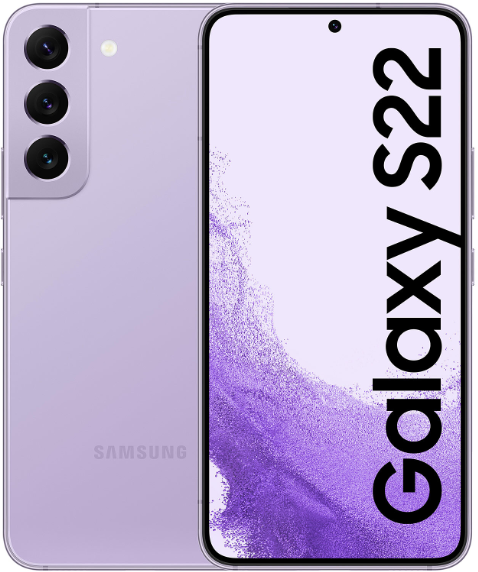
The Samsung Galaxy S22 is a compact 6.1‑inch flagship that focuses on pocketability without sacrificing power. It features a bright 120 Hz Dynamic AMOLED 2X display, a 50 MP triple camera with improved Nightography, and the Exynos 2200 or Snapdragon 8 Gen 1 processor (depending on region). The phone has a glass back, an aluminium Armor Aluminum frame, and Gorilla Glass Victus+ on the front and back. It supports 45W wired charging, 15W wireless charging, and an ultrasonic fingerprint sensor. The S22 runs One UI 6 on Android 14 and is available in Phantom Black, Phantom White, Green, and Pink Gold.
Key Features
- 6.1‑inch 120 Hz AMOLED 2X Display: The FHD+ screen is Samsung’s brightest ever at launch, with a peak brightness of 1,300 nits. The adaptive refresh rate drops to 10 Hz for static content to save battery.
- 50 MP Triple Camera: A larger main sensor (50 MP, f/1.8) with OIS captures more light than the S21. The 12 MP ultra‑wide (f/2.2) and 10 MP 3x telephoto (f/2.4, OIS) complete the versatile system. Nightography uses AI to brighten low‑light photos without a flash.
- Pro Mode & RAW: Shoot in full‑resolution RAW for professional editing. Pro Video mode offers manual controls and multi‑mic audio recording.
- Expert RAW App: A separate downloadable app (from Galaxy Store) enables 16‑bit RAW photos, HDR processing, and astrophotography mode.
- Ultrasonic Fingerprint Sensor: Built into the lower portion of the display, it’s fast and works with damp or dry fingers. It also supports Samsung Pass for auto‑filling passwords.
- 45W Wired Charging: Faster than the S21’s 25W. A compatible 45W charger (sold separately) can charge the 3,700 mAh battery from 0% to 50% in about 20 minutes.
- IP68 Water & Dust Resistance: Submersion in fresh water up to 1.5 metres for 30 minutes.
How to Use
What’s in the Box
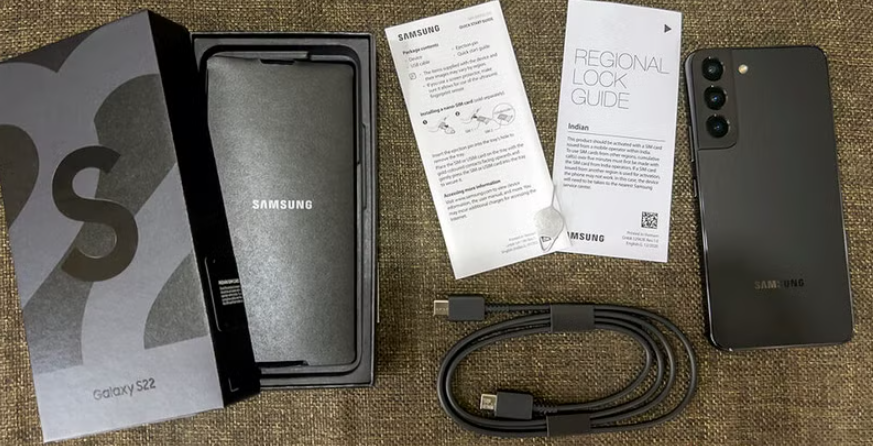
- Samsung Galaxy S22 (with a pre‑installed screen protector on some models)
- USB‑C to USB‑C cable
- SIM card ejector tool
- Quick‑Start Guide and warranty card
No charger, earphones, or case are included. Use any USB‑C PD charger (45W recommended for fast charging).
First‑Time Setup
- Press and hold the Side button (right edge) until the Samsung logo appears.
- Select your language, connect to Wi‑Fi, and sign in with your Google account and Samsung account.
- Use Smart Switch to transfer data from an old Android phone or iPhone. You can connect both phones with a USB‑C cable or do a wireless transfer.
- Once on the Home screen, go to Settings > Software update and install any pending updates.
- In Settings > Display, set Motion smoothness to Adaptive for 120 Hz scrolling, or Standard for 60 Hz to save battery.
Buttons, Ports & Fingerprint Sensor
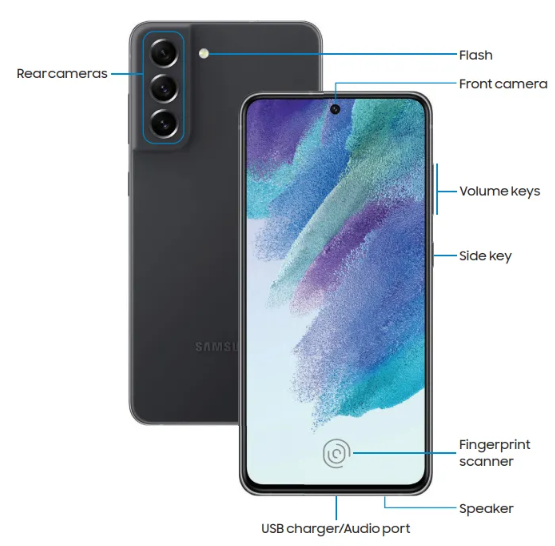
| Component | Location | Function |
|---|---|---|
| Side button / Bixby | Right edge | Press to wake/sleep. Double‑press for camera. Press and hold for Bixby (or power menu, customisable in Settings > Advanced features > Side key). |
| Volume rocker | Right edge (above Side button) | Adjust media and ringer volume. |
| USB‑C port | Bottom edge | Charging, data transfer. No headphone jack. |
| SIM tray | Bottom edge (left side) | Holds one nano‑SIM. eSIM is also supported on some models. No microSD slot. |
| Fingerprint sensor | Under the display (lower centre) | Press firmly on the screen to unlock. Register up to four fingerprints in Settings > Biometrics and security > Fingerprints. |
Camera Tips
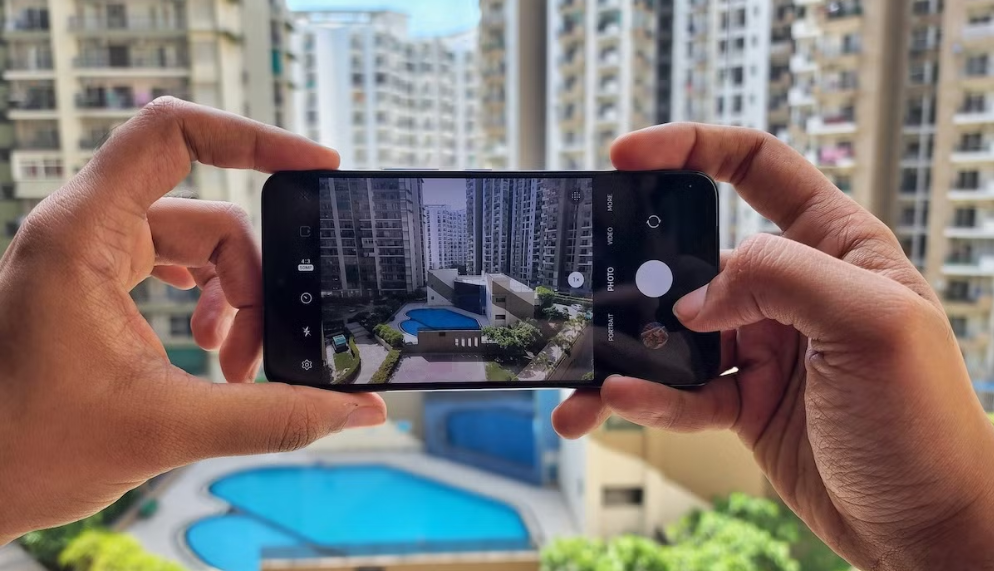
- Nightography: In low light, the camera automatically enables Night mode. Keep the phone steady for the 2‑3 seconds it needs. For even better results, use a tripod and the Expert RAW app.
- 50 MP mode: Tap the aspect ratio icon and select 3:4 50 MP. Use in daylight for the most detail. For everyday shots, the default 12.5 MP pixel‑binned mode is faster.
- 3x Telephoto: Tap the 3x preset for optical‑quality zoom. The 10 MP sensor with OIS helps keep portraits and distant subjects sharp.
- Portrait mode: Select Portrait from the mode bar. Adjust background blur before or after taking the shot. The telephoto camera creates a more natural perspective for portraits.
- Director’s View: In More > Director’s View, you see live thumbnails from all three lenses and can switch between them while recording video.
- Quick launch: Double‑press the Side button to open the camera, even when locked.
Battery & Charging
- Battery capacity: 3,700 mAh. Lasts a full day with moderate use.
- Wired charging: Supports up to 45W USB‑C PD fast charging (charger sold separately). A 20‑minute charge can give 50%.
- Wireless charging: Up to 15W with a Qi‑compatible pad. The S22 also supports Wireless PowerShare, which lets you charge another device (e.g., Galaxy Buds) on the back of the phone.
- Battery protection: Go to Settings > Battery and device care > Battery > More battery settings > Protect battery to cap charging at 85% for long‑term battery health.
Troubleshooting & Common Problems
| Problem | Likely Cause | What to Try |
|---|---|---|
| Fingerprint sensor slow or not recognizing | Dirty screen, or dry finger | Clean the screen and your finger. Delete and re‑register fingerprints. Register the same finger twice. |
| Camera app crashes | Software glitch, or low storage | Restart the phone. Clear the camera app cache: Settings > Apps > Camera > Storage > Clear cache. |
| Phone overheats during gaming | Intensive graphics or charging | Remove the case. Lower the game’s graphics settings. Avoid gaming while charging. |
| Battery drains quickly | 120 Hz display, or rogue apps | Switch to 60 Hz motion smoothness. Check Settings > Battery and device care > Battery for app usage. Turn on Dark mode. |
| Wi‑Fi disconnects often | Router or signal issue | Restart the router and phone. Forget the network and reconnect. Turn off Wi‑Fi power saving mode in Settings > Connections > Wi‑Fi > Advanced. |
| No sound during calls | Earpiece speaker blocked, or Bluetooth connected | Check that Bluetooth is off, or switch audio to the earpiece. Clean the earpiece grille with a soft brush. |
Common Problems Quick List
- Screen flickering: This may occur at low brightness with 120 Hz enabled. Switch to 60 Hz in Display settings to test. If it persists, update the software.
- SIM card not detected: Remove and re‑insert the SIM tray. Restart the phone. If the problem continues, the SIM card may be faulty.
- Wireless charging not working: Ensure the phone is centred on the charger. Remove any thick cases or metal attachments.
Frequently Asked Questions
- Does the Galaxy S22 have a headphone jack?
No. Use Bluetooth headphones or a USB‑C to 3.5 mm adapter. - Can I expand storage with a microSD card?
No, the S22 does not have a microSD card slot. Choose the 128 GB or 256 GB variant at purchase. - Is the phone waterproof?
It has an IP68 rating, meaning it can withstand submersion in fresh water up to 1.5 metres for 30 minutes. Avoid salt water and chlorinated pools. - How do I take a screenshot?
Press the Side button and Volume Down button at the same time. For a scrolling screenshot, tap the arrow icon after capturing. - Does the S22 support wireless charging?
Yes, up to 15W fast wireless charging, and it can also charge other devices via Wireless PowerShare. - How do I reset the phone?
Go to Settings > General management > Reset > Factory data reset. You’ll need your lock screen PIN or password.
Tips
- Use Expert RAW: Download the app from the Galaxy Store for professional‑grade photos. It’s free and integrates with the Gallery.
- Enable Edge Panels: Go to Settings > Display > Edge panels for quick access to apps, tools, and contacts from a swipeable tab on the right edge.
- Extend battery life: Use Adaptive battery and turn on Dark mode. The AMOLED screen saves power with dark pixels.
- Customize the Side key: Go to Settings > Advanced features > Side key and set Double press to open any app, and Press and hold to show the power off menu instead of Bixby.
- Keep the phone updated: Samsung provides security patches and One UI updates. Check Settings > Software update regularly.
Safety Information
- Charging: Use Samsung‑certified or reputable third‑party USB‑C PD chargers. Avoid using the phone while fast‑charging in direct sunlight or very hot environments.
- Battery: Do not puncture, drop, or expose the battery to high heat. If the battery swells, stop using the phone immediately and contact Samsung support.
- Screen: The S22 uses Gorilla Glass Victus+ on both sides. It’s durable, but a screen protector adds extra protection.
- Water resistance: The IP68 rating applies to fresh water only. Dry the USB‑C port before charging if the phone gets wet.
- Repairs: The glass back and internal components are deeply integrated. Repairs should be performed by Samsung or an authorized service centre.
Related Manuals
If this guide was helpful, here are a few more popular manuals from productsmanuals.com that you might find useful:
- How to Setup MIRO W1 SE Kids Smartwatch (Complete Guide + Fixes)
Master ECG, body composition, sleep apnea detection, and more. - Samsung Galaxy Z Flip 6 Manual – FlexWindow, FlexCam & Hinge Care Guide
Get the most from your folding phone’s cover screen and camera. - iPhone Air A3312 Manual – Apple Intelligence, Camera Control & Setup
Discover the thinnest iPhone with Apple Intelligence and Camera Control. - iPhone 17 Manual – Settings, Camera & Hidden Features Guide
Explore Dynamic Island, Action button, and battery‑health tricks. - Dell Inspiron 15 3520 Manual – Laptop Setup, Upgrades & Troubleshooting
Upgrade RAM and SSD, and fix common performance issues.
Browse all guides at productsmanuals.com .
Copyright Warning ⚠
Copyright 2026 productsmanuals.com All rights reserved. This Samsung Galaxy S22 SM‑S901B manual is original content and may not be copied, republished, or redistributed without written permission. Samsung, Galaxy, and the Samsung logo are trademarks of Samsung Electronics. This guide is unofficial and not affiliated with Samsung.
