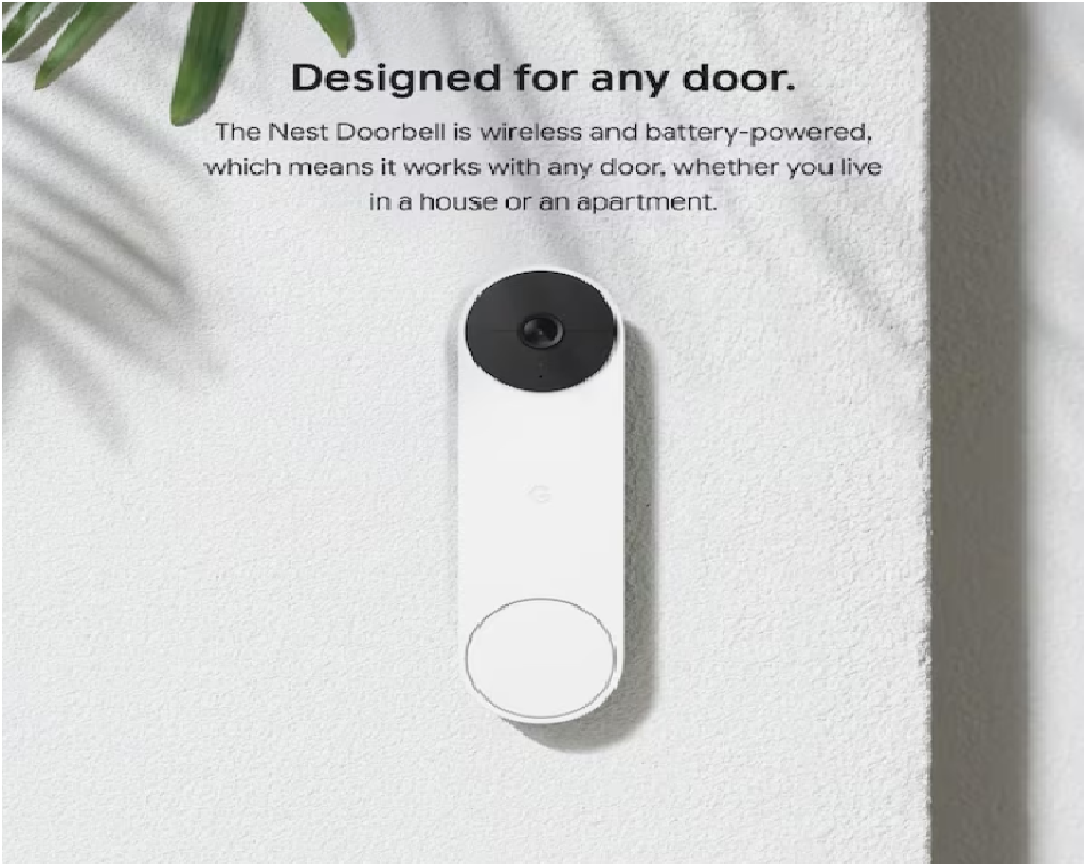

Table of Contents
ToggleGoogle Nest Doorbell GA01318 Using Manual
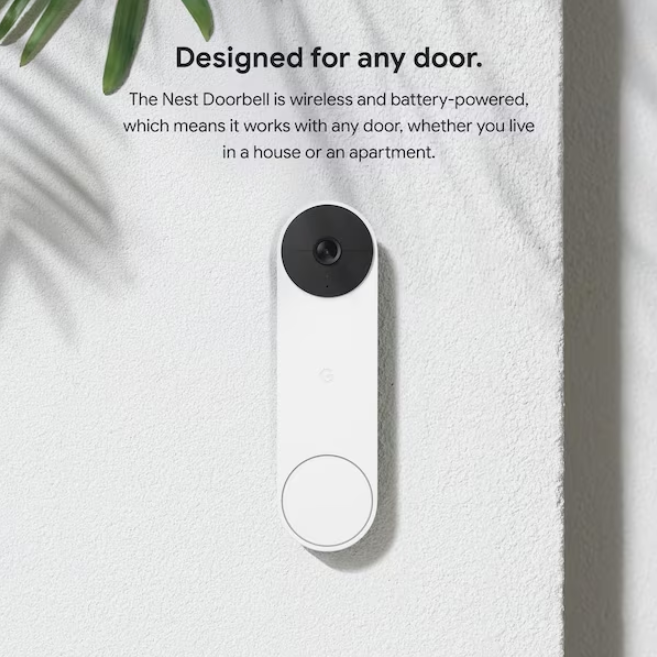
Introduction
The Google Nest Doorbell (Battery), model GA01318, is one of the most popular wire-free smart doorbells on the market. It delivers crisp HD video with a tall 3:4 aspect ratio that shows visitors from head to toe, plus packages on the ground. With on-device intelligence, it can tell the difference between people, packages, animals, and vehicles — and alert you accordingly. The built-in rechargeable battery means you can install it almost anywhere without wiring, and it can also be hardwired to an existing doorbell system for continuous charging. This manual covers everything from charging the battery and mounting the doorbell to configuring motion zones in the Google Home app and troubleshooting common issues.
Important: This guide is for the Google Nest Doorbell (Battery), model GA01318. Always refer to the official Google Home app and support resources for the latest firmware updates and feature availability.
Product Overview
The Google Nest Doorbell (Battery) is a wire-free smart doorbell that captures a tall 3:4 aspect ratio view of your front door. It features a 1.3-megapixel sensor (960 x 1280 video) with HDR and night vision, and it uses on-device machine learning to detect people, packages, animals, and vehicles. The doorbell connects to your home Wi-Fi (2.4 GHz and 5 GHz) and is controlled through the Google Home app. The device is weather-resistant (IP54) and operates in temperatures from -20°C to 40°C (-4°F to 104°F). It can also be hardwired to an existing doorbell system (16-24 VAC, 10-40 VA) for continuous charging. The doorbell is available in multiple colours, including Snow, Ash, Linen, and Ivy.
Full Specifications
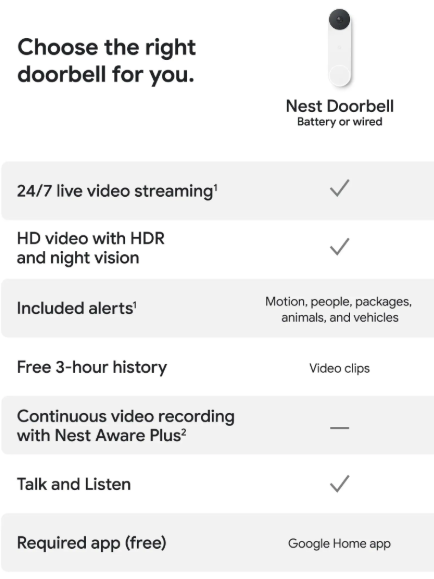
| Specification | Detail |
|---|---|
| Model | GA01318 (Nest Doorbell, Battery) |
| Video Resolution | 960 x 1280 HD, 3:4 aspect ratio, up to 30 FPS |
| Camera Sensor | 1.3-megapixel colour sensor |
| Field of View | 145° diagonal |
| Night Vision | Ten 850 nm infrared LEDs with IR cut filter; viewing distance up to 3 metres (10 feet) |
| Motion Detection | On-device AI: person, package, animal, vehicle detection |
| Two-Way Talk | High-quality speaker and microphone with noise cancellation |
| Power | Built-in rechargeable lithium-ion battery, 6 Ah, 3.65 V |
| Hardwired Option | 16–24 VAC, 10–40 VA, 50/60 Hz doorbell transformer |
| Charging Port | USB-C (cable included) |
| Wi-Fi | 802.11a/b/g/n/ac (2.4 GHz and 5 GHz), WEP, WPA, WPA2, WPA3 |
| Bluetooth | Bluetooth Low Energy (BLE) |
| Operating Temperature | -20°C to 40°C (-4°F to 104°F) |
| Weather Resistance | IP54 weather-resistant |
| Dimensions | Height: 131 mm (5.2 in), Length: 42 mm (1.7 in), Width: 28 mm (1.1 in) |
| Weight | 140 g (4.9 oz) |
| App | Google Home app (iOS and Android) |
| Voice Assistants | Google Assistant |
| Warranty | 1-year limited warranty |
| In-the-Box | Doorbell, base plate, 20° wedge, wire connector, unlock tool, USB-C to USB-A charging cable, screws, wall anchors, spacers, Quick Start Guide, safety document |
Key Features
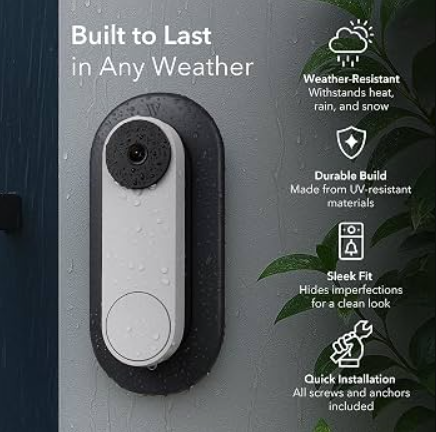
- Head-to-Toe HD Video: The 3:4 aspect ratio shows both faces and packages at the door, so you never miss what matters.
- On-Device Intelligence: The doorbell can distinguish between people, packages, animals, and vehicles without a subscription, sending you the alerts that matter most.
- Built-in Rechargeable Battery: No wiring required. The doorbell comes with a removable, rechargeable battery (6 Ah) that charges via USB-C.
- Hardwired Option: Can be connected to an existing doorbell system (16–24 VAC) for continuous charging.
- Two-Way Talk: Speak to visitors through the Google Home app with noise cancellation for clear audio.
- Night Vision: Ten infrared LEDs provide clear visibility up to 3 metres (10 feet) in low light.
- Works with Google Assistant: View live video on Nest Hub and other smart displays, and receive announcements when someone rings the doorbell.
- 3-Hour Free Event History: Without a subscription, you get 3 hours of event history and intelligent alerts. With Nest Aware, you get up to 60 days of video history.
- 20° Wedge Included: Use the included wedge to adjust the camera angle up to 20° horizontally if the doorbell is installed in a corner.
How to Use
What’s in the Box
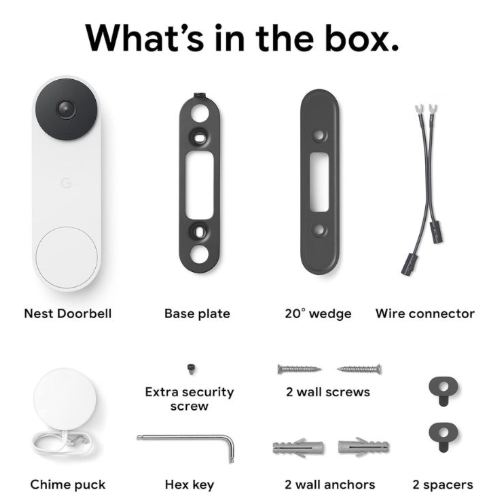
- Google Nest Doorbell (Battery)
- Base plate
- 20° wedge (for angled viewing)
- Wire connector (for hardwired installation)
- Unlock tool
- USB-C to USB-A charging cable
- Two wall screws
- Two wall anchors
- Two spacers
- Extra security screw
- Window decal
- Quick Start Guide and safety/warranty document
Installation Overview
Installation requires a Phillips screwdriver, a power drill, and a spirit level (optional). The doorbell can be installed wire-free or hardwired.
Tools needed:
- Phillips screwdriver
- Power drill
- Phillips drill bit
- 1/4 in (6.5 mm) drill bit (for wall anchors)
- 3/32 in (2 mm) drill bit (optional, for hard materials)
- Spirit level (to check alignment)
App and Internet requirements:
- Google Home app
- Compatible phone (to connect to Wi-Fi)
- Wi-Fi network name and password
- Broadband Internet connection (at least 2 Mbps)
Recommended: Connect a Google Home or Nest speaker or display for visitor announcements, since the doorbell cannot use your home’s chime with wire-free installation.
Charging the Battery
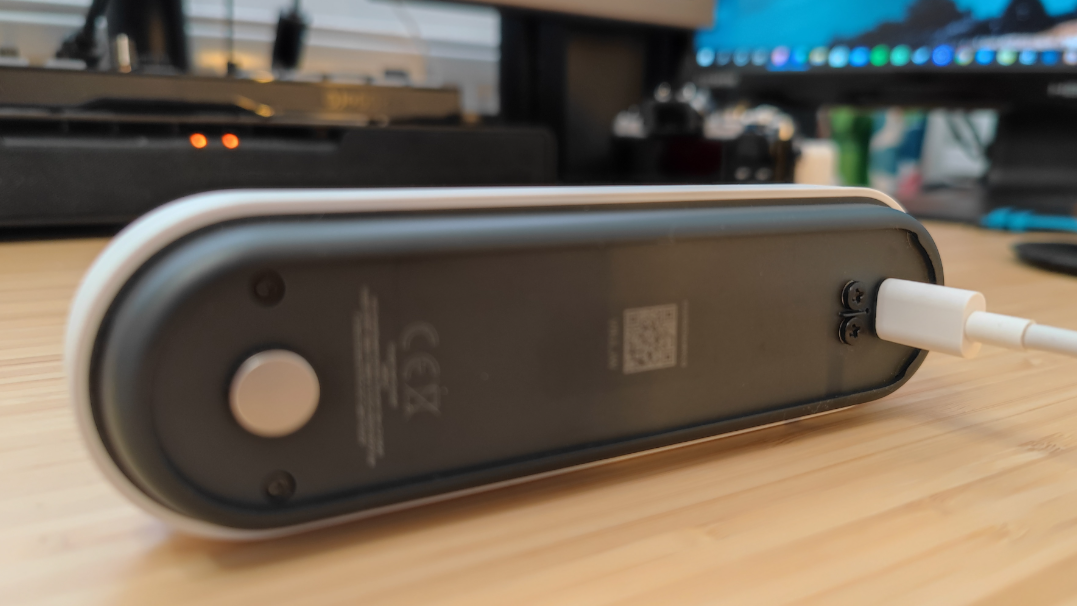
- Charge the doorbell before installation: Use the included USB-C cable to fully charge the doorbell for wire-free installation. Keep it plugged in during setup so it can connect to the app and Wi-Fi.
- Check the status light: The status light pulses white when charging and turns solid white when completely charged.
- Charging time: A full charge takes approximately 5–10 hours. A full charge provides up to 6 months of battery life under normal use.
- Reattach after charging: Once fully charged, disconnect the cable and reattach the doorbell to the base plate.
First-Time Setup in the Google Home App
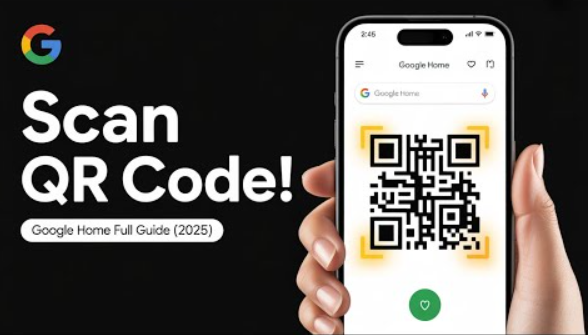
- Download the Google Home app: Get the Google Home app from the Apple App Store or Google Play Store. Sign in with your Google account.
- Tap “Add Device”: In the app, tap the “+” icon, then select “Add Device” > “Scan QR code” .
- Scan the QR code: Use your phone’s camera to scan the QR code on the back of the doorbell. You can also tap “Continue without scanning” and enter the code manually.
- Select the device: If prompted, select “Nest Doorbell (battery)” as the device you want to set up.
- Connect to Wi-Fi: Enter your Wi-Fi network password. The doorbell supports both 2.4 GHz and 5 GHz networks.
- Name your device: Give your doorbell a name (e.g., “Front Door”) and assign it to a room.
- Test the doorbell: Press the doorbell button. You should receive a notification on your phone.
Installation
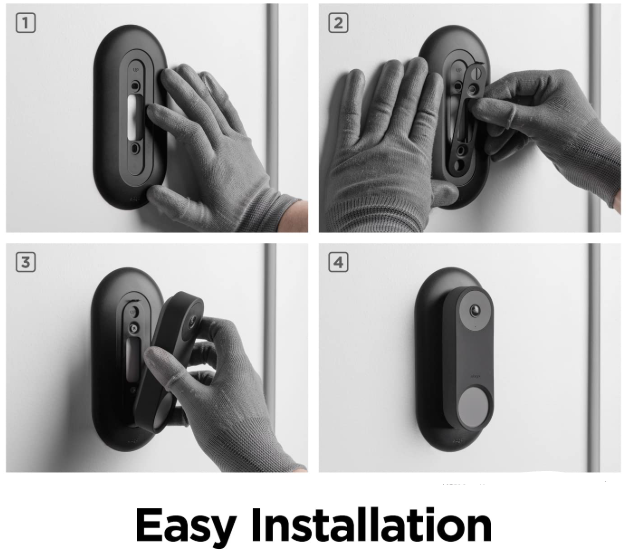
- Choose a location: Mount the doorbell at approximately 1.2 metres (4 feet) from the ground for optimal performance. Ensure it has a clear view of the approach to your door.
- Use the wedge if needed: If the doorbell is located in a corner, use the included 20° wedge to adjust the camera angle horizontally up to 20°.
- Mark the holes: Hold the base plate against the wall or door frame and use a pencil to mark the screw holes.
- Drill and anchor: If mounting on masonry, drill holes with the 1/4 in (6.5 mm) drill bit and insert the wall anchors. On wood, you can screw directly into the surface.
- Secure the base plate: Screw the base plate into place using the provided screws.
- Attach the doorbell: Align the doorbell with the base plate, press it into place until it clicks, and secure it with the security screw at the bottom using the unlock tool.
Hardwiring the Doorbell (Optional)
If you want continuous charging and the ability to use your existing indoor chime:
- Turn off power to your existing doorbell at the circuit breaker.
- Remove your old doorbell and disconnect the wires.
- Connect the two wires to the terminals on the back of the Nest Doorbell base plate using the provided wire connector.
- Mount the base plate and attach the doorbell.
- Restore power. The doorbell will use the existing transformer (16–24 VAC) to keep the battery charged.
Important: Do not let the connectors touch the backplate. This can cause an electrical short and damage the doorbell. Make sure they only touch the screws. Tighten the screws to secure the connectors. Make sure the wires point down.
Google Home App Configuration
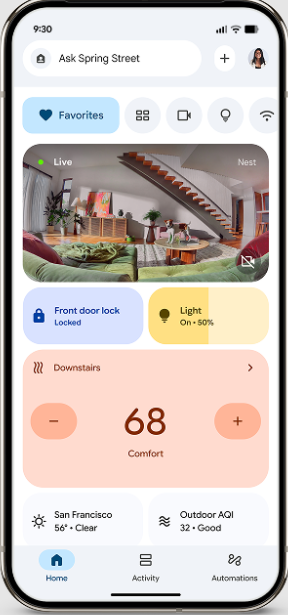
- Motion Settings: Go to Device Settings > Motion Detection in the Google Home app. Adjust sensitivity and create activity zones to monitor specific areas.
- Activity Zones: Draw zones on the camera view to define areas where you want motion alerts. Exclude the street or neighbours’ property to reduce false alerts.
- Intelligent Alerts: Choose which events trigger notifications: people, packages, animals, or vehicles.
- Two-Way Talk: Tap the microphone icon in the live view to speak. Release to listen.
- Live View: Tap the doorbell in the Google Home app to see a real-time feed. You can also start live view from a Nest Hub or other Google Assistant smart display.
- Quiet Time: Set a schedule to silence notifications during certain hours.
- Battery Saver Mode: In the battery settings, enable Automatic Battery Saver to extend battery life by reducing event recording frequency.
Battery Life & Charging Tips
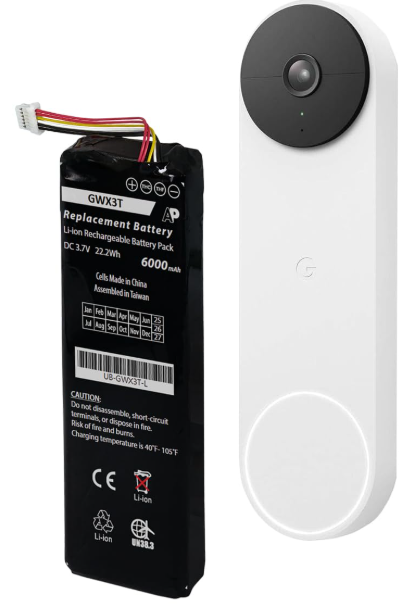
- Battery life: Up to 6 months depending on usage (number of events, live views, and temperature).
- Cold weather: Battery life decreases in cold temperatures. Consider hardwiring or keeping a spare battery charged.
- Quick-release battery: The battery slides out easily for charging. A spare battery (sold separately) lets you swap and keep the doorbell running without downtime.
- Charging voltage: Use a certified Limited Power Source (LPS) rated output of 5 VDC, 1.5 A. Only charge with the included charge cable.
Troubleshooting & Common Problems
| Problem | Likely Cause | What to Try |
|---|---|---|
| Doorbell won’t power on | Battery drained or not seated | Charge the battery fully. Reattach it until it clicks into place. Press the doorbell button to test. |
| Doorbell won’t connect to Wi-Fi | Wrong password or weak signal | Ensure your phone is on the same Wi-Fi network during setup. Re-enter the password. Restart the router. Move the router closer. |
| No video or “Device Offline” | Weak Wi-Fi signal, or battery low | Check the battery level in the app. Restart the doorbell by removing and reattaching it to the base plate. Move the router closer or use a Wi-Fi extender. |
| Motion alerts too frequent | Sensitivity too high, or zones cover a busy area | Reduce motion sensitivity and adjust activity zones. Use intelligent alerts to filter out non-human motion. |
| No chime inside house | Chime not set up, or wire-free installation | With wire-free installation, the doorbell cannot use your home’s chime. Connect a Google Home or Nest speaker or display for visitor announcements. |
| Poor night vision | Dirty lens, or IR reflection | Clean the lens with a soft, dry cloth. Ensure no overhang or wall is close to the camera causing IR reflection. |
| Battery drains too quickly | Too many motion events, live views, or cold weather | Reduce motion sensitivity. Adjust activity zones. Enable Automatic Battery Saver. Consider hardwiring the doorbell. |
| Two-way talk is choppy | Weak Wi-Fi signal | Move the router closer. Ensure the doorbell has a strong signal. Check your internet upload speed (2 Mbps recommended). |
| Doorbell won’t charge | Wrong cable or charger | Use only the included USB-C cable and a 5V/1.5A charger. Check that the charging port is clean and dry. |
Frequently Asked Questions
- Does the Google Nest Doorbell (Battery) require a subscription?
No, you can use the doorbell without a subscription. You get 3 hours of free event history, live view, two-way talk, and intelligent alerts for people, packages, animals, and vehicles. A Nest Aware subscription (starting at $6/month) extends video history to up to 60 days and adds features like familiar face detection. - What is the video resolution of the GA01318?
It captures 960 x 1280 HD video with a tall 3:4 aspect ratio, HDR, and night vision. - Does it support 5 GHz Wi-Fi?
Yes. The GA01318 supports both 2.4 GHz and 5 GHz Wi-Fi networks. - How long does the battery last?
Up to 6 months under normal use. Battery life depends on the number of motion events, live views, and temperature. - Can I hardwire the doorbell?
Yes. It can be hardwired to an existing doorbell system (16–24 VAC, 10–40 VA) for continuous charging. - Is the doorbell weather-resistant?
Yes, it has an IP54 weather-resistant rating and operates in temperatures from -20°C to 40°C. - Does it work with Google Assistant?
Yes. You can view live video on Nest Hub and other smart displays, and receive announcements when someone rings the doorbell. - How do I clean the doorbell?
Wipe the exterior with a soft, damp cloth. Do not use abrasive cleaners or spray water directly on the device. Clean the camera lens gently with a dry microfiber cloth. - Can I use the doorbell without Wi-Fi?
No. The Nest Doorbell requires a Wi-Fi connection for setup and operation. - How do I reset the doorbell?
Press and hold the reset button on the back of the doorbell for about 10 seconds until the status light flashes yellow. Release and set up the doorbell again in the Google Home app.
What is the model number for the Google Nest Doorbell (Battery)?
The primary model number is GA01318. Regional variants include GA01318-US (North America), GA01318-GB (United Kingdom), and GA01318-AU (Australia).
Tips
- Position the doorbell at 1.2 metres (4 feet): This height provides the optimal head-to-toe view for both visitors and packages.
- Use activity zones to reduce false alerts: Draw zones that cover only your porch or walkway, excluding the street and neighbours’ property.
- Enable Intelligent Alerts: Choose only the alerts that matter to you — people, packages, animals, or vehicles — to reduce notification fatigue.
- Keep a spare battery charged: A spare battery lets you swap and keep the doorbell running without downtime.
- Check Wi-Fi signal strength: In the Google Home app, go to Device Settings > Device Information to check the signal strength. If it’s poor, consider a Wi-Fi extender.
- Clean the lens regularly: Dust and spiderwebs can affect night vision and video clarity.
- Update firmware: The Google Home app will notify you when a firmware update is available. Keep the doorbell updated for the best performance.
- Use Battery Saver Mode: Enable Automatic Battery Saver in the app to extend battery life by reducing event recording frequency.
- Connect a Google speaker or display: With wire-free installation, connect a Google Home or Nest speaker or display to receive visitor announcements when someone rings your doorbell.
Safety Information
- Battery: The Nest Doorbell contains a lithium-ion battery. Do not attempt to remove the battery. Contact Google or a Google-authorized service provider for battery replacement. Replacement by non-qualified professionals can damage your Nest Doorbell.
- Charging: Use only the included charge cable. Using a damaged charge cable or using it when moisture is present can cause fire, electric shock, injury, or damage to the device. Use a certified Limited Power Source (LPS) rated output: 5 VDC, 1.5 A.
- Water resistance: The doorbell is weather-resistant (IP54) but should not be submerged in water. Do not charge the device when it is wet or in direct sunlight.
- Electrical (when hardwiring): Always turn off power at the breaker before connecting the doorbell to existing wiring. If you are not comfortable with electrical work, hire a qualified electrician. Do not let the connectors touch the backplate. This can cause an electrical short and damage the doorbell.
- Temperature: Do not expose Nest Doorbell to temperatures above 80°C (176°F) as this may damage the doorbell, overheat the battery, or pose a risk of fire.
- Children: Strangulation hazard. This device is not a toy. Keep the device cord out of the reach of children (more than 3 feet / 1 meter away).
- Privacy: Respect your neighbours’ privacy by setting privacy zones and not pointing the camera directly at their property.
PDF Resources
For the official PDF manual and additional documentation, visit:
- Google Nest Doorbell (Battery) User Manual: Available for download at support.google.com/googlenest.
- Nest Doorbell Installation Guide: Available at support.google.com/googlenest.
- Google Home App Setup Guide: The Google Home app guides you through setup step by step.
- Safety, Warranty & Regulatory Guide: Available at manualsfile.com.
You can also save the official manual as a PDF by opening it in your browser and using File > Print > Save as PDF.
Related Manuals
If this guide was helpful, here are a few more popular manuals from productsmanuals.com that you might find useful:
- Ring Battery Video Doorbell (2nd Gen) – Setup, Motion Zones & Troubleshooting
Explore Ring’s best-selling wire-free doorbell with 1440p HD video and color night vision. - Ring Video Doorbell Pro 2 Manual – Setup, Motion Zones & Troubleshooting
Explore Ring’s premium wired doorbell with 3D motion detection and Bird’s Eye View. - August Wi‑Fi Smart Lock AUG‑SL05‑M01‑G01– Specs, Features Guide
Secure your home with August Wi-Fi smart lock featuring auto-lock, guest keys, and DoorSense. - Samsung Galaxy Watch 7 Manual – Health Sensors, Galaxy AI & Battery Tips
Master ECG, body composition, sleep apnea detection, and more.
Browse all guides at productsmanuals.com .
Copyright 2026 [Your Name or Site Name]. All rights reserved. This Google Nest Doorbell (Battery) GA01318 manual is original content and may not be copied, republished, or redistributed without written permission. Google, Nest, and the Google logo are trademarks of Google LLC. This guide is unofficial and not affiliated with Google.
