
Introduction
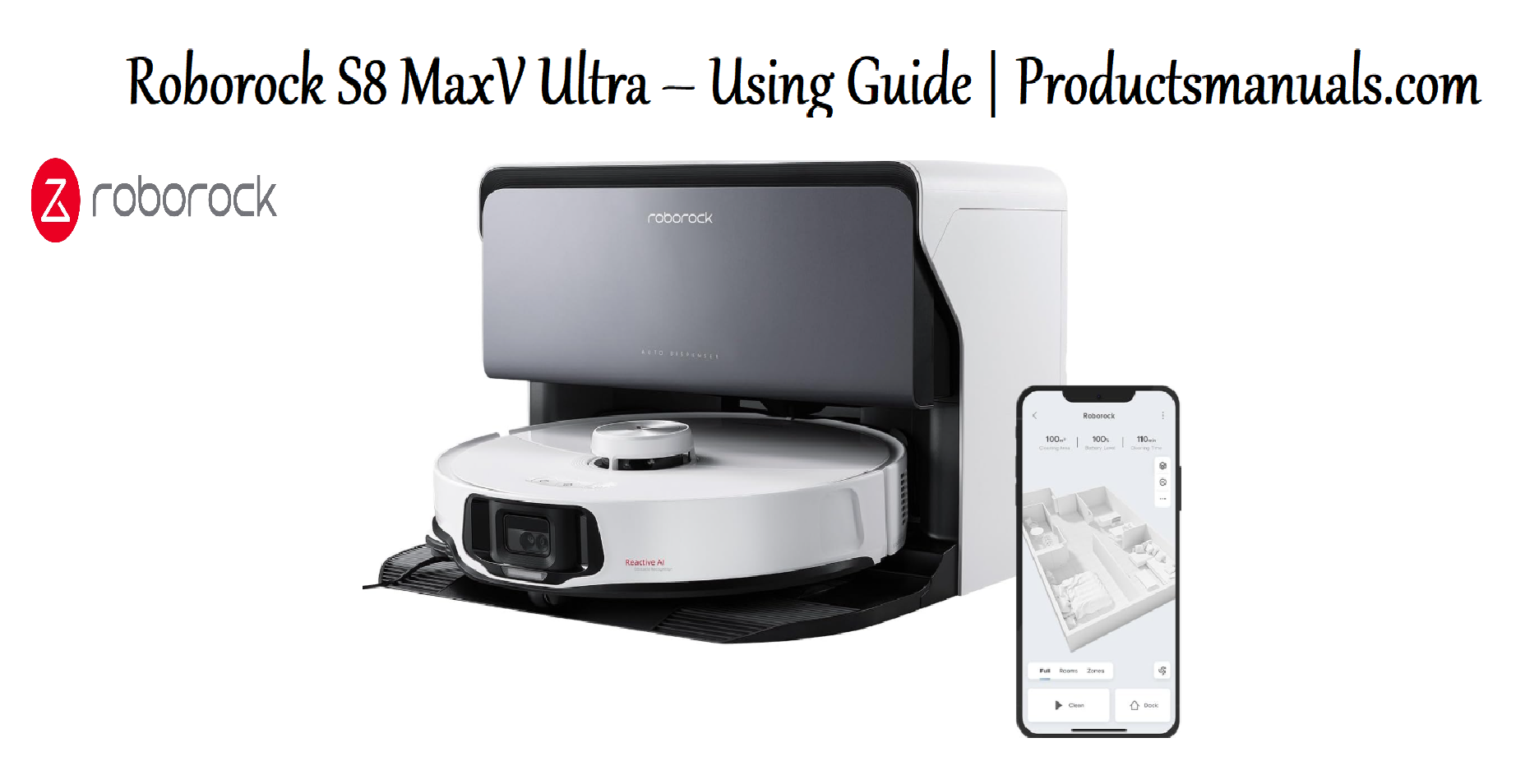
The Roborock S8 MaxV Ultra is a flagship robot vacuum and mop that cleans, empties itself, washes its mop pads, refills its water tank, and dries the mop with warm air—all without your intervention for weeks. It features 10,000 Pa of suction power, a VibraRise 3.0 mopping system that lifts the mop pad when it detects carpet, and Reactive AI 2.0 obstacle recognition powered by a front-facing camera. This manual covers everything from initial setup to advanced app configuration, maintenance schedules, and troubleshooting. Whether you just unboxed your S8 MaxV Ultra or you’re trying to resolve a recurring error, this guide provides clear, practical answers.
Product Overview
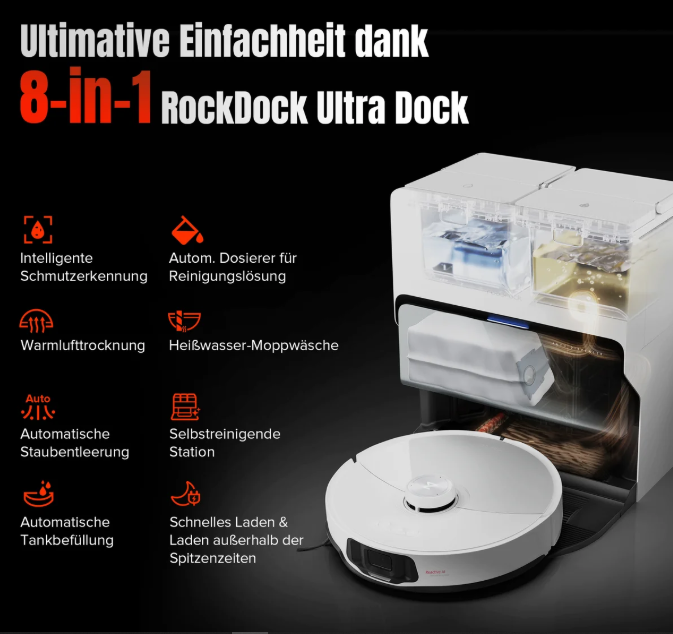
The Roborock S8 MaxV Ultra is a complete cleaning system consisting of a robot vacuum and a multifunction dock called the Empty Wash Fill Dock. The robot uses LiDAR navigation for mapping and a front-facing RGB camera with AI to identify and avoid obstacles like cables, pet waste, shoes, and socks. The dock automatically empties the robot’s dustbin into a 2.5-litre sealed bag, washes the mop pads with high-speed brushes, refills the robot’s water tank, and dries the mop pads with warm air to prevent odours and bacteria. The system supports voice control via Amazon Alexa, Google Assistant, and Apple HomeKit, and can be controlled remotely through the Roborock app. It’s available in Black (model RR-S8MVU52-03-BLK) and White.
Full Specifications
| Specification | Detail |
|---|---|
| Model | RR-S8MVU52-03-BLK (Roborock S8 MaxV Ultra) |
| Suction Power | 10,000 Pa |
| Battery | 5,200 mAh Lithium-Ion |
| Runtime | Up to 180 minutes |
| Charging Time | Approximately 4 hours |
| Bin Capacity (Robot) | 350 ml (approx.) |
| Dock Bin Capacity | 2.5 L (bagged) |
| Water Tank Capacity | 3 L clean water, 2.5 L dirty water (dock) |
| Navigation | LiDAR (LDS) + Reactive AI 2.0 (camera-based obstacle recognition) |
| Mopping System | VibraRise 3.0 – sonic vibration mopping with automatic mop pad lifting |
| Mop Washing | High-speed rotating brushes with warm water |
| Mop Drying | Warm air drying (up to 3 hours) |
| Auto-Emptying | Yes, into sealed dust bag |
| Auto-Refilling | Yes, robot water tank refilled by dock |
| Obstacle Avoidance | Reactive AI 2.0 identifies cables, pet waste, shoes, socks, and more |
| Voice Assistants | Amazon Alexa, Google Assistant, Apple HomeKit |
| App | Roborock app (iOS and Android) |
| Wi-Fi | 2.4 GHz |
| Noise Level | 67 dBA (vacuuming), quieter during mopping |
| Robot Dimensions | 353.6 x 350 x 103 mm |
| Dock Dimensions | Varies; requires approximately 50 cm width and 50 cm depth |
| Weight (Robot) | Approx. 4.5 kg |
| Weight (Dock) | Approx. 12 kg (empty) |
| Colours | Black, White |
| Warranty | 2 years |
| In-the-Box | S8 MaxV Ultra robot, Empty Wash Fill Dock, 1 dust bag, 1 mop pad set, power cord, water inlet pipe, drainpipe, user manual |
Key Features
- 10,000 Pa Suction Power: The strongest suction in Roborock’s lineup, capable of lifting pet hair, deep carpet debris, and fine dust. The main brush is designed with rubber blades and bristles to resist tangling.
- VibraRise 3.0 Mopping: The mop pad vibrates at up to 4,000 times per minute to scrub floors. When carpet is detected, the mop pad lifts up to 10 mm to avoid wetting rugs.
- Reactive AI 2.0: The front camera identifies and avoids up to 73 types of objects, including pet waste, cables, shoes, and socks. It also recognizes furniture and adjusts cleaning paths accordingly.
- Empty Wash Fill Dock: The dock automatically empties the robot’s dustbin into a 2.5 L sealed bag, washes the mop pads with high-speed brushes and warm water, refills the robot’s water tank, and dries the mop pads with warm air.
- Auto Mop Washing & Drying: After mopping, the dock washes the mop pads and dries them with warm air to prevent mould and odours. You can adjust washing frequency and drying duration in the app.
- LiDAR Navigation with Multi-Level Mapping: The robot creates accurate maps of your home, supports up to 4 levels, and allows you to set no-go zones, no-mop zones, and invisible walls.
- Voice & App Control: Full control through the Roborock app, plus voice commands via Alexa, Google Assistant, and Apple HomeKit.
- Pet-Friendly Design: The AI recognizes pet waste and avoids it. The main brush resists pet hair tangling.
How to Use
What’s in the Box
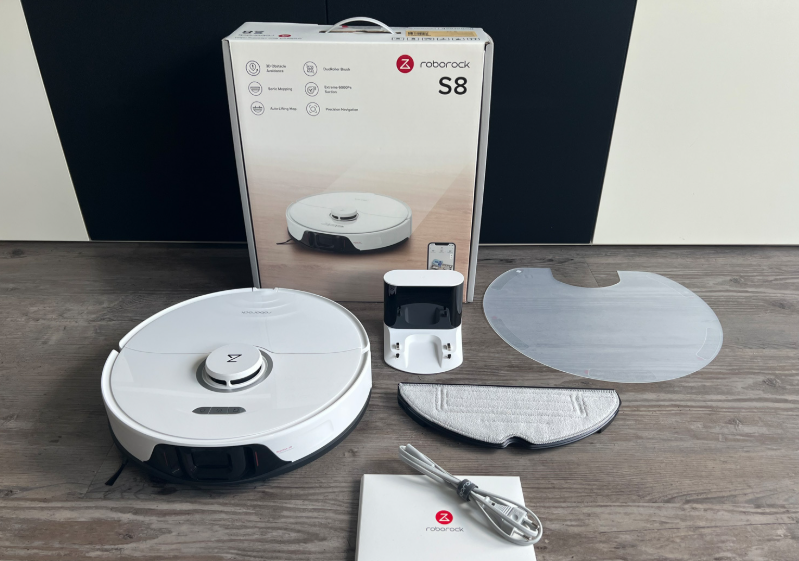
- Roborock S8 MaxV Ultra robot vacuum
- Empty Wash Fill Dock
- 1 disposable dust bag (pre-installed)
- 1 set of mop pads (pre-installed)
- Power cord
- Water inlet pipe (1/4″ pipe) × 1
- Drainpipe (3/8″ pipe) × 1
- Harness tube × 1
- Lock plates (1/4″ × 5, 3/8″ × 3)
- Tap water filter × 1
- Clean water three-way valve × 1
- User manual and quick start guide
Dock Installation
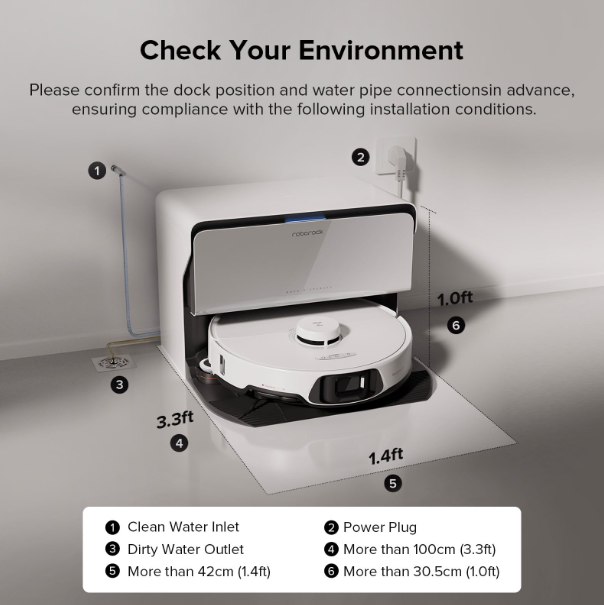
- Choose a location: Place the dock on a hard, flat floor against a wall. Leave at least 0.5 m on each side and 1.2 m in front. Keep it away from direct sunlight and moisture.
- Connect water supply: If using the automatic refill and drainage system, connect the 1/4″ inlet pipe to a cold water tap using the three-way valve and tap water filter. Connect the 3/8″ drainpipe to a floor drain or sewer.
- If not using plumbing: The dock’s water tanks can be filled and emptied manually. Remove the clean water tank, fill it, and replace. Empty the dirty water tank when full.
- Plug in: Connect the power cord and press the dock’s power button. The status indicator will light up.
- Place the robot: Align the robot’s charging contacts with the dock and push it in until it clicks.
First-Time Setup & App Connection
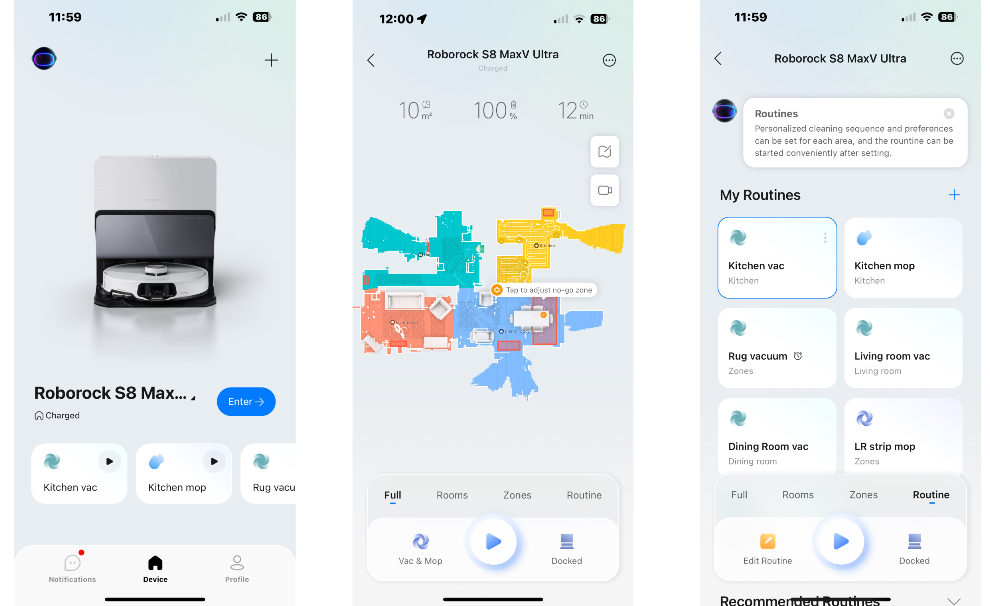
- Download the Roborock app on your smartphone (iOS or Android). Create an account or sign in.
- Add the device: Tap “Add Device” and select the S8 MaxV Ultra. Follow the in-app instructions to connect the robot to your 2.4 GHz Wi-Fi network.
- Map your home: After connection, start a Quick Mapping run. The robot will explore your home and create a map. Keep doors open and clear the floor of major obstacles.
- Set up cleaning preferences: In the app, configure suction power, mop intensity, mop washing frequency, and drying duration.
- Create schedules: Set daily or weekly cleaning schedules for specific rooms or the entire home.
Using the Robot
- Start cleaning: Press the Power/Clean button on the robot, or use the app to start a full clean or room-specific clean.
- Mop Only mode: Press the Mop Only button to start a mopping-only cycle.
- Child Lock: Press and hold the Mop Only button for 3 seconds to enable or disable Child Lock.
- Pause: Press any button to pause the robot during cleaning or docking.
- Dock return: Press the Dock button to send the robot back to the dock for charging, emptying, or mop washing.
Using the Dock
- Auto-Emptying: After each cleaning run, the dock automatically empties the robot’s dustbin into the sealed bag. The bag holds approximately 7 weeks of debris.
- Mop Washing: The dock washes the mop pads after mopping. You can adjust washing frequency in the app. Press and hold the Dock button to manually start a mop wash.
- Mop Drying: After washing, the dock dries the mop pads with warm air. The drying time can be set in the app (up to 3 hours).
- Water Refill: If plumbed in, the dock automatically refills the robot’s water tank. If using manual tanks, refill the clean water tank and empty the dirty water tank as needed.
App Features
- Map Management: Label rooms, set no-go zones, no-mop zones, and invisible walls.
- Cleaning Modes: Choose from Vacuum, Mop, or Vacuum & Mop simultaneously.
- Suction & Water Flow: Adjust suction power (Quiet, Balanced, Turbo, Max, Max+) and water flow (Low, Medium, High) per room.
- Schedules: Create daily or weekly schedules for specific rooms or the entire home.
- Maintenance Reminders: The app alerts you when to replace the dust bag, clean the filter, or replace the mop pads.
- Remote Viewing: Use the robot’s camera to check on your home when you’re away (requires enabling in settings).
Troubleshooting & Common Problems
| Problem | Likely Cause | What to Try |
|---|---|---|
| Robot won’t turn on | Battery fully drained | Place the robot on the dock and charge for at least 30 minutes. |
| Robot won’t charge | Dirty charging contacts | Wipe the charging contacts on the robot and dock with a dry cloth. Ensure the robot is properly aligned on the dock. |
| Dock won’t empty the dustbin | Dust bag full, or suction inlet blocked | Replace the dust bag. Check the suction inlet on the dock and clean if blocked. |
| Mop pads not getting wet | Water tank empty, or water filter clogged | Refill the clean water tank. Clean the water filter inside the dock. |
| Mop pads not drying | Drying function disabled, or air outlets blocked | Enable drying in the app. Clean the drying air outlets on the dock. |
| Robot gets stuck on cables or rug tassels | Obstacle avoidance missed the object | Create a no-go zone around the problem area in the app. Ensure the robot’s camera lens is clean. |
| Error code 1: LiDAR blocked | LiDAR sensor obstructed | Clean the LiDAR turret on top of the robot with a dry cloth. |
| Error code 4: Cliff sensor error | Cliff sensors dirty, or robot on dark surface | Clean the cliff sensors on the bottom of the robot. Move the robot to a lighter surface if it’s on a dark rug. |
| Error code 8: Main brush jammed | Hair or debris wrapped around main brush | Remove the main brush cover and clean the brush. Use scissors to cut tangled hair. |
| Error code 13: Charging error | Dirty contacts, or dock power issue | Clean charging contacts. Check that the dock is plugged in and the power outlet works. |
Frequently Asked Questions
- How often do I need to replace the dust bag?
Approximately every 7 weeks, depending on usage. The app will notify you when it’s full. You can also check by opening the dock lid. - How often should I clean the mop pads?
The dock washes them automatically after each mopping session. You should replace the mop pads every 2-3 months, or when they become worn or odorous. - Does the S8 MaxV Ultra work on carpets?
Yes. The robot vacuums carpets and detects them automatically to lift the mop pad. You can also set no-mop zones for rugs and carpets if you prefer not to mop them. - Can I use the robot without the dock?
The robot requires the dock for charging and auto-emptying. You can use it manually without the dock’s water connection, but you’ll need to empty the dustbin and refill the water tank manually. - Is the S8 MaxV Ultra pet-safe?
Yes. It has AI obstacle recognition trained to identify and avoid pet waste. The main brush is designed to resist pet hair tangling. - What is Reactive AI 2.0?
It’s the robot’s obstacle recognition system. The front camera identifies objects like cables, shoes, socks, and pet waste, and avoids them in real time. - How do I clean the robot’s sensors?
Wipe the LiDAR turret, cliff sensors, wall sensor, and camera lens with a dry, soft cloth. Do not use water or cleaning sprays. - Can I control the robot with voice commands?
Yes. It works with Amazon Alexa, Google Assistant, and Apple HomeKit. You can say “Alexa, ask Roborock to clean the kitchen.” - How many maps can the robot store?
Up to 4 maps, ideal for multi-level homes.
Tips
- Run a mapping run first: Before your first cleaning, let the robot explore your home to create an accurate map.
- Use no-go zones for cables and pet bowls: Prevent the robot from getting stuck or creating a mess.
- Set mop washing frequency to your preference: More frequent washing means cleaner mops but uses more water. Wash after every 10-15 minutes of mopping is typical.
- Enable off-peak charging: In the app, schedule charging during off-peak electricity hours to save on energy costs.
- Keep the dock clean: Wipe the dock base and clean the mop washing module regularly to prevent odours and buildup.
- Replace the filter every 2-3 months: A clogged filter reduces suction power and can cause the robot to overheat.
- Use the app’s maintenance reminders: The app tracks usage and tells you exactly when to replace consumables.
- Clean the robot’s camera lens weekly: Dust on the lens reduces obstacle recognition accuracy.
Safety Information
- Electrical safety: Use only the power cord provided with the product. Do not use any other power adapter.
- Water and electricity: Do not immerse the robot or dock in water. Unplug the dock before cleaning or maintenance.
- Dock placement: Place the dock on a hard, flat floor away from fire, heat, and water. Do not place it near stairs or elevated surfaces without barriers.
- Blades: The main brush cover contains blades for cutting hair. Make sure both main brushes are installed before using the robot.
- Obstacles: Remove lightweight items (plastic bags) and fragile objects (vases) from the floor before cleaning.
- Children and pets: Do not sit or stand on the robot or dock. Do not operate the product in a room where an infant or child is sleeping.
- Battery: Do not discard waste batteries. Leave them with a professional recycling organization. If storing the robot for an extended period, charge it fully and recharge at least every 3 months.
- Hot water: To avoid burns, do not touch the water outlets on the dock during mop washing.
- Cleaning solution: Use only Roborock-recommended cleaning solution in the solution cartridge. Do not use disinfectants or other chemicals.
Related Manuals
If this guide was helpful, here are a few more popular manuals from productsmanuals.com that you might find useful:
- Samsung Galaxy Watch 7 Manual – Health Sensors, Galaxy AI & Battery Tips
Master ECG, body composition, sleep apnea detection, and more. - iRobot Roomba Combo j7+ Manual – Vacuum & Mop with Auto-Retract
Compare the j9+ with the S8 MaxV Ultra for your home cleaning needs. - Blueair Pure 211+ Manual – HEPA Air Purifier Setup & Filter Care
Breathe cleaner air with this large-room air purifier. - Honeywell T5 Smart Thermostat Manual – Geofencing, App Setup & Scheduling
Automate your home’s heating and cooling for comfort and savings. - Dell Inspiron 15 3520 Manual – Laptop Setup, Upgrades & Troubleshooting
Upgrade RAM and SSD, and fix common performance issues.
Browse all guides at productsmanuals.com .
Copyright 2026 productsmanuals.com All rights reserved. This Roborock S8 MaxV Ultra manual is original content and may not be copied, republished, or redistributed without written permission. Roborock, S8 MaxV Ultra, VibraRise, and the Roborock logo are trademarks of Beijing Roborock Technology Co., Ltd. This guide is unofficial and not affiliated with Roborock.

[…] Roborock S8 MaxV Ultra– Vacuum & Mop with Auto-Emptying Keep your floors clean with this flagship robot vacuum. […]