
Product Overview
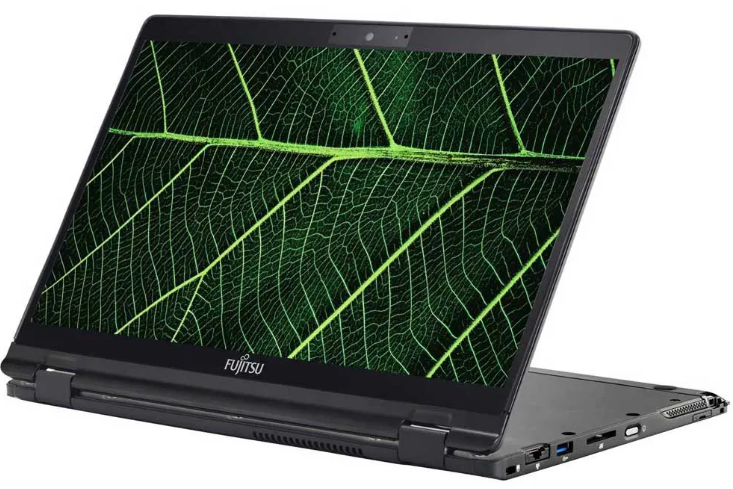
The Fujitsu Lifebook U9310X is a lightweight 13.3‑inch business convertible with a 360‑degree hinge that flips the display all the way around into tablet mode. It is built around an 11th‑generation Intel Core i5 or i7 processor, a Full HD IPS touchscreen, and a fast PCIe NVMe SSD. The magnesium‑alloy chassis keeps the weight at about 1.0 kg, making it one of the lightest 2‑in‑1s in its class. The laptop includes a rechargeable pen (stored and charged in the side slot), a fingerprint sensor, and a full set of business ports including HDMI, USB‑A, and Thunderbolt 4. It is designed for professionals who need a single device for presentations, note‑taking, and travel.
Key Features
- 13.3‑inch Full HD IPS Touchscreen: The 1920×1080 anti‑glare display supports 10‑point multi‑touch and the included active pen. The 360‑degree hinge lets you use the device in laptop, tent, stand, or tablet mode.
- Active Pen with Garage: A rechargeable stylus (Fujitsu FPCPN36AP or similar) slides into a slot on the right side of the laptop. It charges automatically when stored and supports 4,096 pressure levels, palm rejection, and an eraser button.
- Intel 11th‑Gen Core i5/i7 with vPro: Business‑grade processors with Intel Iris Xe graphics provide smooth multitasking, video conferencing, and light creative work.
- Thunderbolt 4 & Ports: One Thunderbolt 4/USB‑C port (Power Delivery & DisplayPort), one USB‑A 3.2, HDMI 2.0, a microSD card reader, a Gigabit Ethernet port (via included dongle), a smart card reader, and a headphone/mic jack.
- Magnesium‑Alloy Body & MIL‑STD‑810H: The laptop meets military‑grade durability tests for drops, vibration, and temperature. The lid and chassis resist flex and everyday abuse.
- Fingerprint Sensor & IR Camera: The power button doubles as a fingerprint reader. The optional IR camera (on some models) supports Windows Hello face recognition.
- Lightweight Design: Starting at 1.0 kg (2.2 lbs), it’s easy to carry all day. The 50 Wh battery provides up to 10 hours of typical office use.
How to Use
What’s in the Box
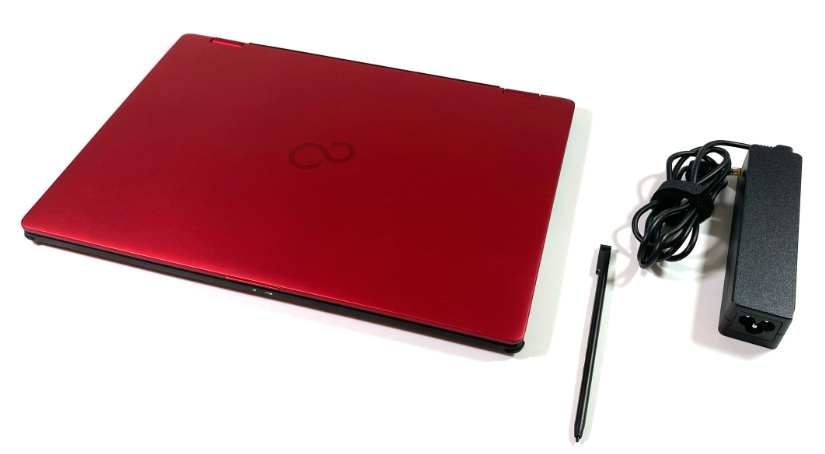
- Fujitsu Lifebook U9310X laptop (pen pre‑inserted in the garage)
- USB‑C power adapter (65 W) and power cord
- Gigabit Ethernet adapter (USB‑C to RJ45)
- Quick‑Start Guide and warranty card
No carrying case or screen protector is included. The pen is stored inside the laptop.
Physical Tour & Tablet Modes
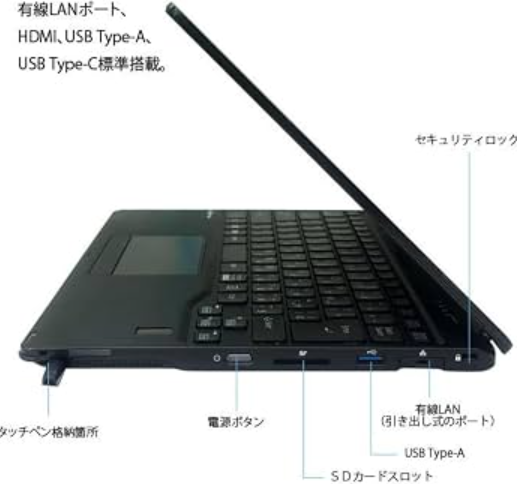
| Component | Location | Function |
|---|---|---|
| Power button / fingerprint sensor | Right edge (laptop mode) | Press to turn on. Rest your finger to log in. |
| Volume buttons | Right edge (near the pen garage) | Adjust volume in tablet mode. |
| Pen garage | Right edge (lower) | Slide the pen in to store and charge. Press the end to eject. |
| Thunderbolt 4 / USB‑C | Left edge | Charging, external displays (up to 4K@60Hz), data transfer, and docking. |
| USB‑A 3.2 | Left edge | Connect standard USB devices. |
| HDMI 2.0 | Left edge | Connect to a TV or projector. |
| microSD card reader | Left edge | Expand storage or transfer files from cameras/phones. |
| 3.5 mm audio jack | Right edge | Headphones or microphone. |
To switch to tablet mode, fold the screen all the way back until the lid and base are back‑to‑back. Windows automatically rotates the display and enables the touch‑first interface. The keyboard and touchpad are disabled when the screen is past 180 degrees.
First‑Time Setup
- Plug in the USB‑C charger and press the power button. The Fujitsu logo appears, and Windows 11 setup begins.
- Follow the on‑screen steps to select your region, language, and connect to Wi‑Fi (Wi‑Fi 6 supported).
- Sign in with your Microsoft account or create a local account.
- If your model includes an IR camera, you can set up Windows Hello face recognition. Otherwise, use the fingerprint sensor: go to Settings > Accounts > Sign‑in options and follow the prompts.
- Once on the desktop, open Windows Update and install all pending updates. Fujitsu also provides the Fujitsu Software Update tool (pre‑installed) to fetch drivers and BIOS updates. Run it as well.
Using the Active Pen
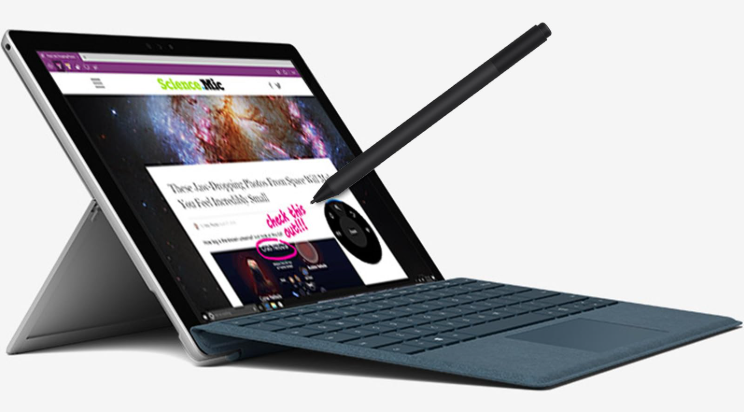
- Remove the pen: Press the end of the pen to pop it out of the garage. It wakes automatically when removed.
- Hover and ink: Hover the pen tip near the screen to see a small cursor dot. Press to write, draw, or select. The pen supports pressure – press harder for thicker lines in drawing apps.
- Eraser: Flip the pen over and rub the back end on the screen to erase in supported apps (OneNote, Whiteboard, etc.).
- Charging: Insert the pen back into the garage. The LED on the pen glows while charging and turns off when full. A full charge takes about 15 seconds of insertion and provides several hours of use.
- Pen settings: Go to Settings > Bluetooth & devices > Pen & Windows Ink to configure pen shortcuts and test pressure sensitivity.
Tablet Mode & Touch Gestures
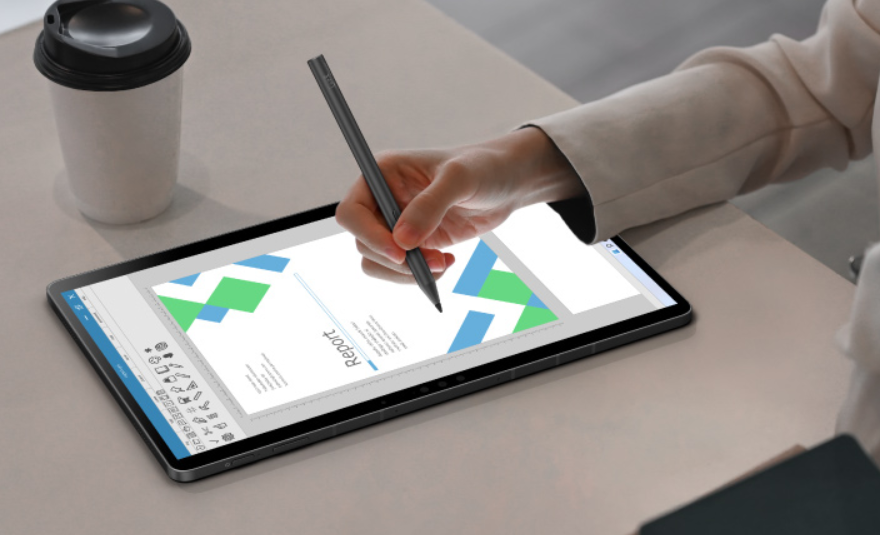
When you fold the screen back, Windows switches to tablet mode:
- Swipe up from the bottom: Open the Start menu.
- Swipe down from the top: Close an app or access the title bar.
- Swipe from the left: View all open apps (Task View).
- Swipe from the right: Open the Action Center (notifications and quick settings).
- Pinch to zoom works in most apps.
The on‑screen keyboard appears automatically when you tap a text field. You can also press the keyboard icon in the taskbar to manually show it.
Battery & Charging
- Charging: The included 65 W USB‑C charger provides a full charge in about 1.5 hours. You can also charge via any USB‑C PD charger (45 W minimum). Charge the pen by storing it in the garage.
- Battery life: Up to 10 hours of office work (web browsing, email). Video playback and high‑performance tasks reduce runtime.
- Battery care: In the pre‑installed Fujitsu Battery Utility, you can set a charging limit (e.g., 80%) to extend battery lifespan if you often keep the laptop plugged in.
Keyboard Specifications
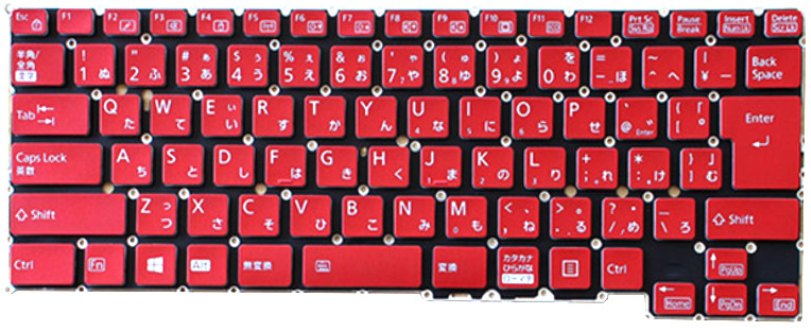
| Specification | Detail |
|---|---|
| Type | Full‑size (approximately 19 mm key pitch), spill‑resistant |
| Layout | 82‑key (varies slightly by region), ISO layout with dedicated function row |
| Backlight | White LED backlight (adjustable: off, dim, bright) |
| Key Travel | 1.5 mm |
| Actuation Force | ~60 g (consistent tactile feedback) |
| Special Keys | Dedicated Windows key, Fn lock, PrtSc, Insert, Delete, Home, End, PgUp, PgDn |
| Function Row Shortcuts (Fn +) | F1 – sleep, F2 – airplane mode, F3/F4 – brightness, F5/F6 – volume, F7 – external display, F8 – touchpad toggle, F9 – mute mic, F10 – camera off, F11 – keyboard backlight toggle, F12 – Print Screen |
| Pointing Device | Multi‑touch touchpad with integrated left/right buttons (no separate TrackPoint) |
| Pen Garage | Right side; stores and charges active pen (does not affect keyboard layout) |
| Numeric Keypad | None (13.3‑inch form factor) |
| Keyboard Lock | Fn + NumLk (simulates numeric keypad on U, I, O, J, K, L, etc.) |
| Durability | Rated for 10 million keystrokes |
Troubleshooting & Common Problems
| Problem | Likely Cause | What to Try |
|---|---|---|
| Pen not writing or not recognized | Pen battery drained, or driver issue | Insert the pen into the garage for 30 seconds to charge. Restart the laptop. In Device Manager, check for a “Fujitsu Pen” device under Human Interface Devices; update its driver. |
| Touchscreen not responding | Driver crash, or dirt on the screen | Clean the screen with a dry microfiber cloth. Restart the laptop. Update the touchscreen driver via Windows Update or the Fujitsu support site. |
| Tablet mode doesn’t activate when folding | Rotation sensor not calibrated | Go to Device Manager > Sensors, right‑click “Simple Device Orientation Sensor” and uninstall (do not delete the driver). Restart; the driver will reinstall. |
| Laptop runs hot while charging | Normal during fast charging, especially with heavy use | Close background apps. Avoid blocking the bottom air vents. If the fan is constantly loud, clean the vents with compressed air. |
| USB‑C charging not working | Wrong charger, or the port is in “data only” mode | Use the included 65 W USB‑C PD charger. If using a third‑party charger, ensure it supports PD at 45 W or higher. Try another USB‑C cable. |
| Fingerprint reader not responding | Dry finger, or driver conflict | Wipe the sensor with a dry cloth. Delete and re‑register your fingerprint. Update the fingerprint driver via Fujitsu Software Update. |
Frequently Asked Questions
- Can I upgrade the RAM or SSD?
The RAM is soldered and not upgradeable. The SSD (M.2 2280 NVMe) can be replaced by removing the bottom cover. Choose your SSD capacity at purchase. - What is the pen model?
The included pen is a Fujitsu active pen (model may vary by region; often FPCPN36AP or similar). It uses Wacom AES technology. - Can I use the laptop with an external monitor?
Yes. The Thunderbolt 4 port supports DisplayPort alt mode. You can connect a 4K@60Hz monitor directly via a USB‑C to DisplayPort cable. The HDMI 2.0 port also supports 4K@60Hz. - Is the keyboard backlit?
Most configurations include a white backlit keyboard. Toggle it with Fn + Space. If your model does not have a backlight, the spacebar will not show the backlight icon. - How do I enter the BIOS?
Restart the laptop and press F2 repeatedly at the Fujitsu logo. In the BIOS, you can change boot order, enable/disable TPM, and adjust security settings. - Does it support Windows 11?
Yes, it ships with Windows 11 and fully supports it. The TPM 2.0 module is built in.
Tips
- Keep the pen charged: Even a 15‑second insertion into the garage provides a significant charge. Always store the pen there when not in use.
- Use tablet mode for presentations: Fold the screen into stand or tent mode when presenting. The keyboard is disabled, preventing accidental keypresses.
- Clean the screen regularly: Fingerprints and smudges reduce touch accuracy. Use a microfiber cloth. Avoid using alcohol or abrasive cleaners on the anti‑glare coating.
- Extend battery life: Enable Battery Saver mode in Windows, reduce screen brightness, and turn off Bluetooth when not needed. Use the Fujitsu Battery Utility to cap charging at 80%.
- Update drivers via Fujitsu Software Update: This dedicated app keeps your drivers, BIOS, and firmware current.
Safety Information
- Pen: The pen tip is replaceable. Do not insert the pen backwards or force it. Keep the pen away from small children (choking hazard).
- Display: The touchscreen is glass. Avoid dropping the laptop or placing heavy objects on it. Use a padded sleeve for transport.
- Charging: Use only USB‑C PD chargers certified for your region. Unplug the charger during electrical storms.
- Ventilation: Keep the bottom air vents clear. Do not use the laptop on soft surfaces (pillows, blankets) for extended periods.
- Battery: The battery is internal and should be replaced only by an authorised Fujitsu service centre. Do not puncture or expose the battery to high heat.
Related Manuals
If this guide was helpful, here are a few more popular manuals from productsmanuals.com that you might find useful:
- Samsung Galaxy Watch 7 Manual – Health Sensors, Galaxy AI & Battery Tips
Master ECG, body composition, sleep apnea detection, and more. - Lenovo ThinkPad T440p Manual – Upgrade Guide, TrackPoint & Hot‑Swap Battery
Upgrade RAM, SSD, and CPU on the classic upgradable ThinkPad. - iPhone 16 Manual – Settings, Camera & Hidden Features Guide
Explore Dynamic Island, Action button, and battery‑health tricks. - Dell Inspiron 15 3520 Manual – Laptop Setup, Upgrades & Troubleshooting
Upgrade RAM and SSD, and fix common performance issues. - HP DeskJet 3755 Manual – Wireless Printer Setup & Common Fixes
Print, scan, and solve paper jams with clear step‑by‑step instructions.
Browse all guides at productsmanuals.com .
Copyright 2026 productsmanuals.com All rights reserved. This Fujitsu Lifebook U9310X manual is original content and may not be copied, republished, or redistributed without written permission. Fujitsu, Lifebook, and the Fujitsu logo are trademarks of Fujitsu Limited. This guide is unofficial and not affiliated with Fujitsu.
