
Introduction
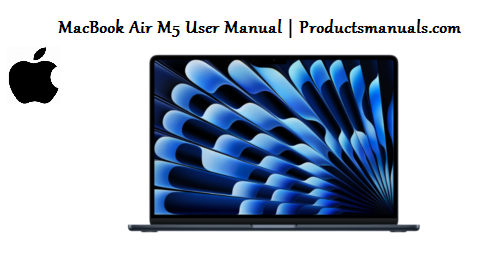
The MacBook Air M5 is Apple’s most refined ultraportable yet, combining the fanless M5 chip with a redesigned chassis, a 12MP Center Stage camera, and double the base storage. Announced in March 2026, it has quickly become the best-selling premium laptop on Amazon US, outpacing the 15-inch variant and the MacBook Neo. It runs macOS Tahoe and introduces faster unified memory with 153 GB/s of bandwidth. This guide covers everything from unboxing and Touch ID setup to hidden macOS features, battery optimisation, and common fixes so you can get the most from your MacBook Air.
Product Overview
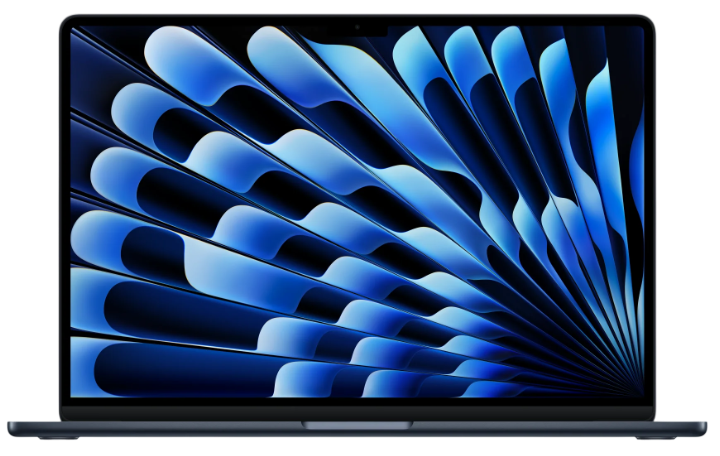
The MacBook Air M5 continues the iconic wedge-free design introduced with the M2 generation, featuring a durable aluminium unibody, a stunning Liquid Retina display, and a four-speaker system with Spatial Audio. The M5 chip delivers a 10-core CPU, a 10-core GPU, and a 16-core Neural Engine, with 16 GB of unified memory standard (configurable to 24 GB or 32 GB). Base storage has doubled to 512 GB, and you can configure up to 4 TB. The laptop is available in 13-inch and 15-inch sizes, in Midnight, Starlight, Space Grey, and Silver finishes. The 12MP Center Stage front camera, MagSafe 3 charging, and two Thunderbolt 4 ports complete the package.
Full Specifications
| Specification | Detail |
|---|---|
| Model | MacBook Air (13-inch, M5, 2026) / MacBook Air (15-inch, M5, 2026) |
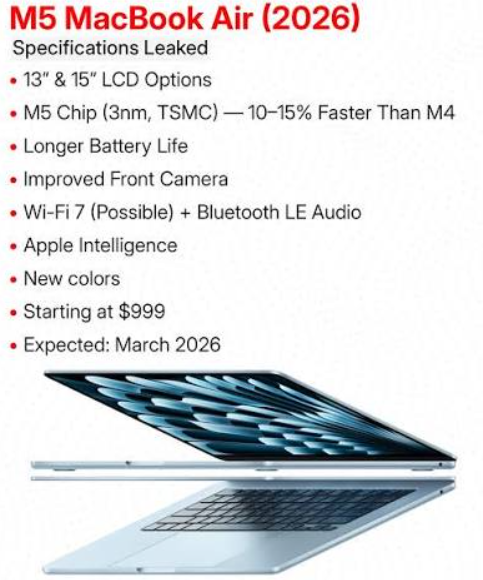
| Chip | Apple M5, 10-core CPU (4 performance + 6 efficiency), 10-core GPU, 16-core Neural Engine |
| Memory | 16 GB unified memory standard; configurable to 24 GB or 32 GB |
| Memory Bandwidth | 153 GB/s |
| Storage | 512 GB SSD standard; configurable to 1 TB, 2 TB, or 4 TB |
| Display | 13.6-inch or 15.3-inch Liquid Retina, 2560 x 1664 (13-inch) / 2880 x 1864 (15-inch), 500 nits, P3 wide colour, True Tone |
| Camera | 12MP Center Stage, 1080p HD video recording |
| Audio | Four-speaker system with Spatial Audio, three-mic array with directional beamforming, 3.5 mm headphone jack |
| Battery | Up to 18 hours Apple TV app movie playback, up to 15 hours wireless web browsing |
| Charging | MagSafe 3, USB-C (up to 67W fast charging with compatible adapter), 35W dual-port adapter option |
| Ports | 2 x Thunderbolt 4 (USB-C), MagSafe 3, 3.5 mm headphone jack |
| Wireless | Wi-Fi 6E (802.11ax), Bluetooth 5.3 |
| Keyboard | Magic Keyboard with Touch ID, backlit, 78-key (US) |
| Trackpad | Force Touch trackpad |
| Operating System | macOS Tahoe |
| Dimensions | 13-inch: 30.41 x 21.5 x 1.13 cm; 15-inch: 34.04 x 23.76 x 1.15 cm |
| Weight | 13-inch: 1.24 kg; 15-inch: 1.51 kg |
| Colours | Midnight, Starlight, Space Grey, Silver |
| In-the-Box | MacBook Air, USB-C to MagSafe 3 cable (2m), 35W dual USB-C port power adapter, documentation |
Key Features
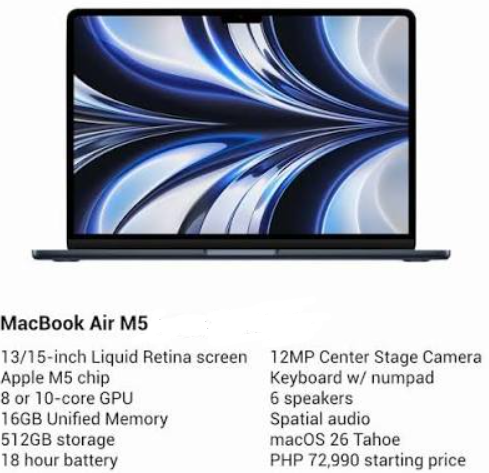
- M5 Chip: The 10-core CPU and 10-core GPU deliver up to 30% faster performance than M4. The 16-core Neural Engine accelerates AI tasks like Live Text, dictation, and Apple Intelligence features.
- 12MP Center Stage Camera: Automatically keeps you centred during video calls, even as you move around. Supports Desk View, which shows a top-down view of your desk during presentations.
- MagSafe 3 Charging: The magnetic charging connector snaps into place and releases safely if the cable is tripped over. Supports fast charging with a compatible 67W adapter.
- Liquid Retina Display: 500 nits of brightness, P3 wide colour, and True Tone for accurate, comfortable viewing. The 15-inch model offers more screen real estate for multitasking.
- Four-Speaker System with Spatial Audio: Enjoy immersive sound when watching movies or listening to music. The three-mic array ensures clear voice pickup for calls and recordings.
- macOS Tahoe: The latest macOS introduces a refined interface, improved window management, enhanced Spotlight, and deeper Apple Intelligence integration.
- Fanless Design: Because the M5 chip is so efficient, the MacBook Air has no fan. It runs completely silent, even under load.
- Touch ID: Built into the keyboard, Touch ID lets you unlock your Mac, authenticate purchases, and auto-fill passwords with a fingerprint.
How to Use
What’s in the Box
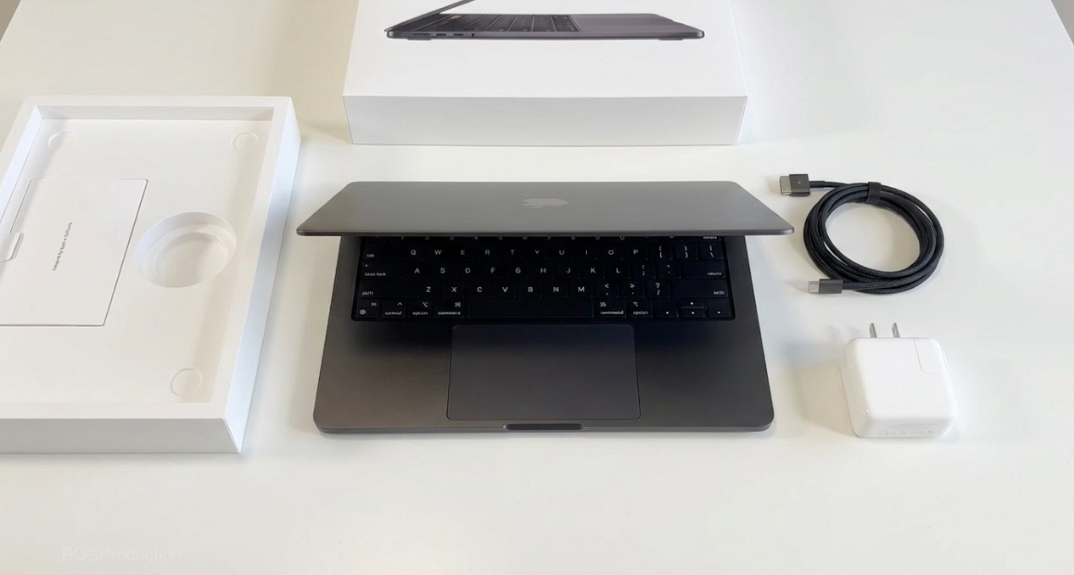
- MacBook Air M5 (13-inch or 15-inch)
- USB-C to MagSafe 3 cable (2 metres)
- 35W dual USB-C port power adapter
- Documentation
First-Time Setup
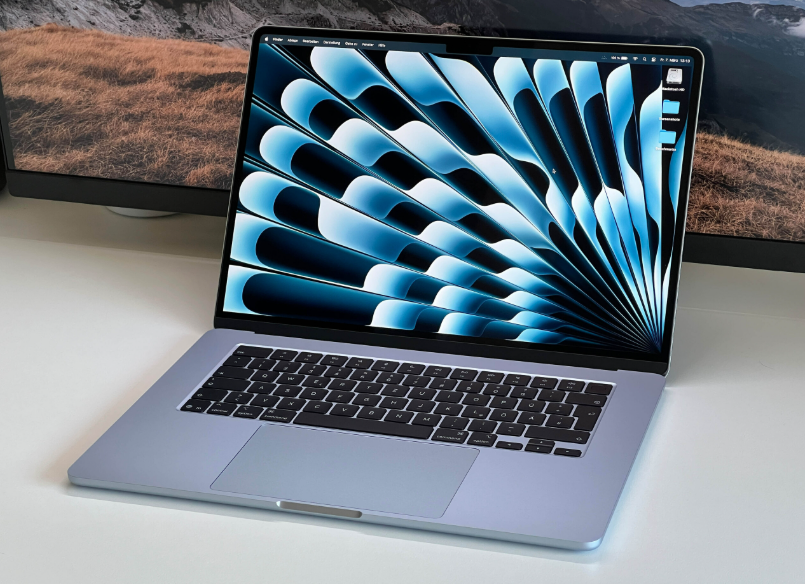
- Connect power: Plug the MagSafe 3 cable into the MacBook Air and the power adapter into a wall outlet. The MagSafe connector lights up amber while charging.
- Power on: Press the Touch ID button (top-right of the keyboard). The Apple logo appears.
- Complete setup assistant: Select your language, region, and connect to Wi-Fi. Sign in with your Apple ID. You can transfer data from an old Mac or PC using Migration Assistant.
- Set up Touch ID: When prompted, rest your finger on the Touch ID button repeatedly to register your fingerprint. You can add additional fingerprints later in System Settings > Touch ID & Password.
- Set up Siri and Apple Intelligence: You can enable Siri and Apple Intelligence during setup or skip and configure later.
- Create a local account: Your Mac needs a local account with a password. This password is separate from your Apple ID but can be the same.
Physical Tour & Ports
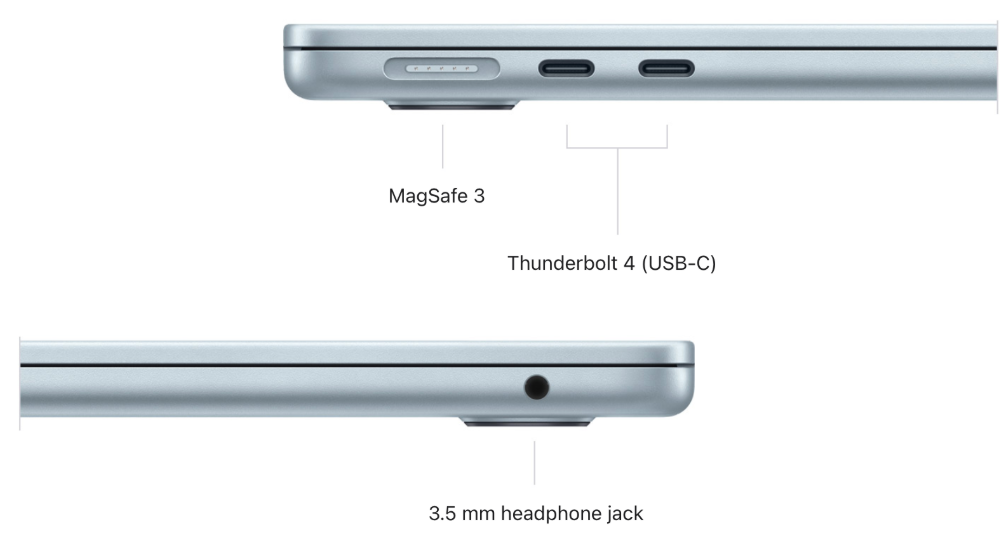
| Component | Location | Function |
|---|---|---|
| MagSafe 3 | Left edge | Magnetic charging port. Lights amber while charging, green when full. |
| Thunderbolt 4 (2x) | Left edge | Data transfer (up to 40 Gbps), external displays, charging via USB-C. |
| Headphone jack | Right edge | 3.5 mm jack with support for high-impedance headphones. |
| Touch ID button | Top-right of keyboard | Fingerprint sensor, power button. |
| Trackpad | Below keyboard | Force Touch trackpad with multi-touch gestures. |
Touch ID Setup & Use
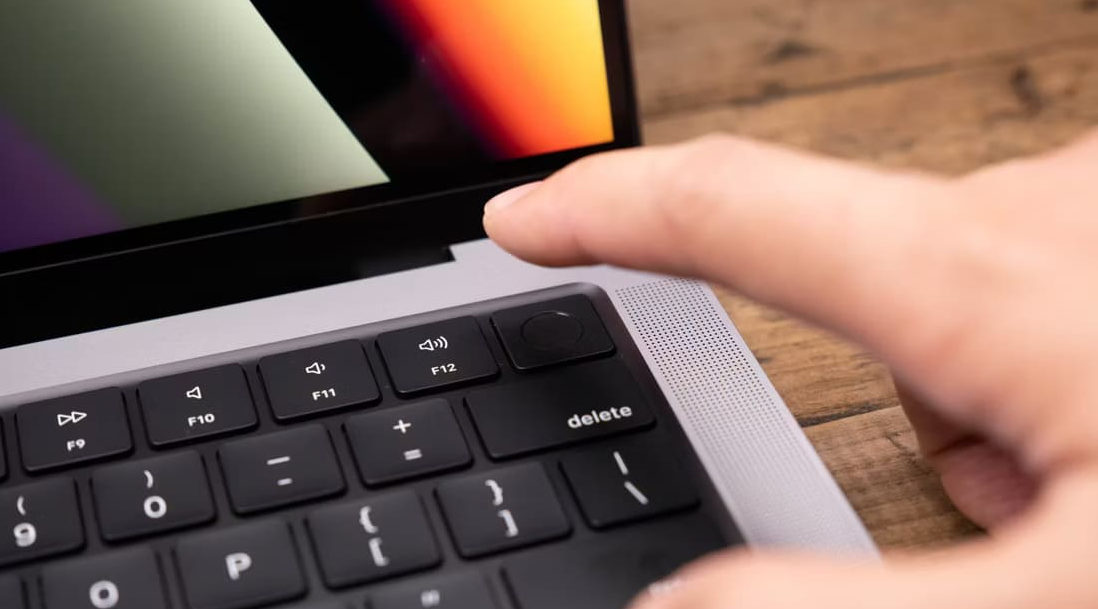
- Go to System Settings > Touch ID & Password.
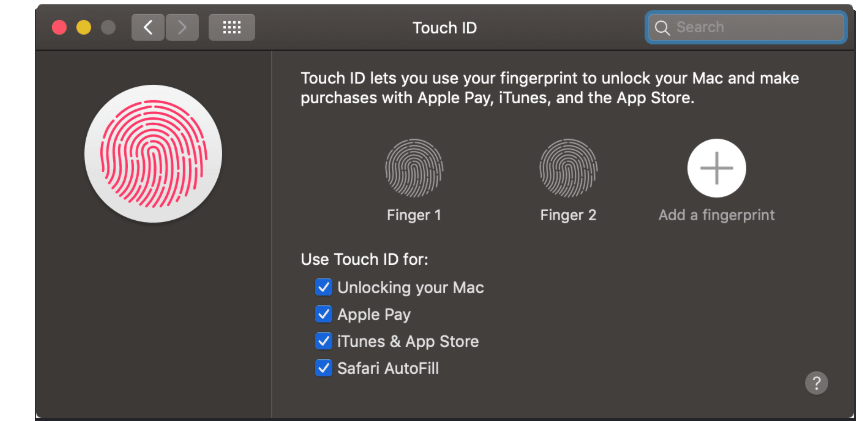
- Click Add Fingerprint and follow the prompts.
- You can register up to three fingerprints.
- Use Touch ID to unlock your Mac, authenticate Apple Pay, App Store purchases, and auto-fill passwords in Safari.
- If Touch ID isn’t working, clean the button with a dry, lint-free cloth and re-register your fingerprints.
macOS Tahoe Tips
- Spotlight: Press Command + Space to search for apps, files, emails, and web results.
- Stage Manager: Enable in Control Center for a cleaner workspace. Your active window stays centre, and other windows are organized on the side.
- Desktop Widgets: Click the date/time in the menu bar to open Notification Centre, then scroll down to add widgets to your desktop.
- Hot Corners: Go to System Settings > Desktop & Dock > Hot Corners to assign actions (like Lock Screen or Mission Control) to screen corners.
- AirDrop: Share files wirelessly with other Apple devices. Open Finder > AirDrop and drag files onto the recipient’s icon.
Battery & Charging
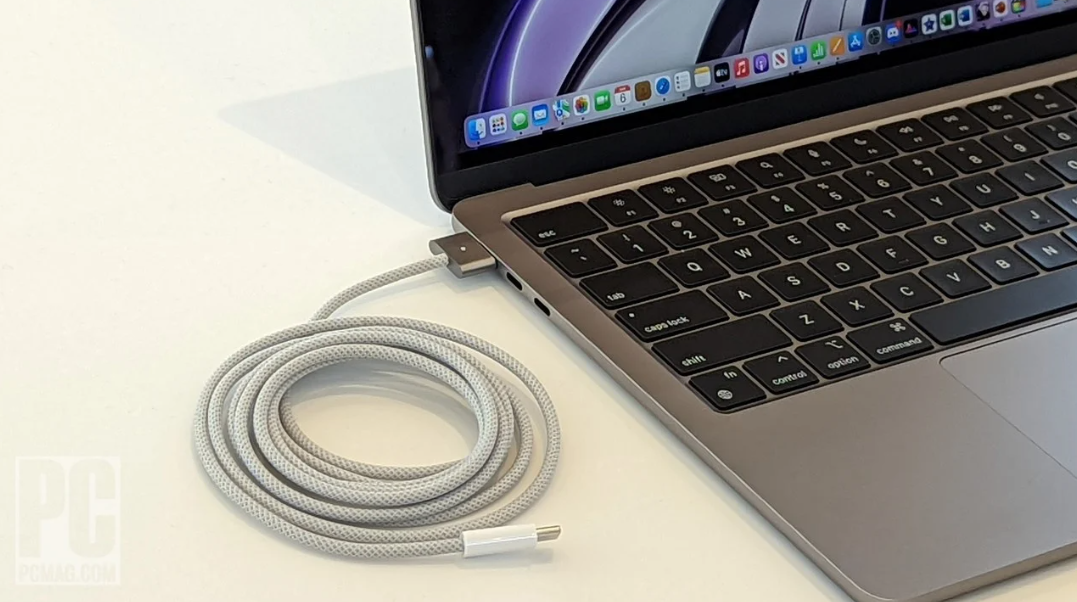
- Battery life: Up to 18 hours of video playback, up to 15 hours of web browsing.
- Fast charging: With a 67W or higher USB-C adapter, you can charge to 50% in about 30 minutes.
- Optimized Battery Charging: Go to System Settings > Battery > Battery Health and enable Optimized Battery Charging. Your Mac learns your routine and delays charging past 80% when plugged in overnight.
- Low Power Mode: Enable in System Settings > Battery to extend runtime when you’re away from an outlet.
Storage Management
- Check storage: Go to System Settings > General > Storage. macOS shows what’s using space and offers recommendations.
- Offload unused apps: macOS can automatically remove apps you haven’t used in a while while keeping their documents.
- iCloud Optimization: Enable “Optimize Mac Storage” to keep recent files on your Mac and older files in iCloud.
- External storage: Use a Thunderbolt or USB-C external SSD for large media libraries.
Troubleshooting & Common Problems
| Problem | Likely Cause | What to Try |
|---|---|---|
| Mac won’t turn on | Battery drained | Connect the MagSafe 3 cable and wait 10 minutes. Press the Touch ID button. |
| Mac won’t charge | MagSafe connector not seated, or wrong adapter | Ensure the MagSafe connector is fully inserted and the LED is amber. Try a different USB-C adapter. |
| Wi-Fi keeps disconnecting | Router band steering, or interference | Forget the network in System Settings > Wi-Fi and reconnect. Restart the router. Move closer to the router. |
| Trackpad not responding | Software glitch, or accidental disable | Restart the Mac. Check System Settings > Trackpad to ensure settings are correct. If the trackpad is physically stuck, contact Apple. |
| Battery drains quickly | Background apps, or high brightness | Check System Settings > Battery for app usage. Reduce screen brightness. Disable Bluetooth when not needed. |
| External display not detected | Cable or port issue | Try a different Thunderbolt cable or adapter. Check that the display is powered on and set to the correct input. |
| Touch ID not working | Dirty sensor, or dry finger | Clean the Touch ID button with a dry cloth. Re-register your fingerprints in System Settings. |
| Mac is slow | Too many apps open, or storage full | Close unused apps. Check storage in System Settings > General > Storage. Restart the Mac. |
| No sound from speakers | Volume muted, or Bluetooth connected | Check the volume in the menu bar. Disconnect Bluetooth devices. Go to System Settings > Sound and select the correct output. |
Frequently Asked Questions
- Does the MacBook Air M5 have a fan?
No. The M5 chip is so efficient that it doesn’t require a fan. The MacBook Air runs completely silent. - Can I upgrade the RAM or storage later?
No. The unified memory and SSD are soldered to the logic board. Choose your configuration at purchase. - How do I charge the MacBook Air?
You can charge via the MagSafe 3 port (recommended) or via either Thunderbolt 4 (USB-C) port. - What is the difference between the 13-inch and 15-inch models?
The 15-inch model has a larger display and a six-speaker system (vs. four speakers on the 13-inch). Internally, both use the same M5 chip and have the same performance. - Does the MacBook Air M5 support external displays?
Yes. It supports up to two external displays (one 6K at 60Hz) when the lid is closed, or one external display when the lid is open. - How do I take a screenshot?
Press Command + Shift + 3 for a full-screen screenshot, or Command + Shift + 4 to select an area. - How do I reset the MacBook Air?
Go to System Settings > General > Transfer or Reset > Erase All Content and Settings. This erases everything and restores the Mac to factory settings. - Is the MacBook Air M5 good for video editing?
Yes. The M5 chip with 10-core GPU handles 4K video editing in Final Cut Pro and DaVinci Resolve smoothly. For 8K or heavy multicam work, consider the MacBook Pro.
Tips
- Use Touch ID for everything: Unlock your Mac, authenticate purchases, and auto-fill passwords with a single touch.
- Enable Optimized Battery Charging: This preserves battery health if you keep your Mac plugged in most of the time.
- Use Stage Manager for focus: It keeps your active window centred and organizes other windows on the side.
- Set up Hot Corners: Assign Mission Control, Lock Screen, or Quick Note to screen corners for instant access.
- Use iCloud Drive: Keep your documents synced across all your Apple devices. Enable Desktop & Documents Folders in iCloud settings.
- Clean the screen gently: Use a dry microfibre cloth. Do not spray liquids directly on the display.
- Update macOS regularly: Go to System Settings > General > Software Update to install security patches and new features.
Safety Information
- Charging: Use only the supplied MagSafe 3 cable and a compatible USB-C power adapter. Avoid using damaged cables.
- Battery: Do not puncture, crush, or expose the battery to high heat. If the battery swells, stop using the Mac and contact Apple Support.
- Ventilation: The MacBook Air has no fan, but it still needs airflow. Use it on a hard, flat surface. Do not block the bottom vents.
- Liquid damage: Keep liquids away from the MacBook Air. It is not water-resistant. If liquid spills on it, turn it off immediately and contact Apple Support.
- Screen: The Liquid Retina display is glass. Avoid dropping the Mac or placing heavy objects on it. Use a sleeve or case for transport.
- Repairs: The MacBook Air is difficult to repair. Do not attempt to open it yourself. Contact Apple or an authorized service provider for any hardware issues.
- Children: Keep the MacBook Air and its accessories out of reach of small children. The power adapter and cable can pose a strangulation risk.
Related Manuals
If this guide was helpful, here are a few more popular manuals from productsmanuals.com that you might find useful:
- MacBook Neo Manual – Budget Mac Setup, A18 Pro Chip & macOS Tahoe Guide
Explore Apple’s most affordable MacBook with the A18 Pro chip and 512GB base storage. - MacBook Air (M4, 2026)– Pro Performance, Liquid Retina XDR & Ports Guide
Get the most from Apple’s professional laptop with the M5 Pro and M5 Max chips. - Dell XPS 13 9300 Manual – Ultrabook Setup, Upgrades & Troubleshooting
Compare Dell’s premium ultrabook with its own InfinityEdge display and Thunderbolt 3 ports. - Samsung Galaxy Watch 7 Manual – Health Sensors, Galaxy AI & Battery Tips
Master ECG, body composition, sleep apnea detection, and more. - iPhone 18 Pro Max Field Guide – Variable Aperture, A20 Pro & iOS 27
Explore Apple’s most advanced camera system with manual aperture control.
Browse all guides at productsmanuals.com .
Copyright 2026 productsmanuals.com. All rights reserved. This MacBook Air M5 manual is original content and may not be copied, republished, or redistributed without written permission. Apple, MacBook Air, MagSafe, Touch ID, and the Apple logo are trademarks of Apple Inc. This guide is unofficial and not affiliated with Apple.
