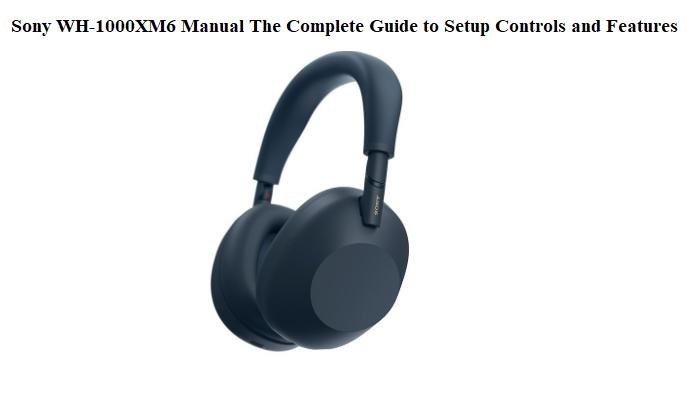

Sony WH-1000XM6 Manual The Complete Guide to Setup Controls and Features
Introduction
Sony ships the WH-1000XM6 with a USB-C cable, an airplane adapter, a carrying case, and a thin reference guide that barely covers the basics. The full manual is buried in an online PDF that reads like an engineering datasheet. So every day, thousands of new owners search “Sony WH-1000XM6 manual” wanting real help: how to master the touch controls, use multipoint properly, optimize noise cancellation, fix pairing issues, and understand every beep and light.
This Sony WH-1000XM6 manual fills that gap. I’ve worn these headphones through commutes, flights, work calls, and long listening sessions. I’ve tested every gesture, every feature, and every troubleshooting trick. Whether you just unboxed your XM6 or you’ve been using them for a while, you’ll find hidden gems that make them sound better, last longer, and behave exactly the way you want. Bookmark this – the next time the headphones won’t connect, the ANC sounds off, or a button combination confuses you, the answer is here.
What’s in the Box
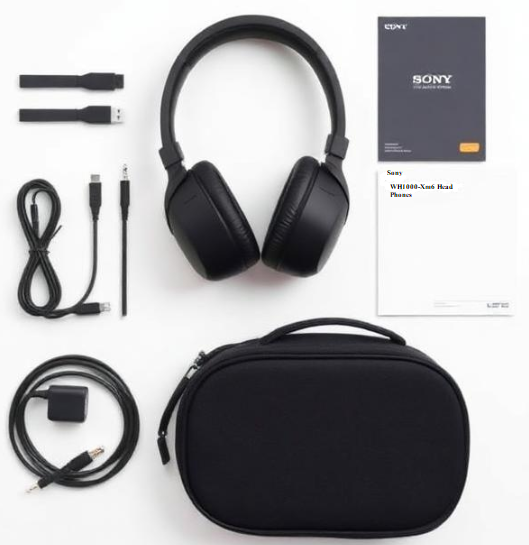
Your Sony WH-1000XM6 box contains:
- WH-1000XM6 headphones (foldable design)
- USB-C charging cable (short, for charging only)
- 3.5mm audio cable (for wired listening when battery is dead)
- Airplane adapter (dual-prong for in-flight entertainment)
- Carrying case (hard shell, with internal pocket for cables)
- Quick Start Guide and Warranty Card
Not included: charging brick, Bluetooth transmitter, or any app (you must download Sony Sound Connect).
Physical Tour of the Headphones
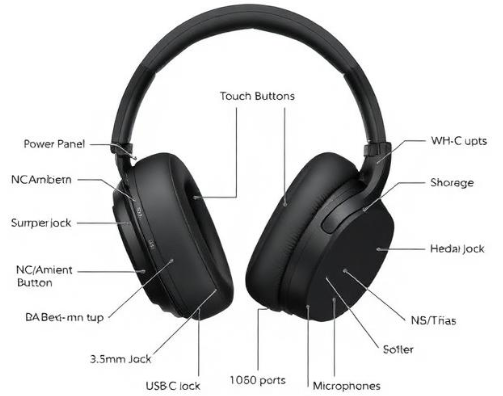
The XM6 keeps the sleek, lightweight design. All critical controls are on the right ear cup. The touch panel on the right cup responds to swipes and taps. The left cup houses the power button (short press for power on/off, long press for Bluetooth pairing) and the NC/Ambient button (toggles noise cancellation modes). Below these are the USB-C charging port and the 3.5mm audio jack.
The ear cushions are plush memory foam with a new cooling layer. The headband is wider and more padded than the XM5. The built-in microphones are now dual-feed with improved wind reduction.
First-Time Setup and Power
Charging
-
Connect the included USB-C cable to any USB-C power adapter (5V/1.5A or higher). A full charge takes about 3.5 hours. A 10-minute quick charge gives 5 hours of playback (using Power Delivery).
Power On/Off
-
Press the power button on the left cup once. A blue LED flashes and a voice prompt says “Power on.” Hold the button again for about 3 seconds to turn off (“Power off”).
Pairing (First-Time)
- When you turn on the XM6 for the first time, it automatically enters Bluetooth pairing mode (blue LED flashes alternately with red). If not, press and hold the power button for about 5 seconds until you hear “Bluetooth pairing” and the LED flashes rapidly.
- On your phone, open Bluetooth settings and select “WH-1000XM6.”
- For Android, Google Fast Pair will pop up automatically. Tap to connect.
- Once paired, the blue LED flashes slowly.
Pairing a second device (multipoint)
-
The XM6 can connect to two devices simultaneously (e.g., phone and laptop). In the Sony Sound Connect app, go to System > Multipoint Connection and enable it. Then pair a second device as usual. The headphones will switch audio between devices automatically when a call comes in or when playback starts on the other device.
Touch Controls on the Right Ear Cup
The entire right ear cup is a touch-sensitive panel. All gestures use flat fingers; no nails.
Default Touch Gestures
- Play/Pause: Double tap.
- Next track: Swipe forward (left to right).
- Previous track: Swipe backward (right to left).
- Volume up: Swipe up.
- Volume down: Swipe down.
- Answer call / End call: Double tap during a call.
- Quick Attention: Cover the entire right cup with your palm. Music instantly drops to a whisper and ambient sound is fed through, so you can have a quick conversation without removing the headphones. Release to resume.
- Activate voice assistant: Triple tap (or long press, depending on app settings; default is Google Assistant / Siri).
Customizing gestures
In the Sony Sound Connect app under “System” > “Touch Sensor Function,” you can change the action for double tap or triple tap (e.g., toggling ANC modes instead of voice assistant).
Active Noise Cancellation and Ambient Sound Modes
The WH-1000XM6 features the Integrated Processor V2 and HD Noise Cancelling Processor QN2e, delivering class-leading ANC.
Noise Cancelling Modes
- Active Noise Cancelling (ANC): Full cancellation. Default mode when powered on.
- Ambient Sound: Lets in external audio so you stay aware. You can adjust the level (1–20) in the app.
- Voice Passthrough: Focuses on human voices while reducing other noise. Available in the app under “Ambient Sound Control.”
- Adaptive Sound Control: Uses your activity (staying, walking, running, transport) to automatically adjust ANC/Ambient Sound. Enabled by default; can be turned off in the app.
Switching Modes
- Press the NC/Ambient button (left cup) to cycle: Noise Cancelling → Ambient Sound → Off (no processing). A voice prompt announces each mode.
- Or use the Sony Sound Connect app to switch and fine-tune.
Quick Attention (Instant Transparency)
-
Cover the right ear cup with your palm to immediately lower music volume and pipe in ambient sound. Release to return. This does not change your selected mode; it’s momentary.
Sony Sound Connect App
Download “Sony Sound Connect” (formerly Sony Headphones Connect) from the App Store or Google Play. This app unlocks everything.
Key features to set up:
- Equalizer (EQ): Customize 5-band EQ with Clear Bass slider. I recommend the “Excited” preset for pop/electronic, or “Vocal” for podcasts.
- DSEE Extreme: Upscales compressed audio in real time. Turn on for streaming services.
- 360 Reality Audio Setup: Snap photos of your ears to create a personalized spatial sound field.
- Adaptive Sound Control: Auto-adjusts ANC based on your actions and locations. You can train it.
- Connect to multiple devices: Under System, enable Multipoint.
- Auto Power Off: Set when the headphones turn off if idle (default 15 min with no connection).
- Button settings: Change what the NC/Ambient button does (e.g., cycle between two modes only, or toggle Speak-to-Chat).
- Firmware updates: Always keep the headphones updated via the app.
Speak-to-Chat and Other Smart Features
Speak-to-Chat
-
When enabled, the headphones automatically pause music and activate ambient sound the moment you speak. After you stop talking, music resumes after 15 seconds (adjustable in the app). You can turn this on/off by holding two fingers on the touch panel for 2 seconds, or in the app.
Wearing Detection
-
Sensors in the ear cups detect if you remove the headphones. Music auto-pauses; put them back on, and playback resumes. This can be disabled in the app.
360 Reality Audio
-
Supported on select streaming services (Tidal, Amazon Music, Deezer). Perform the ear analysis in the Sound Connect app for the best effect. The result is immersive, concert-like audio.
Google Assistant / Alexa / Siri
-
Triple tap the touch panel (default) or speak the wake word if your phone supports it. You can ask for music, notifications, and smart home control.
Wired Use and Airplane Adapter
- 3.5mm cable: Plug into the left cup’s jack. The headphones work passively (no ANC, no Bluetooth) when the battery is dead. If powered on, ANC and DSP are active for an enhanced wired experience. You can even use the 3.5mm cable while charging.
- Airplane adapter: Connect the 3.5mm cable to the adapter, then plug into the in-flight entertainment system. The audio will be in stereo. Turn on the headphones for ANC to block engine roar.
Battery Life and Charging
- Battery life: Up to 40 hours with ANC on, 50 hours with ANC off.
- Quick charge: 10 minutes of charging (PD) gives 5 hours of playback.
- Charging port: USB-C (left cup).
- Battery level check: Short press the power button when the headphones are on; a voice says “Battery about XX percent” or you hear a series of beeps. The app also shows exact percentage.
- Auto power off: Default 15 minutes. Change in the app under System.
How to Reset and Initialize the Headphones
Soft Reset (Restart)
-
Turn off the headphones, then turn them back on. This fixes minor connection bugs and glitchy touch controls.
Factory Reset (Clear All Pairing Info)
- Turn off the headphones. Remove them from your phone’s Bluetooth list (forget device).
- With the headphones off, press and hold the power button and the NC/Ambient button simultaneously for about 7 seconds. The blue LED will flash 4 times, and the headphones will reset to factory settings. All pairing info is erased.
- Pair again as new.
Initialize (Hard Reset)
-
If the headphones freeze and buttons are unresponsive, connect them to a charger. While charging, press and hold the power button and NC/Ambient button together for about 10 seconds. The red LED will flash, and the device will restart.
Multipoint Connection: Two Devices at Once
- In the Sony Sound Connect app, go to System > Multipoint Connection > Enable.
- Pair the first device normally.
- Then pair the second device (the headphones will enter pairing mode again automatically). Once both are connected, the headphones can manage calls and music between them. Example: listening to music on laptop, a call comes in on phone, headphones switch to phone, then back to laptop music after the call.
To disconnect one device temporarily, stop playback on that device and the XM6 will prioritize the other. You can also manually switch using the device’s Bluetooth menu.
Common Problems and Quick Fixes
| Problem | Fix |
|---|---|
| Headphones won’t connect | Turn Bluetooth off/on on phone. Forget device and re-pair. Reset headphones if persistent. |
| One side not working | Check if wired cable is fully inserted. If wireless, check battery level; one side may die first if battery is low. Try reset. |
| Touch controls not responding | Wipe the touch panel with a dry cloth. Moisture/sweat can interfere. Restart headphones. |
| ANC feels weak | Ensure ear pads are sealing properly (replace if worn). Check Adaptive Sound Control isn’t lowering ANC. Adjust in app. |
| Audio lag when watching video | Enable “Priority on Stable Connection” in the app (System > Sound Quality Mode). Or use the supplied cable. |
| Battery drains fast | Check DSEE Extreme is on (uses more power). Turn off Speak-to-Chat, Adaptive Sound Control, and wearing detection if not needed. |
| Microphone not working on PC | Ensure Windows sound input is set to “Headset (WH-1000XM6 Hands-Free)” not “Headphones.” |
Hidden Features and Pro Tips
- Find Your Equalizer: Use the “Find Your Equalizer” tool in the Sound Connect app. It plays test tones and picks a custom EQ based on what you can hear, perfect for hearing differences.
- Battery Care: The app now has “Battery Care” (limits charge to 90% to prolong battery lifespan). Enable it in System > Battery Care.
- Auto Play/Pause via Motion: Wearing detection can be tweaked to auto-pause only when both cups are removed.
- Side tone (Hear Your Own Voice): During calls, you can enable Side tone in the app so you hear your own voice naturally, reducing muffled speaking.
- Wind Noise Reduction: In Ambient Sound settings, you can enable “Wind Noise Reduction” specifically. Great for cycling or walking outdoors.
- Factory Service Menu: A hidden trick: with the headphones off, hold the NC/Ambient button and plug in the USB cable to a PC. This forces a full re-initialization (rarely needed).
Quick Reference Card
| Action | How |
|---|---|
| Power on/off | Press power button (left cup) |
| Bluetooth pairing | Hold power button 5 seconds from off |
| Play/Pause | Double tap right cup |
| Next track | Swipe forward right cup |
| Previous track | Swipe backward right cup |
| Volume up/down | Swipe up/down right cup |
| Quick Attention | Cover right cup with palm |
| Toggle ANC/Ambient | Press NC/Ambient button (left cup) |
| Speak-to-Chat on/off | Hold two fingers on right cup for 2 secs |
| Answer/End call | Double tap right cup |
| Factory reset | Hold power + NC/Ambient button 7 seconds from off |
Download the Sony WH-1000XM6 Cheat Sheet
A one-page PDF with all gestures, button combos, reset steps, and troubleshooting. Save it for that moment the headphones act up on a plane.
Official Sony Support Page
For warranty, service, and the official PDF manual, visit:
https://www.sony.com/electronics/support/wireless-headphones-bluetooth-headphones/wh-1000xm6
Final Word
The Sony WH-1000XM6 are the gold standard in wireless audio, but Sony’s included guide is too thin. This manual gives you the real-world knowledge to master every tap, swipe, and mode. Bookmark it, share it, and come back whenever you need a quick fix or want to unearth another hidden trick.
Wishing you rich bass, crystal calls, and a battery that lasts the whole flight.
Copyright Warning!
© 2026 productsmanuals.com All Rights Reserved.
Sony, WH-1000XM6, and the Sony logo are trademarks of Sony Corporation. This guide is unofficial and not affiliated with or endorsed by Sony.
