
How to Set Up Your Samsung Galaxy Book4 Pro (Step-by-Step)
Introduction
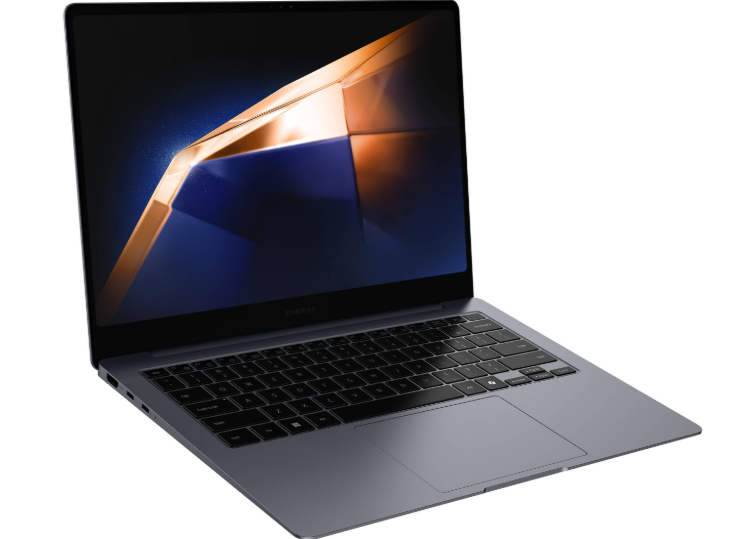
The Samsung Galaxy Book4 Pro is the flagship ultrabook from Samsung’s 2024 lineup, and it has become one of the most searched Samsung laptops worldwide. It combines a stunning Dynamic AMOLED 2X display with the Intel Core Ultra processor and a dedicated NPU for on-device AI tasks. At just 11.6mm thin and 1.23kg for the 14-inch model, it is one of the lightest and most portable premium laptops available. The Galaxy Book4 Pro features a 3K resolution touchscreen, a backlit Pro keyboard with a numeric keypad, a large ClickPad, and a fingerprint reader integrated into the power button. This manual covers everything from unboxing and first-time setup to using Galaxy AI features, managing battery life, and troubleshooting common issues.
Important: The Galaxy Book4 Pro is available in 14-inch and 16-inch variants with different specifications. This manual covers both models and notes differences where applicable.
Product Overview
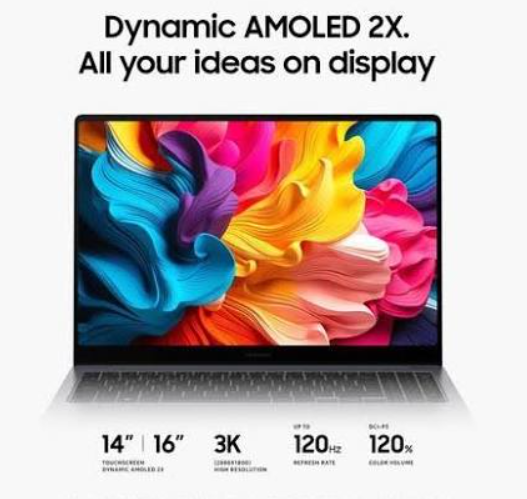
The Galaxy Book4 Pro is a premium ultrabook designed for professionals, students, and creators who need a portable powerhouse. Its 14-inch Dynamic AMOLED 2X display delivers 2880 x 1800 resolution, a 120Hz adaptive refresh rate, 400 nits typical brightness, and 500 nits peak brightness for HDR content. The screen is SGS-certified for cinematic experience and eye care, reducing harmful blue light emission. The laptop is powered by Intel Core Ultra processors with an integrated NPU for AI acceleration. It runs Windows 11 Home and includes Galaxy AI features like AI Select, Photo Remaster, and Live Translate. The Galaxy Book4 Pro is available in Moonstone Gray and Platinum Silver finishes.
Full Specifications
| Specification | 14-inch Model | 16-inch Model |
|---|---|---|
| Model Number | NP940XGK | NP960XGK |
| Display | 14.0″ Dynamic AMOLED 2X, 2880 x 1800 (WQXGA+), 120Hz, Touchscreen | 16.0″ Dynamic AMOLED 2X, 2880 x 1800 (WQXGA+), 120Hz, Touchscreen |
| Processor | Intel Core Ultra 7 155H / Core Ultra 5 125H | Intel Core Ultra 7 155H / Core Ultra 9 185H |
| NPU | Intel AI Boost | Intel AI Boost |
| Graphics | Intel Arc Graphics | Intel Arc Graphics |
| RAM | 16GB / 32GB LPDDR5X | 16GB / 32GB LPDDR5X |
| Storage | 512GB / 1TB NVMe SSD | 512GB / 1TB NVMe SSD |
| Battery | 63Wh (typical) | 76Wh (typical) |
| Battery Life | Up to 18 hours video playback | Up to 21 hours video playback |
| Charging | 65W USB-C fast charging (41% in 30 min) | 65W USB-C fast charging (35% in 30 min) |
| Weight | 1.23 kg (2.71 lbs) | 1.56 kg (3.44 lbs) |
| Dimensions | 312.3 x 223.8 x 11.6 mm | 355.4 x 250.4 x 12.5 mm |
| Keyboard | Pro Keyboard (backlit, numeric keypad) | Pro Keyboard (backlit, numeric keypad) |
| Touchpad | Large ClickPad | Large ClickPad |
| Security | Fingerprint reader (power button), TPM | Fingerprint reader (power button), TPM |
| Webcam | 1080p FHD with studio-quality features | 1080p FHD with studio-quality features |
| Audio | Dual speakers with Dolby Atmos, AKG tuning | Dual speakers with Dolby Atmos, AKG tuning |
| Ports | 2x Thunderbolt 4, 1x USB-A 3.2, 1x HDMI 2.1, 1x MicroSD, 1x Headphone/Mic combo | 2x Thunderbolt 4, 1x USB-A 3.2, 1x HDMI 2.1, 1x MicroSD, 1x Headphone/Mic combo |
| Wireless | Wi-Fi 6E, Bluetooth 5.3 | Wi-Fi 6E, Bluetooth 5.3 |
| Operating System | Windows 11 Home | Windows 11 Home |
| Colours | Moonstone Gray, Platinum Silver | Moonstone Gray, Platinum Silver |
| In-the-Box | Laptop, 65W USB-C charger, USB-C cable, documentation | Laptop, 65W USB-C charger, USB-C cable, documentation |
Key Features

- Dynamic AMOLED 2X Display: 3K resolution (2880 x 1800) with 120Hz adaptive refresh rate, 120% DCI-P3 color gamut, and VESA DisplayHDR 500 certification. The touchscreen adds fingertip navigation.
- Intel Core Ultra Processor with NPU: The Intel Core Ultra 7 155H or Core Ultra 9 185H delivers exceptional performance with a dedicated Neural Processing Unit for AI tasks. The NPU accelerates on-device AI features without relying on the cloud.
- Galaxy AI Integration: Features include AI Select (intelligent content selection), Photo Remaster (AI photo enhancement), Live Translate (real-time translation), and Circle to Search.
- Ultra-Light and Thin Design: At just 11.6mm thin and 1.23kg (14-inch model), the Galaxy Book4 Pro is one of the most portable premium laptops available.
- Long Battery Life: The 63Wh battery (14-inch) provides up to 18 hours of video playback. The 76Wh battery (16-inch) provides up to 21 hours. Fast charging delivers 41% charge in 30 minutes.
- Pro Keyboard with Numeric Keypad: Backlit keyboard with well-spaced, responsive keys and a dedicated numeric keypad. The keys operate quietly, suitable for libraries and meetings.
- Comprehensive Port Selection: Includes two Thunderbolt 4 ports, USB-A 3.2, HDMI 2.1 (supports 8K@60Hz, 5K@120Hz), MicroSD card reader, and headphone/mic combo jack.
- Fingerprint Reader: Integrated into the power button for secure, fast Windows Hello sign-in.
- Studio-Quality Webcam: 1080p FHD webcam with studio-quality features for clear video calls.
- Dolby Atmos Audio: Dual speakers with AKG tuning and Dolby Atmos support for immersive sound.
How to Use
What’s in the Box
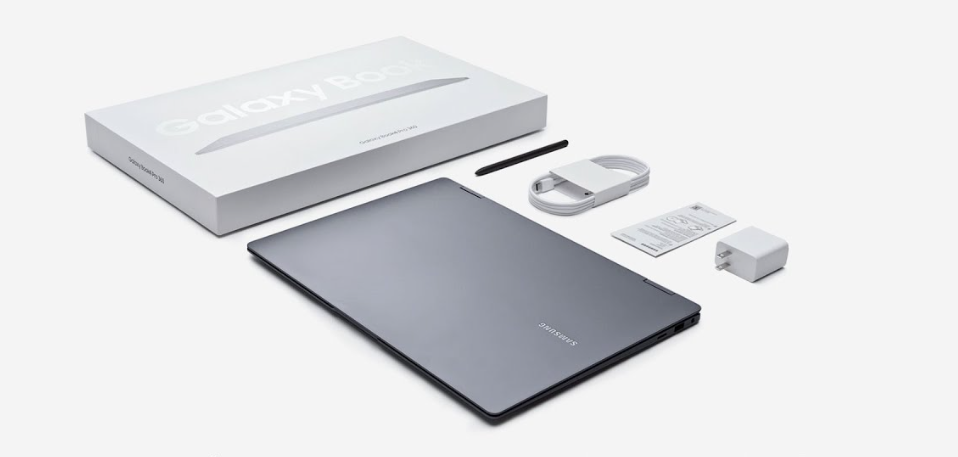
- Samsung Galaxy Book4 Pro laptop
- 65W USB-C power adapter
- USB-C to USB-C charging cable
- Quick Start Guide and warranty card
First-Time Setup
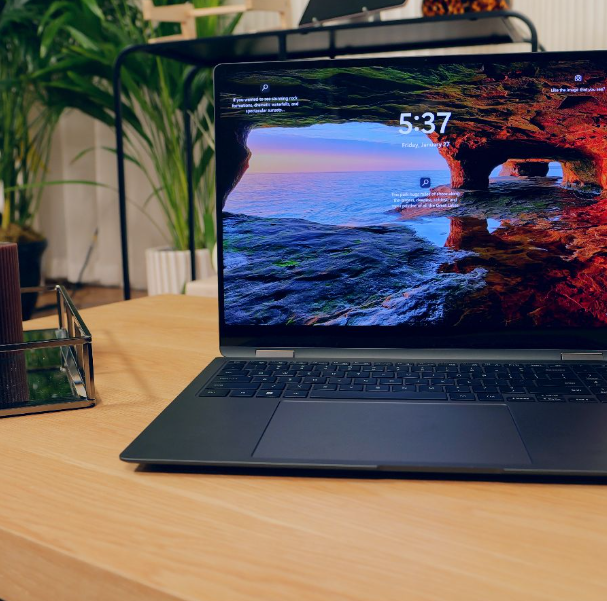
- Connect power: Plug the USB-C charger into the laptop and a wall outlet. The laptop can charge via either Thunderbolt 4 port.
- Power on: Press the power button (top-right of the keyboard) until the Samsung logo appears.
- Complete Windows setup: Select your language, region, and connect to Wi-Fi (Wi-Fi 6E supported). Sign in with your Microsoft account.
- Set up fingerprint: Go to Settings > Accounts > Sign-in options > Fingerprint Recognition (Windows Hello) and follow the prompts to register your fingerprint.
- Run Samsung Update: Open the Samsung Update app (pre-installed) to check for driver and firmware updates. Install all recommended updates.
- Set up Galaxy AI features: During setup or in Settings, enable Galaxy AI features like AI Select and Live Translate.
Physical Controls
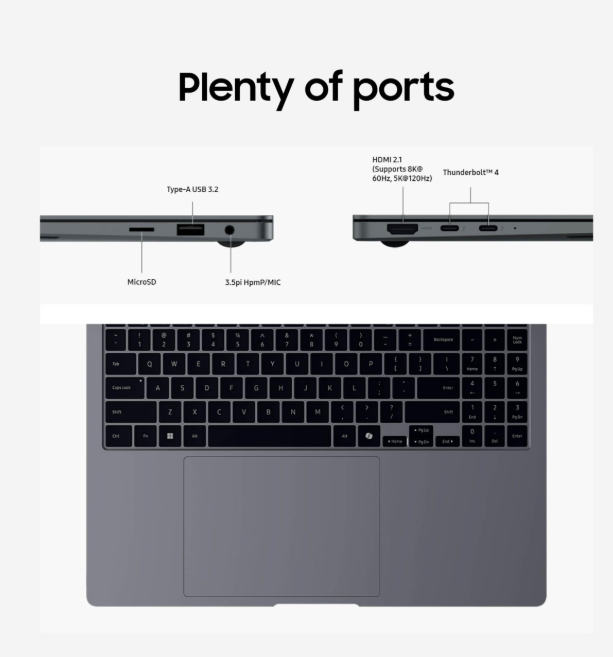
| Control | Location | Function |
|---|---|---|
| Power Button / Fingerprint Reader | Top-right of keyboard | Press to power on/off. Rest finger to unlock with Windows Hello. |
| Keyboard | Standard layout with numeric keypad | Backlit Pro Keyboard. |
| ClickPad | Below keyboard | Large multi-touch touchpad. |
| Thunderbolt 4 (2x) | Left side | Charging, data transfer (40Gbps), external displays. |
| USB-A 3.2 | Left side | Standard USB devices. |
| HDMI 2.1 | Left side | External display (8K@60Hz, 5K@120Hz). |
| MicroSD Card Reader | Left side | Expandable storage. |
| Headphone/Mic Combo | Left side | Wired audio. |
Keyboard Shortcut
| Shortcut | Action |
|---|---|
| Fn + F1 | Samsung Settings |
| Fn + F2 | Screen brightness down |
| Fn + F3 | Screen brightness up |
| Fn + F4 | Keyboard backlight toggle |
| Fn + F5 | Display mode switch |
| Fn + F6 | Mute |
| Fn + F7 | Volume down |
| Fn + F8 | Volume up |
| Fn + F9 | Touchpad toggle |
| Fn + F10 | Airplane mode |
| Fn + F11 | Screen capture |
| Fn + F12 | Performance mode |
Using Galaxy AI Features
The Galaxy Book4 Pro includes several Galaxy AI features powered by the Intel NPU:
- AI Select: Intelligently selects content on screen and suggests actions like copying text, translating, or searching.
- Photo Remaster: Enhances old or low-quality photos using AI upscaling and color correction.
- Live Translate: Translates spoken language in real-time during video calls and media playback.
- Circle to Search: Draw a circle around anything on screen to search for it instantly.
- Samsung Studio: AI-powered video editing with automatic scene detection and enhancement.
Battery & Charging
- Battery life: Up to 18 hours video playback (14-inch), up to 21 hours (16-inch).
- Charging: Use the included 65W USB-C charger for fastest charging. The laptop charges via either Thunderbolt 4 port.
- Fast charging: 41% charge in 30 minutes (14-inch), 35% in 30 minutes (16-inch).
- Battery saver: Go to Settings > System > Power & battery to enable battery saver mode.
- Samsung Battery Life Extender: In Samsung Settings, you can limit charging to 85% to extend battery lifespan.
Display Settings
- Refresh rate: Go to Settings > System > Display > Advanced display to set the refresh rate to 120Hz or 60Hz.
- Color profile: In Samsung Settings, select the color profile (Auto, sRGB, Adobe RGB, DCI-P3) for accurate color reproduction.
- Eye Care mode: Reduce blue light emission by enabling Eye Care mode in Samsung Settings.
Compatibility & Connectivity
| Feature | Details |
|---|---|
| Wi-Fi | Wi-Fi 6E (802.11ax), 2.4 GHz, 5 GHz, 6 GHz |
| Bluetooth | Bluetooth 5.3 |
| Thunderbolt 4 | 2 ports, 40Gbps data, DisplayPort 1.4, Power Delivery |
| USB-A | 1x USB 3.2 Gen 1 |
| HDMI | HDMI 2.1 (8K@60Hz, 5K@120Hz) |
| MicroSD | UHS-I card reader |
| Audio | 3.5mm headphone/mic combo |
| Docking | Supports Thunderbolt 4 docks |
| External Displays | Up to 2 external displays via Thunderbolt 4 + HDMI |
Remote Control & App Section
The Galaxy Book4 Pro runs Windows 11 with Samsung’s suite of pre-installed apps:
| App | Function |
|---|---|
| Samsung Settings | Central hub for display, audio, power, and security settings |
| Samsung Update | Driver and firmware updates |
| Samsung Pass | Password and biometric authentication |
| Galaxy Book Experience | Tips, tutorials, and feature discovery |
| Samsung Notes | Note-taking with S Pen support (for compatible models) |
| Samsung Studio | AI-powered video editing |
| Quick Share | Wireless file sharing with Galaxy devices |
| Multi Control | Use Galaxy Tab as a second screen or control devices across Galaxy ecosystem |
Internal Structure / Teardown
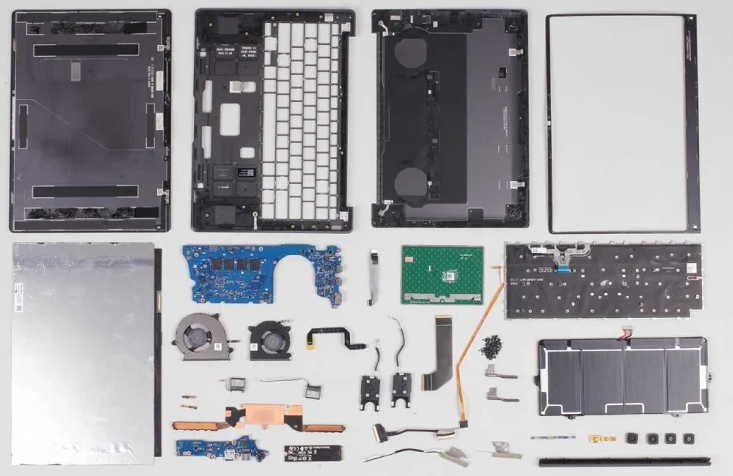
The Galaxy Book4 Pro is a sealed ultrabook and is not designed for user disassembly. The internal components include:
- Intel Core Ultra processor with NPU
- LPDDR5X RAM (soldered, not upgradeable)
- NVMe SSD (M.2 2280, user-replaceable in some regions)
- 63Wh or 76Wh battery
- Dynamic AMOLED 2X display panel
- Dual speakers with AKG tuning
- Fingerprint reader module
- Wi-Fi 6E and Bluetooth 5.3 module
Do not attempt to open the laptop. Doing so will void the warranty. RAM is soldered and cannot be upgraded. The SSD may be replaceable, but this varies by region and model. Check with Samsung support before attempting.
Maintenance Schedule
| Frequency | Task |
|---|---|
| Daily | Wipe the screen with a microfibre cloth |
| Weekly | Clean the keyboard and ClickPad with a soft, dry cloth |
| Monthly | Check for Samsung and Windows updates |
| Every 3 months | Clean the vents with compressed air |
| Annually | Review battery health and consider battery calibration |
Firmware & Software Updates
- Samsung Update: Open the pre-installed Samsung Update app to check for driver and firmware updates. Install all recommended updates.
- Windows Update: Go to Settings > Windows Update to check for Windows updates.
- Galaxy AI updates: Galaxy AI features may receive updates through Samsung Update or the Microsoft Store.
- Always keep updated: Updates improve performance, security, and stability.
Warranty & Support Information
- Warranty period: 1 year standard warranty (region-dependent)
- Covered: Manufacturing defects
- Not covered: Physical damage, liquid damage, normal wear and tear
- How to claim: Contact Samsung Support with proof of purchase
- Support: samsung.com/support
- Samsung PC Help: A mobile app that provides troubleshooting and FAQs for Samsung PCs
Accessories & Optional Add-ons
| Accessory | Purpose |
|---|---|
| 65W USB-C Charger | Fast charging |
| Samsung S Pen | For compatible Galaxy Book models (not included with Pro) |
| Thunderbolt 4 Dock | Expand connectivity |
| USB-C to HDMI Adapter | Connect additional displays |
| Samsung Galaxy Buds | Seamless audio integration |
| Galaxy Tab | Use as second screen via Multi Control |
Comparison with Other Models
| Feature | Galaxy Book4 Pro | Galaxy Book4 Ultra | Galaxy Book4 Edge |
|---|---|---|---|
| Display | 14″ or 16″ AMOLED 2X | 16″ AMOLED 2X | 15.6″ LED |
| Processor | Intel Core Ultra 7/9 | Intel Core Ultra 7/9 | Snapdragon X |
| Graphics | Intel Arc | NVIDIA RTX 4050/4070 | Adreno |
| RAM | 16GB/32GB | 16GB/32GB | 16GB |
| Weight | 1.23kg (14″) | 1.89kg | 1.5kg |
| NPU | Intel AI Boost | Intel AI Boost | Qualcomm Hexagon |
| Battery Life | 18-21 hrs | 21 hrs | 28 hrs |
| Best For | Portability & AI | Creative performance | All-day battery |
Pros & Cons
Pros:
- Stunning 3K AMOLED display with 120Hz
- Ultra-light and thin design (1.23kg for 14-inch)
- Excellent battery life (18-21 hours)
- Comprehensive port selection including Thunderbolt 4 and HDMI 2.1
- Backlit Pro keyboard with numeric keypad
- Fingerprint reader integrated into power button
- Galaxy AI features powered by Intel NPU
- Fast charging (41% in 30 minutes)
Cons:
- RAM is soldered and not upgradeable
- No discrete GPU option (unlike Ultra)
- Limited availability in some regions
- Premium price point
What’s New vs Previous Generation
| Feature | Galaxy Book4 Pro | Galaxy Book3 Pro |
|---|---|---|
| Processor | Intel Core Ultra 7 155H | Intel Core i7-1360P |
| NPU | Intel AI Boost | None |
| Display | 3K AMOLED 2X, 120Hz | 3K AMOLED, 120Hz |
| Graphics | Intel Arc | Intel Iris Xe |
| Battery | 63Wh (14″) | 63Wh (14″) |
| Weight | 1.23kg (14″) | 1.17kg (14″) |
| AI Features | Galaxy AI | None |
| HDMI | HDMI 2.1 | HDMI 1.4 |
Common Mistakes to Avoid
- Not running Samsung Update after setup: Driver and firmware updates are essential for optimal performance and AI features.
- Using a low-wattage charger: Use the included 65W charger or a compatible USB-C PD charger with at least 65W output.
- Setting the display to 60Hz: The 120Hz refresh rate delivers significantly smoother scrolling and animations. Keep it at 120Hz unless you need maximum battery life.
- Not enabling Galaxy AI features: Many users don’t discover AI Select, Live Translate, or Photo Remaster. Enable them in Samsung Settings.
- Ignoring battery health settings: The Battery Life Extender feature (85% limit) significantly extends battery lifespan if you keep the laptop plugged in frequently.
- Using the laptop on soft surfaces: This blocks the vents and can cause overheating. Use on a hard, flat surface.
Quick Reference Card
| Task | How |
|---|---|
| Power on/off | Press power button |
| Unlock | Fingerprint on power button |
| Samsung Settings | Fn + F1 |
| Keyboard backlight | Fn + F4 |
| Touchpad toggle | Fn + F9 |
| Performance mode | Fn + F12 |
| Screenshot | Fn + F11 or Print Screen |
| Check for updates | Samsung Update app |
| Battery extender | Samsung Settings > Battery |
| Factory reset | Settings > System > Recovery |
Glossary of Terms
- AMOLED 2X: Samsung’s advanced display technology with deep blacks and vibrant colors.
- NPU: Neural Processing Unit — dedicated AI accelerator.
- Intel Core Ultra: Intel’s processor family with integrated NPU and Arc graphics.
- Galaxy AI: Samsung’s suite of on-device AI features.
- Thunderbolt 4: High-speed port for data, video, and charging.
- ClickPad: Large multi-touch touchpad.
- Samsung Update: Pre-installed app for driver and firmware updates.
- Quick Share: Wireless file sharing between Galaxy devices.
- Multi Control: Use Galaxy Tab as a second screen or share input across Galaxy devices.
Video Tutorials & Resources
- Samsung Official YouTube: Search “Galaxy Book4 Pro tutorial” for setup and feature guides.
- Samsung Support: samsung.com/support
- Samsung PC Help App: Mobile app for troubleshooting and FAQs.
- Galaxy Book Experience App: Pre-installed tips and tutorials.
Where to Buy & Price Information
| Retailer | Price (14-inch, Core Ultra 7) |
|---|---|
| Samsung.com | $1,449.99 (16GB/512GB) |
| Amazon | $1,399–$1,449 |
| Best Buy | $1,449.99 |
| B&H Photo | $1,449.99 |
| 16-inch Model | $1,749.99+ |
User Scenarios / Use Cases
- Professional: Use Galaxy AI features for document creation, translation, and video calls.
- Student: Lightweight design for carrying to classes. Long battery life for all-day use.
- Creator: 3K AMOLED display for color-accurate photo and video editing. AI-powered Photo Remaster and Samsung Studio.
- Business Traveler: Comprehensive port selection for presentations. Quick Share for file transfer.
- Galaxy Ecosystem User: Multi Control with Galaxy Tab, Quick Share with Galaxy phone, seamless Galaxy Buds integration.
Storage & Transport
- Store in a protective sleeve or laptop bag.
- Avoid leaving in hot cars or direct sunlight.
- Use the included 65W charger for travel.
- Enable Battery Life Extender if storing for extended periods.
- Keep the laptop in a cool, dry place.
Cleaning & Care Guide
- Screen: Wipe with a soft microfibre cloth. Do not use paper towels or abrasive materials.
- Keyboard: Use a soft brush or compressed air to remove dust. Wipe with a dry cloth.
- ClickPad: Wipe with a slightly damp cloth. Dry immediately.
- Ports: Clean with a wooden toothpick. Do not use metal objects.
- Vents: Use compressed air to blow out dust every 3 months.
- Body: Wipe with a soft, damp cloth. Do not use solvents or abrasive cleaners.
Performance Benchmarks
| Test | Result (14-inch, Core Ultra 7) |
|---|---|
| PCMark 10 Battery Life | 11 hours 9 minutes |
| Video Playback | Up to 18 hours |
| Cinebench R23 Multi-Core | ~12,500 (estimated) |
| Geekbench 6 Multi-Core | ~12,000 (estimated) |
| SSD Read Speed | ~6,500 MB/s |
| SSD Write Speed | ~5,000 MB/s |
| Weight | 1.23 kg |
| Display Brightness (Peak) | 500 nits (HDR) |
System Requirements
- Operating System: Windows 11 Home
- Processor: Intel Core Ultra 5/7/9
- RAM: 16GB or 32GB LPDDR5X
- Storage: 512GB or 1TB NVMe SSD
- Display: 14″ or 16″ Dynamic AMOLED 2X
- Wi-Fi: Wi-Fi 6E required for full connectivity
- Charging: USB-C PD 65W
Regulatory Information
- FCC ID: [Model-specific, on bottom of laptop]
- CE Mark: Compliant with EU regulations
- RoHS: Compliant
- WEEE: Dispose of properly at electronics recycling centres
- Energy Star: Certified
- VESA DisplayHDR: 500 certified
Disposal & Recycling
- Do not dispose of the laptop or battery in household trash.
- Recycle at an electronics recycling centre.
- Battery: Lithium-ion — follow local disposal regulations.
- Samsung Recycling: Visit samsung.com/recycling for details.
Error Code Table
| Issue | Likely Cause | Solution |
|---|---|---|
| Laptop won’t turn on | Battery drained | Connect charger and wait 15 minutes. Press power button. |
| Battery drains quickly | High brightness, 120Hz, background apps | Reduce brightness, switch to 60Hz, enable battery saver. |
| Overheating | Blocked vents or intensive tasks | Use on hard surface. Clean vents. Reduce performance mode. |
| Wi-Fi not connecting | Router or driver issue | Restart router. Update Wi-Fi driver via Samsung Update. |
| Display flickering | Refresh rate or driver issue | Set refresh rate to 60Hz. Update graphics driver. |
| Touchpad not working | Driver issue or Fn toggle | Press Fn + F9. Update touchpad driver. |
| Keyboard backlight not working | Fn toggle or battery saver | Press Fn + F4. Check Samsung Settings. |
| No sound from speakers | Muted or Bluetooth connected | Check volume. Disconnect Bluetooth devices. |
| Fingerprint not recognized | Dirty sensor or dry finger | Clean power button. Re-register fingerprint. |
| Slow performance | Background apps or power mode | Close unused apps. Set performance mode via Fn + F12. |
Reset & Recovery Procedures
- Soft Reset: Press and hold the power button for 10 seconds until the laptop turns off. Press again to restart.
- Factory Reset (via Settings): Go to Settings > System > Recovery > Reset this PC. Choose “Keep my files” or “Remove everything.”
- Recovery Mode: Turn off the laptop. Press and hold F4 at startup to enter Samsung Recovery. Follow the prompts to restore the system.
- Battery Calibration: If battery percentage seems inaccurate, fully charge the laptop, then discharge to 5%, then charge to 100% uninterrupted.
- Samsung Update Recovery: If drivers are corrupted, run Samsung Update and reinstall all recommended drivers.
Battery Care Deep Dive
- Use the 65W charger: Delivers 41% charge in 30 minutes.
- Enable Battery Life Extender: Limits charging to 85% to extend battery lifespan.
- Avoid full discharge: Charge when battery drops to 20-30%.
- Store at 50%: If not using for extended periods.
- Avoid extreme heat: Do not leave in hot cars.
- Charge cycles: The battery is rated for 1,000+ charge cycles.
- Battery life: 18-21 hours depending on model and usage.
Seasonal / Periodic Maintenance
| Season | Task |
|---|---|
| Spring | Clean vents and keyboard |
| Summer | Avoid overheating. Use on hard surfaces. |
| Autumn | Check for Samsung and Windows updates |
| Winter | Keep laptop at room temperature. Avoid cold storage. |
First-Time Setup Checklist
- Unbox laptop and accessories
- Connect 65W charger
- Power on
- Complete Windows setup
- Sign in with Microsoft account
- Set up fingerprint (Windows Hello)
- Run Samsung Update
- Install all drivers and firmware
- Set display to 120Hz
- Configure Galaxy AI features
- Set up Quick Share
- Enable Battery Life Extender
- Test webcam and speakers
- Register warranty
Hidden Features
- Galaxy AI Live Translate: Real-time translation during video calls.
- AI Select: Intelligent content selection on screen.
- Photo Remaster: AI-powered photo enhancement.
- Circle to Search: Draw a circle on screen to search instantly.
- Samsung Studio: AI video editing.
- Quick Share: Wireless file transfer to Galaxy devices.
- Multi Control: Use Galaxy Tab as a second screen.
- Second Screen: Extend or duplicate display to Galaxy Tab.
- Battery Life Extender: Limit charge to 85% for battery longevity.
- Samsung Pass: Biometric authentication for websites and apps.
Advanced Tips
- Use AI Select for research: Select text on screen and get instant AI-powered suggestions.
- Enable Live Translate during calls: Translate foreign language conversations in real time.
- Use Photo Remaster for old photos: AI upscaling and color correction for vintage images.
- Set up Multi Control with Galaxy Tab: Use the tablet as a second display or graphics tablet.
- Use Samsung Studio for video editing: AI scene detection and automatic enhancement.
- Enable Battery Life Extender: Essential if you keep the laptop plugged in most of the time.
- Use Quick Share for file transfers: Faster than email for large files.
- Customize performance mode: Use Fn + F12 to switch between Silent, Balanced, and Performance modes.
- Use the MicroSD slot for extra storage: Perfect for media files and backups.
- Enable Eye Care mode: Reduces blue light emission for comfortable extended use.
Troubleshooting Flowchart
Laptop won't turn on?
├── Connect charger → works? Done
├── Press power button 10s → works? Done
└── Try different charger → works? Done

Overheating?
├── Use on hard surface → works? Done
├── Clean vents → works? Done
└── Reduce performance mode → works? Done

Wi-Fi not connecting?
├── Restart router → works? Done
├── Update Wi-Fi driver → works? Done
└── Reset network settings → works? Done

Touchpad not working?
├── Press Fn + F9 → works? Done
├── Update touchpad driver → works? Done
└── Restart laptop → works? Done
Compatibility Matrix
| Device / Accessory | Compatible? | Notes |
|---|---|---|
| 65W USB-C Charger | ✅ Yes | Included |
| Samsung S Pen | ⚠️ Model dependent | Not included with Pro |
| Thunderbolt 4 Dock | ✅ Yes | Full compatibility |
| Galaxy Buds | ✅ Yes | Seamless integration |
| Galaxy Tab | ✅ Yes | Multi Control support |
| Galaxy Phone | ✅ Yes | Quick Share support |
| USB-C Hubs | ✅ Yes | Via Thunderbolt 4 |
| External Monitors | ✅ Yes | Up to 2 via TB4 + HDMI |
Case Quick Reference Card
| Task | How |
|---|---|
| Power on/off | Press power button |
| Unlock | Fingerprint on power button |
| Samsung Settings | Fn + F1 |
| Keyboard backlight | Fn + F4 |
| Touchpad toggle | Fn + F9 |
| Performance mode | Fn + F12 |
| Screenshot | Fn + F11 |
| Check for updates | Samsung Update |
| Factory reset | Settings > System > Recovery |
| Battery extender | Samsung Settings > Battery |
Warranty & Support
- Warranty: 1 year limited warranty
- Covered: Manufacturing defects
- Not covered: Physical damage, liquid damage, normal wear
- Support: samsung.com/support
- Samsung PC Help: Mobile app for troubleshooting
User Scenarios
- Professional: AI features for document work and video calls.
- Student: Lightweight for carrying. Long battery for all-day classes.
- Creator: 3K AMOLED for color-accurate editing. Samsung Studio for video.
- Traveler: Comprehensive ports for presentations. Quick Share for files.
- Galaxy Ecosystem: Multi Control with Tab, Quick Share with phone.
Quick Reference Card
| Task | How |
|---|---|
| Power on/off | Press power button |
| Unlock | Fingerprint on power button |
| Samsung Settings | Fn + F1 |
| Keyboard backlight | Fn + F4 |
| Touchpad toggle | Fn + F9 |
| Performance mode | Fn + F12 |
| Screenshot | Fn + F11 |
| Check for updates | Samsung Update |
| Factory reset | Settings > System > Recovery |
| Battery extender | Samsung Settings > Battery |
PDF Resources
For the official PDF manual and additional documentation, visit:
- Samsung Galaxy Book4 Pro User Manual (PDF): Available at samsung.com/support. Select your model (NP940XGK or NP960XGK) and download the User Manual.
- Samsung Update: Pre-installed app for driver and firmware updates.
- Samsung PC Help: Mobile app for troubleshooting and FAQs.
You can also save the official manual as a PDF by opening it in your browser and using File > Print > Save as PDF.
Related Manuals
If this guide was helpful, here are a few more popular manuals from productsmanuals.com:
- iPhone 18 Pro Max Field Guide: Mastering the A20 Pro Camera & iOS 27
- Rolex Datejust 41(126334) Winding & Setup Manual
- Dell XPS 13 9300 Manual – Ultrabook Setup, Upgrades & Troubleshooting
- MacBook Air M5 Manual – Setup, macOS Tahoe & Troubleshooting
- Samsung Galaxy Buds FE Manual – Setup, Features & Troubleshooting
Browse all guides at productsmanuals.com .
Copyright 2026 productsmanuals.com. All rights reserved. This Samsung Galaxy Book4 Pro manual is original content and may not be copied, republished, or redistributed without written permission. Samsung, Galaxy Book, and the Samsung logo are trademarks of Samsung Electronics. This guide is unofficial and not affiliated with Samsung.

[…] Samsung Galaxy Book4 Pro Manual – Setup, Features & Troubleshooting […]