
Let’s Get Your Streaming Box Ready
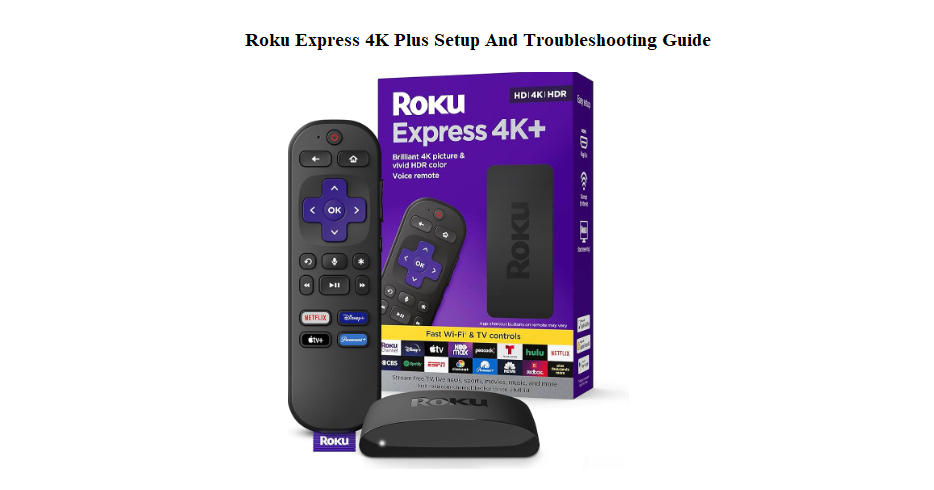
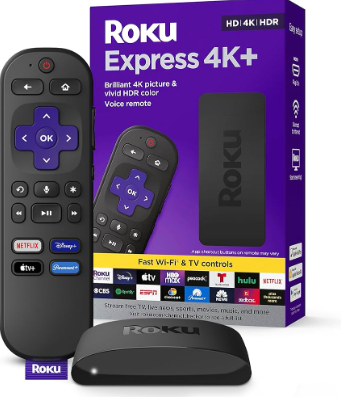
The Roku Express 4K+ (model 3941R) brings 4K HDR streaming in a tiny box that tucks behind your TV. Inside the package, you’ll find the streaming player, a voice remote, a USB power cable, and a set of adhesive strips to mount the box out of sight. The printed literature is minimal, so this guide explains everything from plugging it in to fixing audio dropouts and decoding the on‑screen error messages.
What’s in the Box and Initial Connections
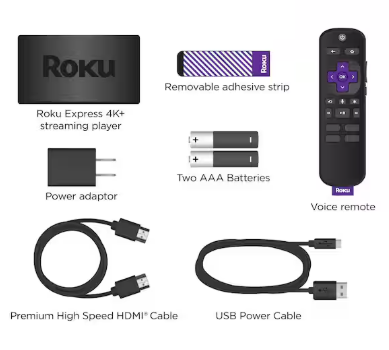
Your package contains:
- The Roku Express 4K+ streaming player (small, glossy, with an HDMI connector on a short cable)
- A voice remote with TV power and volume buttons (requires two AAA batteries, included)
- A USB power cable with a wall adapter
- A pair of adhesive strips for mounting the player
- A simple start guide and safety sheet
Connect the player to your TV’s HDMI port and plug the USB cable into a wall outlet (the TV’s USB port often doesn’t supply enough power). Insert the batteries into the remote; it will pair automatically once the player boots.
The Home Screen and Navigating Menus
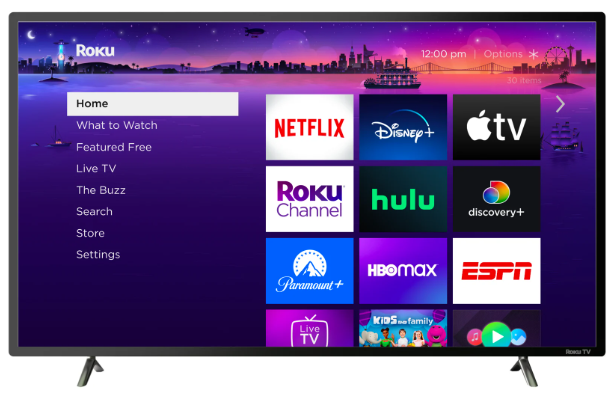
After the initial setup, you’ll land on the Roku home screen. The left sidebar contains the main menu: Home, Search, Streaming Channels, Settings. The main area shows your installed channels as large tiles.
- Use the directional pad on the remote to move around.
- Press the Home button (house icon) anytime to return to this screen.
- The Back button (left arrow) returns you to the previous screen or menu.
- Holding the Home button for 5 seconds opens the quick settings panel where you can adjust volume mode, sleep, or restart the device.
Pairing the Remote and Fixing Connection Drops
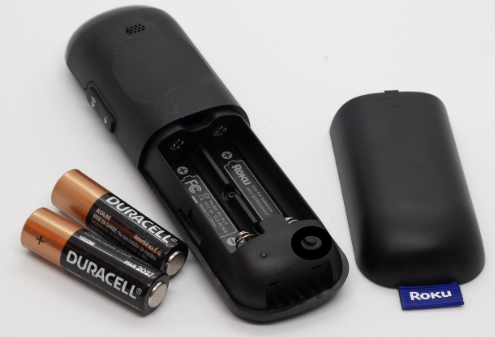
The voice remote should pair automatically when you first insert the batteries. If it doesn’t respond, open the battery cover and locate the small pairing button. Press and hold it for 5 seconds until the status light starts flashing green. The player will detect the remote within a few seconds.
If the remote disconnects later, press and hold the Home and Back buttons simultaneously for 10 seconds. The remote will restart and re‑pair. Make sure there are no objects blocking the front of the player, as the remote uses a direct infrared and RF signal.
Connecting to Wi‑Fi and Troubleshooting Network Issues
The Roku Express 4K+ supports dual‑band Wi‑Fi (2.4 GHz and 5 GHz). During setup, you’ll choose your network and enter the password using the on‑screen keyboard.
If the player can’t find your network or keeps disconnecting:
- Restart your router and the Roku device.
- Move the player away from large metal objects or thick walls.
- In Settings > Network > About, check the signal strength. If it’s “Poor,” consider a Wi‑Fi extender.
- The player works best on 5 GHz for 4K streaming, but 2.4 GHz has longer range.
Screen Mirroring and Using Your Phone as a Remote
You can cast videos, photos, and presentations from a compatible Android or Windows device. Go to Settings > System > Screen mirroring and set it to “Always allow” or “Prompt.” On your phone or PC, select the Roku from the list of available devices. iOS devices can use AirPlay if the Roku supports it (this model includes AirPlay 2).
The free Roku mobile app (iOS/Android) also acts as a second remote, lets you use your phone’s keyboard for typing, and can stream photos and music from your device.
Common On‑Screen Error Codes and How to Clear Them
| Code/Message | Meaning | Solution |
|---|---|---|
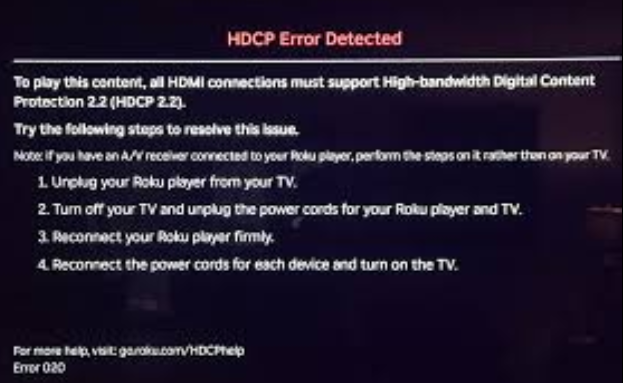
| HDCP Error Detected | HDMI copy‑protection handshake failed | Unplug both ends of the HDMI cable, then reconnect. Try a different HDMI port on the TV. Use a high‑speed HDMI cable. |
| No Signal | TV not detecting the player | Ensure the player’s power light is on. Switch the TV to the correct HDMI input. Try another HDMI cable. |
| Can’t Connect to Wi‑Fi | Wrong password or weak signal | Re‑enter the password carefully. Restart the router and Roku. Move the player closer to the router temporarily. |
| Low Power Warning | Insufficient power from the USB port | Use the included wall adapter instead of the TV’s USB port. |
| Audio out of sync | Lip‑sync issue | Press Home 5 times, then Back 5 times, then Rewind 2 times, then Fast Forward 2 times. A hidden audio sync menu will appear. Use the arrows to adjust the delay. |
| Remote not controlling TV volume | CEC or setup issue | Go to Settings > Remotes & devices > Remote > Set up remote for TV control and follow the prompts. |
Restarting and Factory Resetting the Player
- Simple restart: Go to Settings > System > Power > System restart (or press Home 5 times, then Up once, then Rewind 2 times, then Fast Forward 2 times). The player will reboot without erasing anything.
- Factory reset (menu): Settings > System > Advanced system settings > Factory reset. Enter the 4‑digit code shown on screen. This removes all channels and account info.
- Factory reset (hardware button): Locate the tiny reset button on the back or bottom of the player (a pinhole). Use a paperclip to press and hold it for about 10 seconds while the player is powered on. The status light will blink rapidly, and the player will restart to the setup screen.
Five Hidden Tricks That Improve Daily Use
- Private listening: Open the Roku mobile app, plug in headphones, and listen to your TV audio through your phone.
- Custom screensaver: Go to Settings > Theme > Screensavers to pick a different clock or nature scene.
- Guest mode: Settings > System > Guest Mode lets visitors sign in to their own streaming accounts without touching yours.
- Shortcut buttons: The remote has four dedicated app buttons. You can’t reprogram them physically, but you can assign voice commands to open any app.
- Sleep timer: Ask Roku to “turn off after 30 minutes” via the voice remote, or set a sleep timer in the Settings > System > Time menu.
Quick Reference Card
| Task | Steps |
|---|---|
| Pair remote manually | Hold pairing button in battery compartment for 5 seconds |
| Restart player | Settings > System > Power > System restart |
| Factory reset (menu) | Settings > System > Advanced system settings > Factory reset |
| Adjust audio sync | Press Home 5x, Back 5x, Rewind 2x, Fast Forward 2x, then use arrows |
| Enable screen mirroring | Settings > System > Screen mirroring > Always allow |
| Set sleep timer | Settings > System > Time > Sleep timer |

[…] All the secret Roku tricks and Troubleshooting in one practical guide. […]