


Why This Companion Exists
Sonos ships the Beam (Gen 2) with a power cord, an HDMI cable, and a tiny Quick‑Start leaflet that mostly points you to the Sonos app. There’s no printed manual that explains how to connect the soundbar to your TV’s ARC port, what to do when the audio is out of sync, how to tune the sound for your room, or what the status lights actually mean. Thousands of people search for a “Sonos Beam Gen 2 manual” every day. This companion fills that gap with clear, step‑by‑step help.
What Comes in the Box
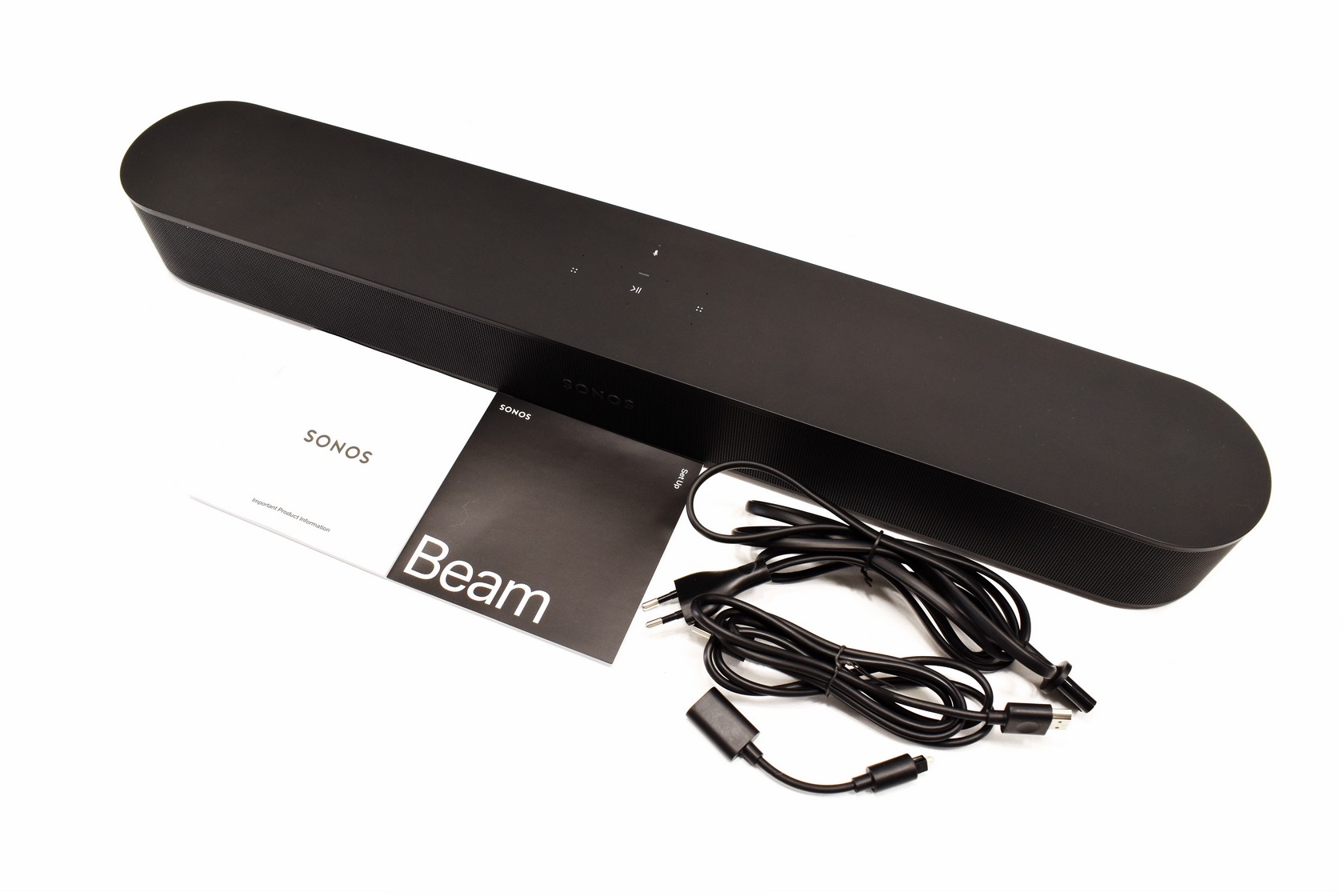
Your package includes:
- The Sonos Beam (Gen 2) soundbar (model S19) – compact, rounded, with fabric grille
- A region‑specific power cord
- A high‑speed HDMI 2.0 cable (about 1.5 metres)
- An HDMI‑to‑optical adapter (for TVs without HDMI‑ARC)
- A Quick‑Start Guide and warranty/safety information
No remote is included; you control volume with your TV remote, the Sonos app, or your voice.
Physical Tour and Status Light
The Beam Gen 2 has a minimal set of controls on the top touch panel:
- Play/Pause: Tap the centre of the touch area.
- Volume up/down: Tap the right or left edge of the touch area. Swipe for faster adjustment.
- Microphone mute: There’s a small LED above the Sonos logo. When the mic is on, the light is dim white. When muted, it glows red.
- Status light: The same LED communicates connection status:
- Solid white: Powered on and working.
- Flashing white: Powering on or updating.
- Flashing green: Ready for Wi‑Fi setup.
- Solid orange: Muted or error (overheating, network issue).
- Flashing orange: Firmware update in progress.
On the back, you’ll find the HDMI port (for TV connection), the power port, and an Ethernet port (optional wired connection).
First‑Time Setup and the Sonos App
- Plug the power cord into a wall outlet and connect it to the soundbar. The LED will flash green.
- On your phone or tablet, download the Sonos app (iOS or Android). Open it and sign in with your Sonos account, or create one for free.
- The app will automatically detect the Beam. Tap “Set up” and follow the prompts. You’ll be asked to hold your phone near the soundbar to complete NFC pairing. If NFC doesn’t work, you can manually press the Join button (the infinity‑shaped button) on the back of the Beam.
- Connect the Beam to your home Wi‑Fi (2.4 GHz is supported; the Beam Gen 2 prefers 2.4 GHz for stability, but it can use 5 GHz if your Wi‑Fi name is the same for both bands).
- The app will then ask you to set up TV Control. You’ll connect the included HDMI cable from the Beam’s HDMI port to the HDMI‑ARC (or eARC) port on your TV. The app will guide you through enabling HDMI‑CEC on your TV so your TV remote can control the Beam’s volume.
- The setup will also invite you to enable Trueplay tuning (see below).
Connecting to Your TV and Adjusting Audio Sync
The Beam Gen 2 is designed to replace your TV’s built‑in speakers. It works best with an HDMI‑ARC (Audio Return Channel) port. If your TV doesn’t have ARC, use the included optical adapter.
- HDMI‑ARC (recommended): Plug the HDMI cable into the TV’s ARC port (usually labelled “ARC” or “eARC”). In your TV settings, enable CEC/ARC (often called Simplink, Anynet+, or BRAVIA Sync). The soundbar will now turn on with your TV, and your TV remote will control the volume.
- Optical adapter (no ARC): Connect the optical cable from your TV to the included adapter, then plug the adapter into the Beam’s HDMI port. In the Sonos app, go to Settings > System > Beam > TV Setup and choose Optical. You’ll need to set your TV to output audio via optical (PCM or Dolby Digital). Volume control via your TV remote may not work; you may need to use the Sonos app or a universal remote.
Audio sync adjustment: In the Sonos app, go to Settings > System > Beam > TV Dialog Sync. You can adjust the lip‑sync delay in small steps. Most modern TVs auto‑sync well, but if you notice a mismatch, this is the place to fix it.
Trueplay Tuning
Trueplay uses the microphone in your iPhone or iPad to measure how sound reflects off your walls and furniture, then tunes the soundbar for your room.
- In the Sonos app (iOS only, currently), go to Settings > System > Beam > Trueplay.
- Follow the on‑screen instructions: you’ll walk around the room, holding your phone upside down and moving it slowly while the Beam plays test tones.
- The process takes about 3 minutes. Once complete, the app confirms that Trueplay is active. You can toggle it on/off to compare, but it almost always improves clarity and bass.
Using Amazon Alexa and Google Assistant
The Beam Gen 2 has built‑in microphones for voice control. You can switch between Amazon Alexa and Google Assistant.
- Set up Alexa: In the Sonos app, go to Settings > Services & Voice > Add a Service > Amazon Alexa. Sign in with your Amazon account and follow the prompts.
- Set up Google Assistant: In the same menu, select Google Assistant, sign in with your Google account, and link.
- Use voice commands: “Alexa, turn up the volume,” “Hey Google, play jazz,” “Alexa, what’s the weather?”
- Mute the microphone: Tap the microphone icon on the top of the soundbar, or use the mute switch in the app. The LED glows red when muted.
Music Streaming and Multi‑Room Audio
The Beam Gen 2 works with over 100 music services, including Spotify, Apple Music, Amazon Music, Tidal, and more. You can group it with other Sonos speakers to play the same music throughout your home.
- Play directly from the Sonos app: Tap the Browse tab, select a service, and choose music.
- Spotify Connect: Play from the Spotify app and select the Beam as the output.
- Apple AirPlay 2: Stream audio directly from your iPhone, iPad, or Mac to the Beam without opening the Sonos app. Just tap the AirPlay icon and select the Beam.
Troubleshooting Common Issues
| Problem | Likely Cause | What to Try |
|---|---|---|
| No sound from TV | ARC not enabled or wrong input | Ensure the HDMI cable is in the TV’s ARC port. In the TV settings, enable CEC/ARC. Try a different HDMI cable. |
| Soundbar won’t connect to Wi‑Fi | Router issue or password change | Restart your router and the soundbar. In the Sonos app, go to Settings > System > Network > Manage Networks and update the password. |
| Audio out of sync with TV | HDMI‑CEC delay or optical connection | In the Sonos app, adjust TV Dialog Sync. For optical users, ensure the TV audio output is set to PCM. |
| Voice assistant not responding | Microphone muted or service unlinked | Check the LED isn’t solid red (muted). Re‑link the voice service in the Sonos app. |
| Volume too low even at max | Night mode or dialogue enhancement | In the Sonos app, check that Night Mode and Speech Enhancement are off if you want full dynamic range. |
| Status light solid orange | Overheating or network error | Ensure the soundbar is well‑ventilated. Unplug it for 30 minutes, then plug it back in. |

[…] Sonos Beam Gen 2 S19 – HDMI‑ARC, Voice Assistant & Trueplay Tuning Get the most out of your soundbar with Dolby Atmos and room calibration. […]
[…] Sonos Beam Gen 2 S19 Manual Setup TV Connection and Troubleshooting Guide Master pairing, TWS, USB, and FM modes on your compact speaker. […]