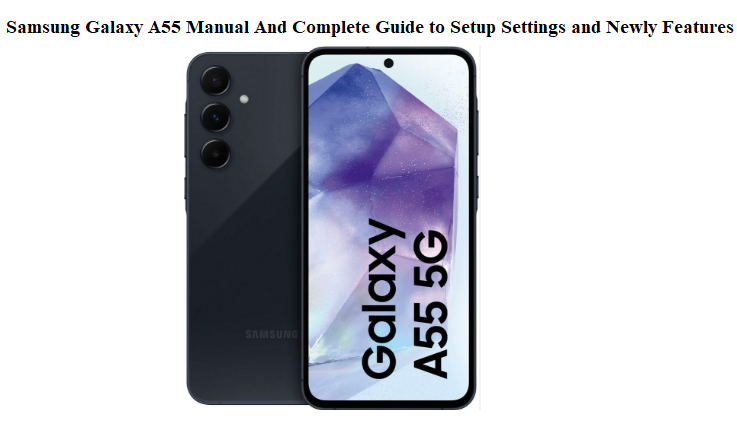

Samsung Galaxy A55 Manual And Complete Guide to Setup Settings and Newly Features
Introduction
The Galaxy A55 is Samsung’s best-selling mid‑range phone of the year. It comes with a SIM tool, a USB‑C cable, and a thin Quick Start Guide that tells you almost nothing. There’s no real printed manual in the box. So every day, tens of thousands of people search “Samsung Galaxy A55 manual” looking for genuine help: how to set up the phone properly, what all the camera modes do, how to make the battery last two days, and where Samsung hides the most useful settings.
This Samsung Galaxy A55 manual is the book that should have been in the box. It’s written in plain language, from real hands‑on use, and it covers everything a new owner needs to know. Whether you’ve just unboxed your A55 or you’ve been using it for weeks, you’ll discover hidden features that make the phone faster, safer, and much more fun. Bookmark this page — the next time a setting disappears, the battery drops, or the screen does something unexpected, the answer is right here.
What’s in the Box
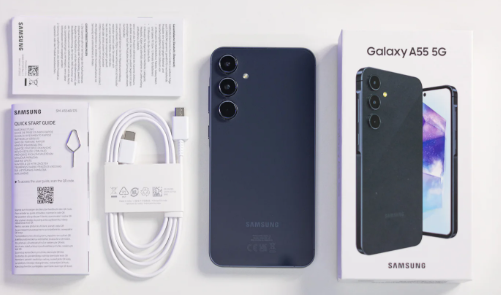
Your Galaxy A55 box includes:
- Galaxy A55 phone (with a pre‑installed screen protector film on the display)
- USB‑C to USB‑C cable (supports 25W fast charging)
- SIM ejector tool
- Quick Start Guide and Warranty Card — the tiny booklet you’ll lose in five minutes
Not included: power adapter, case, screen protector (beyond the factory film), or wired headphones. The A55 has no headphone jack; you’ll need USB‑C headphones or Bluetooth earbuds.
Physical Tour and Buttons
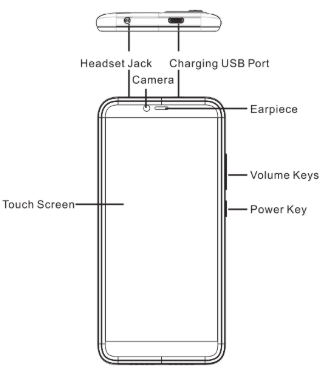
The Galaxy A55 feels premium with an aluminum frame and glass back. The Volume rocker and Power button (which also houses the optical fingerprint sensor) are on the right side. The left side is clean. On the bottom, you’ll find the USB‑C charging port, the speaker, and the SIM card tray (dual nano‑SIM, plus a dedicated microSD slot — no hybrid trade‑off). The top sports a secondary microphone for noise cancellation.
The fingerprint sensor works best if you register your main thumb twice — once normally and once at a slight angle. Enable Touch sensitivity in Settings > Display if you apply a third‑party glass screen protector.
First‑Time Setup and Settings to Change Immediately
After you power on, Samsung’s setup wizard will guide you through Wi‑Fi, Google account, and Samsung account. Do not skip these steps.
Samsung Account benefits
Sign into your Samsung account to unlock Find My Mobile, Samsung Cloud backup, and Secure Folder. Without it, you lose a huge chunk of the phone’s security and backup features.
Disable unwanted data sharing
During setup, Samsung and Google will both ask for permission to send diagnostic data and show personalized ads. Uncheck these. You lose nothing in daily use, but you gain privacy and a tiny bit of battery life.
Navigation style
By default, the A55 uses swipe gestures (swipe up from the bottom to go Home). If you prefer three on‑screen buttons, go to Settings > Display > Navigation bar > Buttons. I recommend gestures — they free up screen space and feel modern.
Display resolution and refresh rate
The A55’s Super AMOLED screen defaults to FHD+ and Adaptive 120Hz refresh rate. Verify these are on in Settings > Display > Screen resolution (set to FHD+) and Motion smoothness (set to Adaptive). The difference in scrolling smoothness is night and day.
Edge Panels
Swipe from the right edge of the screen inward and you’ll see a translucent tab. This is Edge Panels, a drawer of shortcuts for apps, contacts, and tools. If you find it annoying, turn it off in Settings > Display > Edge Panels. But if you personalize it, it becomes a powerful multitasking tool.
Camera and Photography Tips
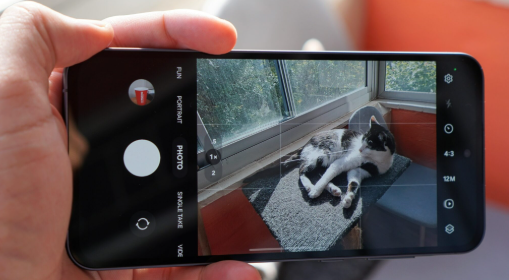
The Galaxy A55 carries a 50MP main camera with optical image stabilization, a 12MP ultra‑wide, and a 5MP macro lens. The stock camera app is packed with modes, but most people never leave Photo mode.
Shooting at full resolution
By default, the main camera shoots 12.5MP pixel‑binned photos. To use the full 50MP sensor, tap the aspect ratio icon (top of the viewfinder) and choose “3:4 50MP”. This produces enormous detail in daylight, but file sizes are larger and low‑light performance drops slightly.
Night mode
When the scene is dark, the camera automatically suggests Night mode (crescent moon icon). You can also force it by swiping to More > Night. Keep the phone steady for the 2–4 seconds it needs to capture.
Portrait mode
Tap “Portrait” in the mode bar. You can adjust background blur strength before taking the shot. The A55 now supports 2x portrait zoom, which gives more flattering framing than the default 1x.
Pro mode and Expert RAW
Swipe to “More” and select “Pro” for manual control over ISO, shutter speed, and white balance. For even more power, download the free Expert RAW app from the Galaxy Store. It captures 16‑bit DNG files that hold enormous editing latitude.
Quick camera launch
Double‑press the Power button to open the camera, even from a locked screen. In the camera settings, you can change this to launch a specific mode instead.
Scan documents automatically
In the camera settings, turn on “Scene optimizer.” When you point the camera at a document, a yellow border appears and the phone straightens and crops the image. Tap the scan icon that pops up.
Battery and Charging Optimization
The A55 packs a 5,000 mAh battery that easily lasts a full day. With these tweaks, you can stretch it to two.
Fast charging setup
The phone supports 25W Super Fast Charging. You need a USB‑C PD charger that outputs at least 25W, plus the cable from the box. Go to Settings > Battery > Charging settings and ensure “Fast charging” and “Super fast charging” are toggled on.
Protect battery for longevity
Enable “Protect battery” in the same charging settings menu. This caps the charge at 85%, which drastically reduces battery ageing over the years. If you charge overnight every night, this is a must.
Power saving mode
Swipe down twice to open the full Quick Settings panel and tap “Power saving.” You can also schedule it to activate automatically at a certain battery level (Settings > Battery > Power saving > Turn on when battery below 20%).
Adaptive Battery
Leave “Adaptive Battery” on (Settings > Battery). The phone learns your usage patterns and restricts background activity for apps you rarely open. After a week, you’ll see a noticeable improvement.
Always On Display
The A55 supports Always On Display, but it consumes about 1–2% battery per hour. Set it to “Tap to show” instead of “Always” in Settings > Lock screen and AOD > Always On Display. You still see the clock when you need it, without the drain.
One UI Hidden Features That Save Time
Samsung’s One UI software is layered with tools most owners never find. These four will change how you use the phone.
Modes and Routines
Go to Settings > Modes and Routines. This is Samsung’s automation engine. For example:
- “If I connect to my home Wi‑Fi, turn off mobile data, set volume to 80%, and open Spotify.”
- “If battery drops below 30% after 10 PM, turn on Power saving and dark mode.”
You can set dozens of triggers, and the phone suggests automations based on your habits.
Secure Folder
Go to Settings > Security and privacy > Secure Folder. Set it up with a separate PIN or fingerprint. Inside, you can install private copies of apps like WhatsApp, Gallery, and Files. Everything inside Secure Folder is encrypted and invisible to the rest of the phone. It’s like having a second secret phone.
Dual Messenger
Settings > Advanced features > Dual Messenger. Install a second, independent copy of WhatsApp, Telegram, or Facebook. Perfect if you have two phone numbers and want both active on the same device.
Quick Share and Private Share
Swipe down twice on Quick Settings and tap “Quick Share.” It works like AirDrop, sending files to nearby Galaxy devices, other Androids, or even Windows PCs. For sensitive documents, use “Private Share” — it sets an expiration timer on the file and prevents the receiver from reshairing or screenshotting.
Connectivity: Wi‑Fi, Bluetooth, and 5G Tips
The A55 supports Wi‑Fi 6, Bluetooth 5.3, and 5G (sub‑6 GHz). A few settings ensure you get the most out of them.
Wi‑Fi stability
Go to Settings > Connections > Wi‑Fi > three‑dot menu > Intelligent Wi‑Fi. Enable “Switch to mobile data” (if Wi‑Fi drops) and “Wi‑Fi power saving mode.” Also, under “Advanced,” toggle “WPA2/WPA3 Enterprise” only if your office network requires it.
Bluetooth codecs
The A55 uses AAC, SBC, aptX, and Samsung Scalable Codec. If you own Samsung Galaxy Buds, enable “Samsung Scalable Codec” in Bluetooth device settings for dynamic bitrate and lower latency. For third‑party earbuds, stick with AAC.
5G battery saver
5G drains battery faster. If you don’t need the speed, go to Settings > Connections > Mobile networks > Network mode and select “LTE/3G/2G (auto connect).” You can always switch back for large downloads.
Smart View and screen mirroring
Swipe down Quick Settings, tap “Smart View,” and select your compatible TV. The A55 can cast wirelessly without a Chromecast if your TV supports Miracast or is a Samsung smart TV. Use this for presentations or sharing photos.
Privacy, Security, and Safety Settings
App permissions and privacy dashboard
Go to Settings > Security and privacy > Privacy dashboard. Here you can see which apps accessed your camera, microphone, and location in the past 24 hours. Revoke permissions instantly if something looks suspicious.
Microphone and camera access indicators
When an app uses the camera or microphone, a green dot appears in the top‑right corner of the screen. Swipe down to see which app is active. This is built into Android and cannot be bypassed.
Find My Mobile and offline finding
Make sure “Find My Mobile” is on (Settings > Security and privacy > Find My Mobile). Enable “Offline finding” so your phone can be located even without internet, using other nearby Samsung devices.
Emergency SOS
Settings > Safety and emergency > Emergency SOS. You can set up the side key (press 3 or 4 times) to send an alert with your location and a photo to pre‑defined contacts. It also records a few seconds of audio.
Lock screen notifications
To keep message contents hidden from prying eyes, go to Settings > Notifications > Lock screen notifications and choose “Hide content.” You’ll still see that you have a message, but not the text.
How to Restart, Reset, and Enter Recovery Mode
Simple restart
Hold the Power button and Volume Down together until the power menu appears, then tap “Restart.”
Force restart (frozen phone)
Press and hold the Power button + Volume Down for about 12 seconds. The screen will go black and the Samsung logo will appear. Release. This does not erase any data.
Factory reset from the Settings menu
Go to Settings > General management > Reset > Factory data reset. Scroll down and tap “Reset.” You’ll need your PIN or password and Samsung account credentials if Factory Reset Protection is on.
Factory reset using hardware keys
- Turn off the phone completely.
- Connect it to a PC with a USB cable.
- Press and hold Volume Up + Power button until the Samsung logo appears, then release both buttons.
- In the Recovery menu, use the volume keys to navigate to “Wipe data/factory reset,” press Power to confirm.
- Select “Factory data reset” and confirm again.
Safe Mode (diagnose third‑party app problems)
Turn off the phone. Press and hold the Power button until the Samsung logo appears, then immediately press and hold Volume Down. Keep holding until the home screen loads. A “Safe mode” watermark will show. If your problem disappears in Safe Mode, a downloaded app is the culprit.
Troubleshooting Common Galaxy A55 Problems
| Problem | Fix |
|---|---|
| Phone runs hot | Close background apps, turn off 5G temporarily, remove the case while charging, and check for rogue apps in Battery > Usage. |
| Fingerprint scanner slow | Delete and re‑register fingerprints; register the same finger twice. Enable Touch sensitivity if using a screen protector. |
| Wi‑Fi keeps disconnecting | Forget the network, restart the router, and re‑connect. In Intelligent Wi‑Fi, turn off “Switch to mobile data.” |
| Apps crash on startup | Go to Settings > Apps, find the app, tap Storage > Clear cache. If that fails, clear data. |
| Bluetooth audio stuttering | Keep your phone within 5 meters of the device. Reset network settings: General management > Reset > Reset Wi‑Fi and Bluetooth settings. |
| Camera app lag or shutter delay | Turn off Scene optimizer and Auto HDR. Clear camera app cache in Settings > Apps > Camera > Storage > Clear cache. |
| Phone won’t charge | Try a different USB‑C cable and adapter. Clean the charging port gently with a wooden toothpick. Ensure the charger supports 25W PD. |
A55 Hidden Camera Feature: Object Eraser and Photo Remaster
Samsung includes two editing tools that dramatically improve photos, right in the Gallery app.
Object Eraser
Open a photo in Gallery, tap the pencil icon to edit, then the three‑dot menu > Object eraser. Brush over or circle an unwanted object (like a photobomber or a litter bin). Tap Erase. The phone uses AI to fill the background seamlessly. It works best on simple backgrounds.
Photo Remaster
In the same editing menu, tap the three dots > Remaster. This enhances brightness, sharpness, and colour in one tap. Save the result as a new file. It’s especially effective on older, slightly soft photos.

Display and Sound Settings That Improve Daily Use
Video brightness
Settings > Advanced features > Video brightness > Bright. This boosts screen luminance when playing HDR content in supported apps like Netflix and YouTube. It makes outdoor viewing possible.
Sound quality and equalizer
Go to Settings > Sounds and vibration > Sound quality and effects. Enable “Dolby Atmos” for gaming or movie modes. Under “Equalizer,” choose “Pop” or “Rock” for a livelier sound. If you use Bluetooth headphones, the “Adapt sound” feature creates a personalized hearing profile.
Separate app sound
Settings > Sounds and vibration > Separate app sound. You can route audio from a specific app (like YouTube) to a Bluetooth speaker while the rest of the phone’s sounds come through the earpiece. Handy for playing music for kids without your notifications interrupting.
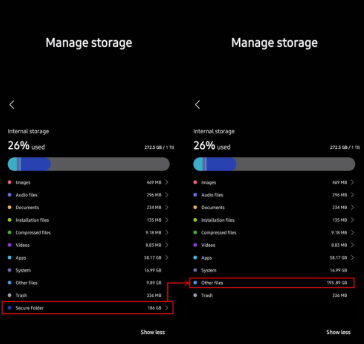
How to Free Up Storage Space
The A55 starts at 128GB or 256GB of internal storage, but high‑resolution photos and 4K videos fill it fast. The microSD slot (up to 1TB) is a lifesaver.
Move files to SD card
Go to Settings > Device care > Storage > Advanced > SD card. You can set the camera to save directly to the SD card: open Camera app > Settings > Storage location > SD card.
Clean junk files
In Device care > Storage, tap the broom icon. It scans for cached files, residual APKs, and temporary data. Confirm and delete. This can reclaim several gigabytes.
Uninstall unused apps
In the same storage menu, tap “Apps.” You’ll see a list sorted by size. Delete apps you haven’t opened in a month. You can always reinstall them later.
Customizing the Home Screen and Theme
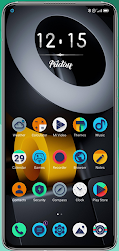
Long‑press an empty area of the home screen to open the customization menu.
- Wallpapers: Choose from Samsung’s library, your Gallery, or dynamic lock screen (changes each time you wake the phone).
- Themes: Tap “Themes” to browse the Galaxy Theme Store. Free themes change icons, wallpapers, and system colours in one tap. The “Night” themes save battery on the AMOLED screen.
- Widgets: Add calendar, weather, battery, and Samsung Health widgets directly to your home screen. The new “Smart Suggestion” widget predicts which apps you need based on time and location.
- Folder style : Long‑press a folder on the home screen and tap the colour dot to change its background. You can make folders transparent for a cleaner look.
Using Bixby and Google Assistant
The A55 supports both Bixby and Google Assistant. You can choose which one responds to the side key.
Change the side key
Settings > Advanced features > Side key. Set double press to “Quick launch camera” and long press to “Power off menu.” If you prefer a voice assistant on long press, choose “Bixby” or “Google Assistant.”
Voice wake‑up
“Hi Bixby” and “Hey Google” are both available. Enable them in their respective apps. Using voice commands, you can set alarms, open apps, send messages, and control smart home devices hands‑free.
Bixby Routines integration
Bixby can trigger your Modes and Routines. Say “Bixby, I’m going to bed,” and it can switch on Do Not Disturb, lower brightness, and set an alarm. You create the routine once in Modes and Routines, then assign it to a Bixby voice command.
Quick Reference Card
| Action | How |
|---|---|
| Take screenshot | Volume Down + Power |
| Take extended screenshot | After capturing, tap the scrolling arrows icon |
| Open camera quickly | Double‑press Power button |
| Force restart | Hold Power + Volume Down ~12 seconds |
| Enter Recovery Mode | Power off, then hold Volume Up + Power while connecting USB to PC |
| Open Secure Folder | Add shortcut from Settings or Quick Settings |
| Split screen | Open recent apps, tap app icon > Open in split screen view |
| One‑handed mode | Swipe down on the gesture bar at bottom, or double‑tap Home button if using buttons |
Download the Samsung Galaxy A55 Cheat Sheet
A one‑page PDF with every button combo, camera shortcut, battery tip, and troubleshooting step. Save it to your phone or print it — it’s there when the internet isn’t.
“Samsung A55 Quick Guide (PDF)”
Official Samsung Support Page
For warranty info, service requests, and Samsung’s own digital manual, visit:
https://www.samsung.com/support/model/SM-A556E/
Final Word
The Galaxy A55 is packed with features that Samsung’s tiny Quick Start Guide never mentions. This manual hands you the real‑world knowledge to master your phone, from the camera’s hidden pro tools to the battery tweaks that genuinely deliver a second day of use. Bookmark it, share it, and come back whenever One UI does something you don’t expect.
Wishing you sharp photos, smooth scrolling, and a battery that outlasts your day.
Copyright Warning!
© 2026 producrsmanuals.com All Rights Reserved.
Samsung, Galaxy, One UI, and the Samsung logo are trademarks of Samsung Electronics. This guide is unofficial and not affiliated with or endorsed by Samsung. Any part of this manual cannot be copied or recreate.

[…] Samsung Galaxy A55 – Setup, Camera & Troubleshooting Manual Master your mid‑range Samsung phone with hidden features and battery tips. […]