
Before You Press Play
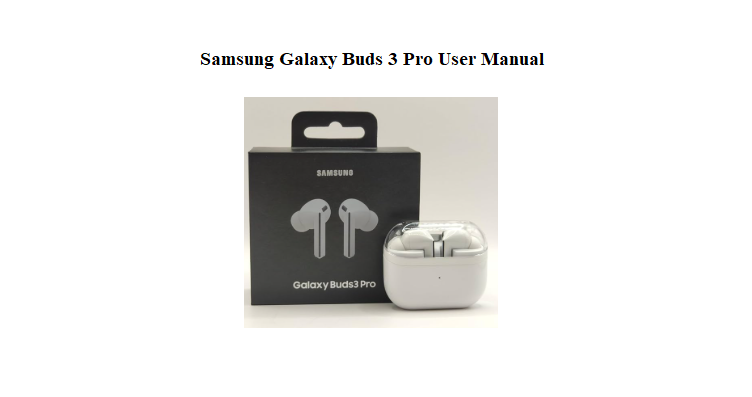
Samsung ships the Galaxy Buds 3 Pro with a charging case, ear tips, a USB‑C cable, and a thin warranty booklet. The real user guide is a downloadable PDF, and it skips over the everyday questions people actually type into Google. This companion answers those questions in plain language. It covers the blade light controls, the adaptive noise cancellation, pairing across devices, battery management, and what to do when one earbud goes silent.
What You’ll Find Inside the Box
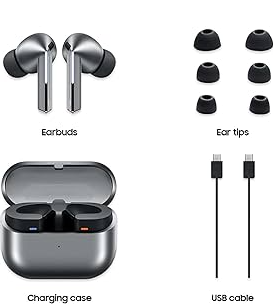
Your package includes:
- Left and right Galaxy Buds 3 Pro earbuds
- A wireless charging case with LED indicator
- A short USB‑C charging cable
- Three pairs of silicone ear tips (small, medium, large — medium pre‑installed)
- A quick‑start guide and warranty card
Peel off the protective stickers from the earbud contacts before placing them in the case. Close the lid for a few seconds, then open it to wake them up and begin pairing.
Understanding the Blade Light Controls
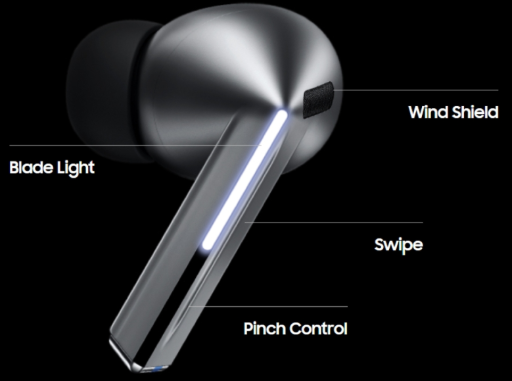
The Buds 3 Pro use a stem design with illuminated blades. The lights aren’t just for looks — they communicate status and can be customized.
Default touch gestures on the stem:
- Single pinch: Play / Pause
- Double pinch: Next track
- Triple pinch: Previous track
- Pinch and hold: Switch between Active Noise Cancelling and Ambient Sound
- Swipe up or down the blade: Volume up / down
Blade light meanings:
- Solid white: Earbuds are connected
- Blinking white: Pairing mode
- Blinking red: Battery critically low
- Pulsing blue: In‑ear detection or call active
You can customize the pinch‑and‑hold function and adjust the blade light brightness in the Galaxy Wearable app under Earbud settings > Blade light.
Pairing with Your Phone, Tablet, or Laptop
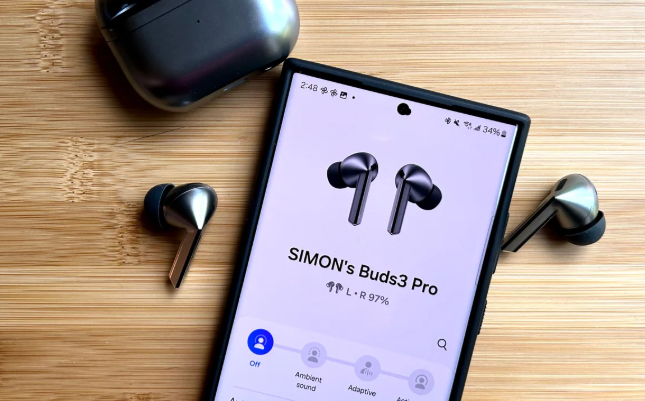
Pairing with a Samsung Galaxy phone:
- Open the charging case lid (earbuds inside). The LED will blink white.
- A pop‑up appears on your Galaxy phone. Tap “Connect.”
- The Galaxy Wearable app will open automatically. Follow the prompts to complete setup.
- Sign into your Samsung account to enable Find My Earbuds and SmartThings Find.
Pairing with a non‑Samsung Android phone or iPhone:
- Open the case lid.
- On your phone, go to Bluetooth settings and select “Galaxy Buds3 Pro.”
- Download the Galaxy Wearable app from the Play Store or App Store for full control.
- Some features (like 360 Audio and seamless switching) work best with a Samsung device.
Pairing with a Windows PC or Mac:
- Open the case lid and put the earbuds in pairing mode by pressing and holding both touch areas for 3 seconds until the blade lights blink white.
- On your PC, open Bluetooth settings and select “Galaxy Buds3 Pro.”
Seamless switching (Samsung devices only):
When signed into the same Samsung account on a Galaxy phone and tablet, the Buds 3 Pro automatically switch between them when a call comes in or media starts playing on the other device. No manual reconnection needed.
Active Noise Cancelling and Sound Features
Active Noise Cancelling (ANC):
- High: Maximum noise blocking. Ideal for commuting, loud offices, and flights.
- Medium: Balanced for everyday use.
- Low: Light reduction, suitable for quiet environments.
- Adaptive: The earbuds analyze your surroundings and adjust ANC level automatically. This is the default mode.
Ambient Sound:
- Lets outside sound in so you can hear traffic, announcements, and conversations. You can adjust the level of amplification in the Wearable app.
- Voice Detect: When you start speaking, the earbuds automatically lower media volume and activate Ambient Sound. When you stop talking, the music resumes after a few seconds. Toggle this in Earbud settings > Voice Detect.
360 Audio:
- Samsung’s spatial audio technology. It creates a surround‑sound effect that moves with your head. Enable it in the Wearable app under Earbud settings > 360 Audio. Works best with Dolby Atmos content.
Equalizer presets:
-
The Wearable app offers several EQ presets: Normal, Bass Boost, Soft, Dynamic, Clear, and Treble Boost. You can also create a custom EQ. Dynamic is the most popular for all‑around listening.
Battery Life and Charging Habits
- Earbuds: Up to 6 hours with ANC on, up to 8 hours with ANC off.
- Total with case: Up to 26 hours of additional charge.
- Quick charge: 10 minutes of charging gives about 1.5 hours of playback.
- Charging options: USB‑C port on the back of the case, or place on any Qi‑compatible wireless charging pad.
Checking battery level:
- The LED on the case shows green (above 60%), yellow (30–60%), or red (below 30%).
- In the Wearable app, the home screen displays exact percentages for each earbud and the case.
- On a Samsung phone, the battery widget shows the Buds alongside other connected devices.
Battery care tips:
- If you won’t use the Buds for weeks, charge the case to about 50% and store it in a cool, dry place.
- Avoid fully draining the battery repeatedly; lithium‑ion cells last longest when kept between 20% and 80%.
How to Reset, Reboot, and Re‑Pair
Soft restart (quick fix):
Place both earbuds in the case, close the lid, and wait 30 seconds. Open the lid and remove the earbuds. This resolves minor connection drops and sync glitches.
Factory reset (clear all pairings):
- On your phone, open the Galaxy Wearable app.
- Tap Earbud settings > Reset.
- Confirm. The earbuds will restart and forget all previously paired devices. Re‑pair them as if new.
Factory reset without the app (manual method):
- Place both earbuds in the charging case and close the lid.
- Wait at least 7 seconds.
- Open the lid, then press and hold both touch areas on the earbuds simultaneously for about 7 seconds until the blade lights blink red, then white.
- Close the lid and re‑open. The earbuds are now in pairing mode and ready to connect.
Troubleshooting the Most Common Issues
| Problem | Likely Cause | What to Do |
|---|---|---|
| One earbud is silent | Connection sync or dirt on contacts | Place both in the case, close lid 30 seconds, remove. Wipe the metal charging contacts on the earbud and inside the case with a dry cloth. |
| Bluetooth keeps dropping | Interference or low battery | Keep your phone within 10 metres. Charge the case. Turn off Bluetooth on unused nearby devices. |
| ANC not blocking enough noise | Poor ear tip seal | Try a different ear tip size. Run the “Earbud fit test” in the Wearable app under Earbud settings. |
| Touch controls unresponsive | Wet fingers or dirty blade surface | Wipe the blade area with a dry cloth. Ensure your fingers are dry. |
| Earbuds not charging | Dirty contacts or case battery dead | Clean the contacts with a dry cotton swab. Charge the case with the USB‑C cable for at least 15 minutes. |
| Voice Detect triggers too easily | Sensitivity set too high | In the Wearable app, go to Earbud settings > Voice Detect and lower the sensitivity. |
| Audio lag during video | Bluetooth latency | Most apps auto‑sync. If not, disconnect and reconnect. Use Game Mode (in Earbud settings > Advanced) for lowest latency during gaming. |
Cleaning Your Earbuds Safely
- Wipe the exterior of each earbud with a soft, dry cloth. Do not use alcohol, soap, or abrasive cleaners.
- Remove the silicone ear tips and rinse them with water only. Dry completely before reattaching.
- Use a dry cotton swab to gently clean the charging contacts inside the case. Dirt on these pins is a leading cause of charging failures.
- Never insert anything sharp into the speaker grille or microphone openings.
Quick Reference Card
| Task | Gesture or Action |
|---|---|
| Play / Pause | Single pinch the stem |
| Next track | Double pinch the stem |
| Previous track | Triple pinch the stem |
| Switch ANC / Ambient | Pinch and hold the stem |
| Volume up | Swipe up on the blade |
| Volume down | Swipe down on the blade |
| Answer call | Single pinch during a call |
| Factory reset (manual) | Earbuds in case, open lid, hold both touch areas 7 seconds |
| Enter pairing mode | Open case lid, LED blinks white |

[…] ships the Galaxy Buds 2 Pro with a USB‑C cable, extra ear tips, and a small Quick‑Start leaflet. There’s no printed […]